Chrome on desktop and Android has Safety check built-in that alerts about compromised passwords, bad extensions, and harmful software when you run it from Settings. Chrome already supports detecting weak passwords saved to the browser, Google now expanding that to Safety check as well.
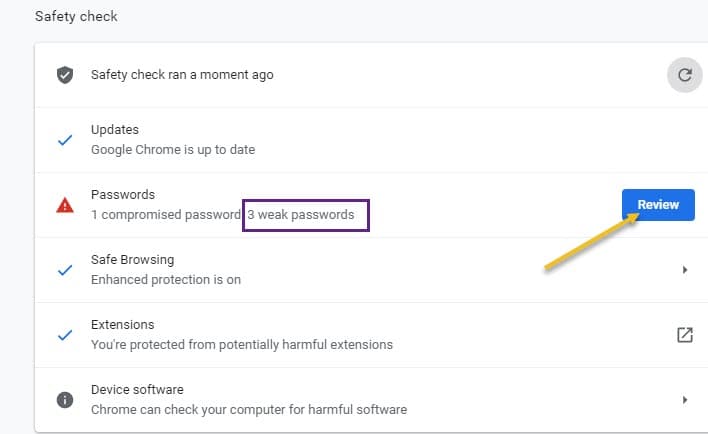
For the uninitiated, here is how you can find weak passwords using Chrome
- Launch Chrome:browser
- visit chrome://flags page
- Search for “weakness Password check”
- Click on drop down and select Enabled
- Relaunch browser
- Visit Chrome://settings/passwords,
- Click on Check passwords and check the results.
Including to compromised passwords, Chrome displays the weak passwords which you can change by clicking the “change password” buttons for each affected one.
Chrome Safety check gets Weak Passwords Scanning option
- Launch Chrome browser
- Enable these two flags: “Safety check for weak passwords” and Passwords weakness check”
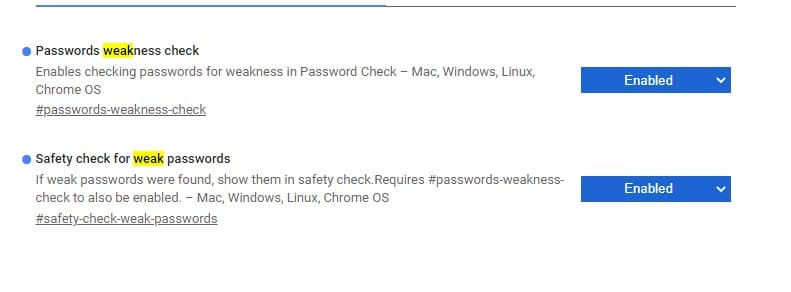
- Restart the browser
Enabling the first flag makes Chrome to display weak passwords in Safety check after running .
The feature is already working Chrome Canary 89 when the above flag is enabled
- Click on three-dot icon and select Settings
- Click on Safety check
- Click on “check now”
- When weak passwords are found, Safety check informs about that and shows a “Review” button. Clicking the Review button takes to chrome://settings/passwords/check where you can have a look and change the affected passwords.

So in addition to compromised passwords, Chrome Safety check can now scan for Weak passwords as well. This will be definitely useful to users
What do you say? Let us know in the comments below.
Related articles:
Here’s how to Update Extensions in Chrome and Microsoft Edge
Chrome Canary on Android lets you Take Screenshots in Incognito Mode
How to Enable and use ‘Chrome Actions’ in Chrome 87 right now
Chrome to Show web pages Performance metrics w/o Web Vitals Extension
Chrome to Use PartitionAlloc instead of Segment Heap for Memory Savings
