Mouse Keys turns the numeric keypad into a mouse in Windows 11 and Windows 10: press Left Alt + Left Shift + Num Lock to switch it on, then use 5 to click, – then 5 to right-click, and + to double-click.
This guide covers turning Mouse Keys on from Settings, every key for moving, clicking and dragging, right-clicking without Mouse Keys, the speed options, and fixes when the keypad stops moving the pointer.
How to enable and use Mouse Keys in Windows
Prerequisites: a keyboard with a numeric keypad, because Mouse Keys does not use the number row above the letters.
The shortcut is the fastest route because it works even when you have no working mouse to open Settings.
- Press Left Alt + Left Shift + Num Lock together to turn Mouse Keys on.
- Press 8, 2, 4 and 6 on the numeric keypad to move the pointer up, down, left and right.
- Point at an item and press 5 to click it.
- Press the same Left Alt + Left Shift + Num Lock shortcut again to turn Mouse Keys off.
If the shortcut does nothing, turn Mouse Keys on from Settings as shown in the next section.
Turn on Mouse Keys in Windows 11 and Windows 10 Settings
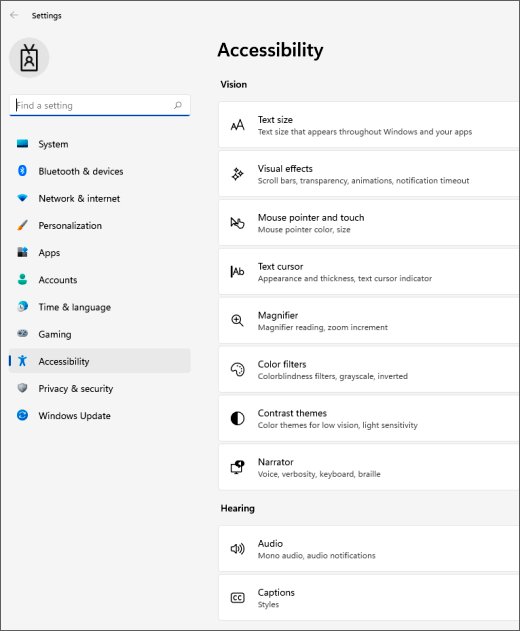
Press Windows + U to jump straight to the accessibility settings on either version. With no mouse, press Tab to move between items and Spacebar to flip the toggle.
| Windows version | Path | Toggle to turn on |
|---|---|---|
| Windows 11 | Start > Settings > Accessibility > Mouse (under Interaction) | Mouse keys |
| Windows 10 | Start > Settings > Ease of Access > Mouse | The toggle under Control your mouse with a keypad |
Turn Mouse Keys on or off in Control Panel
Control Panel's Ease of Access Center still has the older Mouse Keys page, and it is also where you stop the keyboard shortcut from switching Mouse Keys on by accident.
- Press Windows + R, type
control /name Microsoft.EaseOfAccessCenter /page pageEasierToClickand press Enter to open Make the mouse easier to use directly. - Or press Windows + R, type
control, press Enter, then select Ease of Access Center > Make the mouse easier to use. - Under Control the mouse with the keyboard, check Turn on Mouse Keys to switch it on, or clear it to switch it off.
- Select Set up Mouse Keys for more options.
- Under Keyboard shortcut, clear Turn on Mouse Keys with left ALT + left SHIFT + NUM LOCK if the shortcut keeps turning Mouse Keys on.
- Select OK, then OK again to save.
How to use your keyboard as a mouse with Mouse Keys
Every Mouse Keys action uses the numeric keypad. The number keys move the pointer; the keys around them choose a button and click.
| To do this | Press on the numeric keypad |
|---|---|
| Move up and to the left | 7 |
| Move up | 8 |
| Move up and to the right | 9 |
| Move left | 4 |
| Move right | 6 |
| Move down and to the left | 1 |
| Move down | 2 |
| Move down and to the right | 3 |
| Make the left button active | / (forward slash) |
| Make both buttons active | \* (asterisk) |
| Make the right button active | – (minus) |
| Click with the active button | 5 |
| Double-click (left button active) | + (plus) |
| Start dragging an item | 0 (zero) |
| Drop the dragged item | . (decimal point) |
The active button stays active until you pick another one, so you only press / or – when you want to switch.
Dragging items using Mouse keys takes two presses: point at the item and press 0 to hold the active button, move the pointer to the new spot, then press . to release it.
How do you right-click using the keyboard?
There are two ways. Shift + F10 opens the context menu for the selected item without Mouse Keys. With Mouse Keys on, you can right-click whatever sits under the pointer.
- To right-click a selected file or item, press Shift + F10 to open its context menu.
- To right-click the active window itself, press Alt + Spacebar to open its window menu.
- To right-click anything under the pointer, turn on Mouse Keys and move the pointer onto it.
- Press – (minus) on the numeric keypad to make the right button active.
- Press 5 to right-click.
- Press / (forward slash) when you are done, so 5 goes back to a normal left click.
Which button is “double-click” on a keyboard?
With Mouse Keys on, the + key on the numeric keypad is the double-click button. It double-clicks with the left button, so press / first if you last used the right button.
| Situation | Key that double-clicks or opens the item | Notes |
|---|---|---|
| Mouse Keys on, left button active | + on the numeric keypad | Point at the item first |
| Mouse Keys on, right button active | Press /, then + | + double-clicks with the left button |
| No Mouse Keys, in the Settings app | Enter or Spacebar | Selects the item that has focus |
| No Mouse Keys, in File Explorer | Alt + Enter for properties | Use the arrow keys to select the file first |
Mouse keys settings: speed, Num Lock and Ctrl or Shift options
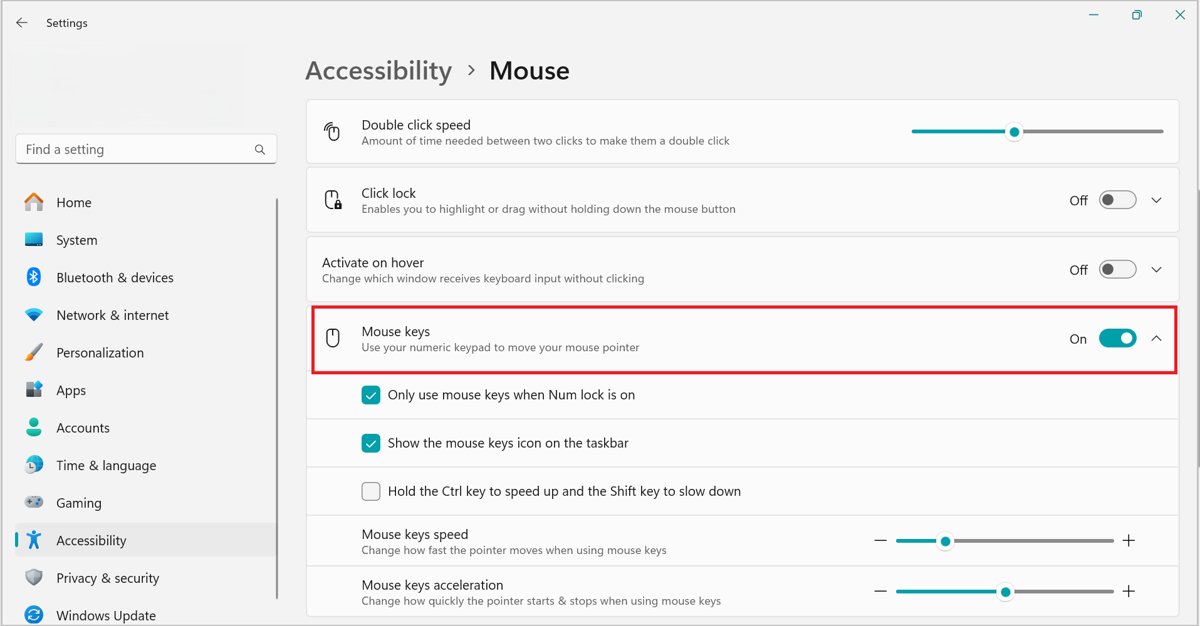
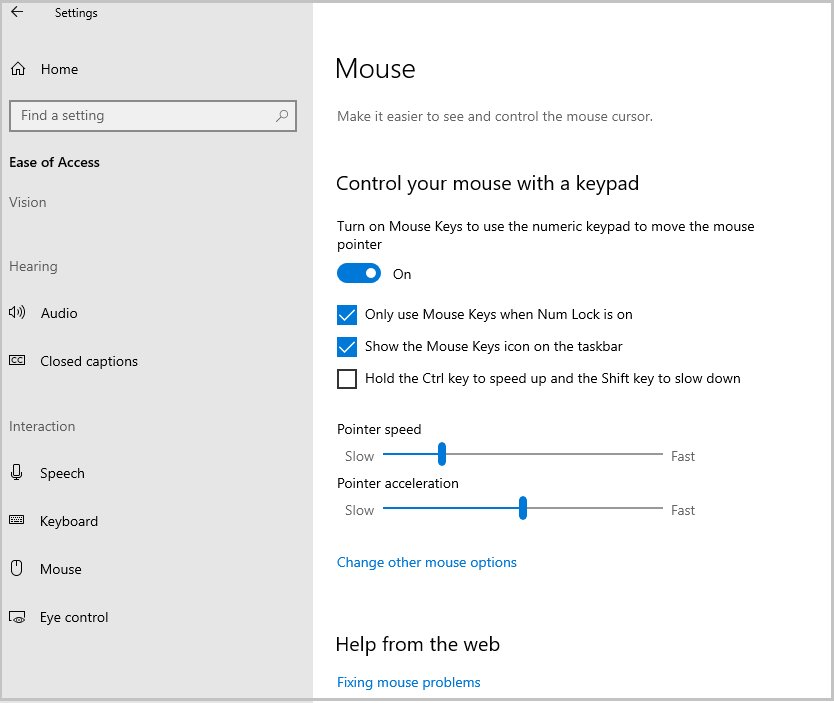
Open the same Mouse page in Settings to configure your preferences for how Mouse Keys behaves. On Windows 11, the speed options sit under Mouse keys speed.
| Option (Windows 11 label) | Windows 10 label | What it does |
|---|---|---|
| Only use mouse keys when Num lock is on | Same label | Mouse Keys works only while Num Lock is on, so you can type numbers with Num Lock off |
| Show the mouse keys icon on the taskbar | Same label | Shows an icon so you can see Mouse Keys is running |
| Hold the Ctrl key to speed up and the Shift key to slow down | Same label | Hold Ctrl for long moves and Shift for fine positioning |
| Mouse keys speed | Pointer speed | Sets how fast the pointer travels |
| Mouse keys acceleration | Pointer acceleration | Sets how quickly the pointer reaches full speed |
Can I use my keyboard as a mouse?
Yes. Mouse Keys is built into Windows 11 and Windows 10 and lets the numeric keypad move the pointer, click, right-click, double-click and drag, with no extra software. It needs a numeric keypad, because every Mouse Keys action is mapped to keypad keys. On a laptop without one, use a full-size keyboard or an external numeric keypad, or rely on keyboard shortcuts such as Shift + F10 and Tab for most tasks.
How to check that Mouse Keys is on
- Press 8 on the numeric keypad and watch whether the pointer moves up.
- Look for the Mouse Keys icon on the taskbar if Show the mouse keys icon on the taskbar is turned on.
- Press Windows + U, open Mouse, and confirm the Mouse keys toggle shows On.
- Point at a desktop icon and press 5; the icon should become selected.
Mouse keys not working: fixes
Mouse keys not working when you press the number keys
Num Lock is off while Only use mouse keys when Num lock is on is turned on, or Mouse Keys is off.
- Press Num Lock once and try 8 again.
- Press Windows + U, open Mouse, and check the Mouse keys toggle is on.
- Turn off Only use mouse keys when Num lock is on if you want Mouse Keys regardless of Num Lock.
- Use the number keys on the numeric keypad, not the number row above the letters.
Mouse keys right clicking instead of left clicking
The right button is the active button because – was pressed earlier.
- Press / (forward slash) on the numeric keypad to make the left button active.
- Press 5 to confirm it now left-clicks.
Pointer moves too slowly, overshoots or is hard to control precisely
The speed and acceleration sliders do not suit the screen size.
- Open the Mouse page in accessibility settings.
- Adjust Mouse keys speed and Mouse keys acceleration (Windows 10: Pointer speed and Pointer acceleration).
- Turn on Hold the Ctrl key to speed up and the Shift key to slow down for finer control.
Pointer is hard to see while using Mouse Keys
The default pointer is small for the screen or blends into the background.
- Press Windows + U and open Mouse pointer and touch.
- Pick a higher-contrast Mouse pointer style and raise the Size slider.
Keyboard and mouse not working, lagging or freezing
A loose connection, a flat battery, a wireless receiver problem or an outdated driver.
- Unplug the USB cable or receiver, wait about 10 seconds, and plug it into a different USB port.
- Charge or replace the batteries in wireless devices.
- Press the Reset button on the wireless device or receiver if it has one.
- Search for Check for updates, open it and select Check for updates to get driver updates.
- In Device Manager, double-click the device, open the Driver tab and select Update Driver.
- For a Microsoft mouse or keyboard, install Microsoft Mouse and Keyboard Center to manage its buttons.
Windows Mouse Keys FAQ
What are Mouse Keys?
Mouse Keys is a Windows accessibility feature that lets you use the numeric keypad instead of a mouse. The number keys move the pointer, 5 clicks, plus double-clicks, and 0 and the decimal point drag and drop items.
How do Mouse Keys work?
Once Mouse Keys is on, the keys 1 to 9 around 5 move the pointer in eight directions. You choose the active button with forward slash (left), minus (right) or asterisk (both), then press 5 to click with it.
What is the Mouse Keys shortcut?
Press Left Alt + Left Shift + Num Lock to turn Mouse Keys on or off in Windows 11 and Windows 10. Use the Alt and Shift keys on the left side of the keyboard.
Where is the mouse key on a keyboard?
There is no single mouse key. Mouse Keys uses the numeric keypad on the right of a full-size keyboard, with 5 as the click key and the surrounding number keys for movement.
Can I use Mouse Keys without a numpad?
Mouse Keys is mapped to the numeric keypad, so the number row above the letters does not move the pointer. On a laptop without a keypad, connect a full-size keyboard or an external numeric keypad.
How do I disable Mouse Keys?
Press Left Alt + Left Shift + Num Lock again, or open Settings > Accessibility > Mouse on Windows 11 and turn off the Mouse keys toggle. On Windows 10 the toggle is under Ease of Access > Mouse.
Why is Mouse Keys right clicking?
The right mouse button is set as the active button, usually after pressing the minus key. Press forward slash on the numeric keypad to make the left button active again, and 5 will left-click.
Why is Mouse Keys not working?
Most often Num Lock is off while the option to use Mouse Keys only with Num Lock on is enabled. Press Num Lock, confirm the Mouse keys toggle is on in Settings, and use the keypad numbers, not the top number row.
How do I use keys to copy and paste?
Select the text or file, press Ctrl + C to copy or Ctrl + X to cut, then move to the destination and press Ctrl + V to paste. These shortcuts work alongside Mouse Keys.
Bottom line on clicking with the keyboard in Windows
Use Shift + F10 for quick right-clicks on a selected item, and turn on Mouse Keys with Left Alt + Left Shift + Num Lock when you need to point and click anywhere on screen without a mouse. Shift + F10 needs no setup, while Mouse Keys gives full pointer control from the numeric keypad, including double-click and drag, once you learn the five control keys around it.

![[Fix] Microsoft Software Protection Platform (sppsvc) high CPU usage](https://techdows.com/wp-content/uploads/2026/10/Fix-Microsoft-Software-Protection-Platform-sppsvc-high-CPU-usage-600x338.jpg)