csrss.exe is the Client Server Runtime Subsystem, the user-mode process that controls the underlying layer of the Windows environment, and the genuine file is a safe, critical part of Windows 11 and Windows 10.
This guide explains what csrss.exe does, why more than one copy runs, why you cannot end it, and how to tell the real process from malware that borrows its name.
Is csrss.exe safe? The short answer
Leave csrss.exe alone: the copy that Windows starts from %SystemRoot%\System32\csrss.exe is a genuine Microsoft system process, and Windows stops with a blue screen if it is terminated. Microsoft lists csrss.exe among the built-in critical system processes, alongside wininit.exe, smss.exe, services.exe and winlogon.exe. Only a file named csrss.exe stored somewhere else, or one that Windows Security flags, needs action.
What is Client Server Runtime or csrss.exe process
Microsoft documents CSRSS as the Client Server Run-Time Subsystem. It is the user-mode half of the Win32 subsystem that every desktop program relies on, so it starts with Windows and runs until shutdown.
| Question | Answer |
|---|---|
| Full name | Client Server Run-Time Subsystem (CSRSS), often called the Client Server Runtime process |
| File location | %SystemRoot%\System32\csrss.exe, which is C:\Windows\System32 on a standard install |
| What starts it | The Session Manager (smss.exe), using the Windows value under HKEY_LOCAL_MACHINE\SYSTEM\CurrentControlSet\Control\Session Manager\SubSystems |
| What it does | Controls the underlying layer of the Windows environment for desktop programs |
| Protection level | A protected process since Windows 10; it can only be debugged in kernel mode |
| Critical process? | Yes. Ending it triggers bug check 0xEF CRITICAL_PROCESS_DIED |
| Can updates restart it? | No. Files it uses can only be replaced with a full system restart |
It runs alongside other background processes such as the conhost.exe console host, and you never launch it yourself.
Why are two csrss.exe processes running in Task Manager?
Seeing two or more csrss.exe entries is normal. Windows separates background services from signed-in users by session, and each session gets its own copy of the Win32 subsystem process.
| csrss.exe instance | Session | What it serves |
|---|---|---|
| First copy | Session 0 | The isolated session where background services run |
| Second copy | Session 1 | The first user who signs in at the console |
| Additional copies | Session 2 and higher | Each extra user session, such as a second signed-in account or a Remote Desktop session |
Microsoft's kernel debugger example shows exactly this layout: one csrss.exe with SessionId 0 and a second with SessionId 1. A count that matches your number of signed-in sessions plus one is expected.
Can you disable or terminate the csrss.exe process?
No. Do not try to end csrss.exe in Task Manager or with taskkill, and do not delete or rename the file in System32. csrss.exe is a critical process, so Windows treats its termination as a sign that system integrity is gone and stops with bug check 0xEF CRITICAL_PROCESS_DIED. You lose any unsaved work, and a missing file can stop Windows from starting at all. There is no service or setting that disables it.
When should you worry about csrss.exe?
Most of the time csrss.exe needs no attention. Use the signs below to decide whether you should be concerned and what to do next.
| What you see | Concern level | What to do |
|---|---|---|
| One csrss.exe per session, running from C:\Windows\System32 | None | Leave it alone; this is the genuine Windows process |
| A csrss.exe file in Downloads, Documents, AppData or another user folder | High | Scan it with Microsoft Defender and run a full scan |
| Windows Security flags a file named csrss.exe | High | Remove it with a full scan and a Microsoft Defender Offline scan |
| csrss.exe keeps using a lot of CPU or GPU | Medium | Check its location, run System File Checker, then use a clean boot to find the program behind it |
| Blue screen with CRITICAL_PROCESS_DIED | Medium | Run System File Checker to repair damaged system files |
How to check if csrss.exe is a virus or trojan
Malware sometimes copies the csrss.exe name to blend in with real system processes. To determine whether csrss.exe is legitimate, check where the file lives: the genuine process runs from System32, while an imposter usually hides in a user folder.
- Open File Explorer and select This PC.
- Type csrss.exe in the search box and wait for the results to finish.
- Note the folder of each result. The file in C:\Windows\System32 belongs to Windows.
- Right-click any csrss.exe stored in a user folder such as Downloads, Documents or AppData.
- Select Show more options, then Scan with Microsoft Defender.
- Read the result on the Scan options page. If Defender reports a threat, follow the removal steps in the next section.
How to remove a csrss.exe trojan
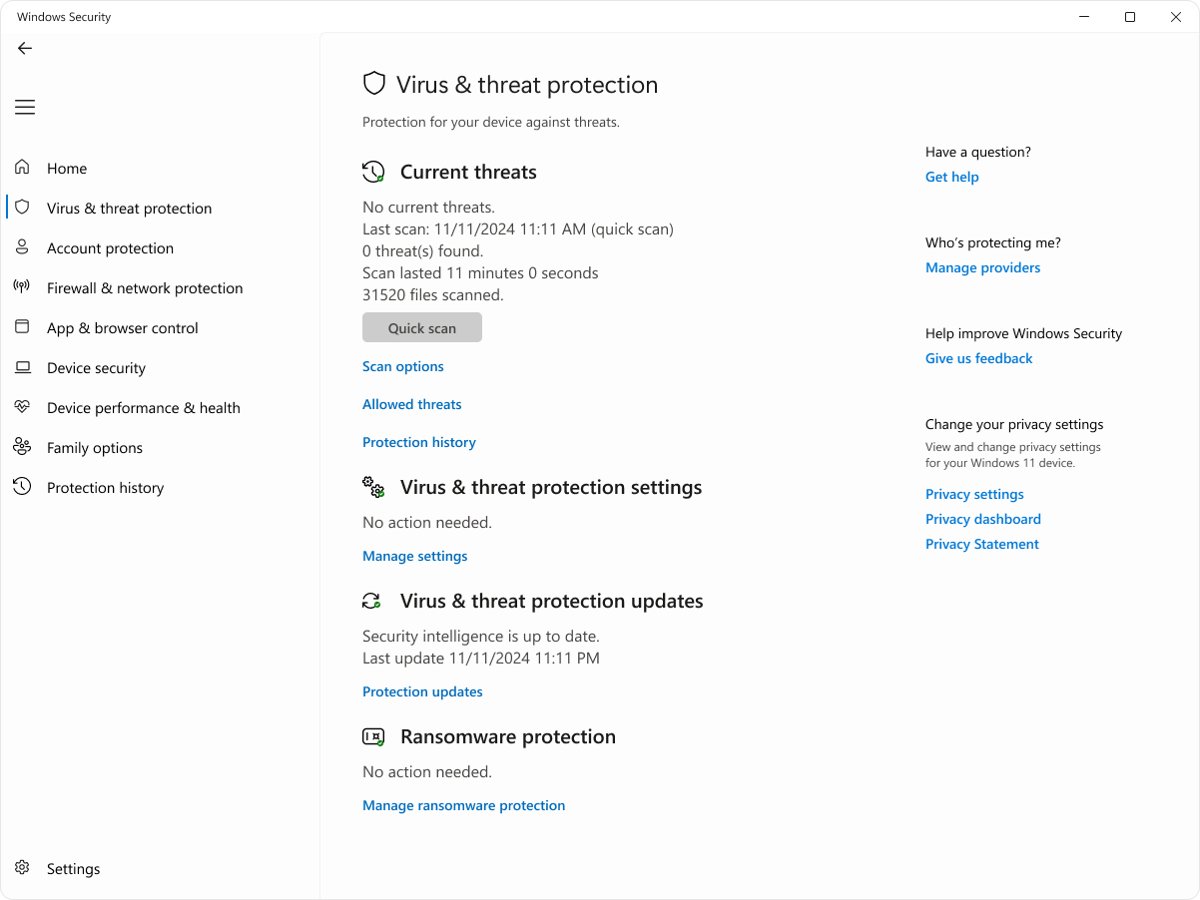
Removing a csrss.exe trojan means removing the fake file, never the real one. Let a Microsoft Defender full scan handle it, because deleting files by hand can leave the infection's other parts behind.
- Open the Windows Security app and select Virus & threat protection.
- Select Scan options, choose Full scan, and select Scan now.
- When the scan finishes, act on each threat it lists so Defender quarantines or removes it.
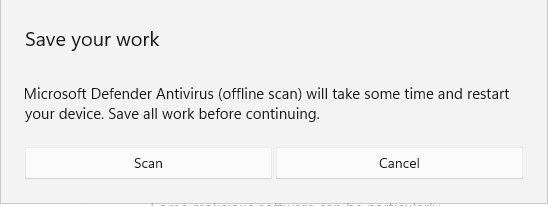
- Save your work, return to Scan options, select Microsoft Defender Offline scan, and select Scan now.
- Wait while the PC restarts and scans outside Windows. The offline scan takes about 15 minutes, then Windows loads normally.
- Open Windows Security again and select Protection history to review what was found and removed.
The offline scan runs from outside the normal Windows kernel, so it can catch malware that hides while Windows is running. If BitLocker protects your system drive, suspend it first, or Windows may ask for the recovery key during the restart.
Repair a damaged csrss.exe file with System File Checker
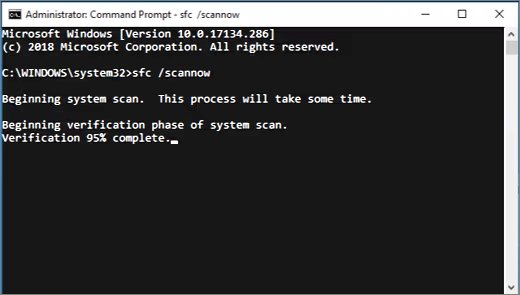
If csrss.exe is damaged rather than infected, for example after a crash that named it, System File Checker restores the original Microsoft copy. Run it from an elevated Command Prompt or Terminal.
sfc /scannowScans every protected Windows system file, including csrss.exe, and replaces any missing or corrupted file with a clean copy.
You should see: The scan reaches 100% and reports either that no integrity problems were found or that corrupted files were repaired. Restart the PC afterwards.
Why csrss.exe uses excessive CPU or GPU
Because csrss.exe serves the desktop programs in its session, sustained CPU or GPU load is worth tracing. Rule out an imposter first, then a damaged system file, then a third-party program running in the background.
High CPU or GPU from a csrss.exe outside System32
Malware using the csrss.exe name
- Press Ctrl + Shift + Esc to open Task Manager and select the Details tab.
- Right-click the busy csrss.exe entry and select Open file location. If the folder is not C:\Windows\System32, run the Microsoft Defender scans above.
High CPU or GPU from the csrss.exe in System32
A damaged system file
- If the file is in System32, run sfc /scannow from an elevated Command Prompt and restart the PC.
High CPU or GPU continues after System File Checker
A third-party program or service running in the background
- If the load continues, sign in as an administrator, select Search, type msconfig and open System Configuration.
- On the Services tab, select Hide all Microsoft services, select Disable all, then select Apply.
- On the Startup tab, select Open Task Manager, disable each enabled item on the Startup apps tab, and note which ones you disabled.
- Close Task Manager, select OK in System Configuration and restart the PC into a clean boot.
- If csrss.exe usage is normal in the clean boot, turn the disabled services and startup apps back on in small groups and restart each time until the load returns; the last group holds the program behind it.
When you finish, reverse the changes in System Configuration and Task Manager so Windows starts normally again. Some features may not work while the PC is in a clean boot.
How to confirm csrss.exe is genuine after a scan
- Restart the PC so every session starts fresh.
- Search This PC for csrss.exe again in File Explorer.
- Confirm that no copy remains in Downloads, Documents, AppData or any other user folder.
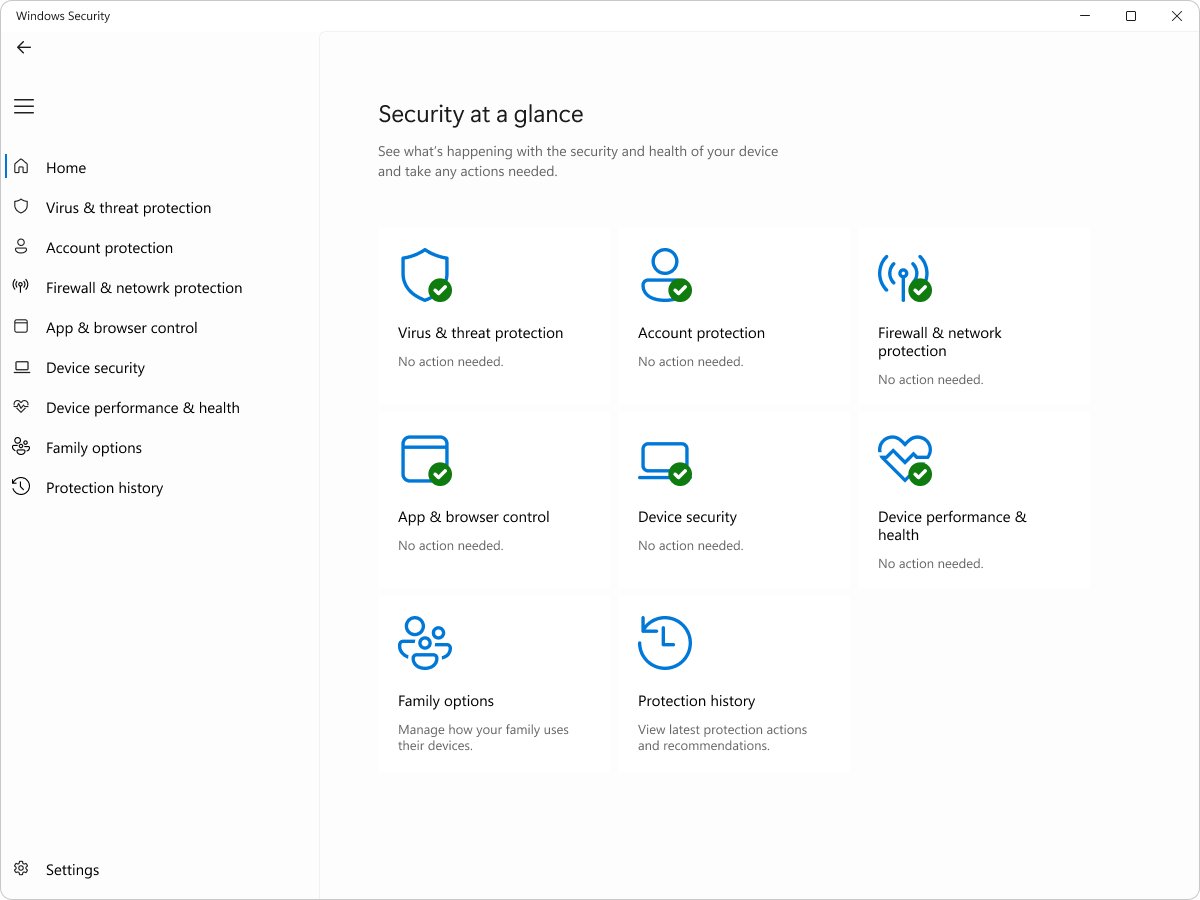
- Open Windows Security > Virus & threat protection and check that Current threats lists nothing.
- Open Task Manager and confirm the number of csrss.exe entries is one more than the number of signed-in sessions.
csrss.exe FAQ
What is the csrss.exe process?
csrss.exe is the Client Server Run-Time Subsystem, the user-mode process that controls the underlying layer of the Windows environment. Windows starts it automatically from System32 for every session, and it keeps running until you shut down the PC.
What is a csrss.exe file?
It is the executable for the Client Server Runtime process, stored at %SystemRoot%\System32\csrss.exe. The Session Manager starts it at boot using a registry value under Session Manager\SubSystems. A file with the same name in any other folder is not part of Windows.
What is csrss.exe used for?
csrss.exe runs the user-mode part of the Win32 subsystem that desktop programs depend on. Without it, Windows cannot run its normal desktop environment, which is why Microsoft classes it as a critical system process.
What does csrss.exe do?
It controls the underlying layer of the Windows environment for each session, one copy for background services in session 0 and one for each signed-in user. It works quietly in the background and needs no input from you.
Is csrss.exe a virus?
No. The genuine csrss.exe in C:\Windows\System32 is a Microsoft system file. Malware can borrow the name, so scan any csrss.exe stored in a user folder such as Downloads or AppData with Microsoft Defender.
What is a csrss.exe trojan file?
A csrss.exe trojan is malware that names itself csrss.exe to look like the real Windows process. It usually sits outside System32. Run a Microsoft Defender full scan and then an offline scan to remove it.
How do I remove csrss.exe?
Never remove the genuine csrss.exe from System32, because Windows cannot run without it. To remove a fake copy, run a full scan and a Microsoft Defender Offline scan from Windows Security, then review Protection history.
Do I need csrss.exe on my computer?
Yes. csrss.exe is required for Windows to run, and ending it triggers the CRITICAL_PROCESS_DIED blue screen. Updates to files it uses cannot be applied without restarting the PC.
Why do I have two csrss.exe files running in Task Manager?
Windows runs one csrss.exe per session. Session 0 holds background services and session 1 holds the first signed-in user, so two copies is the normal minimum. Each extra signed-in user or Remote Desktop session adds one more.

![7 best open-source PDF editors [Windows, Mac, Linux]](https://techdows.com/wp-content/uploads/2026/10/7-best-open-source-PDF-editors-Windows-Mac-Linux.jpg)


![[Fix] Microsoft Software Protection Platform (sppsvc) high CPU usage](https://techdows.com/wp-content/uploads/2026/10/Fix-Microsoft-Software-Protection-Platform-sppsvc-high-CPU-usage-600x338.jpg)