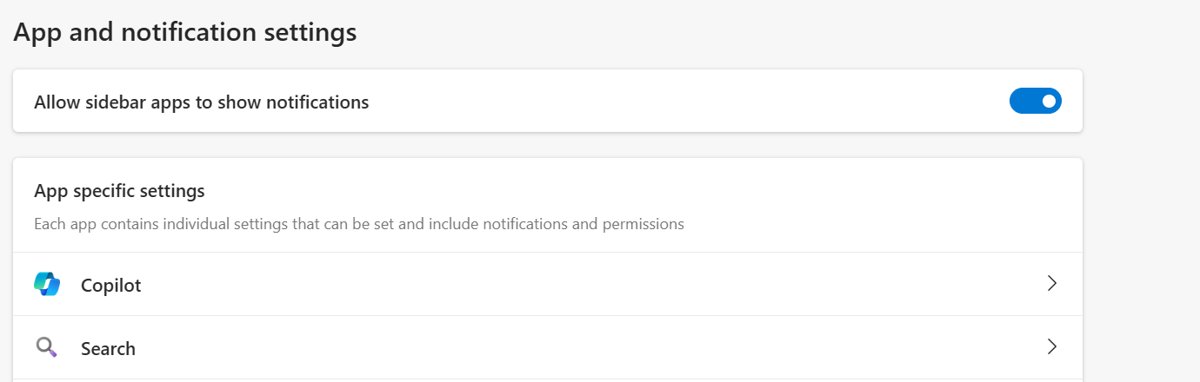
To show or hide the Copilot button in Microsoft Edge, go to edge://settings/appearance/copilotAndSidebar, select Copilot under App specific settings, and switch Show Copilot button on the toolbar on or off.
This guide also covers the Group Policy that controls the button on work PCs, the other Copilot settings worth changing, and what to do when the Copilot icon is missing.
How to show or hide the Copilot button
The Copilot button sits in the upper-right corner of the Edge toolbar. Its switch lives on the Copilot and sidebar settings page, and the change applies to the current profile only.
- Open Microsoft Edge.
- Type
edge://settings/appearance/copilotAndSidebarin the address bar and press Enter. - Under App specific settings, select Copilot.
- Turn off Show Copilot button on the toolbar to hide the button, or turn it on to show it.
- Look at the upper-right corner of the toolbar; the Copilot icon disappears or returns straight away.
If Copilot is not in the app list on that page, restart Edge and open the page again. Each Edge profile keeps its own setting, so repeat the steps in every profile where you want the change.
Where is Copilot in Microsoft Edge?
Copilot shows up in several places in Edge, and each one is controlled from a different spot. This table maps each location to the setting that controls it.
| Where you see Copilot | What it does | Where to control it |
|---|---|---|
| Copilot icon in the upper-right corner of the toolbar | Opens Copilot in the side pane next to the current page | edge://settings/appearance/copilotAndSidebar > Copilot > Show Copilot button on the toolbar |
| Copilot side pane | Answers questions and summarises the open page, video or PDF | Opened from the toolbar icon; page access is set under Copilot and AI |
| Copilot new tab page | Puts Copilot chat, search and web navigation on each new tab | Settings and more (…) > Copilot and AI > Copilot new tab page |
| Copilot entry in the sidebar | Lists Copilot with the other sidebar apps | edge://settings/appearance/copilotAndSidebar, where the sidebar must be set to Always on |
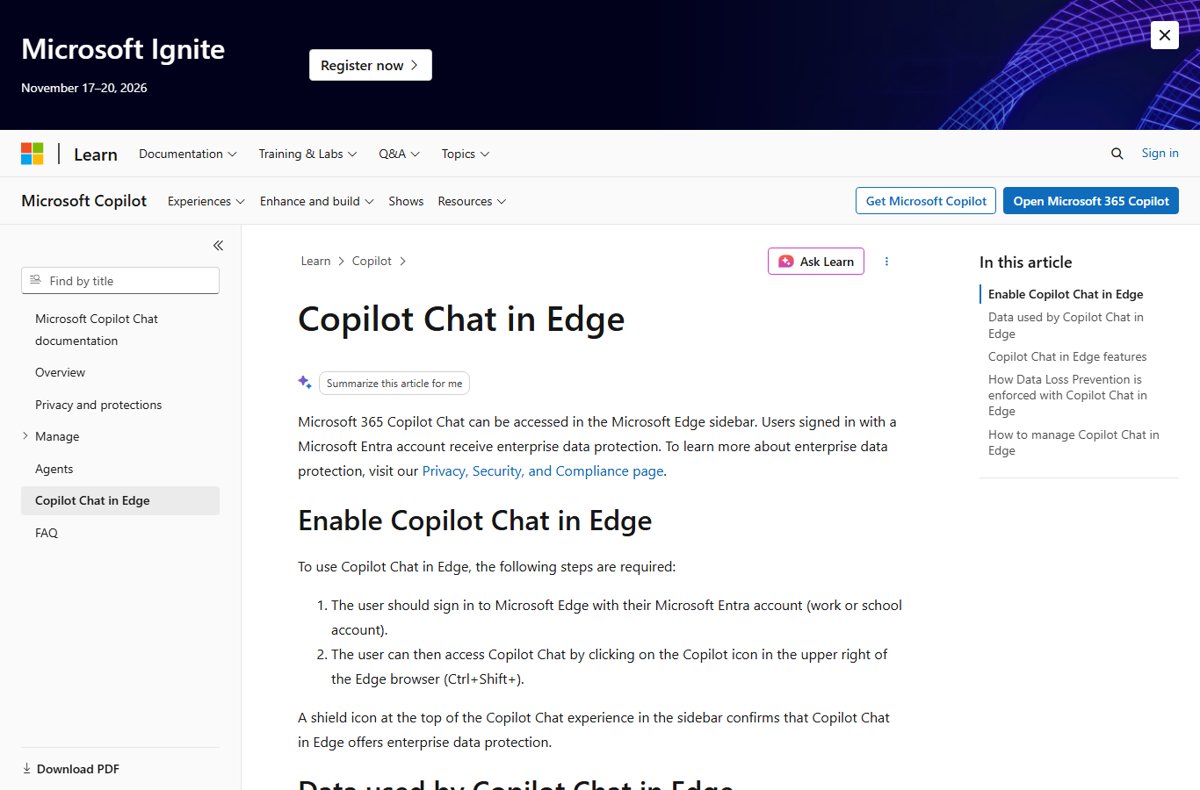
| Microsoft 365 Copilot Chat icon in a work profile | Copilot Chat with enterprise data protection for Microsoft Entra accounts | The Microsoft365CopilotChatIconEnabled policy, set by your IT administrator |
Microsoft is retiring the sidebar app list for personal accounts, but Copilot and the side pane are not affected and stay available from the toolbar.
Get started with Copilot in Microsoft Edge
Once the button is showing, Copilot opens in a side pane next to the page, so there is no extra app to install or set up. Sign in first, because Copilot in Edge needs a Microsoft account.
- Sign in to Edge with a personal Microsoft account, or with a Microsoft Entra work or school account for Microsoft 365 Copilot Chat.
- Open the website, video or PDF you want help with.
- Select the Copilot icon in the upper-right corner of Edge to open the side pane.
- Type a prompt, or select Create a Summary for a quick analysis of the page.
- If the pane shows a Sign in button instead of the chat box, select it and complete the sign-in.
The Copilot new tab page is the other way in: open a new tab and type a question, a search or a website address, and Copilot sends you to the right place.
What can Copilot in Edge do? Summarize pages, tabs and YouTube videos
Knowing what the button opens helps you decide whether to keep it. Copilot in Edge works on what is in the browser, from the current page to your open tabs, to get through common tasks faster without leaving the page.
| Feature | What it does | How to use it |
|---|---|---|
| Page summary | Summarizes long web pages and documents shown in Edge | Open the page, select the Copilot icon, then Create a Summary |
| Video and PDF summaries | Summarizes videos, such as YouTube videos, and PDFs open in Edge | Open the video or PDF first, then ask Copilot for a summary |
| Answers across your tabs | Compares options and pulls key details from several open tabs | Ask about your tabs; context clues must be on |
| Writing help | Turns ideas into drafts, such as an email | Type what you need in the Copilot pane |
| Journeys | Groups related pages, searches and chats so you can pick up where you left off without retracing your steps | Turn on Journeys, then find them on the new tab page |
| Copilot on mobile | Brings the same help to Edge on your phone or tablet | Use the Edge mobile app |
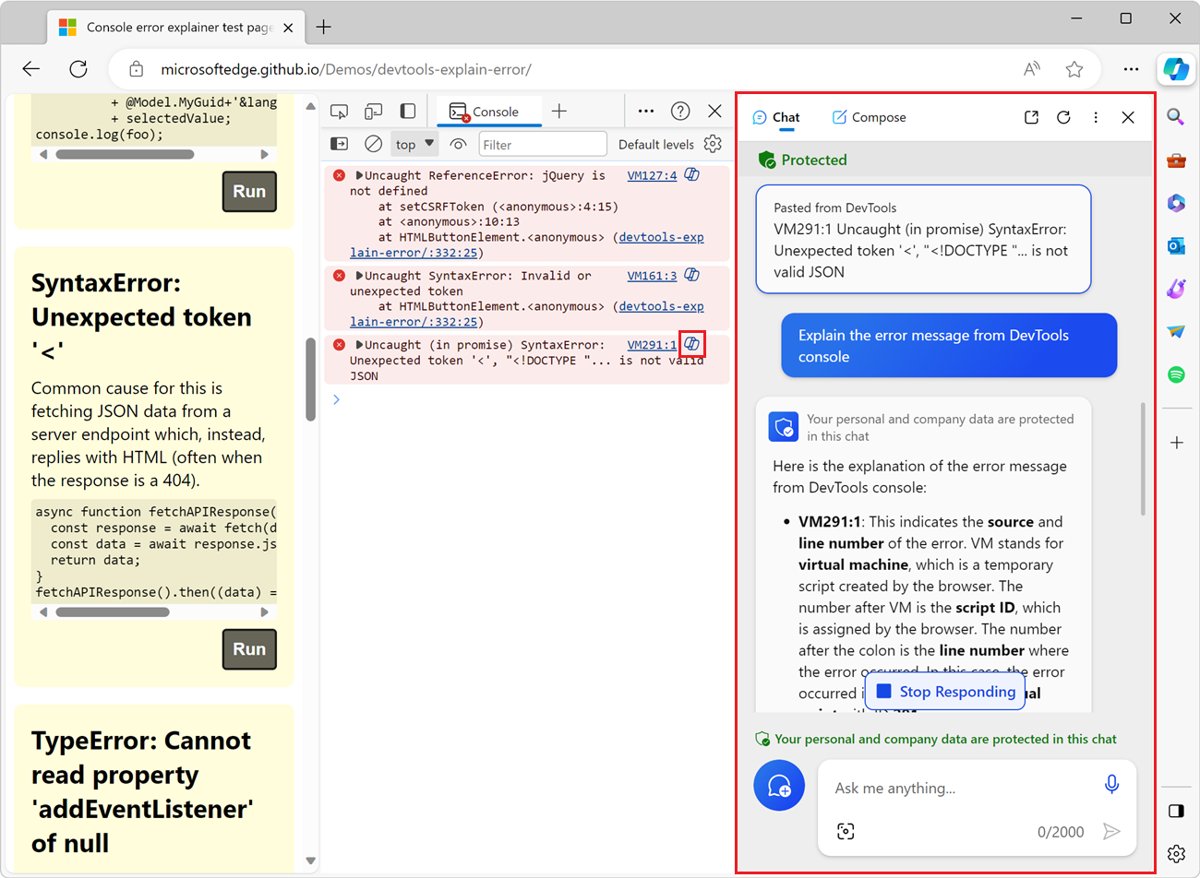
| Enterprise data protection | Protects prompts and responses for Microsoft Entra work accounts; a shield icon confirms it | Sign in to Edge with your work or school account |
On work PCs, Data Loss Prevention policies can stop Copilot from summarizing protected pages, so sensitive content stays out of its answers.
Which Copilot setting in Edge should you change?
Hiding the button is not the same as stopping Copilot from reading pages. Pick the row that matches what you actually want to stop.
| What you want | Change this | Result |
|---|---|---|
| A cleaner toolbar without the Copilot icon | Turn off Show Copilot button on the toolbar | The icon goes; Copilot itself still works in that profile |
| Copilot not using the page, tabs or history | Turn off Allow Copilot to read context clues on the web under Copilot and AI | Copilot stops using the current page, page title, open tabs and browser history |
| The classic new tab page back | Turn off Copilot new tab page under Copilot and AI | New tabs open without the Copilot chat box |
| The button hidden on every work PC | Disable the Microsoft365CopilotChatIconEnabled policy | Users in Microsoft Entra profiles cannot bring the icon back |
Change Copilot and AI settings in Microsoft Edge
Newer Edge builds group the rest of the Copilot options on a Copilot and AI page. Use it when the icon is fine but you want to limit what Copilot can see on the web; each feature can be switched on or off, so you keep control.
- Select Settings and more (…) in the Edge toolbar.
- Select Copilot and AI.
- Turn off Allow Copilot to read context clues on the web to stop Copilot using the current page, page title, open tabs and browser history.
- Turn Copilot new tab page on or off to choose whether new tabs open with Copilot chat and search.
- Close the settings tab; the changes save automatically.
To remove information Copilot already has as browsing context, close the tabs involved and clear your browsing history. The first time you open Copilot, Edge either tells you or asks permission before it uses browser information, depending on your region.
Copilot Journeys expands the AI features in Edge beyond the chat pane. Journeys groups related pages, searches and chats, has its own switch, and shows up on the new tab page; Microsoft says each Copilot feature can be switched on or off whenever you want.
Hide the Copilot button in Edge for all users with Group Policy
On managed PCs, the Microsoft365CopilotChatIconEnabled policy decides whether the Microsoft 365 Copilot Chat icon appears in the Edge for Business toolbar. It needs Edge 139 or later on Windows or macOS, and from Edge 141 it is the only policy that controls Copilot on the toolbar.
The policy applies to profiles signed in with a Microsoft Entra ID work or school account. It does not apply to a profile signed in with a personal Microsoft account.
- Install the Microsoft Edge administrative templates (MSEdge.admx) on the PC or domain if they are not already present.
- Open the Group Policy Editor and go to Administrative Templates > Microsoft Edge. Use Microsoft Edge – Default Settings (users can override) instead if users should be able to change it back.
- Open Control whether Microsoft 365 Copilot Chat shows in the Microsoft Edge for Business toolbar.
- Select Disabled to hide Copilot from the toolbar, or Enabled to force it to show, then select OK.
- Without Group Policy, set the REG_DWORD value
Microsoft365CopilotChatIconEnabledunderSOFTWARE\Policies\Microsoft\Edgeto 0 to hide the icon or 1 to show it. On macOS, set the preference key of the same name to false or true. - Restart Edge if the icon does not change, then confirm the value on
edge://policy.
Left unconfigured, Copilot shows in the toolbar and each user decides with the Show Copilot toggle in settings. The policy supports dynamic refresh. The older HubsSidebarEnabled policy still shows or hides the whole sidebar, but it no longer controls the Copilot button from Edge 141.
Copilot in Edge: consumer controls versus enterprise policy
The distinction matters because the same Copilot button is managed in two ways. On a personal profile, the practical consumer controls are per-profile toggles that you can flip back at any time. On a work profile, enterprise management through policy is more decisive: a configured policy overrides the toggle and greys it out.
| Control | Personal (consumer) profile | Work profile with a Microsoft Entra ID account |
|---|---|---|
| Copilot button on the toolbar | Show Copilot button on the toolbar toggle; you can turn it back on | Microsoft365CopilotChatIconEnabled policy; Disabled hides the icon and the user cannot bring it back |
| Whole sidebar | Sidebar setting on edge://settings/appearance/copilotAndSidebar |
HubsSidebarEnabled policy shows or hides the sidebar, but no longer controls the Copilot button from Edge 141 |
| Copilot extension | No separate switch | An ExtensionInstallBlocklist entry with * or the Copilot extension ID can stop Copilot appearing |
| Page access | Allow Copilot to read context clues on the web under Copilot and AI | Data Loss Prevention policies can stop Copilot summarizing protected pages |
| Where to check what applies | The settings page of each Edge profile | edge://policy, which lists every applied policy and its value |
The policy stack in plain English: the toolbar policy decides the icon, the sidebar policy decides the sidebar, and the extension blocklist can remove Copilot altogether. When none of them is set, the user's own toggles decide. The practical impact is that a consumer change is a preference, while an enterprise change is a rule.
Check the Copilot button setting in Edge worked
- Look at the upper-right corner of the Edge toolbar and confirm the Copilot icon is shown or gone, as you set it.
- Open a new Edge window in the same profile and confirm it matches.
- On a work PC, type
edge://policyin the address bar and search for Microsoft365CopilotChatIconEnabled to see whether a policy is applied and its value. - If you want the icon back but the toggle is greyed out, the policy value on
edge://policyis the reason.
Copilot icon missing in Microsoft Edge: fixes
Find the symptom that matches, apply its solution, and check for the icon after each one.
The Copilot toggle is greyed out or the setting is unavailable
A policy set by your organisation controls Copilot or the sidebar.
- Type
edge://policyin the address bar. - Search for Microsoft365CopilotChatIconEnabled and HubsSidebarEnabled and note their values.
- Search for ExtensionInstallBlocklist and check for a
*wildcard or the Copilot extension IDofefcgjbeghpigppfmkologfjadafddi. - Export the policy list from
edge://policyand send it to your IT administrator, who can change the value.
The sidebar is not visible and Copilot is not listed
The sidebar is turned off, which hides every sidebar app, including Copilot.
- Go to
edge://settings/appearance/copilotAndSidebar. - Select Always on for the sidebar.
- Under App specific settings, select Copilot and turn on Show Copilot button on the toolbar.
- Restart Edge if Copilot still does not appear in the app list.
Copilot sidebar in Edge not working: blank pane, error or Refresh button
The button is there, but Edge cannot reach the Copilot Chat service, often because the device is offline or a network or firewall rule blocks the connection.
- Check that the device has a working internet connection; the pane recovers on its own when the connection returns.
- Open a new tab and go to
https://edgeservices.bing.com/edgesvc/shell. If it does not load, a network or firewall rule is blocking Copilot. - If the address loads but Copilot still fails, check the Microsoft 365 Service health status page for an outage and try again later.
- If the pane shows Try again, sign out of the Edge profile and sign back in, then close and reopen the sidebar.
The Copilot button disappeared after an update or never appeared
Copilot in the sidebar needs Edge 111 or later, and an old build may not have it.
- Go to
edge://settings/help. - Wait for Edge to check for and install updates.
- Restart Edge when the update finishes.
No Copilot button and no sign-in option
Copilot depends on your account, region and, for work accounts, your organisation's Microsoft 365 settings.
- Go to
edge://settings/profilesand confirm you are signed in with a Microsoft account, or a work or school account. - Check that Copilot is offered in your country or region on Microsoft's supported regions page.
- For a work or school account, ask your IT administrator whether Copilot is enabled for your tenant.
- Sign out and back in, or try another account, to see whether the problem follows the account.
The Copilot icon disappeared after switching profiles
The setting is stored per profile, or the original profile has conflicting settings.
- Select the profile icon in the upper-left corner of Edge, then select Add profile > Add.
- Check whether the Copilot icon appears in the new profile.
- If it does, go to
edge://settings/resetin the original profile and select Restore settings to their default values. - Expect the reset to restore the startup page, new tab page, search engine and pinned tabs, disable extensions and clear cookies; favourites, history and saved passwords stay.
Edge Copilot button FAQ
Where is Copilot in Edge?
Copilot is the icon in the upper-right corner of the Edge toolbar. Select it to open Copilot in a side pane next to the page you are viewing. If the icon is hidden, turn on Show Copilot button on the toolbar at edge://settings/appearance/copilotAndSidebar.
What button turns on Copilot in Edge?
The Copilot icon on the right side of the Edge toolbar opens Copilot. Sign in to Edge with a Microsoft account first. On a work profile, Microsoft 365 Copilot Chat opens from the same icon and shows a shield when enterprise data protection applies.
Where is my Copilot icon in Edge?
It is usually hidden by the Show Copilot button on the toolbar switch, a turned-off sidebar, or a work policy. Check edge://settings/appearance/copilotAndSidebar first, then edge://policy for Microsoft365CopilotChatIconEnabled, then update Edge at edge://settings/help.
Why can't I find a Copilot button or a sign-in option in Edge?
Copilot may not be offered for your account type or region, or an administrator may have blocked it. Confirm your sign-in at edge://settings/profiles, check Microsoft's supported regions list, and ask IT whether Copilot is enabled for your organisation.
How do I close the Copilot sidebar in Edge?
Close the open pane with the close button at the top of the Copilot pane. To keep it from coming back by accident, turn off Show Copilot button on the toolbar so the icon is no longer one click away.
Does hiding the Copilot button turn off Copilot in Edge?
No. Hiding the button only removes the toolbar icon in that profile. To stop Copilot reading the page, open tabs and history, turn off Allow Copilot to read context clues on the web under Settings and more > Copilot and AI.
Can an administrator hide Copilot in Edge on work PCs?
Yes. Disabling the Microsoft365CopilotChatIconEnabled policy hides Copilot from the Edge for Business toolbar for Microsoft Entra profiles on Edge 139 or later. It does not affect profiles signed in with a personal Microsoft account.
Do I need to sign in to use Copilot in Edge?
Yes. Microsoft says to sign in to Edge with a personal Microsoft account to use Copilot. Work and school users sign in with their Microsoft Entra account to get Microsoft 365 Copilot Chat with enterprise data protection.
Bottom line: should you hide the Copilot button in Edge?
Hide the button from edge://settings/appearance/copilotAndSidebar if you never use Copilot and want a tidier toolbar; turn off context clues as well if privacy is the reason. The toggle only removes the icon, so it is easy to reverse and changes nothing else. Page access is a separate switch under Copilot and AI, and on work PCs the policy has the final say.
Other toolbar items are handled from the same Appearance area, so you can also show the favorites bar or tidy extension icons on the toolbar while you are there.