To disable Fast Startup on Windows 11 or 10, open Control Panel > Power Options > Choose what the power buttons do, select Change settings that are currently unavailable, clear Turn on fast startup (recommended), and select Save changes.
This guide also covers the Command Prompt, Registry and Group Policy routes, when switching it off helps, and what to do when the checkbox is greyed out or missing.
Disable Fast Startup on Windows 11 from Control Panel
The checkbox lives in the Power Options page of Control Panel on both Windows 11 and Windows 10. You need an administrator account to change it.
- Select Search on the taskbar, type control panel and open it.
- Select System and Security.
- Under Power Options, select Choose what the power buttons do.
- Select Change settings that are currently unavailable so the shutdown options can be edited.
- Under Shutdown settings, clear Turn on fast startup (recommended).
- Select Save changes.
The change applies the next time you shut down. That shutdown and every one after it is a full shutdown, and the next power-on is a cold boot.
What's Fast Startup in Windows 11 and 10?
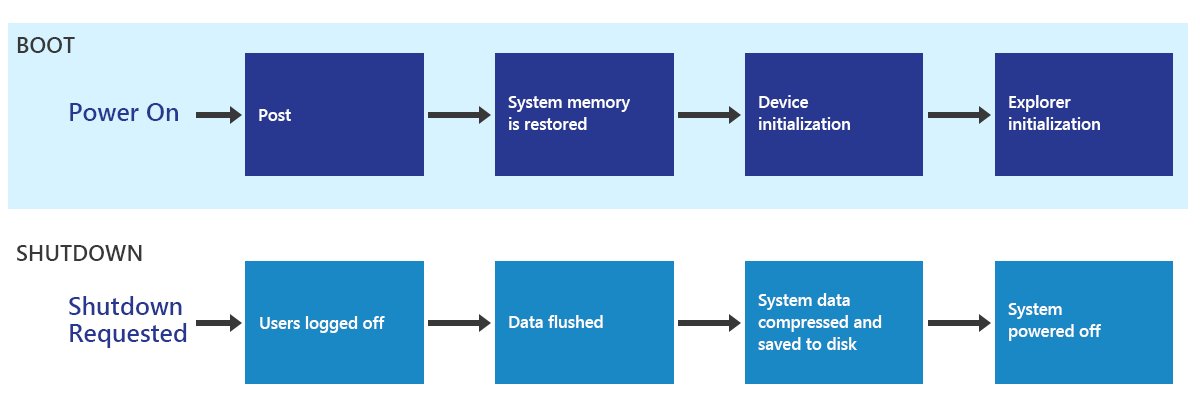
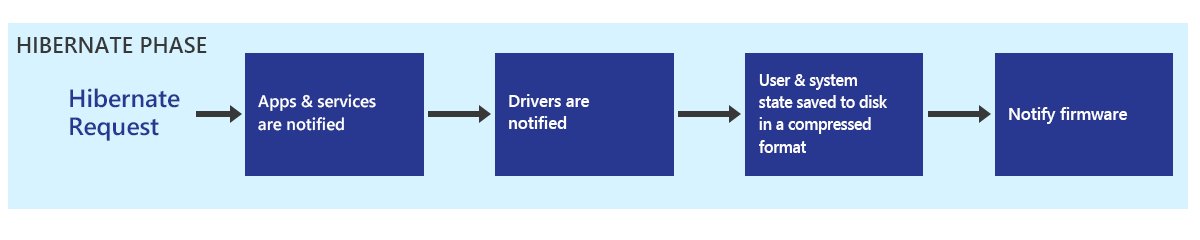
Fast Startup, also called hybrid shutdown, is the default shutdown mode in Windows 8 and later. It mixes a normal shutdown with hibernation. In technical terms, this is what it actually does at shutdown and at the next power-on.
| Shut down with Fast Startup | Full shutdown | Hibernate | |
|---|---|---|---|
| Apps and user sessions | Closed and signed out | Closed and signed out | Kept open |
| Kernel and drivers | Saved to Hiberfil.sys | Unloaded | Saved to Hiberfil.sys |
| Next power-on | Loads the saved kernel image | Full cold boot | Resumes exactly where you left off |
| Speed of next start | Fast | Slowest | Fast |
| Wake on LAN from this state | Not supported | Not supported by Windows | Supported |
| Used by Restart | No | Yes, Restart always does a full boot | No |
Because the kernel and drivers are restored rather than restarted, a PC that is only ever shut down can go a long time between real kernel restarts.
In power-state terms, a Fast Startup shutdown is really hibernation (S4) with the user already logged off, yet Windows presents it as a full shutdown (S5), including how it handles device wake alarms. Logging off first keeps the hibernation file small, which suits PCs with limited storage.
Why disable Fast Startup?
Microsoft recommends leaving Fast Startup on for most PCs. Turning it off is worth it when one of these situations applies.
| Your situation | Disable Fast Startup? | Why |
|---|---|---|
| You wake the PC with Wake on LAN | Yes | Windows does not arm network adapters for wake after a hybrid shutdown |
| Shut down sends you back to the lock screen | Yes, or repair the cause | The hibernation step can fail if a crash dump filter driver does not load |
| A driver or device misbehaves until you restart | Yes | Shut down restores the old driver state; only a cold boot resets it |
| The PC uses Unified Write Filter | Yes | Shut down with Fast Startup does not clear the UWF overlay |
| Updates often wait until you restart | Optional | Some updates finish only after a full shutdown, which Fast Startup skips |
| You dual boot or move internal drives between PCs | Yes | Volumes stay mounted in the hibernation file and can be flagged as corrupt elsewhere |
| The BIOS key screen flashes by too fast | No | Open UEFI Firmware Settings from Advanced startup instead |
| You want a clean boot once, not permanently | No | Use Restart or shutdown /s /t 0 for a one-off full shutdown |
| Everything works and you want quick boots | No | Fast Startup cuts boot time with no downside in this case |
Disable Fast Startup on Windows 11 from Command Prompt
Two commands work. The first turns off only Fast Startup; the second also removes hibernation, which Fast Startup depends on.
- Select Start, type cmd, right-click Command Prompt and choose Run as administrator.
- Select Yes at the User Account Control prompt.
- To turn off only Fast Startup, run
reg add "HKLM\SYSTEM\CurrentControlSet\Control\Session Manager\Power" /v HiberbootEnabled /t REG_DWORD /d 0 /f. - To turn off hibernation and Fast Startup together, run
powercfg /hibernate offinstead. - Type
exitand press Enter.
powercfg /hibernate off also removes the Hibernate power option and stops hybrid sleep from working. Use the reg add line if you still want to hibernate.
For a single full shutdown without changing any setting, run shutdown /s /t 0. Adding /hybrid does the opposite and prepares the PC for Fast Startup.
Turn Fast Startup on or off using a BAT file
A batch file saves typing the registry command each time, which helps when you switch Fast Startup on several PCs.
- Open Notepad.
- To turn Fast Startup off, paste
reg add "HKLM\SYSTEM\CurrentControlSet\Control\Session Manager\Power" /v HiberbootEnabled /t REG_DWORD /d 0 /f. - For a file that turns it on, use the same line with
/d 1instead of/d 0. - Select File > Save as, set Save as type to All files, and name the file
fast-startup-off.bat. - Right-click the saved file, choose Run as administrator, and select Yes at the User Account Control prompt.
The setting takes effect at the next shutdown, exactly as if you had cleared or ticked the checkbox in Control Panel.
Disable Fast Startup on Windows 11 from Registry
This is the same switch the Control Panel checkbox changes. Back up the registry before editing it.
- Press Win + R, type
regeditand press Enter. - Go to
HKEY_LOCAL_MACHINE\SYSTEM\CurrentControlSet\Control\Session Manager\Power. - Double-click HiberbootEnabled in the right pane.
- If the value does not exist, right-click an empty area, choose New > DWORD (32-bit) Value and name it
HiberbootEnabled. - Set Value data to
0and select OK. - Close Registry Editor; the next shutdown is a full one.
Set the value back to 1 to turn Fast Startup on again.
Turn Fast Startup on or off using a REG file
A REG file writes the same HiberbootEnabled value with a double-click, so you can keep one file to turn Fast Startup off and another to turn it back on.
- Open Notepad.
- Type
Windows Registry Editor Version 5.00on the first line and leave the second line blank. - On the third line, type
[HKEY_LOCAL_MACHINE\SYSTEM\CurrentControlSet\Control\Session Manager\Power]. - On the fourth line, type
"HiberbootEnabled"=dword:00000000to turn Fast Startup off, or"HiberbootEnabled"=dword:00000001to turn it on. - Select File > Save as, set Save as type to All files, and name the file
fast-startup-off.reg. - Double-click the file, select Yes at the User Account Control prompt, then select Yes to confirm the merge.
- Alternatively, import it from an elevated Command Prompt with
reg import fast-startup-off.reg.
Disable Fast Startup on Windows 11 from Group Policy
The Local Group Policy Editor has one Fast Startup setting, Require use of fast startup. Enabling it forces Fast Startup on; setting it to Disabled or Not Configured hands control back to the local Control Panel setting. It cannot force Fast Startup off on its own.
- Press Win + R, type
gpedit.mscand press Enter (Windows 11 and 10 Pro, Enterprise and Education). - Go to Computer Configuration > Administrative Templates > System > Shutdown.
- Double-click Require use of fast startup.
- Select Disabled or Not Configured, then select OK.
- Run
gpupdate /forcein an elevated Command Prompt, or restart. - Clear the Fast Startup checkbox in Control Panel, or set the registry value to
0, to switch it off.
On managed PCs the same policy is delivered through Intune as ADMX_WinInit/Hiberboot. If your organization enables it, only the administrator can lift it.
Clear the Require use of fast startup policy from the registry
On Windows 11 and 10 Home there is no Group Policy Editor, but the policy still lives in the registry. Require use of fast startup is stored as a separate HiberbootEnabled value under HKEY_LOCAL_MACHINE\SOFTWARE\Policies\Microsoft\Windows\System, not under the Power key.
- Open Command Prompt as administrator.
- Run
reg query "HKLM\SOFTWARE\Policies\Microsoft\Windows\System" /v HiberbootEnabledto see whether the policy value exists. - If it exists, run
reg delete "HKLM\SOFTWARE\Policies\Microsoft\Windows\System" /v HiberbootEnabled /fto remove only that value. - Save the same
reg deleteline in a .bat file if you need to repeat it on other PCs. - Restart, then turn Fast Startup off in Control Panel or with the Power key value.
With the policy value gone, Windows falls back to the local setting, the same result as Not Configured in the Group Policy Editor. On a managed PC the policy can be pushed back at the next sync.
Does Fast Startup stop Windows updates from installing?
It can delay them. Some updates finish installing only when the PC starts after a full shutdown. A Fast Startup shutdown hibernates the kernel instead, so those updates stay pending.
| What you do | Pending updates complete? |
|---|---|
| Shut down with Fast Startup on | Not always; some updates wait |
| Restart from the Power menu | Yes, Restart always does a full boot |
| Shut down with Fast Startup off | Yes, every shutdown is a full one |
shutdown /s /t 0 from Command Prompt |
Yes, it forces one full shutdown |
Microsoft documents this for Windows 10, where it also delayed updates on PCs managed by Configuration Manager until MEMCM 2002 and Windows 10 21H1. If an update keeps asking for a restart, choose Restart rather than disabling Fast Startup.
Fast Startup with dual boot and drives moved between PCs
Fast Startup does not dismount file systems at shutdown. Any NTFS volume that was in use stays mounted inside the saved kernel state until the next Windows boot.
| Setup | Risk with Fast Startup on | What to do |
|---|---|---|
| Multi-boot menu with another version of Windows | Low: picking the other version makes Windows reboot and dismount volumes first | Nothing, unless you use a third-party boot loader that does not understand hybrid boot |
| Internal SATA or SAS drive moved to another PC | The other system can mark the volume as corrupted and need a full chkdsk | Disable Fast Startup before you move the drive |
| USB drive set to quick removal | Low | Use Safely Remove Hardware before unplugging it |
| Drive removed, used elsewhere, then reattached before the PC resumes | Not recommended by Microsoft | Do a full shutdown or Restart first |
A full shutdown or restart dismounts every volume cleanly, so a single shutdown /s /t 0 is enough before a one-off drive move.
Can't open BIOS or UEFI with Fast Startup on?
Fast Startup shortens the boot so much that the firmware key prompt can pass before you press it. Restart always does a full boot, and Windows can open the firmware menu for you.
- Select Start > Power.
- Hold Shift and select Restart.
- Select Troubleshoot > Advanced options > UEFI Firmware Settings.
- Select Restart to boot straight into the firmware menu.
If you prefer the key, restart instead of shutting down, then press the manufacturer key (commonly Esc, Delete, F1, F2, F10, F11 or F12) as soon as the screen lights up.
Disabling Fast Startup: risks, caveats and reasons to leave it on
Fast Startup is not a fault to remove by default. Microsoft turns it on and does not recommend turning it off unless you have a reason.
A critical analysis comes down to weighing faster power-ons against the problems beneath the surface of a hibernated kernel: pending updates, locked drives in dual-boot setups and devices that only work after a cold boot.
| Trade-off | What changes |
|---|---|
| Boot time | Every power-on becomes a full cold boot and takes longer |
powercfg /hibernate off |
Also removes Hibernate and stops hybrid sleep; use HiberbootEnabled if you want to keep them |
| Registry and REG files | A wrong edit can break Windows; back up the registry first |
| Managed PCs | An enabled Require use of fast startup policy turns it back on |
| Wake on LAN and other device power features | Windows disarms network adapters after a Fast Startup shutdown to prevent unwanted wakeups; after a full shutdown, how wake interacts with the PC depends on the firmware and adapter, so watch for a PC that now wakes when you did not expect it |
| Measurable impact on your PC | Time a power-on to the lock screen once with Fast Startup on and once with it off; that real-world example on your own hardware shows what you gain or lose |
| One-off clean start | Restart gives a full boot without changing any setting |
To decide in one line: keep it on for quick boots on a single-OS PC that works, and turn it off for Wake on LAN, UWF, drive moves or a device that needs a cold boot.
How to check if Fast Startup is turned off
Verify the result in Control Panel, Command Prompt or PowerShell after you change the setting.
- Open Control Panel > System and Security > Power Options > Choose what the power buttons do.
- Confirm Turn on fast startup (recommended) is unticked.
- For a command-line check, run
reg query "HKLM\SYSTEM\CurrentControlSet\Control\Session Manager\Power" /v HiberbootEnabledin Command Prompt. - A result of
0x0means Fast Startup is off;0x1means it is on. - To check in PowerShell instead, run
Get-ItemProperty -Path 'HKLM:\SYSTEM\CurrentControlSet\Control\Session Manager\Power' -Name HiberbootEnabledand read the HiberbootEnabled line:0is off,1is on. - After the next shutdown and power-on, expect the cold boot to take longer than before; that is the change taking effect.
How to enable Fast Startup on Windows 11 again
- If you used
powercfg /hibernate off, runpowercfg /hibernate onin an elevated Command Prompt first. - Open Control Panel > System and Security > Power Options > Choose what the power buttons do.
- Select Change settings that are currently unavailable.
- Tick Turn on fast startup (recommended).
- Select Save changes.
Fast Startup greyed out or missing: fixes
Turn on fast startup is greyed out
The shutdown settings are locked until you unlock them with admin rights.
- On the Choose what the power buttons do page, select Change settings that are currently unavailable.
- Approve the User Account Control prompt.
- Clear or tick the checkbox and select Save changes.
You can't disable Fast Startup on Windows 11
The Require use of fast startup policy is enabled, locally or by your organization.
- Open
gpedit.mscand go to Computer Configuration > Administrative Templates > System > Shutdown. - Set Require use of fast startup to Not Configured.
- Run
gpupdate /force, then clear the checkbox in Control Panel. - On a work PC, ask the IT administrator to change the policy.
The Fast Startup checkbox is not showing up
Hibernation is turned off, and Fast Startup needs the hibernation file to work.
- If you want Fast Startup off, nothing more is needed; it cannot run without hibernation.
- To get the option back, run
powercfg /hibernate onin an elevated Command Prompt. - Reopen Choose what the power buttons do and the checkbox reappears under Shutdown settings.
Shut down returns to the lock screen instead of turning off
The hibernation stage of Fast Startup fails when a crash dump filter driver cannot load (Event ID 45 in the System log).
- Disable Fast Startup with the Control Panel steps to shut down normally right away.
- To keep Fast Startup, open
regeditand go toHKEY_LOCAL_MACHINE\System\CurrentControlSet\Control\CrashControl. - Edit DumpFilters so
dumpfve.sysis the only entry. - Restart the PC and turn Fast Startup back on.
Fast Startup advanced notes for power users and IT pros
| Topic | Detail |
|---|---|
| Keep Fast Startup but shrink the hibernation file | Run powercfg /hibernate /type reduced. A reduced hiberfile supports only Fast Startup (hiberboot), not the Hibernate option |
| Force Fast Startup across a fleet | Enable Require use of fast startup, or deploy ADMX_WinInit/Hiberboot through Intune; Pro, Enterprise and Education only |
| Prepare one machine for Fast Startup from a script | shutdown /s /hybrid shuts down and prepares the next boot as a Fast Startup boot |
| Kiosks with Unified Write Filter | Turn Fast Startup off so shutdown clears the overlay; Hibernate Once/Resume Many (HORM) is the supported way to resume a fixed state |
| HORM limits | Not available on Windows 11 24H2 or later when Virtualization-Based Security is on |
| Driver testing | Drivers can tell a Fast Startup boot from a wake from hibernation; use Restart to test true first-boot behaviour |
Windows Fast Startup FAQ
What does Fast Startup do in Windows 11?
Fast Startup signs you out and saves the Windows kernel and drivers to the hibernation file when you shut down. At the next power-on, Windows loads that file instead of doing a full boot, so you reach the lock screen sooner.
Where is Fast Startup in Windows 11?
Fast Startup is in Control Panel > System and Security > Power Options > Choose what the power buttons do, under Shutdown settings. Select Change settings that are currently unavailable before you can change it.
Where is Fast Startup in Windows 10?
Windows 10 uses the same location as Windows 11: Control Panel > Power Options > Choose what the power buttons do. The Turn on fast startup (recommended) checkbox sits under Shutdown settings.
Is Fast Startup bad for a PC?
No. Fast Startup is on by default and Microsoft recommends keeping it on. It only causes trouble in specific cases, such as Wake on LAN, a driver that needs a cold boot, or a shutdown that fails back to the lock screen.
Why is Fast Startup recommended?
Fast Startup is recommended because it shortens boot time by reusing a saved kernel image instead of initialising Windows, drivers and services from scratch at every power-on.
Why does disabling Fast Startup help my PC?
Disabling Fast Startup makes every shutdown a full one, so drivers and services start fresh at the next boot. That clears problems caused by a device or driver stuck in a bad state across shutdowns.
Does Fast Startup drain the battery?
No. A hybrid shutdown writes its data to disk and powers the PC off, and Windows does not arm network adapters for wake from that state, so the battery is not used while it is shut down.
Does Fast Startup affect Restart?
No. The Fast Startup setting does not apply to Restart, which always performs a full shutdown and cold boot. Restart is the quickest way to get a clean start without changing any setting.
How do I enable Fast Startup on Windows 11?
Open Control Panel > Power Options > Choose what the power buttons do, select Change settings that are currently unavailable, tick Turn on fast startup (recommended) and select Save changes. Turn hibernation on first if the option is missing.
Bottom line: should you turn off Fast Startup?
Leave Fast Startup on unless you rely on Wake on LAN, use Unified Write Filter, or have a device that only works after a cold boot. For everyone else it speeds up every power-on, and Restart already gives you a full boot whenever you need one. When you do turn it off, the Control Panel checkbox or the HiberbootEnabled value keeps hibernation available.


![EA Javelin anti-cheat setup: fix kernel errors [2026]](https://techdows.com/wp-content/uploads/2026/10/EA-Javelin-anti-cheat-setup-fix-kernel-errors-2026-1-570x338.jpg)