A TS file is usually a video saved in the MPEG-2 transport stream format, and the most reliable way to open one is the free VLC media player on Windows, macOS or Linux.
This guide shows how to tell a video TS file from a TypeScript code file, how to open and convert each kind, and what to check when the file still will not open.
How to open a TS file
VLC lists MPEG transport streams (TS) among its supported input formats, so it opens most video TS files without extra codecs.
- Install VLC media player from videolan.org if it is not already on your computer.
- Open VLC.
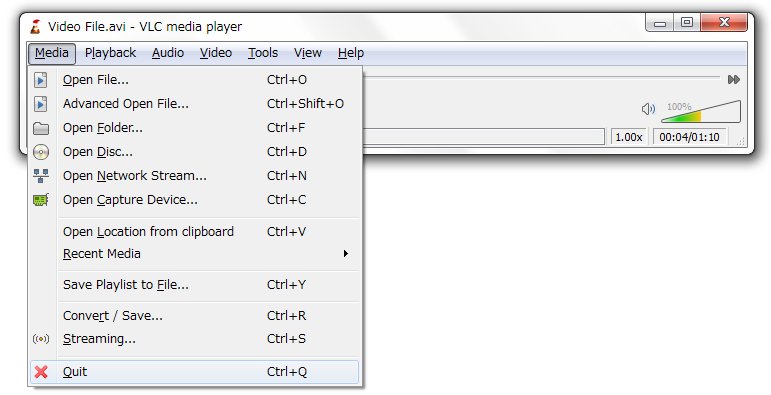
- Select Media > Open File (on a Mac, File > Open File).
- Browse to the .ts file, select it and click Open.
- To make VLC the default for TS files on Windows, right-click the file, select Open with > Choose another app, pick VLC media player and choose Always.
If double-clicking the file opens a code editor instead of a player, the file is probably TypeScript source code, not video. The next section shows how to tell.
What is a TS file? Video transport stream vs TypeScript
Two unrelated formats share the .ts extension. File size and where the file came from usually settle which one you have.
| Clue | Video transport stream (.ts) | TypeScript source file (.ts) |
|---|---|---|
| What it is | An MPEG-2 transport stream container holding video, audio and other streams | Plain-text code in TypeScript, a typed superset of JavaScript |
| Typical source | TV recorders, broadcast captures, camera and disc rips, streaming downloads | Web and app development projects, often next to package.json or tsconfig.json |
| Typical size | Megabytes to gigabytes | A few kilobytes |
| Opens in | VLC, HandBrake, OneDrive or SharePoint in a browser | Visual Studio Code, Notepad or any text editor |
| Related extensions | .m2ts and .mts (Blu-ray and AVCHD transport streams) | .tsx (TypeScript with JSX), .js after compiling |
TS file format: technical details and history
The video TS format comes from MPEG-2 Systems, the part of the MPEG-2 standard (ISO/IEC 13818-1) that defines how audio and video streams are multiplexed. It was built for broadcast, which is why TV recorders and capture cards still save TS files.
| Format detail | What it means for a TS file |
|---|---|
| Standard | MPEG-2 Systems, ISO/IEC 13818-1 |
| Designed for | Unreliable or error-prone delivery, such as network broadcasts |
| Packet size | Fixed 188-byte transport packets, each with a 4-byte header |
| Contents | Video, audio and other data streams, each tagged with a program ID (PID) |
| Multiple programs | One stream can carry several programs synchronized to different clocks |
| Program tables | A Program Association Table and Program Map Tables list which streams belong to each program |
| Sister format | MPEG-2 program streams, designed for error-free storage such as local files |
| Similar file types | .m2ts (Blu-ray) and .mts (AVCHD cameras), both based on the transport stream |
Pros and cons of TS files
| Pros | Cons |
|---|---|
| Survives transmission errors, because it was designed for broadcast | Recordings are large, often running to gigabytes |
| Holds several video, audio and data streams, and even several programs | Windows Media Player's supported list names .m2ts, not plain .ts |
| Plays in free tools such as VLC and in OneDrive in a browser | Many phones, TVs and video editors expect MP4 instead |
| Lossless conversion to MP4 with FFmpeg stream copy | Pay-TV recordings are often DRM-protected and cannot be converted |
Best program to open a TS file on Windows, Mac and online
| Your situation | Use this | Why |
|---|---|---|
| Video TS file on Windows, Mac or Linux | VLC media player | Free, and lists MPEG TS as a supported input format |
| You only need to watch it once, without installing anything | Upload it to OneDrive or SharePoint and play it in the browser | Microsoft 365 plays TS, M2TS and MTS files in most browsers |
| You want an MP4 for a phone, TV or editor | HandBrake or VLC's Convert/Save | Both read TS and write MP4 |
| You want MP4 with zero quality loss | FFmpeg with -c copy | Rewraps the streams without re-encoding |
| Windows Media Player | Try it, but expect gaps | Microsoft's supported list names .m2ts transport streams, not plain .ts |
| TypeScript code file | Visual Studio Code | Built-in TypeScript language support |
Play a TS file online with OneDrive
Microsoft 365 plays TS files directly in most browsers, which helps on a locked-down PC where you cannot install a player.
- Sign in at onedrive.live.com with your Microsoft account.
- Upload the .ts file from the toolbar, or drag it into the OneDrive window.
- Wait for the upload to finish.
- Click the file to open it in the browser's video player.
Large recordings take a while to upload and count against your OneDrive storage, so delete the copy when you are done.
How to convert TS files to MP4 with VLC
VLC's converter re-encodes the video, so it takes time on long recordings. Use it when VLC is already installed and you need a widely compatible MP4.
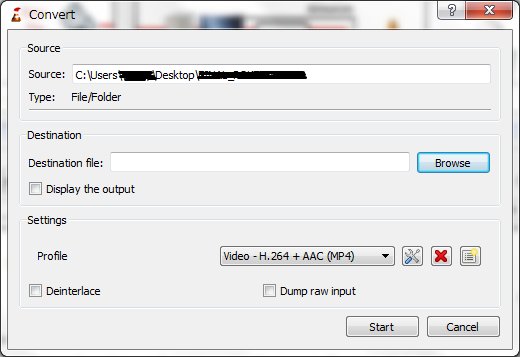
- Open VLC and select Media > Convert / Save.
- Click Add, select the .ts file and click Open.
- Click Convert / Save at the bottom of the dialog.
- In the Profile drop-down, choose a profile that ends in (MP4).
- Click Browse next to Destination file and enter a file name ending in .mp4.
- Click Start and wait for the progress bar in the VLC window to finish.
Convert TS to MP4 with HandBrake
HandBrake is a free, open-source transcoder for Windows, Mac and Linux. Its documentation lists TS, MTS and M2TS broadcast recordings among the formats it opens, and it writes MP4, MKV or WebM.
- Install HandBrake from handbrake.fr and open it.
- Drag the .ts file onto the window, or choose it in the source selection panel.
- Pick a preset that suits your device, such as one of the general presets.
- Set the format to MP4 and choose where to save the file.
- Click Start Encode and wait for the queue to finish.
HandBrake always re-encodes the video. It does not work with files protected by DRM, such as some pay-TV recordings.
Convert TS to MP4 without losing quality using FFmpeg
FFmpeg can move the video and audio streams from the TS container into an MP4 container without decoding them, which is fast and keeps the original quality.
ffmpeg -i input.ts -c copy output.mp4-i input.ts names the source file. -c copy selects stream copy, so FFmpeg copies every stream with no decoding or encoding. output.mp4 is the new file.
You should see: FFmpeg prints a progress line and finishes in seconds to minutes, and output.mp4 is roughly the same size as the TS file. If FFmpeg reports that a stream cannot go into MP4, convert with HandBrake instead.
How to create and edit a TS file
TV recorders and capture tools create TS files on their own. To make one from another video, or to cut a clip out of a recording, FFmpeg works without re-encoding.
- To create a TS file from an MP4, run
ffmpeg -i input.mp4 -c copy output.ts. FFmpeg picks the transport stream format from the .ts extension. - To cut a clip from a TS recording, run
ffmpeg -ss 00:05:00 -i input.ts -t 00:10:00 -c copy clip.ts, which starts at 5 minutes and keeps 10 minutes. - Check the start of the clip: with stream copy, FFmpeg starts at the nearest seek point before the time you set, so a few extra frames may remain.
- For full editing with titles, transitions and effects, convert the TS file to MP4 with HandBrake or VLC first.
- Open the MP4 in a video editor such as Clipchamp, which accepts MP4 but does not list TS among its supported formats.
Renaming a file to .ts does not make it a transport stream. Changing a file name extension changes only the name, not the format inside.
How to open a TypeScript .ts file
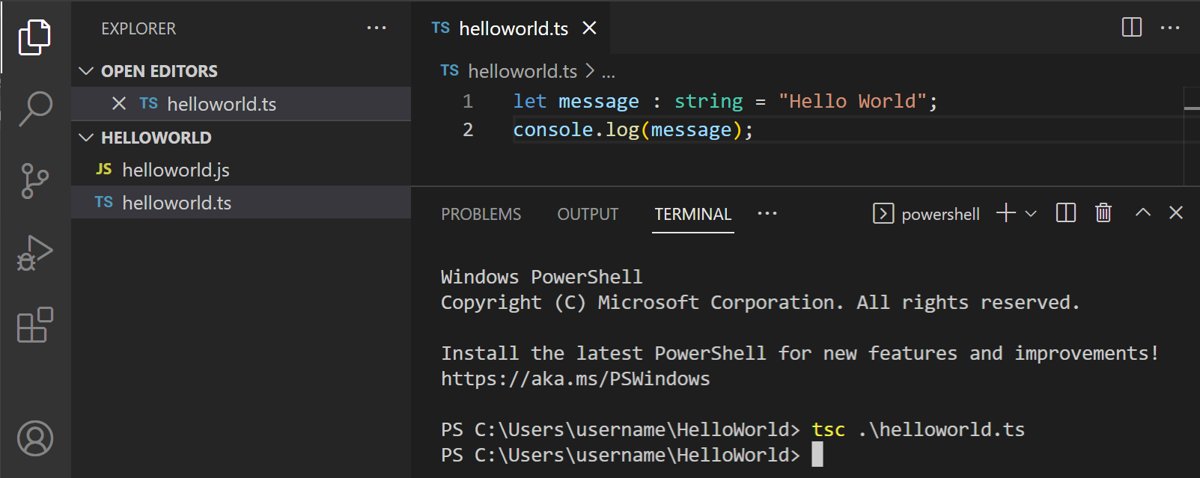
A TypeScript file is plain text, so any editor can show it. Visual Studio Code adds syntax highlighting, IntelliSense and error checking out of the box.
- Install Visual Studio Code from code.visualstudio.com.
- Select File > Open File and choose the .ts file.
- To turn it into JavaScript, install the TypeScript compiler with
npm install -g typescript. - Open the integrated terminal with Ctrl +
and run tsc filename.ts`. - Open the new .js file that appears next to the original.
VS Code includes TypeScript language support but not the tsc compiler, so step 3 is needed only if you want to compile the code.
Still can't open the TS file?
The TS file opens as text or code
It is a TypeScript source file, not a video.
- Check the size: a few kilobytes points to code.
- Open it in Visual Studio Code or Notepad instead of a media player.
TS file will not play or shows an error
The download or recording is incomplete, or the player lacks support for the streams inside.
- Make sure the download finished; a file still ending in the .crdownload extension is only part of the video.
- Open the file in VLC rather than Windows Media Player.
- If VLC reports it cannot open the input, work through the VLC MRL error fixes.
- Get a fresh copy of the file from its source if it still fails.
TS file is lagging in VLC
Large, high-bitrate recordings strain older PCs, especially when decoded in software.
- Close other heavy apps and play the file again.
- Copy the file to the internal drive if it is on a slow USB stick or network share.
- Convert it to MP4 with HandBrake, choosing a lower resolution preset if needed.
HandBrake or VLC cannot convert the TS file
The recording is protected with DRM, or the file is damaged.
- Check whether the recording came from a pay-TV box or service that encrypts its files; those cannot be converted.
- Try FFmpeg's stream copy as a second converter.
- Re-record or re-download the file if neither tool reads it.
TS file frequently asked questions
What is a TS file?
A TS file is most often an MPEG-2 transport stream, a video container that holds video, audio and other streams. It is common for TV recordings and broadcast captures. The same extension is also used for TypeScript source code files.
What does the TS file extension mean?
TS stands for transport stream when the file is video. For programming files, .ts means TypeScript, a typed version of JavaScript. File size tells them apart: video TS files are large, code files are tiny.
What program opens a TS file?
VLC media player opens video TS files on Windows, macOS and Linux for free. HandBrake can open and convert them, and OneDrive plays them in a browser. Visual Studio Code opens TypeScript .ts files.
How do I convert a TS file to MP4?
Use VLC's Media > Convert / Save with an MP4 profile, or HandBrake with the MP4 format selected. For no quality loss, run ffmpeg -i input.ts -c copy output.mp4, which rewraps the streams without re-encoding them.
Can Windows Media Player play TS files?
Microsoft's supported file list for Windows Media Player names MPEG-2 TS video with the .m2ts extension, not plain .ts. Some TS files may still play, but VLC is the dependable choice.
Is there a TS file player online?
Yes. Upload the file to OneDrive or SharePoint and open it there; Microsoft 365 plays TS, M2TS and MTS files directly in most browsers without installing software.
Why is a TS file lagging in VLC?
High-bitrate recordings can stutter on older PCs or when played from slow storage. Copy the file to the internal drive, close heavy apps, or convert it to a lower-resolution MP4 with HandBrake.
Is a TS file safe to open?
A video TS file is a media container and a TypeScript file is plain text, so opening either in a player or editor is normal. For safety and security, check that the real extension is .ts: in File Explorer, select View > Show > File name extensions, and treat a name such as video.ts.exe as a program, not a video.
Is TS the same as M2TS or MTS?
They are closely related. M2TS is the Blu-ray transport stream format based on the MPEG-2 transport stream container, and MTS is used by AVCHD cameras. Players and converters that read TS usually read all three.
Bottom line: the easiest way to open a TS file
Open video TS files in VLC, and convert them with FFmpeg's -c copy or HandBrake when you need an MP4. VLC plays transport streams on every desktop platform for free, while stream copy keeps full quality and HandBrake handles files that need re-encoding. A tiny .ts file is TypeScript code and belongs in Visual Studio Code.

![6 best free virtual webcam software for Windows [2026 update]](https://techdows.com/wp-content/uploads/2026/10/6-best-free-virtual-webcam-software-for-Windows-2026-update-600x338.jpg)