Press Windows key + R, type taskschd.msc and press Enter to open Task Scheduler in Windows 11 and Windows 10.
Task Scheduler is the built-in Windows tool that runs a program or script automatically at a set time, at startup, at sign-in or when a system event occurs.
This guide covers nine ways to open it, how to run it as administrator, where its tasks are stored, and fixes for tasks that do not run.
Method 1: Open Task Scheduler using Windows Search
Searching the Start menu is the quickest route for most people, and it works the same on Windows 11 and Windows 10.
- Select Start or the search box on the taskbar, or press the Windows key.
- Type Task Scheduler.
- Select Task Scheduler under Best match, or press Enter.
- To open it with full rights, select Run as administrator in the right pane of the results instead.
The Task Scheduler window opens with Task Scheduler (Local) selected in the left pane.
Older guides tell you to ask Cortana to open Task Scheduler. Microsoft retired Cortana as a standalone app in Windows in spring 2023, so type the name into Windows Search instead.
Which way to open Task Scheduler should you use?
| Your situation | Use this | Why |
|---|---|---|
| You want it in one step from the keyboard | Windows key + R > taskschd.msc |
No menus, works on every edition |
| You prefer the mouse | Start > search Task Scheduler | Also offers Run as administrator |
| You are already in Computer Management | System Tools > Task Scheduler | Sits next to Event Viewer and Services |
| You are in Command Prompt, PowerShell or Windows Terminal | Type taskschd.msc |
Same command as Run, no new window needed |
| You browse Control Panel | Windows Tools (Windows 11) or Administrative Tools (Windows 10) | Lists every admin console in one folder |
| You are in File Explorer | Type taskschd.msc in the address bar |
Opens without leaving Explorer |
| You open it every day | A desktop shortcut to taskschd.msc |
Double-click instead of typing |
| Task Manager is already open | Run new task > taskschd.msc |
Can start it with administrative privileges |
Method 2: Open Task Scheduler using the Run dialog box
taskschd.msc is the file name of the Task Scheduler console. The .msc extension marks a Microsoft Management Console file, so Windows opens it in MMC.
- Press Windows key + R to open the Run box.
- Type
taskschd.mscin the Open box. - Select OK or press Enter.
- To start it as administrator, press Ctrl + Shift + Enter instead of Enter, then select Yes at the User Account Control prompt.
Method 3: Open Task Scheduler through Computer Management
Computer Management, which you can open with compmgmt.msc, is an MMC console that groups Task Scheduler with Event Viewer, Device Manager, Disk Management and Services.
- Right-click Start and select Computer Management, or press Windows key + R, type
compmgmt.mscand press Enter. - In the left pane, expand System Tools.
- Select Task Scheduler.
- Expand Task Scheduler and select Task Scheduler Library to see your tasks.
Method 4: Open Task Scheduler using Command Prompt
The Run box command also works inside Command Prompt, because taskschd.msc sits in the System32 folder that Windows searches by default.
taskschd.mscType it at the Command Prompt and press Enter. Windows hands the .msc file to Microsoft Management Console, which loads the Task Scheduler snap-in. To list tasks without opening the window, run schtasks /query instead; schtasks /run starts a task immediately.
You should see: The Task Scheduler window opens and the prompt returns at once, ready for the next command.
Open Command Prompt as administrator first if you need to see or change every task on the PC. Microsoft states that viewing and changing all tasks on the local computer requires membership in the Administrators group.
Method 5: Open Task Scheduler using Windows Terminal or PowerShell
PowerShell runs the same command. It also has the ScheduledTasks module, available since Windows 8, for managing tasks without the window.
- Right-click Start and select Terminal (Windows 11) or Windows PowerShell (Windows 10).
- Type
taskschd.mscand press Enter. - Alternatively, type
Start-Process taskschd.mscand press Enter. - To work with tasks from the shell instead, run
Get-ScheduledTaskto list them.
Choose Terminal (Admin) or Windows PowerShell (Admin) from the same menu to open Task Scheduler with administrator rights.
Method 6: Open Task Scheduler from the Control Panel
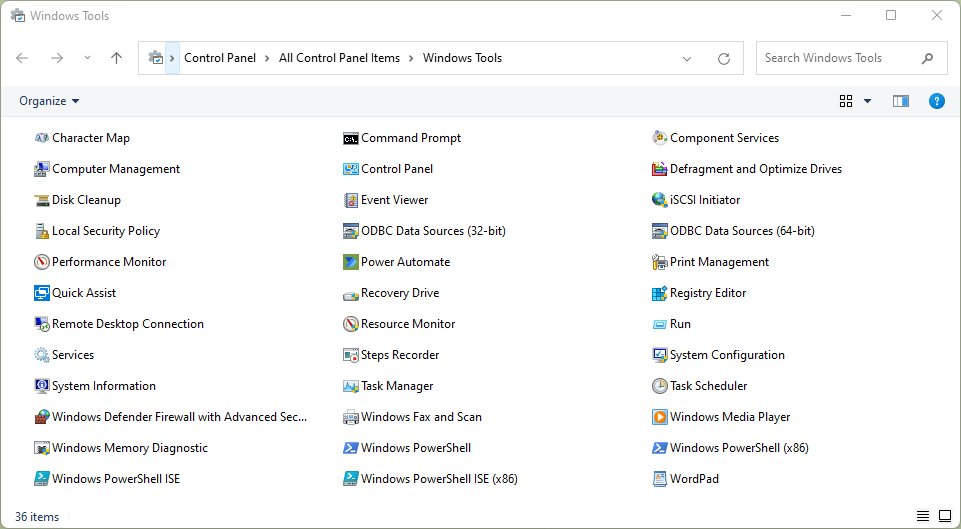
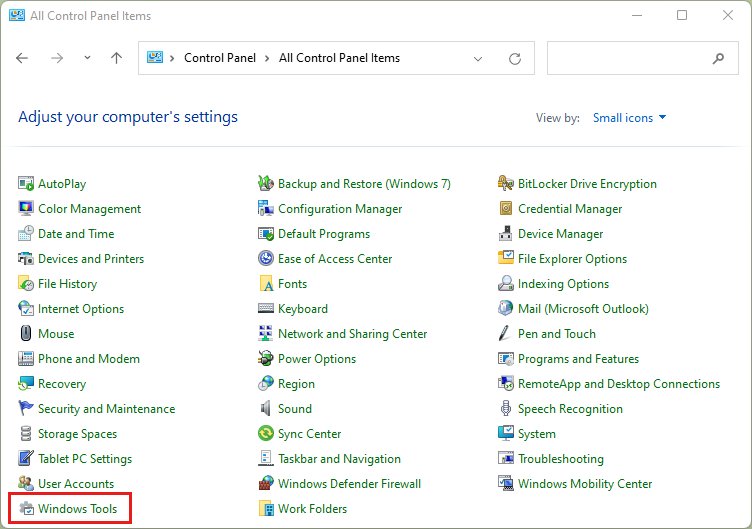
Control Panel keeps Task Scheduler in a folder of admin tools. Microsoft calls it Windows Tools in Windows 11 and Administrative Tools in Windows 10.
- Press Windows key + R, type
controland press Enter. - With View by set to Category, select System and Security.
- Select Windows Tools on Windows 11, or Administrative Tools on Windows 10.
- Double-click Task Scheduler.
Method 7: Launch Task Scheduler from File Explorer
- Press Windows key + E to open File Explorer.
- Click the address bar at the top of the window.
- Type
taskschd.mscand press Enter. - Or go to C:\Windows\System32, find taskschd.msc and double-click it.
Right-click taskschd.msc in System32 and choose Run as administrator if a task needs elevated rights.
Method 8: Create a desktop shortcut to open the Task Scheduler
- Right-click an empty area of the desktop.
- Select New > Shortcut.
- Type
taskschd.mscin Type the location of the item and select Next. - Type Task Scheduler as the name and select Finish.
- Double-click the new shortcut to test it.
To start it elevated every time, right-click the shortcut, select Properties > Advanced and tick Run as administrator.
Method 9: Open Task Scheduler using Task Manager
Task Manager can start any program by name, which helps when the Start menu or taskbar is not responding.
- Press Ctrl + Shift + Esc, or right-click Start and select Task Manager.
- Select Run new task. In the classic Task Manager layout, open the File menu first.
- Type
taskschd.mscin the Open box. - Tick Create this task with administrative privileges if you need to see every task on the PC.
- Select OK to open Task Scheduler.
Where is Task Scheduler located in Windows 11 and Windows 10?
| Item | Location | Notes |
|---|---|---|
| Task Scheduler console | C:\Windows\System32\taskschd.msc | Same file on Windows 11 and Windows 10 |
| Control Panel folder | Windows 11: Windows Tools; Windows 10: Administrative Tools | Both under System and Security |
| Computer Management | System Tools > Task Scheduler | Same snap-in, embedded in compmgmt.msc |
| Task Scheduler Library | Left pane of the Task Scheduler window | Your tasks plus Microsoft's under Microsoft > Windows |
| Task definition files | C:\Windows\System32\Tasks | Changing this folder's permissions breaks tasks |
| Task Scheduler event log | Event Viewer > Applications and Services Logs > Microsoft > Windows > TaskScheduler > Operational | Records each start, finish and error |
How to open Task Scheduler as administrator
Run Task Scheduler as administrator when you need to see every task on the PC or when a task returns "Access is denied". A standard user cannot view or manage a task created by another user.
- Select Start and type Task Scheduler.
- Right-click Task Scheduler in the results.
- Select Run as administrator.
- Select Yes at the User Account Control prompt.
How to access and navigate Task Scheduler
Once it is open, the Task Scheduler window has three working areas. Knowing which one holds what saves hunting through menus.
| Area | What you find there | What to do there |
|---|---|---|
| Left pane | Task Scheduler (Local) and Task Scheduler Library, with Microsoft's tasks under Microsoft > Windows | Pick a folder to list its tasks, or right-click the library and select New Folder |
| Middle pane, task list | Each task with its Status, triggers and Last Run Result | Right-click a task to Run, End, Disable, Export or open Properties |
| Middle pane, lower tabs | General, Triggers, Actions, Conditions, Settings and History for the selected task | Read when the task runs, what it starts and its recent events |
| Right pane, Actions | Create Basic Task, Create Task, Import Task and Enable All Tasks History | Start a new task or turn on history recording |
How to use Task Scheduler to create a basic task
Every task needs a trigger, which says when it runs, and an action, which says what it does. The Create Basic Task wizard sets both.
- Open Task Scheduler and select Task Scheduler Library in the left pane.
- In the Actions pane, select Create Basic Task.
- Type a name and description, then select Next.
- Choose a trigger such as Daily, When the computer starts or When I log on, then select Next and set its time.
- Choose Start a program as the action and select Next.
- Select Browse, pick the program or script, add any arguments, and select Next.
- Review the summary and select Finish.
To run a PowerShell script, set the program to powershell.exe and put -File followed by the script's full path in Add arguments. Test the script on its own first, because a script that fails by hand will also fail as a task. A Windows batch file can go straight into Program/script without a wrapper.
Automating maintenance tasks and software launches with Task Scheduler
Most home uses of Task Scheduler fall into two groups: housekeeping jobs such as cleanup scripts, and programs you want to start without clicking. Match your goal to a row, then build it with Create Basic Task or Create Task.
| Goal | Trigger | Action and settings |
|---|---|---|
| Open an app every time you sign in | When I log on | Start a program, pointing at the app's .exe |
| Start a tool when Windows boots, before anyone signs in | When the computer starts | Start a program, with Run whether user is logged on or not on the General tab |
| Run a cleanup or backup script on a schedule | Daily or Weekly at a set time | Start a program with powershell.exe and -File plus the script path; tick Run task as soon as possible after a scheduled start is missed |
| Run heavy housekeeping only while you are away | On idle (Create Task > Triggers > New) | Waits until the PC is idle, so scans and cleanup do not slow you down |
| Schedule a shutdown or restart in Windows 11 or Windows 10 | One time, Daily or Weekly at a set time | Start a program with shutdown.exe and the arguments /s /t 60 to shut down or /r /t 60 to restart after 60 seconds; any time-out above 0 forces apps to close, so unsaved work can be lost |
| React to a system event, such as an error entry | When a specific event is logged | Runs only when that Event Log entry appears |
Windows runs its own maintenance, such as updates and security scans, through Automatic Maintenance tasks that start only when the PC is idle and on AC power. Change its daily time in Control Panel > System and Security > Security and Maintenance > Automatic Maintenance.
Power-aware scheduling in Task Scheduler
Task Scheduler works with Windows power management, and the trigger you choose decides how much a task costs in battery life. Microsoft warns against tasks that poll every few minutes on laptops, because they stop the PC from reaching low-power idle states.
| Approach | Best for | Power behaviour |
|---|---|---|
| Automatic maintenance | Housekeeping that can wait, such as defrag, scans and cleanup | Runs only when idle and on AC power; waits indefinitely on battery |
| Idle trigger | Work that needs low system load but not mains power | Waits until you are away and the CPU is idle |
| Event trigger | Reacting to an Event Log entry | Runs only when the event fires, with no cost otherwise |
| Time trigger with conditions | Recurring schedules | Defers when conditions are not met, such as running on battery, and catches up later |
On the task's Conditions tab, Start the task only if the computer is on AC power and Stop if the computer switches to battery power apply the same rules to your own tasks.
How to check Task Scheduler opened and your task works
- Confirm the window title reads Task Scheduler and the left pane shows Task Scheduler (Local).
- Select Task Scheduler Library and find your task in the middle pane.
- Check the Status column shows Ready.
- Right-click the task and select Run to start it now.
- Press F5 to refresh and read the Last Run Result column; The operation completed successfully. (0x0) means it worked.
- Open the History tab at the bottom to see the start and finish events.
Additional tips for using Task Scheduler
| Goal | Where to set it | What it does |
|---|---|---|
| Run a task the PC slept through | Task Properties > Settings > Run task as soon as possible after a scheduled start is missed | Starts the task when the PC is next available |
| Wake the PC from sleep to run a task | Properties > Conditions > Wake the computer to run this task | Wakes from sleep or hibernate, then keeps the PC awake until the task ends |
| Run a task with admin rights | Properties > General > Run with highest privileges | Starts the action elevated |
| Run while signed out | Properties > General > Run whether user is logged on or not | Needs the account password when you save |
| Back up or move a task | Right-click the task > Export | Saves the task as an .xml file you can import later |
| Stop long jobs being cut off | Properties > Settings > Stop the task if it runs longer than | Tasks stop after 72 hours by default |
| Keep your tasks tidy | Right-click Task Scheduler Library > New Folder | Separates your tasks from Microsoft's |
Task Scheduler alternatives and complementary tools: schtasks and PowerShell
The Task Scheduler window is one front end to the Task Scheduler service. Two built-in command-line tools manage the same tasks, which helps for scripting or for many PCs at once.
| Tool | Command | What it does |
|---|---|---|
| schtasks (Command Prompt) | schtasks /query |
Lists the scheduled tasks on the PC |
| schtasks (Command Prompt) | schtasks /run /tn "<task_name>" |
Starts a task immediately |
| schtasks (Command Prompt) | schtasks /create, /change, /delete, /end |
Creates, edits, removes or stops a task |
| ScheduledTasks module (PowerShell) | Get-ScheduledTask, Get-ScheduledTaskInfo |
Lists tasks and shows their run-time information |
| ScheduledTasks module (PowerShell) | New-ScheduledTaskAction, New-ScheduledTaskTrigger, Register-ScheduledTask |
Builds and registers a new task from a script |
| ScheduledTasks module (PowerShell) | Start-ScheduledTask, Stop-ScheduledTask, Disable-ScheduledTask, Export-ScheduledTask |
Runs, stops, disables or backs up a task |
Both tools need an administrator prompt to view and change every task on the PC, just like the Task Scheduler window.
What is Task Scheduler in Windows?
Task Scheduler is a Windows service and console that starts programs automatically when the conditions you choose are met. It is installed with every supported version of Windows and starts each time Windows starts.
| Trigger type | When the task runs |
|---|---|
| One time | At a specific date and time |
| Daily, weekly or monthly | On a repeating calendar schedule |
| At startup | When the system boots |
| At log on | When a user signs in |
| On idle | When the computer enters an idle state |
| On an event | When a specific entry is written to an event log |
| On session change | When a session is locked, unlocked, connected or disconnected |
| On task creation | As soon as the task is registered |
Task Scheduler not working: fixes for tasks that do not run
The scheduled task is not running at its set time
The trigger never fired, or the task's action fails when Task Scheduler runs it.
- Run the script or program by hand in PowerShell or Command Prompt and fix any errors first.
- In Task Scheduler, check the task's Status is Ready, not Disabled.
- Open the History tab and look for a trigger event at the scheduled time.
- If nothing triggered, edit the trigger to a time a few minutes ahead and save the task again.
- If it triggered but failed, read the error in History and the Last Run Result column.
Task Scheduler history is disabled
Task history recording is off, so the History tab stays empty.
- Open Task Scheduler as administrator.
- Select Task Scheduler Library in the left pane.
- In the Actions pane, select Enable All Tasks History.
- Run the task again and open its History tab.
The task status stays on Running
The program or script the task started has not exited.
- Open Task Manager and find the process the task launched.
- Check why it is waiting, for example a prompt that no one can see.
- In Task Scheduler, right-click the task and select End.
- Add an exit at the end of the script, then run the task again.
"Access is denied. The user account does not have the permissions to run this task."
The account lacks admin rights, the task uses different credentials, or permissions on C:\Windows\System32\Tasks were changed.
- Close Task Scheduler and open it again with Run as administrator.
- Right-click the task, select Properties, and tick Run with highest privileges on the General tab.
- On Pro, Enterprise or Education, open
gpedit.mscand go to Computer Configuration > Windows Settings > Security Settings > Local Policies > User Rights Assignment. - Make sure your account has the Log on as a batch job right.
- If the task still fails, run
Export-ScheduledTask -TaskName "<task_name>" -FilePath "<backup.xml>"in PowerShell, delete the task, and re-register it withRegister-ScheduledTask.
The task runs but does nothing when you are signed out
The task's security context differs from your own session, so paths, mapped drives or permissions differ.
- Open the task's Properties and select the General tab.
- Temporarily switch to Run only when user is logged on and run the task.
- If it works now, use full paths instead of mapped drive letters in the action.
- Switch back to Run whether user is logged on or not and enter the password when asked.
Task Scheduler in Windows FAQs
What is the fastest way to open Task Scheduler?
The fastest way to open Task Scheduler is to press Windows key + R, type taskschd.msc and press Enter. It opens in one step on Windows 11 and Windows 10, and the same command works in Command Prompt, PowerShell and the File Explorer address bar.
How do I open Task Scheduler in Windows 11?
In Windows 11, select Start, type Task Scheduler and select the top result. You can also press Windows key + R and run taskschd.msc, or open Control Panel > System and Security > Windows Tools and double-click Task Scheduler.
Where is Task Scheduler in Windows 10?
In Windows 10, Task Scheduler is in Control Panel > System and Security > Administrative Tools, and under System Tools in Computer Management. Its console file is C:\Windows\System32\taskschd.msc, which you can also start from the Run box.
How do I open Task Scheduler from CMD?
Type taskschd.msc in Command Prompt and press Enter to open the Task Scheduler window. To work without the window, schtasks /query lists scheduled tasks and schtasks /run starts one immediately. Use an administrator Command Prompt to see every task.
What does taskschd.msc mean?
taskschd.msc is the Microsoft Management Console file that loads the Task Scheduler snap-in. The name is short for Task Scheduler, and the .msc extension tells Windows to open the file in MMC. It is stored in C:\Windows\System32.
Is Task Scheduler available in Windows 10 and Windows 11?
Yes. Task Scheduler is installed with every supported version of Windows, including all Windows 10 and Windows 11 editions, and its service starts each time Windows starts. Nothing needs to be downloaded or turned on to use it.
Do I need administrator rights to open Task Scheduler?
No, a standard user can open Task Scheduler and manage their own tasks. Administrator rights are needed to view and change every task on the PC, and a standard user cannot see tasks created by another user. Right-click Task Scheduler and select Run as administrator.
Is Task Scheduler user specific?
Partly. Tasks are stored for the whole computer, but each task runs under a specific account, and a non-administrator cannot view or manage a task another user created. An administrator sees all tasks in Task Scheduler Library.
Does Task Scheduler work when the computer is off?
No. Task Scheduler cannot run a task while the computer is shut down. It can wake the PC from sleep or hibernate if Wake the computer to run this task is ticked, and it can run a missed task later if Run task as soon as possible after a scheduled start is missed is ticked.
Can I create automatic tasks with Task Scheduler?
Yes. Select Create Basic Task in the Actions pane, name the task, choose a trigger such as Daily or When I log on, choose Start a program and pick the program or script. The task then runs automatically whenever the trigger occurs.
How do I run a PowerShell script with Task Scheduler?
Create a task whose action is Start a program, set the program to powershell.exe and put -File followed by the script's full path in Add arguments. Test the script by hand first, because errors in the script also stop the scheduled task.
Why is my Task Scheduler task not running?
A task usually fails to run because its trigger never fired, the task is disabled, or the script errors out. Check the Status column shows Ready, read the History tab and Last Run Result, and run the script by hand to find errors.
Summary: the best way to open Task Scheduler
Use Windows key + R and taskschd.msc as your default way to open Task Scheduler, and search the Start menu when you need Run as administrator. The Run command opens the console in one step on Windows 11 and Windows 10, and the Start search result offers the elevated option that tasks for all users require.