To convert a PDF to Word for free, upload it to Adobe's online PDF to Word converter, or open the PDF in Microsoft Word with File > Open and let Word convert it to an editable document.
This guide covers the free online method, the Word method, the Acrobat desktop export, OCR for scanned PDFs, how to check the result and how to fix the common conversion problems.
How to convert PDF to Word for free online
The quickest free route is Adobe Acrobat's online converter, which runs in any browser on Windows, Mac or a phone. Basic conversion needs no account, credit card or subscription.
- Open Adobe's free PDF to Word converter at adobe.com/acrobat/online/pdf-to-word.html in your browser.
- Click Select a file, or drag the PDF onto the drop zone.
- Choose the PDF you want to convert and wait while Acrobat turns it into an editable Word document.
- Download the converted DOCX file. On repeat visits, Adobe may ask you to sign in before the download.
Adobe states that the uploaded file is handled on its servers and deleted unless you sign in to save it. Free use has a daily limit, and Adobe does not publish the exact number.
Methods to convert PDF to Word
Every method below produces an editable Word file. They differ in cost, whether they need an internet connection, and how well they handle scanned pages.
| Your situation | Use this method | Why |
|---|---|---|
| You need one quick conversion and have no PDF software | Adobe Acrobat online (free) | Works in a browser with no account for basic use |
| You already have Microsoft Word on your laptop or PC | Open the PDF in Word | No upload; Word makes an editable copy and leaves the PDF unchanged |
| You convert PDFs often or in batches | Adobe Acrobat Standard or Pro desktop | Unlimited conversions, DOC or DOCX output and built-in OCR |
| The PDF is a scan or photo of paper | Acrobat with text recognition, or Word for mostly-text scans | OCR turns page images into editable text |
| The file is confidential | Word or Acrobat desktop on your own PC | The document never leaves your computer |
Before you start: prerequisites and considerations
Check these points first. Most failed or messy conversions trace back to one of them.
| Check | What to know |
|---|---|
| Word version | Word for Microsoft 365, Word 2024, Word 2021, Word 2019 and Word 2016 can open and convert PDFs. |
| Type of PDF | Mostly-text files such as business, legal or scientific documents convert best. Pages made mostly of charts or graphics may become one image. |
| Scanned pages | A scan is a picture of text, so it needs text recognition (OCR) before the words can be edited. |
| Internet and privacy | The Adobe online tool uploads the file to Adobe's servers. Word and Acrobat desktop convert locally. |
| Free limits | Adobe's online converter has a daily limit; unlimited and batch conversion need a paid Acrobat plan or the 7-day Acrobat Pro trial. |
| Keep the original | Word and Acrobat create a new Word file. Keep the source PDF in case the converted layout needs comparing. |
No copy of Word yet? Students can often get Microsoft Word free through school, and the free online method works without it.
Method 1: Converting PDF to Word using Adobe Acrobat
Acrobat Standard and Acrobat Pro export PDFs to Word from the desktop app. Adobe describes the free Acrobat Reader as a tool for viewing and annotating PDFs, so use the online converter if you only have Reader.
- Open the PDF in Adobe Acrobat.
- Click the Export PDF tool in the right pane.
- Choose Microsoft Word as the export format, then select Word Document.
- Click Export. If the PDF contains scanned text, Acrobat runs text recognition automatically.
- Name the file, choose DOC or DOCX, and click Save.
Adobe states that fonts, formatting, tables and bullet points carry over to the DOC or DOCX file.
Method 2: Using Microsoft Word to convert PDF to Word
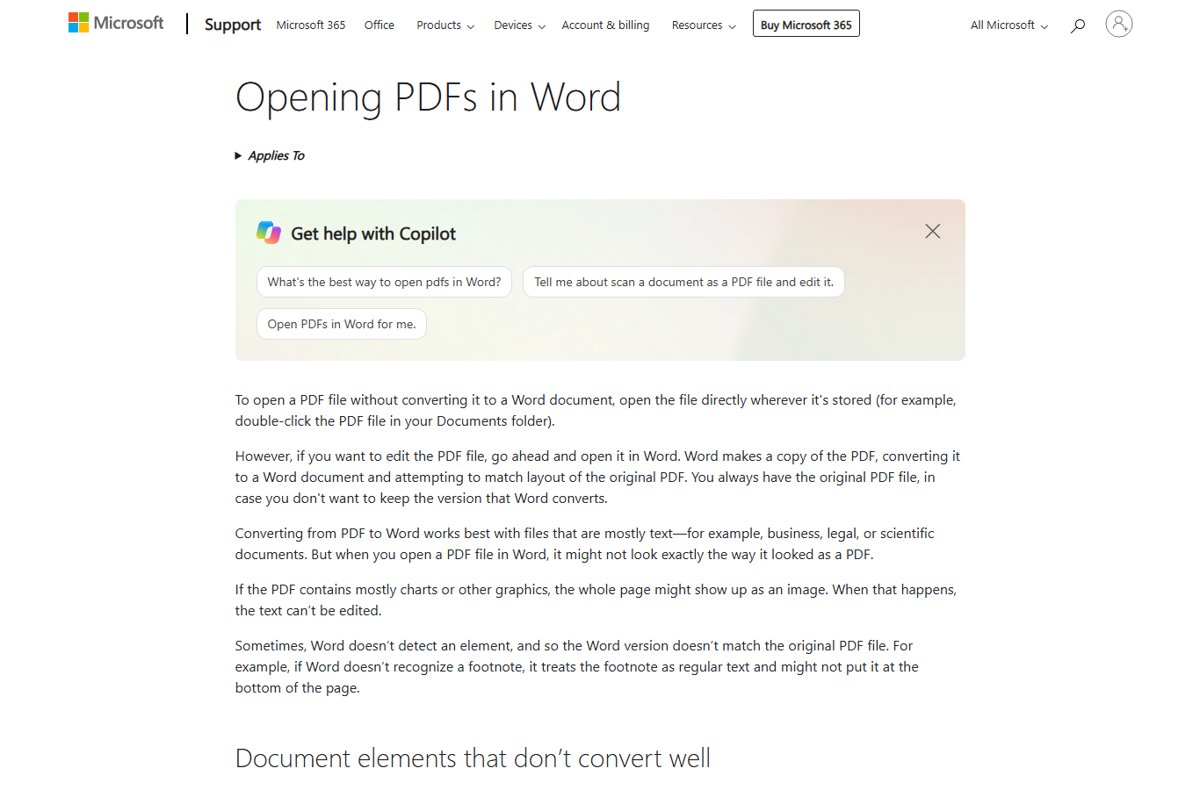
Word converts a PDF itself, with no extra software. It makes a copy, converts it to a Word document and tries to match the original layout.
- Open Word and select File > Open.
- Find the PDF. If it is not listed, select Browse and go to its folder.
- Select the PDF and click Open.
- Word shows a message that it will make a copy and convert the contents into an editable format. Select OK.
- Edit the document as needed.
- Open the Save menu, choose the Word document type from the Save as list, and select OK.
Word for the web also converts a PDF when you open it there, though the result may not match the original layout. Once converted, you can make the Word document editable if it opens in a protected or read-only view.
Method 3: Using online PDF to Word conversion tools
Dozens of websites convert PDF to Word in a browser. Before uploading a file to any of them, check the points Adobe answers on its own page.
| Question to ask | Adobe Acrobat online answer | Why it matters |
|---|---|---|
| Is an account required? | No for basic use; repeat use may require sign-in to download | Sign-in links the file to an account |
| What happens to my file? | Handled on Adobe servers and deleted unless you sign in to save it | Uploaded files leave your control |
| How many free conversions? | Daily limits apply; the number is not published | Large jobs may stop partway |
| What output format? | DOCX | Opens in current Word, Google Docs and LibreOffice |
| Batch conversion? | Paid Acrobat plan or 7-day Acrobat Pro trial | Free tools usually take one file at a time |
Keep contracts, IDs, medical or financial records off online converters. Convert those locally in Word or Acrobat desktop instead.
Method 4: Using desktop conversion software
Desktop software converts without uploading anything. Adobe lists two paid Acrobat tiers that export to Word, and Word itself is the free desktop option if you already own it.
| Desktop option | Price listed by the vendor | Who it suits |
|---|---|---|
| Microsoft Word (2016 or later, or Microsoft 365) | Included with Word | Occasional text-heavy PDFs on a PC that already has Office |
| Adobe Acrobat Standard | US$14.99/mo (convert, edit, e-sign, protect) | Regular conversions with DOC or DOCX choice |
| Adobe Acrobat Pro | US$19.99/mo (full convert and edit) | Heavy use, batch jobs and complex scans |
| Adobe Acrobat Reader | Free | Viewing and annotating only; use the online converter to get a Word file |
Method 5: Using OCR (optical character recognition) for scanned PDFs
A scanned PDF holds pictures of pages, not text. OCR reads those pictures and rebuilds the words so Word can edit them.
- Scan the paper document and save it to your computer as a .pdf file.
- For a mostly-text scan, open Word, select File > Open, pick the PDF and click Open.
- Select OK when Word offers to convert the PDF to an editable Word document.
- For complex scans with tables or columns, open the PDF in Acrobat instead and use Export PDF > Microsoft Word; text recognition runs automatically.
- Compare the result with the scan, because line and page breaks may fall in different places.
How to check the converted Word document
- Click into a paragraph and type a word. If the cursor will not enter the text, that page converted as an image.
- Scroll through every page and compare it with the PDF side by side.
- Check tables, footnotes and headers, which Word may treat as ordinary text.
- Save the file as .docx before sending it on.
Understanding the importance of converting PDF to Word
A PDF is built to look the same everywhere, which makes it hard to change. Converting it to Word gives you editable text again.
| Task | Word document | |
|---|---|---|
| Edit or rewrite text | Limited without paid PDF software | Full editing |
| Reuse content in a new document | Copy and paste, often with broken lines | Styles, headings and lists are editable |
| Fill in or update an old form | Only if it has form fields | Edit freely, then add fields |
| Track changes and comments for review | Not carried over from a PDF | Native review tools |
| Fixed layout for sharing or printing | Best choice | Save back to PDF when finished |
After converting an old form, you can make the Word document fillable.
What is a PDF (Portable Document Format) file and how to open it?
PDF stands for Portable Document Format. Adobe developed it in the early 1990s, and the format is now an open standard maintained by the International Organization for Standardization (ISO).
| Question | Answer |
|---|---|
| What a PDF is for | Sharing and printing a document so it looks the same on every device |
| How to open a PDF file on Windows or macOS | Double-click it to open it in your default PDF app, such as Adobe Acrobat Reader, which is free |
| How to open a PDF file in a browser | Open it in a modern browser such as Microsoft Edge or Chrome, which has a built-in PDF reader |
| Can a PDF reader edit the text? | No. A browser PDF reader can view and print the file, but editing the contents needs conversion to a format such as .docx |
| Which app opens PDFs by default | Change it in Settings > Apps > Default apps by searching for .pdf |
What is a Word (DOCX) file and how to open it?
A DOCX file is a Microsoft Word document saved in the XML-based Open XML format. Current Word versions save new documents as .docx by default instead of the older binary .doc format.
| Question | Answer |
|---|---|
| Why DOCX instead of DOC | DOCX files are zip-compressed, can be up to 75 percent smaller in some cases, and recover better when a part of the file is damaged |
| DOCX vs DOCM | A .docx file cannot contain macros; a macro-enabled document uses .docm |
| How to open a Word file on a PC | In Word, select File > Open, then Browse to the file and click Open |
| How to open a Word file without Word | Upload it to OneDrive.com with a Microsoft account and select it; it opens in Word for the web in your browser |
| Convert an old DOC file to DOCX | Open it in Word, select File > Save as and set Save as type to Word Document (.docx) |
Tips for a successful PDF to Word conversion
Microsoft lists the PDF elements Word struggles with. If your PDF relies on them, expect clean-up or use Acrobat.
| PDF element | What happens in Word | Tip |
|---|---|---|
| Tables with cell spacing | Converts poorly | Rebuild the table or export with Acrobat |
| Page colors and page borders | Converts poorly | Reapply them in Word after converting |
| Footnotes spanning more than one page, and endnotes | May become regular text | Check each note after conversion |
| Tracked changes and frames | Converts poorly | Work from the original Word file if you have it |
| Bookmarks, tags and comments | Not converted | Note them down before converting |
| Audio, video and active PDF elements | Not converted | Link to the media instead |
| Font effects such as Glow or Shadow | Become graphics | Reapply the effect to plain text |
| Pages that are mostly charts or graphics | The whole page may become an image | Use Acrobat with text recognition |
Best practices for converting PDFs to Word
If you made the PDF yourself, the cleanest edit is the original file. Microsoft recommends editing the source Office file and saving it as a PDF again.
- Look for the original Word, Excel or Publisher file first, and edit that instead of the PDF.
- Keep the original PDF untouched; Word and Acrobat always write a new file.
- Convert one test page or a short file before a long document.
- Use desktop conversion for confidential files rather than an online upload.
- Save the edited result as .docx, then return it to PDF with File > Export > Create PDF/XPS Document > Create PDF/XPS and Publish.
Before heavy edits, make a copy of the Word document so you can return to the first converted version.
Troubleshooting common issues
My PDF won't convert to editable Word text
The page is a scan or mostly graphics, so Word treats it as one image.
- Open the PDF in Adobe Acrobat and use Export PDF > Microsoft Word, which runs text recognition on scanned text.
- If you have no Acrobat plan, try the free Adobe online converter.
- For short passages, retype the text that still will not convert.
Formatting changes after converting PDF to Word
Word rebuilds the layout and cannot match every PDF element page for page.
- Compare the Word file with the PDF and fix line and page breaks by hand.
- Check tables, footnotes and page borders, which Microsoft lists as elements that convert poorly.
- For layout-heavy files, convert with Acrobat, which Adobe says keeps fonts, tables and bullet points.
My computer converts every PDF to Word when I open it
Word is set as the default app for .pdf files, so double-clicking a PDF opens and converts it in Word.
- Open Settings and select Apps > Default apps.
- Type .pdf in the search box and select the result.
- Choose Microsoft Edge, Adobe Acrobat or another PDF reader as the default.
- Double-click a PDF to confirm it now opens without conversion.
The online converter will not let me download the Word file
Adobe asks repeat users to sign in, and free use has a daily limit.
- Sign in with a free Adobe account to download the file.
- Wait until the next day if you have reached the free limit.
- Open the PDF in Word instead if Word is installed.
Want PDFs to open in a reader again? You can open PDF files in Windows 11 with Edge or Acrobat Reader.
PDF to Word conversion FAQ
How do I convert a PDF to Word for free?
Upload the PDF to Adobe Acrobat's free online PDF to Word converter, click Select a file, and download the DOCX file it creates. Basic conversion needs no account or payment, though daily limits apply and repeat use may require a free sign-in.
Can I convert a PDF to a Word document without software?
Yes. Adobe's online converter works in any browser and returns a DOCX file, so nothing needs to be installed. If Word 2016 or later is already on your PC, it can also open the PDF and convert it to an editable document.
How do I convert PDF to Word in Microsoft Word?
In Word, select File > Open, pick the PDF and click Open, then select OK when Word says it will convert the PDF to an editable document. Word makes a converted copy and leaves the original PDF unchanged.
How do I convert PDF to Word on a laptop?
On a Windows laptop with Word installed, open Word, select File > Open and choose the PDF. Without Word, use Adobe's free online converter in the browser. Both produce a Word file you can edit and save as .docx.
Is a PDF to Word converter free?
Adobe's online PDF to Word converter is free for basic use with daily limits. Word's built-in conversion costs nothing extra if you already have Word. Unlimited and batch conversions need a paid Acrobat Standard or Pro plan.
Why won't my PDF convert to Word?
A PDF that is a scan or mostly charts often converts as an image, so its text cannot be edited. Use Adobe Acrobat's export, which runs text recognition on scanned text, or try the free Adobe online converter.
Why is my computer converting PDFs to Word?
Word has been set as the default app for PDF files, so opening a PDF triggers Word's conversion. Go to Settings > Apps > Default apps, search .pdf, and pick Edge, Acrobat Reader or another PDF reader instead.
Why does formatting change when converting PDF to Word?
Word rebuilds the PDF's layout and cannot reproduce every element. Tables with cell spacing, page borders, footnotes across pages, endnotes and font effects convert poorly, and line or page breaks may move. Check the document page by page after converting.
Can I add a PDF to a Word document without converting it?
Yes. In Word, go to Insert > Object, select Create from File, browse to the PDF and select OK. The PDF is inserted as an object you can resize but not edit, and Word for the web cannot insert PDF objects.
How do I turn the Word document back into a PDF?
In Word, select File > Export > Create PDF/XPS Document > Create PDF/XPS, choose where to save the file and select Publish. Use Options first if you want to change the PDF's properties.
Which PDF to Word method to pick
Open the PDF in Microsoft Word if you have it, and use Adobe's free online converter if you do not. Both are free for occasional use and handle text-heavy PDFs well. Move to Acrobat Standard or Pro only for scanned, layout-heavy or frequent conversions.