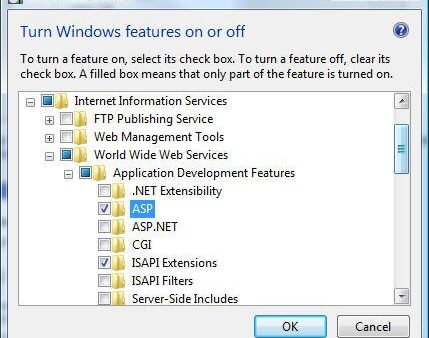
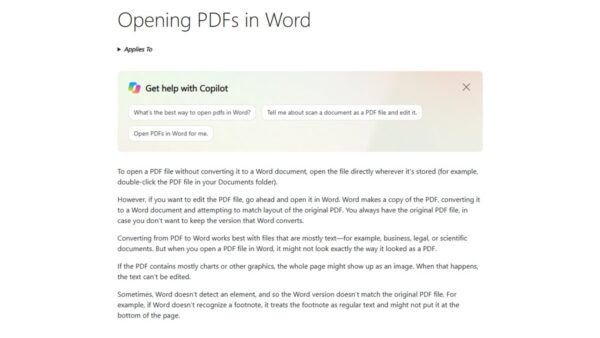
The best free PDF editors in 2026 are Adobe Acrobat's free online editor for quick annotations, LibreOffice Draw as the leading free open-source PDF editor, and the PDF tools already built into Microsoft Edge and Mac Preview.
This list covers twelve free editors, what each one can and cannot change for free, which ones are open source, and how to pick one for your file.
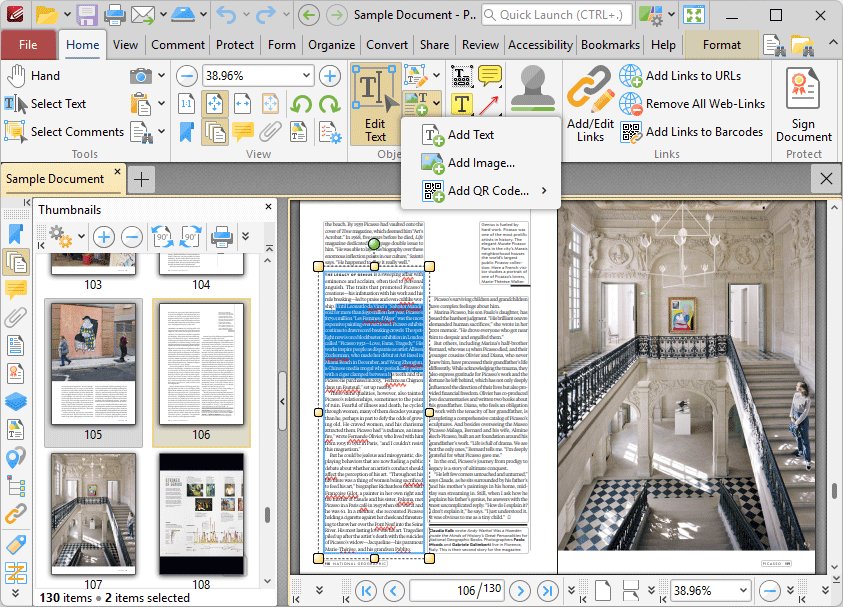
1. Adobe Acrobat online PDF editor
Adobe's free online PDF editor runs in any browser and needs no install. It adds text boxes, comments, sticky notes, highlights, freehand drawings, form entries and a signature to an existing PDF.
It cannot change the body text that is already in the PDF. Adobe reserves that for Acrobat Pro, which has a 7-day free trial.
- Open Adobe's online PDF editor page at
adobe.com/acrobat/online/pdf-editor.html. - Click Select a file, or drag and drop the PDF into the drop zone.
- Sign in with a free account when Acrobat asks, so you can download and keep the result.
- Use the toolbar to add text, sticky notes, highlights and drawings, or to fill and sign form fields.
- Download the edited PDF, or get a link to share it.
Download or save the file before you close the tab. Adobe deletes files from the free tool unless you sign in to save them.
How to choose a PDF editor
The right free editor depends on one question first: do you need to change text that is already in the PDF, or only add things on top of it?
| Your situation | Use this | Why |
|---|---|---|
| You need to add text, highlights or a signature once | Adobe Acrobat online or Microsoft Edge | Nothing to install, and both save the additions into the PDF |
| You want a free open source PDF editor for Windows 11, Windows 10 or Linux | LibreOffice Draw | Opens, edits and exports PDFs, and the code is MPL-2.0 licensed |
| You need to rewrite paragraphs in a text-heavy PDF | Google Docs | Converts the PDF into an editable document you can save back as PDF |
| You fill in and sign forms on Windows every week | Foxit PDF Reader or Adobe Acrobat Reader | Free desktop apps with form filling and signing built in |
| You want the most free tools in one Windows app | PDF-XChange Editor | 257 of its 402 features are free, with no watermark on those |
| You edit vector artwork, logos or diagrams inside a PDF | Inkscape | Imports and exports PDF natively as an open-source vector editor |
| You work on a Mac | Preview | Built into macOS with markup, form filling and signatures |
| You want online editing with overlay text, white-out and form fields | Zoho PDF Editor | Free online editor that takes PDFs up to 400 pages or 50 MB |
2. Microsoft Edge built-in PDF editor
Microsoft Edge has a built-in PDF reader on Windows and macOS that also edits. It supports ink drawing, highlights, text notes, added text and basic form filling, so many readers never need a separate app.
Edge does not support XFA forms or forms that rely on JavaScript, and it cannot rewrite the original text in the file.
- Right-click the PDF in File Explorer and select Open with > Microsoft Edge.
- Choose Add text in the PDF toolbar, click where the text should go, and type.
- Drag the new text box into place, or change its font from the text options.
- Select Draw to write or sign with a mouse, pen or finger, and pick a colour and stroke width.
- Select a passage, right-click it, choose Highlight and pick a colour.
- Save a copy of the PDF from the toolbar so the text, ink and highlights stay in the file.
To leave a comment on a passage, select the text, right-click it and choose Add Comment, then click the check mark to save the note.
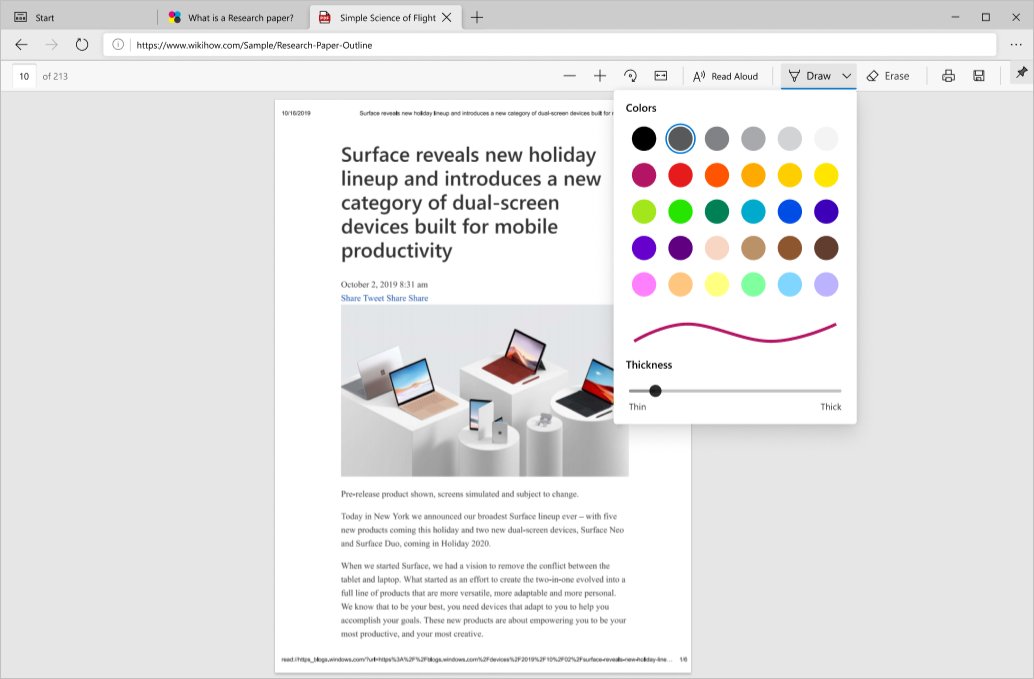
3. LibreOffice Draw
LibreOffice Draw is the best-known free and open-source PDF editor. It can import, edit and export PDFs, and LibreOffice's source code is released under the Mozilla Public License 2.0 at no cost.
Draw suits forms, flyers and short documents you need to change in place. Long text-heavy reports are easier to edit after converting them in Google Docs or Word.
- Open LibreOffice and choose File > Open.
- Select the PDF and click Open. The PDF loads in LibreOffice Draw.
- Click a text box or image on the page to change, move or delete it.
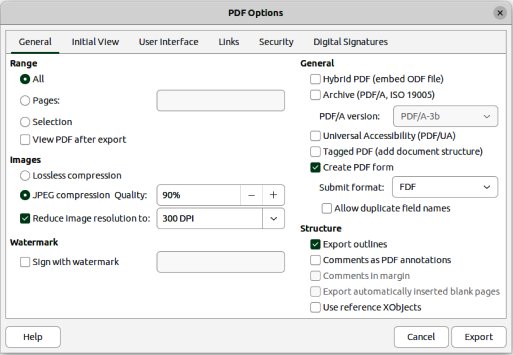
- Choose File > Export As > Export as PDF to open the PDF Options dialog.
- Tick Hybrid PDF (embed ODF file) if you want the result to stay fully editable in LibreOffice later.
- Click Export, then name and save the new PDF.
For a quick save with default settings, use File > Export As > Export Directly as PDF instead. Draw can also make a redacted PDF from Tools > Redact.
4. Google Docs
Google Docs edits a PDF by converting it into a new Google Doc. Bold, italics, font size, font type and line breaks usually carry over, while lists, tables, columns, footnotes and endnotes often need to be rebuilt.
Google's conversion works best on files of 2 MB or smaller, with upright pages and text at least 10 pixels high.
- Upload the PDF to Google Drive in your browser.
- Right-click the PDF in Drive.
- Select Open with > Google Docs.
- Edit the text in the new Google Doc that opens.
- Choose File > Download > PDF Document (.pdf) to save the edited version as a PDF.
The original PDF stays untouched in Drive, so you always keep a copy of the unedited file.
5. Inkscape
Inkscape is a free, open-source vector graphics editor released under the GNU GPL 2.0 or later. It lists PDF as a native import and export format and runs on Windows, macOS and Linux.
It is the right free PDF editor for artwork rather than paperwork: logos, posters, diagrams and single-page designs saved as PDF.
| What you want to do | Inkscape fit | Reason |
|---|---|---|
| Change colours, shapes or a logo in a one-page PDF | Good fit | Imported PDF artwork can be edited as vector objects |
| Save the edited design back to PDF | Good fit | PDF is a native export format |
| Edit a multi-page report or contract | Poor fit | Inkscape is a drawing editor, so use LibreOffice Draw or Google Docs |
| Fill in or sign a form | Poor fit | Use Edge, Acrobat Reader or Foxit PDF Reader |
6. PDF-XChange Editor
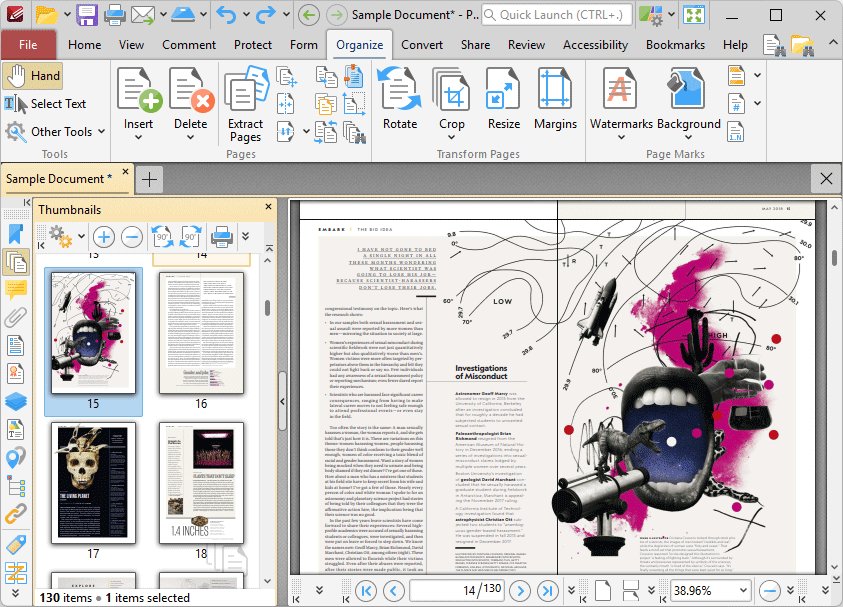
PDF-XChange Editor has the largest free toolset of the Windows apps here: its vendor counts 257 free features out of 402, about 70% of the app. It runs on Windows 10 and later, including ARM64 PCs.
The free version can be used privately and commercially. Features marked PRO still work, but anything they produce carries an evaluation watermark that cannot be removed without a licence.
| Task | Free in PDF-XChange Editor? | Note |
|---|---|---|
| Comments, highlights and text box annotations | Yes, almost all | 42 of 48 annotation features are free |
| OCR on scanned pages | Partly | The standard OCR engine is in the base Editor; Enhanced OCR is in Editor Plus |
| Editing the existing document text | Mostly licensed | Two of the three text editing features need a licence |
| Creating fillable form fields | Mostly licensed | 6 of 22 form features are free |
| Any feature marked PRO | Works, with a watermark | Test on a copy of the file, not the original |
You can download PDF-XChange Editor for Windows and check which tools carry the PRO mark before you rely on one.
7. Foxit PDF Reader and Foxit PDF Editor (formerly PhantomPDF)
Foxit PhantomPDF was renamed Foxit PDF Editor with version 11 in May 2021. The editor is a paid product with a 14-day free trial, and it edits text, images and pages on Windows, macOS and the web.
The free option is Foxit PDF Reader. It highlights, underlines and adds sticky notes, fills both standard AcroForms and XFA forms, and signs with a handwritten signature or a saved image.
| Product | Price | Edits existing text? | Platforms |
|---|---|---|---|
| Foxit PDF Reader | Free | No, annotation, forms and signing only | Windows 10 and 11, macOS, iOS, Android, web |
| Foxit PDF Editor | Paid, 14-day free trial | Yes, text, images and pages | Windows, macOS, web |
Foxit PDF Reader for Windows is the stronger free pick if you fill XFA forms, which Microsoft Edge cannot open as forms.
8. PDFelement
Wondershare PDFelement offers a free download for Windows and Mac, but that download runs as a trial with firm limits. It suits a one-off look at the full editor rather than ongoing free use.
| Trial limit (Windows) | What it means for you |
|---|---|
| Watermark on exported PDFs after editing or commenting | Edited files are not clean enough to send |
| Converts half the pages, and at most 3 pages when the PDF has more than 10 | Not a free PDF-to-Word route for long files |
| OCR on up to 3 pages | Scanned documents stay mostly uneditable |
| Combine up to 3 files | Small merges only |
| No file compression or XFA form filling | Use Foxit PDF Reader for XFA forms |
9. Adobe Acrobat Reader
Adobe Acrobat Reader is the free desktop app behind Adobe's online editor. It views, prints, comments, highlights, underlines, adds sticky notes, types text on a page, draws freehand, and fills and signs forms with no subscription.
Like the online tool, Reader cannot edit existing text or images. That needs Acrobat Pro or Acrobat Studio.
| Need | Acrobat Reader tool |
|---|---|
| Mark up a draft | Highlight, underline, strikethrough and sticky notes |
| Complete a form | Fill & Sign, which recognises fillable fields and saves the completed form |
| Sign a document | Draw, type or upload an image of your signature |
| Use it on other devices | Windows 10 and 11, macOS 10.15 or later, iOS 16 or later, Android 8.0 or later, and the web |
10. Preview on Mac
Preview is the free PDF editor built into every Mac. It adds text, shapes, notes and signatures, highlights and strikes out text, fills forms, and adds, deletes, moves, rotates and crops pages.
- Open the PDF in the Preview app on your Mac.
- Click the Show Markup Toolbar button if the Markup toolbar is not showing.
- Pick the text tool, type your text, then drag the text box where you want it.
- Click a shape, drag it into place and resize it with the blue handles.
- Click a saved signature and drag it into place to sign the document.
11. Apache OpenOffice Draw and OpenOffice Writer
Apache OpenOffice is free, open source and released under the Apache 2.0 License, but neither OpenOffice Writer nor Draw is a good PDF editor today. PDF editing depends on a separate PDF Import extension.
That extension's own page warns it was not updated recently, lists OpenOffice 4.0 as its tested version, and says it might not work with the latest OpenOffice releases.
| Situation | Recommendation |
|---|---|
| You already use OpenOffice and the PDF was exported as a PDF/ODF hybrid file | Install the PDF Import extension; hybrid files open as ODF with the layout intact |
| You need to edit an ordinary PDF | Use LibreOffice Draw, which handles PDF import itself |
| You want an open-source office suite for new documents | Either suite works; export your finished file to PDF when done |
12. Zoho PDF Editor
Zoho PDF Editor is a free online PDF editing tool with a free desktop app. It accepts PDFs of up to 400 pages or 50 MB.
It adds overlay text with rich formatting, inserts and resizes images, draws shapes, highlights content, whites out existing text, and adds hyperlinks, watermarks, fillable fields and signature fields.
| Task | Zoho PDF Editor |
|---|---|
| Cover and replace a line of text | White out the old text, then add overlay text on top |
| Turn a flat PDF into a form | Add fillable fields and signature fields |
| Collect signatures | Wet signatures, self-signing and digital signature collection |
| Rearrange a document | Combine, split, extract, rotate and replace pages |
| Lock a finished file | Password-protect the PDF |
Free open source PDF editor options for Windows
The free open-source PDF editors with official vendor downloads are LibreOffice Draw, Inkscape and Apache OpenOffice with its PDF Import extension. Each is a desktop app you install, not an online editor.
| Editor | Licence | PDF support | Best use |
|---|---|---|---|
| LibreOffice Draw | Mozilla Public License 2.0 | Imports, edits and exports PDF, including hybrid PDFs | Forms, flyers and short documents |
| Inkscape | GNU GPL 2.0 or later | Native PDF import and export | Vector artwork, logos and diagrams |
| Apache OpenOffice | Apache 2.0 License | Needs the PDF Import extension, last tested with OpenOffice 4.0 | Existing OpenOffice users with hybrid PDF/ODF files |
None of the online editors in this list is open source. If a file must not leave your PC, use one of these desktop apps.
Match the open-source tool to the job. For reading PDFs on Windows or Mac, the free viewer in Microsoft Edge or Preview is lighter than a full editor. For creating PDFs, any LibreOffice app exports through File > Export As > Export as PDF, and Inkscape saves designs as PDF. For editing PDFs, use LibreOffice Draw for text and layout, and Inkscape for artwork.
Open-source lists also name Scribus, PDFsam Basic, Stirling PDF, Omni Tools and PDFedit. Check each project's own site for its current release, platforms and licence before you rely on it.
The best free PDF editors for Windows, Mac and the web compared
| Editor | Where it runs | Changes existing text for free? | Open source | Who it suits |
|---|---|---|---|---|
| Adobe Acrobat online | Web browser | No | No | Quick comments, form filling and signing |
| Microsoft Edge | Windows, macOS | No | No | Windows users who want no extra app |
| LibreOffice Draw | Desktop app | Yes | Yes | Anyone who wants a completely free option with real editing |
| Google Docs | Web browser | Yes, in a converted copy | No | Rewriting text-heavy PDFs |
| Inkscape | Windows, macOS, Linux | Edits imported artwork | Yes | Designers editing graphics in a PDF |
| PDF-XChange Editor | Windows 10 and later | Mostly a licensed feature | No | Power users who annotate heavily |
| Foxit PDF Reader | Windows, macOS, mobile, web | No | No | XFA and AcroForms filling, signing |
| PDFelement | Windows, Mac, mobile | Trial only, with a watermark | No | Trying the full editor before buying |
| Adobe Acrobat Reader | Windows, macOS, mobile, web | No | No | Offline Fill & Sign |
| Preview | macOS | No, adds text boxes | No | Mac users |
| Apache OpenOffice | Desktop app | Only with the PDF Import extension | Yes | Existing OpenOffice users |
| Zoho PDF Editor | Web browser, desktop app | White-out plus overlay text | No | Building forms and collecting signatures online |
What to look for in a free PDF editor
When choosing the best free PDF editor, check these points on the vendor's own pricing or feature page before you commit a document to it.
| What to check | Why it matters | Example from this list |
|---|---|---|
| Edit existing text or only annotate | Most free tiers add content on top but cannot change what is already there | Acrobat online annotates; LibreOffice Draw edits |
| Watermarks on saved files | A watermark makes the result unusable for clients or forms | PDFelement trial and PDF-XChange PRO features |
| Online upload or local editing | Online editors send your file to the vendor's servers | Desktop apps such as LibreOffice Draw keep the file on your PC |
| Form type support | XFA forms fail in some readers | Edge does not support XFA; Foxit PDF Reader does |
| Page and file size limits | Large scans can exceed free limits | Zoho takes up to 400 pages or 50 MB; Google Docs converts best at 2 MB or less |
| Open source licence | Free to use, inspect and keep with no account | LibreOffice Draw, Inkscape, Apache OpenOffice |
Can I edit a PDF permanently for free?
Yes. You can edit a PDF permanently for free when the editor saves your changes into the file itself, not only in its own app. Every editor in this list saves a new or updated PDF.
| Kind of change | Free editor that saves it into the PDF |
|---|---|
| Added text, highlights, ink and notes | Microsoft Edge, Adobe Acrobat online or Reader, Preview, Foxit PDF Reader |
| Changed or deleted original text and images | LibreOffice Draw, exported as a new PDF |
| Rewritten paragraphs | Google Docs, downloaded as PDF |
| Covered text with new wording | Zoho PDF Editor white-out plus overlay text |
| Removed sensitive content | LibreOffice Tools > Redact, exported as a redacted PDF |
Covering text with a white box hides it on the page, but a true redaction removes it. Use a redaction tool for anything confidential.
Sejda, PDFescape, Smallpdf and other free PDF editors
Other names that appear on free PDF editor lists include Sejda PDF Editor, PDFescape, PDF Buddy, PDF Candy, Smallpdf, TinyWow, SimplePDF, DocHub and Canva on the web, plus PDFgear, Nitro PDF Reader and WPS Office as desktop downloads.
Their free tiers, daily task limits and file retention rules change often, so read each vendor's own pricing and privacy pages before you upload a contract, ID or bank statement.
For a confidential PDF, use a desktop editor from the list above, such as LibreOffice Draw, Microsoft Edge or Foxit PDF Reader. A desktop editor keeps the file on your PC, while any online editor has to upload it to the vendor's servers before it can change it.
Free PDF editor FAQ
What is the best free open source PDF editor?
LibreOffice Draw is the best-known free open-source PDF editor. It imports, edits and exports PDFs at no cost, and LibreOffice's code is released under the Mozilla Public License 2.0. Inkscape, under the GNU GPL, suits PDFs that are mostly vector artwork.
Is there a free open source PDF editor for Windows 11?
Yes. LibreOffice Draw and Inkscape are free open-source editors that install on Windows 11 and Windows 10 and open PDF files. LibreOffice Draw suits documents and forms, while Inkscape suits logos, posters and diagrams saved as PDF.
Is there a free open source PDF editor online?
The free open-source PDF editors with official vendor downloads, LibreOffice Draw and Inkscape, are desktop apps. Free online editors such as Adobe Acrobat online and Zoho PDF Editor are free to use but are not open source, and they upload your file to the vendor.
Can Microsoft Edge edit PDF files?
Yes, partly. Edge's built-in PDF reader adds text, ink drawings, highlights and text notes, fills basic forms, and saves those changes into the PDF. It cannot rewrite the original text, and it does not support XFA forms or JavaScript forms.
Does Adobe have a free PDF editor?
Yes. Adobe's free online PDF editor and the free Acrobat Reader app add text boxes, comments, highlights, drawings, form entries and signatures. Neither can edit existing body text; that needs Acrobat Pro, which Adobe offers as a 7-day free trial.
Can Google Docs edit a PDF?
Yes. In Google Drive, right-click the PDF and select Open with, then Google Docs. Drive converts it to an editable document, keeping bold, italics, fonts and line breaks, though tables, lists and footnotes often need rebuilding. Files of 2 MB or less convert best.
Is PDF-XChange Editor free?
PDF-XChange Editor has a free version for Windows 10 and later that can be used privately and commercially, with 257 of its 402 features unrestricted. Features marked PRO still run, but their output carries a watermark that only a licence removes.
Does the free PDFelement add a watermark?
Yes. Wondershare's trial of PDFelement for Windows exports PDFs with a watermark after editing or commenting. The trial also limits conversion to half the pages, OCR to 3 pages and combining to 3 files.
What happened to Foxit PhantomPDF?
Foxit PhantomPDF was renamed Foxit PDF Editor with version 11, released in May 2021. Foxit PDF Editor is paid with a 14-day free trial, while Foxit PDF Reader remains free for annotation, form filling and signing.
Which free PDF editor to use in 2026
Use Microsoft Edge or Adobe Acrobat online to add text, highlights or a signature, and install LibreOffice Draw when you must change the text already in the PDF. Edge and Acrobat online need no install and save additions straight into the PDF, while LibreOffice Draw is completely free, open source and one of the few no-cost editors here that changes existing text with no watermark or trial limit.