To switch from a local account to a Microsoft account, open Settings > Accounts > Your info, select Sign in with a Microsoft account instead, sign in, then select Sign out and finish.
The same steps work on Windows 11 and Windows 10, and your files, apps and desktop stay where they are. This guide also covers what changes, how to confirm the switch, how to go back to a local account, and how to fix the errors that stop the conversion.
How to switch to a Microsoft account on Windows 11
Sign in to Windows with the local account you want to convert. The conversion changes how that same account signs in; it does not create a second user.
- Press Windows + I to open Settings.
- Select Accounts in the left pane, then select Your info.
- Select Sign in with a Microsoft account instead. The link only appears while you use a local account.
- Enter the email address or phone number of your Microsoft account and select Next. If you do not have an account yet, choose the option to create one.
- Enter your Microsoft account password.
- Complete any verification code or Windows Hello PIN prompts that Windows shows.
- Select Next, then select Sign out and finish.
- Sign back in with your Microsoft account password or the PIN you just set.
The conversion needs an internet connection, because Windows checks the account with Microsoft's servers before it links it to the PC.
Local account vs Microsoft account: What changes
A local account exists only on one PC and signs in without the internet. A Microsoft account uses an email address and password shared with Outlook.com, OneDrive, Xbox and Microsoft 365, so your settings can follow you to other devices.
| Area | Local account | Microsoft account |
|---|---|---|
| Where it lives | Only on this PC | In the cloud, usable on any device |
| Sign-in needs internet | No | Only the first time on a new device; cached afterwards |
| Settings and preferences sync | No | Yes, through Windows Backup |
| OneDrive folder backup | Needs a separate OneDrive sign-in | Built into Windows Backup, 5 GB free |
| Forgotten password | Security questions or a password reset disk | Reset online from any browser or the sign-in screen |
| I forgot my PIN on the sign-in screen | Not available | Available |
| Windows digital license | Cannot be linked | Can be linked, which helps reactivation after a hardware change |
| Windows 10 consumer ESU enrollment | Prompts you to sign in with a Microsoft account | Enrolls directly |
| What changes when you switch to a local account | Sync, Windows Backup and online password reset stop | — |
Microsoft recommends a Microsoft account for signing in to Windows. The trade-off is that your sign-in now depends on an online account you must keep secure.
What to do before switching accounts
| Check | Why it matters | How to do it |
|---|---|---|
| Confirm you can access your Microsoft account | A forgotten password or dead recovery phone blocks the switch halfway | Sign in at account.microsoft.com in a browser first |
| Back up important files | The conversion keeps files, but a backup protects against a failed sign-in or profile error | Copy Documents, Desktop and Pictures to an external drive or OneDrive |
| Confirm administrator access | An administrator account can link a digital license and enroll in ESU | Settings > Accounts > Your info shows Administrator under your name |
| Know your current local password | You need it if Safe Mode or recovery asks for a password later | Write it down or create a password reset disk before you start |
| Check the internet connection | The Microsoft account is verified online | Open a web page, or select the network icon on the taskbar |
| Install pending updates | A pending restart can interrupt the sign-out step | Settings > Windows Update > Check for updates |
| Prepare your sign-in options | Windows asks for a PIN or a verification code during the switch | Keep your phone or recovery email open |
How to switch to a Microsoft account on Windows 10
Windows 10 uses the same Your info page, reached from the Start menu. The link wording is identical.
- Select Start > Settings.
- Select Accounts, then Your info.
- Select Sign in with a Microsoft account instead.
- Enter your Microsoft account email address or phone number, select Next, then enter your password.
- Complete any verification code or PIN prompt.
- Select Next, then Sign out and finish.
- Sign back in with the Microsoft account password or PIN.
Windows 10 support ended on October 14, 2025, so the switch also prepares the PC for consumer ESU enrollment, covered below.
How to confirm the switch was successful
- Open Settings > Accounts > Your info.
- Check that your Microsoft account email address appears under your name, above Administrator or the account type. A local account shows no email address there.
- Check that the link now reads Sign in with a local account instead. That wording only appears on a Microsoft account.
- Open Settings > System > Activation and look for Windows is activated with a digital license linked to your Microsoft account.
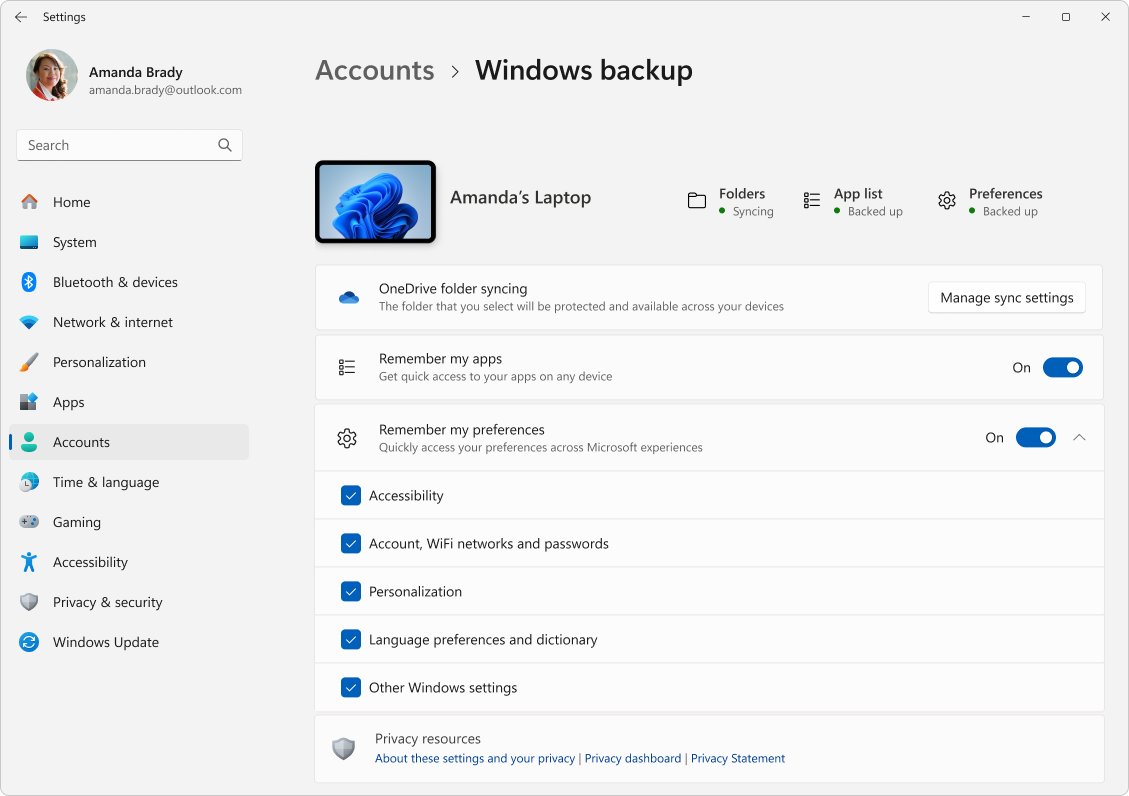
- Open Settings > Accounts > Windows backup and confirm the backup options are available instead of a sign-in prompt.
- Lock the PC with Windows + L and check that the sign-in screen shows your Microsoft account name.
What happens to your files and applications?
Switching converts the existing user account, so nothing is deleted and no new profile is created.
| Item | After switching to a Microsoft account | After switching back to a local account |
|---|---|---|
| Files in Documents, Desktop, Downloads | Stay in place | Stay in place |
| Profile folder in C:\Users | Keeps its existing folder name | Keeps its existing folder name |
| Installed desktop apps | Still installed and working | Still installed and working |
| Microsoft Store apps | Purchases tied to the account become available | Remain installed; the Store asks you to sign in separately |
| Old profile | Not deleted, because it is the same profile | Not deleted, because it is the same profile |
| Saved Wi-Fi networks and wallpaper | Kept, and can be backed up | Kept locally only |
So the answer to whether switching will delete files, applications, or the old profile is no in both directions. A backup is still a sensible precaution before any account change.
What happens to Microsoft services and applications?
| Service | With a Microsoft account on Windows | With a local account on Windows |
|---|---|---|
| OneDrive | Signs in automatically and backs up folders | Works only after you sign in to the OneDrive app separately |
| Microsoft Store | Uses the Windows account; purchases and gift card balances follow you | Asks for a Microsoft account inside the Store app |
| Microsoft 365 apps and Outlook | Can reuse the Windows sign-in | Sign in inside each app |
| Xbox app and games | Signed in with the same account | Sign in inside the Xbox app |
| Microsoft Edge sync | Offered with the same account | Sign in to Edge separately to sync |
You can redeem a gift card on a Microsoft account once the account is on the PC.
Windows Backup and synchronization
Windows Backup stores your settings with your Microsoft account, so it only works after the switch. Work or school accounts are not supported.
| What Windows Backup covers | Where to turn it on |
|---|---|
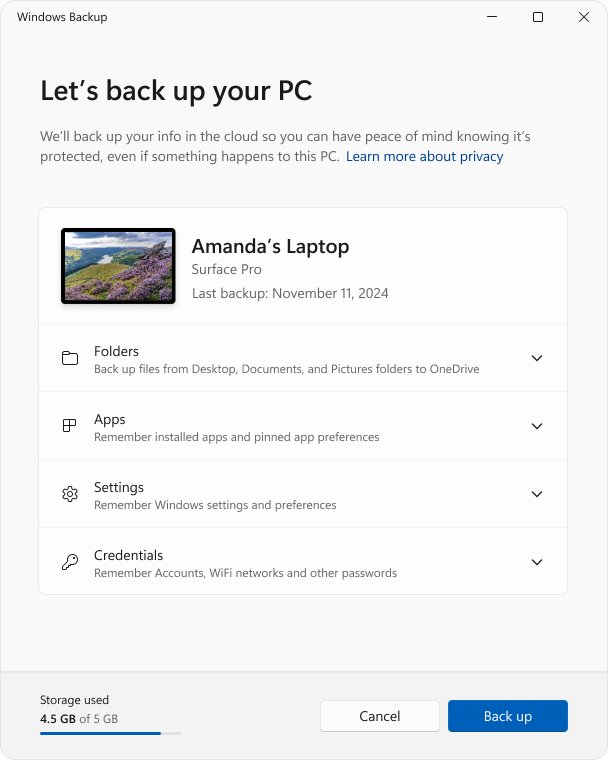
| Desktop, Documents, Pictures, Videos and Music folders (to OneDrive) | Windows Backup app > Folders |
| Installed apps list and pins | Settings > Accounts > Windows backup > Remember my apps |
| Accessibility, language, Wi-Fi networks and passwords, personalization | Remember my preferences checkboxes |
| Restore on a new PC | Sign in with the same Microsoft account during setup and choose the backup |
Personalization backup needs OneDrive storage, and the free Microsoft account includes 5 GB.
Windows activation
Switching does not change whether Windows is activated. It lets you link the digital license to your account, which the Activation troubleshooter needs after a motherboard or other major hardware change.
| Activation page message | Meaning | What to do |
|---|---|---|
| Windows is activated with a digital license | Activated, but not linked to your account | Select Add an account on the Activation page and sign in |
| Windows is activated with a digital license linked to your Microsoft account | Linked | Nothing; the troubleshooter can reactivate later |
| Windows is not activated | No valid license found | Select Troubleshoot on the Activation page |
Once you link the digital license to your Microsoft account, reactivation after a repair becomes a few clicks. The troubleshooter's I changed hardware on this device recently option only works with the linked account.
Windows Hello PIN, fingerprint, and face sign-in
| Sign-in method | Microsoft account | Local account |
|---|---|---|
| Windows Hello PIN | Set up during the switch; reset with I forgot my PIN on the sign-in screen | Available; no I forgot my PIN reset on the sign-in screen |
| Fingerprint and face | Keep working; set them up again in Sign-in options if Windows asks | Available on supported hardware |
| Password | Your Microsoft account password; reset online | Local password; reset with security questions or a reset disk |
| Safe Mode sign-in | Needs the account password, not the PIN | Needs the local password |
Manage all of these in Settings > Accounts > Sign-in options. The PIN is separate from your Microsoft account password and works only on that PC.
Advantages and disadvantages of a local account
| Advantages of a local account | Disadvantages of a local account |
|---|---|
| Signs in without any internet connection | No settings sync or Windows Backup restore on a new PC |
| Nothing tied to an online email address | Forgotten password cannot be reset online |
| Account exists only on this PC | Digital license cannot be linked for reactivation |
| Separate from Microsoft's cloud services | OneDrive, Store and Microsoft 365 each need their own sign-in |
| Simple for a shared or offline PC | Windows 10 ESU enrollment still asks for a Microsoft account |
Choose a Microsoft account if you use OneDrive, own several PCs or want painless recovery. Keep a local account on an offline machine or a PC you want kept apart from online services, and on a fresh PC you can install Windows 11 with a local account from the start.
Windows 10 support and Consumer ESU
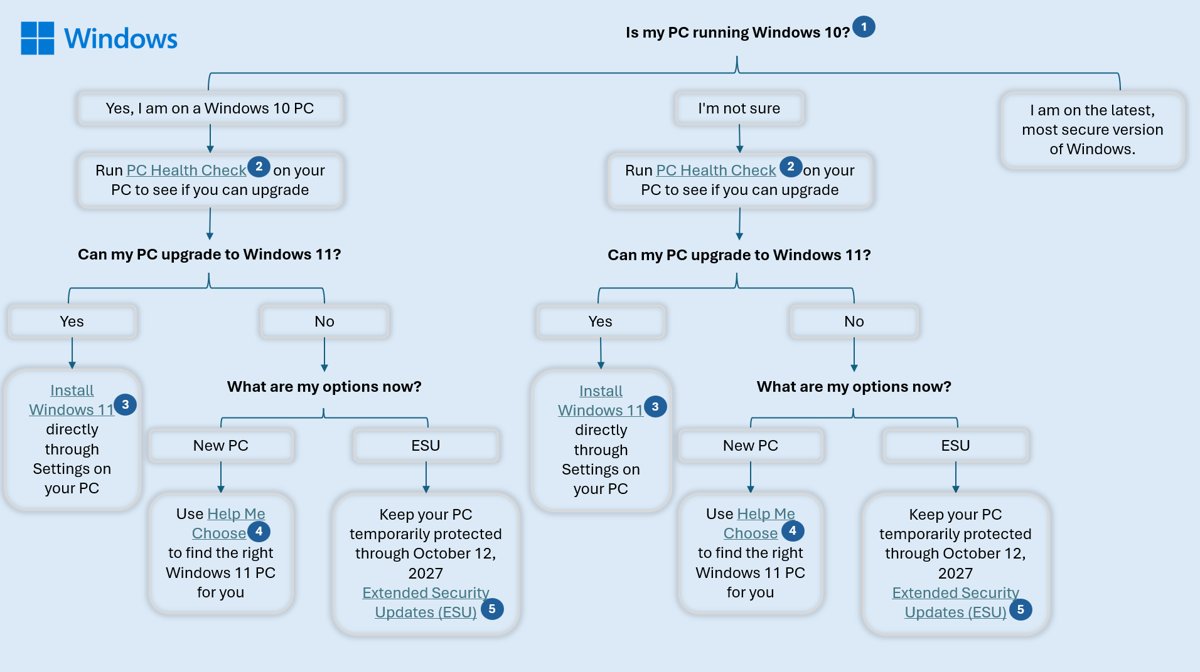
Windows 10 support note: security updates for Windows 10 ended on October 14, 2025. The PC keeps working, but it needs the consumer Extended Security Updates (ESU) program to stay patched until October 12, 2027.
| ESU requirement | Detail |
|---|---|
| Windows version | Windows 10, version 22H2 Home, Pro, Pro Education or Workstations, fully updated |
| Account | A Microsoft account that is an administrator and not a child account; local-account users are prompted to sign in |
| Cost | Free while syncing PC settings, 1,000 Microsoft Rewards points, or a one-time $30 purchase |
| Where to enroll | Settings > Update & Security > Windows Update > Enroll now |
| Extra PCs | One ESU license covers up to 10 devices on the same Microsoft account |
The ESU license stays attached to the Microsoft account used to enroll, so switching to that account first keeps things simple.
How to switch back to a local account
Before switching to a local account, make sure you know a password you will use offline, and back up anything stored only in OneDrive. Windows Backup, settings sync and online password reset stop after the change.
- Open Settings > Accounts > Your info.
- Select Sign in with a local account instead. The link only appears on a Microsoft account.
- Confirm the prompt and verify with your PIN or Microsoft account password.
- Enter a username, password and password hint. The username must differ from every other account on the PC.
- Select Next, then Sign out and finish.
- Sign in with the new local password.
- Confirm that the account is now local: Your info shows no email address under your name, and the link reads Sign in with a Microsoft account instead.
Create a password reset disk afterwards. Without one, you can only reset a forgotten Windows password for a local account through the security questions.
Troubleshooting sign-in and verification problems
The verification code never arrives
The code went to junk mail, to a different address, or Microsoft paused codes after repeated requests.
- Check the junk folder for a message from @accountprotection.microsoft.com.
- Check which mailbox or phone ends in the characters Microsoft shows on the prompt.
- Stop requesting new codes and wait; a block usually clears within 24 hours.
- Select another verification method, such as the Authenticator app or an alternate email.
- If a VoIP number is on the account, replace it with a mobile number in your security info.
You cannot access your email or phone for the code
The security info on the account is out of date.
- Sign in to your Microsoft account in a browser.
- At Verify your identity, select I don't have any of these.
- Follow the prompts to replace your security info.
- Wait the 30-day period Microsoft applies, then retry the switch.
Windows keeps asking to verify the account
The PC is not trusted for your Microsoft account yet.
- Sign in to your Microsoft account in Edge on this PC and open the Security page.
- Enter the code sent to you.
- Tick Don't ask me again on this device and select Verify.
You cannot sign in after the switch
The PIN is not set up, the password is wrong, or the PC was offline.
- Select the network icon on the lock screen and connect to the internet.
- Select Sign-in options and choose the password instead of the PIN.
- If the password is forgotten, select I forgot my password and reset it online.
- Restart and try again, installing any update offered at restart.
Why “Sign in with a local account instead” is missing
No option to switch to a local account
You are already on a local account, so Windows shows the opposite link.
- Open Settings > Accounts > Your info.
- If you see Sign in with a Microsoft account instead, the account is already local.
No “Sign in with a Microsoft account instead” link
The account already uses a Microsoft account, or it is a work or school account.
- Check Your info for an email address under your name.
- Open Settings > Accounts > Access work or school to see if the PC is connected to an organization.
- On an organization-managed PC, ask its administrator; do not try to work around the policy.
Neither link appears
You are signed in to a different account than the one you want to change.
- Sign out and sign in as the account you want to convert.
- Repeat the steps from Your info; each user converts only their own account.
Fix common conversion errors
The username is already in use
Switching back to local needs a username different from every other account on the PC.
- Pick a new username for the local account.
- Check existing names in Settings > Accounts > Other users.
The switch stops because the connection dropped
The PC lost its internet connection during verification.
- Connect by Ethernet if Wi-Fi is weak.
- Restart the PC and install pending updates.
- Run the steps from Your info again.
You cannot create a Microsoft account during the switch
The email address was used before; closed Microsoft account addresses cannot be reused.
- Sign up with a different email address, or a phone number.
- Create the account on another device, then return and sign in.
If you do not have another administrator account
A spare administrator gives you a way back in if the switch fails. On Windows 11 you can add a second user account in a few minutes and promote it.
Your account is the only administrator and something goes wrong
Without a second administrator, a failed sign-in can lock you out of admin tasks.
- Before switching, open Settings > Accounts > Other users and select Add account.
- Select I don't have this person's sign-in information, then Add a user without a Microsoft account.
- Finish creating the account, then select it and choose Change account type.
- Set it to Administrator and select OK.
- Use this spare account to recover if your main sign-in fails.
If the profile is corrupted
Windows signs you in to a temporary profile or shows "We can't sign in to your account"
The user profile is damaged, so conversion cannot finish on it.
- Create a new administrator account from Other users.
- Sign in to the new account and open File Explorer > This PC > C: > Users.
- Open the old profile folder, select all files and folders, and copy them.
- Paste them into the new account's folder in C:\Users.
- Restart, sign in to the new account, then switch it to a Microsoft account from Your info.
Do not turn on hidden or protected operating system files while copying. Store apps and email accounts need signing in again on the new profile.
Alternatives to changing the Windows sign-in
You can use Microsoft services without converting the Windows account at all.
| Goal | Alternative | Where |
|---|---|---|
| Use OneDrive, Outlook or the Store only | Add a Microsoft account used by apps | Settings > Accounts > Email & accounts > Add a Microsoft account |
| Access company email and files | Connect a work or school account | Settings > Accounts > Access work or school > Connect |
| Try a Microsoft account without touching yours | Add a second user with a Microsoft account | Settings > Accounts > Other users > Add account |
| Keep the Windows sign-in offline | Stay on the local account and sign in to each app | Each app's own sign-in |
Local to Microsoft account on Windows: frequently asked questions
How do I switch from a local to a Microsoft account?
Open Settings > Accounts > Your info and select Sign in with a Microsoft account instead. Sign in with your Microsoft account, complete any verification prompt, then select Next and Sign out and finish. The steps are the same on Windows 11 and Windows 10.
Why switch from a local to a Microsoft account?
A Microsoft account adds settings sync, Windows Backup, OneDrive integration, online password reset and digital-license linking for reactivation. On Windows 10 it also simplifies consumer ESU enrollment, which requires a Microsoft account.
Why switch Windows 11 to a local account?
People switch to a local account to sign in without the internet, keep the PC separate from online services, or use a shared offline machine. The cost is losing sync, Windows Backup and online password recovery.
How do I switch to a local account?
Open Settings > Accounts > Your info and select Sign in with a local account instead. Verify your identity, enter a new username, password and hint, then select Next and Sign out and finish. Files and apps stay in place.
Why switch Windows 10 to a local account?
The reasons match Windows 11: offline sign-in and privacy from online services. On Windows 10, note that consumer ESU enrollment still prompts for a Microsoft account, and the license stays attached to that account.
How do I switch from a local account to administrator?
An administrator account can change your account type in Settings > Accounts > Other users. Select the account, choose Change account type, pick Administrator and select OK. You cannot promote your own standard account without an administrator's sign-in.
Will switching to a Microsoft account delete my files or apps?
No. The switch converts the existing account, so your files, installed apps, desktop and profile folder stay exactly where they were. Backing up first is still wise in case sign-in fails.
Do I need an internet connection to switch to a Microsoft account?
Yes. Windows verifies the Microsoft account online during the switch. After that, Windows caches your credentials, so you can sign in offline on that PC.
Can I use my existing email address as a Microsoft account?
Yes. You can create a Microsoft account with an email address you already own, or get a new Outlook.com address. An address used by a closed Microsoft account cannot be reused.
Can I switch back to a local account later?
Yes. Select Sign in with a local account instead on the Your info page at any time. Your files stay, but settings sync and Windows Backup stop working for that account.
Local vs Microsoft account on Windows: bottom line
Switch to a Microsoft account from Settings > Accounts > Your info if you use OneDrive, own more than one PC, or run Windows 10 and need ESU. The conversion keeps every file and app, adds backup and online recovery, and can be reversed from the same page if you later prefer a local account.