To appear offline on Steam, open the Friends List, click your name at the top and set your status to Invisible.
Friends then see you as offline, while you can still see who is online and keep chatting. This guide covers the desktop client, the browser and phone route, full Offline Mode, privacy settings and fixes for a status that will not stick.
How to appear offline on Steam: A step-by-step guide
These steps work in the Steam desktop client on Windows, macOS and Linux, because the Friends List is the same on all three.
Valve built Invisible for exactly this job: you look offline to everyone, yet your Friends List and chats keep working.
- Open Steam and sign in as usual.
- Click Friends & Chat in the Steam window to open your Friends List.
- Click your profile name at the top of the Friends List to open the status menu.
- Select Invisible.
- Check that the line under your name now reads Invisible. Friends now see you as offline.
Select Offline instead if you also want to leave chat completely. Offline signs you out of Friends & Chat, so messages wait until you come back.
Steam Invisible, Offline or Offline Mode: Which one should you use?
Steam has three ways to look offline, and they differ in what still works afterwards.
| Your situation | Use this | What still works |
|---|---|---|
| You want to play and chat, but not be seen | Invisible status | Friends List, chat, games, store and downloads |
| You want no chat at all but still want the store and updates | Offline status | Games, store, downloads; chat is signed out |
| You have little or no internet, or want Steam fully disconnected | Offline Mode (Steam > Go Offline…) | Single-player games that were set up online first |
| You only want to hide which game you play | Profile Privacy Settings > game details | Everything; friends can still see you online |
Alternative methods to hide your online status on Steam
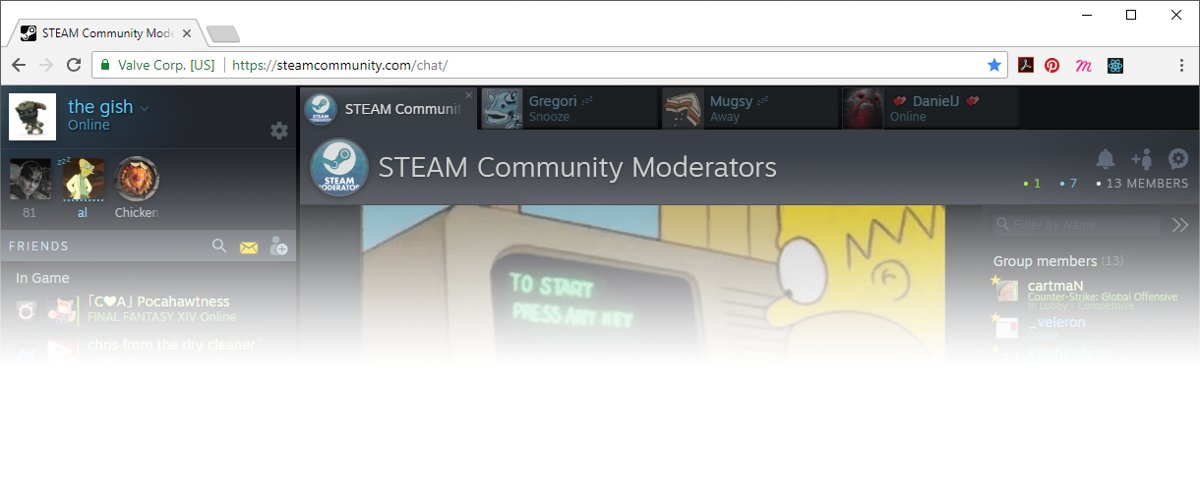
The desktop Friends List is not the only place to change your status. The same Friends List and chat run in a web browser, which is also the most reliable route on a phone.
- Open a browser on your PC or phone and go to https://steamcommunity.com/chat/.
- Sign in with your Steam account and approve the sign-in in Steam Guard if asked.
- Click or tap your profile name at the top of the Friends List.
- Select Invisible to look offline, or Offline to leave chat.
- Close the tab when you are done. The status you picked is the one friends see.
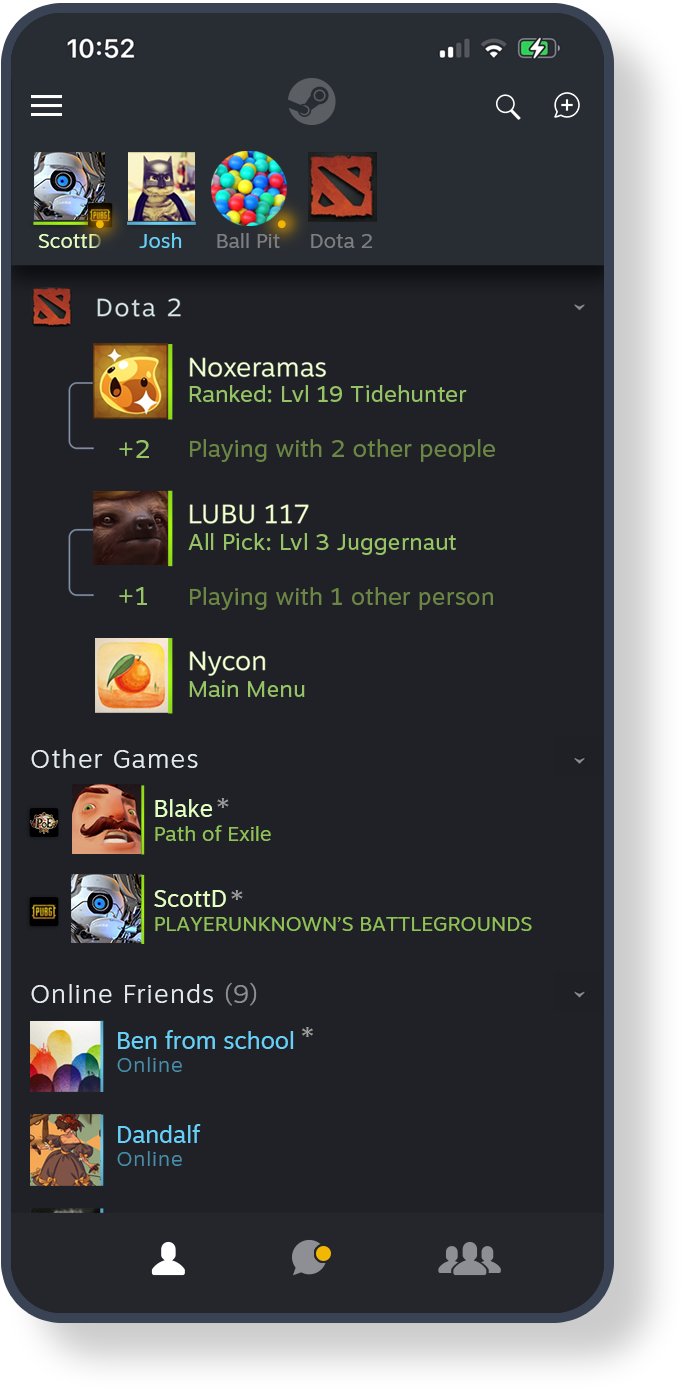
Steam's separate Steam Chat mobile app also shows your Friends List and chats. Use the browser route above when you cannot find a status option in the app you have installed.
Other routes that reduce what friends see: full Offline Mode (next section), and hiding your game details in profile privacy (covered further down).
How to use Offline Mode to disconnect Steam completely
Offline Mode lets you play games without an active connection to the Steam Network. It is the right choice on a flight, a metered connection or a weak signal.
Every feature that needs a connection stops working, including chat, the store and updates. Set it up while you are still online.
- Start Steam online and make sure Remember me is checked on the sign-in window.
- Let every game you plan to play finish updating; if the updates crawl, speed up slow Steam downloads first.
- Launch each of those games once, confirm it plays, then quit back to Steam.
- Go to Steam > Settings > Security and make sure Don't save account credentials on this computer is not selected.
- From the main Steam window, open the Steam menu and select Go Offline….
- Follow the prompt. Steam restarts in Offline Mode.
How to check that Steam friends see you as offline
- Open Friends & Chat and look at the line under your profile name. It should read Invisible or Offline.
- Open https://steamcommunity.com/chat/ in a browser signed in to the same account and confirm the same status appears there.
- Ask a friend to check their Friends List. You should appear in their offline group, not under Online or in a game group.
- For Offline Mode, open the Steam menu. It now offers to go online instead of Go Offline….
Why would you want to appear offline on Steam?
| Reason | Best option | What friends see |
|---|---|---|
| Play a single-player game without game invites | Invisible | You as offline |
| Chat with one or two friends while avoiding everyone else | Invisible | You as offline, even while you message them |
| Take a break from notifications and messages | Offline | You as offline; chat is signed out |
| Play on a plane or with no reliable internet | Offline Mode | You as offline |
| Keep your play time and library to yourself | Privacy Settings for game details | You online, without game information |
Steam does not share a separate invisible state with other users. Anyone looking at your profile or their Friends List sees the same offline state they would see if you had logged off.
Best practices for managing your privacy on Steam
Invisible hides you for one session of chat. Profile privacy controls what people can see on your profile at all times.
Steam has three privacy states: Public, Friends Only and Private. Each has sub-settings for parts of your profile, including game details.
- Open your Steam profile from your name in the Steam window.
- Click Edit Profile under your displayed badge.
- Open the Privacy Settings tab.
- Set your profile to Public, Friends Only or Private.
- Set the game details option to Friends Only or Private if you do not want strangers to see what you play.
- Leave the page. Steam saves each change automatically.
Review the list once a year, and after any big Steam client update, because new profile features can add new privacy rows.
Additional tips and insights for appearing offline on Steam
| Tip | Why it matters |
|---|---|
| Pick Invisible rather than Offline when you still want to chat | Offline signs you out of chat; Invisible keeps chat working while you look offline |
| Close Steam normally before shutting down the PC | Force quitting can wipe the stored data Offline Mode needs |
| Go online regularly after using Offline Mode | Steam and your games receive no updates while offline |
| Do not use Offline Mode for online-only games | Games that need an active connection or an external launcher will not start offline |
| Mute notifications per chat instead of hiding from everyone | Friend Settings let you set notification defaults for group chats |
| Set other apps separately | Your Steam status does not change your online status in Discord or other chat apps |
How to appear online again on Steam
- Open Friends & Chat.
- Click your profile name at the top of the Friends List.
- Select Online.
- If you used Offline Mode, open the Steam menu and select the option to go online.
Common Steam offline status issues & troubleshooting
Your friends still see you online after setting offline
The status was changed in one place while another signed-in session, or a game in progress, still showed you as active.
- Open Friends & Chat and confirm the line under your name reads Invisible or Offline.
- Open https://steamcommunity.com/chat/ and set the same status there if it differs.
- Quit any game that is running, then check again.
- Ask your friend to close and reopen their Friends List so it refreshes.
Why do I appear offline in Steam when I did not choose it
Your status is still set to Invisible or Offline, Steam is in Offline Mode, or Steam lost its connection.
- Open Friends & Chat, click your name and select Online.
- Open the Steam menu. If it offers to go online, select that option to leave Offline Mode.
- Check your internet connection and any firewall rules that block Steam, then restart Steam.
The Offline Mode doesn't work as expected
Offline Mode needs stored sign-in data and games that were started online at least once.
- If Steam asks you to sign in, go online. There is no way to skip the sign-in without a connection.
- If a game shows This game cannot be started in Offline Mode, go online and update Steam and the game.
- Launch the game once while online, then go offline again.
- Make sure Don't save account credentials on this computer is not selected under Steam > Settings > Security.
- Always exit Steam normally before you shut down the PC.
Mobile app limitations
Steam's phone apps focus on the store, Steam Guard or chat, and may not show the status control you expect.
- Open a mobile browser and go to https://steamcommunity.com/chat/.
- Sign in and tap your name at the top of the Friends List.
- Tap Invisible or Offline.
- Remember that a desktop session left signed in keeps its own status, so set it there as well.
Frequently asked questions
Can you appear offline on Steam?
Yes. Set your status to Invisible from your name at the top of the Friends List. Friends see you as offline, while you can still read the Friends List, send messages and play games.
How do I appear offline on Steam on PC?
Click Friends & Chat in the Steam client, click your profile name at the top of the list and choose Invisible. The change applies straight away and needs no restart.
How do I appear offline on Steam while playing a game?
Set Invisible before or during the game. Invisible makes you look offline, so friends do not see you online or in their in-game groups.
How do I appear offline on the Steam mobile app?
Open https://steamcommunity.com/chat/ in your phone's browser, sign in, tap your name at the top of the Friends List and pick Invisible. The browser version offers nearly every Friends List feature of the desktop client.
What is the difference between Invisible and Offline on Steam?
Both make you look offline to friends. Invisible keeps you signed in to chat so you can still message people. Offline signs you out of Friends & Chat, so you cannot send or receive messages until you go online.
Can I appear offline to just one friend on Steam?
No. Your status applies to every friend at once. To cut down contact from one person, mute that chat's notifications instead, or use Offline to leave chat entirely.
How do I appear offline on Steam by default?
Set Invisible once, then check the status under your name after Steam starts. If it reset to Online, select Invisible again. For a fully disconnected start, use Offline Mode, which keeps Steam off the network.
How do I appear offline on Steam and Discord at the same time?
Change each app separately. Set Invisible in Steam's Friends List, then change your status inside Discord. Steam's status is not shared with Discord or other chat apps.
Does Offline Mode make me appear offline to friends?
Yes. Offline Mode disconnects Steam from the Steam Network, so friends see you as offline. It also stops chat, the store and updates, so use Invisible if you only want to hide.
Why do I appear offline in Steam?
Your status is probably set to Invisible or Offline, Steam is in Offline Mode, or the connection dropped. Select Online from your name in the Friends List, or use the Steam menu to go online if Offline Mode is on.
Appearing offline on Steam: final words
Use Invisible from the Friends List whenever you want to look offline on Steam. It hides you from every friend in one click while chat, games and downloads keep working. Save Offline Mode for times without a reliable connection, and use profile privacy for what people can see permanently.