Antimalware Service Executable is MsMpEng.exe, the Microsoft Defender Antivirus service built into Windows 11 and Windows 10, and it runs because it is your PC's active antivirus.
This guide explains what the process does, why it keeps running, when it uses heavy CPU or memory, how to confirm the copy on your PC is genuine, and the only supported way to replace it.
What is "Antimalware Service Executable" and why is it running on my PC?
Microsoft's own troubleshooting pages use three names for one process: Anti-malware Service Executable, MsMpEng.exe and Microsoft Defender Antivirus. It runs all the time because real-time protection checks files as you open them, and it works harder during scans.
These steps confirm what it is doing on your PC right now.
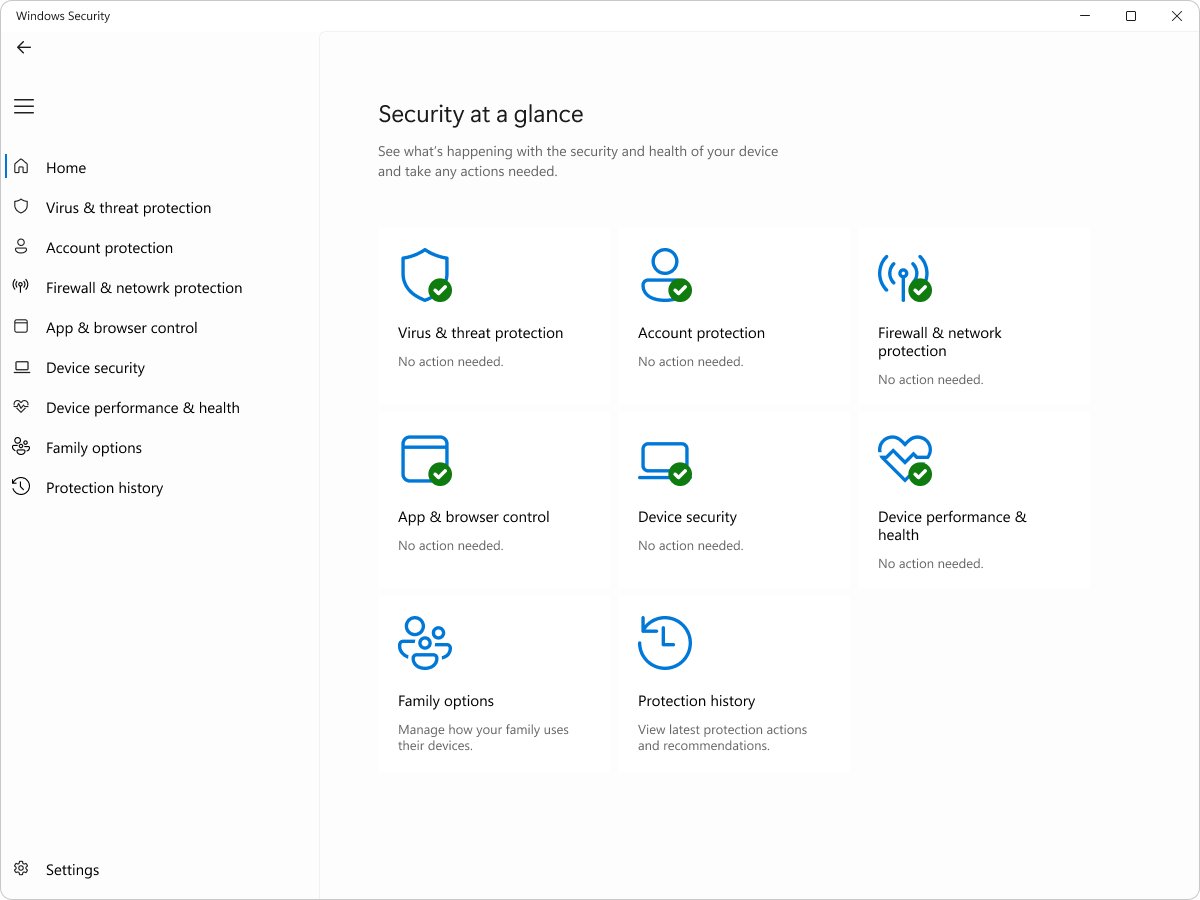
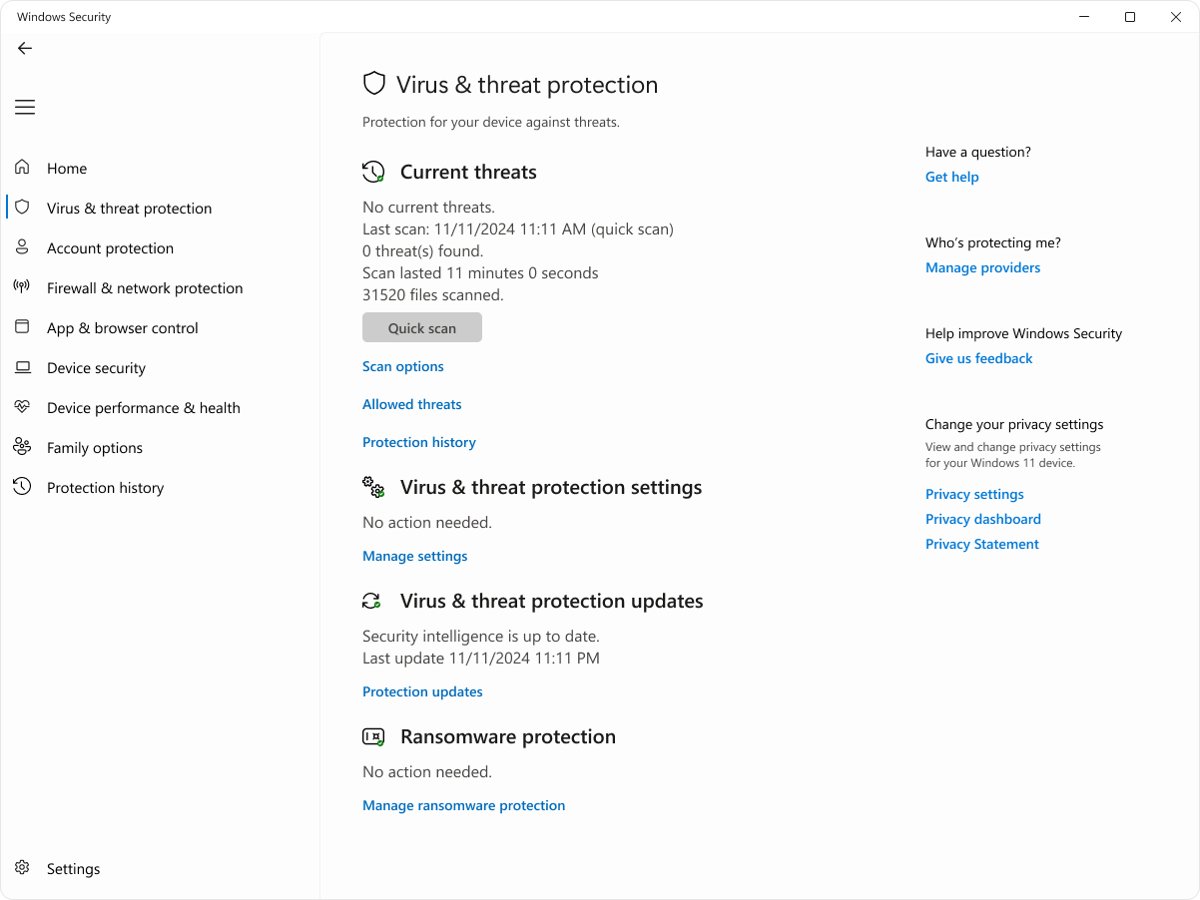
- Select Start, type Windows Security, and open the app.
- Select Virus & threat protection.
- Read the line under Current threats. It shows the last scan time, how long it took and how many files were checked.
- If a scan started in the last few minutes, the high activity you see in Task Manager is that scan. Let it finish.
- If no scan is running, the process is doing real-time checks as apps open files. Short bursts are normal and settle on their own.
If it stays high for hours, the performance section below lists the usual triggers.
The basics of Antimalware Service Executable
The process is a Windows service, not an app you installed. It sits alongside other Defender components that show up under similar names. You can list the services running on your computer to see what else works in the background.
| Item | Detail |
|---|---|
| Name in Task Manager | Antimalware Service Executable |
| File name | MsMpEng.exe |
| Product it belongs to | Microsoft Defender Antivirus, part of the Windows Security app |
| Genuine file locations | C:\Program Files\Windows Defender\ and C:\ProgramData\Microsoft\Windows Defender\Platform\<version>\ |
| Related Defender files in the same folders | NisSrv.exe (network inspection) and MpDefenderCoreService.exe |
| Windows versions | Windows 10 and Windows 11, plus supported Windows Server releases |
| Protected by | Tamper protection, which guards the Defender service and its settings against other apps |
A file called MsMpEng.exe anywhere other than those two folders is not the Microsoft service. Treat it as suspect and run the offline scan in the troubleshooting section.
Why is Antimalware Service Executable running on my PC?
Defender does several jobs, and each one wakes the process up. Match what you notice to a row.
| What Defender is doing | When it happens | What you notice |
|---|---|---|
| Real-time protection | Every time a file is opened or closed, or you open a folder | Brief, small spikes all day |
| Scheduled quick scan | Once a day; it checks running processes, memory, user profiles and startup locations | A few minutes of higher CPU and disk |
| Update check before a scan | About 15 minutes before any scheduled scan | Short network and CPU activity |
| Scan after a security intelligence update | By default, right after new definitions install | A scan that seems to run outside the schedule |
| Full scan | When you start one, or when a detection's spread is unclear during cleanup | Hours of heavy disk and CPU use |
| Scanning a file you picked | When you right-click a file and choose Scan with Microsoft Defender | A short burst |
Defender also skips a scheduled quick scan when a qualifying quick scan already ran in the last seven days, so the pattern is not identical every day.
Performance issues: Is MsMpEng.exe resource intensive?
Usually not. It becomes heavy only when something makes it scan more, or scan harder formats. Microsoft lists these causes for higher CPU use by Defender.
| Cause | Why it costs more | Resource hit |
|---|---|---|
| Unsigned programs (.exe, .dll) | Each launch of an unsigned binary triggers a real-time scan | CPU |
| HTA or CHM files, or ordinary files used as databases | Complex formats must be extracted before they can be scanned | CPU and memory |
| Obfuscated scripts | Defender works harder to decide whether a script hides a payload | CPU |
| Large .iso or .vhdx files in a OneDrive-synced or redirected profile folder | Scanning over a network path adds latency, so scans run longer | Disk |
| Another security tool (antivirus, VPN, DLP, EDR) | Two products inspect each other's files and activity | CPU and disk |
| A full scan | It reads every fixed drive and can run for hours or days | Disk and CPU |
When the load stays high, you can cap Defender's scan CPU use and find the exact file it is stuck on.
Managing "Antimalware Service Executable" scans and load
You manage this process by changing when and how hard Defender scans, not by stopping it. Pick the row that fits your goal.
| Your goal | Do this | Effect on protection |
|---|---|---|
| Stop a scan slowing you down right now | Let it finish, then run scans when you are away | None |
| Keep scheduled scans out of your working hours | Move the scheduled quick scan to a quiet time with Set-MpPreference |
None |
| Make scans lighter | Lower the scan CPU limit from the default 50% to 20 or 30 | None; scans take longer |
| One app or folder triggers constant scans | Find it with the Defender performance analyzer, then exclude only that trusted path | Small, limited to that path |
| High use started after installing another security tool | Check that vendor's support site for known Defender conflicts | None |
| Prefer a different antivirus | Install a compatible one; Defender switches itself off | None, if the new product is active |
| Turn off real-time protection to make it go away | Do not | Files you open or download are not scanned |
The exact commands for the scan time, CPU limit and performance analyzer are in the fix guide linked above.
Check whether a suspicious MsMpEng.exe is malware
Malware sometimes borrows trusted process names. If you doubt the process is genuine, run the offline scan. It starts before Windows loads, so hidden malware has a harder time defending itself.
- Save and close your open files, because the PC restarts.
- Open Windows Security and select Virus & threat protection.
- Select Scan options.
- Choose Microsoft Defender Antivirus (offline scan) and start it.
- Let the PC restart. Defender scans from the Windows Recovery Environment, then restarts again.
- After you sign in, open Windows Security and select Protection history to read the result.
How to check Defender is the genuine, active antivirus
- Select Start, type PowerShell, and open it.
- Run
Get-MpComputerStatus. - Confirm AMRunningMode reads Normal. That means Defender is the active antivirus on this PC.
- Confirm AntivirusEnabled and RealTimeProtectionEnabled both read True.
- Check AntivirusSignatureLastUpdated shows a recent date. An old date means updates are failing and the next update may trigger a longer scan.
If the signature date is old, update Microsoft Defender Antivirus manually and run the check again. If any other value is wrong, or you still doubt the process, run the offline scan in the previous section.
Fix common Antimalware Service Executable problems
Antimalware Service Executable high CPU
A scheduled scan, a scan after a definition update, or an unsigned app launching repeatedly.
- Open Windows Security > Virus & threat protection and check Current threats for a scan in progress.
- Let a running scan finish once with the PC idle.
- If it returns every day while you work, lower the scan CPU limit and move the scan time using the fix guide.
Antimalware Service Executable high RAM or memory
Defender is unpacking archives, HTA or CHM files, or scanning large files used as databases.
- Note which app you were using when memory climbed.
- Run the Defender performance analyzer while the problem is happening, as the fix guide describes.
- If one trusted file tops the report, exclude that exact file only, never a file type or a whole drive.
Antimalware Service Executable running even though another antivirus is installed
Defender switches to disabled mode only when a compatible product registers with Windows Security, and on Windows 11 Smart App Control can keep it in passive mode.
- Run
Get-MpComputerStatusin PowerShell and read AMRunningMode. - If it reads Normal, your other antivirus is not registered. Update or reinstall it from its vendor.
- If it shows a passive mode value, Defender is present but not acting as your main antivirus, which is expected with Smart App Control.
Is Antimalware Service Executable a virus?
The genuine process is part of Windows, but a malicious file can copy the name.
- Run
Get-MpComputerStatusand confirm Defender reports as enabled. - Run the offline scan from Scan options.
- Check Protection history for anything found.
Is it safe to disable MsMpEng.exe?
No. Turning off real-time protection only pauses the symptom. Windows turns it back on automatically after a short while, and until then files you open or download are not scanned. Tamper protection must also be switched off first, which removes another layer of defence.
Keep Microsoft Defender Antivirus and real-time protection on, and reduce its load by rescheduling scans or lowering the scan CPU limit instead. Microsoft does not recommend disabling or uninstalling Defender, documents uninstalling it only for Windows Server, and a disabled Defender scans nothing and fixes nothing.
Alternatives to Windows Defender and MsMpEng.exe
The only supported way to stop MsMpEng.exe acting as your antivirus is to install another compatible antivirus. Windows handles the switch for you.
| Your setup | What Defender does | Protection |
|---|---|---|
| Defender is the only antivirus | Active mode: real-time protection, scans and cleanup | Full |
| A compatible non-Microsoft antivirus is installed and active | Disabled mode, automatically | Provided by the other product |
| Windows 11 with Smart App Control on, plus another antivirus | May sit in passive mode instead of disabled mode | Provided by the other product |
| The other antivirus expires, is uninstalled or stops real-time protection | Turns itself back on automatically | Full again |
Choose any antivirus that registers with the Windows Security app. Buy or download it only from the vendor's own website.
Antimalware Service Executable FAQ
What is Antimalware Service Executable?
Antimalware Service Executable is MsMpEng.exe, the service behind Microsoft Defender Antivirus in Windows 10 and Windows 11. It scans files as they open, runs scheduled scans and applies new security definitions.
Is Antimalware Service Executable a virus?
No. The genuine process is a Microsoft Windows component stored under Program Files\Windows Defender or ProgramData\Microsoft\Windows Defender\Platform. If you suspect an impostor, run the Microsoft Defender Antivirus offline scan from Scan options in Windows Security.
Why is Antimalware Service Executable running?
It runs because Microsoft Defender Antivirus is your active antivirus, and real-time protection checks every file you open. It stays running unless a compatible third-party antivirus is installed, which switches Defender off automatically.
Why is Antimalware Service Executable so high?
Usage climbs during a scheduled scan, a scan after a definition update, a full scan, or when it keeps scanning unsigned programs, archives or large files in synced folders. Short spikes are normal; constant high use has a specific trigger.
Why does Antimalware Service Executable use high CPU?
Scans can take up to about 50% of CPU by default. Unsigned apps, obfuscated scripts and conflicts with another security tool add more. Lowering the scan CPU limit to 20 or 30 makes scans lighter but slower.
Why does Antimalware Service Executable use high RAM?
Memory rises when Defender unpacks complex formats such as archives, HTA or CHM files, or scans large files used as databases. The Defender performance analyzer shows which file is responsible so you can deal with that one item.
What is MsMpEng.exe?
MsMpEng.exe is the file name of Antimalware Service Executable, the Microsoft Defender Antivirus engine. Task Manager shows the friendly name, while Microsoft's documentation and file paths use MsMpEng.exe.
Can I stop or turn off Antimalware Service Executable?
Not safely. Turning off real-time protection is temporary, because Windows turns it back on, and tamper protection guards the service. Installing a compatible third-party antivirus is the supported way to have Defender switch itself off.
Can I uninstall or remove Antimalware Service Executable?
No. It is part of Windows 10 and Windows 11, and Microsoft documents uninstalling Defender only on Windows Server. Installing another antivirus places Defender in disabled mode instead, and it returns automatically if that product stops protecting the PC.
Should you leave Antimalware Service Executable running?
Leave Antimalware Service Executable running; it is Microsoft Defender Antivirus doing its job, and high use points to a scan or a specific file you can deal with. It is the only antivirus on a default Windows PC, and every supported fix for slowdowns lowers its load without switching protection off.