Microsoft has not told anyone to uninstall KB5074109; it shipped fixes for the update's known issues in KB5077744 and KB5078127 instead, but you can still remove it from Settings, Windows RE or DISM.
This guide covers what the January 13, 2026 update changed, the problems Microsoft confirmed, all three removal routes for Windows 11 24H2 and 25H2, and what to do when removal fails.
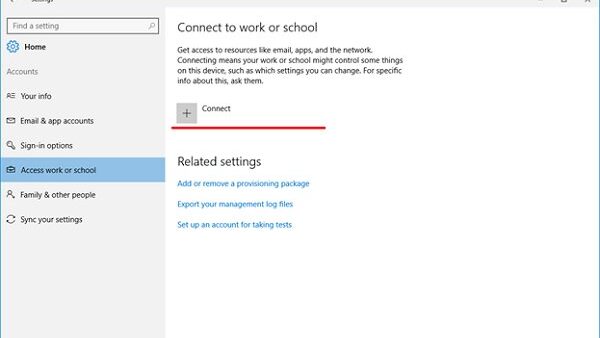
Method 1: Remove KB5074109 from Settings
This is the quickest route when Windows still starts. It needs an administrator account and works on Windows 11 version 24H2 and 25H2.
The same screen is used to uninstall problematic Windows updates of any kind, so the steps carry over to later KB numbers.
- Select Start > Settings > Windows Update.
- Under More options, select Update history.
- Scroll to Related settings and select Uninstall updates.
- Find the entry that names KB5074109 in the list.
- Select Uninstall next to it and confirm.
- Restart the PC when Windows asks.
If KB5074109 is missing from the list, a newer cumulative update has already replaced it. Read the next section before you try Method 2 or Method 3.
Should you uninstall KB5074109 or install a newer update?
Every problem Microsoft linked to KB5074109 has a fix in a later update. Match your situation to a row before you remove anything.
| Your situation | Do this | Why |
|---|---|---|
| Remote Desktop or Windows App sign-in fails on Azure Virtual Desktop or Windows 365 | Install KB5078127 or any later update | Microsoft resolved the credential prompt failure in KB5077744 and rolled it into KB5078127 |
| Classic Outlook hangs with a PST file stored on OneDrive | Install KB5078127 or later, or move the PST out of OneDrive | Microsoft resolved the cloud-storage hang in KB5078127 |
| Lock screen shows no password icon | Install KB5074105 or later | The issue began with KB5064081 and Microsoft addressed it in KB5074105 |
| Old dial-up or fax modem stopped working | Contact the modem maker for a supported driver | KB5074109 removed four legacy modem drivers on purpose, and later updates are cumulative |
| Windows will not start after the update | Use Method 2 from Windows RE | Settings is not reachable, and WinRE has its own Uninstall Updates tool |
| Problem not on Microsoft's list and Windows starts | Use Method 1, then pause updates | Removal from Settings is the simplest test of whether the update is the cause |
Check for a replacement update first
KB5078127 appears in Windows Update only on PCs that installed KB5074109 or KB5077744. It is cumulative, so it keeps the January security fixes and adds the repairs.
- Select Start > Settings > Windows Update.
- Select Check for updates.
- If KB5078127 or a later cumulative update appears, select Download & install.
- Restart when prompted.
- Open Update history and confirm the newest quality update is now later than KB5074109.
- Test the app or feature that failed before you decide to uninstall anything.
KB5077181, the February 10, 2026 security update, also contains every fix from KB5074109, KB5077744 and KB5078127. Microsoft lists no known issues for it.
Method 2: Remove it from Windows Recovery Environment
Use Windows RE when the PC fails to reach the desktop or Settings will not open. If the drive is encrypted, keep your BitLocker recovery key ready, because some WinRE tools ask for it.
- If Windows starts, select Start > Settings > System > Recovery, then select Restart now next to Advanced startup.
- If Windows does not start, turn the PC on and hold the power button as soon as the logo appears; repeat this once more.
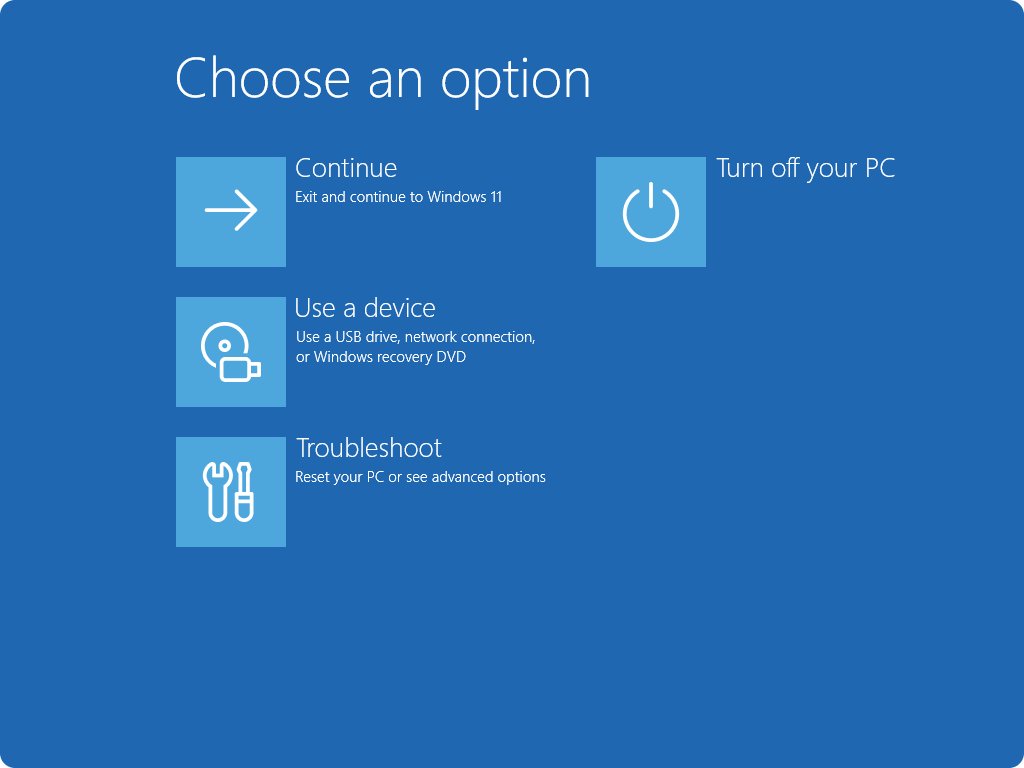
- Turn the PC on a third time and select Advanced options on the Automatic Repair screen.
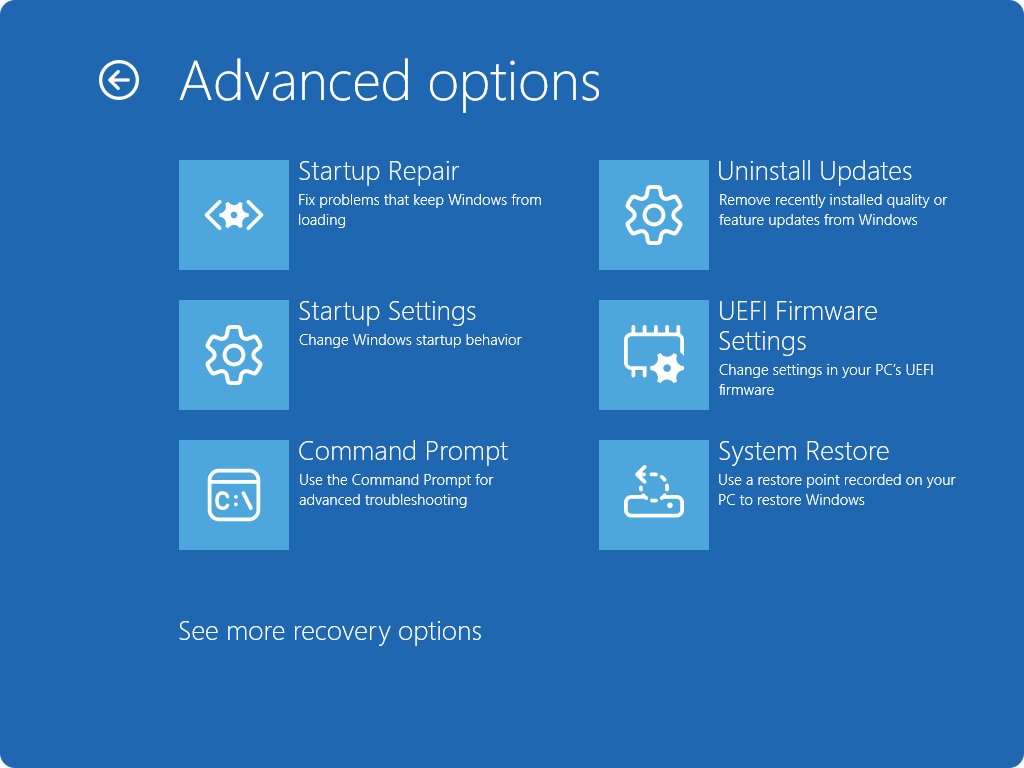
- Select Troubleshoot > Advanced options > Uninstall Updates.
- Select Uninstall latest quality update and follow the prompts.
- Restart the PC and let Windows load normally.
If Automatic Repair will not appear, boot from a recovery drive, or from Windows installation media and select Repair my PC. Both lead straight into Windows RE.
This tool removes the newest quality update. On a PC that later installed KB5078127 or a newer update, that newer update is what gets removed, not KB5074109.
Method 3: Use DISM when the update is not listed
KB5074109 ships as a combined servicing stack and cumulative update package. Microsoft's KB article says to remove the cumulative part with DISM, using the package name DISM reports.
- Select Start, type
cmd, right-click Command Prompt and select Run as administrator. - Run
DISM /Online /Get-Packages /Format:Tableto list installed packages. - Find the cumulative update package that matches KB5074109 and copy its full package name exactly.
- Run
DISM /Online /Remove-Package /PackageName:<package name>, pasting the copied name. - Wait for the operation to reach 100 percent and restart when DISM asks.
The servicing stack update KB5071142 stays behind, because Microsoft says a servicing stack update cannot be removed after installation. That is expected and harmless.
How to check KB5074109 is uninstalled
- Select Start > Settings > Windows Update > Update history.
- Check that KB5074109 is no longer the newest quality update in the list.
- Select Uninstall updates and confirm KB5074109 is gone from that list.
- Run
DISM /Online /Get-Packages /Format:Tableagain if you used Method 3, and confirm the package you removed is absent. - Repeat the task that failed before, such as opening the Outlook PST or the Remote Desktop session.
What KB5074109 changed
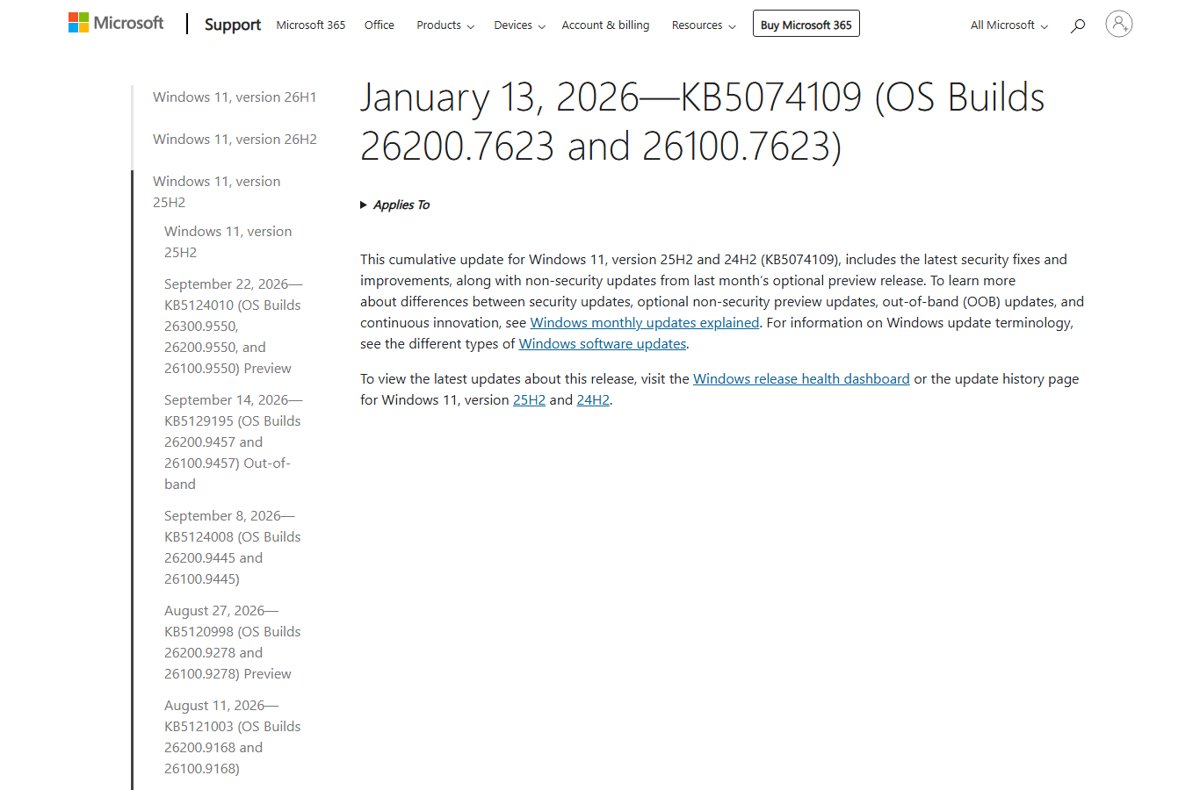
KB5074109 is the January 13, 2026 security update for Windows 11 version 25H2 (OS Build 26200.7623) and version 24H2 (OS Build 26100.7623). It also carries the fixes from the December 2025 preview update.
| Area | Change in KB5074109 |
|---|---|
| Modem drivers | Removes agrsm64.sys, agrsm.sys, smserl64.sys and smserial.sys; modem hardware that depends on them stops working |
| Credential dialogs | Ignore virtual keyboard input from remote desktop and screen-sharing tools, as a security hardening change |
| Networking | Fixes WSL mirrored networking failing over VPN and RemoteApp failures in Azure Virtual Desktop |
| Power | Fixes PCs with an NPU staying powered on while idle |
| Secure Boot | Adds targeting data that decides which devices receive the new Secure Boot certificates |
| Windows Deployment Services | Hands-free deployment is no longer supported by default |
| WinSqlite3.dll | Updated because some security software flagged the older version |
| Servicing stack | Ships with servicing stack update KB5071142 (26100.7295) |
Problems associated with KB5074109
Microsoft lists three known issues on the KB5074109 page. Two of them originate in this update; the lock screen issue started with an August 2025 preview.
| Problem | Who is affected | Microsoft's fix |
|---|---|---|
| Credential prompts fail in Remote Desktop connections through the Windows App | Azure Virtual Desktop and Windows 365 users | KB5077744 (January 17, 2026), then KB5078127 |
| Apps hang when opening or saving files on OneDrive or Dropbox; classic Outlook hangs with a PST on OneDrive, Sent Items go missing or mail downloads again | Mainly classic Outlook users with PST files in OneDrive | KB5078127 (January 24, 2026) |
| Password icon missing on the lock screen, though clicking the empty space still opens the box | Mainly managed enterprise PCs | KB5074105 (January 29, 2026 preview) |
| Legacy modems stop working | PCs that rely on the four removed modem drivers | None; the removal is intentional |
Claims about KB5074109 that need correcting
Microsoft's KB article and the Windows release health pages for 24H2 and 25H2 are the only official record. Neither tells users to uninstall KB5074109.
| Claim | What Microsoft states |
|---|---|
| Microsoft urged everyone to uninstall KB5074109 | No such instruction exists; Microsoft recommends installing the latest update, which includes the fixes |
| Uninstalling is the official fix for the Outlook hang | The official fix is KB5078127; the interim workaround is moving PST files out of OneDrive |
| Uninstalling is the official fix for Remote Desktop sign-in failures | The official fix is KB5077744 or KB5078127; the interim workaround is the Remote Desktop client for Windows or the Windows App web client |
wusa /uninstall removes KB5074109 |
Microsoft says wusa.exe with /uninstall will not work on the combined package; DISM /Remove-Package is the supported route |
| KB5074109 causes boot failures | Neither the KB article nor release health lists a boot failure for this update |
After uninstalling
Windows Update offers the next cumulative update again on its normal schedule. Pausing buys time while you confirm the cause, but it does not block updates forever.
- Select Start > Settings > Windows Update.
- Select Pick a date on the Pause updates control and choose an end date up to 35 days away.
- Test the app or feature that failed while the pause is active.
- Resume updates manually once you are ready, or let the pause expire on its own.
- Install KB5078127 or the latest cumulative update when it is offered, since it contains the January security fixes plus Microsoft's repairs.
Windows 11 version 24H2 Home and Pro reach end of updates on October 13, 2026. After that date, running without the latest updates leaves the PC permanently behind, so move to version 25H2.
If removal fails with error 0x800F0905
Uninstall stops with error 0x800F0905
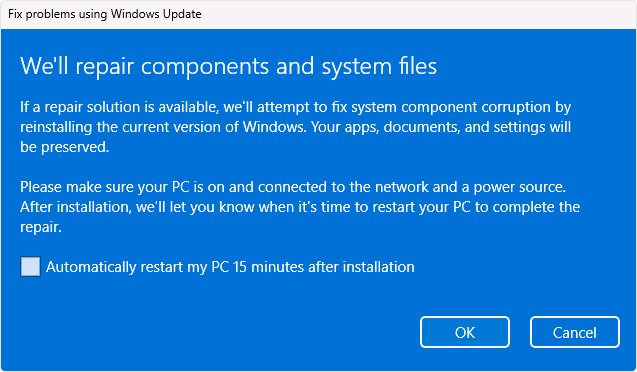
Microsoft does not document this code for KB5074109, so repair the servicing components or roll back instead of retrying the same uninstall.
- Select Start > Settings > System > Recovery.
- Under Fix problems using Windows Update, select Reinstall now.
- Choose whether the PC may restart automatically, then select OK.
- Let Windows download and install the repair version of the last update; apps, files and settings stay in place.
- Check whether the original problem is gone before trying to uninstall again.
Try System Restore when the update will not uninstall
A restore point taken before the update reverts system files, registry settings and installed programs without touching personal files.
- Press Windows key + R, type
rstrui.exeand press Enter. - Select Next in Restore system files and settings.
- Tick Show more restore points and pick one dated before January 13, 2026 or before the update installed.
- Optionally select Scan for affected programs.
- Select Next, then Finish, and let Windows restart.
KB5074109 is in Update history but not under Uninstall updates
Microsoft notes that some updates cannot be uninstalled, and a newer cumulative update has replaced it.
- Check Update history for a quality update newer than KB5074109.
- If one exists, its fixes already include KB5074109, so troubleshoot the newer update instead.
- Use Method 3 to look for the package with DISM if you still need it removed.
wusa.exe /uninstall does nothing or fails
The combined package contains the servicing stack update, which Microsoft says cannot be removed.
- Stop using wusa.exe for this update.
- Use Method 3 with
DISM /Online /Remove-Packageinstead.
KB5074109 uninstall FAQ
Should everyone uninstall KB5074109?
No. Microsoft never advised removing it, and every problem it confirmed has a fix in KB5077744, KB5078127 or KB5074105. Installing the latest cumulative update keeps the January security fixes and adds those repairs.
Did Microsoft urge users to uninstall KB5074109?
No. The KB5074109 support article and the Windows release health pages contain no such advice. They point affected users to the January 17 and January 24, 2026 out-of-band updates and list temporary workarounds.
Why is KB5074109 in Update history but not under Uninstall updates?
Microsoft states that some updates cannot be uninstalled from Settings. A later cumulative update that includes KB5074109 is the usual reason, so check Update history for a newer quality update or use DISM.
Can I use wusa.exe to uninstall KB5074109?
No. Microsoft says running wusa.exe with the /uninstall switch will not work on the combined servicing stack and cumulative update package. Use DISM /Online /Remove-Package with the package name from DISM /Online /Get-Packages.
What should I do if uninstalling KB5074109 returns 0x800F0905?
Use Fix problems using Windows Update under Settings > System > Recovery to repair Windows components, or apply a System Restore point from before the update. Microsoft does not document 0x800F0905 for this KB.
Which Windows versions get KB5074109?
KB5074109 applies to Windows 11 version 25H2 (OS Build 26200.7623) and version 24H2 (OS Build 26100.7623), all editions. Windows 10 received a different January 2026 update.
Which update replaces KB5074109?
KB5078127, released January 24, 2026, is cumulative and includes KB5074109 and KB5077744. KB5077181 from February 10, 2026 and every later monthly update also contain all of its fixes.
Will KB5074109 reinstall after I remove it?
Windows Update keeps offering newer cumulative updates, which contain KB5074109's changes. Pause updates for up to 35 days in Settings > Windows Update while you test, then install the latest update.
The bottom line on uninstalling KB5074109
Install KB5078127 or the latest cumulative update rather than uninstalling KB5074109, and remove it only if a problem persists that Microsoft has not fixed. Microsoft never urged removal, all three confirmed issues have official fixes, and uninstalling strips the January 2026 security fixes from the PC.