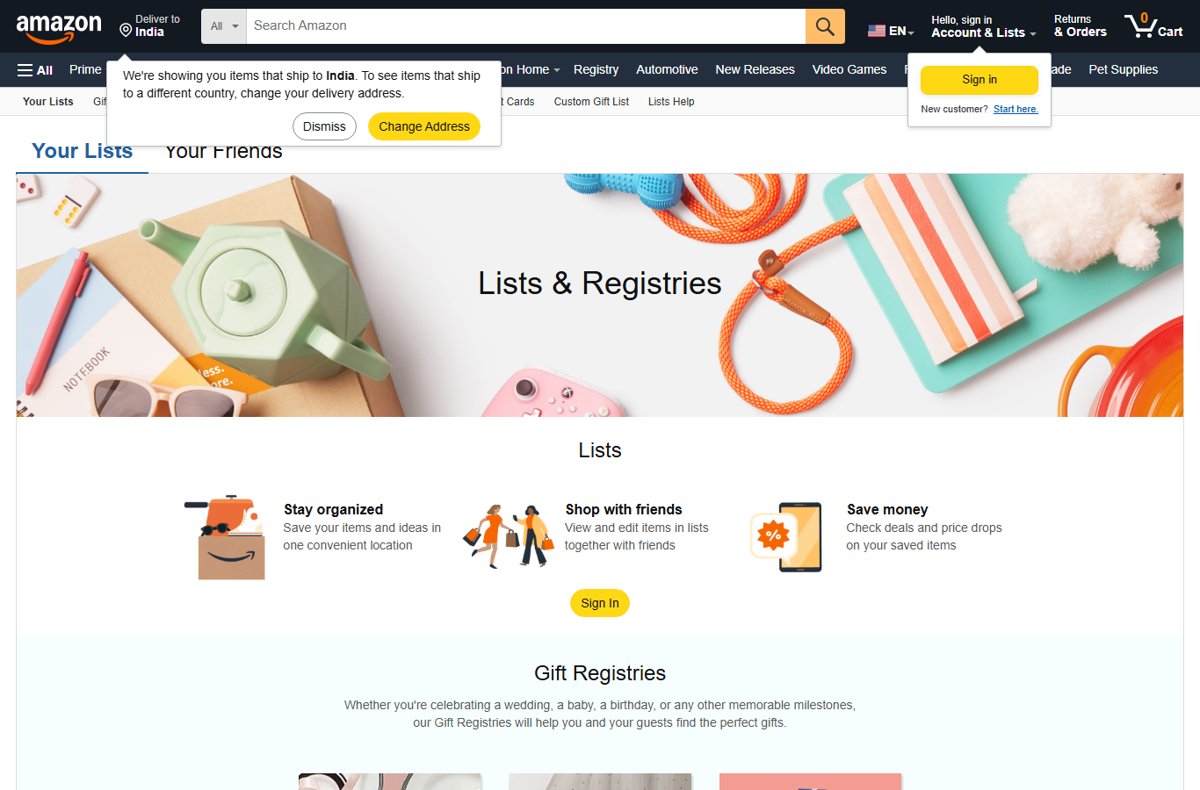
To create an Amazon shopping list, go to Account & Lists, select Your Lists, choose Create a List, name it and select Create List.
This guide also covers sharing a list with view-only or edit access, finding a friend's list, searching for gift lists and baby registries, and managing or deleting lists.
Create an Amazon shopping list
Amazon calls every saved list a List, whether you use it for grocery shopping, gift ideas or a project. You can create as many lists as you like on one account.
- Sign in at amazon.com and hover over or select Account & Lists.
- Select Your Lists.
- Select Create a List and type a name, such as Weekly groceries.
- Select Create List.
- Open the three dots menu on the new list and select Manage List to set the shipping address and other preferences.
- Select Save Changes.
To fill the list, open any product page and select Add to List. Selecting Add to List or the heart icon on an item sends it to your default list, so pick the right list from the menu when you have several.
Amazon list sharing options: view only or view and edit
Amazon gives you two access levels and two ways to deliver the link. Pick the row that matches what the other person needs to do.
| Your situation | Choose this | What the other person can do |
|---|---|---|
| Family member who just needs to see what to buy | View only and copy the link | Open and browse the list; no edits |
| Partner or roommate who adds groceries too | View and edit | Add or remove items, change quantities and priorities, post comments |
| You want Amazon to send the invitation | Invite by email | Gets an email with the list link |
| You want to share in a chat app or text | Copy the link | Opens the list from whatever app you pasted it into |
| You want to notify several people about the list at once | Send list to others at the top of the list | Receives the list by email, or by a link you copy |
Share your Amazon shopping list
Only the list owner can share a list. Sharing a list that was set to Private changes it to Shared automatically.
- Go to Your Lists under Account & Lists.
- Select the list you want to share.
- Select + Invite, or the share button on the right that looks like an arrow.
- Choose View only or View and edit.
- Copy the link and paste it into a message, or select Invite by email and enter the addresses.
Amazon uses the email addresses you enter only to send the invitation. Shared lists suit group jobs like a household shopping run.
Find an Amazon shopping list
Your own lists are always under Your Lists. Other people's personal lists are not searchable: Amazon's rule is that you must ask the owner to share it with you.
- To open your own lists, select Account & Lists and then Your Lists, then pick the list by name.
- To request a friend's list, go to Your Friends.
- Select Send a message.
- Choose Copy message to paste the request into a text or chat, or Email this message to send it by email.
- When the friend replies with a shared link, open it and save it in the Your Friends section so you can find it again.
Search for an Amazon gift list or baby registry
Gift Lists for children and public Baby Registries are the list types Amazon lets you search by name. Wedding registries have their own search page at amazon.com/wedding/search.
- For a child's Gift List, go to Your Registries and Gift Lists.
- Type the name of the parent or guardian who created the list in the search box.
- Select Gift List in the dropdown and select Search.
- Pick the right Gift List from the search results.
- For a Baby Registry, open Baby Registry Search and enter the owner's name, city or state in Find a Baby Registry.
- Optionally set the estimated birth month and year, select Search, then select the owner's name.
Timing matters: Gift Lists become searchable within 24 hours of creation, and Baby Registries one to six hours after they are made. Registries set to Private or Shared never show up in search.
Add, edit and move items on an Amazon list
Both the list owner and invited people with edit access can add items. Changes to a single item all start from the three dots beside it.
- Open the list from Your Lists and locate the item you want to change.
- Select the three dots next to the item.
- Select Add comments, quantity & priority to note a size, a count or how urgent it is, then make your updates.
- Select Delete to remove an item you no longer need.
- Select Move and choose another list or Registry to move an item there.
Some items cannot go on a list at all: out-of-print books, out-of-stock products, cell phones with service plans, items without release dates, items with quantity restrictions and pharmacy items. Items from third-party sellers can be added, but their page shows See Buying Options instead of Add to Cart because the offer may change.
Buy items from someone's Amazon list
Once a list is shared with you, you can buy anything on it. The owner's street address stays hidden; only their name and city appear on the default address.
- Open the shared list and browse the items.
- To sort by price, priority or purchased status, select the three dots at the top right and use the Sort by menu.
- Select Add to Cart on the list page or the product page.
- Add a gift message or request gift-wrap if you want.
- Proceed to checkout and follow the on-screen instructions to place the order.
The bought item moves to the purchased section of the owner's list, and the order appears in your own Amazon order history. If you bought a seller item somewhere else, select Buying this elsewhere next to it so the owner does not get a duplicate.
Check who has access to a shared Amazon list
After you invite people, confirm the list is shared and see who joined. Only the owner can view and manage invitees.
- Open the list from Your Lists.
- Open the More menu (three dots) on the list.
- Select Manage people to see everyone who joined the list.
- Manage the invitees from the same screen if someone should no longer have access.
Amazon list owner vs invited people: who can do what
| Action | List owner | Invited with View and edit | View-only link |
|---|---|---|---|
| View the list | Yes | Yes | Yes |
| Add or remove items, change quantity and priority | Yes | Yes | No |
| Post comments | Yes | Yes | No |
| Share the list or change privacy | Yes | No | No |
| See or change the shipping address and recipient name | Yes | No | No |
| Delete the list | Yes | No (can only remove it from their own lists) | No |
Change Amazon list shipping address and surprise settings
Both settings live in Manage List on the list's three dots menu. Buyers see only the name, city and state of your address.
- Go to Your Lists and select the list.
- Select the three dots menu and choose Manage List.
- In the shipping address section, select Create New, enter the address and select Ship to this address to make it the default.
- Check or uncheck Don't spoil my surprises; it is on by default and hides gift purchases for several weeks.
- If Keep purchased items on your list is checked and you want surprises kept, uncheck it.
- Select Save Changes.
The surprise filter only works while you are signed in. Viewing your own list while signed out can reveal what has been bought.
Delete an Amazon shopping list or leave a shared one
- Go to Your Lists and choose the list you want to delete.
- Select the three dots menu, then Manage Lists.
- Select Delete List.
- Select Yes to confirm.
- If you were invited to someone else's list, open that list, select the menu and choose Remove List to drop it from your lists instead.
Only the owner can delete a list. Removing a shared list as a collaborator does not delete it for anyone else.
Amazon shopping list FAQ
How do I create a shopping list on Amazon?
Select Account & Lists, then Your Lists, then Create a List. Type a name and select Create List. Add products from any product page with Add to List. You can make an unlimited number of lists on one account.
How do I share my Amazon list with someone?
Open the list from Your Lists and select + Invite or the share icon. Choose View only or View and edit, then copy the link or select Invite by email. A Private list switches to Shared when you do this.
Can I search for someone's Amazon list by name?
Not for personal lists. Amazon requires you to ask the owner to share it, using Send a message under Your Friends. Name search works only for Gift Lists, public Baby Registries and wedding registries.
Why can't I find a baby registry in Amazon search?
Either it is new or it is not public. Baby Registries appear in search one to six hours after creation, and registries set to Private or Shared never appear. Ask the owner for a link instead.
Can people I share with edit my Amazon list?
Only if you chose View and edit. They can then add or remove items, change quantities and priorities, and post comments. They cannot share the list, change its privacy or address, or delete it.
Will the list owner see what I bought from their list?
Not straight away if Don't spoil my surprises is on, which is the default. Purchases stay hidden for several weeks and the item keeps showing as Unpurchased while the owner is signed in.
Does Amazon show my home address on a shared list?
No. Buyers see only your name, city and state. Amazon hides the street address but may pass it to sellers and delivery partners so they can fulfil the order.
How do I delete an Amazon list?
Open the list in Your Lists, select the three dots menu, choose Manage Lists, then Delete List and Yes. Only the owner can delete a list; invited people can only remove it from their own lists.
Bottom line: the best way to share an Amazon shopping list
Create the list under Your Lists and share it with View and edit for anyone who shops with you, or a View only link for everyone else. Personal Amazon lists cannot be found by search, so a shared link is the only way others reach it, and the access level decides whether they can change it.