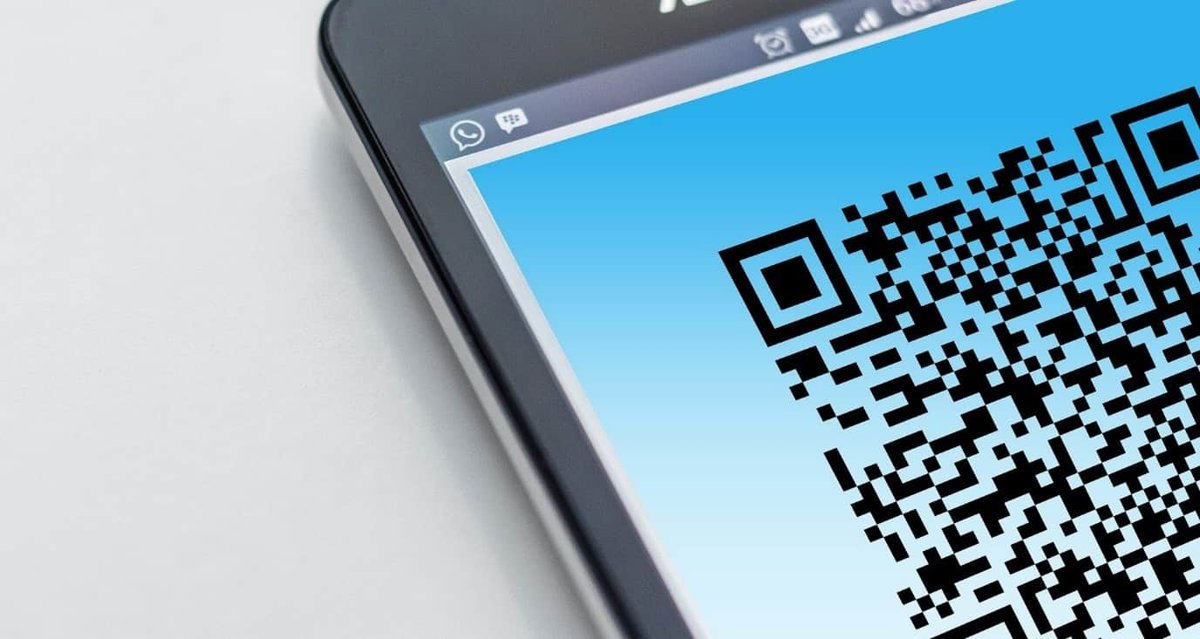
QR stands for Quick Response, the name for a square, two-dimensional barcode that a phone camera can read in a moment.
This guide explains where QR codes came from, how they store and repair data, how to scan one on iPhone, Android and Windows, and how to spot a malicious code before it costs you anything.
What does QR stand for?
Apple's iPhone User Guide and Kaspersky both spell it out the same way: QR is short for Quick Response.
The name describes the goal. However much data the code holds, a reader should decode it at once and give you the result straight away.
QR means Quick Response, so a QR code is a Quick Response code: a 2D barcode built to be read fast by a camera or scanner. The code was designed so a worker could scan it quickly at any angle, and that speed is the point the name is meant to convey.
When and why was QR code invented?
The QR code began as a factory tool, not a marketing gimmick. The table below sets out the key dates.
| Fact | Detail |
|---|---|
| Year | 1994 |
| Inventor | Denso Wave, a Japanese company in the Toyota group |
| Original problem | Tracking vehicles and parts more accurately during car manufacturing |
| Original character sets | Kanji, kana and alphanumeric characters |
| Design choices | A square shape that is easy to identify and quick to scan without lining it up exactly |
| Patent stance | Denso Wave made the code public and said it would not exercise its patent rights, so anyone could create and read QR codes |
| Arrival on phones | The first mobile phones with built-in QR readers went on sale in Japan in 2002 |
| Later spread | Smartphone cameras with built-in readers pushed QR codes into ads, packaging, tickets and payments |
Because the patent was not enforced, any phone maker, app developer or printer can support the format without a licence fee.
How is a QR code different from a traditional barcode?
A traditional barcode, such as the UPC or EAN code on a grocery item, is a one-dimensional row of bars. A QR code is a two-dimensional grid of dark and light squares.
| Feature | Traditional (1D) barcode | QR code (2D) |
|---|---|---|
| Shape | A strip of vertical bars | A square grid of small modules |
| Direction data is read | One direction, across the bars | Two directions, horizontally and vertically |
| Typical content | A short product or item number | URLs, contact cards, Wi-Fi details, text and more |
| Capacity | A small amount of mostly numeric data | Up to 7,089 digits or 2,953 bytes in one symbol |
| Scanning angle | The scanner usually has to line up with the bars | Readable right-side up, upside down or sideways |
| Damage tolerance | Limited | Built-in error correction recovers roughly 7% to 30% of the code |
| Common formats | UPC-A, UPC-E, EAN-8, EAN-13, Code 39, Code 128 | QR Code, Micro QR Code |
Google's ML Kit groups QR codes with the other 2D formats, Aztec, Data Matrix and PDF417, while UPC and EAN sit in its linear list.
How does a QR code work?
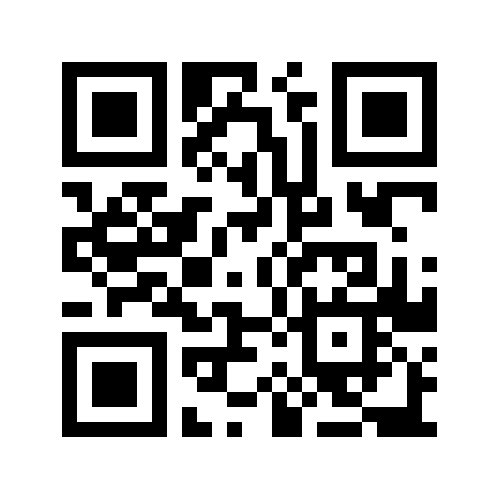
Each dark or light square stands for a binary value. A reader first finds the three large corner squares, which tell it a QR code is present and where its edges are.
It then splits the symbol into a grid, reads every cell as dark or light, and groups the cells back into data. Each part of the symbol has a fixed job.
| Part | Where it sits | What it does |
|---|---|---|
| Quiet zone | The blank border around the whole code | Separates the code from nearby print so the reader knows where it starts and ends |
| Finder patterns | Three large squares in the top-left, top-right and bottom-left corners | Tell the reader it is looking at a QR code and mark its boundaries |
| Alignment pattern | A smaller square near the bottom-right corner | Lets the code be read when it is skewed or photographed at an angle |
| Timing pattern | An L-shaped line of alternating cells between the finder patterns | Helps the reader locate individual cells, even on a damaged code |
| Version information | A small field next to the finder patterns | Identifies the QR code version, which sets the grid size and capacity |
| Data and error correction cells | Everything else | Hold the encoded content plus the extra data used to repair damage |
How does QR code error correction work?
Every QR code stores extra recovery data alongside its content. If part of the code is dirty, torn or covered, the reader rebuilds the missing piece from that extra data.
The creator picks one of four levels. Microsoft's Graph documentation lists how much of the code each level can lose and still be read.
| Level | Name | Approximate data recovery | Good fit |
|---|---|---|---|
| L | Low | About 7% | Clean screens and documents where the most capacity matters |
| M | Medium | About 15% | General printed material such as flyers and menus |
| Q | Quartile | About 25% | Labels that may get scuffed or partly dirty |
| H | High | About 30% | Outdoor signs, worn surfaces, or codes with a logo placed over the centre |
Higher correction uses more of the grid for recovery data, so the same content needs a larger, denser code. Apple's Core Image QR generator and Word's MERGEBARCODE field both accept the same L, M, Q and H settings.
What can a QR code contain?
A QR code holds text. Phones recognise certain text formats and turn them into actions, such as opening a web page or offering to join a network.
| Content type | What happens when you scan it |
|---|---|
| Website URL | Your phone offers to open the link in a browser |
| Wi-Fi network details | Your phone offers to join the network using the stored name, password and security type |
| Contact card | Your phone offers to save the person's name, number and email |
| Calendar event | Your phone offers to add the event to your calendar |
| Email address or phone number | Your phone opens a new email or the dialler |
| SMS message prompt | Your messaging app opens with a recipient and text filled in |
| Geographic location | Your maps app opens at the stored coordinates |
| ISBN or plain text | The number or text is shown so you can copy or search it |
| Sign-in or payment codes | An app on your phone uses the code to approve a login or a payment |
Wi-Fi codes are one of the handiest uses at home: you can connect to Wi-Fi with a QR code instead of typing a long password.
Capacity depends on the data mode: up to 7,089 digits in numeric mode, 4,296 characters in alphanumeric mode, 2,953 bytes in byte mode, or 1,817 kanji characters.
How do you scan a QR code?
Modern phones and Windows PCs read QR codes with the built-in camera. You do not need a separate scanner app.
| Your device | Use this | Why |
|---|---|---|
| iPhone or iPad | The Camera app in Photo mode, or the Scan Code control in Control Center | Built in, and the link appears before anything opens |
| Android phone | The camera app in its default photo mode | Built in on current Android phones |
| Google Pixel | Scan QR code in Quick Settings | One swipe from any screen |
| Windows 11 or Windows 10 PC with a webcam | The Windows Camera app with Barcode selected | Reads QR codes from a laptop or USB webcam |
| A code on your own screen | Point a phone at the screen | Phones read QR codes shown on monitors as well as on paper |
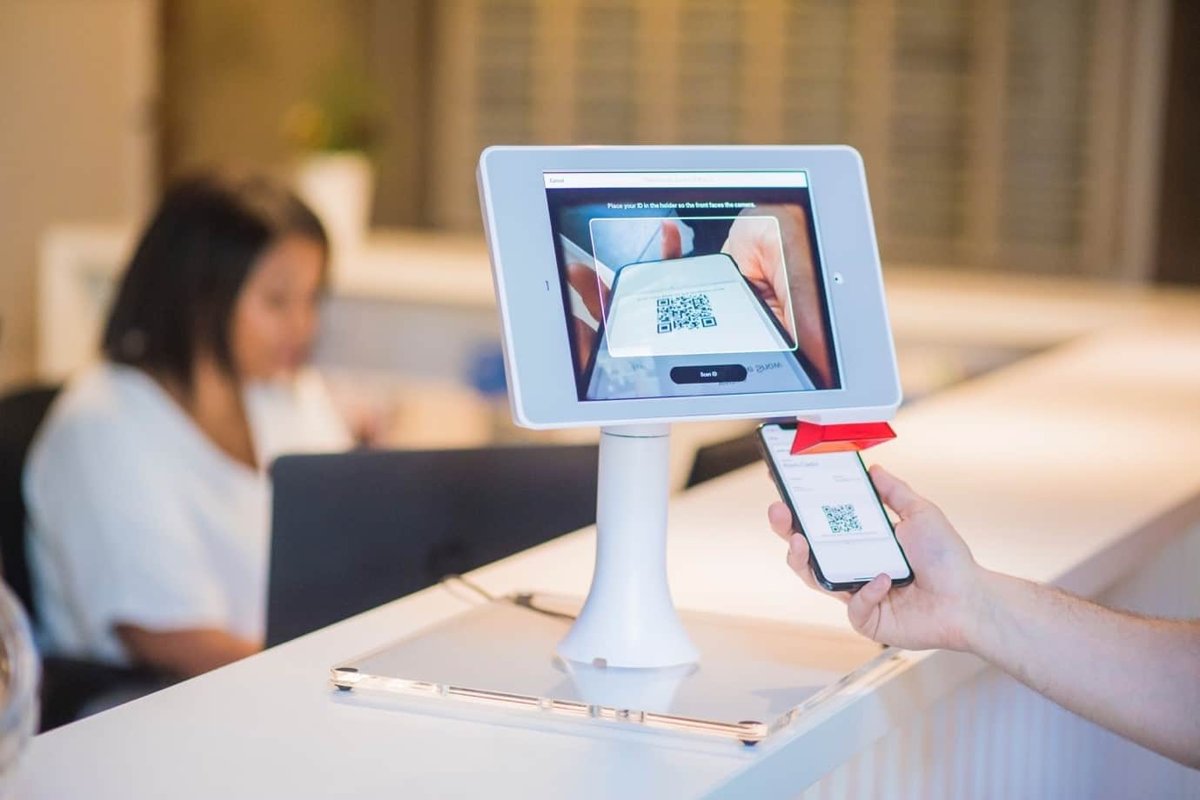
Scan a QR code with the iPhone Camera app
Apple's steps apply to current iOS versions on iPhone.
- Open Camera on your iPhone.
- Stay in Photo mode.
- Position the iPhone so the QR code appears inside the camera frame.
- Read the link that appears at the bottom of the screen.
- Tap the link to open it.
To use Control Center instead, open Control Center, tap the Scan Code control, and point the iPhone at the code. If the control is missing, add it by customising Control Center. Tap the flashlight in the scanner if the light is poor.
Scan a QR code on an Android phone
Google's Android help gives the same camera route on most phones, and Pixel phones add a Quick Settings tile.
- Open your phone's camera app.
- Keep the default photo mode.
- Point the camera at the QR code.
- Tap the URL or banner that appears on screen.
- On a Pixel, you can instead swipe down from the top of the screen and tap Scan QR code in Quick Settings.
If the tile is missing on a Pixel, swipe down further to expand Quick Settings and look for it among the other tiles.
Scan a QR code on Windows with the Camera app
The Windows Camera app reads QR codes and barcodes through any built-in or USB webcam.
- Open the Camera app from the Start menu.
- Select the Barcode button on the right-hand side of the app.
- Hold the QR code in front of the camera so it is in focus.
- Wait for the app to scan it automatically.
- Select the link that appears at the bottom of the Camera app to open the website.
For an ordinary barcode, the app shows its text instead. Selecting that text copies it to the clipboard.
Check where a QR code link goes before you open it
Every built-in scanner above shows the destination first and waits for a tap. Use that pause.
- Scan the code, but do not tap the result yet.
- Read the domain in the link that appears, for example the part before the first single slash.
- Confirm the domain matches the business or venue that displays the code.
- Watch for misspellings, extra words or shortened links that hide the real address.
- On Android, long-press the link to see its full destination. On iOS, use a light long-press for the same preview.
- Tap the link only when the domain is the one you expect.
A correct result opens the expected site, and any sign-in or payment page sits on that same organisation's domain.
Are QR codes safe to scan?
Scanning a QR code is safe in itself. The risk is the destination, because a person cannot read a QR code by eye and an attacker can swap or cover one without anyone noticing.
Phishing through QR codes, often called quishing, is common enough that Microsoft Defender for Office 365 includes training on malicious digital and printed QR codes.
| Risk | What it looks like | What to do |
|---|---|---|
| Sticker over a real code | A printed code on a parking meter, poster or menu that sits on top of another | Do not scan it; pay or order through the official app or website instead |
| Phishing page | A fake login or payment page that copies a real brand | Close it and type the company's address yourself |
| Urgent demands | A code in an email or letter that says you must act now to avoid a fine or claim a reward | Treat urgency as a warning sign and verify through a known contact |
| Unexpected actions | A code that adds a contact, starts an email, or sends a text | Read the prompt and cancel anything you did not expect |
| Drive-by download | A site that starts downloading an app or file as soon as it opens | Leave the site and install apps only from the App Store or Google Play |
If you already entered a password on a page reached through a QR code, change that password at once, and change it anywhere else you reused it.
What do you need to put a QR code on a physical object?
Placing a QR code on a label, sign or package takes a few deliberate choices before printing.
| Requirement | Why it matters |
|---|---|
| The content or a URL you control | A link on your own domain keeps working and is easier for scanners to trust |
| A QR code generator | Office, Apple's Core Image and many design tools can create standard codes |
| An error correction level that suits the surface | Choose Q or H for surfaces that may get scratched, dirty or partly covered |
| A clear quiet zone | Leave a blank margin on every side so the reader can find the edges |
| Strong contrast | Readers decide each cell by whether it is dark or light, so pale or busy colours cause misreads |
| A test scan before printing | Scan a proof with an iPhone, an Android phone and the Windows Camera app |
| A tamper check after installing | Look for stickers placed over public codes so customers are not misled |
What does the QR code standard cover?
The QR code is defined by the international standard ISO/IEC 18004, which Microsoft's Office file format specification cites for its QR barcode field. It sets out how every compliant generator and reader behaves.
| Area | What the standard covers |
|---|---|
| Symbol structure | Finder, alignment and timing patterns, version information and the quiet zone |
| Versions | The version number that fixes the grid size and data capacity |
| Data modes | Numeric, alphanumeric, byte and kanji encoding |
| Error correction | The four levels, L, M, Q and H |
| Extended Channel Interpretation (ECI) | A mode that names other character sets, though some readers, including Google's ML Kit, do not read ECI codes |
| Structured Append | Splitting one message across up to 16 linked QR codes |
| FNC1 mode | Letting a QR code carry GS1 supply-chain data |
What are the most common QR code misconceptions?
Four beliefs about QR codes cause most of the confusion and most of the risk.
| Misconception | Reality |
|---|---|
| QR codes are only links | They can hold Wi-Fi details, contact cards, calendar events, phone numbers, SMS prompts, locations and plain text |
| A QR code is encrypted | The content is encoded, not encrypted; any reader shows it, including a Wi-Fi password stored as plain text |
| If a QR code scans, it must be legitimate | Any code that follows the format scans, including one an attacker printed and stuck over a real one |
| More data always makes a better QR code | More data needs a larger version with smaller cells, which is harder to scan from a distance or on a small label |
QR code terminology at a glance
| Term | Meaning |
|---|---|
| QR | Quick Response |
| Module | One dark or light square cell in the grid |
| Quiet zone | The blank border that surrounds the code |
| Finder pattern | One of the three large corner squares |
| Alignment pattern | The smaller square that corrects for skew |
| Timing pattern | The alternating line that helps locate each cell |
| Version | The size setting that controls grid dimensions and capacity |
| Error correction level | L, M, Q or H, recovering about 7%, 15%, 25% or 30% of the code |
| Data mode | Numeric, alphanumeric, byte or kanji encoding |
| Micro QR Code | A smaller QR variant for limited space |
| Quishing | Phishing that uses a QR code to send victims to a fake site |
QR code meaning: frequently asked questions
What does QR stand for in QR code?
QR stands for Quick Response. The name reflects the design goal set by Denso Wave in 1994: a scanner should decode the code and return its content instantly, whatever the amount of data it holds.
What does QR stand for in cyber security?
QR still means Quick Response in cyber security. The security angle is quishing, which is phishing that uses a QR code to send someone to a fake login or payment page instead of a malicious email link.
What does a QR code stand for?
A QR code stands for a Quick Response code, a square two-dimensional barcode. It stores text such as a web address, Wi-Fi details or a contact card, and a phone camera turns that text into an action.
Who invented the QR code?
Denso Wave, a Japanese company in the Toyota group, invented the QR code in 1994. It was built to track vehicles and parts during manufacturing, and Denso Wave chose not to exercise its patent rights.
Are QR codes encrypted?
No. A standard QR code is encoded, not encrypted, so any scanner can read its content. A Wi-Fi code, for example, stores the network password as readable text inside the code.
Does scanning a QR code mean it is safe?
No. A malicious code scans exactly like a genuine one. Check the domain shown after scanning, and avoid codes stuck over other codes in public places before you open any link.
Do you need a special app or scanner to read a QR code?
No. The iPhone Camera app, the camera app on current Android phones, and the Windows Camera app all read QR codes. Only some older phones need a separate reader app from their app store.
Can a QR code be used to sign in to an account?
Yes. Some services show a QR code that you scan with a signed-in phone app to approve the login. Microsoft lets you sign in to Outlook with a QR code this way.
The bottom line on what QR stands for
QR stands for Quick Response, and your phone or PC camera already reads these codes, so scan freely but check the link's domain before you tap it. The format itself is open and harmless; the only real risk is where an altered or fake code sends you, and the built-in preview shows that destination first.