To share Google Photos using a link, select the photo, video or album, tap Share, then tap Create link and paste the copied link into any message, email or chat.
This guide covers single photos, batches, new and existing albums, QR codes, what people with the link can do, how to stop sharing, and fixes for links that misbehave.
Share a photo or video with a Google Photos link
A link works for anyone, including people without a Google Account or the Google Photos app. Anyone who has the link can view what you shared.
| Device | Steps to create a Google Photos link |
|---|---|
| Android phone or tablet | Open the Google Photos app > open the photo or video > tap Share > tap Create link > paste the link where you want it |
| iPhone or iPad | Open the Google Photos app > open the photo or video > tap Share > tap Get link > paste the link where you want it |
| Computer | Go to photos.google.com > point to the photo and click Select > click Share > click Create link > paste the link where you want it |
On a Windows PC, the web app at photos.google.com does everything the phone app does for sharing. If you would rather work from a desktop shortcut, you can get Google Photos on your PC and share from there.
Google Photos link, shared album or direct share: which to use
| Your situation | Use this | Why |
|---|---|---|
| Send one photo or a handful to anyone | Create link on the selected items | Fastest; the recipient needs no account |
| Collect photos from several people after an event | A shared album with link sharing and Collaborate on | Others with access can add their own photos |
| Show an album to people in the same room | Show QR Code on the album | They scan it instead of typing a link |
| Send to a contact who uses Google Photos | Send in Photos to their name | They get a notification and a conversation for replies |
| Paste the image itself into another app | Share > Copy | No link at all; the file goes into the other app |
| Share a mix of photos and documents | Google Drive with Anyone with the link | Drive links can hold any file type and set Viewer, Commenter or Editor roles |
Share multiple photos and videos in one link
One link can cover a whole selection. Recipients open it as a single page of photos and videos.
- On a phone, open the Google Photos app and touch and hold the first photo or video.
- Tap every other item you want in the link.
- On a computer, point to each item at photos.google.com and click Select on each one.
- Tap or click Share.
- Choose Create link (Get link on iPhone and iPad).
- Paste the copied link into your email, text or chat.
Items stored in Locked Folder cannot be included. Move them out of Locked Folder first if you want to share them.
Create and share a Google Photos album by link
A shared album is the better choice when you plan to add more photos later, because the link always shows the album's current contents.
| Device | Create the album | Share it by link |
|---|---|---|
| Android, iPhone or iPad | Open a photo and tap Add > Album > New Album, or touch and hold several items and tap Create > Album; enter a title and tap Done | Open the album, tap Share, then tap Create link (Get link on iPhone and iPad) |
| Computer | At photos.google.com, click Photos, select the items, click Add to or create new > Shared album > New shared album, then enter a title | Click Share at the top right, then Create link, or pick people and click Send |
People outside your contacts reach the album only through the link. Anyone with access can view it and, while Collaborate is on, add photos to it.
Share an existing album
- Open Google Photos and go to Collections > Albums on a phone, or Albums on the left at photos.google.com.
- Open the album you want to share.
- Tap or click Share.
- Choose Create link to copy a link, or select contacts and tap Send.
- Paste the link where your recipients will see it.
Every photo you add to the album afterwards appears for people who already have the link. Your profile name shows on each photo you add.
Use a QR code for a shared album
Each shared album can have its own QR code. Scanning it opens the album in Google Photos on the other person's device.
- Open the Google Photos app on your Android phone, iPhone or iPad.
- Open the album you want to share.
- Tap Share.
- Tap Show QR Code.
- Let the other person scan the code with their phone camera.
- To share it later or offline, take a screenshot of the code, or print it.
Android Quick Edits before sharing
Quick Edits lets you crop or enhance a photo in the share flow, and it is available only on Android 14 and later.
- Open a photo in the Google Photos app on Android 14 or later.
- Tap Share; the Quick Edits screen opens if the feature is on.
- Crop or enhance the photo, then continue to Create link or choose people.
- To turn the feature off from that screen, tap the gear icon and tap Turn off.
- To switch it back on, tap your profile picture or initial > Photos settings > Sharing > Manage sharing activity and use the Quick edit before sharing toggle.
The edited version is saved to your library only when you send in Photos, create a link or add to a shared album. Sharing to an app such as Messages or WhatsApp does not save the edit.
Check what a Google Photos link shows to recipients
- Paste the link into a private or incognito browser window, where you are not signed in.
- Confirm the page shows exactly the photos or album you meant to share, and nothing else.
- On a phone, tap your profile picture > Photos settings > Sharing > Manage sharing activity and confirm the new link appears in the list.
- On a computer, click Updates on the left at photos.google.com to see your shared albums, conversations and sharing activity.
Google Photos link privacy: what recipients can do
A Google Photos link is an unguessable URL, but it is not locked to one person. Anyone who receives it can open it and pass it on.
| Recipient action | Allowed? | Detail |
|---|---|---|
| View the shared photos or album | Yes | Anyone with the link can view, with or without the Google Photos app |
| Forward the link to someone else | Yes | Once a link is created, others can share it further |
| Add photos to a shared album | Only if Collaborate is on | You cannot block one person from adding; the setting applies to everyone |
| Comment and like in a shared album | Only if Comments & likes is on | Turning it off stops new comments; existing ones stay until deleted |
| Keep viewing after you remove them from the album | Yes, while link sharing is on | Turn Link sharing off to cut link access |
| See an unedited version of a photo you later edited | Possibly, for a while | Google says the original link may temporarily show the unedited version |
| Keep copies after you stop sharing | Yes | Stopping sharing does not remove downloads or copies people already made |
Stop people from adding photos or comments
Only the album owner can change these settings. Photos people already added stay visible after you turn off Collaborate unless you remove them.
| Device | Turn off adding photos | Turn off comments and likes |
|---|---|---|
| Android, iPhone or iPad | Open Collections > Albums > the album > More > Sharing settings > turn off Collaborate | Same path, then turn off Comments & likes |
| Computer | Under Collections, click Albums > the album > More > Options > under Sharing, turn off Collaborate | Same path, then turn off Comments & likes |
Manage links and previous sharing activity
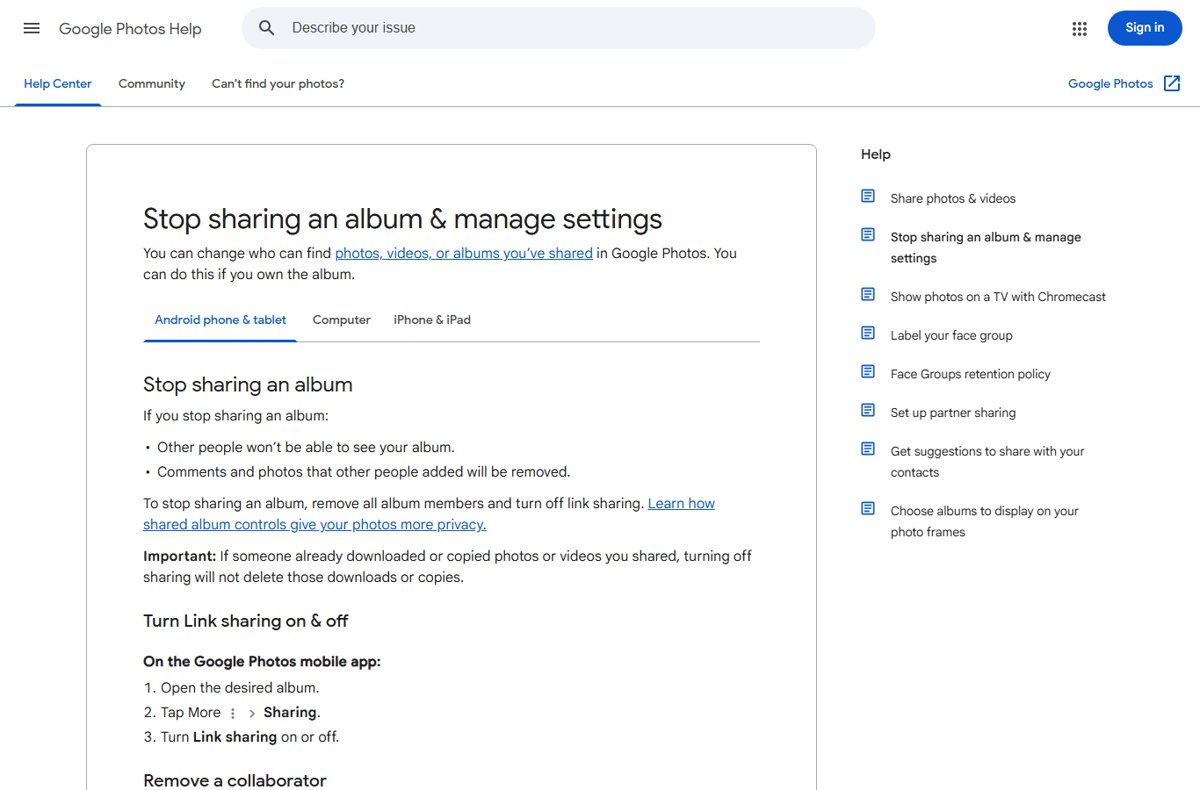
To make a shared album private again, remove every member and turn off link sharing. Comments and photos other people added are removed when you stop sharing.
- To review everything you have shared from a phone, tap your profile picture or initial > Photos settings > Sharing > Manage sharing activity.
- On a computer, click Updates on the left at photos.google.com to see shared albums, conversations and sharing activity.
- To cut off an album link, open the album, tap More > Sharing and turn Link sharing off.
- To issue a fresh link, turn Link sharing back on; the old URL stops working, so send the new one only to people you trust.
- To remove one person, open the album and tap More > Sharing (on a computer, More > Options), find them, then tap More > Remove person.
- To remove a single item from a shared album, open it, then choose More > Remove; the item stays in your own library.
Removing a person also removes every photo and comment they added. As the owner, you cannot leave your own album; deleting it removes it for everyone.
What happens when someone saves or downloads a shared photo?
| Action by the recipient | Where the copy goes | What it means for you |
|---|---|---|
| Taps Save below an item in a conversation | Their own Google Photos library | Their copy is independent; your later edits do not reach it |
| Clicks Save at the top right of a shared album | Their library gets every item in the album | The saved items count toward their storage, except in some partner sharing cases |
| Chooses More > Show in Albums | The album appears in their Albums tab | Nothing is copied into their library |
| Chooses More > Download on a photo | A file on their device | You cannot delete it remotely |
| Keeps a saved or downloaded copy after you stop sharing | Stays where they put it | Stopping sharing never removes copies already made |
Google Photos sharing limitations and failure cases
| Limitation | Effect | Workaround |
|---|---|---|
| Locked Folder items | They cannot be shared | Move the item out of Locked Folder first |
| Conversations hold up to 20,000 photos | Sending stops at the limit | Use a shared album or a link for very large sets |
| Links are open to anyone who has them | Forwarded links work for strangers | Turn Link sharing off and on to reset the URL |
| Removing a person does not revoke the link | They can still view through the link | Reset link sharing after removing them |
| Edits to a photo shared by link | The old link may briefly show the original | Create a new link after editing if the original must not be seen |
| Quick Edits | Only on Android 14 and later | Edit the photo in the editor before sharing on older phones and on iPhone |
| Only the owner controls the album | Members cannot remove people or change settings | Ask the owner, or leave the album |
Quick troubleshooting for Google Photos shared links
The Share option will not include a photo
The photo is in Locked Folder, which cannot be shared.
- Open Collections > Locked and unlock it.
- Move the photo out of Locked Folder.
- Select it again and tap Share > Create link.
Someone you removed can still open the album
Removing a person does not change the album link, and link sharing is still on.
- Open the album and tap More > Sharing.
- Turn Link sharing off.
- Turn it back on only if you need a link, and send the new link to the people you still want.
Recipients see an old, unedited version of a photo
The original link can temporarily show the version that existed before you edited it.
- Wait a while and reload the link.
- If the original must not be seen, stop sharing that link and create a new one for the edited photo.
Strangers are adding photos to your album
Collaborate is on, so anyone with the link can add photos.
- Open the album and go to More > Sharing settings (More > Options on a computer).
- Turn off Collaborate.
- Remove the unwanted items with More > Remove, then reset Link sharing if the link has spread.
You cannot remove a person or change sharing settings
Only the album owner can remove people and change album settings.
- Ask the owner to make the change, or leave the album yourself.
You cannot find an album someone shared with you
Shared albums sit under the sharing views, not in your main photo grid.
- On a computer, click Updates on the left at photos.google.com.
- On a phone, open Collections > Albums and switch to Shared with me.
- If photos still seem to be missing, you can find missing Google Photos by checking the signed-in account.
Google Photos link sharing FAQ
How do I share my Google Photos with a link?
Select the photos, videos or album, tap Share and tap Create link (Get link on iPhone and iPad), then paste the link into a message or email. On a computer, do the same at photos.google.com. Anyone who has the link can view what you shared.
Can Google Photos be shared with people who do not use Google Photos?
Yes. Google says you can share with any of your contacts even if they do not use the Google Photos app. For someone without a Google Account, send a link or share through another app instead of sending inside Google Photos.
How do I share pictures in Google Photos without a link?
Select the photos, tap Share and pick a contact under Send in Photos to start a conversation. You can also choose another app, such as email or a messaging app, from the share sheet, or tap Copy to paste the image itself.
Is a Google Photos link private?
Not fully. The link is an unguessable URL, so nobody can stumble on it, but anyone who has it can view the photos and forward it. To shut off access, turn Link sharing off; turning it back on creates a new link.
How do I revoke a Google Photos link?
For an album, open it, tap More, then Sharing, and turn Link sharing off. The old link stops working. Copies people already saved or downloaded are not removed, so revoke as soon as you realise a link has spread.
Does removing someone from a shared album block them completely?
No. Removing a person deletes their photos and comments from the album, but they can still open it through the link while link sharing is on. Turn Link sharing off, then on again, and send the new link only to people you trust.
Can people add photos to an album shared by link?
Yes, while Collaborate is turned on, anyone with access can add photos. Open the album, go to More, then Sharing settings (More, then Options on a computer) and turn off Collaborate to stop it. Photos already added stay until you remove them.
Does saving a shared photo download it to the phone?
Saving adds a copy to the recipient's own Google Photos library, where it counts toward their storage. To get a file on the device itself, they open the photo and choose More, then Download. Neither copy is removed if you stop sharing.
How do I share photos using Google Drive instead?
Select the file in Google Drive, click Share, open the General access menu and choose Anyone with the link. Pick Viewer, Commenter or Editor, click Copy link and click Done, then paste the link where you need it.
Is Google Photos good for sharing?
Yes, for photos and videos. Links work without a Google Account, shared albums keep updating as you add photos, and you can turn off adding, comments or the link itself at any time. For mixed file types, Google Drive links are more flexible.
The bottom line on sharing Google Photos by link
Use Create link for a one-off batch, and a shared album with Collaborate off for anything you will keep adding to or may want to withdraw later. An album link can be reset in one toggle and its sharing settings controlled, while anything a recipient has already saved or downloaded stays with them whatever you change afterwards.
If you want a full copy of your library before reorganising albums, export it with Google Takeout first.