When an iPhone stays plugged in but will not charge, the cause is usually the cable, adapter, outlet or a blocked charging port, and a restart plus a known-good wall charger fixes most cases.
The rest are deliberate pauses: Charge Limit or Optimized Battery Charging holding at 80%, heat or cold, a liquid-detection alert, or a battery that needs service. This guide covers each one in order, from the quickest check to booking a repair.
Quick fix for an iPhone plugged in but not charging
Apple's own sequence for an iPhone that won't charge is short. Try charging again after each step before moving to the next.
- Plug the iPhone into a different power source: a wall outlet, a computer or a power accessory.
- Restart the iPhone.
- Check the cable and USB adapter for breaks or bent prongs, and stop using any damaged accessory.
- Use a wall outlet, push every connection in firmly (cable, adapter, outlet), or try a different outlet.
- Remove any debris from the charging port on the bottom of the iPhone, then plug the cable in firmly.
- Leave it charging for half an hour.
- If it still won't power on or only shows a battery icon, force restart it, then charge for another half hour.
If the iPhone still won't power on or charge after that, it may need service. The sections below cover every other cause before you book a repair.
Why is my iPhone not charging when plugged in?
Match what you see on screen to a row, then jump to that fix.
| What you see | Likely cause | Go to |
|---|---|---|
| No charging icon at all, any cable | Loose connection, lint in the port, dead outlet | Fix 1 and fix 2 |
| Black screen or empty battery icon | Battery fully drained | Fix 3 |
| Charging stops at 80% | Charge Limit, Optimized Battery Charging or heat | Fix 4 |
| "Charging Not Available" or "Liquid Detected" | Moisture in the Lightning or USB-C connector | Fix 5 |
| "Accessory Not Supported" or "not certified" | Damaged or uncertified cable, dirty port, non-charging USB port | Fix 6 |
| "Charging On Hold" on the Lock Screen | iPhone too hot or too cold | Fix 4 and troubleshooting |
| Charges, but the battery drains fast or shuts down | Worn battery | Fix 8 |
| Charges by cable, not on a pad (or the reverse) | Case, alignment or charger type | Fix 9 |
1. Test the complete charging setup
A charging setup has four links: the outlet, the power adapter, the cable and the iPhone. Swap one link at a time so you know which one failed.
- Plug the adapter into a wall outlet rather than a power strip, car port or laptop.
- Check that the cable is pushed fully into the adapter and the adapter is fully seated in the outlet.
- Try a different wall outlet to rule out a dead socket.
- Swap in a different cable you know works with another iPhone.
- Swap in a different adapter. On iPhone 15 and later, use a USB-C adapter that supports USB Power Delivery.
- If you charge from a computer, make sure the computer is plugged in, switched on and not asleep.
- Inspect every cable and adapter for fraying, breaks or bent prongs and retire any that are damaged.
A computer that is off, asleep or in standby can drain the iPhone instead of charging it, so a laptop on battery power is a poor test.
2. Check and clear the charging port
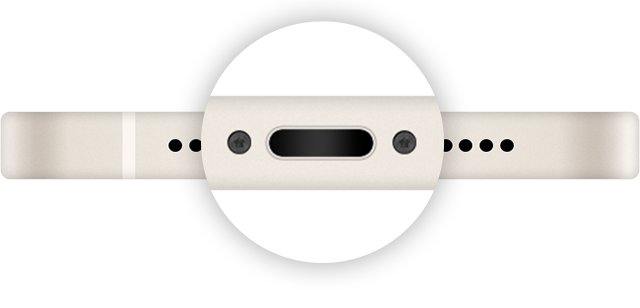
Pocket lint packs into the Lightning or USB-C port and stops the plug seating fully. The usual sign is a cable that feels loose or only charges at a certain angle.
- Unplug the cable and turn on a light or torch so you can see into the port on the bottom of the iPhone.
- Look for lint, sand or grime at the back of the port.
- Gently remove the debris without forcing anything against the contacts.
- Plug the cable back in firmly and check that it clicks home and doesn't wobble.
- If debris is packed in and won't come out, or the port looks damaged, have Apple or an Apple Authorized Service Provider inspect it.
If the port is wet rather than dirty, skip this step and use fix 5. Apple says never to push a cotton swab or paper towel into a wet connector.
3. Leave a completely dead iPhone connected
A fully drained iPhone can sit on the charger with a black iPhone screen for a while before it shows anything. That looks like a charging fault, but it is often just an empty battery.
- Connect the iPhone to a wall charger you know works.
- Leave it alone for one hour, then check whether it turns on.
- If the screen shows a low-charge battery icon, keep it connected for at least another 30 minutes or until it starts.
- If it still won't start, force restart it. On iPhone 8 or later and iPhone SE (2nd generation and later), press and quickly release volume up, press and quickly release volume down, then press and hold the side button until the Apple logo appears.
- On iPhone 7 and iPhone 7 Plus, hold the side button and volume down together until the Apple logo appears.
- On iPhone 6s or earlier and iPhone SE (1st generation), hold the side (or top) button and the Home button together until the Apple logo appears.
- Leave it charging for another half hour after the force restart.
The Apple logo can take more than 10 seconds to appear when you hold the side button. An iPhone that has been stored for months may also need around 20 minutes of charging before you can use it.
4. If charging stops at 80%
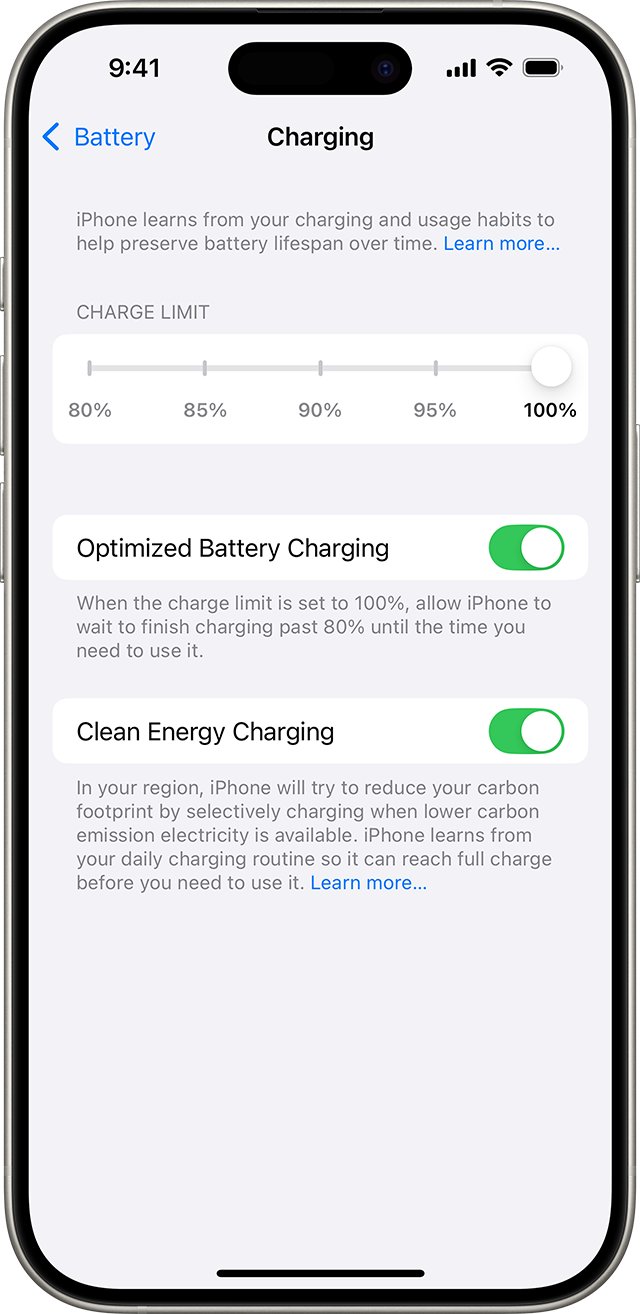
An iPhone that sits at 80% while plugged in is usually doing it on purpose. Three features cause it: Charge Limit, Optimized Battery Charging, and heat protection.
| Cause | How to spot it | What to do |
|---|---|---|
| Charge Limit (iPhone 15 and later) | Stops at the same level every time, 80% to 95% | Open Settings > Battery > Charging and choose a limit up to 100%. Limits run from 80% to 100% in 5% steps. |
| Optimized Battery Charging | A Lock Screen notification says when the iPhone will be fully charged | Touch and hold the notification and tap Charge Now. On iPhone 14 and earlier, turn it off in Settings > Battery > Battery Health & Charging. |
| Battery too warm | The iPhone feels warm, often during wireless charging or gaming | Move the iPhone and charger somewhere cooler. Charging resumes when the temperature drops. |
| Charging On Hold | Lock Screen says "Charging On Hold" | Let the iPhone return to normal temperature; charging resumes on its own. |
With a Charge Limit below 100%, charging restarts if the level drops more than 5% while connected, and the iPhone still charges to 100% occasionally to keep its battery estimate accurate. Optimized Battery Charging needs at least 14 days to learn your routine, so it won't hold at 80% on a brand-new iPhone.
5. Respond to a liquid-detection alert
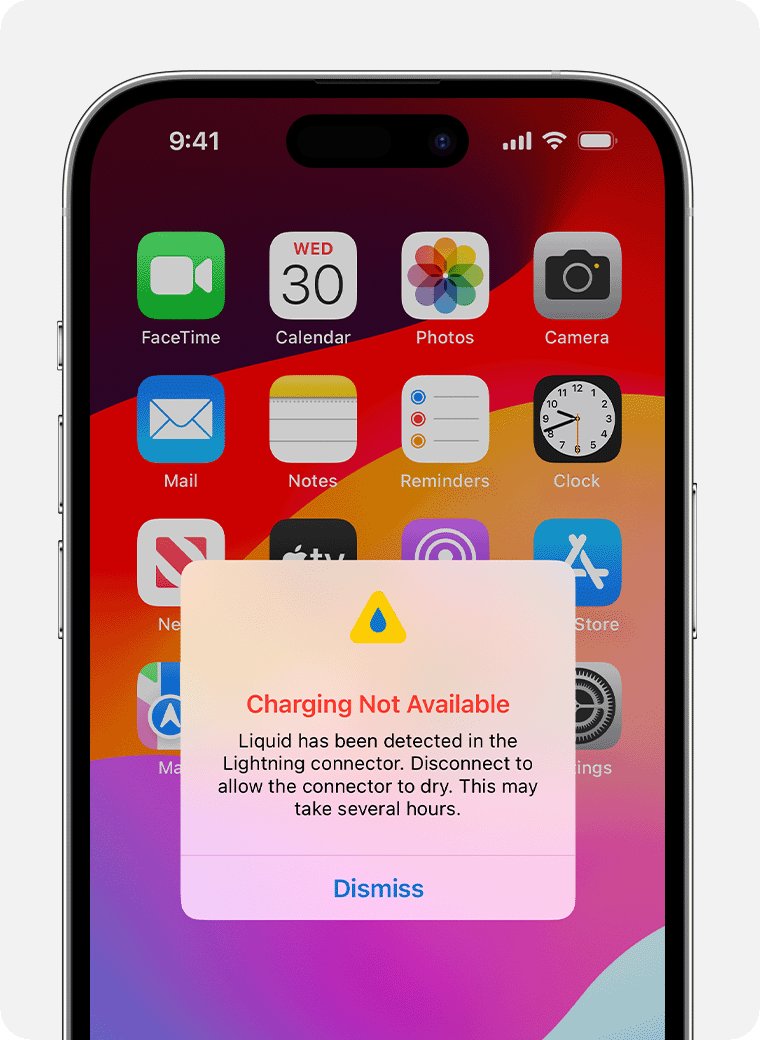
iPhone XS, XS Max, XR and later check the Lightning or USB-C connector for liquid. If they find any, charging and accessory connections stay unavailable until the connector, cable end and accessory are dry.
- Unplug the cable from the iPhone and from the power adapter.
- Tap the iPhone gently against your hand with the connector facing down to shake out excess liquid.
- Leave it in a dry place with some airflow.
- Wait at least 30 minutes, then try charging again.
- If the alert comes back, keep drying it in open air and retry over the next day. Full drying can take up to 24 hours.
- Once it is dry but still not charging, unplug the cable from the adapter and the adapter from the wall, then reconnect both.
Don't dry the iPhone with a hair dryer, other heat source or compressed air, don't push anything into the port, and don't put it in rice; Apple warns that rice particles can damage the iPhone.
A Qi-certified wireless charger still works during the alert as long as the back of the iPhone is dry. In an emergency you can also reconnect the cable and choose to override the alert, but charging a wet connector can corrode the pins permanently.
6. Fix an “Accessory not supported” message
This alert means the iPhone has rejected the connection. Apple names three causes: a dirty or damaged charging port, a defective or damaged accessory, or a USB charger that isn't designed to charge devices.
- Remove any hub, adapter, dock or extension cable and connect the iPhone straight to the charger.
- Clear any debris from the charging port.
- Restart the iPhone.
- Try a different USB cable or charger.
- Install the latest iOS version.
- For Lightning cables, check the packaging for Apple's MFi badge; uncertified cables can fail to charge, overheat or damage the iPhone.
An Apple Lightning to USB cable carries the text "Designed by Apple in California" about seven inches from the USB connector, followed by a 12-digit serial number.
7. Install the latest iOS update
Apple lists an iOS update as one of the fixes for accessory alerts, and current iOS versions also carry the Charge Limit and Optimized Battery Charging logic. The iPhone needs some charge and Wi-Fi for the update.
- Back up the iPhone to iCloud or a computer.
- Connect it to power and to Wi-Fi.
- Open Settings and tap General.
- Tap Software Update to see the installed version and any available update.
- Tap Download and Install and follow the onscreen instructions.
- If the update doesn't appear, update the iPhone from a Mac or Windows PC instead.
If the iPhone won't take any charge at all, an update isn't possible yet. Work through fixes 1 to 3 first.
8. Check battery condition
Every iPhone battery is a consumable part. As it ages it holds less charge and can shut down unexpectedly, which can look like a charging fault.
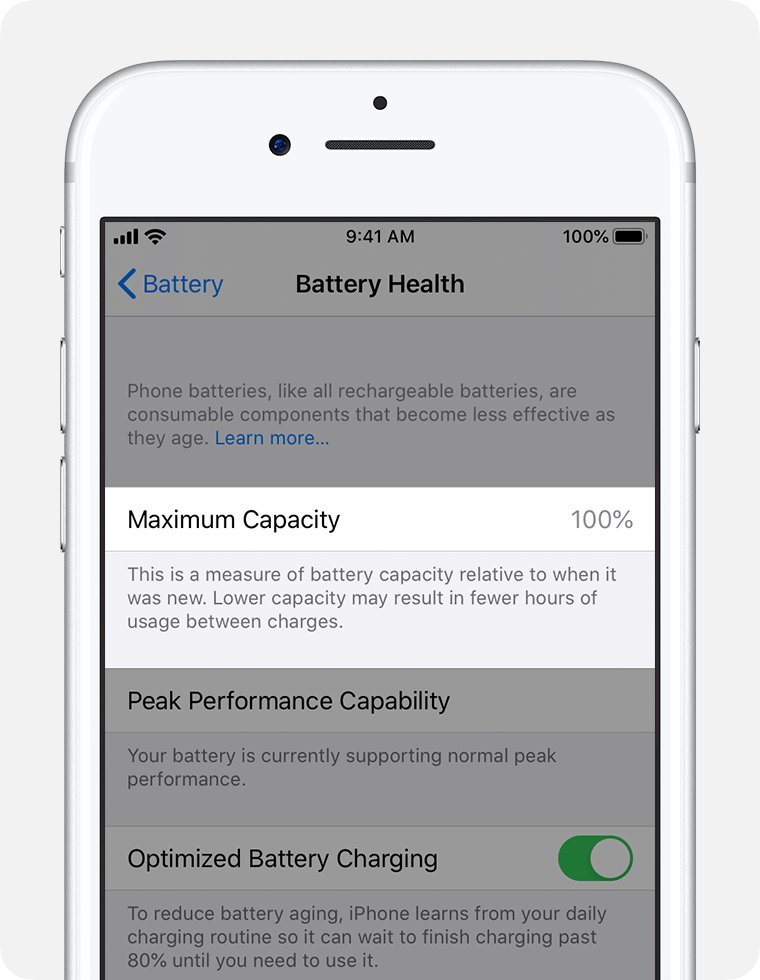
- Open Settings and tap Battery.
- Tap Battery Health.
- Read Maximum Capacity, which compares the battery's capacity with when it was new.
- Read the Peak Performance Capability message below it.
- If it says "Your battery's health is significantly degraded", book a battery replacement.
- If it says the iPhone can't verify a genuine Apple battery, the readings may be wrong; get the battery checked by Apple.
iPhone 14 models and earlier are designed to keep 80% of original capacity at 500 complete charge cycles under ideal conditions; iPhone 15 models are designed for 1,000 cycles.
9. Compare wired and wireless charging
Testing the other charging method isolates the fault fast. If wireless works and the cable doesn't, the port or cable is the problem; if the cable works and the pad doesn't, look at the pad, the case or the alignment.
| Check | Wired (Lightning or USB-C) | Wireless (Qi or MagSafe) |
|---|---|---|
| Which iPhones | Every iPhone | iPhone 8 and later |
| What it needs | A cable and an adapter in good condition | A Qi-certified pad or a MagSafe Charger plus its power adapter |
| Common blocker | Lint in the port, damaged cable, weak or non-charging USB port | Thick, metal or battery case; iPhone off-center; something between iPhone and pad |
| Works during a liquid alert | No | Yes, if the back of the iPhone is dry |
| Interaction | Takes priority: a connected cable stops wireless charging | Won't charge while a USB cable is connected |
| Heat | Can warm up; heat can hold charging at 80% | Apple lists wireless charging as a normal cause of warmth; heat can hold charging at 80% |
Place the iPhone screen-up in the center of the pad. Notification vibrations can slide it off the coil, so turn on Do Not Disturb or use a case if the pad keeps stopping.
What charger does an iPhone use?
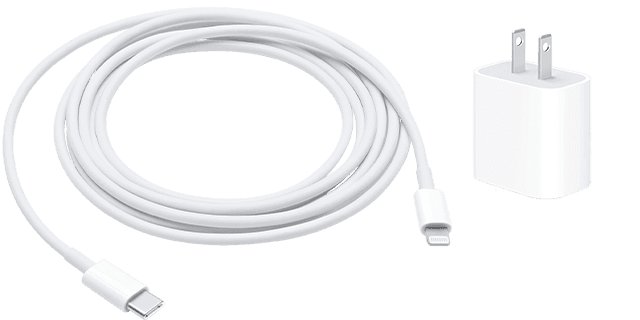
The port on the bottom of the iPhone decides the cable. A mismatched or underpowered adapter still charges, just more slowly.
| iPhone | Cable | Adapter for fast charging |
|---|---|---|
| iPhone 15 and later | USB-C to USB-C, like the cable in the box | A USB-C adapter with USB Power Delivery; 20W or higher on iPhone 15 and 16, 40W or higher on iPhone 17, 17 Pro and 17 Pro Max |
| iPhone 14 and earlier | USB-C to Lightning | Apple 18W or higher USB-C Power Adapter, or a third-party USB-C adapter that supports USB-PD |
| Any iPhone 8 or later, wireless | MagSafe Charger or Qi-certified pad | The adapter the pad maker recommends; MagSafe on iPhone 16 and 17 fast charges with a 30W or higher USB-C adapter |
You can also charge iPhone 15 and later from a USB-C port on a computer, or with a higher-wattage USB-C adapter such as one that came with a Mac laptop.
How to check your iPhone is actually charging
- Plug the cable in or place the iPhone on the wireless pad.
- Look for the charging bolt on the battery icon in the status bar within a few seconds.
- Turn on the battery percentage if it isn't showing, and note the number.
- Check again after 15 to 30 minutes; the percentage should have risen.
- If it holds at 80% with a Lock Screen notice, that is Charge Limit or Optimized Battery Charging, not a fault.
- If it reads "Charging On Hold", move the iPhone somewhere cooler or warmer and wait.
iPhone charger not working: fixes by symptom
iPhone charger gets hot when plugged in
Some cases trap heat during charging, and wireless charging runs warmer.
- Take the iPhone out of its case while it charges.
- Move it out of direct sunlight and away from a hot car.
- Unplug it if it shows a temperature warning, turn it off and let it cool.
- Stop using any cable or adapter whose connector end gets very hot; that is a sign of an uncertified or damaged accessory.
iPhone not charging from a computer USB port
A computer that is off, asleep or in standby can't supply power.
- Plug the computer into the wall and wake it.
- Connect the iPhone directly to a USB port on the computer, not to a keyboard or unpowered hub.
- If it still won't charge, use a wall adapter instead.
iPhone is not charging but the charger works
The charger charges other devices, so the fault is in the iPhone's port, battery or temperature.
- Clear the charging port and plug in firmly.
- Check the Lock Screen for "Charging On Hold" or a liquid alert.
- Restart or force restart the iPhone.
- Try a wireless charger to see whether the port alone is at fault.
- If none of that works, book a service appointment with Apple.
iPhone won't charge in the cold
An iPhone that is too cold might not charge or could stop charging.
- Bring the iPhone indoors, between 0º and 35º C (32º to 95º F).
- Let it warm to room temperature before you plug it in.
- Charge it again; battery life returns to normal once it warms up.
Part of the charger is stuck in the iPhone
A broken connector tip can lodge in the port.
- Stop charging and don't plug anything else into the port.
- Back up the iPhone to iCloud if it still has charge, since a repair may take it out of your hands for a while.
- Take the iPhone to an Apple Store or Apple Authorized Service Provider to have the port inspected.
When to arrange a repair
Book service once the basic fixes have failed, rather than buying cable after cable. Apple inspects the iPhone and quotes the final fee before work starts.
| Sign | What it points to | Next step |
|---|---|---|
| No charge after 1 hour on a known-good charger and a force restart | Battery, port or logic board fault | Book service with Apple |
| Battery Health says "significantly degraded" | Worn battery | Battery replacement |
| Liquid alert with every Apple cable, even when dry | Damaged connector | Book service with Apple |
| Loose or damaged charging port | Port hardware | Have the port inspected |
| "Unable to verify" a genuine Apple battery | Non-genuine or unrecognised battery | Have the battery checked |
The Apple Limited Warranty covers a defective battery for one year, but not wear from normal use or accidental damage. Out of warranty, Apple charges a fee that varies by model; Apple Authorized Service Providers set their own prices. You can book in person or mail the iPhone in.
iPhone not charging when plugged in FAQ
Why won't my iPhone charge when plugged in?
The most common causes are a damaged cable or adapter, a dead outlet, or lint in the charging port. Restart the iPhone, clear the port, and test a different cable, adapter and wall outlet. If it still won't charge, check for heat, liquid alerts and battery health.
Why is my iPhone plugged in but the battery percentage is not increasing?
The iPhone is probably pausing on purpose. Charge Limit, Optimized Battery Charging or high temperature can hold it at 80%, and "Charging On Hold" means it is too hot or cold. A computer that is asleep can also fail to supply power.
How do I make an iPhone charge past 80%?
On iPhone 15 and later, open Settings > Battery > Charging and set the limit to 100%. If Optimized Battery Charging is holding at 80%, touch and hold its Lock Screen notification and tap Charge Now. On iPhone 14 and earlier, turn it off in Battery Health & Charging.
Can I charge an iPhone after it says liquid was detected?
Not with a cable until the connector is dry, which can take up to 24 hours. A Qi-certified wireless charger still works if the back of the iPhone is dry. An emergency override exists, but charging a wet connector can corrode the pins permanently.
How do I know whether the iPhone battery needs replacing?
Open Settings > Battery > Battery Health. If the screen says the battery's health is significantly degraded, a replacement restores full capacity and performance. A low Maximum Capacity figure and unexpected shutdowns are other signs that the battery is worn.
Why won't my charger charge my iPhone?
The charger may be damaged, uncertified, too low-powered or plugged into a dead socket. Some USB chargers are not designed to charge devices and trigger an Accessory Not Supported alert. Try another cable and a USB-C adapter that supports USB Power Delivery.
Why isn't my iPhone charger working from my computer?
A computer that is off, asleep or in standby mode can't charge the iPhone and may even let its battery drain. Plug the computer into power, keep it awake, and connect the iPhone directly to its USB port rather than to a hub or keyboard.
Should I leave my iPhone charger plugged in overnight?
Yes, charging an iPhone overnight is what Optimized Battery Charging is designed for. It learns your routine and waits at 80% until shortly before you usually unplug. On iPhone 15 and later, a Charge Limit below 100% reduces time spent fully charged even further.
Is it OK to leave an iPhone plugged in after it reaches 100%?
Yes. Charge Limit and Optimized Battery Charging reduce the time an iPhone spends fully charged, which is what wears a battery. Heat is the bigger risk, so remove cases that trap heat and avoid charging in direct sun or a hot car.
What charger does an iPhone use?
iPhone 15 and later use a USB-C cable and any USB-C adapter that supports USB Power Delivery. Earlier models use a Lightning connector, usually with a USB-C to Lightning cable. iPhone 8 and later also charge on Qi-certified wireless pads and MagSafe Chargers.
The bottom line on an iPhone that won't charge
Restart the iPhone, clear the port, and test a known-good cable and wall adapter before anything else; then check for an 80% limit, heat or a liquid alert. Most plugged-in-but-not-charging cases are a failed accessory, a blocked port or a deliberate pause, and each takes minutes to rule out. If a full hour on a working charger and a force restart still do nothing, or Battery Health reports a degraded battery, book service with Apple instead of buying more cables.