Snapchat Cameos, the short looping videos with your face that you sent in Chat, are no longer available, according to Snap's own support page.
This guide explains what Cameos were, how making, sending and two-person Cameos worked, what replaced them, and how to delete or control the selfie Snapchat still keeps.
Can you make or send a Cameo on Snapchat now?
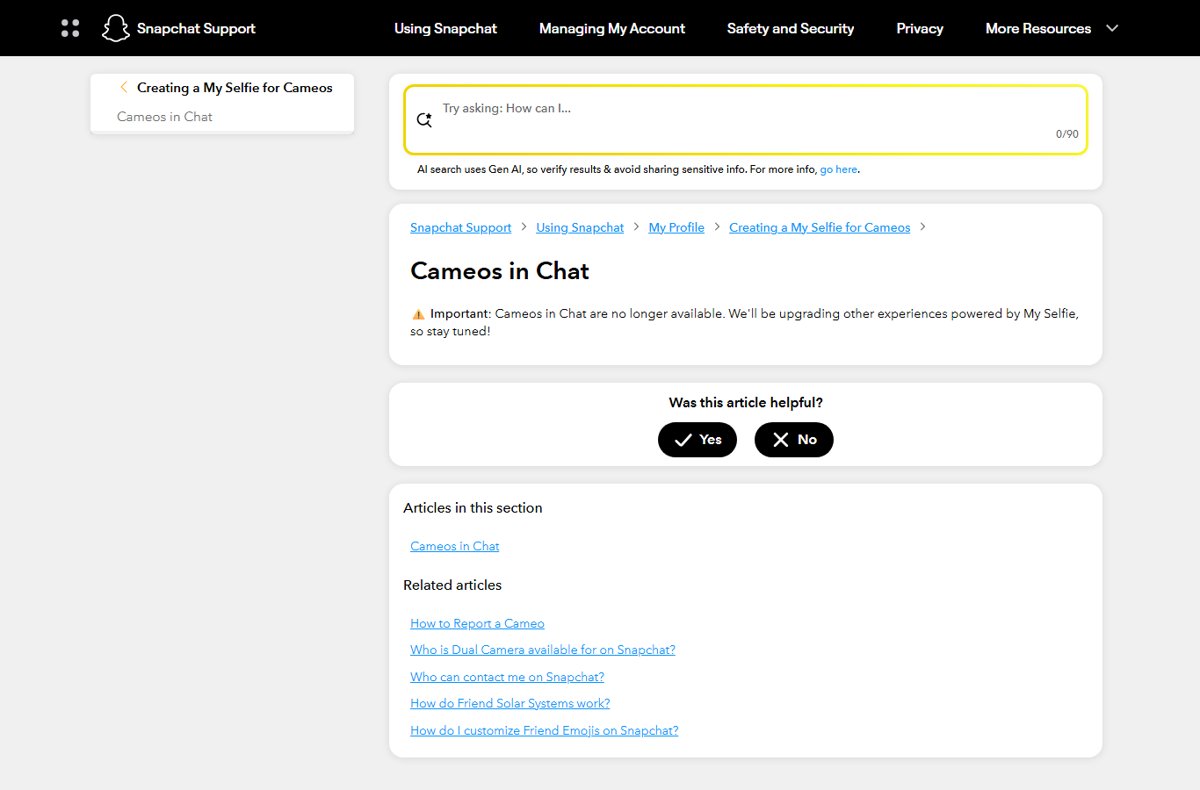
No. Snap's Cameos in Chat help article now carries one line: Cameos in Chat are no longer available.
The same notice says Snap is upgrading other experiences powered by My Selfie instead. Snap gives no retirement date and no return date.
You cannot create, edit or send a new Cameo in any current Snapchat app. The only Cameo-related item left is your stored selfie, which now lives under My Selfie in Settings. Snap's support site lists Cameos in Chat as retired, and its only remaining Cameo articles cover reporting a Cameo and the My Selfie feature that reuses your Cameo selfie.
What are Cameos on Snapchat?
Snap announced Cameos on December 9, 2019, as a way to put your own face into short animated scenes inside Chat.
| Detail | What Snap stated |
|---|---|
| What a Cameo was | A short, looping video starring you, sent to friends in Chat |
| Where it lived | The Cameos button in the Chat sticker bar, beside stickers |
| Platforms | iOS and Android, rolled out in the weeks after the announcement |
| Library at launch | Over 150 Cameo scenes, with more added later |
| Captions | Some Cameos let you customize the caption text |
| Two-person Cameos | You could co-star with a friend if that friend had also set up a Cameo |
| How your face was added | A selfie; Snap says it segmented the shape of your face and hair rather than using facial recognition software |
| Current status | No longer available in Chat |
What happened to Snapchat Cameos?
Cameos in Chat were switched off, and Snap folded the selfie behind them into a newer feature called My Selfie.
| Part of the old feature | What happened to it |
|---|---|
| Creating new Cameos | Removed; the Cameos entry point is gone from Chat |
| Sending Cameos to friends | Removed along with the Chat feature |
| Two-person Cameos | Removed; they depended on Cameos in Chat |
| Your Cameo selfie | Kept and reused by My Selfie if you had one |
| Reporting a Cameo you received | Snap still documents a Report option for Cameos |
| Help documentation | Reduced to a single retirement notice under Creating a My Selfie for Cameos |
Old Cameo instructions versus the current position
Older guides describe how to make and send a Cameo. Each step below shows what that old route did and what you see in Snapchat today.
| Old instruction | What it did | Current position |
|---|---|---|
| Open a Chat and tap the Cameos button in the sticker bar | Opened the Cameos picker | The button no longer appears |
| Take a selfie to make your Cameo | Created the face used in every Cameo | Selfies are now taken under My Selfie for AI features, not Cameos |
| Pick a scene and tap it to send | Sent the looping video to the friend in that Chat | No Cameo scenes are offered to send |
| Edit the caption on a Cameo | Changed the text on supported scenes | Not available |
| Choose a friend's Cameo to co-star with them | Made a two-person Cameo | Not available |
| Restrict who can use your selfie in two-person Cameos | Limited friends from co-starring with you | Replaced by Who Can Generate with My Selfie |
| Change or delete your Cameo selfie in Settings | Replaced or removed your face | Done under Settings > My Selfie |
Why updating or reinstalling usually will not bring Cameos back
Snap's general fix for a missing feature is to update the app, restart it, restart the phone and switch networks. That list targets bugs, not retired features.
Do not reinstall Snapchat to get Cameos back. The latest version from the App Store, Google Play Store or Amazon Appstore still has no Cameos button. Snap retired Cameos in Chat on its side, so no app version, cache clear or reinstall restores it. Reinstalling only costs you time and any unsaved drafts.
What the Snapchat selfie feature means now
My Selfie is the set of selfie images Snapchat uses for generative AI and other experiences, including ads. If you made a Cameo, that selfie is used for My Selfie too.
| Question | Answer from Snap |
|---|---|
| Where the images come from | Selfies taken with the Snap camera, images of yourself from the camera roll, or your existing Cameos selfie |
| What they are used for | Generating new images of you, such as AI Snaps, by you, Snap and your friends |
| Where to set it up | The My Selfie page in Settings, or the AI Snaps tab in Memories |
| Who can generate images with it | Controlled by Who Can Generate with My Selfie |
| Whether ads can use it | Controlled by the See My Selfie in Ads toggle |
| How to remove it | Delete Selfie or Clear Selfie on the My Selfie page |
How to delete your stored Cameo selfie
Deleting My Selfie removes the images that came from your Cameo. Do this if you no longer want Snapchat holding your face for AI features. If you are leaving the app altogether, you can delete your Snapchat account permanently instead.
- Open Snapchat and go to your My Account screen.
- Tap the gear icon to open Settings.
- Under My Account, tap My Selfie.
- Tap Delete Selfie; some versions label it Clear Selfie.
- Confirm the prompt to remove the images.
To replace the photos instead of removing them, tap Update My Selfie on the same page. You can change your Cameo selfie with new camera or camera roll images that way.
What you can still manage
All remaining controls sit on the My Selfie page. Reach it from Settings > App & Privacy > My App > Customize Appearance > My Selfie.
| What you want | Setting to use | Result |
|---|---|---|
| Stop friends from generating images of you | Who Can Generate with My Selfie set to Only Me | Only you can use your selfie in generative features |
| Keep your face out of ads shown to you | Turn off See My Selfie in Ads | Your selfie is not used for ads delivered to you |
| Stop your selfie appearing in AI Snaps | Turn off AI Snaps | AI Snaps no longer show your My Selfie |
| Use newer photos of yourself | Update My Selfie | The stored images are replaced |
| Remove your face entirely | Delete Selfie or Clear Selfie | The stored images are removed |
| Report an inappropriate Cameo someone sent | Open it, press and hold, tap Report | Snap receives the report with your description |
Is there a command for Snapchat Cameos?
No. Snapchat never offered a typed command, chat code or shortcut that creates or sends a Cameo. Cameos were reached only through the Cameos button in the Chat sticker bar. With that button retired, there is no command, link or setting that switches them back on.
How to check your Cameo selfie is deleted
- Close Snapchat completely and open it again.
- Go to My Account, tap the gear icon and open My Selfie.
- Check that your selfie images no longer appear on the page.
- Repeat the check on any other phone where you are signed in to the same account.
Common problems and what they mean
The Cameos option is missing from Chat
Snap retired Cameos in Chat, so the sticker bar no longer has a Cameos button.
- Accept that the button is gone on every device and app version.
- Use the stickers that remain in the same sticker bar for a quick reply.
- Open Settings > My Selfie if your goal was to manage the selfie behind your Cameo.
Saved Cameo instructions do not match Snapchat
Those steps describe the Cameos feature before it was retired.
- Ignore any step that starts in the Chat sticker bar.
- Use the My Selfie page for anything about your selfie.
- Use the table above to map each old step to its current equivalent.
You still have a Cameo selfie but cannot send it in Chat
The selfie survives as My Selfie, but the Chat feature that turned it into Cameos is gone.
- Open Settings > My Selfie to confirm the images are stored.
- Use it in AI Snaps from the AI Snaps tab in Memories if that feature is available to you.
- Delete it with Delete Selfie if you do not plan to use it.
You cannot create a two-person Cameo
Two-person Cameos were part of Cameos in Chat and were retired with it.
- Stop searching for a friend's Cameo in the sticker bar.
- Check Who Can Generate with My Selfie if your concern is friends using your face in newer AI features.
My Selfie or other features will not load
A genuine app or connection fault, not the Cameos retirement.
- Update Snapchat from the App Store, Google Play Store or Amazon Appstore.
- Close the app completely and open it again.
- Turn your phone off and on again.
- Switch between mobile data and Wi-Fi.
- Report it from Settings > Support and Safety > Bugs and Suggestions > Report a Bug.
Snapchat Cameos FAQ
What are Cameos on Snapchat?
Cameos were short, looping videos that placed your face into animated scenes you sent to friends in Chat. Snap launched them in December 2019 with over 150 scenes, and they are no longer available.
What is a cameo in Snapchat compared with other Cameo products?
In Snapchat, a Cameo was a selfie-based animated video for Chat. It is unrelated to Silhouette Cameo cutting machines and to the Cameo celebrity video service, which share only the name.
How did Snapchat Cameos work?
You tapped the Cameos button in the Chat sticker bar, took a selfie, then picked a scene to send. Snap placed your face in the scene by segmenting the shape of your face and hair, not by facial recognition.
How do I make a Cameo on Snapchat now?
You cannot. Snap's support page states that Cameos in Chat are no longer available. The closest current feature is My Selfie, which uses selfies to generate AI images such as AI Snaps.
Are Snapchat Cameos permanently discontinued?
Snap describes Cameos in Chat as no longer available and gives no return date. Its notice points to upgraded experiences powered by My Selfie instead, so treat Cameos as retired.
Why can't I see the Cameos icon in Snapchat Chat?
The icon was removed when Snap retired Cameos in Chat. Updating, reinstalling or switching phones will not bring it back, because the feature is off on Snap's side.
What is “Who Can Generate with My Selfie” on Snapchat?
It decides whether friends can use your My Selfie images to create new Snaps featuring you. Set it to Only Me under Settings, App & Privacy, My App, Customize Appearance, My Selfie.
How do I delete my Snapchat Cameo selfie?
Open Settings from My Account, tap My Selfie, then tap Delete Selfie or Clear Selfie. Your old Cameo selfie is stored as My Selfie, so this removes it.
Can I still use an old saved Cameo selfie?
Only through My Selfie features. Snap reuses an existing Cameos selfie for My Selfie, which powers generative AI features such as AI Snaps, but it cannot be sent as a Cameo.
Is there a way to create a two-person Snapchat Cameo?
No. Two-person Cameos needed both friends to have Cameos set up in Chat, and that feature is gone. No setting or workaround restores co-starring in a Cameo.
The bottom line on Snapchat Cameos
Treat Snapchat Cameos as retired, and manage the selfie behind them under My Selfie: update it, delete it, or set Who Can Generate with My Selfie to Only Me. Snap's own help page says Cameos in Chat are no longer available, while your Cameo selfie carries on in My Selfie for AI features and ads unless you change those settings.