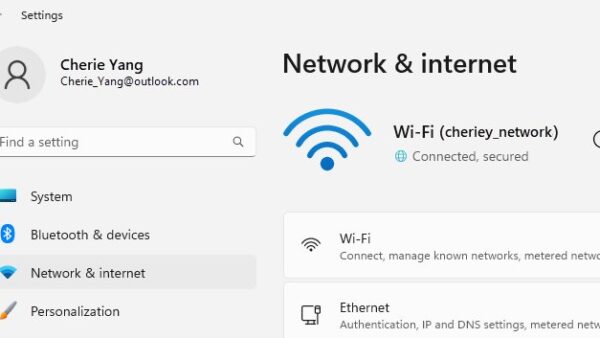
To allow apps to access your microphone in Windows 11, open Start > Settings > Privacy & security > Microphone and turn on Microphone access, Let apps access your microphone and Let desktop apps access your microphone.
This tutorial covers the per-app toggles, the difference between Store and desktop apps, Windows 10 labels, browser site permissions, the admin policy that can lock the setting, and fixes when an app still cannot hear you.
Allow apps to access your microphone in Windows 11
Three switches on one Settings page decide whether apps can use your microphone. All three must be on for both Store apps and desktop apps to hear you.
- Select Start > Settings.
- Select Privacy & security in the left pane.
- Scroll to App permissions and select Microphone.
- Turn on Microphone access.
- Turn on Let apps access your microphone.
- Under the same switch, turn on each Microsoft Store app you want to use with the microphone.
- Turn on Let desktop apps access your microphone so programs such as browsers and installed meeting apps can use it.
- Close and reopen the app you want to use so it picks up the new permission.
If the microphone does not show up anywhere in Windows, the problem is detection rather than permission, and you need to fix a computer not detecting the microphone first.
Understanding microphone permissions in Windows 11
Each switch on the Microphone page controls a different layer. Turning off a higher switch overrides every switch below it.
| Setting | What it controls | When it is off |
|---|---|---|
| Microphone access | The master switch for the whole device | No app or Windows feature that respects privacy settings can use the microphone |
| Let apps access your microphone | All Microsoft Store apps as a group | Store apps are blocked, even if their own toggle is on |
| Per-app toggles under Let apps access your microphone | One Microsoft Store app each | Only that app is blocked |
| Let desktop apps access your microphone | Every desktop app at once; desktop apps cannot be toggled one by one | Desktop apps listed there are blocked, and features such as Windows dictation can stop working |
The list under the desktop apps switch shows programs that Windows has detected using the microphone. Select an entry to see the file on your device that accessed it.
Microsoft Store apps vs desktop apps: which microphone setting applies?
The app type decides which switch matters. If an app or website is missing from the per-app list, it is almost always a desktop app.
| Your app | Setting to turn on | Why |
|---|---|---|
| Microsoft Store app (shown with its own toggle on the Microphone page) | Let apps access your microphone plus the app's own toggle | Store apps use Windows permission prompts and appear in the per-app list |
| Desktop app installed from the web or an installer (.exe or .msi) | Let desktop apps access your microphone | Desktop apps cannot be toggled individually in Settings |
| Website in Microsoft Edge or Google Chrome | Let desktop apps access your microphone, then allow the site in the browser | The browser needs Windows access, and each site needs browser permission |
| Windows dictation or other voice features | Let desktop apps access your microphone | Microsoft lists dictation among the features affected when this switch is off |
| Webcam with a built-in microphone | Microphone settings plus Camera access | Some apps need camera permission before they use a webcam microphone |
Allow desktop apps to access your microphone in Windows 11
Meeting clients, browsers, recording software and games installed outside the Store all depend on this one switch.
- Select Start > Settings > Privacy & security > Microphone.
- Confirm Microphone access is on.
- Scroll down and turn on Let desktop apps access your microphone.
- Check the list under the switch for the app you want; select it to see which file used the microphone.
- Restart the desktop app so it requests the microphone again.
A desktop app that never appears in this list can still work, because Windows lists only the apps it has seen using the microphone through supported methods.
Choose which apps can access your microphone in Windows 11
Per-app toggles let you allow one Store app and block another without touching the master switch.
- Select Start > Settings > Privacy & security > Microphone.
- Make sure Let apps access your microphone is on, or the app list stays unavailable.
- Find the app in the list under Let apps access your microphone.
- Turn its toggle on to allow it, or off to block it.
- Open the app and start a recording or call to confirm it can hear you.
If a Store app is in the list but still fails after you allow it, update Microsoft Store apps manually and try again.
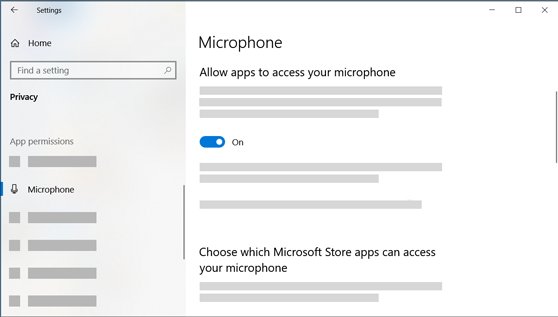
Allow apps to access your microphone in Windows 10
Windows 10 has the same three layers under different labels and a different Settings path.
| Control | Windows 11 | Windows 10 |
|---|---|---|
| Settings page | Start > Settings > Privacy & security > Microphone | Start > Settings > Privacy > Microphone |
| Device master switch | Microphone access | Allow access to the microphone on this device, changed with the Change button |
| Store apps as a group | Let apps access your microphone | Allow apps to access your microphone |
| Individual Store apps | Toggles under Let apps access your microphone | Toggles in the app list below Allow apps to access your microphone |
| Desktop apps | Let desktop apps access your microphone | Allow desktop apps to access your microphone (version 1903 and later) |
Allow a website to use your microphone in Microsoft Edge and Chrome
Browsers are desktop apps, so Windows access comes first. Each website then needs its own permission inside the browser.
- Turn on Let desktop apps access your microphone in Windows Settings.
- In Microsoft Edge, open the website and select Allow when it asks to use your microphone.
- To change a site later in Edge, select Settings and more > Settings > Privacy, search, and services > Site permissions > All sites, select the site and change the Microphone dropdown.
- In Google Chrome, open the website and choose Allow while visiting the site or Allow this time when prompted.
- To change a site later in Chrome, select More > Settings > Privacy and security > Site settings > Microphone.
- Under Not allowed to use your microphone, select the site's name and set the microphone permission to Allow.
On a work or school computer, the administrator can set Chrome's microphone settings, and you may not be able to change them.
Additional settings for device permissions: camera and Windows Hello
Microphone permission does not always stand alone. These related settings change what an app can do with your audio and video devices.
| Setting or feature | Where | How it relates to the microphone |
|---|---|---|
| Camera access | Settings > Privacy & security > Camera | Turn it on if your microphone is built into a webcam and the app also needs the camera |
| Let apps access your camera / Let desktop apps access your camera | Same Camera page | Work exactly like the microphone switches, for Store and desktop apps |
| Windows Hello | Sign-in options | Uses the camera for sign-in even when app camera access is off; it does not affect microphone permission |
| Speech Runtime Executable | Desktop apps list on the Microphone page | Shown when a Windows feature uses the microphone through a Windows component |
See which apps are using your microphone in Windows 11
- Start a recording or call in the app you just allowed.
- Look for the microphone icon in the notification area of the taskbar; it appears while an app is using the microphone.
- Open Settings > Privacy & security > Microphone to see the apps listed under each switch.
- Select a desktop app in the list to see the file that accessed the microphone.
- Speak and check that the app's input meter or the other person picks up your voice.
If the icon appears but nobody can hear you, the permission is working and the issue is the selected input device or its level.
Common applications and their microphone settings
Windows permission is only half the job. Most calling and recording apps also pick their own input device.
| App | Windows switch it needs | Where to check inside the app |
|---|---|---|
| Microsoft Teams | Microphone access plus the Store or desktop switch that matches how Teams is installed | Settings > Devices > Audio settings, then the Microphone list |
| Microsoft Edge websites | Let desktop apps access your microphone | Site permission prompt, or Site permissions > All sites |
| Google Chrome websites | Let desktop apps access your microphone | Privacy and security > Site settings > Microphone |
| Windows dictation and voice features | Let desktop apps access your microphone | No separate microphone permission inside the feature |
| Other Microsoft Store apps | Let apps access your microphone plus the app toggle | The app's own input device option, where it has one |
| Other desktop apps (games, recorders, meeting clients) | Let desktop apps access your microphone | The app's audio or voice settings |
Block apps from accessing your microphone in Windows 11
- Select Start > Settings > Privacy & security > Microphone.
- To block one Store app, turn off its toggle under Let apps access your microphone.
- To block all Store apps, turn off Let apps access your microphone.
- To block desktop apps, turn off Let desktop apps access your microphone; this affects every desktop app in the list.
- To block everything, turn off Microphone access.
Securing your microphone usage beyond Windows privacy settings
Windows privacy switches cover apps that ask through Windows. Microsoft states that some desktop apps can bypass them.
| Risk | Why it happens | What to do |
|---|---|---|
| A desktop app records with access turned off | An app that installs its own driver can talk to the microphone hardware directly | Disconnect or disable the microphone when you need certainty |
| A desktop app never appears in the list | Desktop apps do not always use Windows permission prompts | Check the app's own settings and privacy policy |
| A website keeps the microphone | The browser holds a saved site permission | Block the site in Edge Site permissions or Chrome Site settings |
| Unknown software uses the microphone | Any installed program with desktop access can record | Install apps only from sources you trust and remove ones you do not recognise |
Let Windows apps access the microphone Group Policy setting
On Pro, Enterprise and Education editions, an administrator can force the Store-app microphone setting on or off. When this policy is set, users cannot change it in Settings.
| Item | Value |
|---|---|
| Policy name | Let Windows apps access the microphone |
| Group Policy path | Computer Configuration > Administrative Templates > Windows Components > App Privacy |
| Options | User is in control, Force Allow, Force Deny |
| Per-app control | A Package Family Name can be listed so one app gets its own setting, which overrides the default |
| MDM equivalent | ./Device/Vendor/MSFT/Policy/Config/Privacy/LetAppsAccessMicrophone (0 user in control, 1 force allow, 2 force deny) |
| Applies after | Apps that were open must be restarted, or the device restarted |
Apps can't access microphone in Windows 11: fixes
The microphone toggles are greyed out or switch back
An organisation policy such as Let Windows apps access the microphone is forcing the setting.
- Check whether the device is a work or school PC managed by an IT department.
- Ask the administrator to set the policy to User is in control or to Force Allow for the app you need.
- Restart the app or the PC after the policy changes.
The app is not in the list of apps that can access the microphone
It is a desktop app, and desktop apps cannot be toggled individually.
- Turn on Let desktop apps access your microphone.
- Restart the app and use the microphone once so Windows can list it.
- Check the app's own audio settings for a microphone option.
A webcam microphone is allowed but still silent
The app also needs camera permission to use the webcam's microphone.
- Select Start > Settings > Privacy & security > Camera.
- Turn on Camera access and the matching app switch.
- Restart the app.
A website cannot use the microphone
The site was blocked in the browser, or desktop app access is off in Windows.
- Turn on Let desktop apps access your microphone.
- In Edge, open Site permissions > All sites, select the site and change the Microphone dropdown.
- In Chrome, open Site settings > Microphone and set the site to Allow.
- Reload the page.
Permission is on but no microphone is available
Windows does not detect the microphone at all, so permission cannot help.
- Reconnect the microphone or headset and check any mute button on it.
- Check that a microphone appears as an input device in Settings > System > Sound.
- If none appears, work through the hardware and driver fixes for a microphone Windows does not detect.
Allow apps to access microphone FAQ
How do I give apps access to the microphone?
Open Start > Settings > Privacy & security > Microphone. Turn on Microphone access and Let apps access your microphone, then switch on each Store app you want. For programs installed outside the Store, also turn on Let desktop apps access your microphone.
How do I enable apps to use the microphone on a PC?
Enable the three switches on the Microphone page in Privacy & security: Microphone access, Let apps access your microphone and Let desktop apps access your microphone. Then restart the app so it requests the microphone again with the new permission.
How do I allow desktop apps to access my microphone?
Turn on Let desktop apps access your microphone at the bottom of Settings > Privacy & security > Microphone. Desktop apps cannot be allowed one at a time; the switch covers every desktop app Windows has detected using the microphone.
Why is my app not listed under microphone permissions?
Apps missing from the per-app list are usually desktop apps, which Windows does not show as individual toggles. They are controlled together by Let desktop apps access your microphone, and some only appear after they use the microphone once.
Do I also need to allow camera access for the microphone?
Only if your microphone is part of a webcam. In that case, also turn on Camera access and the matching app switch under Settings > Privacy & security > Camera, because some apps need camera permission to use the webcam's built-in microphone.
How do I allow microphone access for one app only?
For a Microsoft Store app, keep Let apps access your microphone on and turn on only that app's toggle. Desktop apps cannot be allowed individually in Windows Settings, so use the app's own audio settings to choose or mute its microphone.
How do I know if an app is using my microphone?
A microphone icon appears in the notification area of the taskbar while any app is using the microphone. The Microphone page in Privacy & security also lists the desktop apps that have accessed it, and you can select one to see its file.
Why can't I turn on microphone access in Windows 11?
On a managed work or school PC, the Let Windows apps access the microphone policy can force the setting to Force Deny, and users cannot change it. Ask the administrator to set it to User is in control or Force Allow.