An Apple Watch that will not charge is usually fixed by cleaning the back of the watch and the charger, reseating it on the magnetic puck, swapping the cable or power adapter, and then forcing a restart.
This guide walks through those 5 solutions in order, explains what each charging icon means, and covers watches that stop at 80%, stay dead, or get hot on the charger.
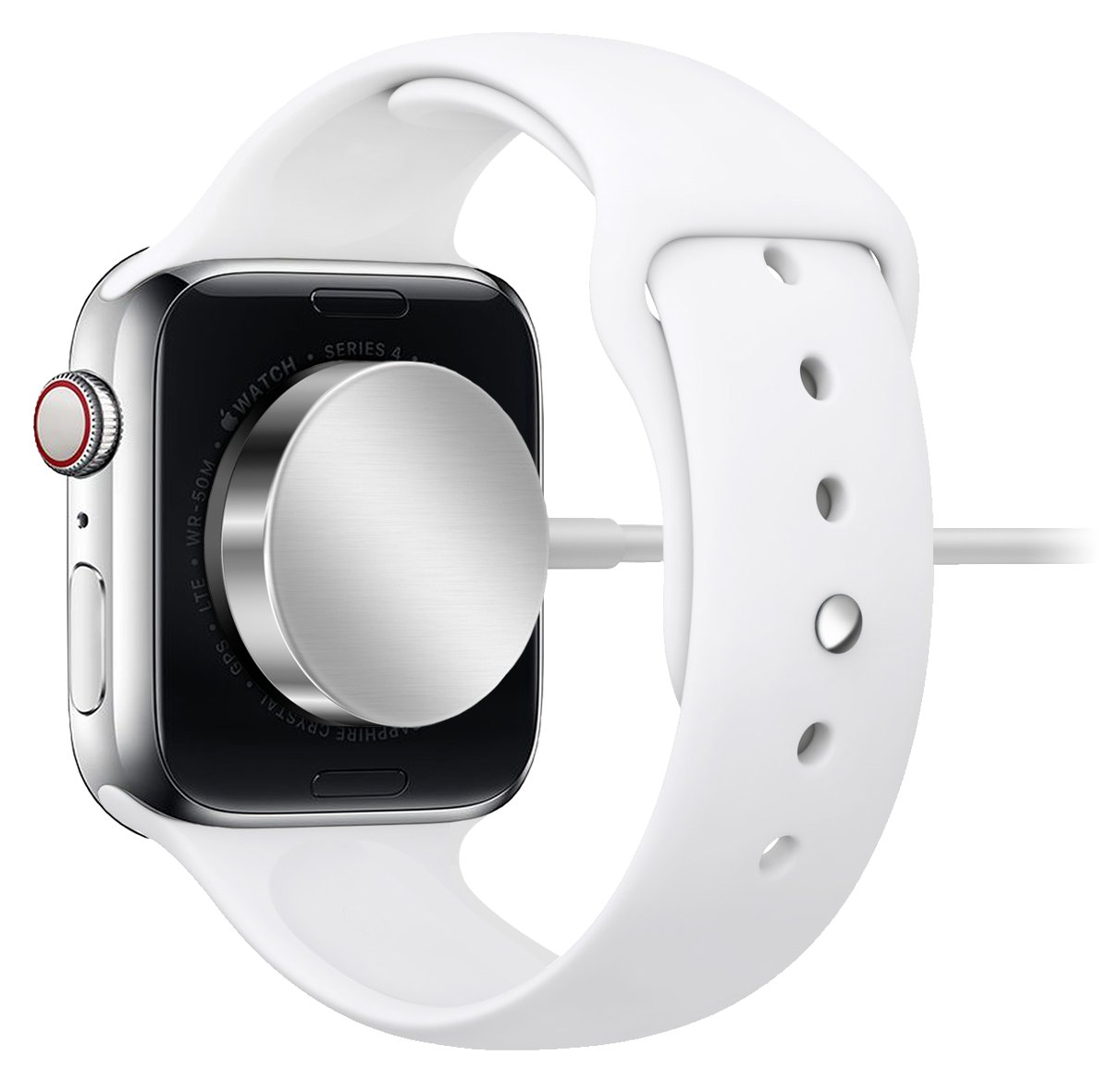
Apple Watch not charging quick check: what to look for in 2 minutes
Run these checks before anything else. Most charging failures come down to a loose plug, a misaligned puck, or a watch that needs more time.
- Take off your Apple Watch and place it on the charger with the back of the watch facing down onto the puck.
- Push the charging cable all the way into the USB power adapter, then push the adapter all the way into a wall outlet.
- Peel off any plastic wrap left on either side of a new charger.
- Lift the watch and set it down again so the magnets snap it into the center of the puck.
- Look for a lightning bolt on the watch face and listen for the charging chime (it stays quiet in Silent Mode).
- If the watch was completely flat, leave it on the charger for up to 30 minutes before deciding it is not charging.
If the lightning bolt still does not appear, work through the 5 solutions below in order.
Why is my Apple Watch not charging?
Apple Watch charges when the magnets in the puck line up with the back of the watch, so anything that keeps the back from sitting flat on the puck stops it. The table matches each cause to the solution that fixes it.
| Cause | What you notice | Fix |
|---|---|---|
| Dirt, sunscreen or lotion on the back crystal or puck | Watch sits on the charger but no lightning bolt appears | Solution 1 |
| Plastic wrap still on a new charger | New watch never starts charging | Solution 1 |
| Misaligned watch, angled dock, or Ultra band in the way | Charging starts and stops, or only works at one angle | Solution 2 |
| Cable not fully seated, weak adapter, hub or dead outlet | Nothing happens, or charging is very slow | Solution 3 |
| Damaged, older or region-specific charger | Works on one charger, not another, or shows an "Unable to charge" message | Solution 4 |
| Frozen software | Screen stays black or unresponsive on the charger | Solution 5 |
| Battery fully drained | Red lightning bolt on the screen | Leave it charging up to 30 minutes |
| Optimized Battery Charging or Optimized Charge Limit | Watch stops at 80% instead of 100% | Tap Charge to Full Now |
| Watch too hot or too cold | Charging slows or stops, or a red thermometer appears | Charge at room temperature |
Solution 1: Clean the Apple Watch charging contacts and the back of the watch
The back of the watch sits directly against the charger, so a buildup of lotion, sunscreen or sweat on the back crystal can stop the puck from connecting.
- Turn off your Apple Watch and take it off the charger.
- Remove a leather band, if you use one, before cleaning.
- Wipe the back crystal with a nonabrasive, lint-free cloth. Lightly dampen the cloth with fresh water if the residue does not come off dry.
- Dry the watch with a lint-free cloth, including the whole surface of the back crystal.
- Unplug the charger and wipe the concave face of the puck with a dry, lint-free cloth.
- Remove any clear plastic film from both sides of the charger.
- Turn the watch back on and place it on the charger.
Do not use soap, cleaning sprays, abrasives, compressed air, ultrasonic cleaners or heat on the watch. A 70 percent isopropyl alcohol wipe is acceptable on the exterior surfaces if you want to disinfect it, but keep moisture out of the openings.
Solution 2: Confirm the Apple Watch charger fit and power source
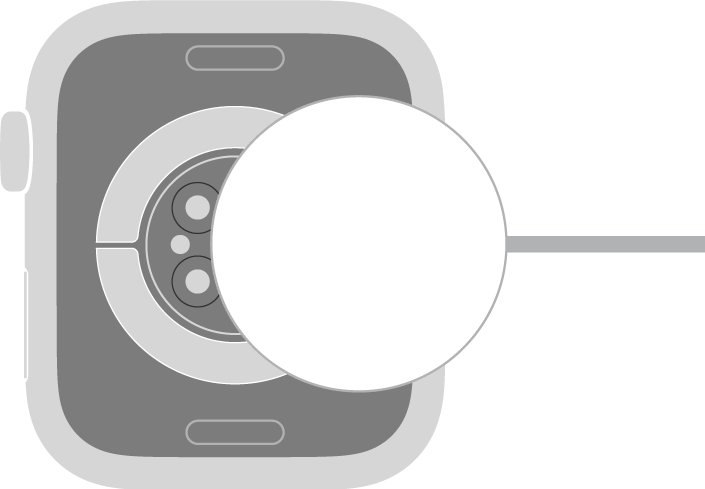
The puck aligns itself with magnets, but stands, docks and thick bands can hold the watch slightly off center.
- Place the charger on a flat surface in a well-ventilated spot, not under a pillow or blanket.
- Set the back of the watch on the puck and let the magnets pull it into place; a lightning bolt should appear on the watch face.
- If you use the Apple Watch Magnetic Charging Dock or MagSafe Duo Charger with a 44mm, 45mm or 49mm watch, change the angle of the charger or lay it completely flat.
- If you have Apple Watch Ultra or later and it still will not connect to the dock or MagSafe Duo while flat, remove the band and try again.
- Check the power source: the cable must be fully inside the adapter, and the adapter fully inside the outlet.
- Leave the watch untouched for a minute and confirm the lightning bolt stays on.
Solution 3: Test the Apple Watch charging cable, adapter, and outlet
Change one part at a time. If the watch starts charging after a swap, the part you removed is the problem.
- Plug a lamp or phone charger into the same wall outlet to confirm the outlet has power.
- Move the Apple Watch cable to a different USB power adapter and test again.
- Connect the cable directly to a dedicated USB-C charger instead of a USB hub, computer, car port or a multi-port charger that is already powering other devices.
- Read the wattage printed on the top or bottom of an Apple adapter. Fast charging needs an 18W or greater USB-C Power Delivery adapter.
- Inspect the cable for kinks, a frayed jacket or a loose connector and replace it if any of these appear.
- Put the watch back on the charger and wait a minute for the lightning bolt.
A computer USB port can charge the watch, but hubs and multi-port chargers may share their output and charge more slowly.
Solution 4: Try a different Apple Watch charger or charging method
A different charger rules out a fault in the puck itself, which you cannot repair.
- Use the Apple Watch Magnetic Charging Cable or USB-C Magnetic Fast Charging Cable that came with your watch, if you have been using another one.
- Borrow a second Apple Watch charging cable and test it with a known-good adapter.
- Try another charging method you own: the MagSafe Duo Charger, the Apple Watch Magnetic Charging Dock, or a compatible third-party charger.
- Check the puck for a WPT label. WPT-compliant chargers sold in China mainland and Indonesia do not fast charge and may show "Unable to charge. This is a country-specific charger. It is incompatible with this Apple Watch."
- Identify a fast charging cable by its USB-C connector and the aluminum ring around the magnetic puck.
- Keep the charger that works and replace the one that does not.
A cable from an older Apple Watch still charges a newer model, but charging may be slower than with the cable from the box.
Solution 5: Force restart Apple Watch and check charging behavior
A force restart clears a frozen watch that has power but does not show the charging screen. Apple recommends it once the charger checks are done.
- Leave the watch on the charger.
- Press and hold the side button and the Digital Crown together.
- Keep holding for at least 10 seconds, until the Apple logo appears.
- Release both buttons and let the watch start up on the charger.
- Watch for the lightning bolt and the charging chime.
- If the screen stays black, leave the watch charging for up to 30 minutes, then repeat the force restart once.
A green lightning bolt means normal charging. A yellow one means Low Power Mode is on, and it turns off once the battery reaches 80 percent.
How to check if your Apple Watch is charging
Use any of these to confirm the battery level is actually rising, not just that an icon appeared.
- Look at the watch face while it is on the charger: a lightning bolt appears and the watch enters Nightstand mode.
- Press the side button to open Control Center and read the battery percentage.
- Tap the percentage to see a larger charge ring.
- Open Settings on the watch, tap Battery, and check the charging graph for an upward line.
- On your iPhone, add a battery widget to the Home Screen to see the charge level of the connected Apple Watch.
- Check the percentage again after 15 minutes; it should be higher.
Apple Watch charging icons and messages explained
The symbol on the screen tells you which problem you have before you start swapping parts.
| What you see | What it means | What to do |
|---|---|---|
| Red lightning bolt | Not enough battery power to turn on | Put the watch on the charger |
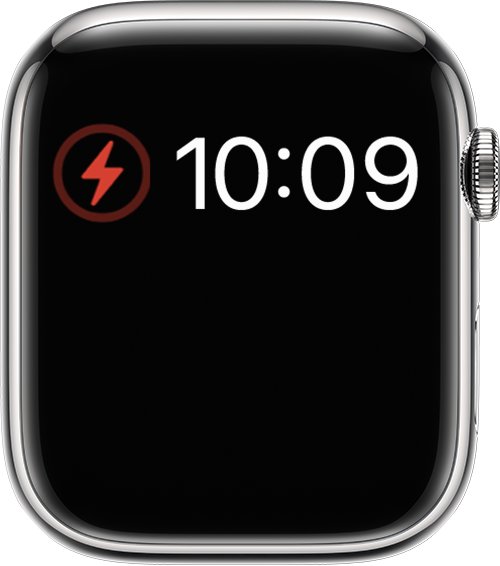
| Red lightning bolt inside a ring | Connected and charging from empty | Wait up to 30 minutes for it to start |
| Charging cable icon or blank screen | Battery too low to show anything else | Leave it charging up to 30 minutes |
| Green lightning bolt | Charging normally | Nothing |
| Yellow lightning bolt | Charging with Low Power Mode on | Low Power Mode turns off at 80% |
| Open charge ring | Optimized Charge Limit is active | Tap the charging icon, then Charge to Full Now if you need 100% |
| Red thermometer and the time | Watch is too hot | Take it off the charger and let it cool |
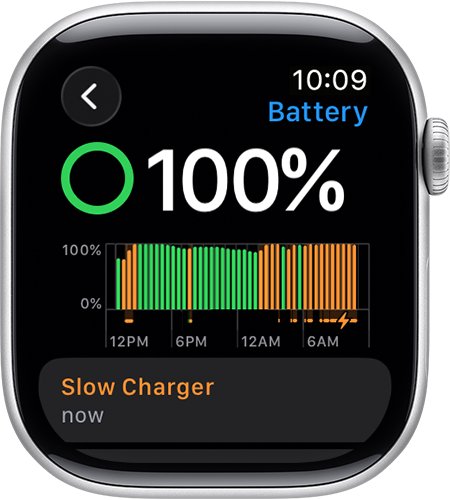
| Slow Charger in Settings > Battery | A higher-wattage charger would charge faster (watchOS 26 and later) | Use a USB-C Power Delivery adapter |
| "Unable to charge. This is a country-specific charger." | WPT-compliant charger used with an incompatible watch | Use a standard Apple Watch charger |
Apple Watch not charging to 100%, after being dead, or getting hot
Apple Watch not charging past 80% or not fully charging
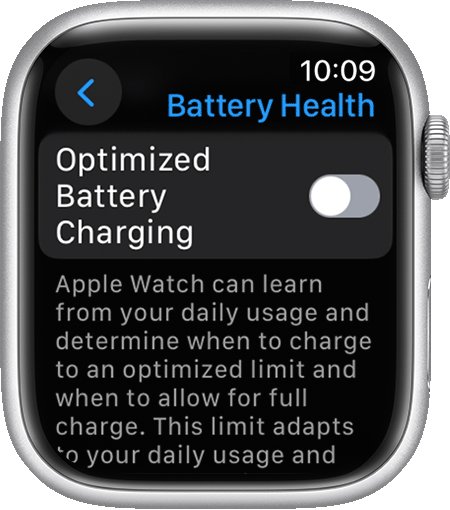
Optimized Battery Charging holds the battery between 75% and 80%, or Optimized Charge Limit stops it early to reduce battery wear.
- Keep the watch on the charger.
- Tap the screen, then tap the circle with the green or yellow charging icon.
- Tap Charge to Full Now.
- To change it permanently, open Settings, tap Battery, then Battery Health, and turn off Optimized Battery Charging or Optimized Charge Limit.
- Choose Turn Off Until Tomorrow or Turn Off.
Apple Watch not charging after being dead
A fully drained battery needs time before the watch can show a charging screen or start up.
- Leave the watch on a known-good charger without touching it.
- Wait up to 30 minutes for the red lightning bolt inside a ring or the Apple logo.
- If nothing appears, press and hold the side button and Digital Crown for at least 10 seconds.
- Repeat Solutions 1 to 4 if the screen is still blank.
Apple Watch not charging and getting hot
Apple Watch slows or stops charging to protect the battery when it is outside 32° to 95° F (0° to 35° C).
- Take the watch off the charger.
- Move it and the charger out of direct sun, away from heaters and out of hot cars.
- Let the watch cool until it turns back on by itself if a red thermometer appeared.
- Charge it again uncovered, on a flat surface, at room temperature.
Apple Watch charging very slowly
A low-wattage adapter, a hub, an older cable, or using the watch while it charges.
- Open Settings > Battery and look for a Slow Charger message.
- Switch to a dedicated USB-C Power Delivery adapter and the cable that came with the watch.
- Avoid using the watch, installing software updates or syncing media while it charges.
- On a cellular model, keep the paired iPhone within range while charging.
New Apple Watch or Apple Watch Ultra not charging on a dock
Plastic wrap on the puck, or a large case and band keeping the magnets apart.
- Remove all plastic film from both sides of the charger.
- Lay the dock or MagSafe Duo flat.
- Take the band off an Apple Watch Ultra and place it on the charger again.
Common mistakes that keep Apple Watch from charging
| Mistake | Why it stops charging | Do this instead |
|---|---|---|
| Leaving plastic film on a new charger | The film keeps the puck from connecting | Peel it off both sides |
| Cleaning with soap, sprays or compressed air | These can damage the watch | Use a lint-free cloth and fresh water |
| Charging under a pillow, in a bag or in a hot car | Heat slows or stops charging | Charge uncovered at room temperature |
| Using a busy USB hub or car port | Shared or low output slows charging | Use a dedicated USB-C adapter |
| Taking the watch off before 30 minutes when it was dead | A drained battery needs time to show the bolt | Leave it on the charger |
| Assuming 80% means a fault | Optimized charging stops early on purpose | Tap Charge to Full Now |
| Using a WPT charger bought in China mainland or Indonesia | It is incompatible with some models | Use the charger that came with your watch |
Apple Watch still not charging: check battery health and get service
When none of the 5 solutions work, the battery or charging hardware needs Apple service. Check battery health first if the watch powers on at all.
Watch turns on but the battery will not hold a charge
Lithium-ion batteries hold less charge as they chemically age.
- Open Settings on the watch and tap Battery.
- Tap Battery Health and scroll down to Maximum Capacity.
- If the watch shows a service alert or a low capacity, start a battery service request at support.apple.com/watch-battery-service.
No lightning bolt on any charger after a force restart
A hardware fault in the watch rather than the charger.
- Confirm the same charger charges another Apple Watch, if you have access to one.
- Go to support.apple.com/watch-battery-service on your iPhone or another device.
- Follow the service options shown there for your watch model.
Apple Watch not charging FAQ
Why is my Apple Watch not charging?
The most common reasons are a dirty back crystal or puck, plastic wrap left on a new charger, a cable not fully plugged in, or a misaligned watch. Clean both surfaces, reseat the watch, swap the cable and adapter, then force restart it.
How do I fix an Apple Watch that is not charging?
Clean the back of the watch and the charger, confirm the cable and adapter are fully plugged in, try another adapter and outlet, try another Apple Watch charger, and finally hold the side button and Digital Crown for at least 10 seconds to force a restart.
Why is my Apple Watch not charging to 100%?
Optimized Battery Charging and Optimized Charge Limit hold the battery around 80% to reduce wear. Tap the charging icon on the watch and choose Charge to Full Now, or turn the feature off in Settings > Battery > Battery Health.
Why is my Apple Watch not charging and dead?
A completely drained watch can take up to 30 minutes on the charger before any icon or the Apple logo appears. Leave it on a working charger, then force restart it if the screen is still blank.
What does the red lightning bolt on Apple Watch mean?
A red lightning bolt means the watch does not have enough battery power to turn on. When you place it on the charger, the bolt changes to a red lightning bolt inside a ring, which means it is charging.
Why is my Apple Watch battery not charging even on the charger?
If the watch sits on the charger with no lightning bolt, the puck is not connecting. Remove plastic film, clean the back crystal, lay docks flat, and test a different cable and USB power adapter before booking a battery service.
How long should I charge my Apple Watch when it completely died?
Allow up to 30 minutes for it to turn on. With fast charging, Series 10 and later reach 80% in about 30 minutes, Series 7 to 9, SE 3 and Ultra 3 or later in about 45 minutes, and the first two Ultra models in about an hour.
Does charging with a different power adapter matter?
Yes. A dedicated USB-C Power Delivery adapter charges fastest, and fast charging needs 18W or more. Hubs, computers, car ports and multi-port chargers can charge more slowly, and watchOS 26 shows a Slow Charger message when a faster adapter would help.
Can I check Apple Watch charging status from my iPhone?
Yes. Add a battery widget to your iPhone Home Screen and it shows the charge level of the connected Apple Watch. On the watch itself, Settings > Battery shows the current level and a charging graph.
Bottom line: fixing an Apple Watch that is not charging
Clean the back crystal and remove any film from the charger first, then work through the fit, cable, adapter and force restart solutions in order before booking a repair. Most Apple Watch charging failures come from the contact between the watch and the puck or from the power source, and those are free to fix. A watch that stays at 80% is working as designed; only a watch that shows no lightning bolt on any charger needs Apple service.