To check if Hyper-V is enabled on Windows 11, open Turn Windows features on or off and look at the Hyper-V checkbox, or run Get-WindowsOptionalFeature -Online -FeatureName Microsoft-Hyper-V in an elevated PowerShell window and read the State line.
This guide covers the Windows Features check, PowerShell, DISM in Command Prompt, System Information, the boot setting that decides whether the hypervisor starts, and fixes when Hyper-V does not show up at all.
Check if Hyper-V is enabled on Windows 11
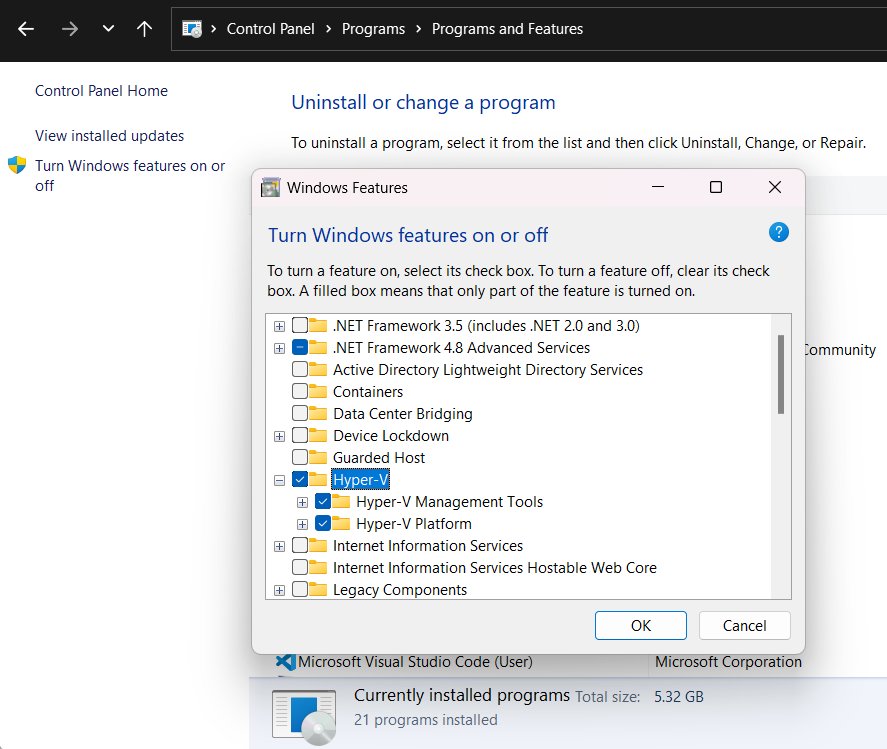
The Windows Features dialog shows whether the Hyper-V optional feature is turned on. It needs no commands and works on Windows 11 Pro and Enterprise.
- Select Start, type
windows featuresand select Turn Windows features on or off. - Scroll to Hyper-V in the Windows Features dialog.
- Select the plus sign next to Hyper-V to expand it, then expand Hyper-V Platform.
- Confirm that Hyper-V Management Tools, Hyper-V Platform and Hyper-V Hypervisor are all ticked. Ticked means that part of Hyper-V is enabled.
- Select Cancel to close the dialog without changing anything.
An unticked Hyper-V box means the feature is off. You can enable Hyper-V in Windows 11 from this same dialog, then restart.
If the list shows Windows Hypervisor Platform but no Hyper-V entry, your edition or hardware does not support Hyper-V. The troubleshooting section below covers that case.
Ways to check Hyper-V status in Windows 11
| What you want to know | Use this | What it tells you |
|---|---|---|
| Is the Hyper-V feature installed? | Turn Windows features on or off | Ticked or unticked Hyper-V components, no admin prompt needed to look |
| Is it installed, from a script or remote session? | Get-WindowsOptionalFeature in PowerShell | State: Enabled, Disabled or a pending state |
| Is it installed, from Command Prompt? | DISM /Get-FeatureInfo | The same feature state as PowerShell |
| Is the hypervisor actually running right now? | System Information (msinfo32) or systeminfo | "A hypervisor has been detected" when it runs |
| Is a hypervisor present, as True or False? | Win32_ComputerSystem HypervisorPresent in PowerShell | True when any hypervisor is running |
| Will the hypervisor start at the next boot? | bcdedit hypervisorlaunchtype | Auto starts it, Off keeps it from loading |
| Can you create virtual machines? | Hyper-V Manager from Start | The app opens and lists your PC as a host |
The feature checks and the hypervisor checks can disagree. Hyper-V can be installed while the hypervisor is set to Off, and a hypervisor can run for other Windows features while Hyper-V itself is off.
Hyper-V requirements for Windows 11
Hyper-V only appears in Windows Features when the edition and hardware qualify. Check these first if you cannot find it at all.
| Requirement | Detail | How to check |
|---|---|---|
| Windows 11 edition | Pro or Enterprise. Hyper-V can't be installed on Windows 11 Home | Run systeminfo and read the OS Name line |
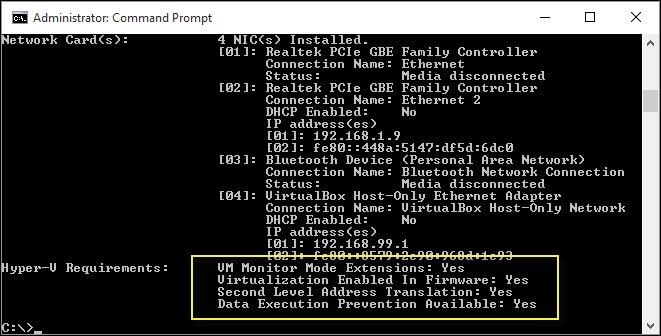
| 64-bit processor with SLAT | Second Level Address Translation is required for the Windows hypervisor, not for the management tools | Hyper-V Requirements section of systeminfo |
| VM Monitor Mode extensions | CPU support for VM Monitor Mode Extension (VT-c on Intel CPUs) | Hyper-V Requirements section of systeminfo |
| Virtualization turned on in firmware | Intel VT or AMD-V enabled in the BIOS or UEFI | Hyper-V Requirements section of systeminfo |
| Hardware-enforced DEP | XD bit on Intel, NX bit on AMD, available and enabled | Hyper-V Requirements section of systeminfo |
| Memory | At least 4 GB of RAM, plus enough for every VM you run at once | Settings or Task Manager |
If you are unsure about memory, check how much RAM your PC has before you plan any virtual machines.
Check if Hyper-V is enabled with PowerShell
The Get-WindowsOptionalFeature cmdlet returns the current state of an optional feature and whether a restart is needed. Run it from PowerShell opened with Run as administrator, or the command fails.
Get-WindowsOptionalFeature -Online -FeatureName Microsoft-Hyper-V-Online targets the running copy of Windows, and -FeatureName Microsoft-Hyper-V picks the Hyper-V platform feature. To see every Hyper-V component at once, use -FeatureName *Hyper-V* instead.
You should see: The State line reads Enabled when Hyper-V is on and Disabled when it is off. A pending state means a restart is still needed to finish the change.
The wildcard version lists the management tools and the hypervisor as separate features, which helps when only part of Hyper-V is installed.
Check Hyper-V status with CMD and DISM
DISM reads the same feature state from Command Prompt. Select Start, type cmd, right-click Command Prompt and select Run as administrator first.
DISM /Online /Get-FeatureInfo /FeatureName:Microsoft-Hyper-V/Online targets the running system, and /Get-FeatureInfo prints detailed information about one feature named with /FeatureName. Run DISM /Online /Get-Features to list every optional feature if you want to scan the whole list.
You should see: The State line shows Enabled or Disabled. Enable Pending or Disable Pending means you must restart before the change takes full effect.
Check if the Hyper-V hypervisor is running in System Information
An installed feature does not prove the hypervisor started. System Information reports what is running right now.
- Select Start, type
msinfo32.exeand select System Information. - Keep System Summary selected in the left pane.
- Scroll to the bottom of the details pane, past the virtualization-based security entries.
- Look for A hypervisor has been detected. Features required for Hyper-V will not be displayed.
- If that line is absent, no hypervisor is running. The Hyper-V requirement entries shown in its place tell you whether the PC can run one.
The same check works in Command Prompt. Run systeminfo and scroll to Hyper-V Requirements, which shows the hypervisor message on a running Hyper-V host.
In PowerShell, (Get-CimInstance Win32_ComputerSystem).HypervisorPresent returns True when a hypervisor is present and False when none is.
Check hypervisorlaunchtype with bcdedit in Windows 11
The boot configuration decides whether the hypervisor loads at startup. Hyper-V can show as enabled while this setting keeps the hypervisor off.
- Select Start, type
PowerShell, right-click Windows PowerShell and select Run as administrator. - Run
bcdedit /enum | findstr -i hypervisorlaunchtype. - Read the value. Auto means the hypervisor starts at boot.
- If the value is Off, the hypervisor is disabled even when the Hyper-V feature is installed.
- To turn it back on, run
bcdedit /set hypervisorlaunchtype Autoand restart the PC.
Microsoft's WSL troubleshooting steps use this same check, because WSL 2 also needs the hypervisor to launch at boot.
Open Hyper-V Manager to confirm Hyper-V works
Hyper-V Manager is the final practical proof. It installs with Hyper-V Management Tools and manages the VMs on your PC.
- Select Start, type
Hyper-V Managerand select it from the list. - In the left pane, under Hyper-V Manager, select your computer name.
- Check that the Actions pane offers New > Virtual Machine without an error.
- Run the System Information check and confirm the hypervisor line appears.
If Hyper-V Manager is missing from Start, the management tools are not installed. Microsoft's own note for that case is to make sure the Hyper-V role is installed first.
Hyper-V vs Virtual Machine Platform vs Windows Hypervisor Platform
Several Windows features use the same Microsoft hypervisor. That is why a hypervisor can be running even when the Hyper-V checkbox is clear.
| Feature | What it is for | Effect on your Hyper-V check |
|---|---|---|
| Hyper-V | Creating and running full virtual machines with Hyper-V Manager | The feature this guide checks; Pro and Enterprise only |
| Virtual Machine Platform | Features that need virtualization, such as WSL 2 | Can make the hypervisor run without Hyper-V installed |
| Windows Hypervisor Platform | An API that lets other virtualization apps, such as the Android emulator, use the Windows hypervisor | Shown instead of Hyper-V on PCs that cannot run Hyper-V |
| Memory integrity and Credential Guard | Windows security features built on virtualization-based security | Keep a hypervisor running, so System Information reports one |
| Windows Sandbox | A disposable desktop that runs on the Microsoft hypervisor | Uses the hypervisor; not available on Windows 11 Home |
So treat the Windows Features or PowerShell result as the answer to whether Hyper-V is enabled. Treat System Information as the answer to whether any hypervisor is running.
Turn off Hyper-V in Windows 11 after checking it
Third-party apps such as VMware and VirtualBox might not start VMs, or fall back to a slower emulated mode, while Hyper-V runs. Only one component can use the processor's virtualization extensions at a time.
- Open Control Panel and select Programs and Features.
- Select Turn Windows features on or off.
- Expand Hyper-V, then expand Hyper-V Platform.
- Clear the Hyper-V Hypervisor checkbox, or clear Hyper-V to remove the whole feature.
- Select OK and restart when Windows asks.
- Run the System Information check again to see whether a hypervisor is still detected.
A hypervisor can stay detected after this because memory integrity and Credential Guard depend on it. Those protect Windows, so weigh that before changing them.
Hyper-V not showing up in Windows 11: fixes
Why can't I find Hyper-V in Windows Features?
The PC runs Windows 11 Home, where Hyper-V can't be installed.
- Run
systeminfoand read the OS Name line. - If it says Home, Hyper-V is not available. An upgrade to Windows 11 Pro adds it.
- If you only need WSL 2, it uses the Virtual Machine Platform feature rather than Hyper-V.
Why is Hyper-V not showing up when the edition is Pro?
The hardware fails a requirement, so Windows lists Windows Hypervisor Platform instead of Hyper-V.
- Run
systeminfoand read every line under Hyper-V Requirements. - A No on the firmware virtualization line means virtualization is turned off in the BIOS or UEFI.
- Open Settings > System > Recovery and select Restart now next to Advanced startup.
- Select Troubleshoot > Advanced options > UEFI Settings > Restart, then enable Intel VT or AMD-V as the PC maker's manual describes.
- A No for SLAT or VM Monitor Mode extensions means the processor itself cannot run the Hyper-V hypervisor.
Hyper-V enabled but not showing in Start
Only the Hyper-V Platform is installed, without Hyper-V Management Tools, or the change is still pending a restart.
- Restart the PC if you enabled Hyper-V and have not restarted since.
- Open Turn Windows features on or off and expand Hyper-V.
- Tick Hyper-V Management Tools and select OK.
- Search Start for Hyper-V Manager again.
Hyper-V shows Enabled but no hypervisor is detected
The boot setting hypervisorlaunchtype is Off, so the hypervisor never loads.
- Open an elevated PowerShell window.
- Run
bcdedit /enum | findstr -i hypervisorlaunchtypeand look for Off. - Run
bcdedit /set hypervisorlaunchtype Auto. - Restart and repeat the System Information check.
PowerShell or DISM returns an error instead of a state
The window is not elevated. Microsoft notes these commands fail without administrator rights.
- Close the window.
- Select Start, type
PowerShell, right-click Windows PowerShell and select Run as administrator. - Run the command again and read the State line.
Hyper-V status in Windows 11 FAQ
How do I check if Hyper-V is enabled in Windows 11?
Open Turn Windows features on or off and check whether Hyper-V is ticked. For a text answer, run Get-WindowsOptionalFeature -Online -FeatureName Microsoft-Hyper-V in an elevated PowerShell window. The State line reads Enabled or Disabled.
How do I check if Hyper-V is enabled in Windows 10?
The same checks work on Windows 10 Pro and Enterprise. Use the Windows Features dialog, the Get-WindowsOptionalFeature cmdlet, or DISM /Online /Get-FeatureInfo /FeatureName:Microsoft-Hyper-V. Hyper-V can't be installed on Windows 10 Home.
How do I check if Hyper-V is enabled with PowerShell?
Open PowerShell as administrator and run Get-WindowsOptionalFeature -Online -FeatureName Microsoft-Hyper-V. Read the State line: Enabled means Hyper-V is on. Use -FeatureName *Hyper-V* to list the management tools and hypervisor features separately.
How do I check Hyper-V status from CMD?
Open Command Prompt as administrator and run DISM /Online /Get-FeatureInfo /FeatureName:Microsoft-Hyper-V. The State line shows Enabled, Disabled, Enable Pending or Disable Pending. A pending state clears after a restart.
How do I check if Hyper-V is disabled?
Run the same PowerShell or DISM check and look for Disabled in the State line. Also run msinfo32 and check the bottom of System Summary. Without the line A hypervisor has been detected, no hypervisor is running.
How do I check if Hyper-V is installed but not running?
Compare two checks. If Get-WindowsOptionalFeature shows Enabled but System Information does not report a hypervisor, run bcdedit /enum | findstr -i hypervisorlaunchtype. A value of Off stops the hypervisor from loading at boot.
Why don't I have Hyper-V in Windows 11?
Hyper-V can't be installed on Windows 11 Home. On Pro or Enterprise, a missing entry usually means a hardware requirement fails, such as virtualization being off in firmware. Run systeminfo and read the Hyper-V Requirements section to see which one.
Why is Hyper-V enabled but not showing?
Hyper-V Manager only appears when Hyper-V Management Tools is installed. Expand Hyper-V in Turn Windows features on or off, tick the management tools, and restart if Windows asks. A pending restart also hides it.
Do I need Hyper-V enabled?
Only if you run Hyper-V virtual machines. WSL 2 needs Virtual Machine Platform, not Hyper-V. Keeping Hyper-V on can stop VMware or VirtualBox from running VMs normally, so leave it off unless you use it.
Should you keep Hyper-V enabled on Windows 11?
Keep Hyper-V enabled only if you create VMs in Hyper-V Manager, and check both the feature state and System Information so you know Hyper-V is installed and its hypervisor is running. The feature can be on while the hypervisor is off, and other virtualization apps can lose speed or fail while Hyper-V runs.