To insert a text box in Google Docs, click Insert > Drawing > New, pick the Text box tool, draw the box, type your text and save the drawing.
This guide covers the Google Drawings method, the one-cell table method that also works on a phone, borders and colours, editing and removing a box, and fixes for the usual problems.
Step by step tutorial: How to insert a text box in Google Docs
Google Docs has no separate text box command in its Insert menu. The text box tool lives inside the built-in drawing editor, which uses Google Drawings.
- Open the document on your computer and click where the text box should go.
- Click Insert > Drawing > New. The drawing editor opens over the document.
- Click the Text box tool in the toolbar at the top of the editor.
- Click and drag on the canvas to draw the box at roughly the size you want.
- Type your text inside the box. Apply bold, italics or a different font from the toolbar.
- Use the buttons above the canvas to change the fill colour, line colour, line thickness or line style.
- Save the drawing with the button in the top-right corner of the editor. The text box appears in your document.
These are the detailed steps for method 1: using Google Drawings. The finished box behaves as one object in the document, so you can move it as a unit.
How to insert a text box in Google Docs: Two main methods
Both methods put text inside a bordered area. They differ in where they work and how easy the text is to change later.
| Your situation | Use this | Why |
|---|---|---|
| You want a floating box, a coloured shape or rotated text | Google Drawings (Insert > Drawing > New) | Shapes, fill colours, rotation and Word Art are only in the drawing editor |
| You edit the text often or collaborators need to edit it | One-cell table (Insert > Table > 1 x 1) | The text stays in the document body, so anyone with edit access types straight into it |
| You work on an Android phone, iPhone or iPad | One-cell table from the Add menu | The mobile app documents table insertion, not Google Drawings |
| You reuse the same box in several documents | A drawing from Drive (Insert > Drawing > From Drive) | The inserted copy stays linked to the original and can be updated |
Insert a text box in Google Docs using a table
These are the detailed steps for method 2: using tables. A table with one row and one column draws a border around whatever you type in it.
- Click where the box should go in the document.
- Click Insert > Table.
- Choose a 1 x 1 grid, which is one row and one column.
- Click inside the cell and type or paste your text.
- Select the cell and use Border color, Border width and Background color in the toolbar to style the box.
- Open Format > Table > Table options to set cell padding and vertical alignment.
Drag the right edge of the cell to make the box narrower. Tables in Google Docs can be as large as 20 x 20 cells, so a two-cell row also gives you side-by-side boxes.
Add a text box in the Google Docs app on Android and iPhone
Google's help for the Android and iPhone apps covers tables and markups, not Google Drawings. A one-cell table is the dependable way to box text on a phone or tablet.
- Open the document in the Google Docs app and tap where the box should go.
- In the top right, tap Add, then tap Table.
- Set the table to one row and one column.
- Tap Insert table.
- Tap inside the cell and type your text.
- Tap Format > Table to change the Minimum row height and Column width.
Insert a Google Drawings text box from Google Drive
Build the box once in Google Drawings and insert it into any document. The inserted copy stays linked to the original file.
- Go to Google Drive and click New > More > Google Drawings.
- Click Insert > Text box, click on the canvas and type your text.
- Open your document and click where the box should go.
- Click Insert > Drawing > From Drive.
- Choose the drawing and click Select.
How to check your Google Docs text box is in place
- Click outside the box. A drawing shows as one object, and a table shows its border around the text.
- Click the box once. A drawing gets a blue selection outline, while a table puts the cursor in the cell.
- Type a line in the paragraph next to it and confirm the box does not move unexpectedly.
- Ask a collaborator to open the document, or open it on your phone, and confirm the box displays there too.
What is a text box in Google Docs?
A text box is a container that holds text separately from the main paragraphs, so it can carry a border, a fill colour or a different position. In Google Docs it is either a drawing object or a table cell.
| Common use | Best method |
|---|---|
| Pull quotes and callouts in a newsletter | Google Drawings, for a coloured shape |
| Notes or instructions on a worksheet | One-cell table, so students can type in it |
| Labels on a diagram or image | Google Drawings, with the image inserted on the same canvas |
| A boxed summary at the top of a report | One-cell table with a background colour |
| Rotated or vertical text | Google Drawings, which supports rotation |
Tips for customizing your text box in Google Docs
The text inside either type of box takes normal formatting, so you can change the font, size and colour, or cross words out to mark an edit. Box styling depends on the method.
| Change | In a drawing | In a table |
|---|---|---|
| Add or change the border | Select the box and use the line colour, line thickness and line style buttons above the canvas | Select the cell and use Border color and Border width |
| Fill colour | Fill color button above the canvas | Background color in the toolbar |
| Resize | Drag the blue boxes at the corners | Drag the cell edges |
| Rotate | Drag the blue dot outside the box; hold Shift to turn 15 degrees at a time | Not available |
| Space between border and text | Resize the box around the text | Format > Table > Table options > cell padding |
| Text inside a shape | Double-click an enclosed shape and start typing | Not available |
How to edit or remove a text box in Google Docs
Table boxes are edited in place. Drawings inserted from Drive are edited in the original file and then refreshed.
- To edit a table box, click inside the cell and change the text directly.
- To remove a table box, right-click the cell and select Delete table. On Android, tap a cell, then More > Delete table; on iPhone, tap the table, tap the gray bar and choose Delete table.
- To edit a linked drawing, open the original in Google Drive, click Select, click the text box and change it.
- Back in the document, click the drawing and choose Update to pull in the change.
- To stop a drawing following its original, click it and choose Unlink.
- To remove a drawing, click it once so it is selected and press Delete or Backspace.
Common problems inserting a text box in Google Docs and how to solve them
Can't find the text box option in Google Docs
Docs keeps the text box tool inside the drawing editor, not in the main Insert menu.
- Click Insert > Drawing > New.
- Select the Text box tool in the drawing editor's toolbar.
- Use Insert > Table with a 1 x 1 grid if you prefer to stay in the document.
Can't insert a text box on a phone or tablet
The Docs app's help documents tables and markups, not drawings.
- Tap where the box should go.
- Tap Add > Table, choose one row and one column, and tap Insert table.
- Type inside the cell.
Text box border is missing or too thin
The line or border width is set to zero or matches the background.
- In a drawing, select the box and pick a line colour and thickness above the canvas.
- In a table, select the cell and set Border width and Border color.
Drawing in the document shows old text
A drawing inserted from Drive is linked and only refreshes when you update it.
- Click the drawing in the document.
- Choose Update in its top right.
Box is the wrong size or text runs outside it
The box was drawn smaller than the text it holds.
- In a drawing, click Select, click the box and drag a blue corner box.
- In a table, drag the cell edge, or change the cell padding in Table options.
Additional advanced techniques for Google Docs text boxes
The drawing editor offers more than a plain box. These techniques use tools already on its canvas.
| Technique | How to do it |
|---|---|
| Text placed directly on the canvas | In the drawing editor, click Insert > Word Art, type and press Enter |
| Callout shape with text | Click Shape, choose a shape, drag it on the canvas, then double-click it to type |
| Label an image | Use Image in the drawing editor to add the picture, then draw a text box over it |
| Duplicate a box | Hold Ctrl (Windows) or Option (Mac) and drag the box |
| Set the canvas size | In Google Drawings, open File > Page setup and choose a size or Custom |
| Jump to another part of the document | Add Insert > Bookmark at the target, select text and choose Insert > Link > Bookmarks |
Best practices for using text boxes in Google Docs
These tips keep boxed text readable and easy to maintain.
| Practice | Reason |
|---|---|
| Keep boxes short | Long passages read better in the body, where you can show the word count as you type |
| Use a table when others must edit the text | Collaborators type into a cell without opening an editor |
| Use one border and fill style across the document | Consistent boxes look deliberate, not accidental |
| Insert reusable boxes from Drive | One edit to the original updates every copy you refresh |
| Keep enough contrast between text and fill | Pale text on a coloured fill is hard to read and print |
Google Docs text box help: additional resources
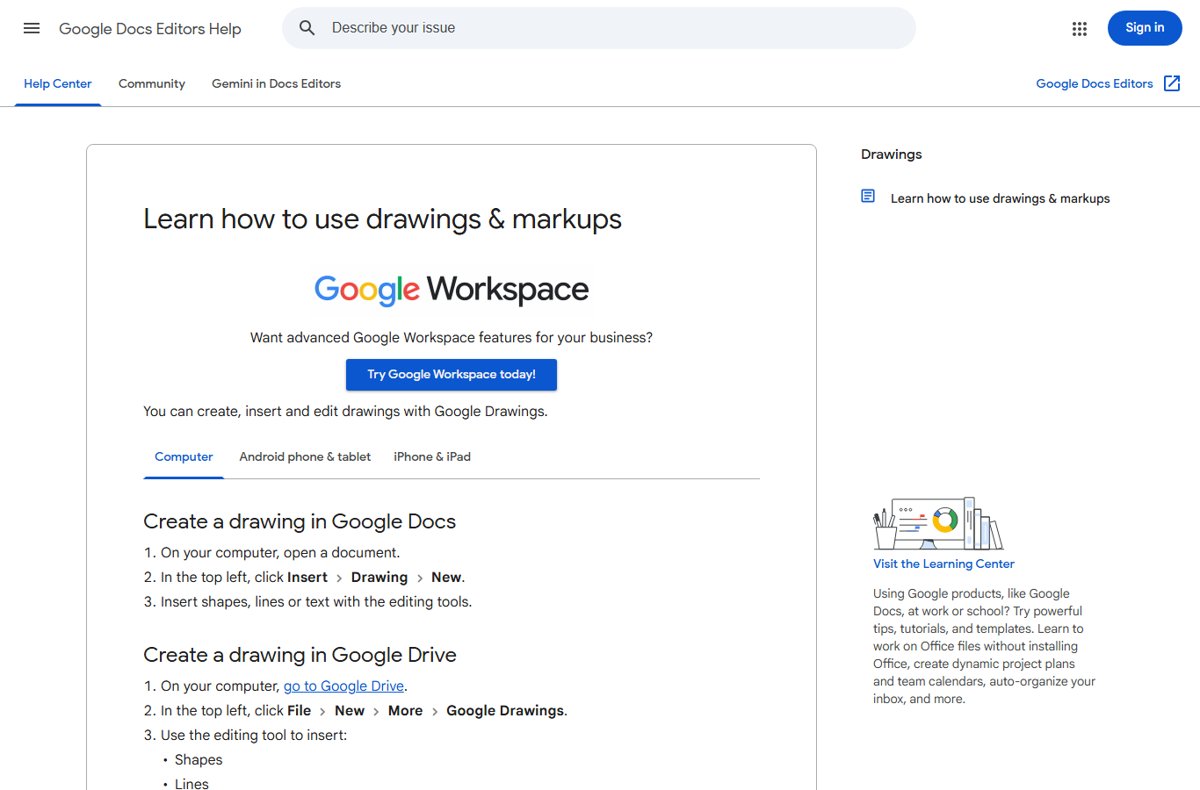
- Learn how to use drawings & markups — Google's steps for the drawing editor, text boxes, shapes and linked drawings
- Add and edit tables — Table insertion, borders and deletion on computer, Android and iPhone
- Add, copy, or remove a text box in Word — Microsoft's steps for Word on Windows and Word for the web
How to insert a text box in Word, Excel and Word for the web
Microsoft's apps have a dedicated text box command, unlike Google Docs.
| App | How to insert a text box |
|---|---|
| Microsoft Word (Windows) | Insert > Text Box, then pick a built-in box or Draw Text Box |
| Word for the web | Insert > Drawing, select Text Box, draw it, type and click Save and Close |
| Microsoft Excel | Insert tab > Text group > Text Box, then click and drag on the sheet |
Google Docs text box FAQ
Can I insert a text box in Google Docs?
Yes. Click Insert > Drawing > New, choose the Text box tool, draw the box and type. Save the drawing to place it in the document. A one-cell table from Insert > Table also works as a text box.
How do I put text in a box in Google Docs?
Insert a 1 x 1 table with Insert > Table and type inside the cell. The table border frames the text, and you can change its colour and width from the toolbar.
Can I add a text box in Google Docs on my phone or tablet?
Use a one-cell table. In the Docs app, tap Add > Table, set one row and one column, tap Insert table and type in the cell. Google's mobile help covers tables, not drawings.
How do I delete a text box in Google Docs?
For a drawing, click it once and press Delete or Backspace. For a table box, right-click the cell and select Delete table.
Can I rotate a text box in Google Docs?
Yes, if it is a drawing. In the drawing editor, drag the blue dot outside the box. Hold Shift to rotate in 15-degree steps. Table boxes cannot be rotated.
How do I add a border to my text box?
In a drawing, select the box and use the line colour, thickness and style buttons above the canvas. In a table, select the cell and set Border color and Border width in the toolbar.
Is there a way to link a text box to a specific part of my document?
Yes, with a table box. Add Insert > Bookmark where you want to land, select the text in the cell and choose Insert > Link > Bookmarks, then pick the bookmark and click Apply.
How do I insert text in a text box?
In the drawing editor, click inside the box and type. To put text in a shape instead, double-click an enclosed shape and start typing. In a table box, click the cell and type.
How do I use a text box after inserting it?
Treat it as one object. In the drawing editor you move it by dragging, resize it with the blue corner boxes and restyle it with the buttons above the canvas.
How do I insert a text box in Word?
Go to Insert > Text Box and pick a built-in box or Draw Text Box, then drag on the page and type. In Word for the web, use Insert > Drawing > Text Box and click Save and Close.
How do I insert a text box in Excel?
On the Insert tab, in the Text group, click Text Box. Click and drag on the worksheet to draw it, then click inside and type or paste your text.
Bottom line: Google Drawings or a table for a text box in Google Docs?
Use Insert > Drawing > New > Text box when you need a styled, movable or rotated box, and a one-cell table when the text changes often or you work on a phone. The drawing editor is the only place Docs offers shapes, fills and rotation, while a table keeps the text in the document body where anyone can edit it on any device.


![Windows Update cleaning up [fully explained]](https://techdows.com/wp-content/uploads/2026/10/Disk-Cleanup-for-drive-C-with-Windows-Update-Cleanup-ticked-at-the-top-600x338.jpg)