To delete all Google Photos, select every photo and video at photos.google.com, move them to the trash, then open Trash and click Empty trash so they are deleted permanently.
This guide covers the web and the mobile app, removing your backup while keeping phone copies, saving a copy first, stopping backup so photos do not return, and fixes for storage that does not drop.
Delete all Google Photos at once on PC
A computer is the safest place to clear a whole library, because deleting there does not touch the camera roll on a phone that has backup turned off.
Turn off backup on your phones first if you want to keep the copies stored on them.
- On your computer, go to photos.google.com and sign in to the Google Account you want to clear.
- Point to a photo and click the checkmark in its corner to select it.
- Keep clicking the checkmark on further photos and videos until everything you want gone is selected.
- At the top, click Move to trash.
- Repeat until the Photos view is empty.
- On the left, click Trash, then click Empty trash at the top to delete everything permanently.
Until you empty the trash, deleted items stay there for 30 days and you can still restore them.
Delete all Google Photos on computer, phone or with Undo backup
| What you want | Use this | What it does to your phone |
|---|---|---|
| Empty the whole Google account library | photos.google.com on a computer | Removes copies on phones only where Google Photos backup is on |
| Remove everything backed up from one phone but keep it on the phone | Undo backup in the app's Backup settings | Phone copies stay; backup turns off on that device |
| Delete photos from Google Photos and from the phone together | Google Photos app with backup on | Deletes the cloud copy and the phone copy |
| Free space on the phone only | Delete from device in the app | Removes the phone copy; the backup stays in your account |
What happens when you delete photos from Google Photos
Google Photos deletion is synced across your account, but not across every Google product.
| Place | Removed when you delete from Google Photos? | Detail |
|---|---|---|
| Android phones, iPhones and iPads | Yes, if Google Photos is installed with backup on | Local copies downloaded to iPhones, iPads and some Android 11 or later devices are also removed |
| Google Photos albums | Yes | The photo disappears from every album it was in |
| Shared albums and conversations | Yes | Items you added are removed for the people you shared with |
| Highlight videos | Some | Some highlight videos that used the photo lose it |
| Partner sharing | Only if your partner has auto save off | Copies your partner saved with auto save on stay in their account |
| Removable memory card | Not always | Use the phone's gallery app to remove copies left on the card |
| Google Drive, Gmail, Blogger, YouTube | No | Delete those copies inside each product |
| Trash | Kept 30 days | After 30 days, or when you empty the trash, items are gone for good |
Back up your photos before deleting everything
Permanently deleted photos cannot be restored, and Google Takeout cannot recover them either. Export the library first if there is any chance you want it later.
- Sign in to your Google Account and open the Google Takeout page.
- Uncheck every product except Google Photos.
- Select Next step.
- Choose a delivery method, such as Send download link via email or Add to Drive, and a file type of Zip files or Tgz files.
- Pick an archive size; larger libraries are split into several files.
- Create the export and wait for the email with the link, which can take from minutes to a few days.
- Download and open every archive file before you delete anything.
You can use Google Takeout for other Google products too. Photos still being deleted are left out of the export, so restore anything in the trash you want to keep before you request it.
How to delete all Google Photos on the web
The web route deletes from your Google account. It reaches your phone only where Google Photos backup is still on.
- Go to photos.google.com on a computer and check the profile picture at the top right shows the right account.
- In Photos, point to the first item and click its checkmark.
- Select the remaining photos and videos the same way.
- Click Move to trash at the top. Click Undo at the bottom if you selected something by mistake.
- If you are asked to Delete permanently, your trash is full; confirm only if you do not need to restore these items.
- Open Archive on the left and delete the archived items the same way, because they do not show in the main Photos view.
How to delete Google Photos from the mobile app
Deleting in the app also deletes the photo from the phone, and from every device with backup on. On iPhone and iPad, you can delete up to 1,500 items at a time.
- Open the Google Photos app on your Android phone, iPhone or iPad and sign in.
- Touch and hold a photo or video to start selecting.
- Tap more photos and videos to add them to the selection.
- At the bottom, tap Trash.
- Repeat in batches until the library is empty.
To free space on the phone while keeping the online copy, select items, tap More at the top and tap Delete from device instead.
Delete all Google Photos backup but keep photos on your phone
Undo backup removes from Google Photos everything currently on that device in one action, and leaves the phone copies in place. Locked Folder items are included.
- Open the Google Photos app.
- At the top, tap your profile picture or initial.
- On Android, tap Photos settings > Backup. On iPhone or iPad, tap Google Photos settings > Backup.
- Scroll down and tap Undo backup.
- Tick the box next to I understand my photos and videos from this device will be deleted from Google Photos.
- Tap Delete Google Photos backup.
Backup turns off automatically on that phone afterwards. The removed items also leave albums, shared albums, search results and memories. Repeat on each phone you have backed up.
How to empty trash and permanently delete photos
Items in the trash are still restorable for 30 days. Emptying it deletes them permanently and they cannot be recovered.
| Device | Steps to empty Google Photos trash |
|---|---|
| Computer | Go to photos.google.com > click Trash > click Empty trash |
| Android | Open Google Photos > tap Collections > Trash > More > Empty Trash > Delete permanently |
| iPhone or iPad | Open Google Photos > tap Collections > Trash > Select > choose the items > tap Delete > Delete |
| Only some items, any device | Open Trash, select the items, then choose Delete permanently |
On iPhone and iPad, copies may still sit in the Recently Deleted album of Apple Photos; empty that album too if you want them off the phone.
Delete Google Photos in Archive, Locked Folder and shared albums
Three places hide photos from the main grid, so a library can look empty while items remain.
| Place | Why it is missed | How to clear it |
|---|---|---|
| Archive | Archived photos are hidden from the Photos view but still count towards storage | On the web, click Archive on the left; in the app, go to Collections > Archive, then select and trash |
| Locked Folder | Items do not appear in the grid, search or albums | Open Collections > Locked, unlock with your screen lock and delete the items inside |
| Shared albums and partner sharing | Photos other people added belong to their accounts | You can delete only what you uploaded; their copies stay in their libraries |
How to stop Google Photos from backing up again
Any phone that still has backup on will upload its camera roll again, which makes deleted photos look as though they came back. Turn backup off on every device signed in to the account.
- Open the Google Photos app and sign in.
- At the top right, tap your profile picture or initial.
- On Android, tap Photos settings > Backup. On iPhone or iPad, tap Google Photos settings > Backup.
- Turn Backup off.
- Check the status under your profile picture reads Backup is off.
- Repeat on every other phone and tablet signed in to the same account.
- On a computer, check whether Google Drive for desktop is set to back up folders to Google Photos and stop those folder backups.
Check Google Photos is empty and storage is freed
- Open photos.google.com and confirm the Photos view, Archive and Trash are all empty.
- On each phone, tap your profile picture in the app and confirm the status reads Backup is off.
- Open a photo still shown on a phone, tap More > About and scroll to Details; a photo with no Backed up line is only a local copy.
- Check your Google storage again after 48 to 72 hours, which is how long Google says the storage figure can take to update.
Common problems when deleting all Google Photos
Photos keep coming back after deletion
A phone or partner account with backup or auto save on is uploading them again.
- Turn off Backup on every device signed in to the account.
- Ask your partner to turn off auto save if you use partner sharing.
- Delete the re-uploaded items again on the web.
Storage does not free up right away
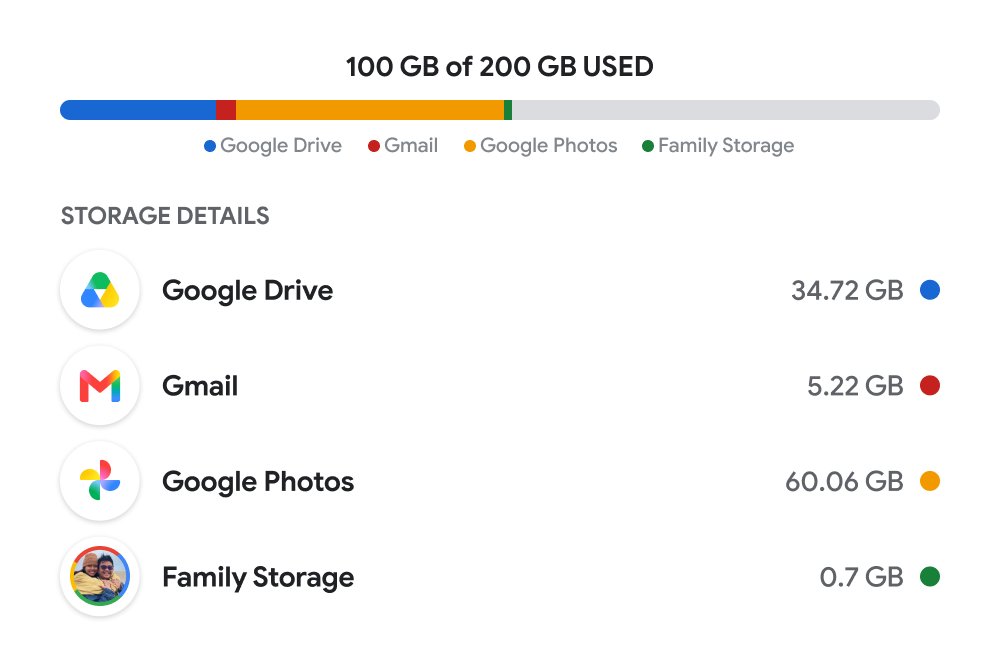
Google's storage figure lags, items still sit in the trash, or the photos never counted towards storage.
- Empty Trash so the items are deleted permanently.
- Wait 48 to 72 hours for the storage total to update.
- Remember that photos backed up in High quality (now Storage saver) before June 1, 2021 never counted towards storage, so deleting them frees nothing.
You cannot select everything at once
Google Photos has no single delete-all button, and the iPhone and iPad app deletes up to 1,500 items per batch.
- Delete in batches on the web, where the selection is quicker.
- To clear everything one phone has backed up, use Undo backup in the app's Backup settings.
Photos are removed from the phone too
Deleting in the Google Photos app removes the device copy and the copies on other devices with backup on.
- Restore the items from Trash within 30 days.
- Turn off backup on the phone, then delete from photos.google.com instead.
- Use Undo backup to clear the cloud copies while keeping local ones.
"Delete permanently" appears when moving photos to trash
The trash is full.
- Cancel the prompt if you still want the option to restore these items.
- Open Trash and click Empty trash, then move the photos to trash again.
You are deleting from the wrong Google account
Google Photos shows every photo stored on the phone whichever account is signed in, so the grid does not prove which account holds the backup.
- Tap your profile picture at the top right and switch to the account you mean to clear.
- Open photos.google.com in a browser signed in to that account and confirm the recent photos appear there.
- If photos seem to vanish after switching, you can find missing photos in Google Photos by checking each account.
Delete all Google Photos FAQ
Can I delete all Google Photos at once?
There is no single delete-all button in Google Photos. Select photos in batches at photos.google.com and move them to trash. To remove everything one phone has backed up in one action, use Undo backup in the app's Backup settings, which keeps the phone copies.
How do I delete all Google Photos at once on PC?
Go to photos.google.com, click the checkmark on each photo you want to remove, then click Move to trash. Repeat until the Photos view is empty, then open Trash and click Empty trash to delete them permanently.
How do I delete all Google Photos permanently?
Move the photos to trash, then empty the trash. On a computer, click Trash and then Empty trash. On Android, tap Collections, Trash, More, Empty Trash and Delete permanently. Permanently deleted items cannot be restored, even through Google Takeout.
Can I delete all Google Photos in one click?
No. Google Photos has no one-click option for the whole library. The closest is Undo backup, which removes every item backed up from one device in a single confirmation and then turns backup off on that device.
How do I delete all Google Photos backup but keep the photos on my phone?
Open the Google Photos app, tap your profile picture, open Photos settings and Backup, and tap Undo backup. Tick the confirmation box and tap Delete Google Photos backup. The photos stay on the phone and backup turns off.
Will deleting photos from Google Photos also delete them from my phone?
Yes, if the phone has Google Photos installed with backup on. Deleting in the app removes both the cloud copy and the phone copy. To keep the phone copy, turn backup off first and delete from photos.google.com instead.
How do I delete all Google Photos data from my account?
Delete every photo and video in the Photos view, Archive and Locked Folder, then empty Trash. Turn backup off on every phone so nothing uploads again. Copies stored in Google Drive, Gmail, Blogger or YouTube are separate and need deleting there.
How do I permanently delete photos and free up Google account storage?
Delete the photos and empty Trash, then wait. Google says the storage figure normally takes 48 to 72 hours to update. Photos backed up in High quality before June 1, 2021 never counted towards storage, so removing them frees no space.
Can I get my Google Photos back after deleting them?
Yes, within 30 days, as long as they are still in Trash. Open Trash, select the items and restore them. Once the trash is emptied or the 30 days pass, the photos are permanently deleted and cannot be recovered.
Bottom line: should you delete all your Google Photos?
Export your library with Google Takeout, turn off backup on every phone, then delete from photos.google.com and empty the trash. That order keeps a copy you can return to, stops phones re-uploading the photos, and avoids the app deleting your camera roll along with the cloud copies.
If you are leaving Google altogether, you can delete your Google account permanently once the export has finished downloading.