To fix the KERNEL_MODE_HEAP_CORRUPTION blue screen (stop code 0x13A), roll back or update the driver you changed most recently, then run DISM and SFC and test your RAM with Windows Memory Diagnostic.
This guide explains what the error means, how to find the driver behind it, every fix in the order to try it, and when the cause is hardware.
Fix KERNEL_MODE_HEAP_CORRUPTION BSOD
Microsoft attributes about 70% of stop errors to third-party driver code, so the driver is the first suspect for 0x13A as well.
- If you fitted new hardware just before the crashes began, shut down, remove it and restart.
- Note any driver file name, such as a
.sysfile, printed under the stop code. - Right-click Start and select Device Manager.
- Expand the category of the device you updated or that the driver belongs to, right-click the device and select Properties.
- On the Driver tab, select Roll Back Driver if the crashes began after a driver update, choose a reason and select Yes.
- If rollback is greyed out, right-click the device and select Update driver > Search automatically for updated driver software.
- Restart and repeat what you were doing when the blue screen appeared.
If Windows crashes before you can reach Device Manager, start in Safe Mode first, as shown below.
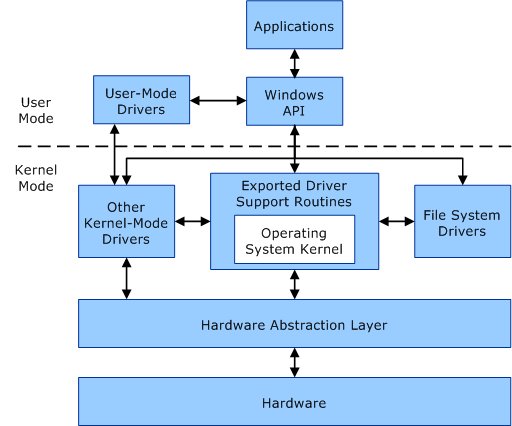
Understanding kernel mode vs user mode in Windows
A Windows processor runs code in two modes. Apps run in user mode, while core operating system components and most drivers run in kernel mode.
| User mode | Kernel mode | |
|---|---|---|
| What runs there | Apps such as browsers and Office | The Windows core and most hardware drivers |
| Memory | Each app gets its own private virtual address space | All kernel code shares one virtual address space |
| Isolation | One app cannot change another app's data | A driver is not isolated from other drivers or Windows |
| What a crash does | Only that app closes | The whole operating system stops with a blue screen |
That shared space is why one faulty driver can corrupt memory that belongs to Windows itself. Microsoft notes that a user-mode app may trigger a stop error, but the root cause is usually a driver, hardware or the operating system.
What is kernel mode heap corruption?
KERNEL_MODE_HEAP_CORRUPTION is bug check 0x0000013A. It means the kernel mode heap manager, which hands out memory to Windows components and drivers, found that a block of that memory had been damaged.
| Parameter 1 value | What the heap manager detected | What it usually points to |
|---|---|---|
| 0x3 or 0x4 | One or more corrupt entry headers | Code wrote over the bookkeeping data of a memory block |
| 0x6 | Corruption consistent with a buffer overrun | A driver wrote past the end of its memory |
| 0x7 | Corruption consistent with a buffer underrun | A driver wrote before the start of its memory |
| 0xB | A block used after it was freed | Use-after-free bug in a driver |
| 0x11 | Invalid internal state | A double free or general heap corruption |
| 0x14 or 0x15 | An allocation or commit request over the current limit | A request far larger than Windows allows |
| 0x17 | A corrupted block in a delay free list | Use-after-free or an overflow from a neighbouring block |
The symptom you see is a blue screen showing the stop code KERNEL_MODE_HEAP_CORRUPTION and an automatic restart. Parameter 2 is the address of the heap and parameter 3 is where the damage was found; both matter only to a developer reading the dump.
Common causes of kernel mode heap corruption
Microsoft's breakdown of stop errors in general is the best guide to where 0x13A comes from.
| Cause | Share of stop errors (Microsoft) | Typical trigger | Fix to try |
|---|---|---|---|
| Third-party driver code | About 70% | A new or updated graphics, network, storage or audio driver | Roll back, update or reinstall the driver |
| Hardware | About 10% | Faulty RAM, a failing drive, a newly added part, outdated BIOS or firmware | Memory test, chkdsk, BIOS and firmware update |
| Microsoft code | About 5% | A Windows bug fixed in a later update | Install all Windows updates |
| Unknown | About 15% | Memory too corrupted to analyse | Driver Verifier and a full memory dump |
| Damaged system files or malware | Not broken out | Power loss, disk errors, infection | DISM, SFC and a Microsoft Defender Offline scan |
Find the driver behind the 0x13A crash in Event Viewer and the minidump
- Read the blue screen: when Windows can identify the driver at fault, it prints the file name there.
- Search Start for Event Viewer and open it.
- Open Windows Logs > System and look for critical errors logged at the time of the crash.
- Note the device or driver those errors name; it is your first suspect.
- Write down what changed just before the crashes started: a driver, a Windows update, an app or new hardware.
- Check that Windows keeps crash dumps: search for Advanced system settings, select Settings under Startup and Recovery, and pick Automatic memory dump under Write debugging information.
- Find small dumps in
%SystemRoot%\Minidumpand the full dump at%SystemRoot%\MEMORY.DMP, and send them to the vendor of the suspected driver.
How to fix kernel mode heap corruption error
Work down this table in order. Each fix is quicker and less disruptive than the one below it.
| Order | Fix | Use it when |
|---|---|---|
| 1 | Boot in Safe Mode | Windows crashes before or soon after sign-in |
| 2 | Update or roll back drivers | A driver is named on the screen or in Event Viewer |
| 3 | Run DISM and System File Checker (SFC) | System files may be damaged |
| 4 | Perform a memory diagnostic | No driver is named, or crashes look random |
| 5 | Check for malware | You suspect an infection |
| 6 | Check for hardware issues: disk, BIOS, firmware | Memory passes but crashes continue |
| 7 | Update Windows | The PC is behind on updates |
| 8 | System Restore | Crashes began after a recent change you cannot pin down |
| 9 | Reset or clean install of Windows | Every fix above failed and hardware tests pass |
Boot in Safe Mode on Windows 11 and Windows 10
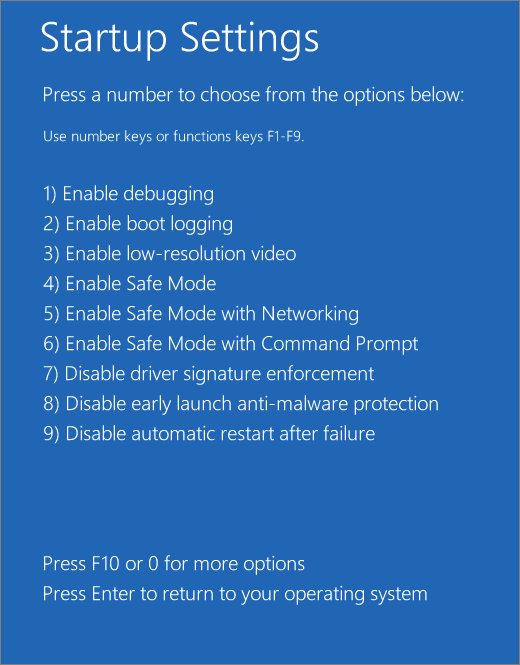
Safe Mode loads a basic set of drivers, so a faulty third-party driver usually cannot crash it.
- In Windows 11, open Settings > System > Recovery and select Restart now next to Advanced startup; in Windows 10, use Settings > Update & Security > Recovery.
- If Settings will not open, hold Shift while you select Power > Restart on the sign-in screen.
- If Windows will not start, interrupt startup twice with the power button to reach the recovery environment.
- Select Troubleshoot > Advanced options > Startup Settings > Restart.
- Press 4 or F4 for Safe Mode, or 5 or F5 for Safe Mode with Networking.
- Roll back or uninstall the suspect driver in Device Manager, then restart normally.
Run System File Checker (SFC) and DISM for heap corruption
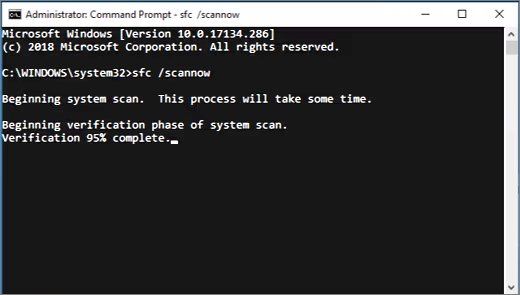
Type cmd in the search box, right-click Command Prompt and select Run as administrator. Run DISM first, then SFC.
DISM.exe /Online /Cleanup-image /Restorehealth
sfc /scannow
DISM repairs the Windows image that SFC uses as its repair source, and SFC then checks and repairs protected system files. Leave the window open until verification reaches 100%.
You should see: "Windows Resource Protection did not find any integrity violations" or "Windows Resource Protection found corrupt files and successfully repaired them."
Perform a memory diagnostic with Windows Memory Diagnostic
Faulty RAM can damage heap memory in ways that look like a driver bug, and the built-in test checks it without extra software.
- Save your work and close your apps.
- Press Windows + R, type
mdschedand select OK. - Select Restart now and check for problems (recommended).
- Let the test finish; the PC restarts into Windows by itself.
- Read the result in the notification, or in Event Viewer under Applications and Services Logs > Microsoft > Windows > MemoryDiagnostics-Results.
- If errors are reported, replace the faulty memory or have the PC maker repair it.
Check for malware with a Microsoft Defender Offline scan
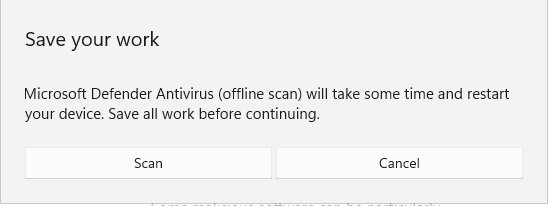
- Save your work; the scan takes about 15 minutes and restarts the PC.
- Open the Windows Security app and select Virus & threat protection.
- Select Scan options, choose Microsoft Defender Offline scan and select Scan now.
- Confirm the prompts with Scan and Yes.
- After Windows restarts, open Protection history to read the results.
If BitLocker protects the system drive, keep the recovery key at hand, because the restart may ask for it.
Check for hardware issues: disk, BIOS and firmware
- Open Command Prompt as administrator, type
chkdsk C: /f /rand press Enter. - Type Y to schedule the scan, then restart so it can run before Windows loads.
- Download the latest BIOS or UEFI firmware and chipset drivers from your PC or motherboard maker's support page and follow their install instructions.
- Run the hardware diagnostics your PC maker supplies, which also test the drive and memory.
- Make sure 10% to 15% of the system drive is free, as Microsoft recommends for stop-code problems.
- Reseat or remove any part you added recently, one at a time, and test after each change.
Update Windows to fix 0x13A blue screens
- Open Start > Settings > Windows Update and select Check for updates.
- Under Advanced options, turn on Receive updates for other Microsoft products.
- Install every update offered, including optional driver updates, and restart.
- If the crashes began right after an update, go to Windows Update > Update history and select Uninstall updates instead.
- Select the most recent update, select Uninstall and restart.
System Restore or reset Windows to fix kernel mode heap corruption
Use these last: a restore point rolls back drivers and updates, while a reset reinstalls Windows and removes apps.
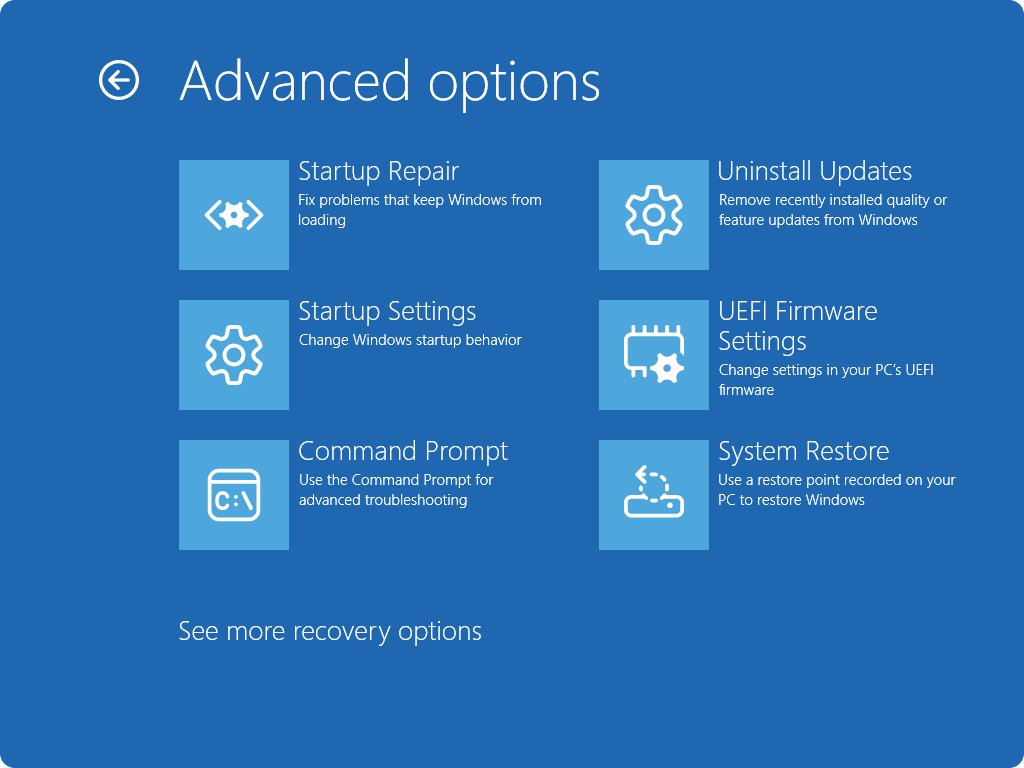
- Open the recovery environment: hold Shift and select Power > Restart, or interrupt startup twice.
- Select Troubleshoot > Advanced options > System Restore and pick a restore point dated before the crashes began.
- Restart and test; the change can be undone from the same menu if it makes things worse.
- If no restore point helps, back up your files and select Troubleshoot > Reset this PC.
- Choose to keep or remove your files, and let Windows reinstall.
- Install drivers from Windows Update or your PC maker, one device at a time, so a returning crash points at the last driver added.
A clean install fixes software causes only. If 0x13A returns on a fresh Windows with no extra drivers, treat it as a hardware fault.
Use Driver Verifier to find the driver causing heap corruption
Driver Verifier is built into Windows and stresses chosen drivers so a faulty one crashes with its name on screen. It can crash the PC by design, so create a restore point and use it only when the steps above failed.
verifier /standard /driver suspect.sys
verifier /reset
Run these in Command Prompt as administrator; you need to be in the Administrators group. The first line verifies one suspect driver with standard settings (replace suspect.sys with the real file name) and takes effect after a restart. You can also type verifier alone, choose Create standard settings, then Select driver names from a list. Test only recently updated or suspicious drivers, never all of them at once. The second line turns Driver Verifier off; restart afterwards.
You should see: If a verified driver misbehaves, the next blue screen names it, and that is the driver to update, roll back or remove. If Windows cannot reach the desktop, start in Safe Mode, where Driver Verifier does not run, and run verifier /reset.
How to check the kernel mode heap corruption fix worked
- Repeat the task that used to crash the PC, such as gaming, video calls or copying large files.
- Open Event Viewer, select Windows Logs > System, and confirm no new critical errors appear after the fix.
- Check that
%SystemRoot%\Minidumpholds no dump files dated after the fix. - Confirm Device Manager shows no devices marked with an exclamation point.
- If you used Driver Verifier, run
verifier /resetand restart so it no longer slows the PC.
Kernel mode heap corruption keeps coming back on Windows 11
The 0x13A blue screen loops at startup
A driver or update that loads at boot crashes Windows every time.
- Interrupt startup twice with the power button to open the recovery environment.
- Select Troubleshoot > Advanced options > Startup Settings and start in Safe Mode.
- Roll back or uninstall the most recently changed driver.
- If Safe Mode also fails, use Troubleshoot > Advanced options > Uninstall Updates, then System Restore.
Memory Diagnostic passes but the heap corruption crash continues
The fault is in a driver, the disk or firmware that the memory test does not cover.
- Run DISM, SFC and
chkdsk C: /f /ras shown above. - Update the BIOS, firmware and chipset drivers from the PC maker.
- Run Driver Verifier on the drivers you updated most recently.
- Run the PC maker's full hardware diagnostics.
Kernel mode heap corruption after a Windows 11 update
The update shipped a new driver, or an existing driver is not yet compatible with it.
- Go to Settings > Windows Update > Update history and select Uninstall updates.
- Remove the newest update and restart.
- Check the device maker's site for a driver built for your Windows version, then reinstall the update.
Preventing kernel mode heap corruption
- Get drivers from Windows Update or your device maker's site, never from download portals.
- Keep Windows, optional driver updates, BIOS and firmware current.
- Create a restore point before installing a major driver so you can roll back in minutes.
- Keep 10% to 15% of the system drive free.
- Shut down properly instead of cutting the power.
- Add hardware one part at a time, so a new crash points to the part you just fitted.
The same driver-first order fixes the related PAGE_FAULT_IN_NONPAGED_AREA blue screen, which also comes from drivers touching memory they should not.
Kernel mode heap corruption FAQ
What does kernel mode heap corruption mean?
It means the Windows kernel mode heap manager found damage in memory it hands out to drivers and system components. Windows stops with bug check 0x13A to protect your data. The cause is usually a faulty driver, less often faulty RAM or other hardware.
What is stop code 0x13A?
Stop code 0x0000013A is the numeric value of KERNEL_MODE_HEAP_CORRUPTION. Its first parameter tells a developer which kind of damage was found, such as a buffer overrun (0x6) or a block used after it was freed (0xB).
Is kernel mode heap corruption a hardware or software problem?
Usually software. Microsoft attributes about 70% of stop errors to third-party drivers and about 10% to hardware. Start with drivers, DISM and SFC, then run Windows Memory Diagnostic and chkdsk to rule hardware in or out.
Can bad RAM cause the KERNEL_MODE_HEAP_CORRUPTION error?
Yes. Faulty memory can damage heap blocks in a way the heap manager reports as corruption. Run mdsched, choose Restart now and check for problems, and replace any module the test flags.
How do I fix kernel mode heap corruption on Windows 11?
Roll back or update the most recently changed driver in Device Manager, starting in Safe Mode if needed. Then run DISM and sfc /scannow, test RAM with Windows Memory Diagnostic, and install all Windows updates, including optional driver updates.
Does kernel mode heap corruption happen on Windows 10 too?
Yes. The 0x13A bug check exists on both Windows 10 and Windows 11, and the fixes are the same. Only some Settings paths differ, such as Update & Security > Recovery on Windows 10 instead of System > Recovery.
Is KERNEL_HEAP_CORRUPTION the same error?
Searches for kernel_heap_corruption almost always mean this error. The name Windows shows on the blue screen is KERNEL_MODE_HEAP_CORRUPTION, with stop code 0x13A.
Will a clean install of Windows fix kernel mode heap corruption?
A reset or clean install fixes software causes such as a bad driver or damaged system files. It does not fix failing RAM, a failing drive or outdated firmware. If the crash returns on a fresh install, have the hardware checked.
Is Driver Verifier safe to use for this error?
It is safe if you prepare for crashes. Driver Verifier deliberately stresses drivers and can cause more blue screens. Create a restore point first, verify only suspect drivers, and turn it off with verifier /reset from Safe Mode if Windows cannot start.
Bottom line on fixing the kernel mode heap corruption error
Treat 0x13A as a driver problem until a test proves otherwise: roll back or update the last driver you changed, then run DISM, SFC and Windows Memory Diagnostic. Drivers cause most stop errors and are the cheapest thing to fix. If memory tests, chkdsk or the PC maker's diagnostics report errors, or the crash survives a clean install, the fault is hardware and needs a repair or replacement part.

![Windows Update cleaning up [fully explained]](https://techdows.com/wp-content/uploads/2026/10/Disk-Cleanup-for-drive-C-with-Windows-Update-Cleanup-ticked-at-the-top-600x338.jpg)

![AWS Secrets Manager: everything you need to know [2026]](https://techdows.com/wp-content/uploads/2026/10/AWS-Secrets-Manager-product-page-with-the-Get-started-button-600x338.jpg)