To completely remove a program from Windows 11, uninstall it from Settings > Apps > Installed apps, restart, then delete what the uninstaller left behind: its folders, startup entries, scheduled tasks, services, drivers and registry keys.
This guide covers each of those leftovers in order, the commands that find them, programs that refuse to uninstall, and the files you should keep.
Fastest way to completely uninstall a program in Windows 11
Most programs need nothing more than this. The later steps are for software that leaves services, drivers or data behind.
- Select Start > Settings > Apps > Installed apps.
- Find the program, select More next to it, then select Uninstall and confirm.
- Follow the program's own uninstaller to the end, and restart Windows when it finishes.
- Press Win + R, type
%AppData%, press Enter, and delete the folder named after the program or its publisher. - Repeat for
%LocalAppData%andC:\ProgramData, then empty the Recycle Bin.
If the program is not in Installed apps, open Control Panel > Programs > Programs and Features instead. Microsoft points there for apps that Settings cannot remove.
What does completely remove a program mean in Windows 11?
Before you begin, know that an uninstaller removes the program's own files and its entry in the installed list. It often leaves your settings and data behind on purpose, so a reinstall picks up where you left off.
A complete removal means clearing every one of the places below that the program actually used.
| What a program can leave behind | Where it lives | Removed by the normal uninstall? |
|---|---|---|
| Program files | C:\Program Files or C:\Program Files (x86) |
Usually |
| Shared data for all users | C:\ProgramData |
Often left behind |
| Your settings and caches | %AppData% (Roaming) and %LocalAppData% |
Often left behind |
| Startup entries | Settings > Apps > Startup, Startup folders | Usually |
| Scheduled tasks | Task Scheduler Library | Sometimes left behind |
| Background services | The Services list | Sometimes left behind |
| Drivers | The driver store, listed by pnputil |
Sometimes left behind |
| Browser extensions | Inside each browser | No, removed separately |
| Registry keys | HKEY_LOCAL_MACHINE and HKEY_CURRENT_USER |
Partly |
Step 1: Back up important data and create a restore point
Deleting leftovers is permanent. Copy any documents, saves, licence files or project files the program kept in its own folders before you touch them.
A restore point captures system files, installed applications, the registry and system settings, so a removal that goes wrong can be rolled back without touching personal data.
- Copy the program's data folders, and any exported settings or licence keys, to an external drive or cloud storage.
- Select Start, type Create a restore point, and select it in the results.
- On the System Protection tab of System Properties, select Create….
- Type a description such as the program's name, then select Create and wait for Windows to confirm the restore point.
You can also open the same tab by pressing Win + R, typing systempropertiesprotection.exe and pressing Enter.
Step 2: Normal Windows 11 uninstall from Settings or Control Panel
Try the normal uninstall first. It runs the publisher's own uninstaller, which knows what the program installed better than any manual cleanup does.
- Select Start > Settings > Apps > Installed apps.
- Find the program, select More, then select Uninstall, and select Uninstall again to confirm.
- Or select Start > All apps, right-click the program and select Uninstall.
- For older desktop programs, enter Control Panel in the taskbar search box, select Programs > Programs and Features, right-click the program and select Uninstall or Uninstall/Change.
- Tick any option the uninstaller offers to remove settings or user data, if you no longer need them.
- Restart Windows when prompted, even if the uninstaller says it is optional.
The restart matters: files and services that were in use during the uninstall are often removed only at the next start. The Installed apps page in Windows 11 also handles repairs when you want to keep the program instead.
Step 3: Remove Microsoft Store apps and built-in apps
Store apps and many built-in apps uninstall from Installed apps like any other program. Some apps are built into Windows and cannot be uninstalled at all.
- Select Start, right-click the Store app's tile, and select Uninstall.
- To clear its data before removing it, open Installed apps, select More > Advanced options, then select Reset.
- Then select More > Uninstall on the same app.
- To remove a Store-style app for your account from PowerShell, run
Get-AppxPackage *name* | Remove-AppxPackage. - To stop a built-in app being installed for new user accounts, open Windows PowerShell as administrator and run
Get-AppxProvisionedPackage -Onlineto list the provisioned packages. - Copy the app's PackageName from that list and run
Remove-AppxProvisionedPackage -Online -PackageName <PackageName>.
Remove-AppxProvisionedPackage only stops the app arriving for accounts created later. It does not remove the app from existing accounts, so run Remove-AppxPackage for those, adding -AllUsers from an administrator window to cover every account.
Step 4: Clean command-line uninstall with winget
WinGet ships with Windows 11 as part of App Installer. It removes programs it did not install, because winget list reads everything registered on the computer.
Right-click Start and select Terminal to run it.
winget list vlc
winget uninstall --id VideoLAN.VLC -e --source winget
winget uninstall --id VideoLAN.VLC -e --all-versions
winget list shows the program's exact Id. winget uninstall --id <id> -e removes that package only, with -e forcing an exact, case-sensitive match. --source winget avoids a Microsoft Store agreement prompt, and --all-versions removes every installed version when several sit side by side.
You should see: The uninstaller shows its progress and returns to the prompt, and winget list <name> then finds no matching package.
For portable packages, add --purge to delete every file and folder in the package directory. --preserve does the opposite and keeps them.
Add --silent to hide the uninstaller's interface, or --interactive to click through it yourself.
Step 5: Delete leftover program folders
Check each location below for a folder named after the program or its publisher. Delete only folders you can name with certainty.
- Open File Explorer and check Program Files folders:
C:\Program Filesand, for 32-bit programs,C:\Program Files (x86). - Check ProgramData: press Win + R, type
C:\ProgramDataand press Enter. The folder is hidden, but the path opens it directly. - Check AppData for your user account: press Win + R, type
%AppData%and press Enter, then repeat with%LocalAppData%. - Right-click each leftover folder and select Delete, approving the administrator prompt if one appears.
- Clear temporary files safely: select Start > Settings > System > Storage > Cleanup recommendations, expand Temporary files, tick what you want gone and select Clean up.
- Empty the Recycle Bin once you are sure nothing you need was in those folders.
A folder that refuses to delete is usually still in use. Restart Windows, then delete it before opening anything else.
Each Windows user account has its own AppData folder, so repeat the AppData check while signed in to any other account that used the program.
Step 6: Remove leftover startup entries in Windows 11
An entry that points to a deleted program does nothing useful, and some keep relaunching helper tools that survived the uninstall.
- Use Settings: select Start > Settings > Apps > Startup and turn Off any toggle that belongs to the removed program.
- Use Task Manager: right-click Start, select Task Manager, open the Startup apps tab, select the entry and select Disable.
- Check the Startup folders: press Win + R, type
shell:startupand press Enter to open your own Startup folder. - Press Win + R again, type
shell:common startupand press Enter to open the folder shared by all users. - Delete any shortcut in either folder that belongs to the removed program.
Programs that are not registered with a startup task never appear in Settings or Task Manager, which is why the Startup folders need their own check.
Step 7: Remove leftover scheduled tasks
Updaters and helper tools often register a scheduled task. Uninstallers do not always remove it, and the task keeps trying to run a file that no longer exists.
Select Start, type Command Prompt, right-click it and select Run as administrator.
schtasks /query /fo LIST /v
schtasks /delete /tn "\Publisher\Program Updater" /f
schtasks /query /fo LIST /v lists every scheduled task with its full path and the program it runs; look for the program's or publisher's name. schtasks /delete /tn deletes the task you name, using its path as shown, and /f skips the confirmation prompt. Replace the example path with the real one.
You should see: Command Prompt reports that the task was deleted, and schtasks /query /tn "<task path>" no longer finds it.
The same tasks appear in Task Scheduler under Task Scheduler Library, often in a folder named after the publisher.
Never use schtasks /delete /tn *. It deletes every task on the computer, including the ones Windows needs.
Step 8: Check for and delete leftover services
Security tools, backup software, VPN clients and game launchers often install a background service. A service left behind keeps its registry entry even after its files are gone.
Find the service name in PowerShell first, then delete it from an administrator Command Prompt.
Get-Service -DisplayName "*Publisher*"
sc delete ExampleUpdaterSvc
Get-Service -DisplayName searches services by display name and accepts wildcards; the short service name appears in the Name column. sc delete removes that service's subkey from the registry. Run it from a Command Prompt opened with Run as administrator.
You should see: Command Prompt reports success, and after a restart Get-Service -Name <name> no longer finds the service.
If the service is running, Windows marks it for deletion and removes it at the next restart.
Microsoft advises against deleting built-in Windows services. Delete only a service whose name clearly matches the program you removed.
Step 9: Remove drivers installed by the program
Hardware utilities, VPNs, virtual drives and some security tools install drivers. Windows can keep the driver package in its driver store after the program has gone.
pnputil /enum-drivers
pnputil /delete-driver oem12.inf /uninstall
Run both lines from an administrator Command Prompt. pnputil /enum-drivers lists every third-party driver package in the driver store under an oem#.inf name; find the one whose provider matches the program's publisher. /delete-driver removes that package, and /uninstall first takes it off any device still using it. Replace oem12.inf with the real name.
You should see: PnPUtil confirms the driver package was deleted, and it no longer appears when you run pnputil /enum-drivers again.
To use Device Manager instead, right-click Start, select Device Manager, expand the category, right-click the device and select Uninstall device, then select Uninstall and restart.
Avoid the /force switch. It deletes a driver package even while devices still use it, which can leave hardware without a working driver.
Step 10: Clean up browser extensions and integrations
Password managers, download managers and antivirus suites often add a browser extension. Extensions are not programs and never appear in Installed apps, so remove them inside each browser.
- In Microsoft Edge, select the Extensions button beside the address bar, select More actions next to the extension, then select Remove from Microsoft Edge and Remove.
- In Google Chrome, right-click the extension's icon beside the address bar and select Remove from Chrome.
- If the icon is hidden in Chrome, select More > Extensions > Manage extensions, select Remove on the extension, then Remove again.
- Check Settings > Apps > Installed apps for a web app the program installed from the browser, and uninstall it there.
- Right-click a file in File Explorer and confirm the program's context-menu entries are gone after the restart.
Step 11: Clean leftover registry entries safely
Clean registry entries only when needed: a stale entry in the installed list, or a reinstall that keeps picking up old settings. Leftover keys rarely affect performance.
Every program registers its uninstall entry under HKEY_LOCAL_MACHINE\Software\Microsoft\Windows\CurrentVersion\Uninstall, in a subkey with values such as DisplayName and UninstallString. On 64-bit Windows, 32-bit programs appear under the WOW6432Node branch of HKEY_LOCAL_MACHINE\Software.
reg export "HKLM\Software\Microsoft\Windows\CurrentVersion\Uninstall\{product-code}" C:\Backup\leftover.reg
reg delete "HKLM\Software\Microsoft\Windows\CurrentVersion\Uninstall\{product-code}"
Run these from an administrator Command Prompt. reg export saves the key to a .reg file first, so double-clicking that file restores it. reg delete then removes the key and everything under it, asking for confirmation unless you add /f. Replace {product-code} with the subkey whose DisplayName matches the removed program.
You should see: Both commands return without an error, the .reg backup file exists in the folder you named, and the program's entry disappears from Installed apps.
Microsoft warns that incorrect registry changes can cause serious problems that might need Windows to be reinstalled. Delete only keys that carry the removed program's or publisher's name, and leave anything you cannot identify.
To browse instead of typing paths, press Win + R, type regedit and press Enter to open Registry Editor.
Step 12: Fix programs that refuse to uninstall
Deal with a stubborn program by its symptom rather than working through every fix.
The **Uninstall** option is greyed out or missing
The app is built into Windows, or it was installed for all users by an account with higher rights.
- Look for the program in Control Panel > Programs > Programs and Features.
- Sign in with an administrator account and try again.
- Run
winget list <name>in Terminal, thenwinget uninstall --id <id> -e. - Accept that apps built into Windows cannot be uninstalled, and unpin them from Start instead.
The uninstaller shows an error, or the program stays in the list
An incomplete install or update left corrupt registry keys that block removal.
- Restart Windows and run the uninstall once more.
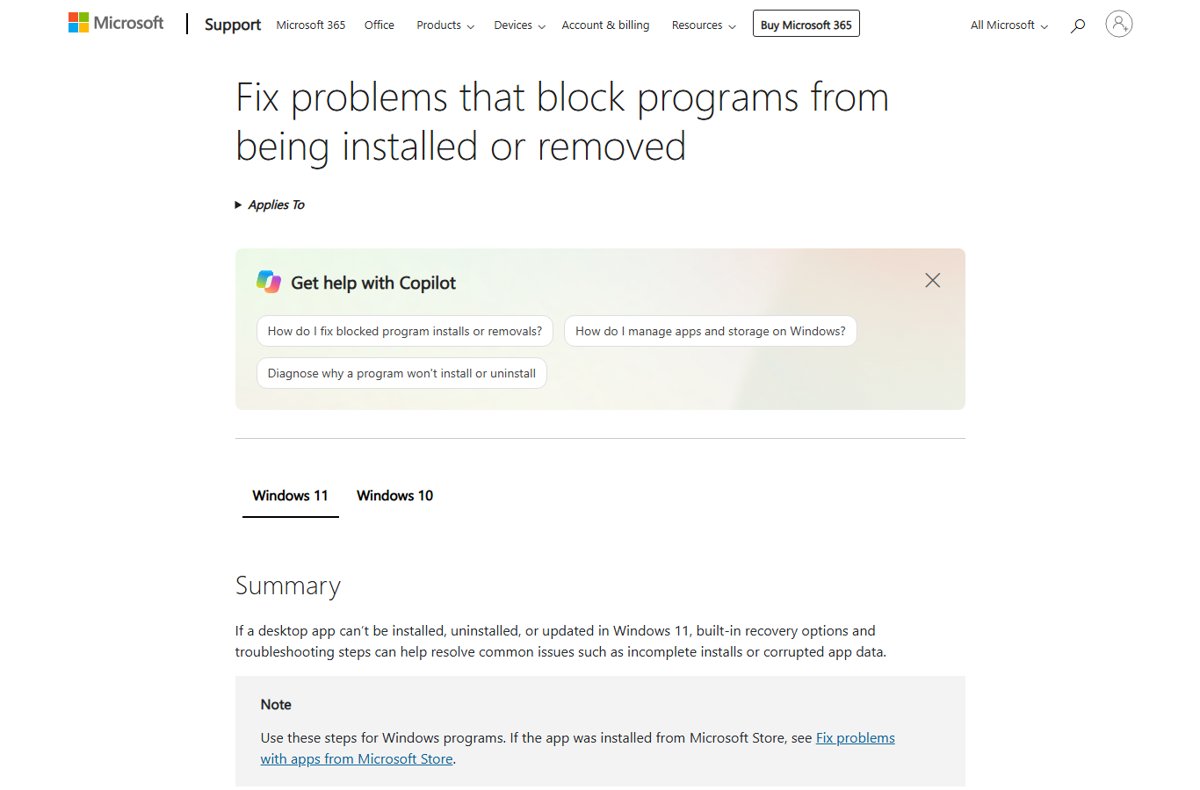
- Run Microsoft's Program Install and Uninstall troubleshooter and select the program when it asks.
- Reinstall the same version over the top, then uninstall it again.
- Check the publisher's support site for an official removal tool, such as AVG Clear for AVG products.
Files or folders say they are in use and will not delete
A process, service or startup entry from the program is still running.
- Disable the program's entries on the Startup apps tab of Task Manager.
- Delete or mark its service with
sc delete <name>as in Step 8. - Restart Windows.
- Delete the folder before opening any other program.
Step 13: Should you use a third-party uninstaller?
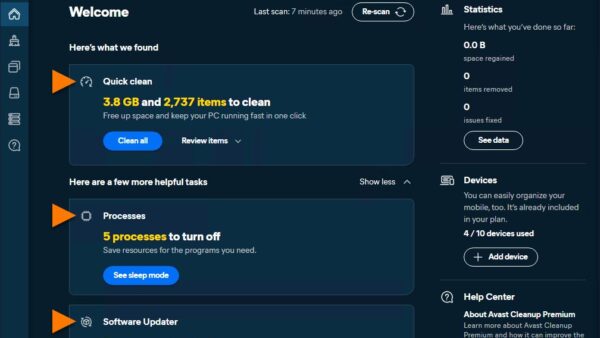
Use the Windows tools above first, and treat a third-party uninstaller carefully: it is optional, never required. Every leftover a third-party uninstaller hunts for is reachable through Settings, WinGet, Task Scheduler, the services list, PnPUtil and Registry Editor, where you can see exactly what is deleted. The tools worth running are the removal utilities a program's own publisher provides, because they know what their product installed. Avoid any tool that bundles a registry cleaner or offers to delete entries in bulk.
Step 14: Confirm the program is completely removed
Restart Windows before checking, because several leftovers only disappear at the next start.
- Search Settings > Apps > Installed apps and Programs and Features for the program; neither should list it.
- Run
winget list <name>in Terminal; it should find no matching package. - Open
C:\Program Files,C:\ProgramData,%AppData%and%LocalAppData%; no folder should carry its name. - Check Settings > Apps > Startup and the Startup apps tab in Task Manager for its entries.
- Run
Get-Service -DisplayName "*name*"in PowerShell; it should return nothing. - Search Start for the program's name; no app or shortcut should appear.
Leftover program files you should not remove
Not every leftover file is junk. Some belong to other programs or hold work you will want back.
| Leftover | Why to keep it |
|---|---|
| Shared runtimes such as Microsoft Visual C++ Redistributable or .NET | Other programs depend on them, even if the removed program installed them |
Folders under C:\Program Files\Common Files you cannot identify |
Components in that folder are shared across applications |
| Saves, projects and documents in Documents | These are your files, not the program's |
Settings in %AppData% for a program you may reinstall |
A reinstall picks them up and restores your setup |
| Licence files and activation data | Some publishers need them to reactivate after a reinstall |
Anything under C:\Windows |
Windows owns that folder; uninstallers clear their own files there |
| Registry keys or services you cannot name | A wrong deletion can stop Windows or another program working |
Completely uninstall a program in Windows 11: FAQ
What happens if I uninstall a program?
Windows runs the publisher's uninstaller, which removes the program's files, shortcuts and installed-list entry. Your settings, caches and documents usually stay in AppData, ProgramData and Documents, so reinstalling restores your setup. Files you created with the program are not deleted.
How do I completely remove a program from my PC without leftovers?
Uninstall it from Settings > Apps > Installed apps, restart, then delete its folders in Program Files, ProgramData, %AppData% and %LocalAppData%. Finish by checking startup entries, scheduled tasks, services and drivers that carry the program's name.
How do I delete a program instead of uninstalling it?
Do not delete the program folder by hand while the program is still installed. Deleting the folder leaves its services, registry entries and installed-list entry behind, which can then block a clean uninstall. Run the uninstaller first and delete leftover folders afterwards.
How do I completely remove a program from the registry?
Export the key first with reg export, then delete the program's subkey under HKEY_LOCAL_MACHINE\Software\Microsoft\Windows\CurrentVersion\Uninstall with reg delete. Delete only keys carrying the program's or publisher's name, because a wrong deletion can stop Windows working.
How do I completely remove a program from Windows 10?
The same method works. Windows 10 lists programs under Settings > Apps > Apps & features instead of Installed apps, and the leftover folders, Startup folders, schtasks, sc delete and pnputil commands are the same on both versions.
How do I get rid of a program that will not uninstall?
Try winget uninstall --id <id> -e in Terminal, then run Microsoft's Program Install and Uninstall troubleshooter, which repairs registry keys that block removal. If both fail, reinstall the same version over the top and uninstall it again.
How do I stop a program from uninstalling halfway?
Select Cancel in the uninstaller if it offers one, and let it roll back. Forcing an uninstaller closed can leave the program half removed; if that happens, reinstall the same version and uninstall it properly.
Is there a program to completely remove programs?
Windows 11 already includes one: WinGet, run as winget uninstall. For leftovers, Settings, Task Scheduler, PnPUtil and Registry Editor cover the rest. Some publishers, especially antivirus vendors, also offer their own removal tool for their products.
Can I remove several programs at once in Windows 11?
Not from Settings, which removes one program at a time. WinGet accepts several packages in one command, such as winget uninstall Microsoft.NuGet Microsoft.Edit, and --silent hides each uninstaller's interface.
Does a restore point undo deleting leftover files?
A restore point brings back system files, installed applications, registry settings and system settings, without affecting personal data. Create one before deleting services, drivers or registry keys so you can roll those changes back.
Is a full program cleanup worth it in Windows 11?
Uninstall, restart and clear the program's AppData and ProgramData folders for every program; go further only for software that ran services, drivers or scheduled tasks. Leftover folders waste space and carry old settings into a reinstall, but leftover services, tasks and drivers keep running code on the PC. Security tools, VPNs, hardware utilities and launchers are the programs that need the full fourteen-step pass.

![How to copy and paste on Chromebook [text & image shortcut]](https://techdows.com/wp-content/uploads/2026/10/Open-Chromebook-laptop-showing-its-keyboard-touchpad-and-ChromeOS-desktop-600x338.jpg)