To add the High performance power plan in Windows 11, run powercfg /duplicatescheme 8c5e7fda-e8bf-4a96-9a85-a6e23a8c635c in an administrator terminal, then select the new plan in Control Panel > Power Options.
Below are the command, the Settings and Control Panel routes, a check that the plan is active, and fixes for PCs where Windows only allows the Balanced plan.
Adding a high-performance power plan in Windows 11
Every Windows PC carries a built-in High performance scheme with a fixed GUID. Duplicating it creates a plan you can select, even when Control Panel only shows Balanced.
The same commands work in Command Prompt, PowerShell and Windows Terminal.
- Right-click Start and select Terminal (Admin), then select Yes at the User Account Control prompt.
- Type
powercfg /duplicatescheme 8c5e7fda-e8bf-4a96-9a85-a6e23a8c635cand press Enter. - Copy the new GUID that the command displays.
- Type
powercfg /setactivefollowed by a space and the copied GUID, then press Enter. - Type
powercfg /getactiveschemeand press Enter to confirm that the active plan is High performance.
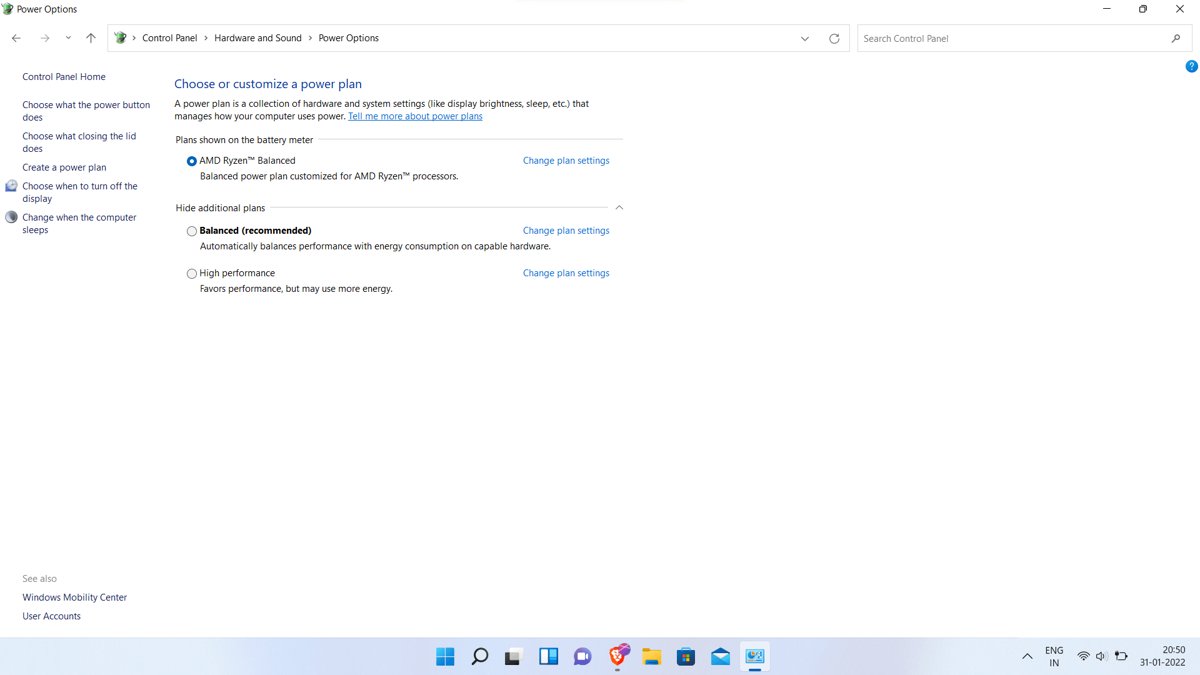
The new plan also appears in Control Panel > System and Security > Power Options, so you can switch between it and Balanced with a click from now on.
Run the duplicate command once. Each run adds another copy with a new GUID, which only clutters the plan list.
Which way to enable high performance on Windows 11 fits your PC?
| Your situation | Use this | Why |
|---|---|---|
| High performance is missing from Power Options | The powercfg /duplicatescheme command |
It adds the plan from its built-in GUID in one line |
| High performance is already listed in Power Options | Control Panel > Power Options | Selecting it takes two clicks and needs no command |
| Laptop or tablet that only offers Balanced | Settings > Power mode > Best performance | Modern Standby PCs only allow Balanced and plans derived from it |
| You want to script it on several PCs | powercfg /duplicatescheme with a fixed destination GUID, then powercfg /setactive |
The same GUID on every PC makes the activation line identical |
| You only need extra speed for a while | Power mode Best performance, then back to Balanced | Nothing to delete afterwards |
Before you begin: Check if your PC supports the High performance plan
Microsoft states that devices using Modern Standby only allow the Balanced power plan, or plans derived from Balanced. Most recent thin laptops and tablets use Modern Standby, while many desktops use the older S3 sleep model.
Modern Standby keeps the PC in the S0 low power idle state while it sleeps, and the sleep-state report shows which model your PC uses.
- Open Terminal (Admin) from the Start right-click menu.
- Type
powercfg /availablesleepstatesand press Enter. - Read the list of available sleep states at the top of the output.
- If it lists an S0 low power idle standby state, the PC uses Modern Standby: use Power mode in Settings instead of a High performance plan.
- If it lists Standby (S3) instead, the PC uses the classic model and the High performance plan is available.
The sleep model is fixed by the hardware design. Microsoft notes that switching between S3 and Modern Standby is not a BIOS setting and requires a complete reinstall of Windows.
Enable high-performance plan using Settings on Windows 11
Windows 11 Settings has no list of power plans. Its equivalent is Power mode, which offers Best power efficiency, Balanced and Best performance, and it works on Modern Standby laptops where the High performance plan is blocked.
- Select Start > Settings.
- Select System > Power & battery.
- Find Power mode on the page.
- On a laptop, pick a mode for Plugged in and a separate one for On battery.
- Choose Best performance from the dropdown.
Best performance opts all apps out of power throttling, so a laptop drains its battery faster and may run warmer. Set On battery back to Balanced if runtime matters.
Power mode only appears while Balanced, or a plan derived from it, is active. Once the High performance plan is active, this control disappears from Settings.
Enable high-performance plan using Control Panel on Windows 11
Use this route when High performance already shows in Power Options, or after the command in the first section has added it.
- Select Start, type Control Panel and open it.
- Select System and Security > Power Options. In icon view, select Power Options directly.
- On the Select a power plan page, select Change settings that are currently unavailable if the plan buttons are greyed out.
- Select the High performance radio button.
- Close the Power Options window.
If High performance is not on the page, go back to the powercfg /duplicatescheme command, then reopen Power Options.
Add high performance power plan with PowerShell or CMD and a fixed GUID
The optional second GUID in /duplicatescheme sets the new plan's own GUID, so you can activate it without copying output. That makes the command reusable in a script or on several PCs.
powercfg /duplicatescheme 8c5e7fda-e8bf-4a96-9a85-a6e23a8c635c 8c5e7fda-e8bf-4a96-9a85-a6e23a8c635d
powercfg /setactive 8c5e7fda-e8bf-4a96-9a85-a6e23a8c635d
The first GUID is the built-in High performance scheme. The second is the GUID you choose for the copy; any valid GUID that is not already in powercfg /list works, and the example changes only the last character. /setactive then switches to that copy.
You should see: powercfg /getactivescheme returns the destination GUID and the name High performance.
Run both lines from an administrator Command Prompt, PowerShell or Windows Terminal tab. Rename the copy with powercfg /changename followed by its GUID and a new name in quotes if you want a clearer label in Control Panel.
Check the active power plan in Windows 11 with powercfg
- Open Terminal (Admin) or a normal terminal window.
- Type
powercfg /getactiveschemeand press Enter. - Confirm the output shows the GUID of your copy and the name High performance.
- Type
powercfg /listand press Enter to see every plan and its GUID. - Open Control Panel > Power Options and confirm the High performance button is selected.
If powercfg /list shows two or more High performance entries, the duplicate command ran more than once. Delete the spare copies as shown in the undo section.
Understanding power plans in Windows 11
A power plan is a set of power setting preferences with an AC value and a battery value for each setting. Windows keeps one plan active at a time and ships three default plan types.
| Plan | What it does | Built-in GUID |
|---|---|---|
| Balanced | Balances performance and power use according to demand; the default on new PCs | 381b4222-f694-41f0-9685-ff5bb260df2e |
| High performance | Delivers maximum performance at the cost of higher power consumption | 8c5e7fda-e8bf-4a96-9a85-a6e23a8c635c |
| Power saver | Reduces performance to save power | a1841308-3541-4fab-bc81-f71556f20b4a |
| Custom or OEM plans | Copies of a default plan with changed settings, often added by the PC maker | A new GUID created when the plan is made |
On Balanced, Windows 11 layers Power mode on top of the plan. Each mode acts like a light plan that changes processor and throttling settings, while screen and sleep timeouts stay with the plan.
Why use a high-performance power plan?
Microsoft's own example: under Balanced, a processor rated at 3.00 GHz can drop to 1.2 GHz to save energy, so a task that normally uses 30% of the CPU can hit 100%. High performance keeps the processor at its highest performance state.
| Use case | High performance helps? | Trade-off |
|---|---|---|
| Sustained CPU-heavy work such as rendering, compiling or databases | Yes, the CPU stays at full rated speed | Higher power draw and heat |
| Short bursts of work through the day | Little benefit; Balanced scales up on demand | Wasted power while idle |
| Laptop on battery | No, battery life drops | Shorter runtime and a warmer chassis |
| Modern Standby laptop | Not available; use Best performance power mode | Same battery and heat cost |
Microsoft recommends leaving varied workloads on Balanced, because High performance disables dynamic performance scaling and raises power use when the PC is underused.
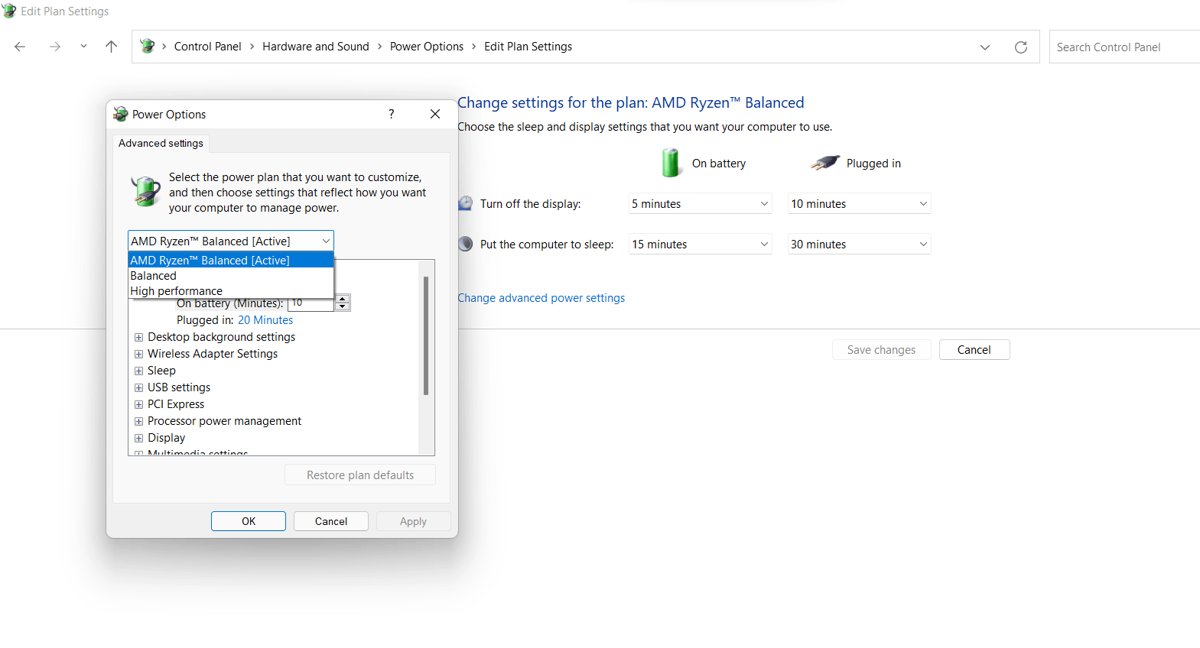
Customize high performance power plan advanced settings
- Open Control Panel > System and Security > Power Options.
- Select Change plan settings next to High performance.
- Set Turn off the display and Put the computer to sleep times for battery and plugged-in use.
- Select Change advanced power settings to open the full list.
- Expand a group, such as processor power management, and change the minimum or maximum processor state.
- Select Apply and then OK.
Both processor values are a percentage of maximum processor frequency, from 0 to 100. Raising the minimum keeps the CPU from dropping to lower performance states, which suits low-latency work.
Switch back to Balanced and remove the High performance plan
- Open Terminal (Admin).
- Type
powercfg /setactive 381b4222-f694-41f0-9685-ff5bb260df2eand press Enter to make Balanced active again. - Type
powercfg /listand press Enter, then copy the GUID of the High performance copy you added. - Type
powercfg /deletefollowed by a space and that GUID, then press Enter. - Open Settings > System > Power & battery and confirm Power mode is back.
Microsoft notes that after a switch to Balanced there is no Settings route back to High performance; the powercfg /setactive command, or Power Options when the plan is listed, does that job.
High performance power plan missing in Windows 11: Fixes
High performance is not listed in Power Options
The plan has not been added on this PC, or the PC uses Modern Standby.
- Run
powercfg /availablesleepstatesin an administrator terminal. - If the PC uses the S3 model, run
powercfg /duplicatescheme 8c5e7fda-e8bf-4a96-9a85-a6e23a8c635c. - Reopen Control Panel > Power Options and select High performance.
- If the PC uses Modern Standby, set Power mode to Best performance in Settings instead.
Power mode is missing or cannot be changed in Settings
A non-Balanced plan, such as High performance or a custom plan, is active.
- Open Control Panel > System and Security > Power Options.
- Select Balanced.
- Reopen Settings > System > Power & battery and pick the Power mode you want.
The power plan buttons in Control Panel are greyed out
Changing the plan is locked until you unlock the page.
- Select Change settings that are currently unavailable at the top of the Select a power plan page.
- Approve the User Account Control prompt.
- Select High performance. If the buttons stay locked on a work PC, your organisation may control power settings through policy; ask the administrator.
Powercfg commands for managing power plans in Windows 11
| Command | What it does |
|---|---|
powercfg /list |
Lists every power plan and its GUID |
powercfg /getactivescheme |
Shows the plan that is active right now |
powercfg /duplicatescheme GUID |
Copies a plan and prints the new plan's GUID |
powercfg /setactive GUID |
Makes a plan the active one |
powercfg /changename GUID "name" |
Renames a plan, with an optional description |
powercfg /delete GUID |
Deletes a plan |
powercfg /export file GUID and powercfg /import file |
Saves a plan to a file and loads it on another PC |
powercfg /energy |
Writes an HTML energy-efficiency report to the current folder; run it while the PC is idle |
powercfg /batteryreport |
Writes a battery usage report on laptops |
Use /energy and /batteryreport before and after the switch to see what High performance costs in power on your own hardware.
High performance power plan Windows 11 FAQ
How do I add the high performance power option in Windows 11?
Open Terminal (Admin) and run powercfg /duplicatescheme 8c5e7fda-e8bf-4a96-9a85-a6e23a8c635c. The command copies the built-in High performance scheme and prints a new GUID. Activate it with powercfg /setactive and that GUID, or select it in Control Panel > Power Options.
How do I enable the high performance power plan from Control Panel?
Open Control Panel, select System and Security, then Power Options. Select Change settings that are currently unavailable if the options are greyed out, then select High performance. If the plan is not listed, add it first with the powercfg /duplicatescheme command.
How do I set power to high performance in Windows 11 Settings?
Go to Start > Settings > System > Power & battery and set Power mode to Best performance. Laptops have separate choices for Plugged in and On battery. This mode is the Settings equivalent of High performance and works while the Balanced plan is active.
Why can't I get the high performance power plan on my laptop?
Laptops that use Modern Standby only allow the Balanced plan or plans derived from it. Check with powercfg /availablesleepstates. On those PCs, set Power mode to Best performance in Settings instead, which removes app power throttling and favours speed over battery life.
What is the command to add the high performance power plan?
The command is powercfg /duplicatescheme 8c5e7fda-e8bf-4a96-9a85-a6e23a8c635c, run in an administrator Command Prompt, PowerShell or Windows Terminal. The long string is the fixed GUID of the built-in High performance scheme, the same on every Windows PC.
How do I create a high performance power plan with my own settings?
Duplicate the High performance scheme with powercfg /duplicatescheme, rename the copy with powercfg /changename, then open Control Panel > Power Options > Change plan settings > Change advanced power settings. Change the values you need and select Apply.
How do I activate a high performance power plan I already added?
Run powercfg /list to find its GUID, then powercfg /setactive followed by that GUID. You can also select it in Control Panel > Power Options. Confirm the switch with powercfg /getactivescheme, which names the active plan.
Does the high performance power plan improve performance?
It keeps the processor in its highest performance state instead of scaling clock speed down, which helps sustained CPU-heavy work. Microsoft's example shows a 3.00 GHz chip dropping to 1.2 GHz under Balanced. Short, bursty tasks gain little, while power use and heat rise.
Is the high performance power plan the same in Windows 10?
Yes. The same powercfg /duplicatescheme command and the same GUID add the plan on Windows 10, and Control Panel > Power Options looks the same. Windows 10 shows its power mode as a slider in the battery flyout instead of a Settings dropdown.
Should you use the High performance power plan on Windows 11?
Use the High performance plan on desktops that run long CPU-heavy jobs on mains power; on laptops, set Power mode to Best performance instead. High performance stops the CPU from scaling down, which helps sustained work but wastes power at idle, and Modern Standby laptops block the plan entirely. Power mode gives the same speed boost with one dropdown and is easy to reverse.