To remove Dropbox from Windows 11, quit the app from the taskbar, then open Settings > Apps > Installed apps and uninstall Dropbox.
This guide covers the Settings, Control Panel and Command Prompt routes, what happens to your files, how to clear leftover folders, and how to unlink the PC from your Dropbox account.
Method 1: Uninstalling Dropbox using Windows Settings
This is the route Dropbox itself documents, and it works for both the dropbox.com installer and the Microsoft Store version of the app.
It is the same page you use to add or remove programs in Windows 11, so nothing here needs extra tools.
- Click the Dropbox icon in the taskbar notification area.
- Click your avatar in the bottom-left corner of the Dropbox window, then click Quit.
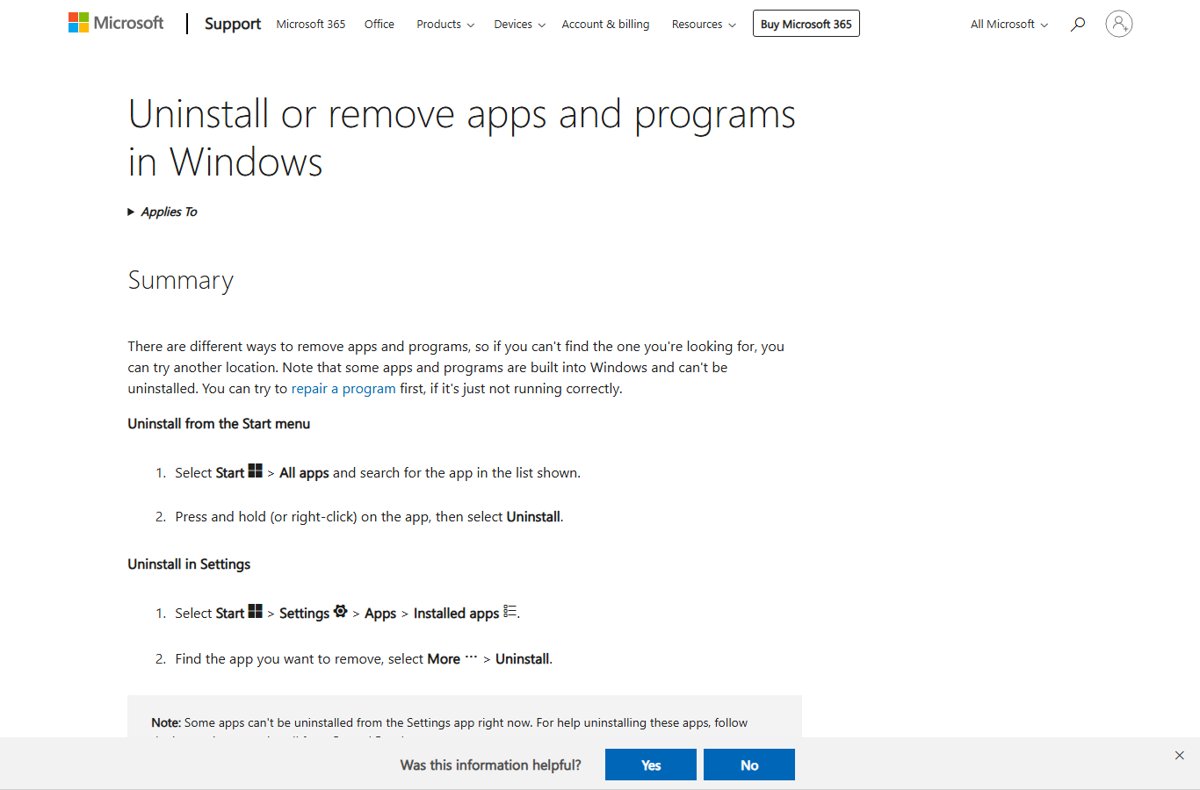
- Select Start > Settings > Apps > Installed apps.
- Type
Dropboxin the search box above the app list. - Select More (the three dots) next to Dropbox, then select Uninstall.
- Select Uninstall again to confirm, then follow the Dropbox uninstaller until it closes.
If Dropbox came preinstalled on the PC, the entry can be named Get Dropbox or Dropbox followed by a storage size in GB. Uninstall that entry the same way.
Dropbox desktop app functions and what uninstalling removes
The Dropbox desktop app syncs a Dropbox folder on your PC with your account on dropbox.com. Uninstalling it stops that sync, but it does not delete your account or the files already on your hard drive.
| Part of Dropbox | What it does | After you uninstall |
|---|---|---|
| Desktop app and taskbar icon | Runs the sync between your PC and dropbox.com | Removed |
| Dropbox folder (in your user folder by default) | Holds the files synced to this PC | Stays on the hard drive until you delete it |
| Online-only files | Placeholders that point to files stored in the cloud | Not available on the PC; the files remain in your account |
| Dropbox account and files on dropbox.com | Cloud storage you sign in to from any device | Unchanged |
| This PC in your account's device list | Shows under Settings > Security > Devices on dropbox.com | Stays listed until you unlink it |
| Microsoft Store version of Dropbox | Same features as the desktop app, updated through the Microsoft Store | Removed from Installed apps the same way |
Pre-removal considerations for your Dropbox files
Five minutes of preparation decides whether you keep a local copy of your files. Do these steps before you uninstall if the PC is the only place you open certain files.
- Open the Dropbox desktop app, go to Preferences > Sync, and note the Dropbox folder location if you moved it from the default.
- In File Explorer, right-click any online-only file or folder you want to keep on the PC and select Make available offline.
- Wait for the sync to finish so the offline copies are complete.
- Copy anything you want to keep outside Dropbox to another folder or drive, because deleting the Dropbox folder later removes it from this PC.
- Save your work and close any programs that have files open from the Dropbox folder.
Online-only files take only a small placeholder on the drive, so they are not on the PC once the app is gone. They stay safe in your Dropbox account either way.
Method 2: Uninstalling Dropbox via Control Panel
Control Panel still lists the dropbox.com installer under Programs and Features on Windows 11. Quit Dropbox from the taskbar first, as in Method 1.
- Type
Control Panelin the taskbar search box and select Control Panel from the results. - Select Programs, then Programs and Features.
- Right-click Dropbox in the list and select Uninstall.
- Follow the on-screen directions until the Dropbox uninstaller finishes.
- Close Control Panel and check that Dropbox no longer appears in the list.
If Dropbox is missing from Programs and Features, it is likely the Microsoft Store version. Remove it from Settings > Apps > Installed apps instead.
Method 3: Uninstall Dropbox using the Command Prompt and winget
WinGet, the Windows Package Manager, can remove apps it did not install, including Dropbox. Use it when Settings will not open or you prefer typing to clicking.
- Quit Dropbox from the taskbar icon so no Dropbox process is running.
- Select Start, type
cmd, and select Command Prompt. - Run
winget list Dropboxto confirm the exact name winget shows for the app. - Run
winget uninstall Dropboxto remove it. - If winget lists several matching apps, run the command again with
--idand the ID shown in the list, for examplewinget uninstall --id <ID from the list>. - Accept the Microsoft Store source agreement if it appears, or add
--source wingetto avoid that prompt. - Run
winget list Dropboxagain; no matching installed package confirms the removal.
The --silent option runs the uninstaller without its window, which is useful in a script. Leave it off when you want to see the uninstaller's progress.
Do you need third-party uninstallation software for Dropbox?
No. Uninstall Dropbox with Settings, Control Panel or winget, then delete the leftover Client folders by hand as Dropbox describes. Dropbox's own cleanup steps name the exact folders and registry keys the app leaves behind, so a third-party uninstaller adds nothing. A broad registry sweep by another tool can also delete entries that other programs still rely on.
The same built-in approach works for other stubborn apps; for example, you can remove McAfee WebAdvisor without any cleaner software.
Post-uninstallation steps to completely remove Dropbox from Windows 11
These steps come from Dropbox's advanced reinstall procedure, which clears the app's leftover client files. Do them only after the uninstall has finished.
Never delete your main Dropbox folder during these steps unless you have decided to remove your local files too. Only the Client folders below are app leftovers.
- Restart the PC so no Dropbox process holds files open.
- Open File Explorer, type
%LOCALAPPDATA%in the address bar, and press Enter. - Open the Dropbox folder there and delete the Client folder inside it.
- Repeat the same check in
%APPDATA%,%PROGRAMFILES%and%PROGRAMFILES(x86)%; skip any location with no Dropbox folder. - Press Win + R, type
regedit, and press Enter to open Registry Editor. - Expand HKEY_LOCAL_MACHINE > SOFTWARE and delete the Dropbox key if it exists.
- Expand HKEY_LOCAL_MACHINE > SOFTWARE > WOW6432Node and delete the Dropbox key there if it exists.
- Empty the Recycle Bin when you are sure nothing in it is needed.
Back up the registry or create a restore point before you delete keys. Delete only the keys named Dropbox in those two locations.
Remove Dropbox files and folders from your computer
Uninstalling leaves the Dropbox folder and every synced file on your hard drive. Delete the folder only if you no longer need local copies, since your files stay in your Dropbox account online.
- Open File Explorer and go to your user folder, for example
C:\Users\<your name>, or the location you noted earlier. - Copy out any file you still want on this PC.
- Right-click the Dropbox folder and select Delete to move it to the Recycle Bin.
- Delete any Dropbox shortcuts you placed on the desktop yourself.
- Empty the Recycle Bin to free the disk space.
Unlink your Windows 11 PC from your Dropbox account
Uninstalling does not remove the PC from your account's device list. Unlink it from dropbox.com so the computer no longer has access, which matters if you are selling or handing it on.
- Sign in at dropbox.com in a web browser.
- Click your avatar in the bottom-left corner, then click Settings.
- Open the Security tab.
- Under Devices, click the trash can icon next to the computer.
- On a paid plan, optionally tick Delete files from [account name] Dropbox the next time this computer comes online.
- Click Unlink.
Without that checkbox, synced files remain on the computer and can still be opened, but changes no longer sync. To use Dropbox on the PC again later, connect Dropbox to your computer with a fresh install.
How to check Dropbox is fully removed from Windows 11
- Open Settings > Apps > Installed apps and search for
Dropbox; no result should appear. - Check the taskbar notification area; the Dropbox icon should be gone after a restart.
- Open
%LOCALAPPDATA%\Dropboxand%APPDATA%\Dropboxin File Explorer; neither should contain a Client folder. - Sign in at dropbox.com, open Settings > Security, and confirm the PC is no longer under Devices.
- Confirm your files still show on dropbox.com, so you know only the local copy was removed.
Fix Dropbox when it will not uninstall or leaves files behind
Dropbox will not uninstall or the uninstaller fails
A Dropbox process is still running and holds its files open.
- Press Ctrl + Shift + Esc to open Task Manager.
- Select every Dropbox process in the Processes list and select End task.
- Run the uninstall again from Settings > Apps > Installed apps.
- If Settings still fails, try Programs and Features in Control Panel or
winget uninstall Dropbox.
Dropbox folder still shows in File Explorer after uninstalling
The uninstaller removes the app, not the Dropbox folder in your user folder.
- Back up anything you still need from the folder.
- Delete the Dropbox folder from your user folder, as in the files section above.
- Restart the PC and open File Explorer again.
Dropbox files still on the desktop or PC after removal
Synced files are local copies, so uninstalling does not touch them.
- Confirm the same files exist on dropbox.com.
- Delete the local copies or the whole Dropbox folder.
- Empty the Recycle Bin.
"Move to Dropbox" still appears in the right-click menu
File Explorer has not reloaded since the uninstall, or an entry from an older Dropbox version remains.
- Restart the PC so File Explorer reloads its menu handlers.
- Complete the leftover Client folder and registry cleanup above.
- If the entry survives, remove Move to Dropbox from the context menu by hand.
Remove Dropbox from Windows 11 FAQ
How do I completely remove Dropbox from Windows?
Quit Dropbox, uninstall it from Settings > Apps > Installed apps, then restart and delete the Client folders under %LOCALAPPDATA%, %APPDATA% and the Program Files folders. Finish by deleting the Dropbox registry key and unlinking the PC on dropbox.com.
How do I uninstall Dropbox on Windows?
Quit Dropbox from its taskbar icon, open Settings > Apps > Installed apps, select More next to Dropbox and choose Uninstall. Control Panel's Programs and Features and the winget uninstall Dropbox command also work.
How do I delete Dropbox from my PC without losing my files?
Uninstall the app only. Removing the Dropbox desktop app does not delete your Dropbox account or the files stored on dropbox.com, and the local Dropbox folder stays on the drive until you delete it yourself.
How do I remove Dropbox files from my computer?
After uninstalling, delete the Dropbox folder in your user folder and empty the Recycle Bin. Back up anything you need first. Your files remain on dropbox.com, so deleting the local folder frees disk space without touching the cloud copies.
How do I remove Dropbox from File Explorer in Windows 11?
Uninstall the Dropbox app first, because the uninstall leaves the Dropbox folder in your user folder. Then back up what you need, delete that folder, and restart the PC so File Explorer reloads without it.
How do I remove Dropbox from my laptop?
The steps are identical on a Windows 11 laptop and desktop. Quit Dropbox, uninstall it from Settings > Apps > Installed apps, delete the leftover folders, and unlink the laptop under Settings > Security > Devices on dropbox.com.
Does uninstalling Dropbox delete my Dropbox account?
No. Uninstalling the Dropbox desktop app on Windows 11 does not delete your Dropbox account. You can still sign in on dropbox.com, the mobile app, or any other computer, and every file you stored remains there.
How do I remove Dropbox folders from my computer safely?
Uninstall Dropbox first, back up your files, then move the whole Dropbox folder to the Recycle Bin. Do not pick out the hidden .dropbox folders on their own; Dropbox uses them to track your main and shared folders.
Bottom line: should you uninstall Dropbox or only unlink it?
Uninstall Dropbox from Settings and unlink the PC on dropbox.com; delete the local Dropbox folder only if you no longer need offline copies. The uninstall removes the app, unlinking removes the computer's access, and the files stay in your account, so nothing is lost while the PC is left clean.