A Google Meet join code is the 10-character ID of one meeting: type it at meet.google.com, select Join, and Meet opens that meeting's preview screen.
This guide covers where to enter the code on a computer, in Gmail and on a phone, how to create and find one, how long a code stays valid, and what to do when a code will not work.
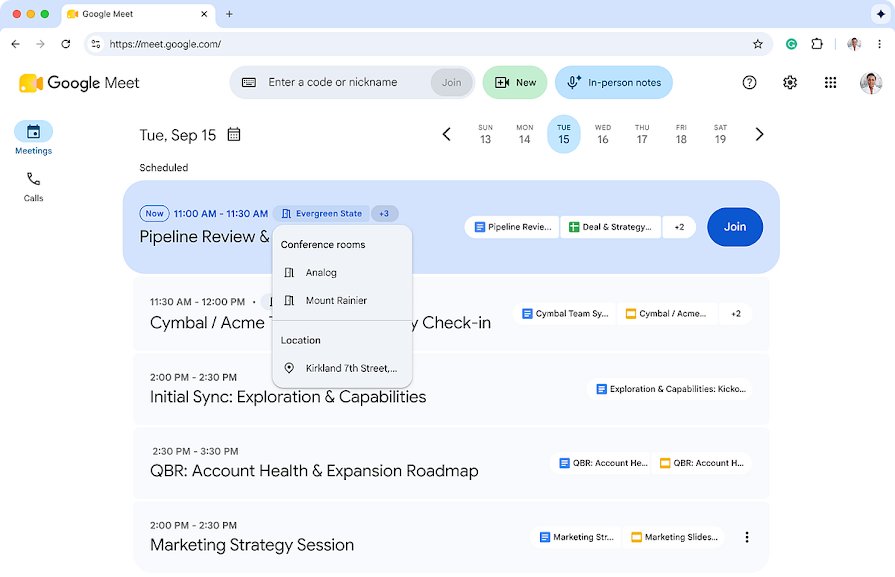
Join Google Meet with a code on a computer
The code alone is enough. You do not need the full link, and the same code works in Chrome, Edge, Firefox and Safari. A clickable invite is only one of the other ways to join a Google Meet meeting.
- Open
meet.google.comin your browser. - Click the text box at the top of the page.
- Type the meeting code, or a meeting nickname if your organisation uses them.
- Click Join.
- Check your camera and microphone on the preview screen, then click Join now.
The same box also accepts a full meeting URL, so pasting the link there works too.
If you are not on the Calendar invite, the button reads Ask to join instead, and the host has to let you in.
How Google Meet join code works and how to use it
Every Meet meeting gets its own unique code when it is created. The meeting link is simply meet.google.com/ followed by that code, so the code and the link always lead to the same meeting.
Google sets each code at 10 characters drawn from a 25-character set, which makes codes hard to guess by brute force. A correct code gets you to the door, but the meeting's access rules still decide whether you walk in or knock.
| Joining item | What it is | Where you type it | Who can use it |
|---|---|---|---|
| Meeting code | 10 characters, unique to one meeting | meet.google.com, Gmail's Meet section, the Meet app | Anyone, with or without a Google Account |
| Meeting link | meet.google.com/ plus the meeting code |
Click it, or paste it into the meet.google.com box | Anyone the link reaches |
| Meeting nickname | A short name in place of a code | The same box as the code | Google Workspace users inside the same organisation only |
| Dial-in PIN | A number tied to the meeting's phone bridge | Your phone keypad, followed by # | Callers to meetings organised through a Google Workspace account |
Personal Google Account holders can only join with a meeting code, not a nickname.
Where to enter a Google Meet join code
Every entry point below sends the code to the same meeting. Pick the one you already have open.
| Your situation | Enter the code here | Label to look for |
|---|---|---|
| On a computer with a browser | meet.google.com | The box at the top, then Join |
| Working in Gmail | Meet in the Gmail sidebar | Join with a code, or Join a meeting on a work or school account |
| On an Android phone, iPhone or iPad | The Google Meet app | The keyboard icon next to the search bar |
| No Google Account | meet.google.com or the Meet app | Enter code or Code, then Ask to join |
| In a Zoom Rooms or Cisco Webex room | The Google Meet app on the room device | The meeting code field on the room controller |
Join Google Meet with a code in Gmail
Gmail has its own Meet section in the left sidebar, so you can join without leaving your inbox.
- Open Gmail on your computer.
- Click Meet in the left sidebar.
- Click Join with a code. On a work or school account, click Join a meeting instead.
- Type the meeting code or nickname the organiser gave you.
- Click Join, then click Join now on the preview screen.
Join Google Meet with a code on Android and iPhone
The Meet app takes the same 10-character code as the website. On a phone without the app, type meet.google.com/ followed by the code in the browser's address bar.
- Open the Google Meet app.
- Tap the keyboard icon next to the search bar.
- Type the meeting code or nickname.
- Tap Join at the top right.
- Tap Join on the next screen, or Ask to join if you are from a different organisation.
On a Windows PC, the code works the same way in the Google Meet app for Windows as it does in a browser tab.
Join Google Meet with a code without a Google account
A code lets a guest reach a meeting without signing in. The trade-off is that someone already in the meeting must admit you.
- Go to
meet.google.comand click Enter code. In the Meet app, tap Code at the top. - Type the meeting code.
- Click or tap Join.
- Enter your name.
- Click Ask to join and wait until the organiser or a participant lets you in.
Google Meet join code: how to create one
You never type a code yourself. Meet generates it the moment you create a meeting, and the link you copy already contains it.
- Open
meet.google.comand click New meeting. - Select Create a meeting for later to get a link without starting the call.
- Copy the link shown and send it, or read out the code at its end.
- To schedule instead, open
calendar.google.com, click Create, then Event, and add guests. - Click Add Google Meet video conferencing, then click Save.
- Click Send to email the invite, which carries the link and the code.
In Gmail, click Meet, then New meeting, then Send invite, and choose Copy meeting invite or Share via email.
Only Google Workspace users can create nicknamed meetings, and a nickname code expires once everyone leaves.
Google Meet join code: how to find it
The code is printed inside every invite and link. When someone asks for it during a call, copy it straight from the meeting.
- In an email or chat invite, look at the end of the
meet.google.com/link: the characters after the slash are the code. - In Google Calendar, open the event and read the Meet link under Join with Google Meet.
- Inside a running meeting, open the meeting details panel in the bottom-right corner.
- Select Copy joining info.
- Paste the copied details into an email, chat or document to share the code.
How long does a Google Meet code last?
Codes do expire, and the rule depends on which product created the meeting. A code pasted from another product into a Calendar invite keeps the rule of the product that made it.
| Where the meeting was created | When the code expires |
|---|---|
| Google Calendar | After 60 days without use, and only if no future Calendar event is linked to it |
| Google Chat, Google Classroom, Gmail, meet.google.com | 365 days after last use |
| Third-party software such as Outlook | 365 days after last use; every use within that window adds another 365 days |
| Google Nest (voice command or display) | 365 days after last use |
| Workspace meeting nickname | As soon as everyone leaves the meeting |
| Breakout room | When the main meeting ends |
| Meeting room hardware | As soon as everyone leaves |
A recurring meeting kept in Google Calendar keeps its code as long as future events stay linked to it. Codes added to events in Apple Calendar or other calendar apps can be swapped for a new code automatically, and Google emails you when that happens.
Check a Google Meet code opened the right meeting
- Before you click Join now, compare the code in the address bar with the code in the invite.
- After joining, open the meeting details panel in the bottom-right corner.
- Compare the code in the joining info with the code you were given.
- Open the People panel and confirm the organiser is in the list.
If the code matches but nobody is there, the meeting has not started yet or you were sent an old code from a different series.
Google Meet join with code not working
Meet does not recognise the code
A character was mistyped, or the code has passed its expiry date.
- Re-type all 10 characters, or paste the full link into the box instead of typing.
- Open the original invite link directly rather than copying the code by hand.
- Check the expiry rules above: an unused Calendar code lapses after 60 days, and a nickname or breakout room code stops working once the meeting ends.
- Ask the organiser for a fresh link if the code is old.
The nickname is rejected
Nicknames only work for Google Workspace users inside the same organisation.
- Sign in with your work or school account, not a personal Gmail address.
- If you are outside the organisation, ask the organiser for the 10-character code or the link instead.
Stuck on Ask to join
You are not on the Calendar invite, or you are not signed in, so the host must admit you.
- Keep the meeting tab open while you wait for a response.
- Ask the organiser to stay in the meeting: only the host can approve requests from people not on the invite.
- Ask the organiser to add your email address to the Calendar event, then join again while signed in to that account.
The code works but the meeting will not open yet
Meet limits joining more than 15 minutes before the scheduled start time.
- Check the start time on the Calendar event.
- Wait until 15 minutes before it, reload the page and click Join again.
You cannot join any meeting on a work or school account
Meet is turned off for your organisation.
- Ask your administrator to turn meetings on for your account in the Google Workspace Admin console.
- Join from a personal Google Account in the meantime, if the meeting allows outside guests.
The dial-in PIN is not recognised
You called before the meeting opened, or dial-in is not set up for that meeting.
- Call again within 15 minutes of the start time.
- Enter the PIN followed by the # key.
- Confirm the meeting was organised through a Google Workspace account with dial-in turned on, since personal-account meetings have no phone bridge.
The meeting says it is full
The meeting has hit its participant limit.
- Ask the organiser how many people are connected: personal-account meetings cap at 100, and Workspace editions cap at 100, 150 or 500.
- Join from a shared conference room device, since the limit counts device connections.
Google Meet join code FAQ
How do I join Google Meet using a code?
Open meet.google.com, type the meeting code into the box at the top and click Join, then click Join now on the preview screen. In Gmail, click Meet, then Join with a code. In the Meet app, tap the keyboard icon and enter the code.
What does a Google Meet join code look like?
It is 10 characters long, drawn from a 25-character set. It also appears at the end of every meeting link, after meet.google.com/, so you can read the code straight off a link if nobody sent it separately.
How do I create a Google Meet join code?
Create a meeting and Meet generates the code for you. Go to meet.google.com, click New meeting and select Create a meeting for later, or add Google Meet video conferencing to a Google Calendar event. The link you copy contains the code.
How do I find the code for a Google Meet meeting?
Look at the end of the meeting link in your invite: the characters after meet.google.com/ are the code. During a call, open the meeting details panel in the bottom-right corner and select Copy joining info.
Can I join Google Meet with a code without a Google account?
Yes. Go to meet.google.com, click Enter code, type the code, click Join, enter your name and click Ask to join. The organiser or a participant must then let you in before you see the meeting.
Is a Google Meet code the same as the meeting link?
They point to the same meeting. The link is meet.google.com/ followed by the code, so typing the code at meet.google.com and clicking the link both open the same preview screen.
Do Google Meet codes expire?
Yes. Calendar codes expire after 60 days without use unless a future event is linked. Codes from Chat, Classroom, Gmail and meet.google.com expire 365 days after last use. Nickname and room hardware codes expire when everyone leaves.
Why is my Google Meet join code not working?
The code is usually mistyped or expired, or the meeting has not opened yet. Paste the full link instead of typing, check the code's expiry rule, and try again within 15 minutes of the start time.
Can I use a meeting nickname instead of a code?
Only on a Google Workspace account, and only with people in your own organisation. Personal Google Account holders can join with a meeting code only, so send outside guests the code or link instead.
Bottom line: Google Meet code or meeting link?
Click the meeting link when you have it, and type the 10-character code at meet.google.com or in the Meet app when the code is all you were given. Both open the same meeting, but the link avoids typing errors, while the code is the one thing that can be read out over the phone or written on a whiteboard.

![How to copy and paste on Chromebook [text & image shortcut]](https://techdows.com/wp-content/uploads/2026/10/Open-Chromebook-laptop-showing-its-keyboard-touchpad-and-ChromeOS-desktop-600x338.jpg)