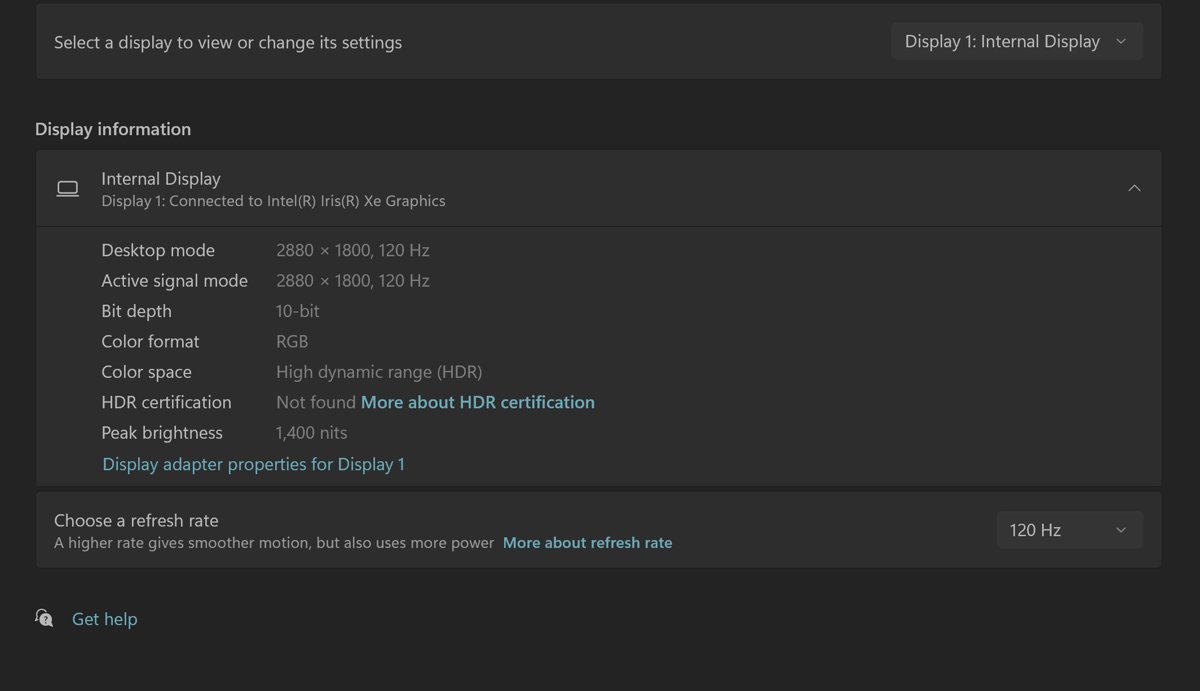
HDR certification: Not found on Windows 11 means your display has no HDR certification, or its manufacturer has not published certification data that Windows can read, so in most cases there is nothing to repair.
The label does not switch HDR off, so the real fix is to confirm HDR works on your monitor, and to repair it with the steps below when it does not.
How to fix HDR certification not found on Windows 11
Start by checking whether HDR itself works. If the HDR toggle turns on and HDR video looks right, the Not found label is only information about the panel.
- Select Start, open Settings, then go to System > Display.
- If more than one screen is connected, select the HDR-capable display at the top of the page.
- Turn on HDR.
- Play an HDR video or game and check that highlights look brighter and colours look richer.
- If HDR works, leave the Not found label alone, because Windows cannot change what the monitor reports.
- If the HDR toggle is missing or greyed out, work through the fixes and symptom checks further down.
Understanding HDR and certification in Windows 11
HDR (high dynamic range) shows brighter highlights, deeper shadows and a wider range of colours than standard dynamic range (SDR). Windows needs an HDR10-capable display to use it.
Certification is a separate layer. Certified displays are tested for PC use such as HDR games and apps, while an uncertified HDR10 display can still run HDR.
| Item | What it means on Windows 11 |
|---|---|
| HDR10 support | The minimum Windows needs to turn HDR on. Without it the HDR toggle does not appear. |
| VESA DisplayHDR | A tiered certification; a higher number is a higher tier. Version 1.2 and DisplayHDR 500 or higher are the tiers Microsoft points buyers to. |
| Dolby Vision | A certification Windows picks automatically when the monitor supports it. |
| AMD FreeSync Premium Pro | An HDR certification listed by Microsoft for PC displays. |
| NVIDIA G-SYNC ULTIMATE | An HDR certification listed by Microsoft for PC displays. |
| HDR certification: Not found | No certification above was reported, or the maker has not published it. HDR can still be supported. |
Common causes of "HDR certification not found" on Windows 11
| Your situation | Likely cause | What to do |
|---|---|---|
| HDR turns on and looks right | The monitor has no certification, or the maker has not published it | Nothing; confirm the panel spec on the manufacturer's website |
| Box or spec sheet says DisplayHDR, Windows says Not found | Certification data is not published for that model in a form Windows reads | Check the manufacturer's spec page; HDR still works if the toggle appears |
| HDR toggle missing on an external monitor | Duplicate mode, an older cable or port, or HDR off in the monitor menu | Extend displays, use DisplayPort 1.4 or HDMI 2.0, enable HDR on the monitor |
| HDR toggle missing on a laptop screen | HDR is switched off on battery, or the panel does not support HDR games and apps | Plug in, or clear the battery checkbox under HDR |
| dxdiag says HDR Not Supported | The display or driver is missing an HDR10 requirement | Update the graphics driver; if it still fails, the display does not support HDR10 |
| HDR worked until a driver update | A new graphics driver broke HDR output | Roll back the display adapter driver in Device Manager |
Prerequisite checks before troubleshooting HDR on Windows 11
These checks rule out hardware that cannot run HDR at all, which no setting in Windows will fix.
| Check | Requirement | Where to confirm it |
|---|---|---|
| External display | Supports HDR10 and DisplayPort 1.4, HDMI 2.0 or higher, USB-C or Thunderbolt | The monitor manufacturer's spec page |
| Built-in laptop display | 1080p or higher, with 300 nits or more recommended | The laptop manufacturer's spec page |
| Graphics driver | A current WDDM driver; WDDM 2.7 or later for the HDR Calibration app | Settings > Windows Update > Advanced options > Optional updates |
| Protected HDR video | A graphics card with PlayReady hardware DRM and 10-bit decoding | The PC or GPU manufacturer's spec page |
| Streaming codecs | HEVC for Netflix, VP9 for YouTube, AV1 where used | Search the Microsoft Store for each video extension |
| Monitor menu | HDR or HDR10 mode turned on in the on-screen display | The monitor's manual on the manufacturer's site |
Comprehensive fixes for "HDR certification not found" on Windows 11
Use the fixes in this order. Each one targets a reason the HDR toggle fails, since the certification label itself comes from the monitor.
| Fix | When it helps | Section below |
|---|---|---|
| Turn on HDR on the monitor and in Settings | The toggle is off or the panel is in SDR mode | Turn on HDR in Windows 11 Settings |
| Read the dxdiag Advanced Color values | You need to know whether the display supports HDR10 | Check HDR support with dxdiag |
| Update, roll back or reinstall the graphics driver | HDR is missing after a driver change or on an old driver | Update or roll back the graphics driver for HDR |
| Change cable, port or display mode | An external screen shows Not supported | Use DisplayPort or HDMI 2.0 for HDR on Windows 11 |
| Update the monitor firmware | The maker lists an HDR fix for your model | Check the monitor manufacturer's support page |
There is no supported registry setting that adds or removes HDR certification. The value is read from the display, so registry edits cannot change it.
Turn on HDR in Windows 11 Settings
- Open the monitor's on-screen menu with its buttons and turn on its HDR or HDR10 mode.
- Select Start, open Settings, then go to System > Display.
- Select the HDR-capable display at the top of the page.
- Turn on HDR, then select HDR to open its settings page.
- Under Display capabilities on the HDR page, check that Supported appears next to HDR video streaming or HDR games and apps.
Check HDR support with dxdiag
The DirectX Diagnostic Tool tells you whether the display and driver support HDR10, which is a firmer answer than the certification line.
- Press Windows logo key + R, type
dxdiag, then select OK. - Select Yes at the prompt.
- Select Save All Information, then name and save the text file.
- Open the file and find Advanced Color: AdvancedColorSupported means the driver and display support HDR10, and AdvancedColorEnabled means HDR is on.
- Find Monitor Capabilities: HDR Supported with BT2020RGB or BT2020YCC and Eotf2084Supported means the display is HDR10-capable.
- If it reads HDR Not Supported, the display is missing an HDR10 requirement and certification is not the problem.
Update or roll back the graphics driver for HDR
Windows Update delivers most graphics drivers. Get any other driver only from the GPU or PC manufacturer's official site.
- Select Start > Settings > Windows Update > Advanced options, then select Optional updates and install any display driver listed.
- Right-click Start and select Device Manager, then expand Display adapters.
- To update, right-click the graphics adapter, select Update driver, then Search automatically for updated driver software.
- To roll back after a bad update, right-click the adapter, select Properties > Driver > Roll Back Driver, pick a reason, then select Yes.
- To reinstall, right-click the adapter, select Uninstall device > Uninstall, then restart so Windows reinstalls the driver.
- Restart the PC and check the HDR toggle again.
Use DisplayPort or HDMI 2.0 for HDR on Windows 11
- Connect the monitor with a DisplayPort 1.4, HDMI 2.0 or newer, USB-C or Thunderbolt connection that both the PC and monitor support.
- If both devices support HDR over DisplayPort, use DisplayPort instead of HDMI.
- Check that the monitor's input port is one its manual lists for HDR.
- On a laptop with an external screen, select Start > Settings > System > Display, then select Extend these displays, because duplicate mode does not support HDR.
- Return to System > Display and turn on HDR for the external display.
Check the monitor manufacturer's support page for HDR firmware
- Find the exact model number on the label at the back of the monitor.
- Open the manufacturer's support page for that model.
- Check the spec sheet for an HDR certification such as DisplayHDR 400 or Dolby Vision.
- Look for a firmware or monitor driver release that mentions HDR, and install it with the maker's own instructions.
- Restart the PC and check System > Display > Advanced display again.
If the maker lists no certification for your model, Not found is the correct result and no update will change it.
How to check if HDR is working on Windows 11
- Select Start > Settings > System > Display, and confirm HDR is on for the right display.
- Open Advanced display and read the HDR certification line; Not found is fine if HDR is on.
- Run
dxdiag, save the information, and confirm AdvancedColorEnabled appears. - Play HDR content and check that highlights are brighter without the whole desktop looking washed out.
Windows HDR not working on Windows 11: fixes by symptom
Display capabilities says Not supported and the HDR toggle is missing
A laptop is duplicating its screen to the external monitor, which HDR does not support.
- Select Start > Settings > System > Display.
- Select Extend these displays near the top of the page.
- Select the external display and turn on HDR.
HDR toggle shows Supported but cannot be turned on
Laptops turn HDR off on battery by default.
- Plug in the laptop, which is the recommended fix.
- Or open System > Display > HDR and expand the HDR section.
- Clear Turn off HDR when my PC is running on battery or Turn off HDR video streaming when my PC is running on battery.
HDR certification not found on a Samsung or LG monitor
Windows shows Not found when the maker has not published certification data it can read.
- Look up the model's spec sheet on samsung.com or lg.com.
- Turn on the monitor's HDR mode in its on-screen menu.
- Turn on HDR in Windows and confirm it with
dxdiag.
SDR apps look too bright or too dark with HDR on
The display handles HDR and SDR signals differently.
- Open System > Display > HDR with the Settings window on the HDR display.
- Drag the SDR content brightness or HDR content brightness slider until both look balanced.
- Restart any app whose brightness does not change.
Colour fringes around text over HDMI
The HDMI link lacks bandwidth for the current mode.
- Switch to DisplayPort if both devices support HDR over it.
- Otherwise open System > Display > Advanced display and choose 30 Hz under Choose a refresh rate.
- Or select Display adapter properties > List All Modes and pick 1920 by 1080, 60 Hertz.
HDR colours look over-saturated or red
Night light is tinting the HDR output.
- Open System > Display > Night light.
- Drag Strength to the left, or select Turn off now.
HDR video does not play in the browser
A codec or browser HDR path is missing.
- Install HEVC Video Extensions, VP9 Video Extensions or AV1 Video Extension from the Microsoft Store as needed.
- Turn on HDR or HDR video streaming in System > Display > HDR.
- Update the browser; Chrome has shipped an HDR rendering bug on Windows 10 before, which a later release fixed.
HDR monitor tips and best practices on Windows 11
| Tip | Why it matters |
|---|---|
| Run the Windows HDR Calibration app from the Microsoft Store | Its three test patterns set the darkest detail, brightest detail and maximum brightness for HDR on Windows 11 |
| Keep the app full screen on the HDR display while calibrating | The app requires full screen and must sit on the display being calibrated |
| Clear Use Dolby Vision mode only if you want more brightness | Some monitors cap brightness in Dolby Vision mode; the non-certified HDR10 mode trades colour accuracy for brightness |
| Watch HDR in a darker room at a fairly low laptop brightness | High brightness reduces contrast and the effective dynamic range |
| Buy a certified HDR display next time | Microsoft recommends DisplayHDR 1.2 at the DisplayHDR 500 tier or higher, Dolby Vision, FreeSync Premium Pro or G-SYNC ULTIMATE |
When to seek professional help for HDR certification not found
Contact the monitor manufacturer's support when the spec sheet lists HDR10 or a DisplayHDR tier, but dxdiag still reports HDR Not Supported on a current driver and a supported cable. At that point Windows settings are ruled out, and the fault sits in the monitor firmware, the port or the panel, which only the maker can repair or replace under warranty.
Microsoft HDR references and resources
- What is HDR in Windows? — Display requirements, certifications and the Not found explanation
- HDR settings in Windows — Turning HDR on, battery settings, dxdiag checks and common problems
- Calibrate your HDR display using the Windows HDR Calibration app — Calibration app requirements and test patterns
- Update drivers through Device Manager in Windows — Update, roll back and reinstall a display driver
HDR certification on Windows 11 FAQ
How do I find HDR certification on Windows 11?
Open Settings, go to System > Display > Advanced display, and read the HDR certification line for the selected display. It names the certification the monitor reports, or shows Not found when there is none Windows can read.
How do I get HDR certification on Windows 11?
You cannot add it in Windows. Certification is earned by the monitor model from bodies such as VESA or Dolby, and Windows only reads what the display reports. If your monitor has none, HDR can still work when it supports HDR10.
Is my display HDR certified?
Check the HDR certification line under System > Display > Advanced display, then confirm on the manufacturer's spec page for your exact model. The spec page is the final word, because Windows shows Not found when certification data is missing.
Does HDR certification not found mean HDR will not work?
No. Not found only means Windows did not find a certification. If the HDR toggle appears and turns on in System > Display, the display supports HDR10 and HDR content will play.
How do I fix Windows HDR?
Turn on HDR in the monitor menu and in System > Display, update the graphics driver, use DisplayPort 1.4 or HDMI 2.0 or newer, and extend rather than duplicate displays on a laptop. Then run dxdiag to confirm AdvancedColorEnabled.
Why is Windows HDR not working on my laptop?
Windows turns HDR off on battery by default to save power. Plug the laptop in, or clear the Turn off HDR when my PC is running on battery checkbox in the HDR settings.
How do I fix HDR not supported in Windows 11?
Run dxdiag and check Monitor Capabilities. If it says HDR Not Supported on a current driver and a supported cable, the display lacks an HDR10 requirement and no Windows setting can enable HDR on it.
Why does my LG or Samsung monitor show HDR certification not found?
The model has no certification Windows can read, or the maker has not published it. Check the model's spec sheet on the manufacturer's site, then turn on HDR in Windows to see whether HDR10 works.
Should you worry about HDR certification not found on Windows 11?
Ignore the Not found label when the HDR toggle turns on and HDR content looks right, and fix the toggle, driver or cable only when HDR itself fails. The certification line reports what the monitor publishes, not whether Windows can run HDR, so no setting, driver or registry change will make it read differently.