To remove a conda environment, deactivate it, then run conda remove --name <ENV_NAME> --all in Anaconda Prompt on Windows or Terminal on macOS and Linux.
This guide covers the safety checks to run first, removal by name and by path, Anaconda Navigator and Desktop, batch removal, Jupyter kernel cleanup and fixes for the errors you are most likely to hit.
Step-by-step: remove a conda environment (the standard way)
This is the route Anaconda documents for every operating system. It deletes the environment folder and deregisters it from conda's list of known environments in one go.
- Open Anaconda Prompt from the Start menu on Windows, or open Terminal on macOS or Linux.
- Run
conda info --envsand copy the exact name of the environment you want to delete. An asterisk marks the environment that is active right now. - If the environment you are deleting carries the asterisk, run
conda deactivateso conda returns to the previous environment. - Run
conda remove --name <ENV_NAME> --all, replacing<ENV_NAME>with the name you copied. - Run
conda info --envsagain and check that the name is no longer listed.
Keep the --all flag: it tells conda to remove the whole environment. Anaconda documents this exact command, and it deletes and deregisters the environment together.
Before you remove a conda environment: quick safety checks
Removal cannot be undone, so spend a minute on these checks. The export step is optional, but it is the only way back if you later need the same package set.
| Check | Command or action | Why it matters |
|---|---|---|
| Confirm the environment name | conda info --envs |
Names are exact; a typo removes nothing or the wrong environment |
| Make sure it is not active | Look for (ENV_NAME) in your prompt or the asterisk in the list, then run conda deactivate |
You cannot cleanly remove the environment your shell is using |
| Optional: export before deletion | conda activate <ENV_NAME> then conda env export > environment.yml |
Saves both conda and pip packages to a file you can share or rebuild from |
| Optional: export a lockfile (conda 26.5 or later) | conda export --name <ENV_NAME> --format conda-lock-v1 --file conda-lock.yml |
Records exact package versions and sources, so a rebuild needs no re-solving |
| Close tools using it | Quit Jupyter, Spyder, VS Code terminals or scripts started from the environment | Open programs can keep files in the environment folder locked |
| Never target base | Pick a project environment, never base |
base is where conda itself is installed |
Running conda env export overwrites any environment.yml already in the current folder, so run it from an empty project folder or rename the old file first.
Which way to remove a conda environment should you use?
| Your situation | Use this | Why |
|---|---|---|
| You know the environment name | conda remove --name <ENV_NAME> --all |
Deletes and deregisters it in one command |
| The environment has no name or lives outside the envs folder | conda remove --prefix <PATH> --all |
Works on any environment path conda knows about |
| You prefer a graphical app | Anaconda Navigator or Anaconda Desktop | Remove or Delete button, no command line |
| The folder is already gone or conda refuses | Manual deletion plus deregistering | Last resort; leaves a stale entry unless you clean it up |
| You have several environments to clear | A shell loop over conda remove |
One command per environment, run in sequence |
Platform-specific conda remove commands (Windows, macOS, Linux)
The conda command is identical on every platform. What changes is the app you open and the shape of the environment path.
| Platform | Where to run it | Remove by name | Typical environment folder |
|---|---|---|---|
| Windows (Command Prompt or PowerShell) | Anaconda Prompt, which opens with conda initialized | conda remove --name <ENV_NAME> --all |
C:\Users\<USERNAME>\anaconda3\envs\ or C:\Users\<USERNAME>\miniconda3\envs\ |
| macOS (Terminal, iTerm2) | Terminal or any shell where conda is initialized | conda remove --name <ENV_NAME> --all |
/opt/anaconda3/envs/ or /opt/miniconda3/envs/ after a .pkg install; anaconda3/envs/ or miniconda3/envs/ after a .sh install |
| Linux (Terminal) | Terminal or any shell where conda is initialized | conda remove --name <ENV_NAME> --all |
anaconda3/envs/ or miniconda3/envs/ in the install location |
Plain Command Prompt or PowerShell only recognises conda if conda was initialized for that shell, which is why Anaconda Prompt is the dependable choice on Windows. Conda changes PATH only while an environment is active, so there are no Windows environment variables to edit after a removal.
Removing a conda environment by path (when you know the location)
Use the path form for environments created with --prefix, environments stored outside the default envs folder, and entries that show only a path in the environment list.
- Run
conda info --envsand copy the full path shown for the environment. - Run
conda deactivateif that environment is active. - Run
conda remove --prefix <PATH_TO_ENV_DIRECTORY> --all, replacing the placeholder with the copied path. - On Windows, wrap a path that contains spaces in double quotes, for example
conda remove --prefix "D:\My Envs\project" --all. - Run
conda info --envsto check the path is gone.
Anaconda recommends this command for removing environments outside the miniconda3 folder before you uninstall Miniconda, because those folders are not removed by the uninstaller.
Remove a conda environment in Anaconda Navigator or Anaconda Desktop
Anaconda Distribution includes Navigator; Miniconda does not. Both apps call conda for you, so the result matches the command-line route.
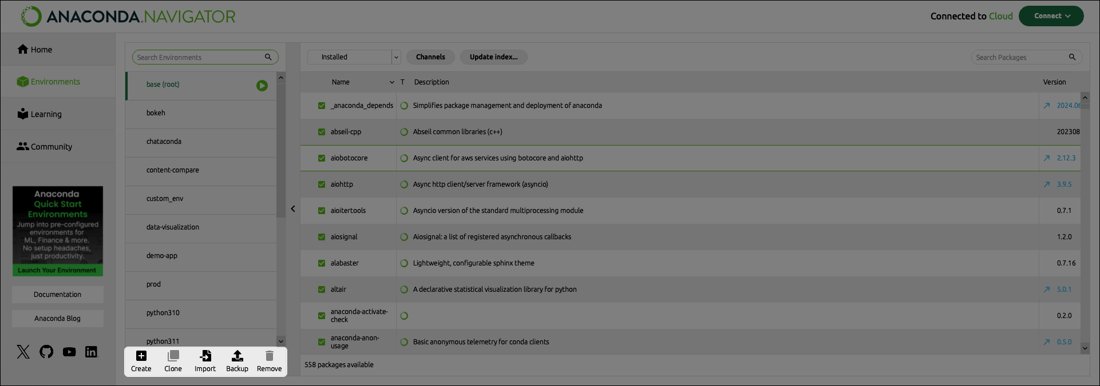
- In Anaconda Navigator, select Environments in the left-hand navigation and click the environment you want to delete.
- Click Remove at the bottom of the environments list.
- Click Remove again in the confirmation dialog.
- In Anaconda Desktop, select Environments in the left navigation, then click Actions (the three-dot menu) beside the environment and select Delete.
- Click Delete again to confirm. The environment disappears from the list.
Navigator removes only environments stored on your computer. A backup saved to your Anaconda.com account stays there until you delete it from the Environments tab of your Anaconda.com account settings.
Manually delete a conda environment folder (last resort, sometimes necessary)
Deleting the folder in File Explorer or Finder frees the disk space but leaves the path registered in environments.txt. Anaconda advises against it, so use it only when conda remove cannot run.
- Find the envs directory: run
conda info --envsand note the environment's full path. - Close every program that uses the environment, then run
conda deactivate. - Try
conda remove --prefix <PATH_TO_ENV_DIRECTORY> --allfirst; it deletes and deregisters a folder in one step. - If that fails, delete the environment folder in File Explorer, Finder or with
rm -rf <PATH_TO_ENV_DIRECTORY>on macOS or Linux. Double-check the path, becauserm -rfdoes not ask for confirmation. - Remove stale references: open
%USERPROFILE%\.conda\environments.txton Windows or~/.conda/environments.txton macOS and Linux in a text editor. - Delete the line that holds the removed environment's path, then save the file.
- Run
conda info --envsto confirm the entry no longer appears.
How to remove many conda environments (batch strategy)
Conda removes one environment per command, so a batch is a loop. Replace env1 env2 env3 with real names from conda info --envs, and never include base.
| Option | Shell | Command |
|---|---|---|
| Option A: delete specific environments in a loop | Anaconda Prompt (cmd) | for %e in (env1 env2 env3) do conda remove --name %e --all |
| Option A: delete specific environments in a loop | PowerShell with conda initialized | foreach ($e in 'env1','env2','env3') { conda remove --name $e --all } |
| Option A: delete specific environments in a loop | bash or zsh on macOS and Linux | for e in env1 env2 env3; do conda remove --name "$e" --all; done |
| Option B: remove everything except base (careful) | Any | Run conda info --envs, copy every name except base into the Option A loop, then run it |
Option B is deliberately manual. Building the list by hand stops a script from matching base or an environment you meant to keep. Inside a .bat file, double the percent signs: %%e.
Conda remove environment from Jupyter: delete the stale kernel
If you registered the environment as a Jupyter kernel, JupyterLab keeps listing it after the environment is gone. Starting that kernel fails with a "No such file or directory" error.
- Open Anaconda Prompt or Terminal in an environment that has Jupyter installed.
- Run
jupyter kernelspec listand find the kernel named after the removed environment. - Run
jupyter kernelspec remove <KERNEL_NAME>, replacing the placeholder with that kernel name. - Relaunch JupyterLab. The kernel no longer appears in the kernel selector.
How to check a conda environment is deleted
conda info --envsLists every environment conda knows about, with its path. The active environment carries an asterisk.
You should see: The removed name and path are missing from the list, and the folder no longer exists under the envs directory shown for your other environments.
If the name is gone but the folder remains, close any program that was using it and delete the folder. If the folder is gone but the name remains, remove its line from environments.txt.
What gets removed with a conda environment (and what usually doesn’t)
Each conda environment is a complete software stack in its own directory. Removing it deletes that directory, but conda keeps some files elsewhere.
| Item | Removed by conda remove –all? | Where it lives |
|---|---|---|
| Python interpreter and conda packages in the environment | Yes | The environment folder |
| pip packages installed while the environment was active | Yes | The environment folder |
| The entry in conda's environment list | Yes | environments.txt in your .conda folder |
| Downloaded package files in the package cache | No | pkgs in the install folder, for example C:\Users\username\Anaconda3\pkgs; run conda info and read package cache |
| Jupyter kernel registrations | No | Jupyter's kernelspec folders; remove with jupyter kernelspec remove |
Exported environment.yml or lockfiles |
No | Wherever you saved them |
| Backups on Anaconda.com | No | Your Anaconda.com account settings |
| Your project code and data | No, unless saved inside the environment folder | Your project folders |
This is why the disk can shrink less than expected: packages stay in the shared cache so other environments and future installs can reuse them.
Conda, Mambaforge, Miniforge and Miniconda: any differences when removing environments?
The removal command belongs to conda, not to the installer. If conda info runs in your shell, conda remove --name <ENV_NAME> --all works the same way.
| Installer | Includes conda | Graphical removal | Notes |
|---|---|---|---|
| Anaconda Distribution | Yes | Yes, Anaconda Navigator | 600+ packages in a pre-built base environment |
| Miniconda | Yes | No | Minimal base environment; folder is miniconda3 |
| Miniconda protected base installer (beta) | Yes | No | Folder is miniconda3_pbe; base is read-only and a python-<VERSION> working environment is created for you |
| Miniforge and Mambaforge | Check with conda info |
No | Not Anaconda products; environment folders follow the install directory name |
Only the default folder changes between installers, so read the path from conda info --envs rather than assuming anaconda3.
Common conda remove environment failure modes (and what to try)
Error: environment is currently in use
The environment is active in this shell, or another program is running from it.
- Run
conda deactivateuntil the environment's name no longer appears in your prompt. - Close Jupyter, Spyder, IDE terminals and scripts that use the environment.
- Run
conda remove --name <ENV_NAME> --allagain.
Error: environment not found
The name is misspelled, or the environment was created by path and has no name conda can match.
- Run
conda info --envsand copy the name exactly, including case. - If the entry shows only a path, remove it with
conda remove --prefix <PATH_TO_ENV_DIRECTORY> --all. - If the folder was already deleted, remove its line from
environments.txt.
DirectoryNotACondaEnvironmentError: the target directory exists, but it is not a conda environment
Anaconda documents this error when no conda environment is active in your shell.
- Run
conda activateto activatebase. - Run the removal command again from
base.
"command not found: conda" before you can remove anything
Conda is not initialized in the shell you opened, which mostly happens on macOS and Linux.
- On Windows, open Anaconda Prompt instead of plain Command Prompt or PowerShell.
- On macOS or Linux, close and reopen Terminal after installing, or run
source ~/.bashrcorsource ~/.zshrc. - If it still fails, run
<PATH_TO_CONDA>/bin/conda init, for example/opt/miniconda3/bin/conda init, then reopen Terminal.
RemoveError or dependency metadata issues
Conda could not finish removing the environment by name, often after an interrupted install or a partly deleted folder.
- Remove by path instead:
conda remove --prefix <PATH_TO_ENV_DIRECTORY> --all. - If that also fails, delete the folder manually and remove its line from
environments.txt.
It removed something, but the disk didn't shrink much
Downloaded packages stay in the shared pkgs cache, which no environment removal touches.
- Run
conda infoand note the package cache path. - Check that path's size; it is often larger than any single environment.
- If several conda installations each keep their own cache, point them at one shared cache with a
pkgs_dirsentry in.condarcso packages are stored once.
JupyterLab still lists the removed environment
The kernel spec was registered separately and survives the environment.
- Run
jupyter kernelspec list. - Run
jupyter kernelspec remove <KERNEL_NAME>and relaunch JupyterLab.
Removing conda environments FAQ
How do I delete a conda environment?
Deactivate it with conda deactivate, then run conda remove --name <ENV_NAME> --all in Anaconda Prompt or Terminal. Conda deletes the environment folder and removes it from its list of environments. Run conda info --envs afterwards to confirm it is gone.
How do I remove a conda environment and all its packages?
conda remove --name <ENV_NAME> --all removes the environment and every package installed in it, including pip packages. Downloaded package files remain in the shared pkgs cache, which you can check with conda info.
How do I remove a conda environment completely?
Use conda remove --name <ENV_NAME> --all rather than deleting the folder, because the command also deregisters the environment. Then remove any Jupyter kernel for it with jupyter kernelspec remove and delete exported files you no longer need.
Can I remove the base environment?
No, not as a normal environment. base is where conda itself is installed, so removing it means uninstalling Anaconda or Miniconda. On Windows you can uninstall Anaconda like any other program or run its uninstaller from the install folder.
Will removing an environment delete my pip packages?
Yes. pip packages installed while the environment was active live inside the environment folder, so conda remove --all deletes them too. Run conda env export > environment.yml first if you want a record, because the export includes both conda and pip packages.
How do I remove a conda environment from base?
Run conda deactivate until your prompt shows (base), then run conda remove --name <ENV_NAME> --all. Working from base keeps the target environment inactive, which is what the removal needs.
How do I remove a conda environment from Jupyter?
Run jupyter kernelspec list, find the kernel named after the environment, then run jupyter kernelspec remove <KERNEL_NAME>. Relaunch JupyterLab and the kernel disappears from the selector. Removing the conda environment alone does not remove the kernel.
Can I just delete the conda environment folder?
You can, but Anaconda advises against using File Explorer for it. The space is freed, yet the path stays in environments.txt. Use conda remove --prefix <PATH_TO_ENV_DIRECTORY> --all instead, which deletes and deregisters the folder.