Avast Cleanup is a paid PC, Mac, Android and iOS tune-up tool that removes junk files, puts background apps to sleep and updates programs, with Windows plans starting at $32.99 for the first year.
This guide covers what it does, current pricing, how to use its main tools, its trade-offs, the free tools built into Windows and macOS, and fixes for the problems readers hit most.
How to clean up a PC with Avast Cleanup
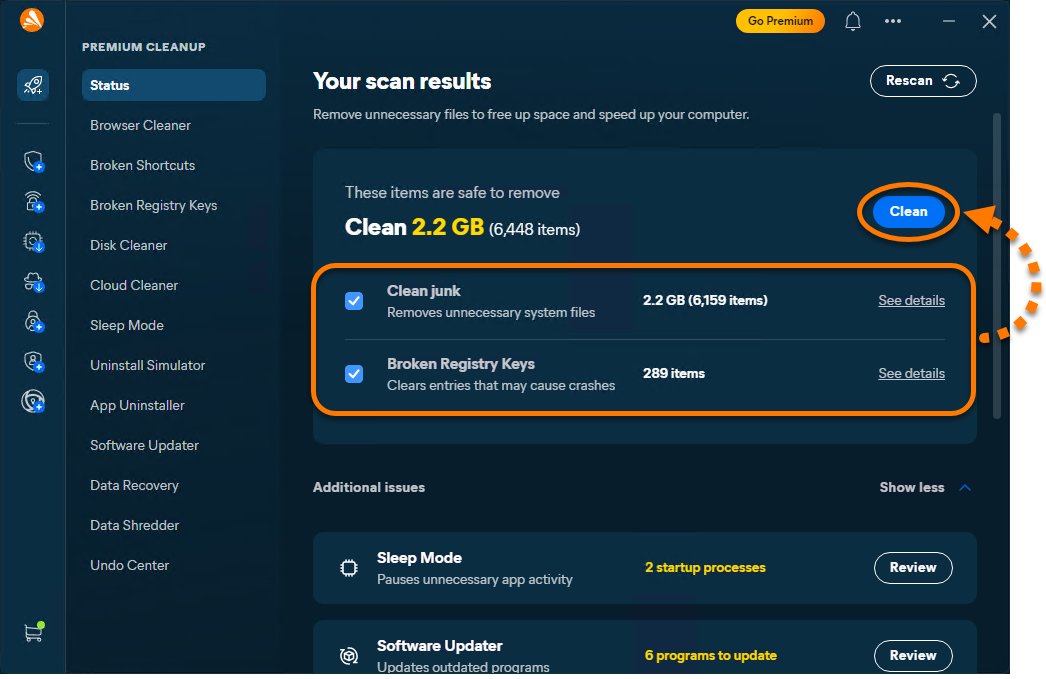
New Windows installs from avast.com now put Cleanup inside the Avast One app, where it appears as Premium Cleanup in the side menu.
- Open Avast One and hover over the side menu.
- Select Premium Cleanup.
- Make sure Status is selected, then click Scan now.
- Review the results and untick anything you want to keep. Click See details to inspect a category.
- Click Clean to remove the selected items.
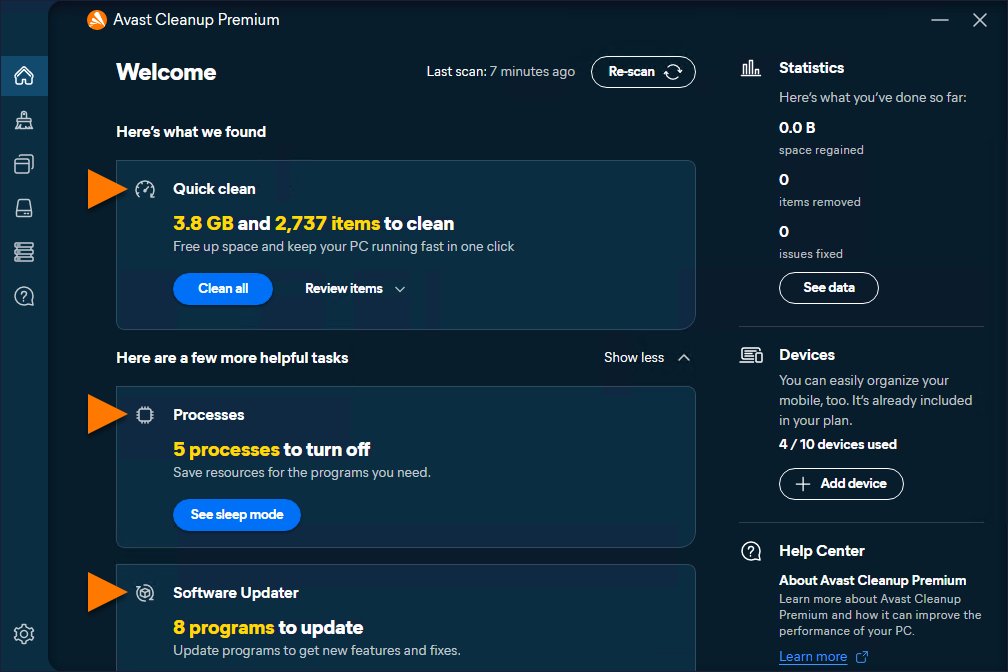
In the standalone Avast Cleanup Premium app, click Scan now on the dashboard, then use the Quick Clean card to clear system junk, browser data, broken registry keys and broken shortcuts in one action.
What is Avast Cleanup?
Avast Cleanup is an optimization tool from Avast, part of Gen Digital, that scans for unnecessary files and performance problems. Avast has offered cleanup tools for years, starting with the browser cleanup that arrived in Avast 8 with Browser Cleanup and the later GrimeFighter-branded Cleanup.
| Question | Answer |
|---|---|
| What it is | A paid tune-up and cleanup app that frees disk space, puts background apps to sleep and updates programs |
| Platforms | Windows, macOS, Android and iOS |
| How it is delivered on Windows | The avast.com installer now installs Avast One and enables Cleanup inside it; a standalone Avast Cleanup Premium app can still be installed separately |
| Does it need Avast Antivirus? | No. The standalone app runs without Avast Free Antivirus or Avast Premium Security |
| Is it part of Avast Premium Security? | No. Cleanup Premium needs its own subscription |
| Who it is made for | People with a cluttered, slow-starting PC or a nearly full Mac or phone who want one app to handle junk files, startup apps and program updates |
Key features of Avast Cleanup
The Windows version groups its tools under Clean junk, Manage programs, Optimize disks and Manage data. Each cleaning tool offers Basic, Full and Custom modes.
| Feature | What it does | Watch out for |
|---|---|---|
| Disk Cleaner (junk file and system cleanup) | Removes leftover files from Windows and hundreds of common programs: temporary files, logs, caches | Full mode also empties the Downloads folder and the Recycle Bin |
| Browser Cleaner | Clears cache, cookies and history from more than 25 browsers, including Edge, Chrome and Firefox | Full mode deletes saved autofill data |
| Broken Shortcuts | Removes dead shortcuts from the desktop and history lists | Click the arrow to see each shortcut's full path first |
| Broken Registry Keys | Removes registry entries that point to things that no longer exist | Changes can be reversed in Undo Center |
| Cloud Cleaner | Finds duplicate, large and old files in Google Drive, Dropbox or OneDrive | Needs you to sign in to each cloud account |
| Sleep Mode (Processes) | Stops apps from running in the background until you open them | Messaging apps put to sleep can miss calls and messages |
| Software Updater | Finds and installs updates for popular programs | Run a program scan first or the tab stays unavailable |
| App Uninstaller and Uninstall Simulator | Removes unused programs and bloatware, or simulates removal first | You set how long a program must go unused |
| Optimize disks | Disk Doctor checks for disk errors; the defragmenter reorganizes files on hard disk drives | Defragmenting applies to hard disk drives |
| Data Recovery and Data Shredder | Recovers deleted files, or permanently deletes files so they cannot be recovered | Recover files to a different drive to avoid overwriting them |
| Mac tools | App uninstaller, disk cleaner, photo cleaner, duplicate finder and browser cleaner | You confirm what is deleted |
| Android and iOS tools | Junk cleaning, bad and duplicate photo detection, app hibernation (Android) and media compression (iOS) | Android Premium features include Deep Clean and automatic cleaning |
How to put apps to sleep with Avast Cleanup Sleep Mode
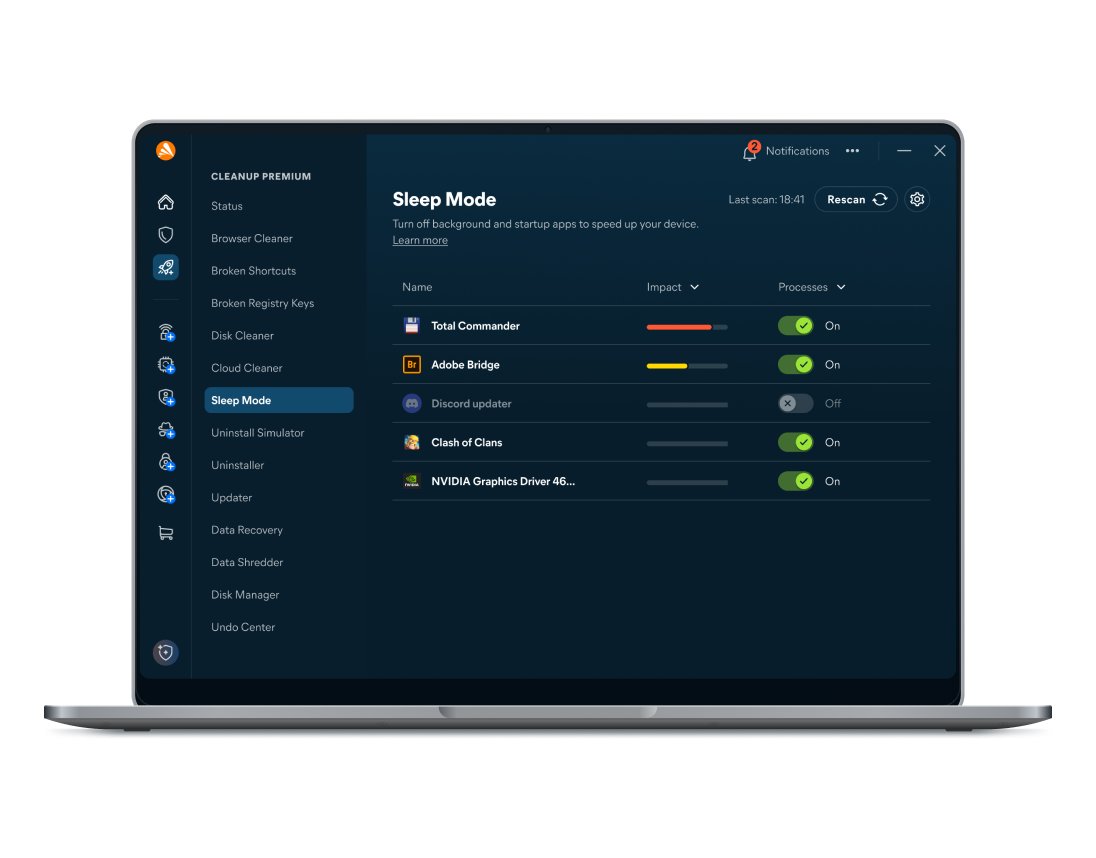
Sleep Mode targets programs that run in the background after startup. A sleeping app still opens normally and goes back to sleep after you close it.
- Open Avast One, hover over the side menu and select Premium Cleanup ▸ Sleep Mode.
- Review the list of apps running in the background.
- Click the green ON slider next to an app you rarely use so it turns red OFF.
- Leave apps you use every day, and messaging apps such as WhatsApp, switched on.
- To wake an app, click its red OFF slider so it turns green ON.
In the standalone app, the same switches sit under Manage programs ▸ Processes. On Windows 10 and later, Sleep Mode also covers Microsoft Store apps.
How to install Avast Cleanup Premium on Windows
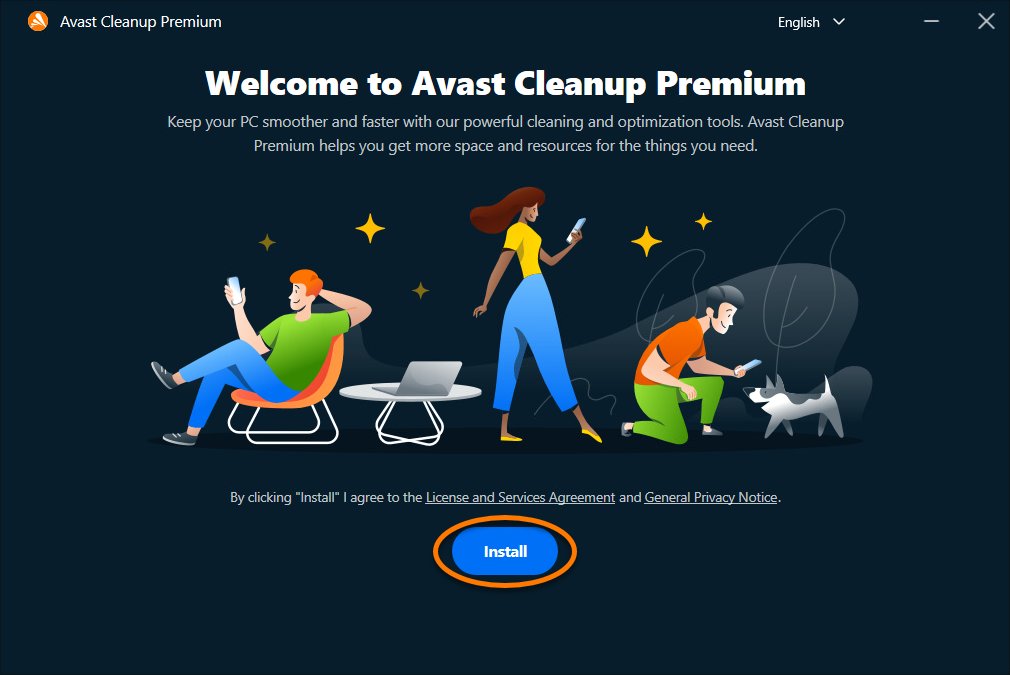
- Download the Avast Cleanup Premium setup file from avast.com and save it to your Downloads folder.
- Right-click avast_cleanup_online_setup.exe and select Run as administrator.
- Click Yes in the User Account Control prompt.
- Review the End User License Agreement and Privacy Policy, then click Install.
- Restart the PC once setup finishes so every component loads.
- Activate your paid subscription if you bought one before installing.
How to turn on Avast Cleanup Auto-Clean
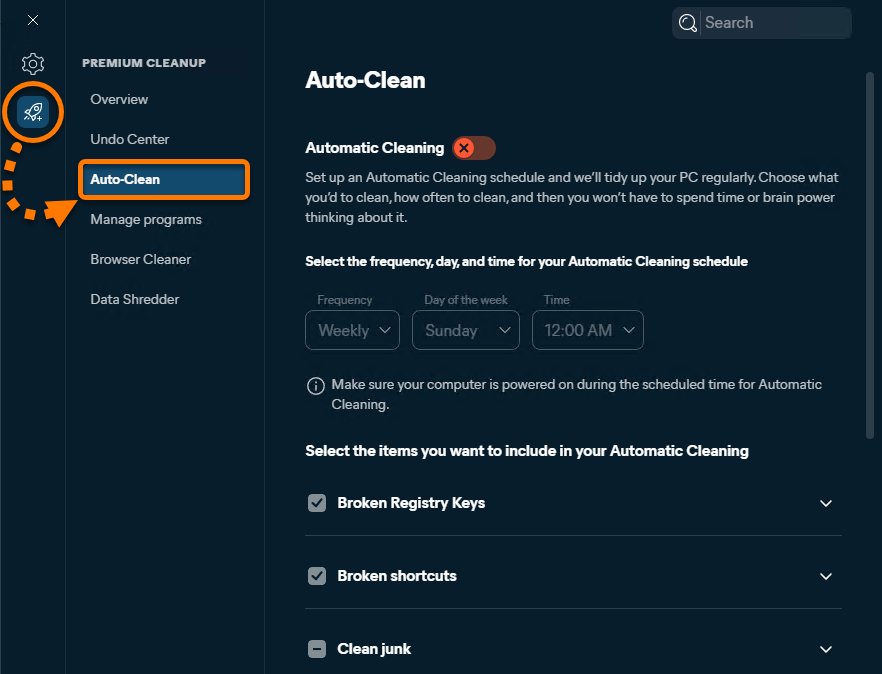
Auto-Clean runs a cleaning schedule in the background. It covers broken registry keys, broken shortcuts, system junk, browser cache, cookies and browsing or download history.
- Open Avast One and go to ••• Menu ▸ Settings.
- Select Premium Cleanup ▸ Auto-Clean.
- Click the red OFF slider so it turns green ON.
- Choose how often the scan runs from the menu.
- Tick the file types Auto-Clean may remove, and click the down arrow on a type to deselect individual items.
In the standalone app, open Settings from the side menu and select the Auto-Clean tab. The browsing history option removes only the list of downloads, not the downloaded files.
Avast Cleanup performance and ease of use
Avast publishes lab figures from the 2019 release of Avast Cleanup and states that results are indicative only. Treat them as best cases on cluttered machines, not as what a clean PC will gain.
| Area | What Avast states | What it means for you |
|---|---|---|
| Startup time | Boot time fell from 89 seconds to 18 seconds on a Surface Book | Gains come from sleeping startup apps; a PC with few startup apps gains little |
| Work performance | PCMark score rose 23% on an Alienware desktop | One test machine, measured by Avast |
| Disk space | Disk Cleaner freed 71 GB of temporary files on a 2012 Ultrabook | Space gained depends on how much junk has built up |
| Android speed | Up to 20% faster in internal testing, though the difference may be negligible | Avast itself says you may not notice a change |
| Performance impact during scans and cleanup | Close unnecessary programs before a deep clean so the cleaner works faster | Run scans when you are not doing heavy work |
| Ease of use | One Scan now button, a Quick Clean card and Basic, Full and Custom modes per tool | Basic suits most people; review Full mode results before cleaning |
| Encrypted drives | Encrypted partitions and files are skipped | A fully encrypted drive cannot be scanned or optimized |
Avast Cleanup pricing and plans
These are the US prices on avast.com on 9 October 2026. The first-year price is a discount, and the plan renews at the higher price.
| Plan | First year | Renewal per year | Notes |
|---|---|---|---|
| Cleanup Premium, 1 Windows PC | $32.99 | $65.99 | Works out at $2.75 a month in year one |
| Cleanup Premium, 10 devices (bought from the PC page) | $34.99 | $79.99 | Covers PC, Mac, Android and iOS |
| Cleanup Premium, 1 Mac | $44.99 | $65.99 | Works out at $3.75 a month in year one |
| Cleanup Premium, 10 devices (bought from the Mac page) | $49.99 | $79.99 | Same device count, higher listed price than the PC page |
| Avast Cleanup for Android | Free | Premium upgrade inside the app | Premium adds Deep Clean and automatic cleaning |
| Free trial | 30 days | Not applicable | The Avast One trial needs no credit card; Avast's standalone FAQ says a trial needs a payment method |
| Refunds | 30-day money-back guarantee | Not applicable | Applies to paid plans |
Check the expiry date in the app under Settings ▸ My subscription. Cancel before a trial ends if you do not want the paid plan to start.
Pros and cons of Avast Cleanup
| Pros | Cons |
|---|---|
| Many tools in one place: junk cleaning, Sleep Mode, program updates, data recovery and shredding | Renewal costs about double the first-year price |
| Undo Center reverses many changes, including registry cleaning | Not every action can be undone |
| Uninstall Simulator lets you test removing a program first | Full mode can empty Downloads and delete browser autofill data |
| Runs without Avast Antivirus | Not included in Avast Premium Security |
| Covers Windows, Mac, Android and iOS on one 10-device plan | Some features remain only in the standalone app, not in Avast One |
| Cookie allowlist keeps you signed in to chosen sites | The allowlist works only in Avast Secure Browser, Chrome, Firefox and Edge |
Avast Cleanup alternatives
Windows, macOS and Android already include free storage tools. They cover junk files and storage, but not Sleep Mode, software updating or data recovery.
| Your situation | Use this | Why |
|---|---|---|
| Windows PC low on space | Windows Storage Sense: Start ▸ Settings ▸ System ▸ Storage, then turn Storage Sense on | Free, built in, and removes temporary files and old Recycle Bin items on a schedule |
| Windows.old taking space after an upgrade | Settings ▸ System ▸ Storage ▸ Temporary files, tick Previous Windows Installation(s) | Removes the old installation without any extra app |
| Mac on macOS Ventura 13 or later | Apple menu ▸ System Settings ▸ General ▸ Storage | Shows what uses space and offers built-in storage optimization |
| Older Mac | Apple menu ▸ About This Mac ▸ Storage | Same storage tools on earlier macOS versions |
| Android phone | Settings ▸ Storage, or Device maintenance on some phones | Free, though Android has no dedicated cleaner app |
| You want duplicate photos, Sleep Mode and app updates in one place | Avast Cleanup Premium | The built-in tools do not cover these jobs |
Storage Sense works on the system drive only and is off by default unless Windows turns it on during low disk space.
How to check what Avast Cleanup removed
- Open the Statistics screen in Avast Cleanup to see the actions completed in the last 30 days.
- Open Undo Center and click the drop-down arrow beside a backup date to list the changes made that day.
- On Windows, open Settings ▸ System ▸ Storage and compare the free space with the figure before cleaning.
- Restart the PC and confirm the apps you put to sleep no longer start in the background.
How to undo Avast Cleanup changes with Undo Center
- Open Avast One, hover over the side menu and select Premium Cleanup ▸ Undo Center.
- Click the drop-down arrow beside the date the backup was made.
- Click Undo next to each change you want to reverse.
- Open Settings (the gear icon) to choose which categories get backups and how long backups are kept.
In the standalone app, open Help ▸ Undo Center. To remove the app completely, uninstall Avast Cleanup from Windows instead.
Avast Cleanup problems and fixes
Avast Cleanup removed a file or program you wanted to keep
A cleaning mode or Auto-Clean selected an item you still use.
- Open Undo Center and click Undo next to the change.
- If the change cannot be undone, report the file or program name to Avast Support.
- In the tool that removed it, click ••• ▸ Ignore on that item so it is skipped next time.
Programs break or misbehave after a cleanup
A registry or program change affected an app. A 2020 Cleanup update was one case where Avast Cleanup broke Office and other apps.
- Open Undo Center and reverse the most recent registry or program changes.
- Wake the affected app in Sleep Mode if it was put to sleep.
- Update Avast Cleanup and restart the PC.
Downloads folder or saved browser logins disappeared
Full mode in Disk Cleaner empties Downloads, and Full mode in Browser Cleaner deletes autofill data.
- Use Data Recovery under Manage data to scan for deleted files.
- Recover the files to a different drive.
- Switch Disk Cleaner and Browser Cleaner to Basic or Custom for future cleans.
Missed messages or calls after using Sleep Mode
Messaging apps need to run in the background to receive messages.
- Open Premium Cleanup ▸ Sleep Mode.
- Click the red OFF slider next to the messaging app so it turns green ON.
Software Updater tab cannot be selected
No program scan has run yet.
- Open Manage programs.
- Click Scan programs in the top-right corner, then open the Software Updater tab.
Avast Cleanup Premium will not activate
The subscription may already be used on its full device count.
- Check the device count on the dashboard panel, for example 3 of 10 devices activated.
- Uninstall Avast Cleanup Premium from a device you no longer use.
- Install and activate it on the new device, and contact Avast Support if activation still fails.
Is Avast Cleanup worth it?
Avast Cleanup earns its price when you want several maintenance jobs handled in one place. If you only need disk space back, the free built-in tools do that.
| Who should consider Avast Cleanup | Who may not need it |
|---|---|
| PCs with many startup programs slowing boot | New PCs with few installed apps |
| People who forget to update third-party programs | Users happy to update apps themselves |
| Macs and phones full of duplicate or blurry photos | Anyone with plenty of free space |
| Households wanting one plan across PC, Mac, Android and iOS | Windows users who only need temporary files cleared, which Storage Sense does free |
| People who want file recovery and secure shredding in the same app | Users who mind paying about double the first-year price at renewal |
Avast Cleanup FAQ
Is Avast Cleanup safe to use on my PC or Mac?
Yes, when installed from avast.com. It shows scan results for review before cleaning, Undo Center reverses many changes, and Mac cleaning removes nothing without your confirmation. Avoid Full mode until you have checked what it selects, because it can empty Downloads.
Does Avast Cleanup actually make a computer faster?
It can, mainly by putting background startup apps to sleep and removing junk. Avast's own lab tests on a 2019 build showed faster boot times, but Avast calls those results indicative. A PC with few startup apps and free space will gain little.
What is the difference between Avast Cleanup and Avast Antivirus?
Avast Antivirus protects against malware, while Avast Cleanup frees space and tunes performance. They are separate products with separate subscriptions. Cleanup runs without Avast Antivirus installed, and an Avast Premium Security subscription does not activate Cleanup Premium.
Is Avast Cleanup free or do I need to pay?
Avast Cleanup Premium for Windows and Mac is paid, with a 30-day free trial. Windows starts at $32.99 for the first year and renews at $65.99. The Android app is free from Google Play, with a paid Premium upgrade inside the app.
What are the best alternatives to Avast Cleanup?
The free tools built into your operating system come first. Windows has Storage Sense under Settings > System > Storage, macOS has Storage under System Settings > General, and Android has Storage in Settings. None of them puts apps to sleep or updates programs.
Is Avast Cleanup included in Avast One?
Yes. Installing Avast Cleanup from avast.com now installs Avast One and enables Cleanup inside it as Premium Cleanup. Existing subscriptions carry over. Some Cleanup features remain only in the standalone app, which can still be installed separately.
Can I use one Avast Cleanup subscription on several devices?
Yes, up to the number of devices you bought. The 10-device plan covers Windows, Mac, Android and iOS. The dashboard shows how many devices are activated, and you can free a slot by uninstalling Cleanup from an old device.
How often should I run Avast Cleanup?
Avast recommends cleaning a PC monthly, quarterly or as needed, and a Mac about once a month. Turning on Auto-Clean handles routine items such as system junk and browser cache on a schedule you choose.
Does Avast Cleanup work on hard drives that are encrypted?
No. Avast Cleanup Premium skips encrypted partitions and files. If the whole drive is encrypted, it cannot scan or optimize the system at all.
How do I cancel or check my Avast Cleanup subscription?
Open Avast Cleanup, go to Settings and select My subscription to see the duration and expiry date. Cancel before a trial ends if you do not want the paid plan to start, and use the 30-day money-back guarantee after a purchase.
Bottom line: should you buy Avast Cleanup Premium?
Try Avast Cleanup Premium on the 30-day trial if your PC boots slowly from startup apps or you want one plan to tidy a PC, Mac and phone, and skip it if you only need free disk space. Its value is the combination of Sleep Mode, Software Updater, duplicate-photo cleaning and data recovery in one app with an Undo Center. Plain junk-file removal is already free in Storage Sense and macOS Storage, and the renewal price is about double the first year.