When Wi-Fi is not showing up on Windows 10, check that airplane mode is off and the laptop's Wi-Fi switch is on, then make sure the Wi-Fi adapter is enabled in Device Manager.
If that does not bring it back, the steps below run from quick checks to driver, service and network resets, with fixes for a missing Wi-Fi option and missing 5 GHz networks.
1. Initial Checks and Basic Troubleshooting
These checks fix the most common causes in under a minute.
- Select the Network icon on the taskbar and make sure Wi-Fi is turned on.
- Select Settings > Network & Internet > Airplane mode and make sure Airplane mode is off.
- Check for a physical Wi-Fi switch or key on the laptop and turn it on.
- Select the Network icon again and look for your network in the list.
- If your network appears, select it, select Connect, type the password and select Next.
Which fix matches your symptom?
| Your situation | Start with | Why |
|---|---|---|
| No Wi-Fi option at all in Settings or the taskbar | Steps 4, 7 and 9 | The adapter is disabled, missing or its service is stopped |
| Wi-Fi is on but no networks appear | Steps 1 and 8 | The switch is off, or the adapter does not support the network's band |
| Other networks show but yours does not | Steps 11, 13 and 14 | Your network is hidden, on 5 GHz, or the router needs a restart |
| Wi-Fi vanished after an update | Steps 5 and 6 | A driver or network setting changed |
| Nothing above helped | Steps 12, 15 and 17 | Resets the network stack and rules out software conflicts |
2. Restart Your Device
A restart reloads the Wi-Fi driver and finishes pending updates.
- Save your work and close open apps.
- Select Start > Power > Restart.
- After Windows starts, select the Network icon and check the network list.
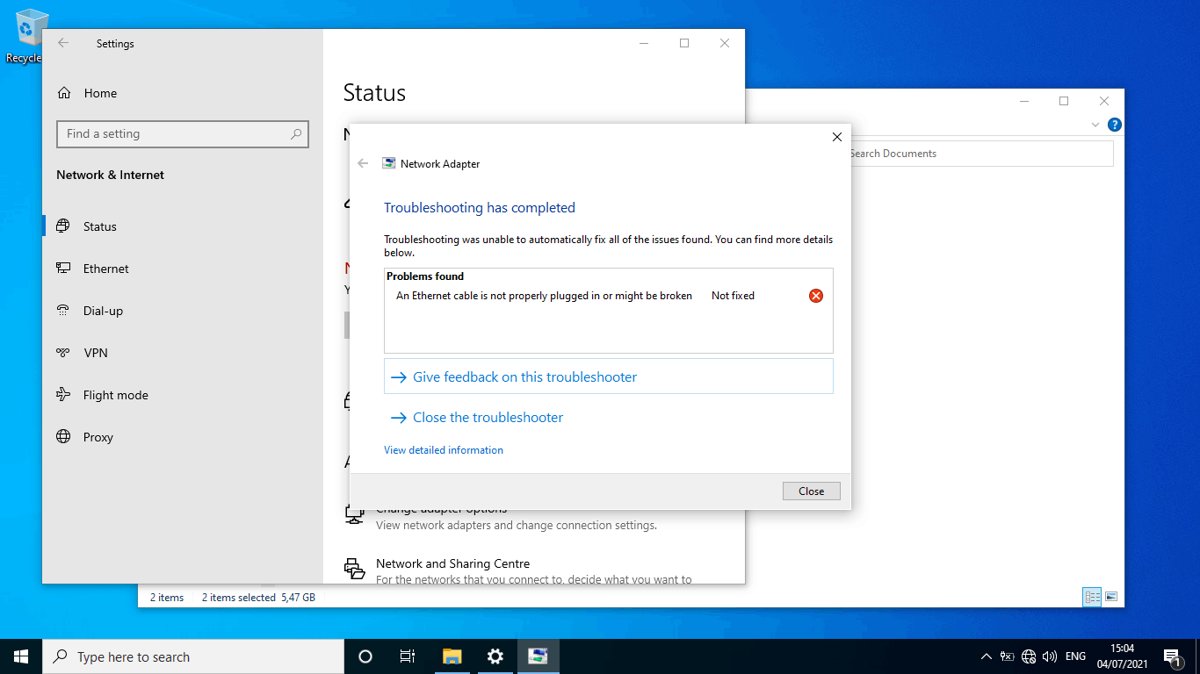
3. Run Network Troubleshooter
- Select Start > Settings > Network & Internet.
- Select Status in the left-hand menu.
- Scroll down and select Network troubleshooter.
- Follow the prompts and apply any fix it suggests.
4. Check the WiFi Adapter Status
If Windows cannot see the adapter, it cannot show any Wi-Fi networks.
- Select Search on the taskbar, type device manager and select Device Manager.
- Expand Network adapters.
- Find the wireless adapter, usually with Wireless or Wi-Fi in its name.
- If it shows a down-arrow icon, right-click it and select Enable device.
- If it is not listed at all, Windows does not detect it; install the driver from the PC maker's website.
5. Update WiFi Adapter Drivers
Download the latest Wi-Fi driver from the PC maker's website first, on another PC if needed, and save it to a USB drive as a backup.
- In Device Manager, expand Network adapters.
- Right-click the wireless adapter and select Properties, then the Driver tab, and note the Driver Date and Driver Version.
- Compare them with the latest driver on the PC maker's website.
- If Wi-Fi broke after an update, right-click the adapter, select Uninstall device, tick Attempt to remove the driver for this device, then select Uninstall.
- Select Start > Power > Restart. Windows reinstalls the driver automatically.
- If it does not, install the backup driver from the USB drive.
6. Reset Network Settings
Network reset removes and reinstalls every network adapter with default settings. Use it after the simpler steps.
- Select Start > Settings > Network & Internet.
- Select Status, then Network reset.
- Select Reset now, then Yes to confirm.
- Wait for the PC to restart, then check the network list.
Afterwards, reinstall VPN software or Hyper-V virtual switches if you use them. Known networks may switch to a public profile.
7. Ensure WLAN Service is Running
The WLAN AutoConfig service runs Wi-Fi in Windows. When it stops, the Wi-Fi option can disappear.
- Press Windows logo key + R, type
services.mscand press Enter. - Find WLAN AutoConfig in the list.
- Right-click it and select Restart, or Start if it is stopped.
- Check the network list on the taskbar.
8. Check WiFi Adapter Settings
An adapter set to the wrong band filters out networks it could otherwise see, and power saving can switch it off.
- In Device Manager, expand Network adapters, right-click the wireless adapter and select Properties.
- Select the Advanced tab and find a Wireless Mode or Band setting.
- Make sure it allows your network's frequency, 2.4 GHz or 5 GHz.
- Select the Power Management tab and clear Allow the computer to turn off this device to save power.
- Select OK.
9. Disable and Enable WiFi Adapter
- Open Device Manager and expand Network adapters.
- Right-click the wireless adapter and select Disable device, then confirm.
- Wait a few seconds.
- Right-click it again and select Enable device.
- Check the network list on the taskbar.
10. Check for Windows Updates
- Select Start > Settings > Update & Security > Windows Update.
- Select Check for updates.
- Install any updates, including driver updates offered.
- Restart the PC when asked.
No Wi-Fi to download updates? Connect the PC to the router with an Ethernet cable for this step.
11. Manually Add a Hidden Network
A router can hide its network name. A hidden network never appears in the list, so you add it by name.
- Find the exact network name, security type and password on the router's admin page or label.
- Select Start > Settings > Network & Internet > Wi-Fi > Manage known networks.
- Add a new network and type the network name exactly, including capital letters.
- Choose the security type, enter the password and choose to connect even when the network is not broadcasting.
- Save and check the PC connects.
12. Reset Network Stack via Command Prompt
Select Search on the taskbar, type command prompt, then select Run as administrator > Yes. Run each command in order.
netsh winsock reset
netsh int ip reset
ipconfig /release
ipconfig /renew
ipconfig /flushdns
netsh winsock reset and netsh int ip reset reset the TCP/IP stack, ipconfig /release and /renew get a fresh IP address, and ipconfig /flushdns clears the DNS resolver cache.
You should see: Each command reports that it completed. Restart the PC, then check the Wi-Fi list.
13. Check for Interference and Hardware Failures
If one device sees the network and yours does not, the PC is the problem. If no device sees it, look at the router.
- Try to connect a phone or another laptop to the same network.
- If the router broadcasts separate 2.4 GHz and 5 GHz networks, try the other one.
- Move closer to the router and away from obstructions.
- Open Command Prompt as administrator, run
ipconfigand note the Default gateway. - Run
pingfollowed by that address, for exampleping 192.168.1.1. Replies mean the router connection works. - If there is no reply, connect the PC to the router with Ethernet to confirm the Wi-Fi side is at fault.
14. Reset Your Router and Modem
Restarting creates a fresh connection to your internet provider. Everyone on the network is briefly disconnected.
- Unplug the router's power cable.
- Unplug the modem's power cable. If its lights stay on, remove its backup battery.
- Wait at least 30 seconds.
- Replace any battery, plug the modem back in and wait for its lights to stop blinking.
- Plug the router back in and wait a few minutes for it to start.
- Check the Wi-Fi list on the PC again.
A modem and router combo needs only one restart.
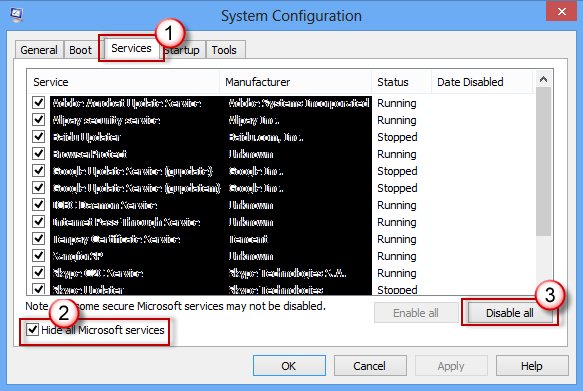
15. Check for Third-Party Software Conflicts
VPN clients and network tools can change adapter settings. A clean boot starts Windows with only Microsoft services to test this.
- Select Search, type msconfig and select System Configuration.
- On the Services tab, select Hide all Microsoft services, then Disable all, then Apply.
- On the Startup tab, select Open Task Manager and disable each enabled startup item.
- Select OK and restart.
- If Wi-Fi appears, re-enable services in small groups to find the conflict.
- To return to normal, select Normal Startup on the General tab, then Enable all on the Services tab, and re-enable startup items.
16. Consider Hardware Replacement
| Sign | What it means |
|---|---|
| The adapter never appears in Device Manager, even after a driver install | Windows does not detect the hardware; it may have failed or been disconnected |
| Only 2.4 GHz networks show and your router uses 5 GHz | The adapter may support only 2.4 GHz; check the router's band or use a newer adapter |
| Other devices connect but this PC fails on every network | The PC's adapter or antenna is the likely fault |
| A USB Wi-Fi adapter works on another PC but not this one | The USB port or a driver on this PC is the problem |
A USB Wi-Fi adapter is the simplest replacement for a laptop or desktop; install its driver from the maker's website.
17. Advanced Solutions
These netsh wlan commands show what the adapter sees and why a network may be hidden from the list. Run them in Command Prompt.
- Run
netsh wlan show interfacesto confirm Windows sees a wireless interface. - Run
netsh wlan show driversto see the installed wireless driver and its properties. - Run
netsh wlan show networksto list every network in range, including ones the taskbar list may not show. - Run
netsh wlan show filtersto check whether a network is on a blocked list. - Run
netsh wlan show wlanreportto generate a report of recent wireless sessions and errors. - In the report, check the Network Adapters section for a Problem number, which matches a Device Manager error code.
18. Prevention Tips
| Tip | Why |
|---|---|
| Keep a copy of the Wi-Fi driver on a USB drive | You can reinstall it even when the PC has no internet |
| Install Windows updates regularly | Updates include fixes and drivers for network adapters |
| Turn off power saving on the Wi-Fi adapter | Stops Windows switching the adapter off to save power |
| Keep the router's firmware updated | The router's documentation explains how |
| Place the router centrally and in the open | Walls and distance weaken the signal |
How to check Wi-Fi is working again
- Select the Network icon on the taskbar and confirm your network is listed.
- Connect and check the network shows Connected.
- Run
ipconfigand confirm the IP address does not start with 169.254, which means no address came from the router. - Open a website to confirm internet access.
Fix specific Wi-Fi not showing problems
The Wi-Fi option is missing from Settings
The adapter is disabled, its driver is missing, or WLAN AutoConfig is stopped.
- Turn on any physical Wi-Fi switch.
- In Device Manager, right-click the wireless adapter under Network adapters and select Enable device.
- Restart WLAN AutoConfig in
services.msc. - Reinstall the driver from the PC maker's website if the adapter is missing.
5 GHz Wi-Fi is not showing up
The adapter supports only 2.4 GHz, or its driver filters out 5 GHz.
- Open the adapter's Properties > Advanced tab in Device Manager.
- Set Wireless Mode or Band to include 5 GHz if the option exists.
- If no 5 GHz option exists, connect to the router's 2.4 GHz network.
Some Wi-Fi networks are not showing
The network is hidden, out of range, on an unsupported band, or blocked by a filter.
- Run
netsh wlan show networksto see everything in range. - Run
netsh wlan show filtersto check for a block. - Add a hidden network by name from Manage known networks.
Wi-Fi networks show but connected Wi-Fi has no internet
The PC did not get a valid IP address or DNS server.
- Turn Wi-Fi off and on again and reconnect.
- Run
ipconfig /release,ipconfig /renewandipconfig /flushdnsas administrator. - Check Settings > Network & Internet > Proxy and turn off any manual proxy.
Frequently asked questions
How do I fix Wi-Fi not showing up on Windows 10?
Turn off airplane mode, turn on any Wi-Fi switch, and enable the wireless adapter in Device Manager. If it is still missing, restart WLAN AutoConfig, reinstall the driver and use Network reset under Settings > Network & Internet > Status.
How do I fix Wi-Fi not showing up on Windows 11?
The same fixes apply, with different paths. Run the Network and Internet troubleshooter in the Get Help app, and find Network reset under Settings > Network & internet > Advanced network settings.
How do I fix Wi-Fi not showing on a laptop?
Check the laptop's physical Wi-Fi switch or key first, then airplane mode. Then enable the adapter in Device Manager and turn off its power-saving option on the Power Management tab.
Why is Wi-Fi not showing in Settings?
Windows shows no Wi-Fi page when it cannot see a working wireless adapter. The adapter is disabled, its driver is missing or damaged, or the WLAN AutoConfig service has stopped.
Why are some Wi-Fi networks not showing?
They may be hidden, out of range, on a 5 GHz band your adapter does not support, or blocked by a filter. Run netsh wlan show networks to see what the adapter actually detects.
Why isn't my Wi-Fi network showing up when others do?
Your router may hide its name, broadcast only on 5 GHz, or need a restart. Check another device, restart the modem and router, and add the network by name if it is hidden.
How do I fix 5 GHz Wi-Fi not showing up?
Check the adapter's Wireless Mode or Band setting on the Advanced tab in Device Manager. If the adapter supports only 2.4 GHz, it cannot see 5 GHz networks at all.
How do I fix the Wi-Fi button not showing?
The Wi-Fi button disappears when the adapter is off or missing. Enable it in Device Manager under Network adapters, restart WLAN AutoConfig, and update or reinstall the driver.
How do I fix Wi-Fi not showing up on Android?
Android settings differ by phone maker, but the router-side checks in this guide apply to any device: restart the modem and router, try the other frequency band, and check the network is not hidden.
Conclusion
Work from airplane mode and the adapter's status in Device Manager up to network reset, and test another device early to tell a PC fault from a router fault. Most missing Wi-Fi cases come from a disabled adapter, a stopped service or a driver, and a second device shows straight away whether the PC is to blame.