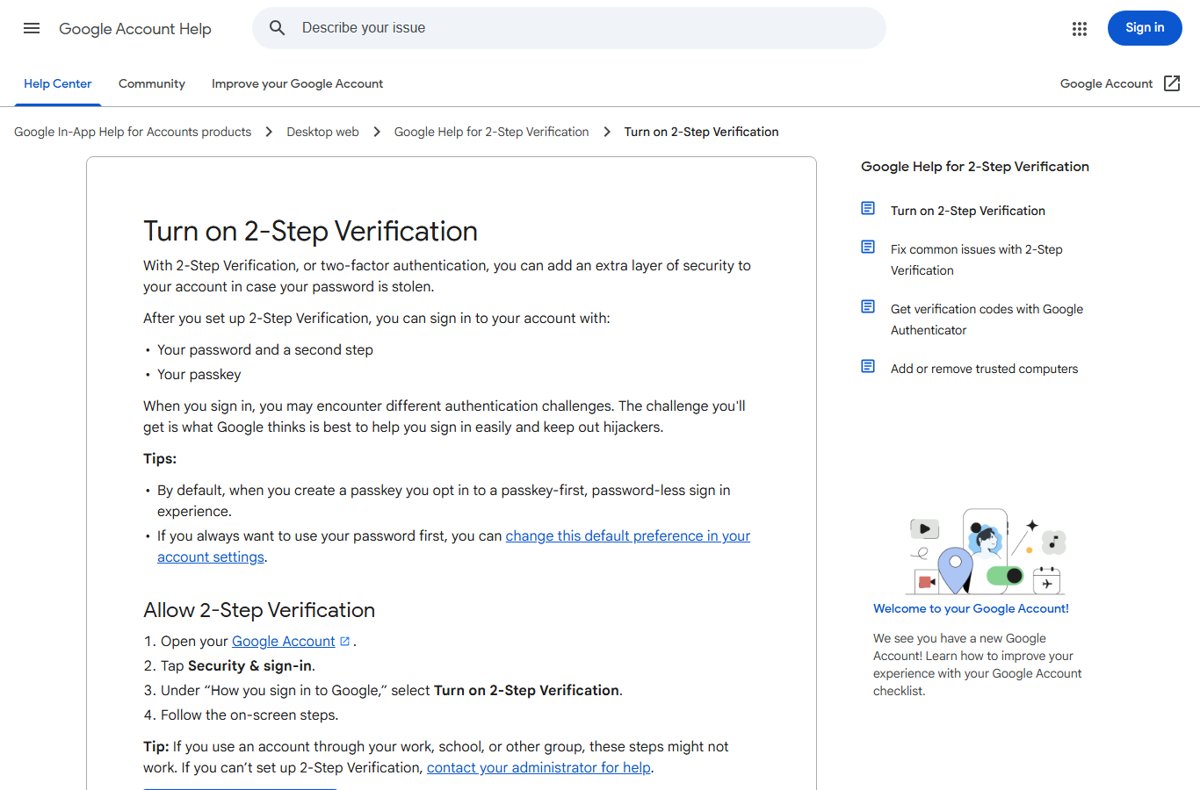
2-Step Verification is a sign-in setting that asks for a second proof, such as a phone prompt, a code or a security key, after your password; turn it on in your account's security settings, for example Security & sign-in > Turn on 2-Step Verification in a Google Account.
This guide explains how it works, the second-step types, how to activate it for Google, Microsoft and Apple accounts, how signing in changes, and what to do when codes do not arrive.
What is 2-Step Verification and How to Activate and Use It
The quickest example is a Google Account. Other services follow the same pattern: open security settings, turn the feature on, and register a second step.
- Go to
myaccount.google.comand sign in. - Select Security & sign-in.
- Under How you sign in to Google, select Turn on 2-Step Verification.
- Follow the on-screen instructions to add a second step, such as Google prompts on your phone.
- Under Backup codes, select Get backup codes and store them somewhere safe.
- Sign out and back in to see the second step in action.
Work or school Google accounts may need an administrator to allow 2-Step Verification first.
Understanding 2-Step Verification
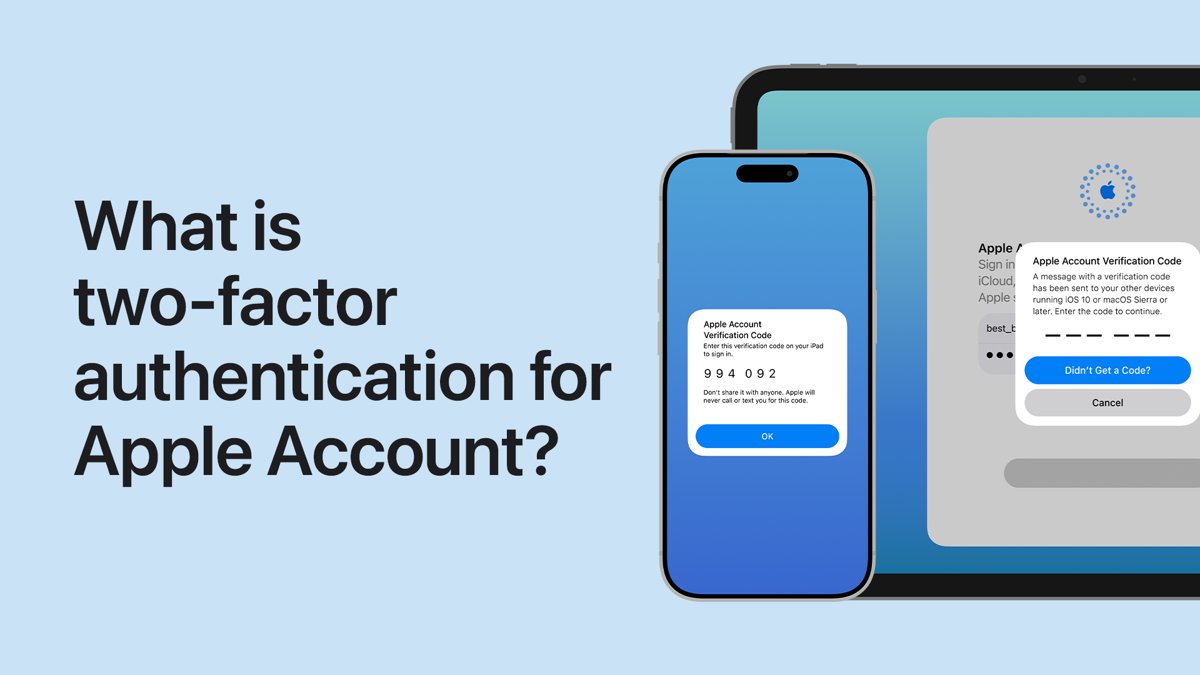
A password is something you know. 2-Step Verification adds something you have, such as your phone or a security key, so a stolen password is not enough on its own. Apple calls the same idea two-factor authentication.
| Stage | What happens |
|---|---|
| 1. Password | You enter your password as usual |
| 2. Second step | The service asks for a prompt approval, code, passkey or security key |
| 3. Trusted device | You can choose not to be asked again on a computer or phone you use regularly |
| 4. New device or browser | The second step is requested again |
| Lost second step | Backup codes, a backup phone or account recovery get you back in |
Benefits of 2-Step Verification
| Benefit | What it means |
|---|---|
| Stolen passwords stop working | Microsoft notes that someone with your password still cannot sign in without your security info |
| Alerts you to sign-in attempts | A Google prompt or code you did not request shows someone has your password |
| Required for some features | Apple requires two-factor authentication for Apple Pay and Sign in with Apple |
| Protects linked accounts | Email accounts reset other passwords, so securing them protects everything else |
Types of 2-Step Verification
Most services offer several second steps. Pick a primary one and add at least one backup.
| Second step | How it works | Best for |
|---|---|---|
| Phone prompt (Google prompts) | Tap Yes on your Android or iPhone to approve the sign-in | Everyday use; quicker than typing a code |
| Authenticator app | An app generates a one-time code, even offline | Travel or poor mobile signal |
| Text message or voice call | A six-digit code is sent to your phone number | A fallback; delivery depends on your carrier and location |
| Passkey or security key | Your fingerprint, face, PIN or a physical key confirms it is you | The strongest protection against phishing |
| Backup codes | One-time codes you print or save in advance; Google gives 10 eight-digit codes | Emergency access when your phone is lost |
| Email code | A code sent to another email address, as Microsoft accounts allow | Accounts without a phone number on file |
How to Activate 2-Step Verification
Here is the route for the other two account types most people rely on. Google is covered in the first section.
| Account | Steps |
|---|---|
| Microsoft account | Go to account.microsoft.com/security, select Manage how I sign in, then under Additional security select Turn on next to two-step verification, and follow the prompts |
| Apple Account on iPhone or iPad | Open Settings, tap your name, then Sign-In & Security, turn on two-factor authentication, and follow the prompts |
| Apple Account on a Mac | Open System Settings, select your name, then Sign-In & Security, and turn on two-factor authentication |
| Apple Account on the web | Sign in at account.apple.com and select Upgrade Account Security |
Microsoft recommends keeping three pieces of security info on file, such as two email addresses and a phone number, because recovery without them can take up to 30 days. Most Apple Accounts already use two-factor authentication by default. Turning on Windows Security on your PC is a separate step that protects the device rather than the account.
Using 2-Step Verification
Once it is on, signing in on a new device takes one extra step.
- Enter your email address and password as usual.
- Approve the prompt on your phone, or enter the code from your authenticator app, text message or trusted Apple device.
- If your usual method is unavailable, select Try another way and choose a backup code or other option.
- On a computer you use every day and do not share, check Don't ask again on this computer.
- Sign in again on older apps that stop working; some need an app password after 2-Step Verification is on.
Apple does not ask again on a device you signed in to unless you sign out completely, erase the device, or change your password for security reasons.
How to check 2-Step Verification is on
- Google: open Security & sign-in and confirm 2-Step Verification shows as on, with your second steps listed.
- Microsoft: open
account.microsoft.com/security> Manage how I sign in and confirm two-step verification shows Turn off as the available action. - Apple: open Sign-In & Security and confirm two-factor authentication is on.
- Sign in from a private browser window and confirm the second step is requested.
Troubleshooting Common Issues
Why is my 2-Step Verification code not arriving?
A prompt was sent instead, the carrier cannot deliver texts, or the service blocked text codes because the sign-in looks unusual.
- Check your phone for a Google prompt rather than a text.
- Confirm your plan and phone support text messages and that you have signal or Wi-Fi.
- If you requested several codes, use only the newest one.
- Select Try another way and use an authenticator app or backup code.
Google 2-Step Verification not working after you lost your phone
Your second step was on the missing device.
- Sign in with a backup code, a backup phone or a trusted computer.
- Sign the lost phone out of your account and change your password.
- If you have no backup options, start account recovery; Google can take 3-5 business days to confirm it is you.
An app stops signing in after you turn on 2-Step Verification
Older apps and devices cannot ask for a second step.
- Sign in to the app again.
- If it still fails, create an app password in your account's security settings and use it in that app.
You lost or used up your backup codes
Each backup code works once.
- Open the 2-Step Verification page in your Google Account.
- Under Backup codes, select Refresh to create a new set; the old set stops working.
Work or school account will not accept your second step
Your organisation controls the sign-in methods.
- Try a backup option.
- Contact your administrator to reset your methods.
Best Practices for Using 2-Step Verification
| Practice | Why |
|---|---|
| Add at least two second steps | Losing one device should not lock you out |
| Print backup codes and store them with important papers | They work when your phone does not |
| Never share a code or approve a prompt you did not start | Google never asks for a backup code except at sign-in |
| Avoid Google Voice for Google Account codes | Signing out of Google Voice can lock you out of the account that receives the code |
| Prefer prompts, passkeys or security keys over text codes | They are harder to intercept or phish |
| Only trust devices you own | Don't ask again removes the second step on that device |
Frequently asked questions
What is a two-step verification process?
It is a sign-in that needs two proofs: your password and a second step such as a phone prompt, a code from an app or text, a passkey or a security key. A stolen password alone cannot open the account.
Why use 2-Step Verification?
Passwords leak through phishing and data breaches. With 2-Step Verification on, anyone who has your password still needs your phone, key or backup code, which stops most account takeovers.
How do I do two-step verification on Google?
Go to myaccount.google.com, select Security & sign-in, and under How you sign in to Google select Turn on 2-Step Verification. Follow the prompts and save your backup codes.
How do I use 2-Step Verification when signing in?
Enter your password, then approve the prompt on your phone or type the code you receive. Select Try another way if your usual method is not available.
Why is Google 2-Step Verification not working?
The most common causes are a prompt sent instead of a text, poor signal, an old code, or a lost phone. Use the newest code, check for a prompt, or select Try another way to use a backup code.
Is two-step verification the same as two-factor authentication?
In practice, yes. Google and Microsoft call it 2-Step or two-step verification, while Apple calls it two-factor authentication. All require a second proof after your password.
Can I turn off 2-Step Verification?
Usually, yes. Microsoft accounts use the same Manage how I sign in page with Turn off. Apple Accounts created with two-factor authentication cannot turn it off, though newly upgraded ones can within two weeks.
Conclusion
Turn on 2-Step Verification for your main email account first, use phone prompts or a passkey as the main second step, and save backup codes the same day. Your email account can reset every other password, so protecting it covers the most ground. A backup method set up in advance is what separates a minor inconvenience from a recovery process that can take days.