FAT32 is the oldest and most widely readable format but cannot store a file larger than 4 GB, exFAT removes that limit while staying simple enough for USB drives and Macs, and NTFS is the Windows default with permissions, encryption and journaling, so use NTFS for Windows disks and exFAT for drives you share.
This guide compares the three on limits, security and reliability, then shows how to check a drive's format, reformat it, and convert to NTFS without erasing.
Which File System Should You Use?
| Your drive | Use | Why |
|---|---|---|
| Windows system disk or internal data drive | NTFS | Default for Windows, with permissions, BitLocker support and crash recovery |
| External drive used only with Windows PCs | NTFS | No 4 GB file limit and the same security features as internal disks |
| USB stick or external drive shared between Windows and Mac | exFAT | Apple's Disk Utility lists exFAT as a Windows-compatible format for volumes over 32 GB |
| Small USB stick (32 GB or less) for older devices | FAT32 | Widest compatibility; Apple recommends MS-DOS (FAT) for Windows volumes of 32 GB or less |
| Drive that must hold files over 4 GB, such as videos or disk images | exFAT or NTFS | FAT32's maximum file size is 4 GiB |
| USB drive for Xbox system updates or game backups from a Windows PC | NTFS | Xbox Support requires NTFS for these jobs |
What Is a File System?
A file system is the structure a drive uses to track where every file's data sits and what each file is called. Formatting a drive writes a new, empty file system to it, which is why formatting erases the files already on it.
| Name | Full name | Introduced in Windows |
|---|---|---|
| FAT32 | File Allocation Table, 32-bit | Windows 95 OSR2, Windows 98 and Windows 2000 |
| NTFS | New Technology File System | Windows NT; the default for modern Windows |
| exFAT | Extended File Allocation Table | Later addition built to keep FAT's simplicity while allowing very large files and drives |
Quick Comparison: FAT32 vs exFAT vs NTFS
| Feature | FAT32 | exFAT | NTFS |
|---|---|---|---|
| Maximum file size | 4 GiB | 2^64-1 bytes (no practical limit) | 2^64-1 bytes in format terms; 16 TB at the default 4 KB cluster |
| Maximum volume size | 2^32 blocks | 2^32-1 clusters, clusters up to 32 MB | 16 TB at 4 KB clusters, up to 8 PB with 2 MB clusters (Windows 10 1709 and later) |
| File name length | 255 Unicode characters | 255 Unicode characters | 255 Unicode characters |
| Permissions (access control lists) | No | No | Yes |
| Built-in encryption | No | No | Yes |
| Built-in compression | No | No | Yes |
| Journaling | No | No | Yes, metadata journaling |
| Disk quotas | No | No | Yes, per user |
| Windows-compatible formats Disk Utility on Mac can create | Yes (MS-DOS FAT) | Yes | Not listed |
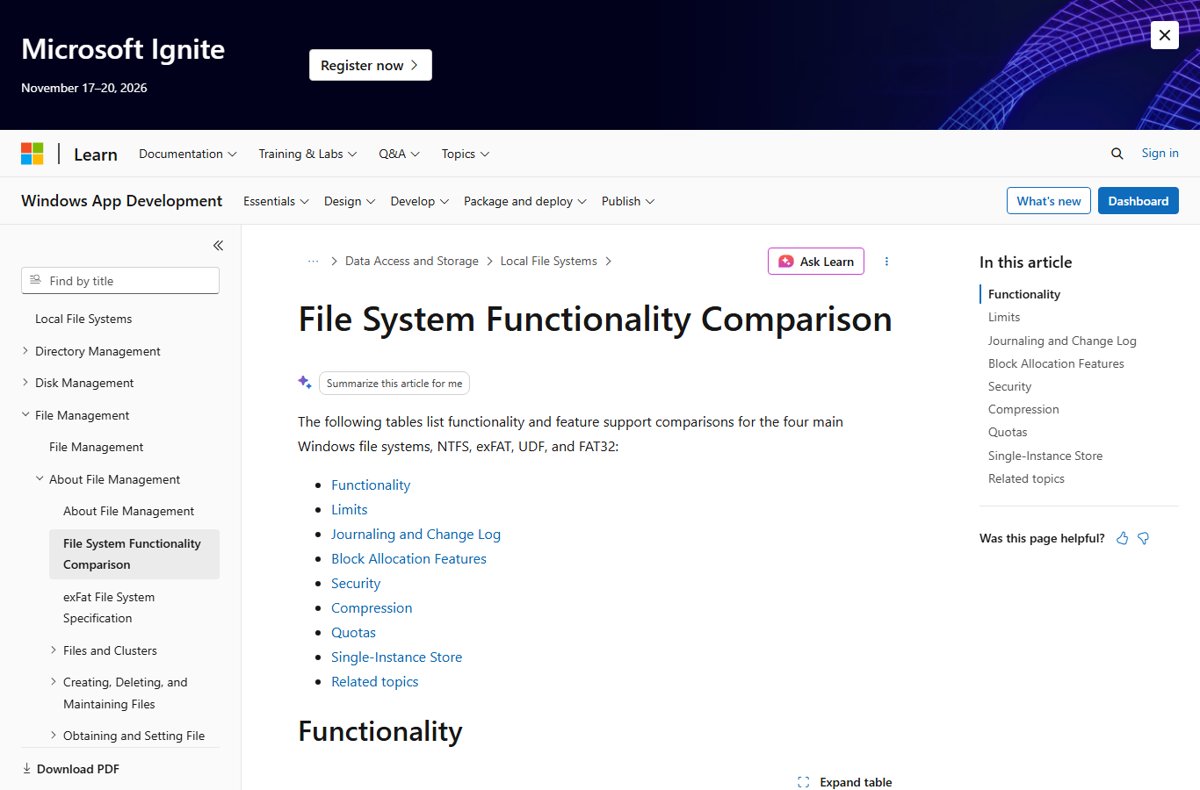
FAT32: The Old Compatibility Champion
| Strength or limit | Detail |
|---|---|
| Simple design | A file allocation table at the start of the volume tracks each file's clusters, and two copies are kept in case one is damaged |
| 4 GB file limit | No single file can be larger than 4 GiB, so large videos and disk images will not fit |
| Cluster limits | Windows' format command restricts FAT32 to between 65,527 and 4,177,917 clusters |
| Basic attributes only | No owner, permissions, encryption or compression |
| Best for | Small USB sticks and SD cards used with older devices; Apple's guidance is 32 GB or less |
exFAT: The Best Default for Removable Drives
| Strength or limit | Detail |
|---|---|
| Large files | Uses 64 bits to describe file size, removing FAT32's 4 GB ceiling |
| Large drives | Allows clusters as large as 32 MB, so very large drives work |
| Simple like FAT | Microsoft designed it to keep FAT's simplicity and ease of implementation |
| Cross-platform | Disk Utility on Mac can create exFAT and lists it for Windows volumes over 32 GB |
| No security layer | No permissions, encryption, compression or journaling; checksums cover metadata only |
NTFS: The Best Choice for Windows Drives
| Strength or limit | Detail |
|---|---|
| Default for Windows | Microsoft describes NTFS as the default file system for modern Windows |
| Crash recovery | A transaction log restores file system consistency at the next startup after a failure |
| Bad sector handling | NTFS remaps a cluster with a bad sector to a healthy one |
| Permissions | Access control lists set read, write and modify rights per user and group |
| Encryption | File-level encryption, and BitLocker Drive Encryption support |
| Huge volumes | Up to 8 PB on Windows 10 version 1709 and later |
| Compatibility trade-off | Disk Utility on Mac does not list NTFS among the Windows formats it can create |
How to Check a Drive’s File System
- Open File Explorer and select This PC.
- Right-click the drive and select Properties.
- Read the File system line on the General tab.
- Or open PowerShell and run
Get-Volume; the FileSystem column lists the format of every drive.
How to Format a Drive
Formatting deletes everything on the drive. Copy any files you need to another drive first.
- Plug the USB or external drive into your Windows 10 or Windows 11 PC.
- Open File Explorer.
- Right-click the drive and select Format.
- In the File system drop-down menu, select NTFS, exFAT or FAT32.
- Leave Allocation unit size at the default unless you have a specific reason to change it.
- Select Start, confirm the warning, and wait for the format to finish.
From PowerShell, Format-Volume -DriveLetter D -FileSystem NTFS does the same job; replace D with your drive letter and NTFS with exFAT or FAT32 as needed.
Can You Convert Without Erasing?
Yes, but only one way: FAT or FAT32 to NTFS. There is no built-in way to convert NTFS back to FAT32, and exFAT conversion is not offered, so those changes need a format.
convert D: /fs:ntfsConverts drive D from FAT or FAT32 to NTFS and keeps the existing files and folders. Run it in an administrator Command Prompt and replace D with the drive letter. If the drive is in use, such as the Windows drive, the conversion is scheduled for the next startup. Back up first.
You should see: The command reports the conversion is complete, and the drive's Properties window shows File system: NTFS. Volumes converted to NTFS cannot be converted back to FAT or FAT32.
Allocation Unit Size: Should You Change It?
Allocation unit size is the cluster size: the smallest block the file system hands to a file. Microsoft recommends the default settings for general use, and Windows picks it from the volume size when you leave it alone.
| File system | Sizes Windows accepts | Things to know |
|---|---|---|
| NTFS | 512 bytes to 2 MB | 4 KB is the default; NTFS compression does not work above 4 KB clusters; larger clusters raise the maximum volume size |
| exFAT | Up to 32 MB | Larger clusters suit drives that mainly hold big files |
| FAT32 | 512 bytes to 64 KB (128 KB and 256 KB on drives with sectors over 512 bytes) | Format stops if the chosen size cannot meet FAT32's cluster count limits |
Security and Reliability Differences
| Protection | FAT32 | exFAT | NTFS |
|---|---|---|---|
| Tracks file owner | No | No | Yes |
| Per-user permissions | No | No | Yes |
| File system encryption | No | No | Yes |
| Metadata journaling and automatic recovery | No | No | Yes |
| Checksums | No | Metadata only | No |
| Online repair with chkdsk | Not covered | Not covered | Yes, while the volume stays online |
Performance: Is One Faster?
Choose by limits and features, not speed: Microsoft publishes no speed ranking between the three, and the drive's own hardware usually matters more. FAT has to update its allocation table often, which Microsoft describes as time consuming, while NTFS adds journaling and security work; neither difference outweighs FAT32's 4 GB file limit or NTFS's protections when picking a format.
Common Problems and the Right Fix
A file over 4 GB will not copy to the USB drive
The drive is FAT32, which cannot hold a file larger than 4 GiB.
- Check the drive's file system in Properties.
- Copy the drive's files somewhere safe.
- Format it as exFAT (shared with a Mac) or NTFS (Windows only), then copy the files back.
FAT32 is not an option, or format fails, on a large drive
FAT32 is meant for smaller volumes; Windows limits its cluster count, and Apple's guidance is 32 GB or less.
- Choose exFAT in the File system drop-down instead.
- Use FAT32 only on small drives for devices that cannot read exFAT.
The drive must become NTFS but holds files you need
Formatting erases the drive.
- Back up the drive.
- Open Command Prompt as administrator.
- Run
convert D: /fs:ntfs, using your drive letter.
A Mac cannot create the drive format you chose in Windows
Disk Utility on Mac lists only MS-DOS (FAT) and ExFAT as Windows-compatible formats.
- Back up the drive's files.
- Reformat it as exFAT in Windows or in Disk Utility.
Frequently asked questions
What's the difference between FAT32 and exFAT?
FAT32 limits each file to 4 GiB, while exFAT uses 64-bit file sizes and clusters up to 32 MB, so it handles large files and large drives. Both lack permissions, encryption and journaling, and both are Windows formats that a Mac's Disk Utility can create.
What's the difference between FAT32 and NTFS?
NTFS is the Windows default and adds permissions, encryption, compression, quotas and journaled crash recovery, with no 4 GB file limit. FAT32 is simpler and more widely readable by other devices but caps files at 4 GiB.
Is exFAT the same as FAT32?
No. Both come from the FAT family, but exFAT removes FAT32's 4 GB file size limit and supports much larger drives. They are separate choices in the Windows Format window.
Which is better, exFAT or FAT32?
exFAT is better for most modern USB drives and memory cards because it stores files over 4 GB. FAT32 only wins for small drives used with older devices that cannot read exFAT.
What does FAT32 mean?
FAT32 stands for File Allocation Table, 32-bit. It tracks files through a table at the start of the volume, and Windows has supported it since Windows 95 OSR2, Windows 98 and Windows 2000.
Does FAT mean FAT32?
Not always. FAT is the family name and also the older 16-bit format, which Windows limits to 65,526 clusters. FAT32 is the 32-bit version with a much larger cluster range, and both are listed separately in Windows' format command.
Why is FAT32 not an option when I format?
FAT32 is meant for smaller volumes, and Windows enforces a cluster count range for it. On a large drive, choose exFAT, which also removes the 4 GB file limit.
Can I convert NTFS back to FAT32?
Not without formatting. Windows' convert tool only turns FAT and FAT32 volumes into NTFS, and Microsoft states converted volumes cannot be converted back.
FAT32 vs exFAT vs NTFS: Simple Recommendations
Use NTFS for every internal and Windows-only drive, exFAT for USB drives and cards you share with Macs or cameras, and FAT32 only for small drives that older devices must read. NTFS gives Windows permissions, encryption and crash recovery, exFAT keeps cross-platform compatibility without the 4 GB file limit, and FAT32's only remaining advantage is how many old devices can read it.