Open Start > Settings > System > Display to change resolution, scale, orientation, brightness and night light, and open Settings > Personalization to change the theme, background and accent color.
This guide covers every display and appearance setting in Windows 11 and Windows 10, the text size and accessibility options, the visual effects panel, and fixes for the common snags.
Accessing Display Settings in Windows 11 and Windows 10
Two Settings pages hold almost every appearance control. Display handles how the screen draws the picture, and Personalization handles how Windows itself looks.
- Select Start, then select Settings.
- Select System > Display to reach resolution, scale, orientation, brightness and night light.
- Go back and select Personalization to reach Background, Colors and Themes.
- Select Accessibility in Windows 11, or Ease of Access in Windows 10, for text size, contrast and visual effects.
If you prefer other routes into the same page, there are several other ways to open Display settings in Windows 11.
Where each appearance setting lives in Windows 11 and Windows 10
| What you want to change | Windows 11 | Windows 10 |
|---|---|---|
| Resolution, scale, orientation | Settings > System > Display | Settings > System > Display (Scale and layout) |
| Brightness and night light | Settings > System > Display | Settings > System > Display |
| Refresh rate | Settings > System > Display > Advanced display | Settings > System > Display > Advanced display settings |
| Background, colors, themes | Settings > Personalization | Settings > Personalization |
| Text size only | Settings > Accessibility > Text size | Settings > Ease of Access > Display (Make text bigger) |
| Contrast themes | Settings > Accessibility > Contrast themes | Settings > Ease of Access > High contrast |
| Animations, transparency, scrollbars | Settings > Accessibility > Visual effects | Settings > Ease of Access > Display |
| Visual effects for performance | Search: Adjust the appearance and performance of Windows | Search: Adjust the appearance and performance of Windows |
Adjusting Scale, Resolution, and Display Orientation
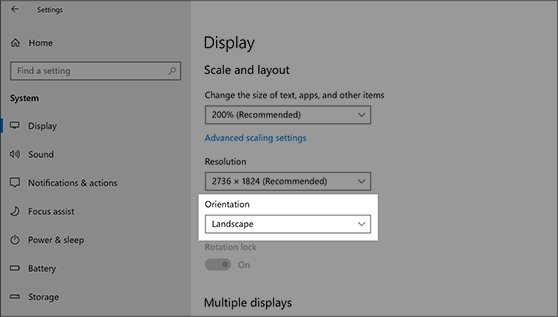
Resolution sets how many pixels the screen draws, while scale enlarges text, apps and other items without changing that pixel count. Keep the values marked (Recommended) unless you have a reason to move them.
- Open Start > Settings > System > Display.
- In the Scale & layout section (Scale and layout in Windows 10), open the Display resolution list and pick a value, ideally the one marked (Recommended).
- Open the Scale list (in Windows 10, the list under Change the size of text, apps, and other items) and pick a larger percentage to make everything bigger.
- Open the Display orientation list (Orientation in Windows 10) and choose the orientation you need, then physically rotate the screen to match.
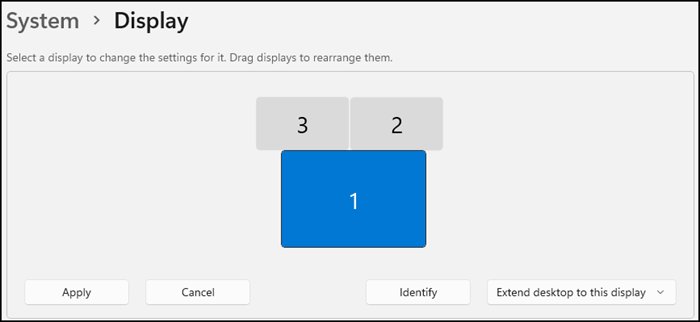
- If you use more than one monitor, select the display you want at the top of the page before changing any of these values.
- For a different refresh rate, select Advanced display and pick a value next to Choose a refresh rate.
A refresh rate marked with an asterisk does not support your current resolution, so choosing it changes the resolution too.
The Windows 10 layout differs slightly, and a step-by-step tour is in the guide to change display settings in Windows 10.
Changing Brightness, Night Light, and Color Settings
- For a quick change, select the Network icon at the right of the taskbar in Windows 11 (the action center in Windows 10) and move the Brightness slider.
- For more control, open Start > Settings > System > Display and select Brightness.
- Turn on Change brightness automatically when lighting changes if your device has a light sensor and you want Windows to follow the room.
- In Windows 11, set Change brightness based on content to Off, Always or On battery only.
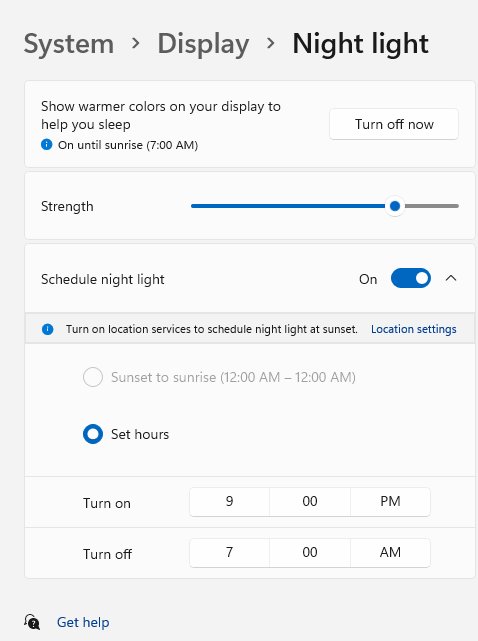
- Select Night light, move the Strength slider, then turn on Schedule night light and pick Sunset to sunrise or Set hours.
- In Windows 11, select Color profile on the Display page to add or set a default profile, or to turn on Automatically manage color for apps.
- In Windows 10, search Settings for calibrate display color and follow the calibration wizard.
Night light reduces blue light, so the screen looks warmer while it is on. Use a schedule rather than leaving it on all day if you edit photos.
Customizing Themes, Backgrounds, and Accent Colors
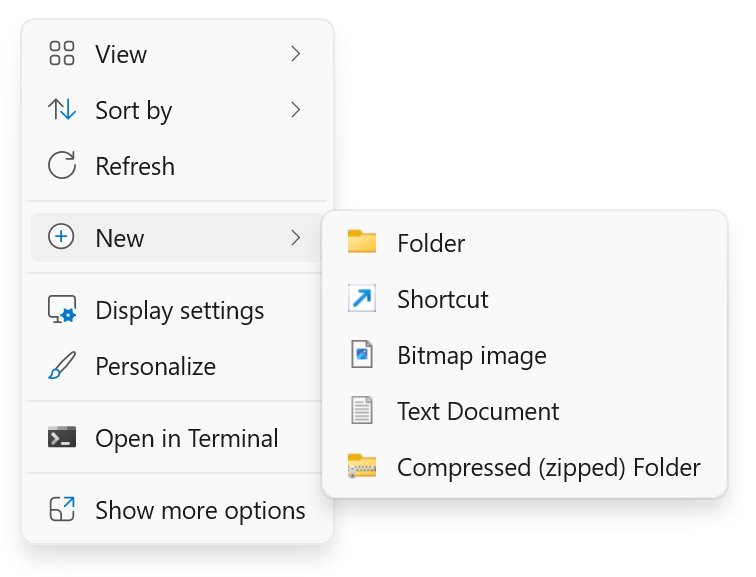
- Right-click an empty area of the desktop and select Personalize, or open Settings > Personalization.
- Select Background and choose Picture, Solid color, Slideshow or Windows spotlight; for a picture or slideshow, choose a fit such as Fill, Fit or Span.
- Select Colors and pick Light, Dark or Custom under the mode setting.
- Under accent color, choose Automatic to match the background, or Manual to pick from Windows colors or View colors.
- Turn on Show accent color on Start and taskbar or Show accent color on title bars and window borders if you want the color in those places.
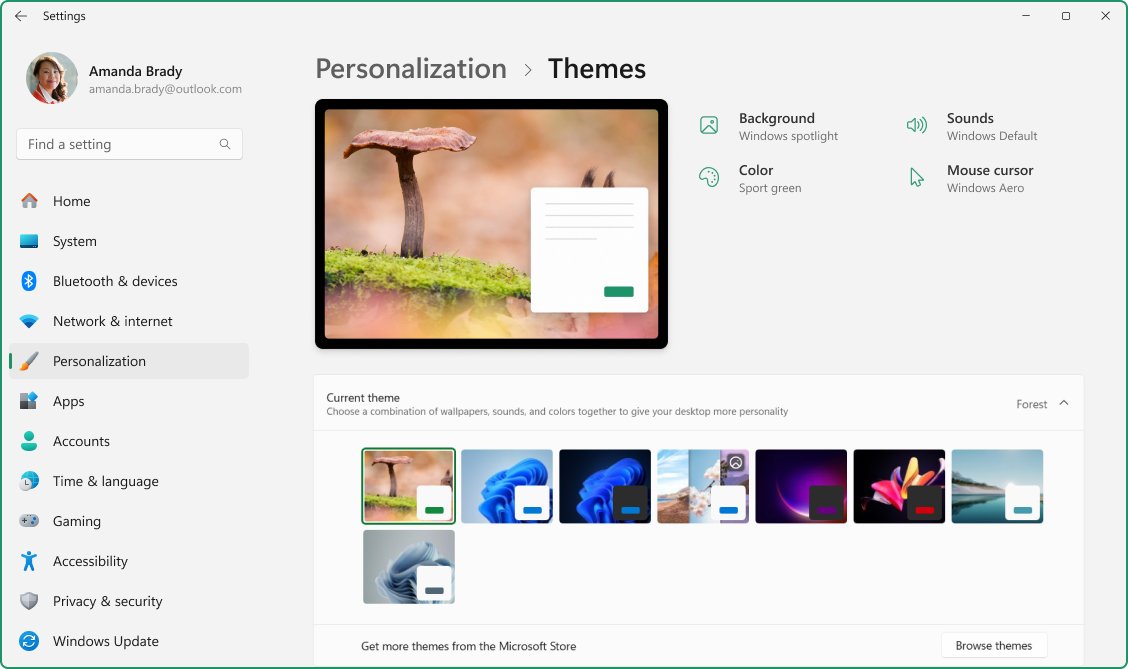
- Select Themes and apply a built-in theme, or select Browse themes to get more from the Microsoft Store.
- After mixing your own background, colors, sounds and mouse cursor, select Save on the Themes page and name the theme.
- On the Themes page, select Desktop icon settings to show or hide the This PC, Recycle Bin, Network and user files icons on the desktop.
Show accent color on Start and taskbar only works in Dark or Custom mode. In Light mode the toggle is unavailable.
Increasing Text Size and Improving Readability
Choose text size when only the words are too small. Choose scale when buttons, icons and windows are too small as well.
- In Windows 11, open Start > Settings > Accessibility > Text size.
- Drag the Text size slider until the preview text reads comfortably, then confirm the change.
- In Windows 10, open Start > Settings > Ease of Access > Display.
- Move the Make text bigger slider, then confirm the change.
- If everything needs to be bigger, change Scale under Settings > System > Display (or Make everything bigger in Windows 10) instead.
Using Accessibility Options for Better Visibility
| Need | Windows 11 | Windows 10 |
|---|---|---|
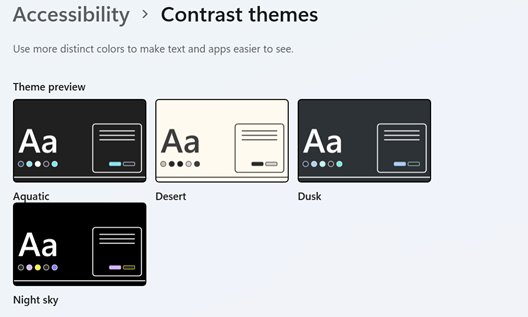
| Stronger contrast | Settings > Accessibility > Contrast themes: Aquatic, Desert, Dusk or Night sky | Settings > Ease of Access > High contrast |
| Zoom part of the screen | Press Windows + Plus (+) to open Magnifier; Windows + Esc closes it | Search Start for Magnifier |
| Color blindness or reduced color | Settings > Accessibility > Color filters, or Windows + Ctrl + C | Search Settings for color filters |
| Bigger or colored mouse pointer | Settings > Accessibility > Mouse pointer & touch | Settings > Ease of Access > Mouse pointer |
| Less motion and transparency | Settings > Accessibility > Visual effects: Animation effects, Transparency effects | Settings > Ease of Access > Display: Show animations in Windows, Show transparency in Windows |
| Scrollbars that stay visible | Settings > Accessibility > Visual effects > Always show scrollbars | Settings > Ease of Access > Display > Automatically hide scroll bars in Windows (turn off) |
Adjust the appearance and performance of Windows
The older Performance Options dialog trades visual effects such as shadows and animations for speed. It is the same in Windows 11 and Windows 10.
- Select Start and type Adjust the appearance and performance of Windows.
- Open the result to show the Performance Options dialog.
- Select the Visual Effects tab.
- Select Adjust for best performance to switch off the effects that cost the most.
- Apply the change and close the dialog, then return later and pick a different option on the same tab if the desktop looks too plain.
How to check the changes took effect
- Reopen Settings > System > Display and confirm the resolution and scale show the values you picked.
- Open File Explorer or a browser and check that text is sharp and sized as you expect.
- Open Personalization > Colors and confirm the mode and accent color stuck; the taskbar and Start should reflect them.
- For night light, check the toggle in quick settings; the screen should look warmer when it is on.
Fix display appearance settings that do not behave
The resolution changes by itself or the recommended value is missing
Microsoft points to an outdated or generic graphics driver.
- Open Settings > Windows Update and select Check for updates.
- Install any display driver offered under optional updates.
- Restart, then reopen Settings > System > Display and pick the (Recommended) resolution.
A second monitor does not appear in Display settings
Windows has not detected the newly connected display.
- Check the cable at both ends and that the monitor is on.
- Open Settings > System > Display > Multiple displays and select Detect.
- Press Windows + P and choose Extend or Duplicate.
Show accent color on Start and taskbar is greyed out
That toggle only works in Dark or Custom mode.
- Open Settings > Personalization > Colors.
- Set the mode to Dark or Custom.
- Turn on Show accent color on Start and taskbar.
Text looks blurry or everything is too large
Scale is set far above the recommended value, or resolution is below the panel's native value.
- Open Settings > System > Display.
- Set Display resolution to the value marked (Recommended).
- Set Scale to the value marked (Recommended), then use Text size for words only.
Frequently Asked Questions
How do I adjust display settings on Windows?
Select Start > Settings > System > Display. That page holds resolution, scale, orientation, brightness, night light and the link to Advanced display for refresh rate. Choose the values marked Recommended unless you need something different, such as larger scale for a high-resolution laptop panel.
How do I change Windows appearance settings?
Open Settings > Personalization. Background sets the wallpaper, Colors sets Light or Dark mode and the accent color, and Themes applies a full set of background, colors, sounds and cursor at once. You can also right-click the desktop and select Personalize.
How do I adjust display size settings?
Change Scale under Settings > System > Display to make text, apps and icons larger together. Pick a higher percentage than the current one. To enlarge only text, use Settings > Accessibility > Text size in Windows 11 or the Make text bigger slider in Windows 10.
How do I adjust display settings for best performance?
Search Start for Adjust the appearance and performance of Windows, open it, and on the Visual Effects tab select Adjust for best performance. This turns off the visual effects that cost the most. For lighter changes, turn off Animation effects and Transparency effects under Settings > Accessibility > Visual effects.
What are the display and appearance settings in Windows?
Display settings control the picture itself: resolution, scale, orientation, brightness, night light, color profile and refresh rate. Appearance settings live in Personalization and control the background, Light or Dark mode, accent color and themes. Accessibility adds text size, contrast themes and visual effects.
How do I adjust the display on a PC with an external monitor?
Open Settings > System > Display, select the monitor at the top of the page, then change its resolution, scale and orientation. Select Identify to see which number belongs to which screen, and drag the boxes to match how the monitors sit on your desk.
How do I change the appearance of the display to dark mode?
Go to Settings > Personalization > Colors and set the mode to Dark. Windows and apps that follow the system setting switch to dark backgrounds. Choose Custom when you want a mix of light and dark between Windows and your apps.
How do I undo display changes I do not like?
Return to Settings > System > Display and pick the values marked Recommended for resolution and scale. For colors, go back to Settings > Personalization and reapply the default Windows theme under Themes, which resets the background and accent color together.
Bottom Line
Start with the Recommended resolution and scale, then fix readability with Text size before touching anything else. Those two values match the panel, so most blurriness and sizing complaints disappear, and Text size enlarges words without making every window larger. Themes, accent colors and night light are personal taste and safe to change at any time.