Edge keeps its privacy and security settings on one page: select Settings and more (the three dots) > Settings > Privacy, search, and services, or type edge://settings/privacy in the address bar.
This guide walks through every control on that page and the related Passwords, Profiles and Windows Security settings on Windows 11 and Windows 10, then gives a baseline most people can copy.
How to open Privacy and Security settings in Microsoft Edge
The steps are the same on Windows 11 and Windows 10, because Edge updates separately from Windows.
- Open Microsoft Edge.
- Select Settings and more (the three dots at the top right).
- Select Settings.
- Select Privacy, search, and services in the left pane.
- Scroll to the section you need: Tracking prevention, Clear browsing data, Privacy, Security or Search and connected experiences.
Shortcut: paste edge://settings/privacy into the address bar and press Enter. Passwords live separately under Passwords and autofill, and sync under Profiles.
Recommended privacy and security setup for most users
This baseline keeps sites working while closing the common gaps. Each row links to its own section below.
| Setting | Set it to | Why |
|---|---|---|
| Tracking prevention | Balanced; Strict if you accept some site breakage | Blocks trackers from sites you never engage with |
| Microsoft Defender SmartScreen | On | Blocks reported phishing sites and malicious downloads |
| Block potentially unwanted apps | On | Off by default; flags bundled adware downloads |
| Enhance your security on the web | Balanced | Extra protection on unfamiliar sites only |
| Password Monitor | On | Warns when a saved password appears in a leak |
| Send optional diagnostic data | Your choice; Off shares less | Required data is still sent either way |
| Clear browsing data on close | Cookies on shared PCs only | Signs the next person out of your accounts |
| Automatic updates | On | Security fixes install on the next restart |
Choose the right Tracking prevention level
Edge offers three levels. Basic blocks only malicious trackers such as fingerprinters and cryptominers. Balanced is the default and blocks trackers from sites you never engage with. Strict blocks most trackers but can break parts of some sites.
- Open Settings > Privacy, search, and services.
- Under Tracking prevention, make sure Enable tracking prevention is turned on.
- Select Basic, Balanced or Strict.
- Reload any open sites so the new level applies.
To see what was blocked on a page, select the page info icon on the left of the address bar.
Review cookies and third-party cookie controls
First-party cookies keep you signed in. Third-party cookies come from other domains embedded in a page and are mostly used to follow you across sites.
- Open Settings > Privacy, search, and services.
- Select Cookies.
- Turn on Block third-party cookies.
- To also ask sites not to track you, open the Privacy section and turn on Send "Do Not Track" requests.
Sites can ignore Do Not Track, so the third-party cookie block and tracking prevention do the real work.
Clear browsing data manually or automatically
Clear browsing data safely by picking only the types you need. Deleting cookies signs you out of sites, and deleting saved passwords removes them from every synced device.
- Open Settings > Privacy, search, and services > Clear browsing data.
- Next to Clear browsing data now, select Choose what to clear.
- Pick a Time range, tick the data types to delete, and select Clear now.
- For automatic clearing, select Choose what to clear every time you close the browser.
- Turn on the toggles for the types to delete on exit, such as Cookies and other site data.
Use InPrivate browsing correctly
InPrivate deletes history, cookies, site data, passwords and form data when you close all InPrivate windows. It does not hide your activity from your school, employer or internet provider, and it adds no extra malware or ad blocking.
- Select Settings and more > New InPrivate window.
- Or right-click the Edge icon on the taskbar and select New InPrivate window.
- To open one link privately, right-click it and select Open link in InPrivate window.
- Browse, then close every InPrivate window to delete the session data.
Closed InPrivate tabs cannot be reopened from history, unlike normal tabs you can restore after closing. Favorites and downloaded files you save in InPrivate are kept.
Turn on Microsoft Defender SmartScreen
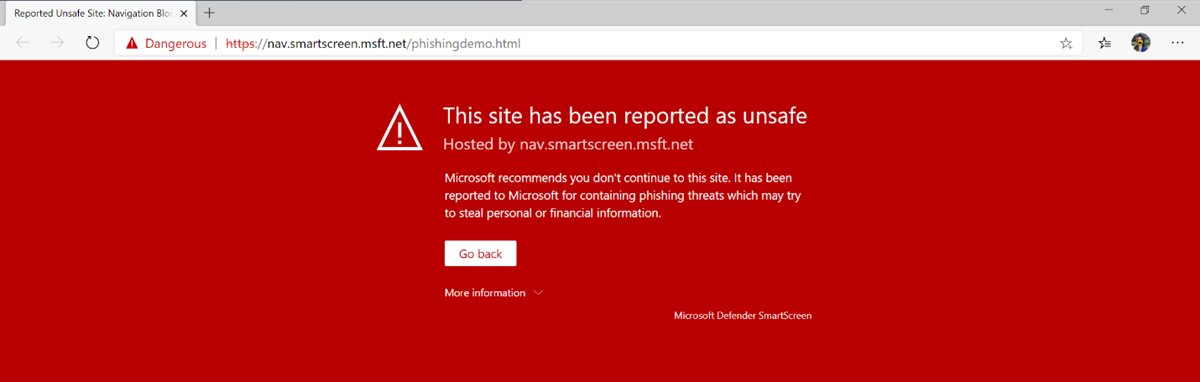
SmartScreen checks sites and downloads against Microsoft's lists of reported phishing and malware. It is on by default, applies to every profile on the PC, and also covers InPrivate and Guest windows.
- Open Settings > Privacy, search, and services.
- Scroll to Security.
- Turn on Microsoft Defender SmartScreen (labelled Protect from harmful sites and downloads on some versions).
- Turn on Block potentially unwanted apps in the same section.
If the toggle is dimmed, your organization manages it through policy and only an administrator can change it.
Enable typosquatting protection and site safety services
Edge Website Typo Protection warns you when you land on a domain that imitates a real site through a typing mistake. It is on by default for personal PCs.
- Open Settings > Privacy, search, and services and scroll to Security.
- Make sure the website typo protection toggle is on.
- Turn on Use secure DNS to specify how to lookup the network address for websites to encrypt DNS lookups.
- Under Search and connected experiences, leave Suggest similar sites when a website can't be found on if you want corrected addresses offered after a typo.
Use Enhanced security mode for risky browsing
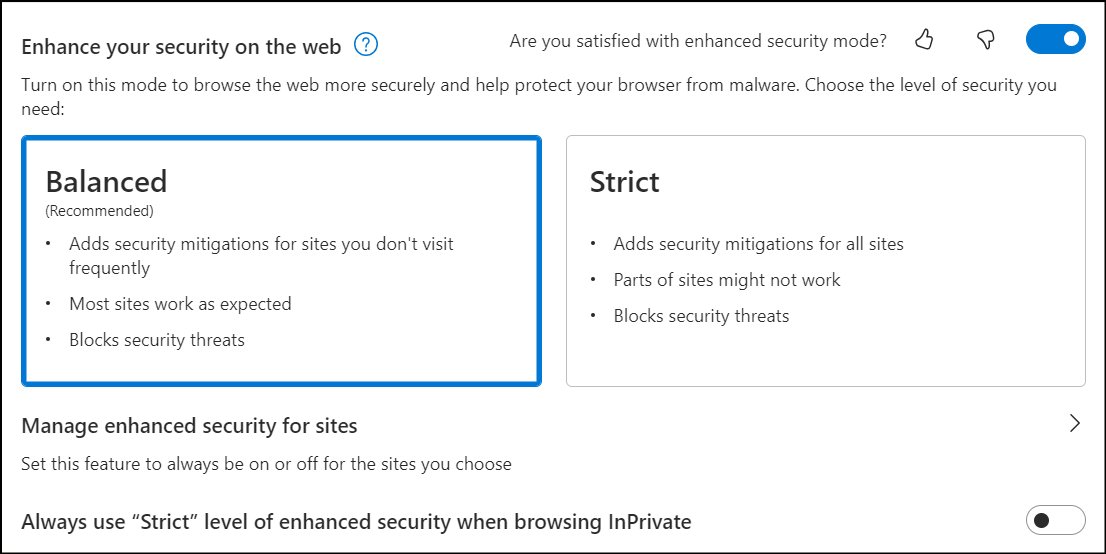
Enhanced security turns off just-in-time JavaScript compilation and adds Windows protections such as Hardware-enforced Stack Protection and Arbitrary Code Guard. That makes an unpatched browser flaw harder to exploit.
- Open Settings > Privacy, search, and services and scroll to Security.
- Turn on Enhance your security on the web.
- Select Balanced (Recommended) to protect unfamiliar sites while leaving sites you use often untouched.
- Select Strict instead to protect every site, accepting that some may run slower or misbehave.
Check password security and turn on password monitoring
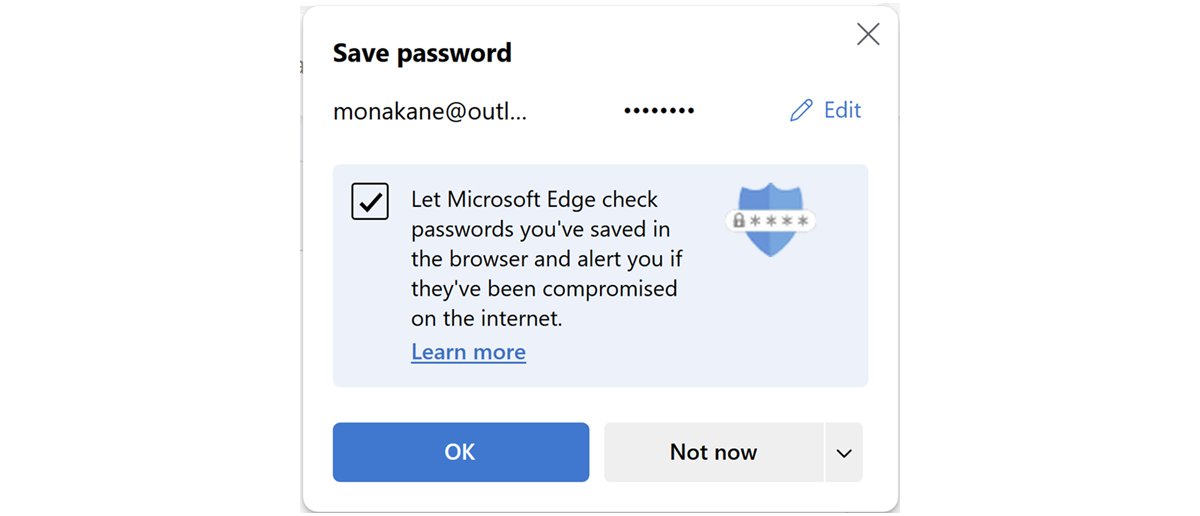
Password Monitor checks saved passwords against known leak lists without revealing them to Microsoft. It switches on automatically if you sign in and sync passwords.
- Sign in to Edge with a Microsoft account or a work or school account.
- Open Settings > Passwords and autofill > Microsoft Password Manager.
- Under More Settings, turn on Scan passwords for leaks.
- Open Password security check to see any unsafe passwords.
- Select Edit next to each one and change it on the site.
To stop Edge offering to save passwords, turn off Ask to save passwords in Microsoft Password Manager.
Control payment info and autofill data
Edge saves cards only with your permission and encrypts them on the device. Cards saved to your Microsoft account sync across devices and stay masked until you pass two-factor checks.
- Type
edge://settings/paymentsin the address bar and press Enter. - Delete any saved card you no longer want offered.
- Turn off the payments feature to stop Edge saving new cards.
- To stop syncing addresses and other form data, open Settings > Profiles > Sync and turn off Personal info.
Deleting autofill data while signed in and syncing removes it from your other signed-in devices too.
Review site permissions for camera, microphone, location, and notifications
- Open Settings > Privacy, search, and services.
- Select Site permissions > All permissions.
- Open Location, Camera, Microphone or Notifications.
- Remove any site in the allowed list that you no longer trust.
- Turn the permission off entirely if you never use it in the browser.
InPrivate windows use the location permissions of the profile that opened them, so tighten them here.
Manage pop-ups, redirects, ads, and downloads
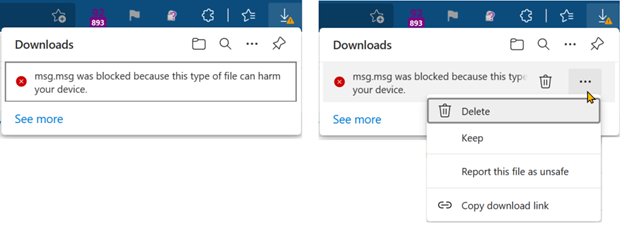
Protect downloads with SmartScreen first: it checks each file's reputation and warns or blocks before the file finishes. Edge also interrupts risky file types started without a click from you.
- Open Settings > Privacy, search, and services > Site permissions > All permissions.
- Open the pop-ups and redirects permission and keep it set to block.
- Open Intrusive ads and keep it blocking on sites that show misleading ads.
- Open Settings > Downloads and select Change next to Location if you want downloads in a folder you review.
- When a download is flagged, select Delete unless you trust the source completely.
Control search privacy and address bar suggestions
With suggestions on, every character you type in the address bar goes to your default search engine.
- Open Settings > Privacy, search, and services.
- Select Search and connected experiences > Address bar and search.
- Open Search suggestions and filters.
- Turn off Show me search and site suggestions using my typed characters to stop sending keystrokes.
- Under Privacy, turn off Help improve Microsoft products by sending the results from searches on the web if you prefer.
Review Microsoft services and personalization settings
Required diagnostic data is always sent. Optional data includes how you use the browser and the sites you visit, and it is your choice.
- Open Settings > Privacy, search, and services > Privacy.
- Turn off Send optional diagnostic data to improve Microsoft products, then restart Edge.
- Open Personalization & advertising and turn off Allow Microsoft to save your browsing activity if you do not want it used for ads and news.
- On Windows, delete stored diagnostic data in Settings > Privacy (Privacy & security on Windows 11) > Diagnostics & feedback > Delete diagnostic data.
If the diagnostic toggle is dimmed on Windows 10, it follows your Windows diagnostic data setting; select the link next to it.
Set up sync with care
Sync copies favorites, passwords and form data to Microsoft's encrypted servers so they follow your account. Sync only what you need, especially on a work PC.
- Open Settings > Profiles.
- Select Sync.
- Select Sign in to sync data if sync is off.
- Turn off any item you do not want stored in your Microsoft account, such as Passwords or Personal info.
- Turn off Share browsing data with other Windows features under Profiles to keep history out of Start and the taskbar.
Check extensions for privacy and security risks
Extensions can read pages you visit, and Edge cannot stop an extension recording history even in InPrivate. Keep only ones you recognise from the Edge Add-ons store.
- Select Extensions to the right of the address bar, then Manage extensions.
- Turn off the toggle for any extension you do not use.
- To remove anything suspicious, right-click its icon and select Remove from Microsoft Edge > Remove.
- On the Manage extensions page, turn off Allow extensions from other stores unless you rely on one.
Use profiles to separate work, personal, and shared browsing
Each profile keeps its own favorites, passwords, extensions and settings. Guest mode is a throwaway profile that keeps nothing once its windows close.
- Select the Profile icon on the toolbar.
- Select Set up a new profile.
- Choose Personal or Work or school.
- Select Sign in to sync data or Start without your data, then Confirm and start browsing.
- For a visitor, select the Profile icon and choose Browse as guest instead.
Understand Copilot and AI features in Edge
Copilot only reads the open page when you allow it to use browser content. Its settings sit under Appearance, not Privacy.
| Control | Where | Effect |
|---|---|---|
| Show Copilot button on the toolbar | Settings > Appearance > Copilot and sidebar > Copilot | Shows or hides the button |
| Allow Copilot to use browser content | Same page | Stops Copilot reading page content when off |
| Draft with Microsoft 365 Copilot as you write on the web | Settings > Languages > Writing assistance | Turns off AI writing prompts in text boxes |
| Copilot activity history | Microsoft privacy dashboard > Browsing and search | Clear all deletes past conversations |
Strengthen Windows security around Edge
Windows Security adds a second layer that works alongside Edge's own SmartScreen setting.
- Open Windows Security from the Start menu.
- Select App & browser control > Reputation-based protection settings.
- Turn on Check apps and files and SmartScreen for Microsoft Edge.
- On Windows 11, turn on Phishing protection to be warned when you type your Windows password into a malicious site.
- If Smart App Control is available on a new Windows 11 install, leave it on.
Use Family Safety and child protection features
Extra tips for shared or family PCs: give each adult a profile, use Guest for visitors, and use the options below for children.
| Feature | What it does | Set up |
|---|---|---|
| Web filtering | Blocks mature sites and any site the organizer blocks | Family group at family.microsoft.com |
| Activity reporting | Shows sites, searches and screen time for up to 30 days | Family group organizer turns it on |
| Safe search | Filters Bing results for the child | Applied automatically for family children |
| Kids Mode | Kid-friendly sites only, Strict tracking prevention, data cleared on close | Launched from an adult profile; no child account needed |
| InPrivate block | Children with filtering or reporting cannot open InPrivate | Automatic in a family group |
Keep Edge updated
Edge installs updates automatically when you restart it, except on metered connections. Check manually after a security alert.
- Select Settings and more > Help and feedback > About Microsoft Edge.
- Wait for the check; select Download and install if an update is offered.
- Select Restart to apply it.
- Turn on Download and install updates automatically if the toggle appears.
How to check your settings are working
- On any news site, select the page info icon left of the address and confirm trackers are listed as blocked.
- Open
edge://settings/privacyand confirm SmartScreen and Block potentially unwanted apps show On. - Open Password security check and select Check or Scan now to confirm the scan runs.
- Open About Microsoft Edge and confirm it reads Microsoft Edge is up to date.
Reset Edge settings if the browser behaves suspiciously
A changed search engine, odd start page or new extensions you did not add are reasons to reset. Bookmarks, history and saved passwords are kept; pinned tabs, the startup page, the search engine and extensions are reset.
- Type
edge://settings/resetin the address bar and press Enter. - Select Restore settings to their default values and confirm.
- Run a Windows Security scan for malware.
- Re-enable only the extensions you trust.
Troubleshooting common Edge privacy and security issues
A site breaks after choosing Strict tracking prevention
Strict trades site compatibility for privacy and blocks resources some sites need.
- Switch Tracking prevention to Balanced.
- Reload the site.
- Return to Strict later if you prefer it for other browsing.
A privacy or security toggle is dimmed
Your organization manages Edge through group policy.
- Hover over the briefcase icon next to the setting, if shown, to confirm it is managed.
- Ask your IT administrator to change the setting.
New InPrivate window is missing
Family filtering or reporting, or an organization policy, turns InPrivate off.
- Check whether the profile belongs to a child in a family group.
- On a work PC, ask your administrator.
Edge keeps crashing or stops working after changes
Damaged browser files or a faulty extension.
- Turn off extensions on the Manage extensions page.
- Open Settings > Apps > Installed apps, select Microsoft Edge and select Modify.
- Select Repair; your browsing data and settings are not affected.
Frequently Asked Questions
How do I access Edge privacy settings?
Select Settings and more (the three dots) > Settings > Privacy, search, and services. You can also type edge://settings/privacy in the address bar and press Enter.
Which tracking prevention level should I use in Edge?
Balanced suits most people because it blocks trackers from sites you never engage with without breaking pages. Choose Strict for maximum privacy if you accept that some sites may not work correctly.
Is Microsoft Defender SmartScreen on by default in Edge?
Yes. SmartScreen is on by default and applies to every profile on the PC, including InPrivate and Guest windows. An organization can lock it on or off through group policy.
Does InPrivate browsing hide my activity from my internet provider?
No. InPrivate only stops Edge storing history, cookies and form data on your PC. Your school, workplace and internet service provider can still see the sites you visit.
Does resetting Edge delete my passwords?
No. Restoring settings to their default values keeps bookmarks, history and saved passwords. It resets pinned tabs, the startup page, the search engine and extensions.
Does Password Monitor send my passwords to Microsoft?
Edge sends hashed and encrypted credentials to compare against known leaks, and no data is stored after the check. Microsoft cannot see which of your saved passwords are compromised.
Can I stop Edge sending diagnostic data?
You can turn off optional diagnostic data under Privacy, search, and services > Privacy. Required diagnostic data, used to keep Edge secure and updated, is always sent.
Do these settings sync to my other PCs?
Some do. SmartScreen and the optional diagnostic data setting are per PC and never sync, while favorites, passwords and personal info sync if you turn them on under Profiles > Sync.


![Clear or refresh cache in Google Chrome [Windows 11]](https://techdows.com/wp-content/uploads/2026/10/Google-Chrome-Help-page-listing-steps-to-delete-browsing-data-on-a-computer-600x338.jpg)