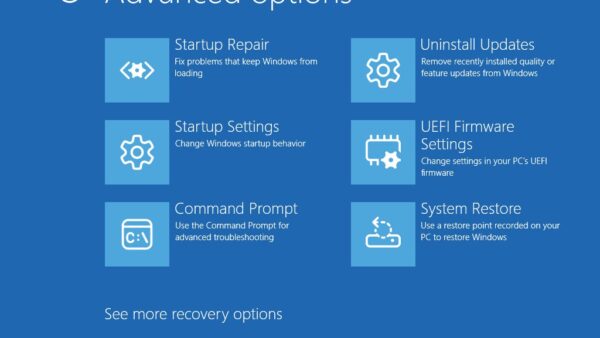
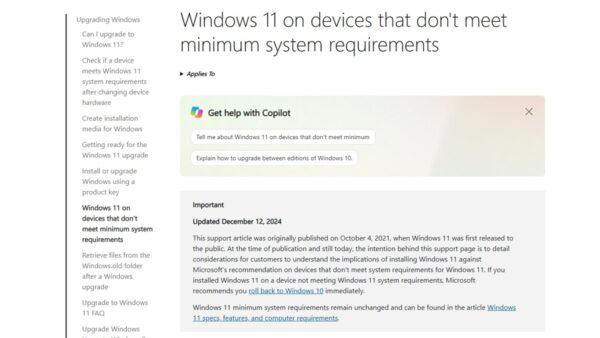
Yes, partly: you can upgrade an existing PC to Windows 11 26H2 offline from an ISO downloaded on another device, but a new install of Windows 11 Home, or Pro set up for personal use, needs internet and a Microsoft account to finish setup.
This guide shows which installs work offline, how to run an offline upgrade from the ISO, what a clean install needs, and how organisations update PCs that have no direct internet access.
Which Windows 11 26H2 installs work without internet
Every route needs internet once, to download the installer. What changes is whether the PC you are installing on must be online.
| What you want to do | Works offline on the target PC? | Route |
|---|---|---|
| Upgrade a Windows 11 24H2 or 25H2 PC through Windows Update | No | The enablement package downloads from Windows Update |
| Upgrade an existing Windows PC in place, keeping apps and files | Yes | Run setup.exe from a 26H2 ISO saved on another device |
| Clean install of Windows 11 Home | No, setup needs internet at the end | USB media, then connect during setup |
| Clean install of Windows 11 Pro for personal use | No, setup needs internet at the end | USB media, then connect during setup |
| Update company PCs with no direct internet | Yes, from a local update server | WSUS syncs the 26H2 feature update |
| Download the 26H2 package from the Microsoft Update Catalog | Not available | Microsoft does not list the enablement package there |
Microsoft released 26H2 on September 29, 2026, as a small enablement package for 24H2 and 25H2, with a staged rollout. The online routes are covered in the guide to download and install Windows 11 26H2.
What you need before going offline
| Item | Why it matters |
|---|---|
| A PC with internet, used once | To download the 26H2 ISO or create USB media from Microsoft's download page |
| The Windows 11 26H2 ISO | It holds the full operating system, so Setup can run without downloading anything |
| The same display language as the target PC | An in-place upgrade needs media in the PC's system default UI language |
| A USB drive of 8 GB or more | Only for a clean install or to carry the ISO to the offline PC |
| A supported PC | The target still has to meet the Windows 11 hardware requirements |
| Network drivers on hand | An offline Setup does not fetch new drivers, so keep the PC maker's Wi-Fi or Ethernet driver ready |
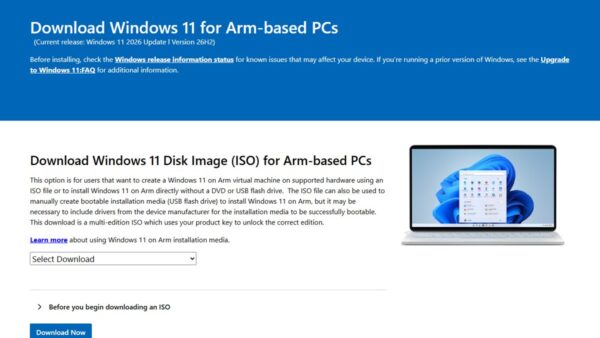
Get the file from the official Windows 11 26H2 ISO download page, and check the PC against the 26H2 system requirements first. The x64 ISO and Media Creation Tool do not cover Arm-based PCs; those use Microsoft's separate Arm64 ISOs.
Upgrade an existing PC to 26H2 offline from the ISO
This keeps your apps, files and settings. It works on a PC that stays disconnected for the whole upgrade.
- On a connected PC, download the Windows 11 multi-edition ISO for x64 devices from Microsoft's Windows 11 download page.
- Copy the ISO to a USB drive or external disk, then plug it into the offline PC.
- Open File Explorer, right-click the ISO file and select Mount.
- Open the new virtual drive and run setup.exe.
- Accept the licence terms when Setup shows them.
- Choose to keep your personal files and apps, then start the installation.
- Let the PC restart several times until the sign-in screen appears.
If Setup offers to download updates first, decline it to stay fully offline; the command in the next section switches that step off for certain. For more on running Setup from a mounted image, see how to install 26H2 without a USB drive.
Run an offline upgrade from Command Prompt
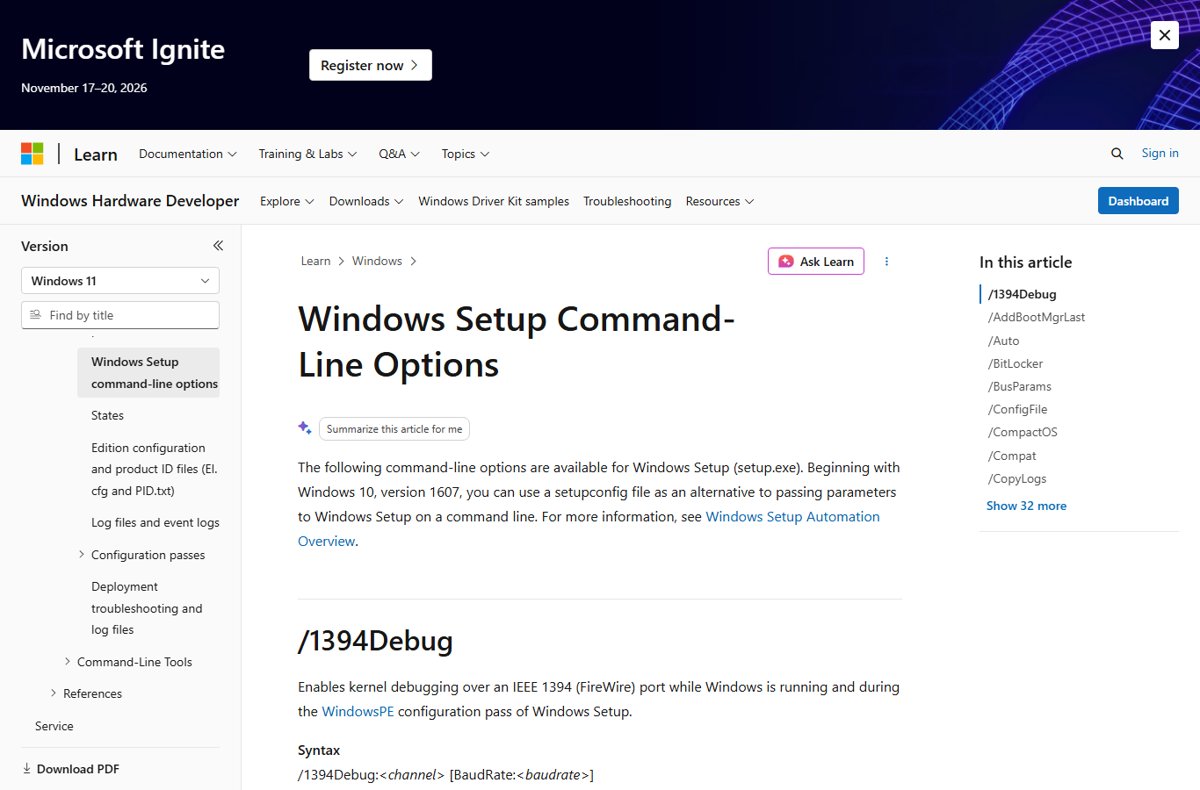
The /DynamicUpdate Disable switch tells Windows Setup not to search for, download or install updates during the upgrade. Open Command Prompt as an administrator and replace E: with the drive letter of the mounted ISO.
E:\setup.exe /auto upgrade /dynamicupdate disable/auto upgrade performs an upgrade that keeps apps and data. /dynamicupdate disable stops Setup from contacting Windows Update for newer Setup files, drivers or the latest cumulative update. Windows 11 Setup still shows the licence terms, because /auto does not accept them for you.
You should see: Setup checks compatibility, restarts into the upgrade and finishes at the sign-in screen. If the upgrade option is not available or an app needs attention, Setup exits silently and logs an exit code instead.
Adding /eula accept suppresses the licence screen and means you accept the Microsoft Software License Terms. Microsoft only supports /auto with unmodified images, so use the ISO exactly as downloaded.
Clean install Windows 11 26H2 from USB
Copying files to the drive works offline. The final setup screens are where Home and personal Pro installs need a connection.
- On a connected PC, create a bootable USB drive with the Media Creation Tool or from the ISO.
- Back up your files, because a clean install deletes everything on the drive you install to.
- Boot the target PC from the USB drive and follow Windows Setup to install Windows 11.
- When setup reaches the network screen, connect to Wi-Fi or plug in Ethernet.
- Sign in with your Microsoft account to finish setup on Home or Pro for personal use.
- If setup offers to skip updates, you can take them later from Settings > Windows Update.
You can create bootable 26H2 USB media with Microsoft's tool, or use Rufus to build the USB drive from the ISO. If the PC's network adapter is not detected during setup, load the maker's driver from a USB drive.
Why Windows 11 setup asks for internet and a Microsoft account
The requirement is part of Windows 11 itself, not something new in 26H2. Microsoft states it on both its requirements pages.
| Edition or case | Internet during first setup | Source of the rule |
|---|---|---|
| Windows 11 Home | Required, with a Microsoft account | Windows 11 requirements on Microsoft Learn |
| Windows 11 Pro for personal use | Required, with a Microsoft account | Windows 11 specifications page |
| Pro, Enterprise or Education set up by an organisation | Microsoft's rule names only Home and personal Pro | Organisations use their own deployment tools |
| The old bypassnro setup script | Removed from Windows 11 builds | Windows Insider blog, March 2025: so all users exit setup with internet and a Microsoft account |
| Updates and some features after setup | Internet needed on every edition | Windows 11 requirements |
Microsoft does not support workarounds that skip these screens, and a later build can remove them. The options that are supported are covered in the guide to install 26H2 with a local account.
Update office PCs with no direct internet through WSUS
In an organisation, PCs can take the 26H2 enablement package from a local Windows Server Update Services (WSUS) server. Only the WSUS server needs to reach Microsoft.
- In the WSUS console, open the Products and Classifications options.
- Select Windows 11 under products and Upgrades under classifications.
- Synchronise WSUS, then find the update named Windows 11, version 26H2.
- Make sure target PCs run 24H2 or 25H2 with KB5124010 or a later cumulative update.
- Approve the update for a pilot group, then for the wider fleet.
Microsoft says the enablement package is not published on the Microsoft Update Catalog, so there is no standalone file to copy to an air-gapped PC. The deployment options are Intune, Autopatch and WSUS, and what the switch installs is the KB5121794 enablement package.
How to check the PC is on 26H2
- Right-click Start and select Settings.
- Select System > About.
- Under Windows specifications, confirm Version shows 26H2.
- Confirm OS build starts with 26300.
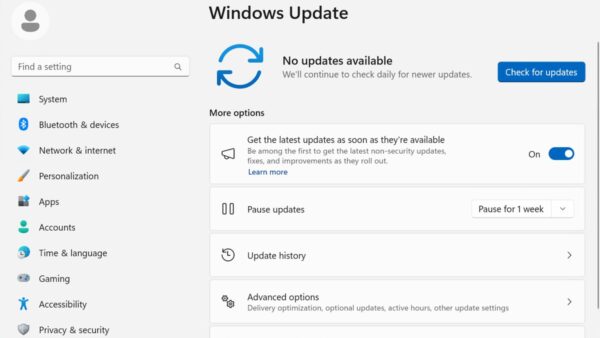
An offline ISO upgrade may land on an earlier 26H2 build than Windows Update now offers. Once the PC is online, open Settings > Windows Update and install the latest cumulative update; the 26H2 build numbers explained show what each one means.
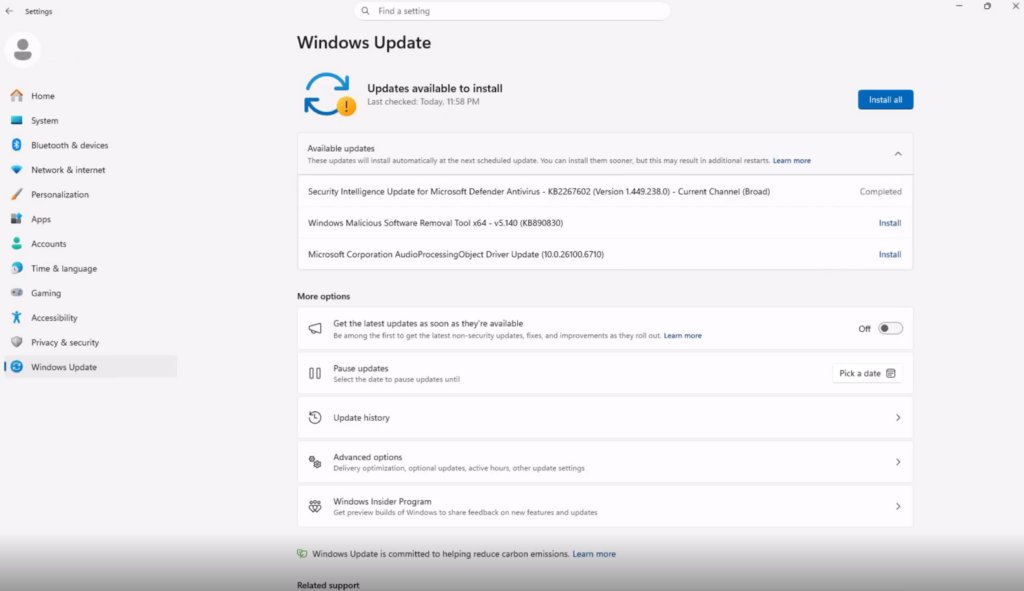
What an offline install leaves out
| Missing piece | Effect | What to do |
|---|---|---|
| Setup's dynamic updates | No newer Setup fixes, drivers or cumulative update during installation | Run Windows Update as soon as the PC is online |
| Latest security fixes | The PC runs the ISO's build until you update | Keep it off untrusted networks until updated |
| New network drivers | Wi-Fi or Ethernet may not work after installation | Install the PC maker's driver from USB |
| Online features | Features that rely on cloud services stay unavailable | Connect when you need them |
If the PC has no network after the upgrade, work through the 26H2 no-internet fixes before assuming the install failed.
Frequently asked questions
Can you install Windows 11 26H2 without internet?
Yes, for an in-place upgrade from a 26H2 ISO that you downloaded earlier on another device. A clean install of Windows 11 Home, or Pro for personal use, still needs internet and a Microsoft account to finish setup.
Does Windows 11 Home need internet to install?
Yes. Microsoft states that Windows 11 Home requires an internet connection and a Microsoft account to complete device setup on first use. Copying the files from USB works offline, but the final setup screens need a connection.
Does Windows 11 Pro need internet during setup?
Only when it is set up for personal use. Microsoft says Windows 11 Pro for personal use requires internet and a Microsoft account during initial setup, the same as Home.
Can I download the 26H2 enablement package for offline install?
No. Microsoft's KB5121794 page says the enablement package is only available through Windows Update and WSUS, not the Microsoft Update Catalog. For an offline upgrade, use the full 26H2 ISO instead.
Does oobe\bypassnro still work in Windows 11 26H2?
Microsoft removed the bypassnro.cmd script from Windows 11 builds in 2025, stating that all users should leave setup with internet and a Microsoft account. It is not a supported way to set up 26H2.
Does the Media Creation Tool work offline?
No. Microsoft lists an internet connection among the Media Creation Tool's requirements, because it downloads Windows 11 while building the USB drive. Run it on any connected PC, then carry the finished USB drive to the offline one.
Will Windows 11 26H2 update itself after an offline install?
Yes, once it connects. Windows Update checks automatically and installs the latest cumulative update, which moves the PC to the current 26H2 build and applies security fixes missed while offline.
Bottom line
Upgrade existing PCs offline with the 26H2 ISO and setup.exe, but plan a network connection for any new Home or personal Pro setup. The ISO carries the whole operating system, while Microsoft requires internet and a Microsoft account to finish first-time setup on those editions and has removed the old bypass script.