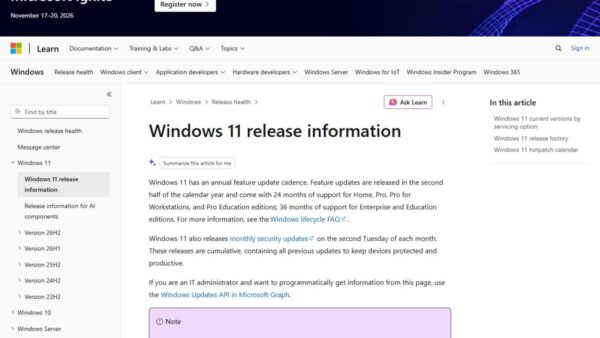
To repair Windows 11 26H2 without losing files, open Settings > System > Recovery and select Reinstall now under Fix problems using Windows Update, which downloads a repair copy of your current version and keeps your apps, files and settings.
The feature often called cloud repair is not Microsoft's Cloud rebuild: Cloud rebuild is an Insider preview that wipes the system disk. This guide shows which option keeps what, and how to use each one.
The fastest way to repair Windows 11 26H2 without losing files
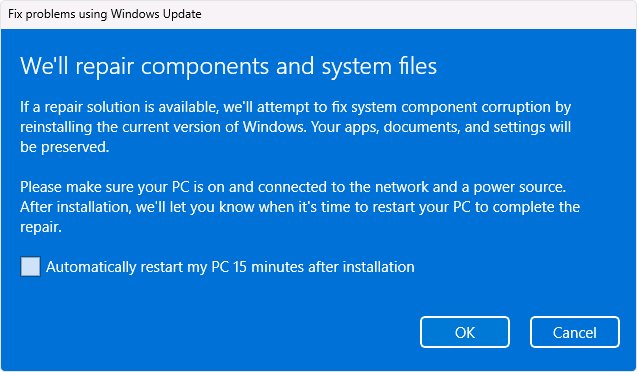
Fix problems using Windows Update reinstalls the same Windows version already on your PC and repairs system files and components. Keep the PC plugged in and online for the whole process.
- Select Start > Settings > System > Recovery.
- Under Fix problems using Windows Update, select Reinstall now.
- Choose whether the PC may restart automatically 15 minutes after the installation completes.
- Select OK. Windows Update downloads and installs a repair version of the last update that installed successfully.
- Restart the PC if you did not allow the automatic restart.
If an update fails because of damaged system files, Windows Update can show Reinstall your current version of Windows to repair system files and components. Selecting Reinstall now there opens the same tool.
Which Windows 11 repair option keeps your files
Every Microsoft recovery tool reinstalls or rolls back something. The difference is what survives.
| Option | Apps and settings | Personal files | Use it when |
|---|---|---|---|
| Fix problems using Windows Update (Reinstall now) | Kept | Kept | Windows starts but updates fail or system files are damaged |
| Reset this PC with Keep my files and Cloud download | Removed | Kept | Reinstall now did not help, or local files are corrupted |
| Run setup.exe from the official 26H2 ISO, Keep personal files and apps | Kept | Kept | You have the ISO and Windows still starts |
| Point-in-time restore | Rolled back | Rolled back; changes after the restore point are lost | Something broke in the last 72 hours |
| Reset this PC with Remove everything | Removed | Removed | Fresh start or giving the PC away |
| Cloud rebuild (Insider preview) | Removed | Removed; system disk reformatted | Windows will not boot and you have a backup |
Files stored in OneDrive are not affected by point-in-time restore or Cloud rebuild, according to Microsoft.
Cloud repair vs Cloud rebuild: what Microsoft actually ships
| Fix problems using Windows Update | Cloud rebuild | |
|---|---|---|
| Status on 26H2 retail PCs | Available (needs the 2022 annual update and the February 2024 optional update or later) | Preview in Windows Insider builds; first shown in Experimental build 26300.8772 on July 6, 2026 |
| Where you start it | Settings > System > Recovery | Windows Recovery Environment, Troubleshoot |
| What it downloads | A repair version of your last successful update | A full Windows image plus your PC's drivers from Windows Update |
| Your files | Kept | Removed; all local files, accounts, apps and settings |
| After it finishes | Your normal desktop | The out-of-box setup screens, like a new PC |
| Managed work PCs | Not available if updates are managed | Controlled by IT through the Recovery CSP |
What you need before repairing Windows
| Requirement | Why |
|---|---|
| Power connection | Interrupting a reinstall can leave Windows unable to boot |
| Internet connection | Both Windows Update repair and Cloud download pull files from Microsoft |
| BitLocker recovery key | Needed for options started from the Windows Recovery Environment on encrypted PCs |
| Backup of important files | Microsoft advises it before any reset, even with Keep my files |
| An unmanaged PC for Reinstall now | Autopatch, the deployment service and some update policies hide the option |
Reset this PC with Cloud download and Keep my files
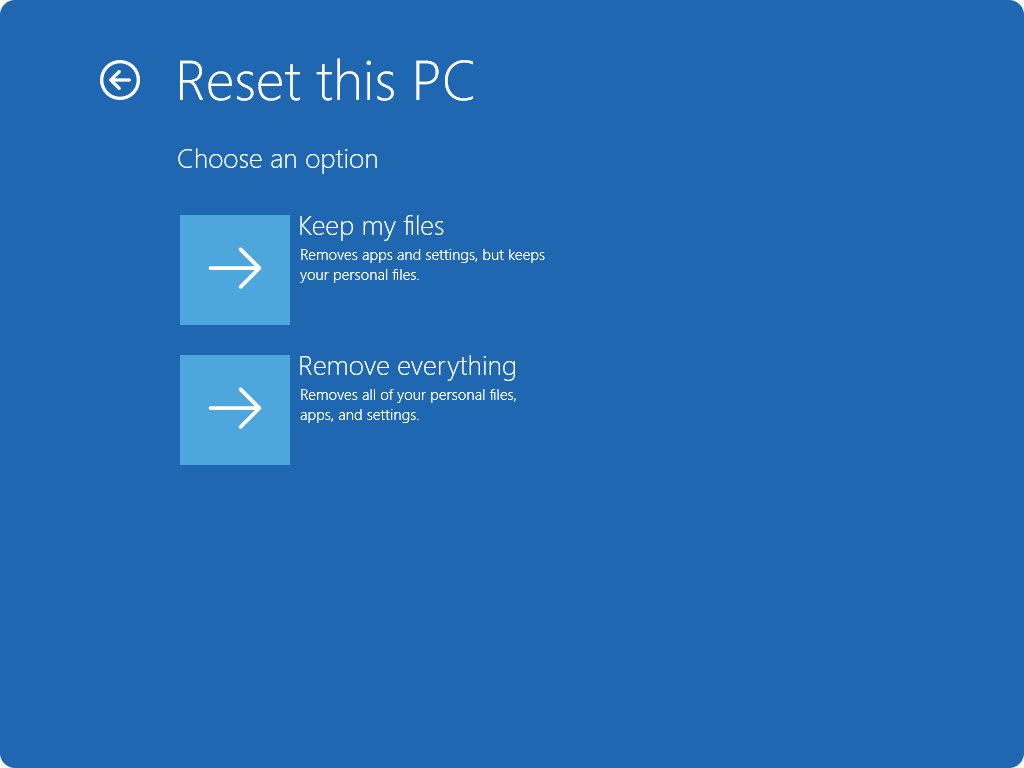
If Reinstall now does not fix the problem, Reset this PC reinstalls Windows from a fresh copy downloaded from the cloud. Keep my files preserves documents and photos but removes apps and settings, so note what you need to reinstall first.
- Open Settings > System > Recovery.
- Under Recovery options, select Reset PC.
- Choose Keep my files.
- Choose Cloud download to get a fresh copy of Windows with the latest updates.
- Follow the on-screen instructions. The screen can stay black for 15 minutes or more; do not restart the PC yourself.
Roll back the last 72 hours with point-in-time restore
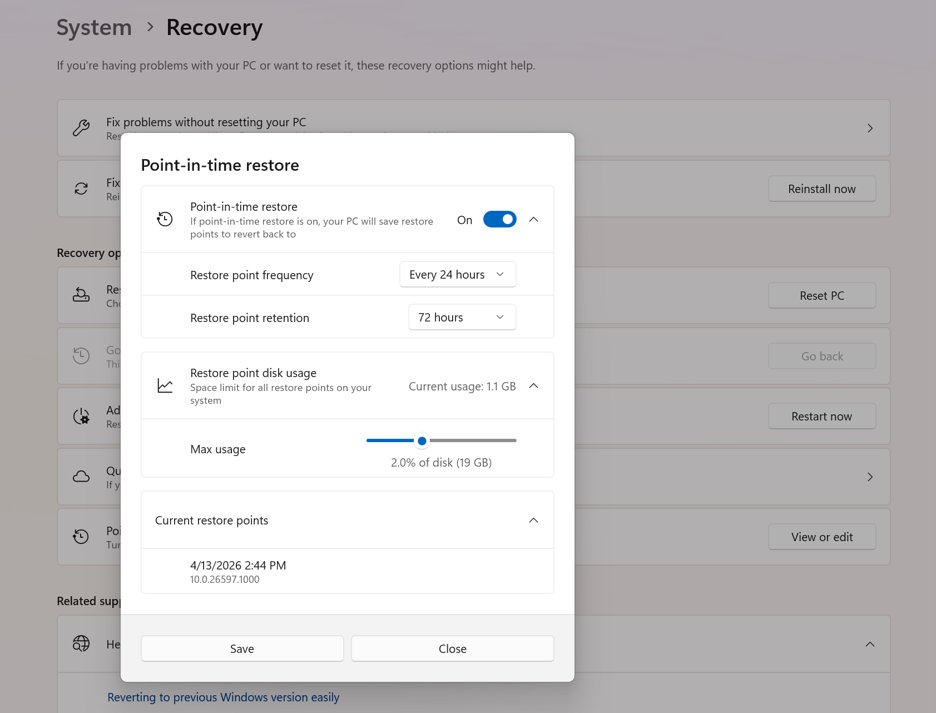
Point-in-time restore, part of the 26H2 feature set, returns the whole PC to a restore point captured in the last 72 hours. It is on by default for Home and unmanaged Pro PCs with an OS volume of 200 GB or more.
- Open Settings > System > Recovery and select Restart now next to Advanced startup; a PC that fails to boot repeatedly enters recovery on its own.
- Select Troubleshoot > Point-in-time restore.
- Enter your BitLocker recovery key if asked.
- Pick a restore point by date and time, then select Continue.
- Review the OS version and the data-loss warning, then select Restore.
Anything created after the restore point, including files, is lost unless it lives in OneDrive.
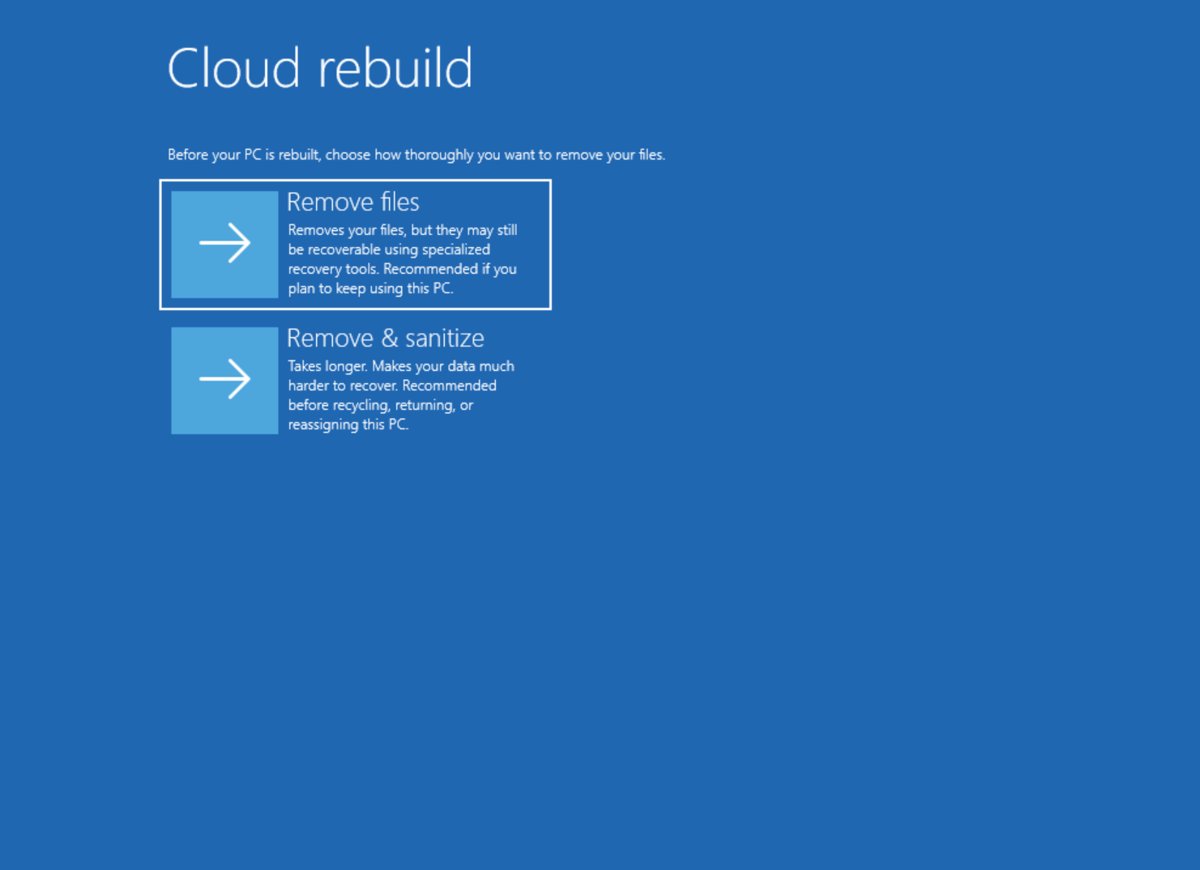
How to use Cloud rebuild in the Windows Recovery Environment?
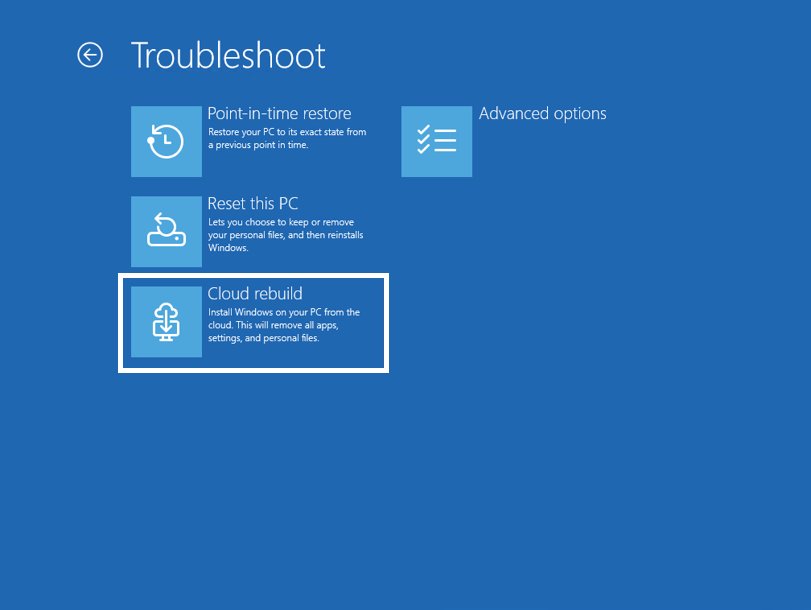
Cloud rebuild is a preview for non-production devices and appears only on Windows Insider builds. It reformats the system disk, so copy anything you need off the PC or into OneDrive first.
- Enter the Windows Recovery Environment from Settings > System > Recovery > Advanced startup > Restart now, or let repeated boot failures open it.
- On Choose an option, select Troubleshoot, then Cloud rebuild.
- Connect over Ethernet, or pick a WPA-Personal Wi-Fi network and enter its passkey.
- Wait while Cloud rebuild contacts Windows Update for the target build and network drivers.
- Select Remove files to keep using the PC, or Remove & sanitize files before recycling or returning it.
- Check the displayed build, edition and language, acknowledge the data-loss warning and select Continue.
- Keep the PC on power until it restarts into the Windows setup screens.
How to check the repair worked
- Open Settings > System > About and confirm Version still reads 26H2 with an OS build starting 26300.
- Open Settings > Windows Update, select Check for updates and confirm updates now install without the reinstall prompt.
- Open File Explorer and confirm your documents, desktop and pictures folders are intact.
- After Reset this PC, reinstall any apps it removed.
Fix repair options that fail or are missing
Fix problems using Windows Update is not displayed
Your updates are managed by work or school, or the PC lacks the February 2024 optional update or later.
- Install all pending updates from Settings > Windows Update and restart.
- On a work or school PC, ask IT to repair the device; the option stays hidden while updates are managed.
- Use Reset PC with Keep my files as the fallback.
Point-in-time restore has no restore points
The feature is off by default below a 200 GB OS volume and on managed PCs, and restore points are deleted when free space drops to 20 GB or they pass 72 hours.
- Turn the feature on in Recovery settings if it is off.
- Keep more than 20 GB of free space on the system drive.
- Use Reinstall now or Reset PC for problems older than 72 hours.
Cloud rebuild fails with 0x800704C6
No network connection in the recovery environment.
- Select Cancel, then Troubleshoot > Cloud rebuild again.
- Plug in Ethernet or choose a WPA2-Personal Wi-Fi network, then continue.
Cloud rebuild fails with 0xc1900200
The PC does not meet Windows 11 minimum requirements, most often because TPM is disabled.
- Restart into UEFI/BIOS setup and enable TPM (it can be labeled PTT, fTPM or Security Device).
- In Windows, press Win + R, run
tpm.mscand confirm The TPM is ready for use. - Retry Cloud rebuild.
Cloud rebuild fails with 0xc1900224
A required driver, usually networking or storage, is not published on Windows Update.
- Ask the PC maker whether the drivers are on Windows Update.
- Otherwise recover with installation media or the maker's recovery media.
Problems that started right after the upgrade can be 26H2 known issues rather than damaged files; check the 26H2 known issues list before reinstalling.
Frequently asked questions
Does Windows 11 26H2 have cloud repair?
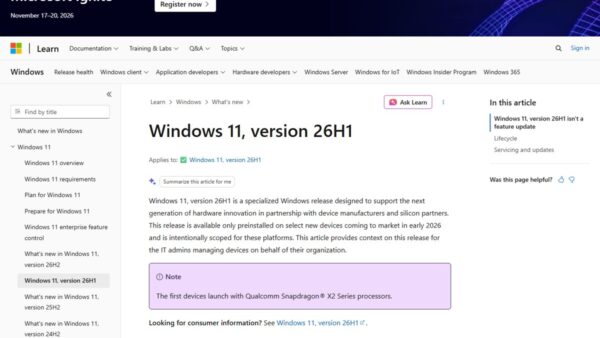
Not under that name. Windows 11 26H2 includes Fix problems using Windows Update, which downloads a repair copy and keeps your files, and Reset this PC with Cloud download. Cloud rebuild is a separate Insider preview that erases the PC.
Does Cloud rebuild delete my files?
Yes. Cloud rebuild reformats the system disk and removes all locally stored files, accounts, apps and settings. Files already stored in OneDrive or other cloud services are not affected.
Does Reinstall now keep my apps?
Yes. Fix problems using Windows Update reinstalls the same Windows version and preserves your apps, files and settings, while repairing system files and components.
Is Cloud rebuild available on Windows 11 26H2 retail PCs?
Microsoft documents Cloud rebuild as a preview for evaluation on non-production devices, available in Windows Insider builds. It is not listed in Microsoft's What's new page for the 26H2 general release.
What is the difference between Cloud download and Cloud rebuild?
Cloud download is a Reset this PC option that can keep your personal files. Cloud rebuild runs from the recovery environment, downloads the Windows image and drivers from Windows Update, and always removes local files.
Can I repair Windows 11 if it will not start?
Yes. After repeated boot failures the PC opens the Windows Recovery Environment, where Troubleshoot offers Reset this PC with Keep my files and point-in-time restore. Have your BitLocker recovery key ready.
Bottom line
Start with Reinstall now under Fix problems using Windows Update, fall back to Reset PC with Keep my files and Cloud download, and treat Cloud rebuild as a last resort only after backing up. Only the first option keeps apps, files and settings together, while Cloud rebuild is still a preview that always wipes the system disk.