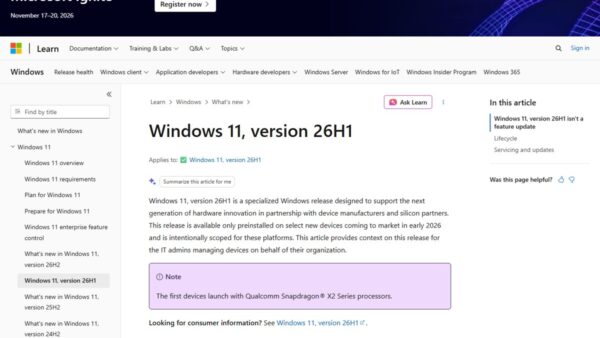
To clean install Windows 11 26H2, run Microsoft's Media Creation Tool from the Download Windows 11 page to make a bootable USB drive of at least 8 GB, boot the PC from it, delete the partitions on Disk 0 and install to the unallocated space; the page now lists Windows 11 2026 Update, version 26H2 as the current release.
This guide covers what to prepare, both halves of the job (making the USB and running Setup), the Command Prompt and third-party alternatives, how to confirm you got 26H2, and fixes when the tool or the boot fails.
The fastest way to clean install Windows 11 26H2
- Back up your files; a clean install deletes personal files, apps, manufacturer customizations and changed settings.
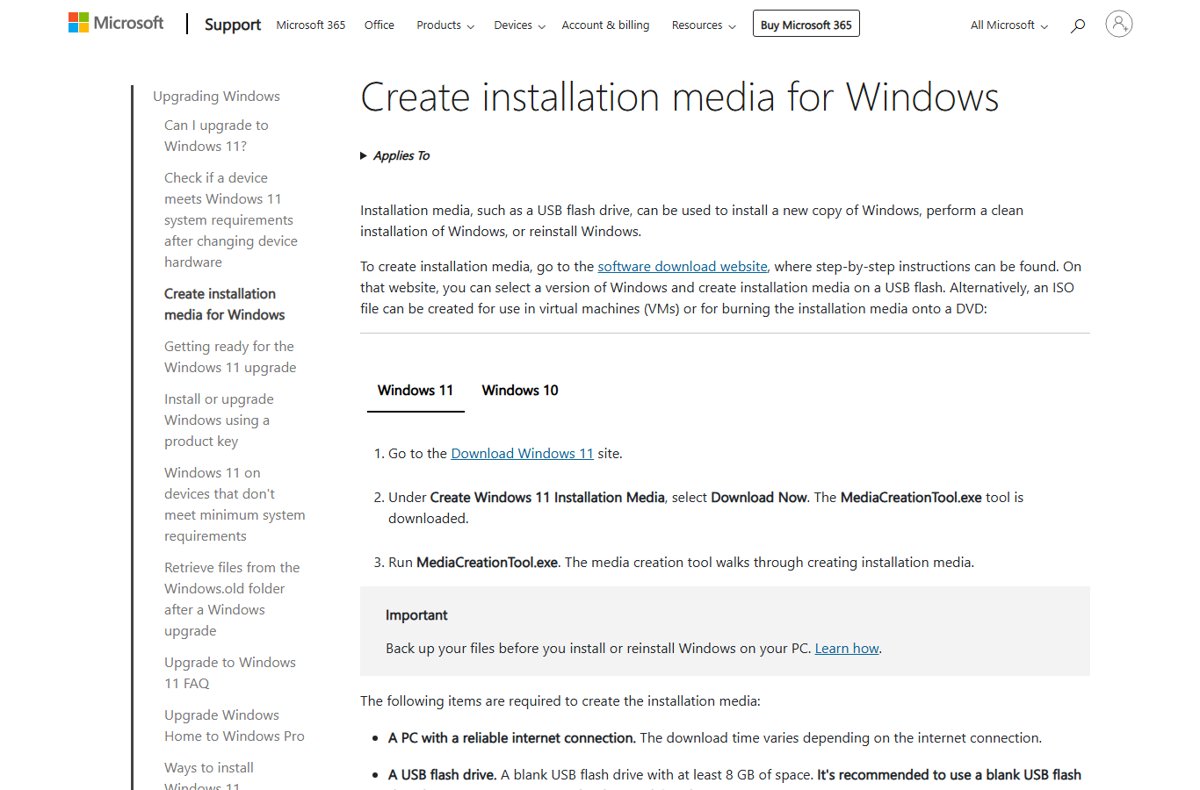
- On a working PC, open the Download Windows 11 page on microsoft.com and select Download Now under Create Windows 11 Installation Media.
- Run the tool as an administrator, select Accept, choose to create installation media for another PC, and pick USB flash drive.
- Plug the USB drive into the target PC and start it from the drive (the boot menu key depends on the PC maker).
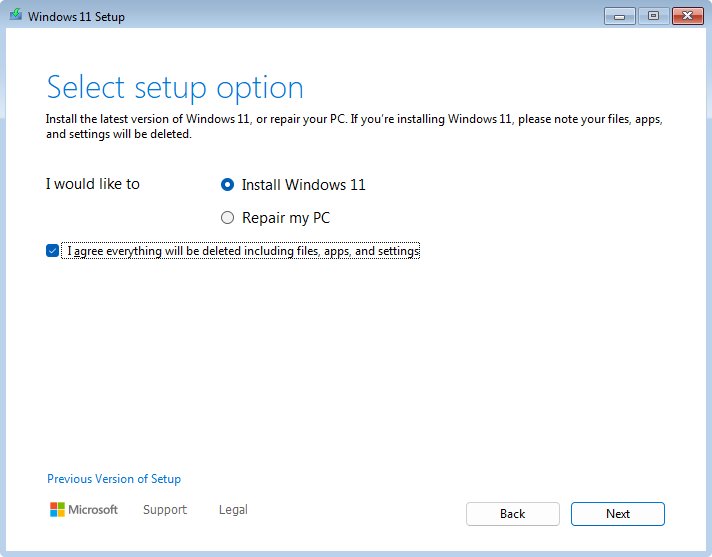
- In Setup, select Install Windows 11, tick I agree everything will be deleted including files, apps, and settings, and select Next.
- On the install location screen, delete each partition on Disk 0 with Delete Partition, select Disk 0 Unallocated Space, then select Next and Install.
- After the restarts, sign in with your Microsoft account so your digital license is applied.
Each half is broken down below with the screens you will see. The Media Creation Tool builds x64 media only; Arm-based PCs need the Arm64 ISO instead.
Prerequisites to create a bootable USB
| You need | Detail |
|---|---|
| A Windows 11 licence | A licence to install Windows 11, or a Windows 10 device that qualifies for the upgrade; a digital license linked to your Microsoft account needs no key |
| A blank USB flash drive | At least 8 GB; everything on it is deleted |
| An internet connection | The tool downloads the Windows files as it runs |
| A 64-bit target PC | Check Settings > System > About; the tool only makes x64 media |
| A PC that meets Windows 11 requirements | 64-bit CPU with 2 or more cores at 1 GHz, 4 GB RAM, 64 GB storage, UEFI with Secure Boot capable, TPM 2.0 |
| Your files backed up | To an external drive or cloud storage |
| Matching language | Pick the same language the PC uses now if you plan to reuse it |
Check the target PC against the 26H2 system requirements first. Microsoft warns that installing on a PC that does not meet them is not recommended and can cause compatibility problems.
Which install route should you use?
| Your situation | Use this | Why |
|---|---|---|
| Wipe and reinstall this PC or another x64 PC | Media Creation Tool to a USB drive | Microsoft's own tool builds bootable 26H2 media in one pass |
| Keep files and apps, just move to 26H2 | Windows Update or Installation Assistant | No wipe needed; 24H2 and 25H2 PCs get a small enablement package |
| Virtual machine or custom USB | The multi-edition 26H2 ISO | Mount it in a VM or write it with another tool |
| Arm-based PC | The Arm64 ISO | The Media Creation Tool and Installation Assistant are x64 only |
| Technician building media by hand | Command Prompt method below | Microsoft documents it for manufacturers |
The Installation Assistant is one of the official ways to install 26H2, and Microsoft also provides official 26H2 ISO links.
Step 1: Create the 26H2 USB with the Media Creation Tool
- On a working Windows PC, go to the Download Windows 11 page on microsoft.com and confirm it shows Windows 11 2026 Update l Version 26H2 as the current release.
- Under Create Windows 11 Installation Media, select Download Now and run the file that downloads.
- Allow it to run as an administrator, then select Accept on the license terms.
- Choose to create installation media (USB flash drive, DVD, or ISO file) for another PC.
- Select the language, edition and the 64-bit architecture.
- Choose USB flash drive, pick your 8 GB or larger drive, and let the tool download and write Windows 11.
Choose ISO file instead if you want a file for a virtual machine or a DVD.
Step 2: Boot from the USB and clean install 26H2
- Connect the USB drive to the target PC and start it from the drive; check the PC maker's instructions for the boot menu key.
- When Windows 11 Setup starts, choose your language and keyboard settings, selecting Next on each.
- In Select setup option, select Install Windows 11, tick I agree everything will be deleted including files, apps, and settings, and select Next.
- If a product key screen appears, select I don't have a product key, choose your edition in Select Image, and select Next.
- Select Accept on the license terms.
- On the install location screen, select each partition on Disk 0 and select Delete Partition; leave Disk 1 and any other disks alone.
- Select Disk 0 Unallocated Space, select Next, then Install.
- Let the PC restart several times, complete the setup screens, and sign in with your Microsoft account.
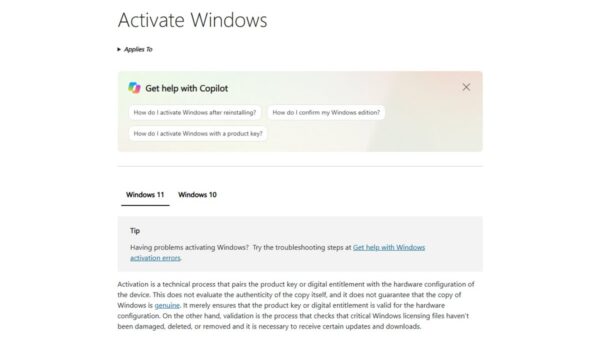
Pick the edition your licence covers, such as Home or Pro. Signing in with the Microsoft account that holds your digital license lets Windows activate without a key; the 26H2 product key guide explains when you need one.
Create Windows 11 26H2 bootable USB using Command Prompt
Microsoft documents a manual method for technicians: format the drive, copy the ISO contents, and split the image if it is over the FAT32 4 GB limit. It needs the 26H2 ISO, a drive with at least 5 GB free, and a Windows PC.
- Right-click Start, choose Disk Management, right-click the USB partition, choose Format and select FAT32 so both BIOS and UEFI PCs can boot it.
- Right-click the USB partition and select Mark Partition as Active (or use diskpart to mark it active if that option is greyed out).
- Mount the 26H2 ISO and note its drive letter (D: in the next steps) and the USB drive letter (E:).
- Open Command Prompt and copy everything except the large image file:
robocopy D: E: /s /max:3800000000. - Split the image onto the USB drive:
Dism /Split-Image /ImageFile:D:\sources\install.wim /SWMFile:E:\sources\install.swm /FileSize:3800. - Boot the target PC from the drive and continue with Step 2 above.
Windows Setup installs from the split files automatically as long as they are named install.swm.
Create Windows 11 26H2 bootable USB using Rufus or Ventoy
| Tool | What it is | What to know |
|---|---|---|
| Rufus | A free, open-source utility from rufus.ie that creates bootable USB drives from ISO images, including Windows 11 | Needs Windows 8 or later and the 26H2 ISO; download it only from rufus.ie and check the signature reads Akeo Consulting |
| Ventoy | A third-party multi-boot USB tool | Not covered by Microsoft documentation; use the Media Creation Tool when you want a Microsoft-supported install path |
| Media Creation Tool | Microsoft's own tool | Downloads 26H2 and writes the USB in one step, no ISO needed |
Both third-party tools start from the official 26H2 ISO, so the Windows files are the same; only the USB writing step differs.
How to check the clean install is 26H2
- Right-click Start and choose Settings.
- Select System, then About.
- Under Windows specifications, check that Version reads 26H2 and OS build starts with 26300.
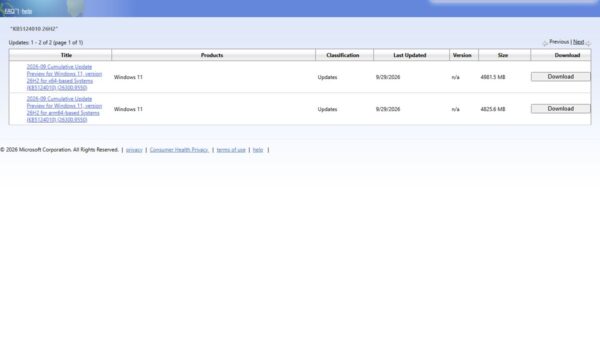
Then open Settings > Windows Update and install everything offered; the latest 26H2 build on 29 September 2026 was 26300.9550.
Fix Media Creation Tool and USB boot problems
"There was a problem running this tool"
The Media Creation Tool hit an error and stopped before the media was finished.
- Run the tool again as an administrator.
- Check the internet connection and free space for the download.
- If it still fails, work through the Media Creation Tool error fix, or download the 26H2 ISO and use the Command Prompt method.
The PC will not boot from the USB drive
The PC boots from its internal disk first, or needs a maker-specific key for the boot menu.
- Restart and press the boot-device menu key while the PC starts; Esc, F10 and F12 are common.
- Select the USB drive from the list.
- If no menu appears, check the PC maker's instructions for booting from a flash drive.
- After installing, set the boot order back if you changed it.
install.wim is too large to copy to the USB drive
FAT32 cannot hold a file over 4 GB.
- Copy everything except the image with
robocopy D: E: /s /max:3800000000. - Split the image with
Dism /Split-Image /ImageFile:D:\sources\install.wim /SWMFile:E:\sources\install.swm /FileSize:3800.
The Media Creation Tool will not make media for an Arm PC
The tool creates x64 media only.
- Go to the Download Windows 11 page and follow the link for Windows 11 ISOs for Arm64 devices.
- Write that ISO to a USB drive with the Command Prompt method.
Frequently asked questions
Does the Media Creation Tool download Windows 11 26H2?
Yes. Microsoft's Download Windows 11 page lists the current release as Windows 11 2026 Update, version 26H2, and the Media Creation Tool is offered on that page for that release. Check the version after installing under Settings > System > About.
How big a USB drive do I need for Windows 11 26H2?
Use a blank USB flash drive with at least 8 GB of space for the Media Creation Tool. Everything on the drive is deleted. Microsoft's manual Command Prompt method needs at least 5 GB free, but an 8 GB drive works for both.
Does a clean install of 26H2 need a product key?
Usually not. If the PC had an activated Windows 10 or 11 with a digital license, select I don't have a product key during Setup and sign in with your Microsoft account afterwards. Many newer PCs also store the key in firmware, so Setup reads it automatically.
Will a clean install delete my files?
Yes. A clean install removes personal files, apps, manufacturer customizations and settings changes from the disk you install to. Back up everything to an external drive or cloud storage first, and delete partitions only on Disk 0.
Can I use the Media Creation Tool on an Arm PC?
No. Microsoft states the Windows 11 Media Creation Tool can only create media for x64 processors. For an Arm-based PC, download the Windows 11 ISO for Arm64 devices linked from the Download Windows 11 page.
Do I need a clean install to get 26H2?
No. A PC on Windows 11 24H2 or 25H2 gets 26H2 through Windows Update as a small enablement package with one restart. A clean install makes sense when you want a fresh system or are fixing a badly broken one.
Can I make a 26H2 USB with Rufus instead?
Yes, Rufus can write the official 26H2 ISO to a USB drive. It is a free open-source tool from rufus.ie that runs on Windows 8 or later. Use the Media Creation Tool if you prefer to stay entirely with Microsoft's own software.
Does Windows 11 26H2 still need TPM 2.0 for a clean install?
Yes. Microsoft's Windows 11 requirements list TPM 2.0, UEFI firmware with Secure Boot capability, a compatible 64-bit processor, 4 GB of RAM and 64 GB of storage for installing Windows 11, and they apply to a clean install too.
Bottom line
Use the Media Creation Tool and an 8 GB USB drive for a 26H2 clean install on any x64 PC that meets the requirements. It is the only route that downloads 26H2 and writes bootable media in one step with Microsoft's own tool. If you only want the new version and not a fresh system, skip the wipe and take 26H2 from Windows Update instead.