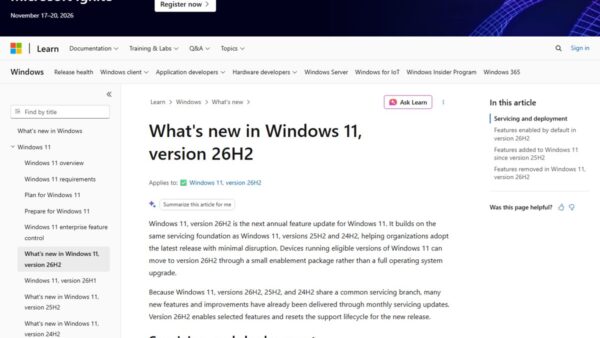
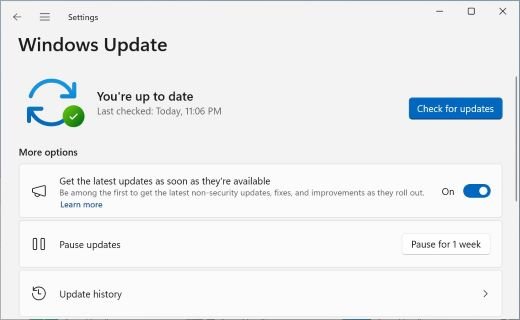
Windows 11 26H2 reaches managed PCs through the tools you already run: WSUS syncs it under the Windows 11 product and Upgrades classification, Intune and Windows Autopatch deploy it with a feature update policy, and Group Policy targets it with Select the target Feature Update version.
This guide covers each route, the upgrade path for every starting version, the lifecycle dates, the three known issues that matter to enterprises, and how to track a pilot through to production.
The fastest way to deploy Windows 11 26H2 in an organization
Microsoft made version 26H2 generally available on September 29, 2026, and states that existing management tools, update rings and policies keep working. Pick the row for the tool that already manages your feature updates.
| Your management tool | What to do | What devices receive |
|---|---|---|
| WSUS | Sync Product Windows 11 and Classification Upgrades, then approve Windows 11, version 26H2 for a pilot group | The KB5121794 enablement package on 24H2 and 25H2 devices |
| Configuration Manager | Sync the Windows 11 product category and deploy the 26H2 feature update to a pilot collection | The same WSUS-sourced feature update |
| Microsoft Intune | Create a feature update profile and pick 26H2 in Feature update to deploy | The offer from Windows Update, gated by safeguard holds |
| Windows Autopatch | Add a 26H2 feature update policy to your Autopatch groups, optionally as a multi-phase release | The update phased across your deployment rings |
| Group Policy with Windows Update client policies | Set Select the target Feature Update version to Windows 11 and 26H2 | The offer from Windows Update |
Microsoft recommends starting with targeted deployments to validate apps, devices and business-critical workflows before going broad.
What 26H2 actually is
| Question | Answer from Microsoft's documentation |
|---|---|
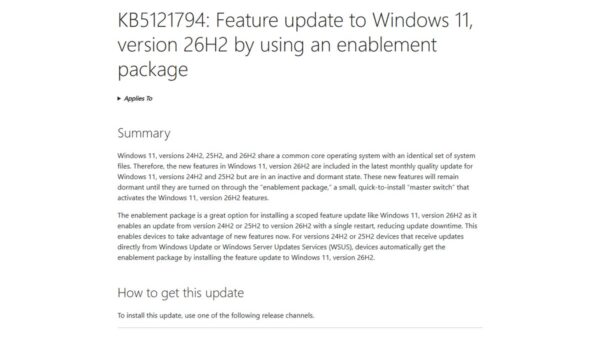
| Delivery | An enablement package (KB5121794) for devices on Windows 11, version 24H2 or 25H2 |
| Code base | Shares a servicing branch and identical system files with 24H2 and 25H2; the features ship dormant in monthly updates and the package switches them on |
| Build | OS build 26300; the latest build listed on September 29, 2026 is 26300.9550 |
| Install time | Similar to a monthly update, with a single restart |
| On by default for commercial devices | Windows settings backup, app-specific actions from the taskbar, and several File Explorer enhancements that were held under temporary commercial controls |
| Still off by default | Administrator protection and built-in Sysmon; quick machine recovery stays off on domain-joined or enterprise-managed devices unless you enable it |
| Removed | WMIC is no longer available, not even as a Feature on Demand |
| Driver trust change | Default trust for cross-signed kernel drivers is removed; Windows audits driver compatibility for at least 100 hours and three restarts before enforcing |
The Windows settings backup change only flips the default: an explicit enable or disable policy you already set is still honored, and restore stays admin-controlled. The KB5121794 enablement package itself is broken down separately.
Upgrade paths – know your starting point
Microsoft's 26H2 documentation names only 24H2 and 25H2 as starting points for the enablement package. Everything else needs a different plan.
| Device is running | Path to 26H2 | Notes |
|---|---|---|
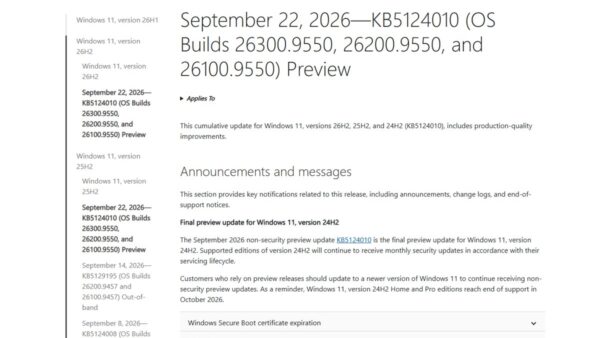
| Windows 11, version 25H2 (build 26200) | Enablement package KB5121794 | Needs the September 22, 2026 KB5124010 update or a later cumulative update first |
| Windows 11, version 24H2 (build 26100) | Enablement package KB5121794 | Same prerequisite; 24H2 Enterprise and Education are supported until October 12, 2027 |
| Windows 11, version 23H2 (build 22631) | Not an enablement-package source; plan a full feature update | Enterprise and Education 23H2 reach end of updates on November 10, 2026 |
| Windows 11, version 26H1 (build 28000) | Microsoft has not published a 26H2 path | 26H1 was scoped to new devices launched in early 2026 |
| Windows 10 | Full upgrade to Windows 11 on eligible hardware | Client policies need ProductVersion set to Windows 11, not only a target version |
| Windows 11 Enterprise LTSC 2024 | Not a 26H2 target | LTSC 2024 is serviced on its own lifecycle |
Devices with Snapdragon 850 processors should be flagged: Microsoft's lifecycle page says 26H2 is the last version that supports them. LTSC and IoT timing is covered in the 26H2 IoT Enterprise and LTSC guide.
A short pre-flight checklist
| Check | Why it matters | How to confirm |
|---|---|---|
| Devices are on 24H2 or 25H2 | Only these versions take the enablement package | OS build 26100 or 26200 in your inventory or Intune device list |
| KB5124010 or a later cumulative update is installed | It is the listed prerequisite for KB5121794 | Quality update reports or update history |
| No Machine Identity Isolation enforcement without Windows Server 2025 DCs | 26H2 starts honoring existing enforcement settings, which breaks the domain trust | Check Intune, Group Policy and the MachineIdentityIsolation registry values |
| FSLogix profiles on Azure Virtual Desktop hosts | A known issue causes a black screen after sign-in | Stage the Known Issue Rollback policy before AVD hosts update |
| Scripts and tools that call WMIC | WMIC is removed | Search scripts and tools for wmic calls and replace them |
| Kernel drivers are WHCP-signed | Cross-signed drivers lose default trust | Ask vendors for WHCP-signed builds |
| Settings backup policy decided | Backup turns on by default where the policy is unset | Set the policy explicitly if you want it off |
| Pilot group defined | Microsoft recommends targeted deployment first | A device group or Autopatch ring with representative hardware |
Deploy 26H2 with WSUS or Configuration Manager
Microsoft's KB5121794 page says the update syncs automatically to WSUS once the right product and classification are selected. It is not offered through the Microsoft Update Catalog; that channel is listed as available only through the other release channels.
- In the WSUS console, open the Products and Classifications settings.
- On Products, select Windows 11.
- On Classifications, select Upgrades, then run a synchronization.
- Find the feature update named Windows 11, version 26H2 and approve it for a pilot computer group.
- Confirm pilot devices already have KB5124010 or a later cumulative update approved and installed.
- Widen the approval to further groups once the pilot is clean.
- In Configuration Manager, sync the Windows 11 product category and deploy the 26H2 feature update to a pilot collection the same way.
WSUS clients on 24H2 or 25H2 receive the enablement package automatically when they install the 26H2 feature update.
Driving it with Windows Autopatch
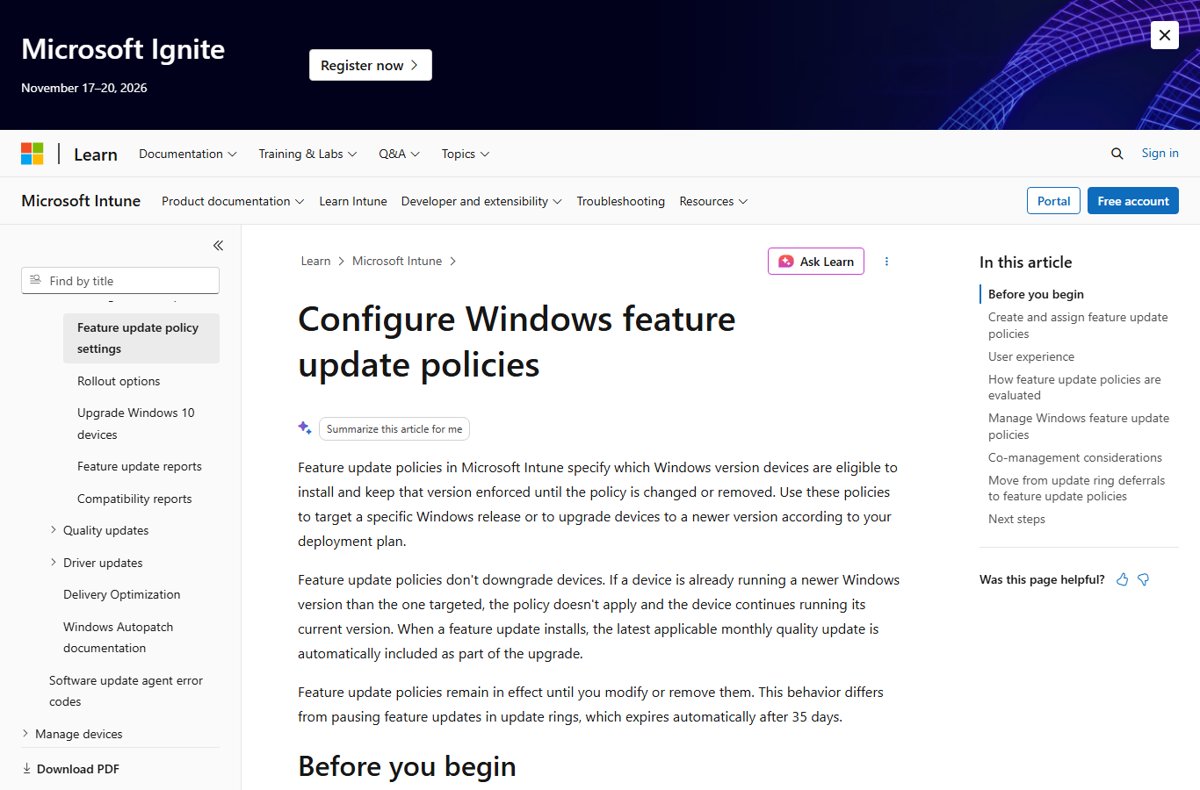
Windows Autopatch and Intune use the same feature update policies; Autopatch adds Autopatch groups and multi-phase release policies that spread one feature update across phases. Autopatch is included with Business Premium, A3 and above, E3 and above, and F3 licenses.
- In the Microsoft Intune admin center, select Devices > Windows.
- Select Windows updates > Feature updates, then Create profile.
- Enter a Name, then choose Windows 11, version 26H2 from Feature update to deploy.
- Choose Make available to users as a required update, or Make available to users as an optional update if you hold an Autopatch license.
- Set Rollout options to control when devices receive the offer.
- Under Assignments, assign the pilot device group or Autopatch group, then select Next.
- On Review + create, select Create.
Microsoft recommends removing feature update deferrals from update rings once a feature update policy is in place, because combining both can delay or block the offer. Create the policy first, wait for devices to show OfferReady, then set Feature update deferral period (days) to 0 in the ring.
Target 26H2 with Group Policy or the Update CSP
Devices managed by Windows Update client policies do not move to a new version on their own schedule unless you target it. The policy pins a device to a version until it reaches end of service or you change the policy.
- Open the Group Policy Management Editor for the pilot OU's policy.
- Go to Computer Configuration > Administrative Templates > Windows Components > Windows Update > Manage updates offered from Windows Update.
- Open Select the target Feature Update version and select Enabled.
- Enter
Windows 11as the product version and26H2as the target version. - For MDM, set
./Device/Vendor/MSFT/Policy/Config/Update/ProductVersionand./Device/Vendor/MSFT/Policy/Config/Update/TargetReleaseVersiontogether. - Optionally enable Enable optional updates (AllowOptionalContent) if users should get gradual feature rollouts early.
Set both values: without a product, a device keeps receiving newer versions of whatever product it already runs.
Tracking pilot to production
- In the Intune admin center, go to Reports > Windows Updates > Reports tab > Feature Updates report.
- Select the 26H2 policy and generate the report.
- Confirm pilot devices move through OfferReady to installed; a device that never reaches the offer can be blocked by a safeguard hold.
- On a sample device, open Settings > System > About and confirm version 26H2 with an OS build starting 26300.
- Check the Windows 11, version 26H2 release health page and the Microsoft 365 admin center message center for new issues before each ring expands.
- Widen the policy assignment, WSUS approval or Autopatch phase only when the pilot shows no new problems.
Admins who want this data programmatically can pull release health information through the Windows Updates API in Microsoft Graph.
Support lifecycle
Installing 26H2 resets the support clock: 24 months for Home and Pro, 36 months for Enterprise and Education.
| Version | End of updates: Home, Pro, Pro Education, Pro for Workstations | End of updates: Enterprise, Education, IoT Enterprise, multi-session |
|---|---|---|
| 26H2 | 2028-10-10 | 2029-10-09 |
| 25H2 | 2027-10-12 | 2028-10-10 |
| 24H2 | 2026-10-13 | 2027-10-12 |
| 23H2 | Ended | 2026-11-10 |
Hotpatch continues on 26H2: October 2026 is a baseline month that needs a restart, and November and December are hotpatch months. The full 26H2 servicing timeline lists every date.
Fix the 26H2 problems enterprises hit first
Devices never get the 26H2 offer
A safeguard hold, a missing prerequisite, or a leftover feature update deferral.
- Check the device's state in the Feature Updates report for a safeguard hold.
- Confirm KB5124010 or a later cumulative update is installed.
- Remove the ring's feature update deferral once the feature update policy shows OfferReady.
- For WSUS, confirm Upgrades is selected under Classifications and the update is approved for that group.
Domain sign-in fails with a trust relationship error after upgrading
26H2 honors Machine Identity Isolation enforcement, which is supported only with Windows Server 2025 domain functional level.
- Disable Machine Identity Isolation with the tool that enabled it: Intune, Group Policy or the registry.
- For registry-set values, change
MachineIdentityIsolationfrom 2 to 0 underHKLM\SYSTEM\CurrentControlSet\Control\Lsa\MachineIdentityIsolationorHKLM\SOFTWARE\Policies\Microsoft\Windows\DeviceGuard\MachineIdentityIsolation. - Restart the device.
- Run
Test-ComputerSecureChannel -Repair -Credential (Get-Credential)in PowerShell to reset the secure channel.
Black screen after sign-in on Azure Virtual Desktop hosts
A change in 26H2 and later updates conflicts with some FSLogix profiles.
- As a stopgap, open Task Manager, select Run new task, type
explorer.exeand select OK. - Install the Known Issue Rollback policy KB5124010 260924_20021 Known Issue Rollback from the release health page.
- Enable it under Computer Configuration > Administrative Templates and restart the hosts.
USB audio device shows Code 10 or has no sound
A known issue affecting USB Audio Class 1.0 devices.
- Check the 26H2 release health page for the current status of the fix.
- Contact Microsoft Support for Business if you need a workaround before the fix ships.
New issues are added to the 26H2 known issues list as Microsoft confirms them.
Frequently asked questions
What is the Windows 11 Enterprise 26H2 release date?
Windows 11, version 26H2 became generally available on September 29, 2026. Organizations can deploy it immediately through WSUS, Intune, Windows Autopatch and the Microsoft 365 admin center, while consumer PCs receive it in a phased rollout.
Where can I download Windows 11 Enterprise 26H2?
Microsoft lists the Microsoft 365 admin center as a channel for commercial customers and notes that downloads there can be delayed. The enablement package itself is delivered through Windows Update and WSUS, not the Microsoft Update Catalog.
Is Windows 11 26H2 in the Microsoft Update Catalog?
Not the KB5121794 enablement package. Microsoft's KB page says it is available only through the other release channels: Windows Update and WSUS, where it syncs under the Windows 11 product and the Upgrades classification.
Does Windows 11 26H2 need a reimage?
No. Devices on version 24H2 or 25H2 move to 26H2 with a small enablement package and a single restart. Only devices on older versions or Windows 10 need a full feature update or upgrade.
How long is Windows 11 Enterprise 26H2 supported?
36 months. Microsoft's release information lists end of updates for Enterprise, Education, IoT Enterprise and multi-session editions of 26H2 as October 9, 2029. Home and Pro get 24 months, ending October 10, 2028.
What changes by default on commercial devices in 26H2?
Windows settings backup, app-specific taskbar actions and several File Explorer enhancements turn on by default for commercial devices. Existing admin policies are still honored, and Administrator protection and built-in Sysmon stay off until you enable them.
Can I test 26H2 before deploying it widely?
Yes. It was in the Release Preview Channel from August 27, 2026, and Microsoft recommends a targeted pilot now that it is generally available. Use a pilot device group, WSUS computer group or Autopatch phase before widening.
Why does a device with a 26H2 policy not upgrade?
The most common reasons are a safeguard hold, a missing KB5124010 prerequisite, or an update ring feature update deferral that still applies. Intune's Feature Updates report shows which state the device is stuck in.