Download the Windows 11 26H2 ISO from Microsoft's Download Windows 11 page at microsoft.com/software-download/windows11, which lists Windows 11 2026 Update, Version 26H2 as the current release since general availability on September 29, 2026.
This guide covers the x64 multi-edition ISO, the Enterprise evaluation and Insider ISOs, the Arm64 situation, how to check the file's SHA256 hash, and how to turn the ISO into a USB drive or an in-place upgrade.
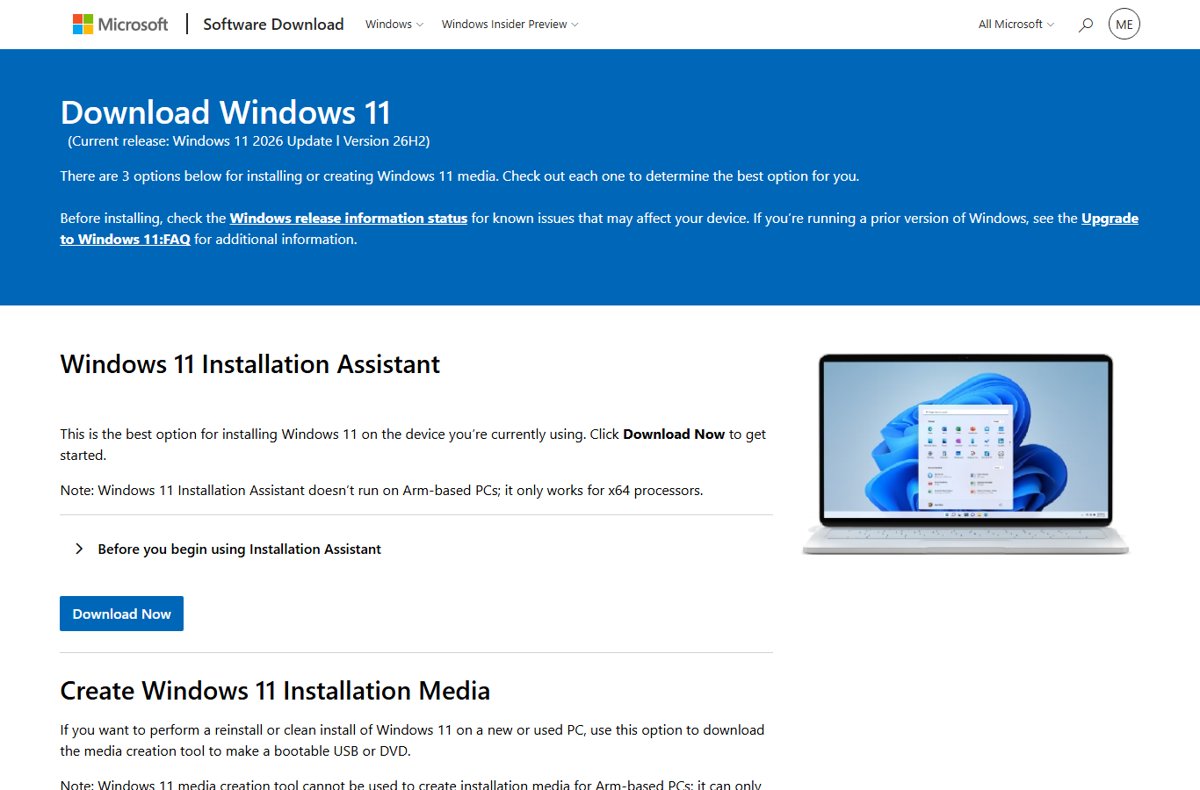
Download Windows 11 26H2 ISO file from Microsoft support
This is the consumer ISO for Intel and AMD (x64) PCs. It is a multi-edition image: your product key or digital license decides whether Home or Pro gets installed.
- Open
https://www.microsoft.com/en-us/software-download/windows11in your browser. - Scroll to Download Windows 11 Disk Image (ISO) for x64 devices.
- Open the Select Download list and choose Windows 11 (multi-edition ISO for x64 devices).
- Select Confirm.
- Choose the product language. Pick the same language you plan to use during setup, then confirm again.
- Select the 64-bit download button and save the .iso file to a drive with enough free space.
- Finish the download within 24 hours. Microsoft states the generated links are valid for 24 hours from the time of creation.
The same page offers the Installation Assistant and the Media Creation Tool. If you only want to upgrade the PC in front of you, the Windows 11 26H2 Installation Assistant needs fewer steps than an ISO.
Which Windows 11 26H2 ISO source should you use?
Microsoft publishes 26H2 install images in three places. Anything outside those is not an official Microsoft link, whatever the site calls it.
| Your situation | Use this | Why |
|---|---|---|
| Home or Pro PC with an Intel or AMD processor | Download Windows 11 page, x64 multi-edition ISO | Current release is 26H2; your key or digital license unlocks the right edition |
| IT pro testing Enterprise features | Microsoft Evaluation Center, Windows 11 Enterprise ISO | Enterprise 26H2 in x64 and Arm64, no product key, 90-day evaluation |
| Windows Insider who wants the Release Preview build | Windows Insider Preview ISO page, signed in | Microsoft added 26H2 ISOs there on August 31, 2026 |
| Arm-based PC (Snapdragon) | Windows 11 Arm64 download page | The consumer Arm64 ISO still lists version 25H2 as of September 30, 2026; update to 26H2 through Windows Update afterwards |
| You just want this PC on 26H2 | Windows Update or the Installation Assistant | No ISO needed; 24H2 and 25H2 PCs move up with a small enablement package |
| A site offers a UUP Dump download or a script that builds the ISO | Skip it | UUP Dump is a third-party tool that assembles an image from update files; it is not a Microsoft download and has no Microsoft SHA256 hash to check against |
| A "lite" or pre-activated 26H2 ISO | Skip it | Microsoft publishes no such image; modified ISOs cannot be verified and may carry malware |
What you need before you download the ISO
| Requirement | Detail |
|---|---|
| Internet connection | The ISO is several gigabytes; provider data fees may apply |
| Free storage | Enough space on the PC, USB drive or external drive that receives the .iso file |
| USB flash drive (for bootable media) | At least 8 GB and blank, because everything on it is deleted |
| DVD (optional) | A blank DVD of at least 8 GB and a DVD burner |
| 64-bit processor | Windows 11 runs only on 64-bit CPUs; the consumer x64 ISO does not boot on Arm PCs |
| License | A Windows 10 or Windows 11 license or product key to activate the edition you install |
| Compatible hardware | The PC must meet the Windows 11 minimum requirements, which apply to 26H2 unchanged |
Check your hardware against the Windows 11 26H2 system requirements before you plan a clean install.
Download the Windows 11 26H2 ISO image from the Evaluation Center
The Microsoft Evaluation Center offers Windows 11 Enterprise, version 26H2 as a 90-day evaluation. Microsoft aims it at IT professionals and does not recommend it for anyone else.
- Open
https://www.microsoft.com/en-us/evalcenter/evaluate-windows-11-enterprise. - Under Get started for free, select Download the ISO – Window 11 Enterprise (Microsoft's own spelling on the button).
- Fill in the registration form Microsoft shows.
- Choose a language: English (United States), English (United Kingdom), Chinese (Simplified), Chinese (Traditional), French, German, Italian, Japanese, Korean, Portuguese (Brazil) or Spanish.
- Pick the x64 ISO or the Arm64 ISO for Windows 11 Enterprise, version 26H2.
- Install it on a test PC or virtual machine. No product key is needed during setup.
An expired or unactivated evaluation turns the desktop black, shows a not-genuine notice and shuts the PC down every hour. It also cannot be uninstalled; going back needs a clean install of your former Windows.
What admins will be able to test
The evaluation ISO is the full Enterprise 26H2 build, so it exposes the features that 26H2 switches on for managed PCs.
| Area | What to test in 26H2 |
|---|---|
| Features enabled by default for commercial PCs | Windows settings backup, app-specific actions from the taskbar and several File Explorer improvements |
| Security | Administrator protection (off by default, enable with Intune or Group Policy), built-in Sysmon (off by default), Smart App Control on or off without a clean install |
| Recovery | Point-in-time restore and quick machine recovery |
| Deployment | Device association for Windows Autopilot device preparation and first sign-in restore of settings |
| Evaluation Center highlights | Personal Data Encryption for folders, Windows protected print mode, Wi-Fi 7 and Bluetooth LE Audio, Windows LAPS account management and image rollback detection |
| Removed | WMIC is gone and is no longer offered as a Feature on Demand |
Download Windows 11 26H2 ISO file from Insider
Microsoft released 26H2 (build 26300.9278) to the Release Preview Channel on August 27, 2026 and added ISOs to the Insider download page on August 31. The page only opens for members of the Windows Insider Program.
- Join the Windows Insider Program with your Microsoft account if you have not already.
- Open
https://www.microsoft.com/en-us/software-download/windowsinsiderpreviewiso. - Select Sign in at the upper right and sign in with the account you registered.
- Choose the Release Preview build of Windows 11, version 26H2 from the edition list.
- Select the product language, confirm, and start the 64-bit download.
Now that 26H2 is generally available, the public x64 ISO is the simpler choice for most people. The Insider page mainly helps if you want to follow preview builds.
Create a Windows 11 bootable USB using Rufus
Rufus is a free, open-source tool from rufus.ie that writes an ISO to a USB drive. It runs on Windows 8 or later without installation, and its executable is signed by Akeo Consulting. Microsoft's own route is the Media Creation Tool, which builds the USB without a separate ISO download.
- Download Rufus from
https://rufus.ieand check that the file's digital signature names Akeo Consulting. - Insert a blank USB drive of at least 8 GB. Everything on it will be erased.
- Run Rufus and choose the USB drive in the device list.
- Select the Windows 11 26H2 ISO you downloaded as the boot image.
- Leave any options that remove Windows 11 hardware checks unticked, so the installed system stays supported.
- Start the write and wait until Rufus reports the drive is ready.
- Boot the target PC from the USB drive to run setup.
To stay entirely with Microsoft tools, follow the Media Creation Tool clean install instead: run the tool, select Accept, choose Create installation media for another PC and select Next.
Use the ISO to upgrade the PC you are on
You do not need a USB drive to upgrade in place. Windows opens the ISO as a virtual disc.
- Open File Explorer and go to the folder holding the ISO.
- Right-click the ISO file and select Mount.
- Open the new virtual drive to see its files.
- Double-click setup.exe to start Windows 11 setup.
- Follow the prompts and choose to keep your files and apps if you want an upgrade rather than a clean install.
To burn a DVD instead, right-click the ISO, select Properties, and use Windows Disk Image Burner.
Verify the ISO's SHA256 hash with PowerShell
The Download Windows 11 page publishes a SHA256 hash for every language edition under Verify your download. A matching hash proves the file was not corrupted or altered.
Get-FileHash "$env:USERPROFILE\Downloads\<file name>.iso"Open Windows PowerShell, replace <file name> with the name of your ISO, and run the command. Get-FileHash uses the SHA256 algorithm by default, so no extra switch is needed.
You should see: PowerShell prints Algorithm SHA256, a long hash value and the path. The hash must match the value Microsoft lists for your language exactly; if it does not, delete the file and download it again.
The alternative: the enablement package
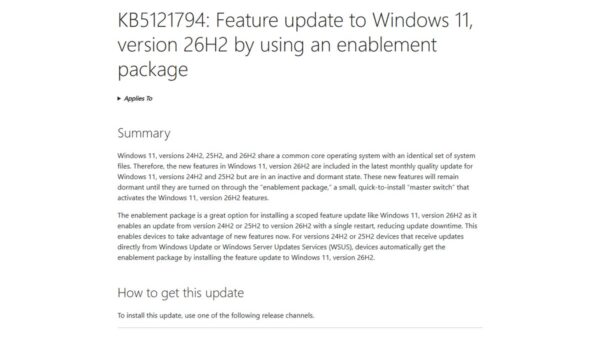
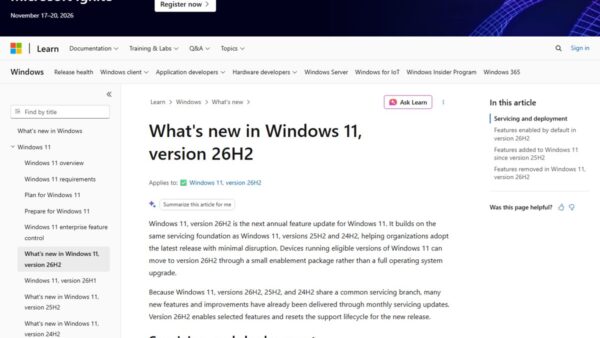
If the PC already runs Windows 11 24H2 or 25H2, a full ISO is the slow route. Those versions share a core operating system with 26H2, and the new features already sit on the PC in a dormant state.
| Question | Answer |
|---|---|
| What is it? | KB5121794, a small "master switch" update that turns on the 26H2 features |
| Who can use it? | PCs running Windows 11, version 24H2 or 25H2 |
| Prerequisite | The September 22, 2026 update KB5124010 or a later cumulative update |
| Restarts | One restart |
| Where to get it | Windows Update, the Microsoft Update Catalog or WSUS |
| When the ISO is still better | Clean installs, new or wiped PCs, virtual machines, and PCs on Windows 10 |
The KB5121794 enablement package explains what the switch changes in detail.
How to upgrade to Windows 11 Version 26H2
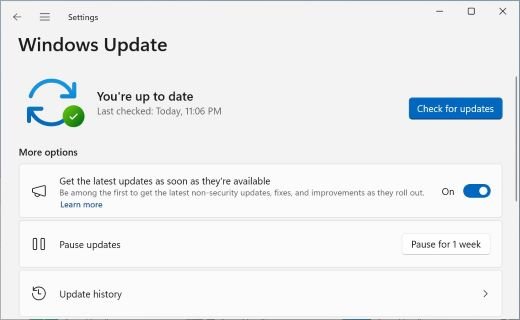
Microsoft is rolling 26H2 out in stages, so many PCs will not see the offer on day one. Turning on the early-updates toggle puts yours near the front of the queue.
- Select Start > Settings > Windows Update.
- Turn on Get the latest updates as soon as they're available.
- Select Check for updates.
- When Windows 11, version 26H2 is available appears, select Download & install.
- Restart when prompted. A single restart completes the switch.
If the offer never shows, a safeguard hold may be blocking your PC; the guide to 26H2 not showing in Windows Update covers the checks.
How to check that Windows 11 26H2 installed
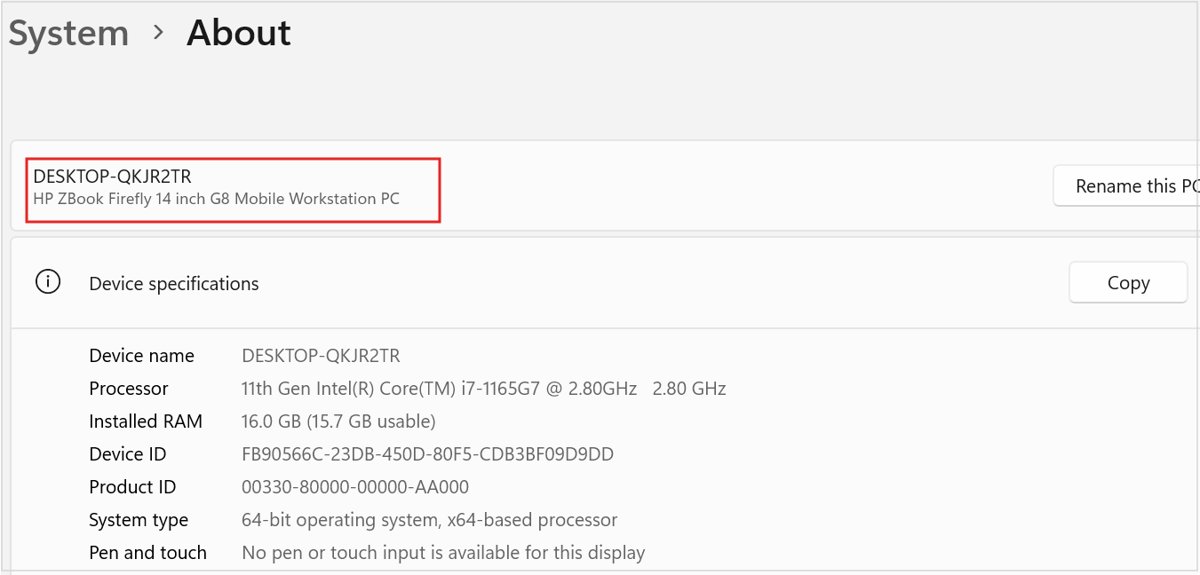
- Right-click Start and select Settings.
- Select System, then About.
- Under Windows specifications, check that Version reads 26H2.
- Check that OS build starts with 26300. The first general availability builds are 26300.9457 and 26300.9550.
Fix Windows 11 26H2 ISO download problems
The download link stopped working
Microsoft's ISO links expire 24 hours after they are generated.
- Return to the Download Windows 11 page.
- Select the edition and language again to generate a fresh link.
- Start the download straight away and keep the browser open until it finishes.
The Arm64 ISO page still says 25H2
As of September 30, 2026 the consumer Arm64 page lists Windows 11 2025 Update, Version 25H2 as its current release.
- Install from the 25H2 Arm64 ISO if you need a clean install now.
- Open Settings > Windows Update afterwards and install 26H2 when it is offered.
- IT pros can use the Arm64 Enterprise 26H2 evaluation ISO from the Evaluation Center instead.
The Insider ISO page says you need to be a member
The page is only available to signed-in Windows Insiders.
- Select Sign in at the upper right of the page.
- Use the Microsoft account registered with the Windows Insider Program.
- If you are not an Insider, use the public x64 ISO, which already carries 26H2.
The hash does not match Microsoft's value
The file is incomplete, corrupted, or came from somewhere other than Microsoft.
- Delete the ISO.
- Download it again from the official page.
- Run
Get-FileHashagain and compare against the value for your exact language.
Setup or the upgrade fails after installing from the ISO
Known issues and safeguard holds can affect some hardware and virtual desktops.
- Check the Windows 11, version 26H2 known issues page on Windows release health.
- Compare your symptoms with the listed issues, such as USB Audio Class 1.0 devices failing with Code 10.
- Apply the documented workaround or wait for the fix.
The Windows 11 26H2 known issues list tracks each problem with its current status.
Frequently Asked Questions
How do I download the Windows 11 26H2 ISO?
Go to microsoft.com/software-download/windows11, choose Windows 11 (multi-edition ISO for x64 devices) under Select Download, select Confirm, pick your language, and select the 64-bit download. The page lists version 26H2 as the current release, and the link stays valid for 24 hours.
Is the Windows 11 26H2 ISO 64-bit only?
Yes. Windows 11 runs only on 64-bit processors, so Microsoft offers no 32-bit ISO. The consumer download is a 64-bit x64 image for Intel and AMD PCs, and Arm-based PCs have a separate Arm64 page.
Is there a separate Windows 11 Pro 26H2 ISO?
No. The official download is a multi-edition ISO that contains Home and Pro, among others. During setup, your product key or the PC's digital license unlocks the matching edition, so Pro users download the same file as Home users.
What build is the Windows 11 26H2 ISO?
Windows 11, version 26H2 uses OS build 26300. Microsoft lists 26300.9457 and 26300.9550 as the first general availability builds, released September 29, 2026. Microsoft does not state the exact build inside each ISO, so check Settings > System > About after installing.
Is there an official Windows 11 26H2 Lite ISO?
No. Microsoft publishes no "lite" edition of Windows 11 26H2. Lite ISOs are modified third-party images; they cannot be checked against Microsoft's SHA256 hashes and may contain malware or broken components.
Can I download the Windows 11 26H2 ISO in German or another language?
Yes. After you select the edition and Confirm, the Download Windows 11 page asks for a product language, including German. Choose the same language you will use during setup, and compare the SHA256 hash listed for that language.
Is the Windows 11 26H2 ISO download from Microsoft free?
Yes, downloading the ISO costs nothing. Activating Windows still needs a valid Windows 10 or Windows 11 license or product key, except for the Enterprise evaluation, which runs for 90 days without a key.
Do I need the ISO to get 26H2 on a Windows 11 PC?
No. PCs on Windows 11 version 24H2 or 25H2 get 26H2 through Windows Update as a small enablement package with one restart. The ISO is mainly for clean installs, virtual machines and bootable USB drives.
Bottom Line
Use the x64 multi-edition ISO from Microsoft's Download Windows 11 page and check its SHA256 hash before you install. It is the only public 26H2 image Microsoft publishes for Home and Pro PCs, it carries a hash you can check, and it avoids third-party builds. PCs already on 24H2 or 25H2 do not need it at all: Windows Update installs 26H2 with one restart.