You can get the Tenable Nessus download for Windows 11, Windows 10, macOS and Linux from tenable.com, and the Nessus Essentials edition is free for scanning up to 5 of your own devices. Nessus checks computers, routers and servers for known vulnerabilities and misconfigurations.
This guide covers the right file for your machine, installation and registration, checksum checks, editions and pricing, updates, fixes and removal.
Check the Tenable Nessus system requirements
Press Windows + R, type winver and press Enter to confirm your Windows version. Nessus runs as a background service and opens in your browser.
| Specification | Detail |
|---|---|
| Software | Tenable Nessus (Essentials, Essentials Plus, Professional, Expert) |
| Developer | Tenable, Inc. |
| Latest version | 10.12.4 |
| License / price | Free tier (Essentials, 5 IPs) + paid editions with free trials |
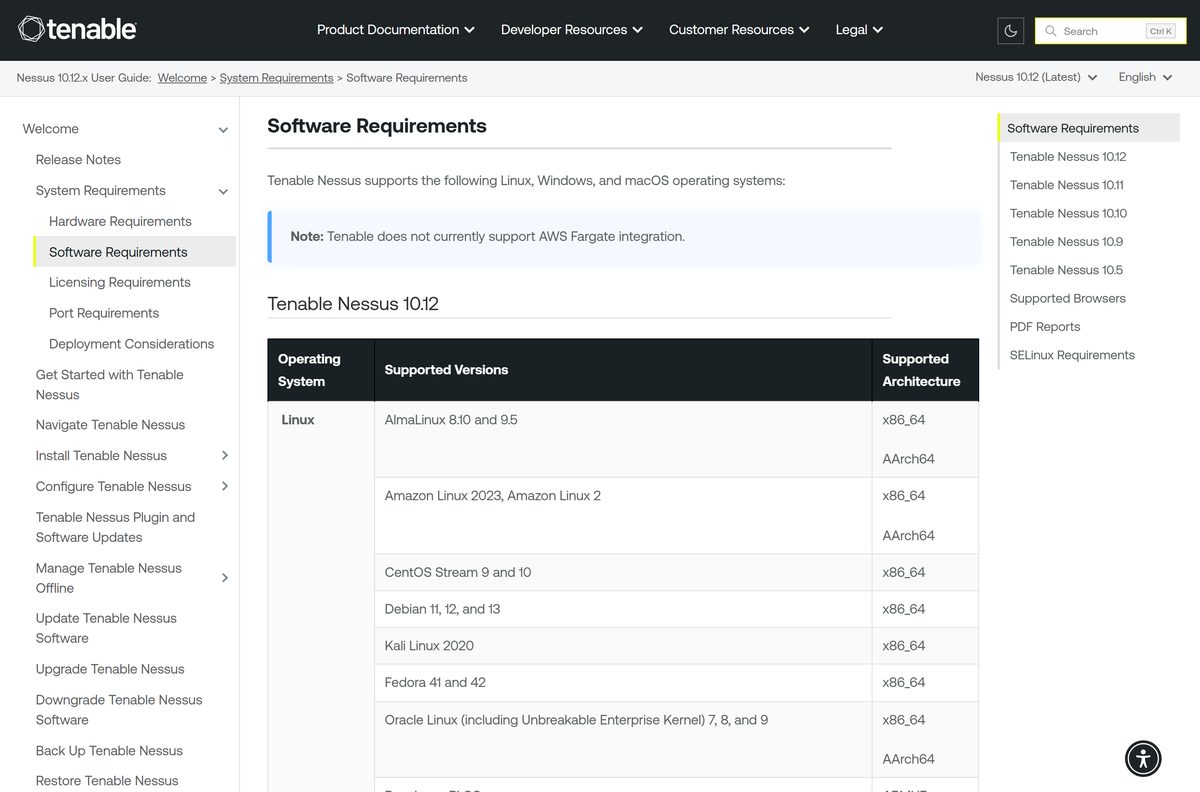
| Windows | Windows 10 and 11 (x86_64, ARM64); Windows Server 2012 to 2025 (x86_64) |
| macOS | macOS 14, 15 and 26 (Intel and Apple silicon) |
| Linux | Debian, Ubuntu, Red Hat, Rocky, AlmaLinux, Oracle, Fedora, SUSE, Amazon Linux, Raspberry Pi OS |
| Minimum hardware | 4 cores at 2 GHz, 4 GB RAM (8 GB recommended), 30 GB free disk |
| Browsers | Chrome 76+, Safari 10+, Firefox 50+, Edge 102+ |
| Offline installer | Yes, full MSI and DMG packages |
| Official download source | tenable.com/downloads/nessus |
| Last verified | 2026-09-25 |
Complex credentialed scans need more memory, disk and CPU than the minimum.
Which Tenable Nessus download do you need?
Every build sits on one Tenable page. Match your machine to a row, then pick that entry in the Platform drop-down.
| Your machine | Platform to pick | Where to get it |
|---|---|---|
| Windows 11 or 10 PC with Intel or AMD | Windows – x86_64 (MSI) | Tenable Nessus downloads |
| Windows 11 PC with a Snapdragon or other ARM chip | Windows – ARM64 (MSI) | Tenable Nessus downloads |
| Mac with Apple silicon or Intel | macOS universal (DMG) | Tenable Nessus downloads |
| Ubuntu, Debian or Kali server | The .deb for your release and architecture | Tenable Nessus downloads |
| Red Hat, Rocky, AlmaLinux, Oracle, Fedora or SUSE | The .rpm for your release | Tenable Nessus downloads |
| Container or hypervisor host | The Docker or Virtual Machines tab | Tenable Nessus downloads |
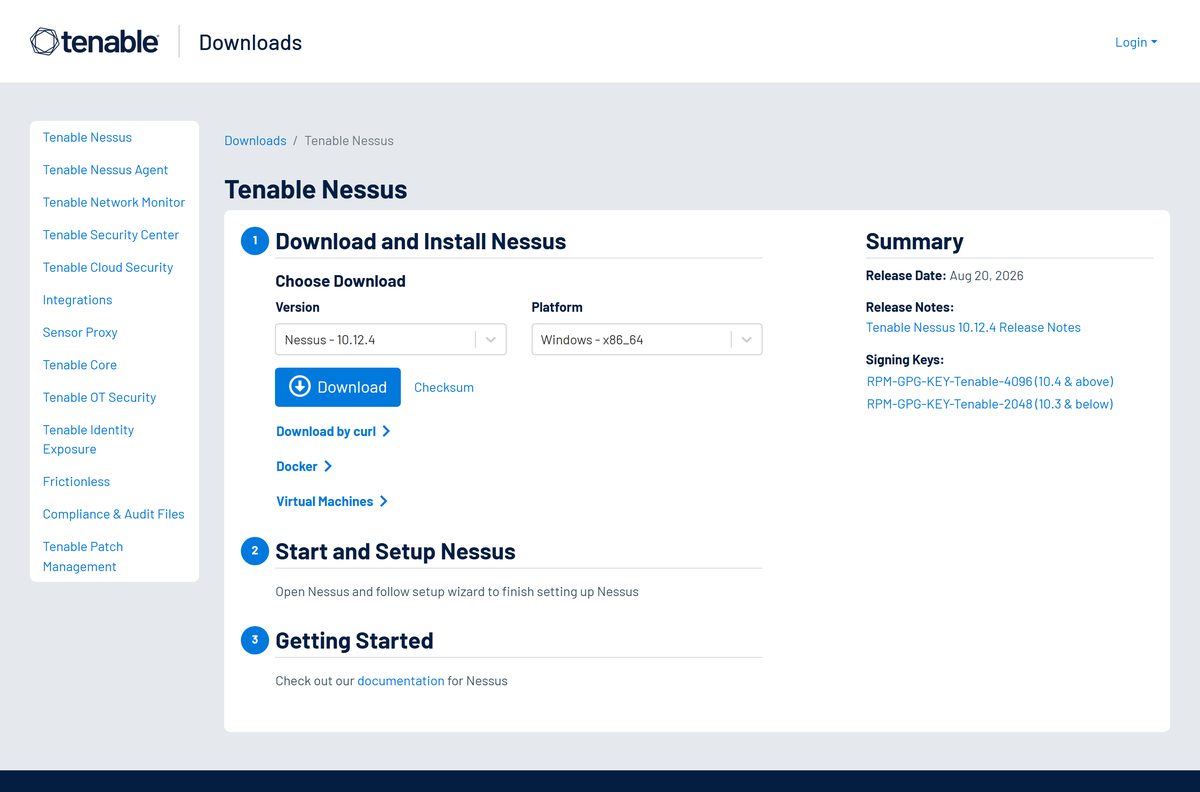
Download Tenable Nessus for Windows 11 and Windows 10
Nessus downloads without a Tenable account. The free license comes separately, as an activation code sent by email.
- Tenable Nessus downloads page — Windows, macOS and Linux builds, checksums and release notes
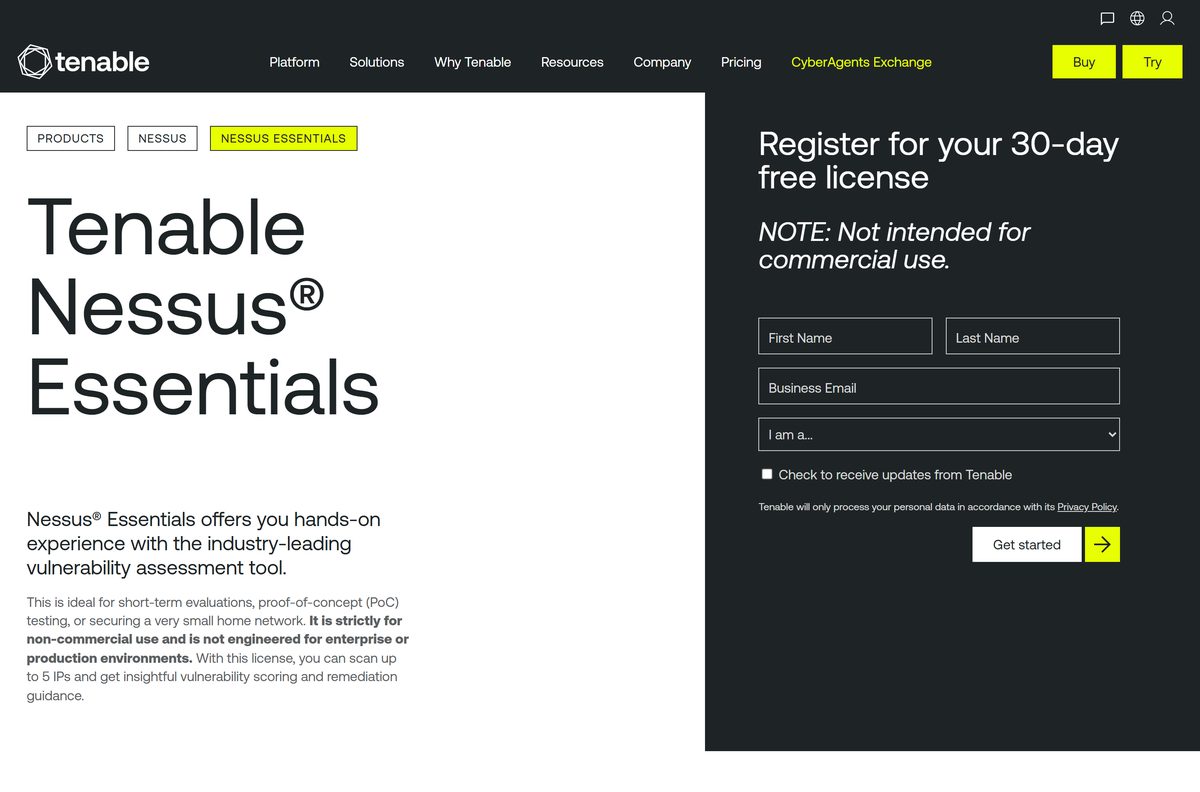
- Nessus Essentials free registration — Request the free activation code for up to 5 IPs
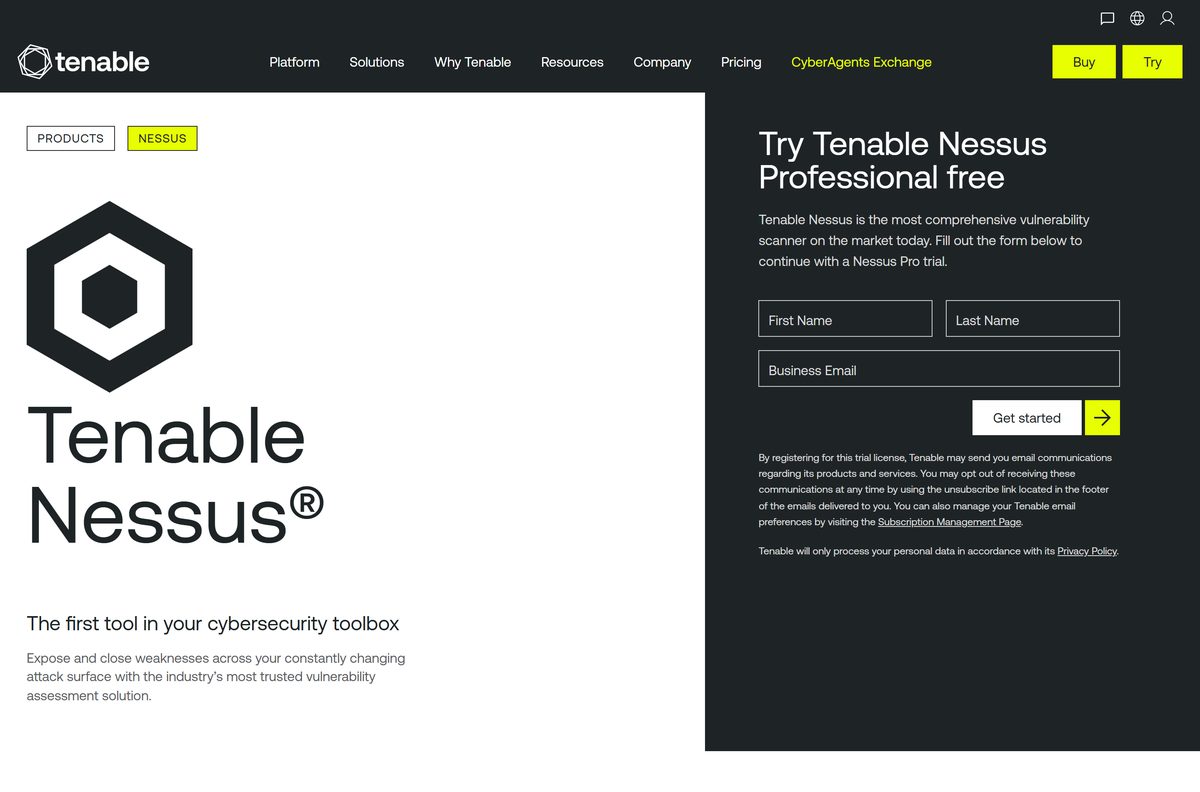
- Nessus Professional and Expert trials — Commercial editions with unlimited IPs
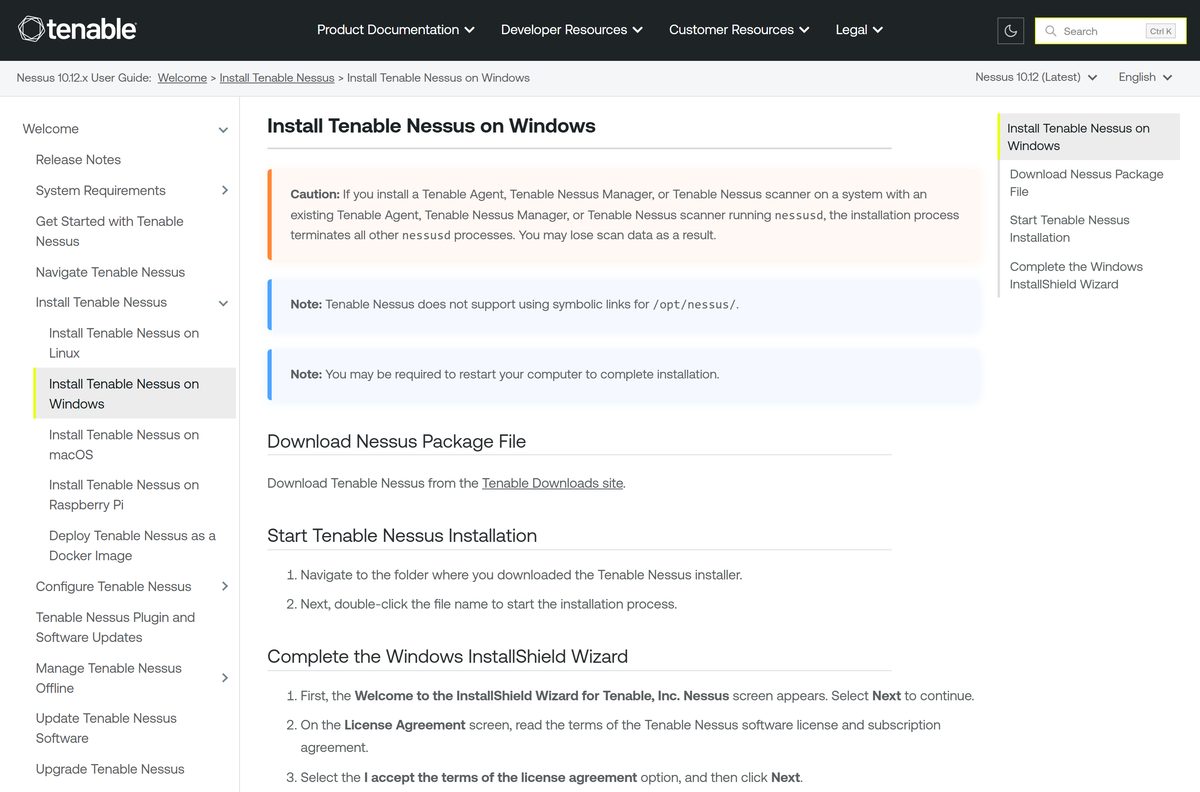
- Install Tenable Nessus on Windows guide — Tenable’s own setup walkthrough
Skip download portals. Only a file from tenable.com matches the checksum Tenable publishes.
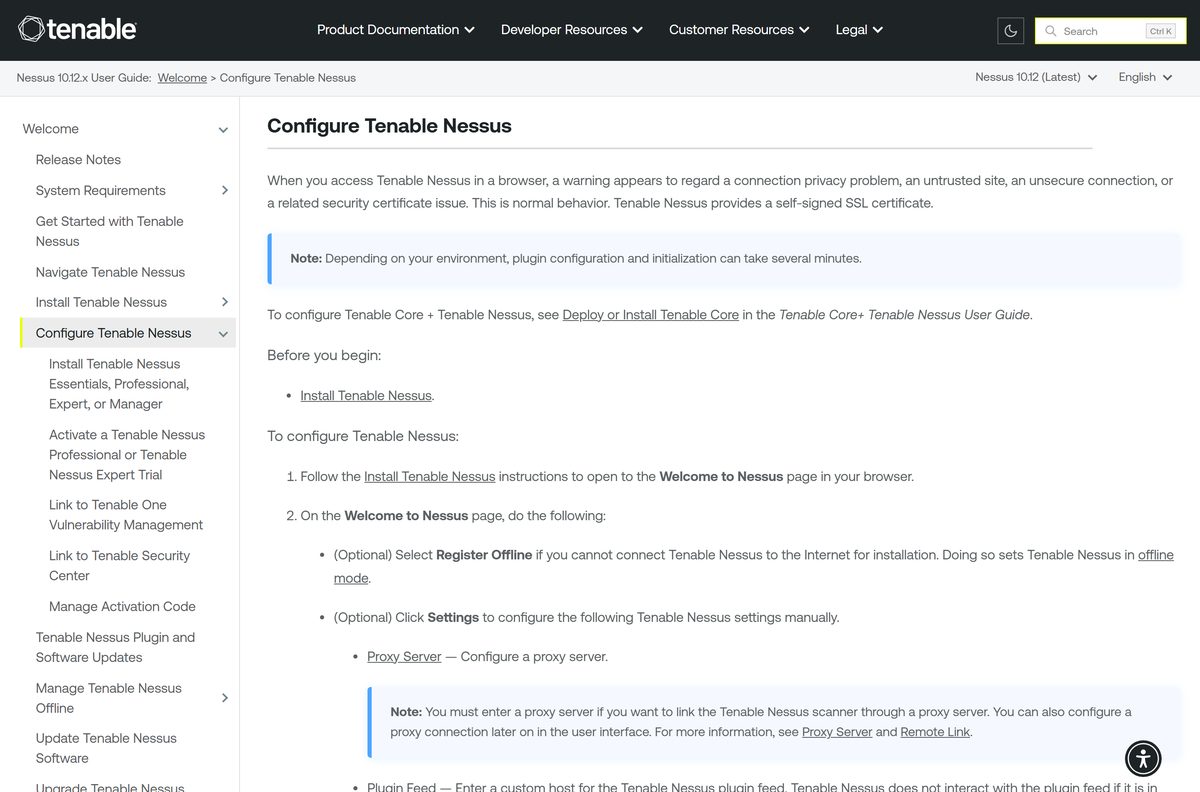
How to install Tenable Nessus on Windows 11 and 10
Setup needs an administrator account. Windows can ask for a restart at the end, so save open work first.
- Open the Tenable Nessus downloads page, select Windows – x86_64 or Windows – ARM64, and click Download.
- Save the MSI file to your Downloads folder.
- Double-click the MSI to start the InstallShield Wizard, then click Next.
- Accept the license agreement and click Next.
- Keep the default folder or pick another, then click Next.
- On Ready to Install the Program, click Install and wait for setup to finish.
- Open https://localhost:8834 in your browser and continue past the certificate warning.
- On Welcome to Nessus, click Continue, select Register for Nessus Essentials, and click Continue.
- Type your name and email, click Email, then enter the Activation Code you receive.
- Create an admin username and password, click Sign In, and wait while plugins compile.
The certificate warning is expected. Nessus uses a self-signed SSL certificate on port 8834.
How to verify the Tenable Nessus installer
Tenable publishes an MD5, SHA-256 and SHA-512 hash for every file. Check it before you install a scanner that will hold credentials.
- On the downloads page, pick your version and platform, then click Checksum and copy the SHA-256 value.
- Open PowerShell in the folder that holds the MSI.
- Run Get-FileHash .\Nessus-10.12.4-x64.msi -Algorithm SHA256 , using the file name you downloaded.
- Compare the Hash output with the value from Tenable, character by character.
- Delete the file and download it again from tenable.com if the two values differ.
Which Tenable Nessus download do you need for your Mac?
Open the Apple menu and select About This Mac to confirm your macOS version. Nessus 10.12 needs macOS 14 or later.
| Your Mac | Download | Install route |
|---|---|---|
| Apple M-series chip, macOS 14, 15 or 26 | Nessus universal DMG | Double-click Install Nessus.pkg |
| Intel chip, macOS 14, 15 or 26 | Nessus universal DMG | Double-click Install Nessus.pkg |
| Several Macs managed from Terminal | Nessus universal DMG | Run the Terminal commands in the next section |
| macOS 13 or earlier | No supported build | Upgrade macOS, or run Nessus on a Windows or Linux machine |
Setup asks for an administrator name and password, then sends you to https://localhost:8834 to register.
Install Tenable Nessus on a Mac from Terminal
Tenable documents these three Terminal commands for a scripted Mac install. Run them in the folder that holds the DMG.
| Step | Command |
|---|---|
| Mount the disk image | sudo hdiutil attach Nessus-10.12.4.dmg |
| Install Nessus to the startup disk | sudo installer -package /Volumes/Nessus\ Install/Install\ Nessus.pkg -target / |
| Unmount the disk image | sudo hdiutil detach /Volumes/Nessus\ Install |
| Finish setup in the browser | Open https://localhost:8834 |
| Full reference | Install Tenable Nessus on macOS |
Test any scripted install on one machine before you roll it out wider.
Is Tenable Nessus free?
Yes for home and learning use: Nessus Essentials is free, scans up to 5 IP addresses and is licensed for non-commercial use only. Essentials receives plugin updates 30 days late and has no reports, data export, compliance checks or technical support. Nessus Essentials Plus costs $199 a year for 20 IPs, real-time plugins and basic PDF and HTML reports; verified students and instructors get a free one-year license through the Tenable education program. Nessus Professional and Nessus Expert are paid annual licenses for commercial work with unlimited IPs, and both offer a free trial on tenable.com. Any site selling a cracked or lifetime Nessus key is not a Tenable reseller.
Should you install Nessus Essentials or Professional?
Install Nessus Essentials to scan your own home network or a lab of up to 5 devices; choose Nessus Professional for any paid or client work. Essentials is limited to non-commercial use, so scanning an employer’s or client’s network requires a commercial license. Professional adds unlimited IPs, compliance and configuration audits, Live Results, offline mode and full reporting. The installer is the same file for every edition; the activation code decides which one runs.
How to check your Tenable Nessus version and update it
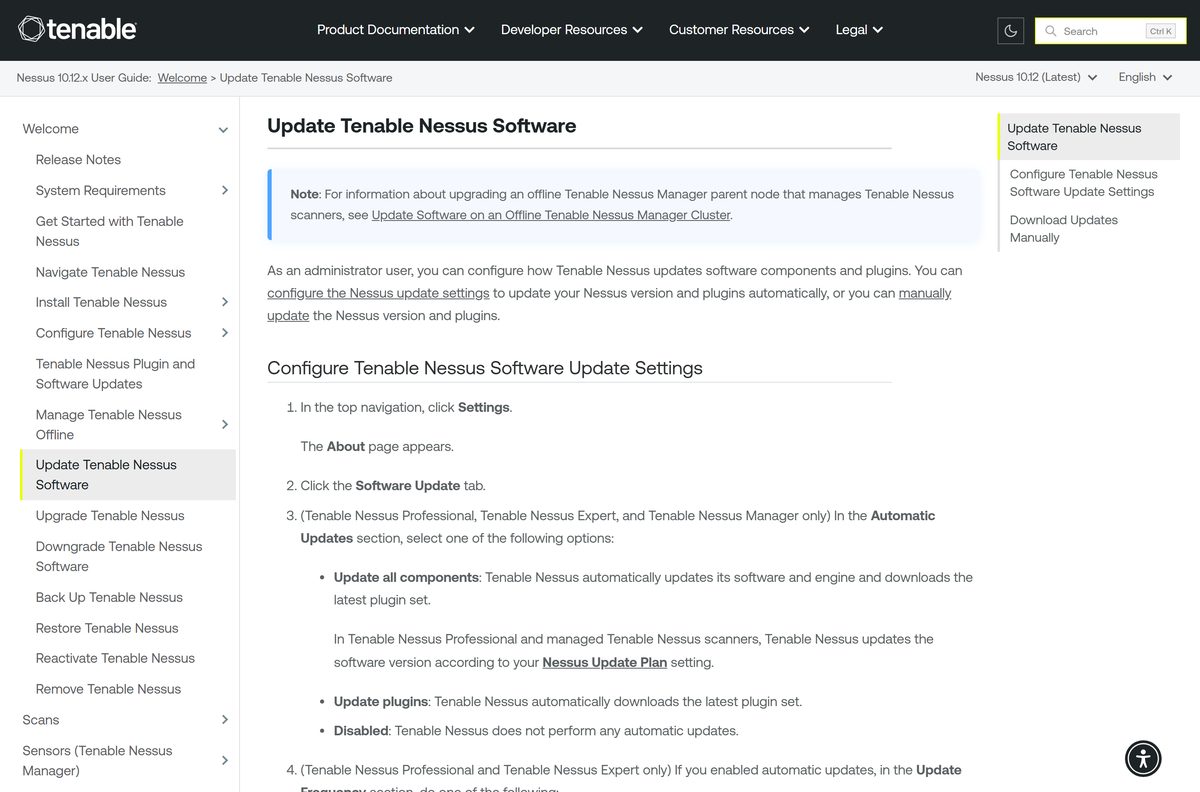
- Sign in to Nessus at https://localhost:8834.
- Click Settings in the top navigation to open the About page and read your version.
- Open the Software Update tab.
- Select Update all components to keep the software, engine and plugins current, or Update plugins for plugins only.
- Set the update frequency to daily, weekly, monthly or a custom number of hours.
- To update now, click Manual Software Update, pick an option, and click Continue.
Fix Tenable Nessus not installing or opening on Windows 11 or 10
The browser says the connection is not private
Nessus uses a self-signed SSL certificate, so every browser warns on first visit.
- Confirm the address is https://localhost:8834.
- Click Advanced in the warning.
- Choose the option to continue to localhost.
https://localhost:8834 does not load at all
The Tenable Nessus service is stopped or setup is waiting for a restart.
- Restart Windows if setup asked for it.
- Press Windows + R, type services.msc and press Enter.
- Right-click Tenable Nessus and click Start.
- Or run net start “Tenable Nessus” in an administrator Command Prompt.
Scans are greyed out after the first sign-in
Plugins are still compiling, which limits Nessus until it finishes.
- Leave the browser tab open and wait for the plugin compile banner to clear.
- Keep the internet connection up so the plugin download can complete.
- Refresh the page, then create your first scan.
An older Nessus or Tenable Agent stops working after install
Setup terminates every other nessusd process on the machine.
- Export scans and policies from the old copy first.
- Uninstall the old copy from Installed apps.
- Run the new MSI again.
How to uninstall Tenable Nessus
Tenable advises exporting your scans and policies before you start, so you can import them into a later install.
- Make sure no scan is running in Nessus.
- Stop the service: open services.msc , right-click Tenable Nessus and click Stop.
- Open Settings, then Apps, then Installed apps.
- Find Tenable Nessus, click the three-dot menu and select Uninstall.
- Click Yes to confirm.
- For a scripted removal, run msiexec.exe /x
in an administrator PowerShell window.
Which vulnerability scanner can replace Tenable Nessus?
Tenable’s own editions cover most upgrade paths. For fleets already on Microsoft security tools, Microsoft offers an agent-based option.
| Tool | Best for | Scope | Cost |
|---|---|---|---|
| Nessus Essentials | Home labs and learning | Up to 5 IPs, non-commercial | Free |
| Nessus Essentials Plus | Hobbyists, students and educators | Up to 20 IPs, real-time plugins | $199/year; free for verified students |
| Nessus Professional | Consultants and security teams | Unlimited IPs, compliance audits | Paid annual license, free trial |
| Microsoft Defender Vulnerability Management | Organizations on Microsoft Defender | Windows, macOS, Linux, Android, iOS, network devices | Paid, free trial |
Start with Essentials on your own network. Move to Professional as soon as the work is for an employer or a client.
Frequently asked questions
Is Tenable Nessus free?
Yes, in one edition. Nessus Essentials is free for personal, educational and non-commercial use and scans up to 5 IP addresses. Nessus Essentials Plus costs $199 a year, and Nessus Professional and Nessus Expert are paid commercial licenses with free trials.
Where is the official Tenable Nessus download?
Download Nessus only from tenable.com/downloads/nessus. Pick the version and platform from the drop-downs and click Download. The same page links the release notes, checksums, signing keys, Docker images and virtual machine builds.
Does Tenable Nessus work on Windows 11?
Yes. Tenable supports Nessus on Windows 10 and Windows 11 on both x86_64 and ARM64 processors. It also runs on Windows Server 2012 through Windows Server 2025 on x86_64 hardware.
How big is the Tenable Nessus download?
The installer is a single MSI on Windows and a single DMG on macOS. Plan for far more space after setup: Tenable asks for 30 GB of free disk for a scanner, because plugins, scan results and logs grow over time.
Is there a Tenable Nessus offline installer?
Yes. The MSI and DMG files are full installers and need no web download during setup. Offline mode, which registers and updates Nessus with no internet link, is a Nessus Professional feature and is not included in Essentials.
Is Tenable Nessus available for Mac?
Yes. Tenable ships one universal DMG that installs on Intel Macs and Apple silicon Macs. Nessus 10.12 supports macOS 14, macOS 15 and macOS 26.
Does Tenable Nessus support 64-bit and ARM64?
Yes. Windows gets separate x64 and ARM64 MSI packages, and the Mac DMG is universal. Linux builds cover x86_64 and AArch64, plus i386 for Ubuntu and armhf for Raspberry Pi OS.
Is Tenable Nessus safe to install?
Yes, when the file comes from tenable.com. Compare the SHA-256 hash of your download with the value under Checksum on the downloads page. Scan only systems you own or have written permission to test.
What is the latest version of Tenable Nessus?
Nessus 10.12.4 is the current release on the Tenable downloads page. Check the version on your copy under Settings, then About, and install updates from the Software Update tab.
Why won’t Tenable Nessus install or open?
Most failures come from a missed restart, a stopped Tenable Nessus service or a wrong browser address. Restart Windows, start the service from Services, and open https://localhost:8834 rather than a plain http address.
What is the Nessus web address after installing?
Open https://localhost:8834 on the computer running Nessus. From another machine, use https:// followed by that computer’s IP address and :8834. Nessus has no separate desktop window; every task runs in the browser.
How many IPs can Nessus Essentials scan?
Nessus Essentials scans up to 5 IP addresses. Nessus Essentials Plus raises the limit to 20 IPs, and Nessus Professional removes the IP limit for commercial use.