Press Windows key + R to open the Run command dialog box instantly on Windows 11 and Windows 10.
Below are seven ways to open the Run window, a table of Run commands worth knowing, how to run a command as administrator, and what to do when Run does not open.
1. Open Run with the Windows + R Keyboard Shortcut
Microsoft lists Windows key + R as the shortcut that opens the Run dialog box. It works from the desktop and from inside any app.
- Hold down the Windows key.
- Press R once, then release both keys.
- Type a program or command name in the box, for example
msinfo32. - Press Enter or select OK to run it.
The shortcut and the Run window are the same on Windows 10 and Windows 11. If nothing appears, jump to the troubleshooting section below.
Which Method Should You Use?
| Your situation | Use this | Why |
|---|---|---|
| Keyboard works normally | Method 1: Windows key + R | One key combination, no menus |
| You prefer the mouse | Method 3: right-click Start > Run | Two clicks from anywhere |
| You already have Start or Search open | Method 2: type Run in search |
No need to close what you are doing |
| You are working in a folder in File Explorer | Method 4: the address bar | Launch it without leaving the window |
| You are scripting or already at a prompt | Method 5: FileRun() in PowerShell or cmd |
Opens Run from a command line or a script |
| You want a double-click icon | Method 6: a desktop shortcut | Useful on touch screens and for less technical users |
| You want a different key combination | Method 7: PowerToys Keyboard Manager | Maps any free shortcut to Windows key + R |
2. Open Run from the Start Menu Search
Windows search finds Run like any app. This suits a reader whose Start menu or search box is already open.
- Press the Windows key, or select Search on the taskbar.
- Type
Run. - Select Run in the results list.
- Type your command in the Run box and press Enter.
3. Open Run from the Win + X Quick Link Menu
Right-clicking Start opens the Quick Link menu, and Windows key + X opens the same menu from the keyboard. Run is one of its entries on Windows 11 and Windows 10.
- Right-click the Start button, or press Windows key + X.
- Select Run in the menu.
- Type the command, for example
Outlook.exe /profiles, and press Enter.
On a touch screen, press and hold the Start button to open the same menu.
4. Open Run from File Explorer’s Address Bar
File Explorer's address bar accepts a command line as well as a folder path. Typing the PowerShell call that Microsoft documents for the Run dialog opens Run from inside any folder window.
- Press Windows key + E to open File Explorer.
- Press Alt + D (or Ctrl + L, or F4) to select the address bar.
- Type
powershell -WindowStyle Hidden -NoProfile -Command "(New-Object -ComObject Shell.Application).FileRun()". - Press Enter. The Run box opens over File Explorer.
Typing a plain folder path such as C:\Windows in the same bar just opens that folder, so the command above is what turns the address bar into a Run launcher.
5. Open Run from Command Prompt, PowerShell, or Windows Terminal
The Windows Shell object has a documented FileRun method that displays the Run dialog, with the same effect as selecting Run from the Start menu. PowerShell reaches it through New-Object -ComObject Shell.Application.
- Open Windows PowerShell, Command Prompt, or a tab in Windows Terminal.
- In PowerShell, type
(New-Object -ComObject Shell.Application).FileRun()and press Enter. - In Command Prompt, type
powershell -NoProfile -Command "(New-Object -ComObject Shell.Application).FileRun()"and press Enter. - Use the Run box that opens, then close it or press Enter to run a command.
In Windows Terminal, use the PowerShell line in a PowerShell tab and the Command Prompt line in a Command Prompt tab. The command also works inside a .ps1 script. For network commands you would type at that prompt instead, see how to run ipconfig /all on Windows.
6. Open Run with a Desktop Shortcut
A desktop shortcut wraps the same FileRun call, so a double-click opens Run. The -WindowStyle Hidden switch keeps the PowerShell window out of the way.
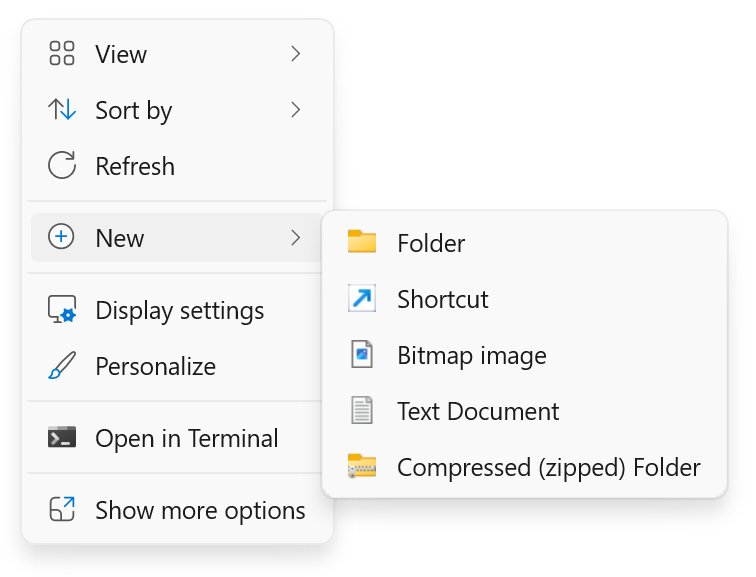
- Right-click an empty area of the desktop.
- Select New > Shortcut.
- In the location box, paste
powershell.exe -WindowStyle Hidden -NoProfile -Command "(New-Object -ComObject Shell.Application).FileRun()". - Select Next.
- Name the shortcut
Runand select Finish. - Double-click the new Run icon to open the Run dialog box.
Windows shortcuts can also carry their own keyboard shortcut, which is the idea behind method 7.
7. Open Run with a Custom Keyboard Shortcut
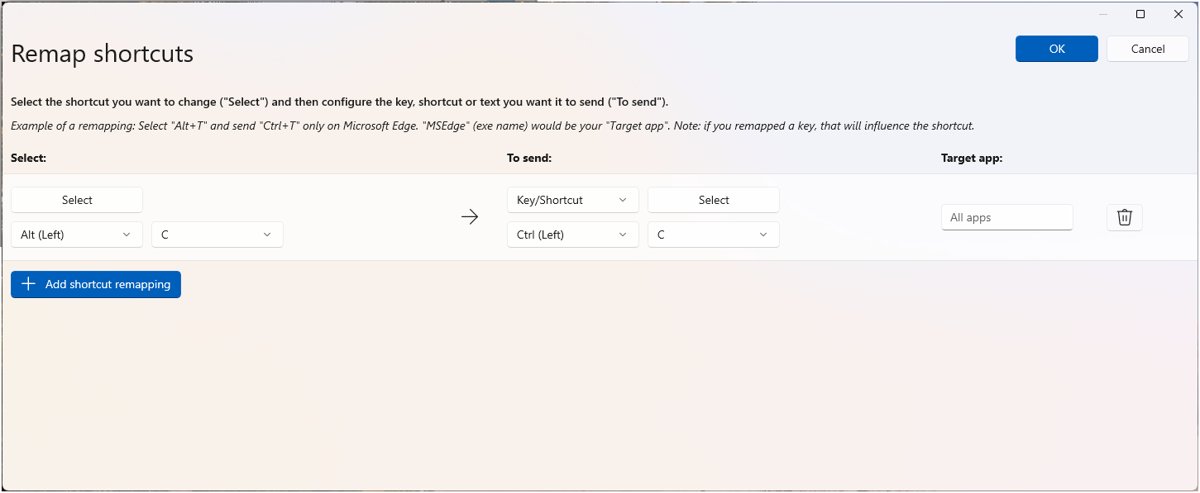
Microsoft PowerToys includes Keyboard Manager, which can map a shortcut of your choice to Windows key + R. Remaps take effect as soon as you select OK, and only while PowerToys is running.
- Open PowerToys Settings and select the Keyboard Manager tab.
- Make sure Keyboard Manager is turned on, then select Remap a shortcut.
- Select Add shortcut remapping.
- In the Select column, press your new shortcut. It must start with Ctrl, Shift, Alt or Windows and end with a letter or number key, such as Ctrl + Alt + R.
- In the To send column, enter Windows key + R.
- Select OK, then press your new shortcut to open Run.
Pick a combination no app you use already claims. Windows key + L and Ctrl + Alt + Del are reserved by Windows and cannot be remapped.
What the Run Dialog Does
The Run dialog box, often called the Run window, starts a program, console or tool by its file name. It skips the Start menu and Settings, which makes it the fastest route to tools that have no obvious icon.
| What you type | What happens | Example |
|---|---|---|
| A program name | The program starts | regedit opens Registry Editor |
A console file ending in .msc |
The management console opens | compmgmt.msc opens Computer Management |
| A program plus a switch | The program starts with that option | Outlook.exe /profiles opens the Outlook profile picker |
| A shell name | A command window opens | cmd opens Command Prompt, powershell opens PowerShell |
Common Run Commands Worth Knowing
Microsoft's own support pages use these Run commands. Type one after pressing Windows key + R and press Enter. The complete list of Windows 11 Run commands covers many more.
| Command | Opens | Group |
|---|---|---|
control |
Control Panel | Settings and Control Panel |
SystemPropertiesAdvanced |
Advanced system settings | Settings and Control Panel |
msconfig |
System Configuration | System tools |
msinfo32 |
System Information | System tools |
compmgmt.msc |
Computer Management | System tools |
eventvwr.msc |
Event Viewer | System tools |
regedit |
Registry Editor | System tools |
gpedit.msc |
Local Group Policy Editor | System tools |
cmd |
Command Prompt | Command line |
dxdiag |
DirectX Diagnostic Tool (full dxdiag guide) | System tools |
How to Open Run as an Administrator
The Run box starts programs with your normal permissions. When a command needs administrator rights, use Task Manager's Run new task box instead, which offers an administrative option.
- Press Ctrl + Shift + Esc, or right-click the taskbar and select Task Manager.
- Select File > Run new task.
- Type the command, for example
cmd.exe. - Tick the option to create the task with administrative privileges.
- Select OK and approve the User Account Control prompt.
The PowerToys shortcut from method 7 can also use the Start App action with Elevation set to Elevated to launch one specific tool as administrator.
How to check the Run box worked
- Open Run with any of the methods above. A small window titled Run appears with a text box and an OK button.
- Type
msinfo32and press Enter. - Confirm that System Information opens. That proves Run accepted and launched the command.
Troubleshooting: What If Run Does Not Open?
Windows key + R does nothing and Run is missing from the Start button menu
The policy Remove Run menu from Start Menu is turned on. It removes Run from Start, blocks Windows key + R and removes Run new task from Task Manager.
- On a work or school PC, ask your IT administrator; the policy is usually set on purpose.
- On your own PC, select Search on the taskbar, type
gpedit.mscand open Local Group Policy Editor. - Go to User Configuration > Administrative Templates > Start Menu and Taskbar.
- Double-click Remove Run menu from Start Menu, select Not Configured, then select OK.
- Check the same setting under Computer Configuration, then sign out and back in.
Windows key + R opens something else or nothing, but right-click Start > Run works
A key remap, often PowerToys Keyboard Manager, has taken over the shortcut.
- Open PowerToys Settings > Keyboard Manager.
- Select Remap a key and Remap a shortcut and delete any row that touches the Windows key or R.
- Or turn Keyboard Manager off, or close PowerToys, to stop all remaps at once.
The Start menu and taskbar are frozen, so no menu method opens Run
The Windows shell is not responding, but Task Manager still runs.
- Press Ctrl + Shift + Esc to open Task Manager.
- Select File > Run new task.
- Type the command you wanted to run and select OK.
Frequently Asked Questions
How do I open the Run dialog box?
Press Windows key + R. The Run dialog box opens immediately on Windows 11 and Windows 10. You can also right-click the Start button and select Run, or type Run in Windows search and select the result.
How do I open the Run command in Windows 11?
Press Windows key + R, or right-click Start and select Run. Windows 11 keeps the same Run dialog box and shortcut as Windows 10, so every method in this guide works on both versions.
How do I open cmd using Run?
Press Windows key + R, type cmd and press Enter. Command Prompt opens with your normal permissions. For an administrator Command Prompt, open Task Manager, select File > Run new task, type cmd.exe and tick the administrative option.
How do I open Run from cmd?
In Command Prompt, run powershell -NoProfile -Command "(New-Object -ComObject Shell.Application).FileRun()". It calls the Windows Shell FileRun method, which Microsoft documents as displaying the Run dialog box. In PowerShell, the part inside the quotes is enough on its own.
Where is Run in the Windows 10 Start menu?
Right-click the Start button, or press Windows key + X, and select Run in the menu that appears. Typing Run in the search box on the taskbar also finds it.
Why does Windows key + R not open Run?
The usual cause is the Remove Run menu from Start Menu policy, which blocks Windows key + R and removes Run from Start. A key remapping tool such as PowerToys Keyboard Manager can also take over the shortcut.
What can I type in the Run dialog box?
Type a program name such as regedit or msinfo32, a console such as compmgmt.msc, or a program with a switch such as Outlook.exe /profiles. Press Enter and Windows launches it without going through Start or Settings.
Can I run a command as administrator from the Run box?
Not directly, because the Run box starts programs with your normal permissions. Use Task Manager instead: select File > Run new task, type the command and tick the option to create the task with administrative privileges.