To update Microsoft Store apps manually in Windows 11, open Microsoft Store, select Library, then select Get updates (newer Store versions label it Check for updates).
This guide also covers updating from the command line with winget, built-in apps such as Photos and Paint, the Store itself, work or school PCs, and what to do when apps refuse to update.
How to update Microsoft Store apps manually in Windows 11
The Store checks every installed Store app at once, so one click covers all of them. The same steps work on Windows 10.
- Select Start, then select Microsoft Store from the apps list.
- Make sure you are signed in with your Microsoft account; select the profile picture at the top of the window if you are not.
- Select Library in the Store's side menu.
- Select Get updates (or Check for updates) at the top of the Library page.
- Wait while the Store downloads and installs each available update.
- Close any app that was open while it updated, then reopen it so the new version loads.
If the Store itself has an update, Microsoft says it starts installing automatically during this check.
Which update route fits your situation
| Your situation | Use this | Why |
|---|---|---|
| One app is behind and you want it fixed now | Store Library > Get updates | Two clicks, no commands, covers every Store app |
| You update many apps and prefer a terminal | winget upgrade --all |
Updates Store and desktop apps in one run |
| Photos, Paint, Notepad or another built-in app is outdated | Store Library > Get updates | Built-in Windows apps are Store apps and update the same way |
| The Store will not open | wsreset.exe, then the Store again |
Clears the Store cache, which Microsoft lists first for launch failures |
| Work or school PC with the Store blocked | Company Portal, or ask IT | Policies can block manual Store updates; Intune updates assigned apps itself |
| The app has its own updater (Office, browsers, some games) | The app's own Check for updates option | Microsoft notes that some publishers manage updates inside their app |
What counts as a Microsoft Store app?
Any app installed from Microsoft Store or preinstalled as part of Windows through the Store is updated by the Store. Apps you installed from a vendor's website use that vendor's updater instead.
| App type | Examples | Who updates it |
|---|---|---|
| Store (UWP/MSIX) apps you installed | Games, streaming apps, utilities from the Store | Microsoft Store, automatically or through Get updates |
| Built-in Windows apps | Photos, Paint, Notepad, Snipping Tool, Calculator | Microsoft Store, the same as any other Store app |
| Win32 apps listed in the Store | Desktop programs with an .exe or .msi installer | Often the publisher's own updater; on managed PCs, Intune |
| App Installer (winget) | The winget command-line tool |
Microsoft Store, as a system component |
| Apps installed from a website | Programs downloaded from a vendor's site | The vendor's updater, or winget if the package is in its catalog |
Before you update: quick checks
| Check | Why it matters | How to do it |
|---|---|---|
| Signed in to a Microsoft account | Microsoft asks you to sign in first; an unauthorised PC cannot install Store apps | Select the profile picture in Microsoft Store and sign in |
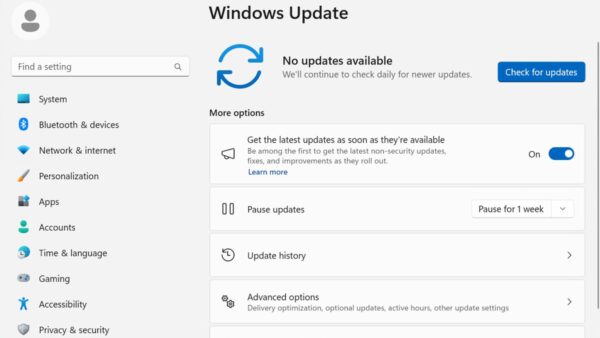
| Windows is up to date | Store fixes often depend on a current Windows build | Start > Settings > Windows Update > Check for updates, then Install now |
| PC restarted after recent Windows updates | Microsoft says a pending restart blocks Store installs | Restart the PC before opening the Store |
| Time and region are correct | Microsoft lists time and location settings as a Store check | Confirm the date, time and region in Settings |
| Internet connection works | Updates download from Microsoft's servers | Open any website in a browser |
How to update apps from the command line with winget
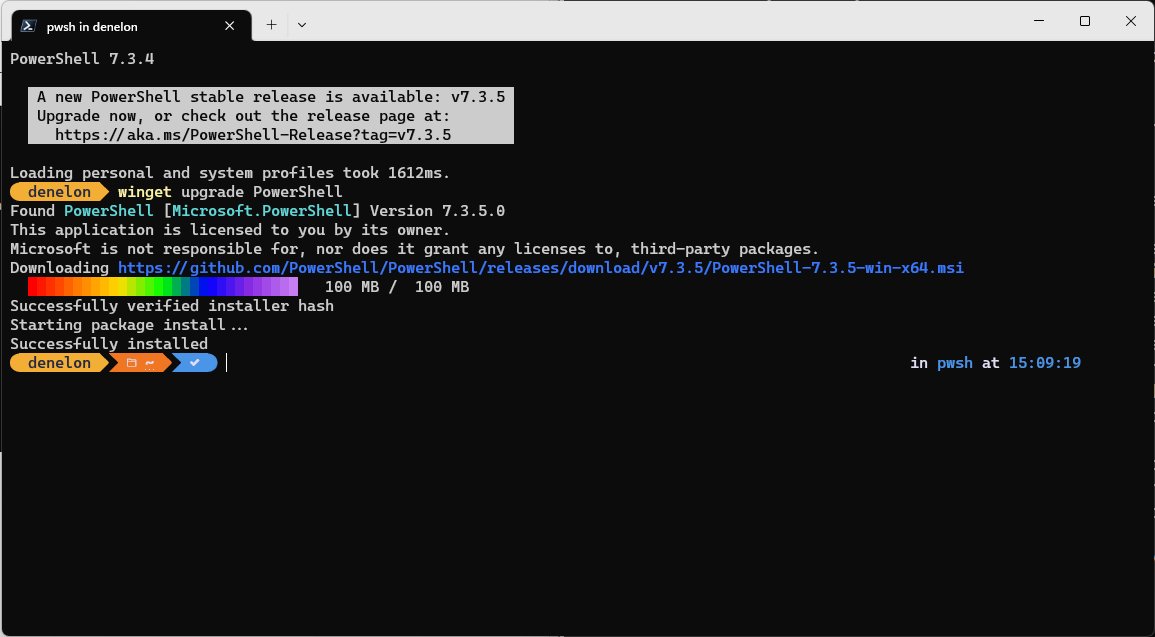
Winget is Microsoft's package manager and ships inside App Installer on Windows 11 and on Windows 10 version 1809 (build 17763) or later. Its msstore source is the Microsoft Store catalog, so it can update Store apps as well as desktop programs.
- Open Terminal, PowerShell or Command Prompt from the Start menu.
- Type
winget upgradeand press Enter to list every app with an update available, including its ID and source. - Accept the source agreement when winget asks the first time it uses the
msstoresource. - Update one app with
winget upgrade --id <AppID>, copying the ID exactly from the list. - Update everything at once with
winget upgrade --all. - Add
--include-unknownto update apps whose current version winget cannot read, or--include-pinnedto include pinned apps. - Add
--accept-package-agreements --accept-source-agreementsto skip the license prompts when you script the command.
To limit the list to Store apps, run winget upgrade --source msstore. winget update is an alias of winget upgrade, so either spelling works in PowerShell or Command Prompt.

How to update built-in Windows apps such as Photos, Paint, and Notepad
Built-in apps in Windows 11 are delivered through Microsoft Store, so Windows Update does not refresh them. Microsoft's Intune documentation confirms that the Store keeps built-in Windows apps up to date unless a policy blocks it.
- Close Photos, Paint, Notepad or whichever built-in app you want to update.
- Open Microsoft Store and select Library.
- Select Get updates and wait for the list to refresh.
- Wait for the app to finish downloading and installing its update.
- Reopen the app once the Store has finished.
From a terminal, winget upgrade --source msstore lists the same built-in apps when updates are waiting.
How to update Microsoft Store itself
An outdated Store is a common reason apps stop updating. Microsoft lists updating the Store as a standard fix for app problems in Windows 11.
- Select Start, then select Microsoft Store from the apps list.
- Select Library.
- Select Get updates.
- Let the Store install its own update; Microsoft says it starts automatically when one is available.
- Close and reopen Microsoft Store, then run Get updates again for your other apps.
If the Store is missing entirely, follow the steps to download Microsoft Store in Windows 10/11 first.
How to check an app’s current version
Checking the version proves the update actually landed, which matters when a fix or feature depends on a specific release.
- Open Terminal, PowerShell or Command Prompt from the Start menu.
- Run
winget list "<app name>", for examplewinget list Paint. - Read the installed version shown next to the app's name and ID.
- Look for an available version beside it: winget shows one only when an update exists, along with the source it comes from.
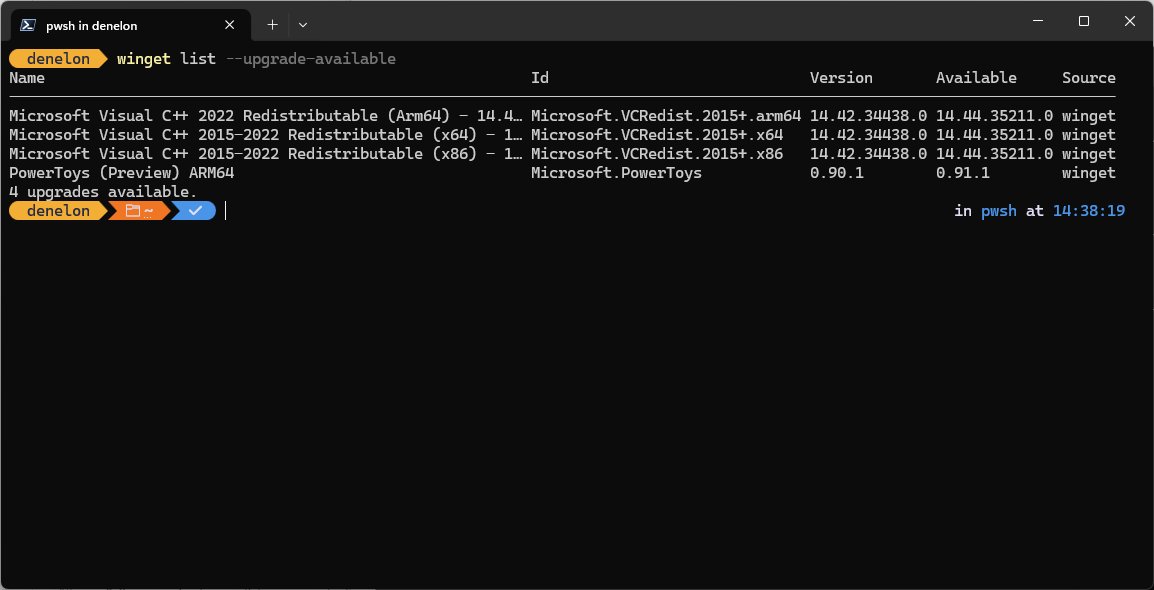
- Run
winget list --upgrade-availableto confirm no Store apps are still waiting for an update. - Open the app's own Settings or About page if you want the version it reports to itself.
How to turn automatic Store app updates on or off
Microsoft now keeps Store app updates on by default for security reasons. Depending on your Store version you see an App updates switch or an option to pause updates for a while rather than switch them off.
- Select Start, then search for and select Microsoft Store.
- Select Profile (your account photo).
- Select Store Settings.
- Set App updates to On to install updates automatically.
- Set it to Off, or choose the pause option your Store version offers, if you want to update apps only by hand.
An older Windows 10 walkthrough is in turn off automatic updates for Store apps in Windows 10. With automatic updates off, run Get updates yourself regularly so security fixes still arrive.
How to update Store apps on work or school PCs
On a managed PC, your organisation's policies decide whether the Store can update apps at all. Microsoft Store for Business and Education has been retired; organisations now deploy Store apps through Intune.
| What you see | Policy likely behind it | What to do |
|---|---|---|
| Microsoft Store is blocked or will not open | Turn off the Store application (Windows Components > Store) | Run winget upgrade instead; Microsoft states winget is not affected by this policy |
| Store apps never update, even overnight | Turn off Automatic Download and Install of updates | Ask IT; this policy stops automatic Store updates for UWP apps |
| Only a private store shows | Only display the private store within the Microsoft Store app | Use winget, which still reaches the Store catalog under this policy |
| An app came from Company Portal | Intune manages the app | Intune updates assigned Win32 Store apps itself; open Company Portal to reinstall if needed |
| winget says the Store source is disabled | Enable App Installer Microsoft Store Source (Windows Components > Desktop App Installer) | Contact IT; the policy is set by your organisation |
What to do if Microsoft Store apps will not update
Work through the symptom that matches what you see. Microsoft recommends the fixes in roughly this order.
Why won't Microsoft Store update apps? Get updates finds nothing or stalls
A stale Store cache, a pending Windows restart or an outdated Store app.
- Restart the PC if Windows installed updates recently.
- Press Windows logo key + R, type
wsreset.exeand select OK. - Wait about ten seconds while a blank Command Prompt window runs; the Store then opens on its own.
- Select Library > Get updates again.
- Check Start > Settings > Windows Update > Check for updates and install anything waiting.
Why won't my apps update on Microsoft Store when others do
The app's files are damaged, or the publisher updates it through its own updater.
- Open Start > Settings > Apps > Installed apps.
- Select the More (three dots) icon next to the app, then Advanced options.
- Select Repair; if the update still fails, select Reset.
- Retry Get updates in the Store.
- If it still fails, uninstall the app, then reinstall it from Library by selecting Install.
Microsoft Store will not open, so you cannot update anything
A corrupt cache, wrong date and time, or an out-of-date Windows build.
- Run
wsreset.exefrom the Run dialog (Windows logo key + R). - Correct the date, time and region in Settings.
- Install pending Windows updates and restart.
- Update apps with
winget upgrade --allfrom Terminal while the Store is unavailable.
winget is not recognized or not available
App Installer is missing or outdated, or Windows has not registered it after a first sign-in.
- Update App Installer from Library > Get updates in the Store.
- Open PowerShell and run
Add-AppxPackage -RegisterByFamilyName -MainPackage Microsoft.DesktopAppInstaller_8wekyb3d8bbwe. - Close and reopen Terminal, then run
winget upgrade. - If the Store source errors, run
winget source reset --forcefrom an administrator Terminal to restore the defaultmsstoreandwingetsources.
Common Microsoft Store update error codes
Microsoft documents a dedicated fix for one Store error code; the other messages below come from Microsoft's own troubleshooting pages.
| Error or message | What it points to | Fix |
|---|---|---|
| 0x80131500 or "Try that again" | Store cannot reach its service or its cache is damaged | Run wsreset.exe, install Windows updates, update the Store, check time and location |
| 0x80131500 on Windows 10 | Same as above | Also run the Windows Store Apps troubleshooter under Additional troubleshooters |
| Install or update button missing | App not available in your region, hidden by family settings, or incompatible | Check you are signed in to the right account and the app still exists in the Store |
| Updates wait until restart | Windows installed updates but the PC was not restarted | Restart, then run Get updates |
| "winget is not recognized" | App Installer missing, outdated or not registered | Update App Installer or run the registration command above |
Can you download Microsoft Store app updates manually from a website?
No. Update Store apps through the Store app, winget or your organisation's Company Portal, not through a website that offers package files. Microsoft's own support pages route every Store app update through those three channels, and none offers a standalone update download. Third-party sites that repackage Store files can serve altered installers. The only exceptions are apps whose publishers ship their own updater, which Microsoft notes some do.
Tips for smoother Microsoft Store updates
| Tip | Why it helps |
|---|---|
| Keep App updates on | Security fixes arrive without you remembering to check |
| Close and reopen an app that misbehaves after an update | Microsoft lists this as the first fix for Store app problems |
| Restart after Windows updates | A pending restart blocks Store installs |
| Update the Store and App Installer first | Both are Store apps, and an old version can break the rest |
Preview with winget upgrade before --all |
Shows exactly what will change before anything installs |
| Use the app's own updater where it has one | Office and some other apps update themselves; see manually update to the latest Microsoft Office release |
Frequently asked questions
How do I update Microsoft Store apps?
Open Microsoft Store, select Library, then select Get updates. The Store checks every installed Store app and installs the available updates. It works the same way on Windows 10.
How do I update Microsoft Store apps on a PC?
On any Windows 11 or Windows 10 PC, open Microsoft Store from Start, go to Library and select Get updates. You can also run winget upgrade –all in Terminal to update Store and desktop apps together from the command line.
How do I update Microsoft Store apps in Windows 11?
Select Start, open Microsoft Store, select Library and then Get updates, which newer Store versions call Check for updates. Built-in apps such as Photos, Paint and Notepad update the same way.
Why won't Microsoft Store update apps?
The usual causes are a damaged Store cache, a pending Windows restart, an outdated Store app or a work policy. Run wsreset.exe, restart the PC, install Windows updates, update the Store itself, then select Get updates again.
Why won't my apps update on Microsoft Store?
If one app fails while others update, repair it under Settings > Apps > Installed apps > Advanced options, then retry. If that fails, uninstall it and reinstall from Library. Some apps also update only through their own built-in updater.
How do I update the Microsoft Store app itself?
Open Microsoft Store, select Library and then Get updates. If a newer version of the Store is available, Microsoft says it starts installing automatically. Close and reopen the Store afterwards so the new version loads.
How do I update the Windows app store?
The Windows app store is Microsoft Store, and it updates itself through its own Library page. Open it, select Library, then Get updates. If it will not open, run wsreset.exe from the Run dialog first.
Can I update all Microsoft Store apps with PowerShell?
Yes. Run winget upgrade –all in PowerShell or Command Prompt to update every app with an available update, including Store apps from the msstore source. Run winget upgrade on its own first to preview the list.
Does Windows 11 update Microsoft Store apps automatically?
Yes. Microsoft Store installs app updates automatically by default when App updates is on in Store Settings. Microsoft is making updates automatic for security, with an option to pause them rather than stop them.
Conclusion
Use Library > Get updates for a quick manual check, and keep automatic updates on so security fixes arrive without effort. The Store covers every Store app, including built-in ones, in one pass. Winget is the better choice when the Store will not open or when a work policy blocks it, because Microsoft exempts winget from the Store block policy.