You can download Apple Devices for free from the Microsoft Store and use it to back up, update, restore and sync an iPhone or iPad on a Windows 11 or Windows 10 PC. Plug the phone in with a cable, trust the computer, and it appears in the app’s sidebar.
Apple Inc. publishes the app for x64 PCs, plus ARM64 PCs on Windows 11 version 24H2 or later. It takes over the device jobs iTunes used to handle, while Apple Music and Apple TV handle playback.
Below are the official links, Store and winget install steps, a first backup, the Mac equivalent, and fixes for an iPhone that will not show up.
Which Apple Devices download do you need?
Match your PC to a row. The Store picks the right package for your processor on its own.
| Your PC | What to get | Download size |
|---|---|---|
| Windows 10 version 22H2 (build 19045) or later, Intel or AMD | Apple Devices on the Microsoft Store | 239.7 MB |
| Windows 11 version 24H2 (build 26100) or later, including ARM64 PCs | Apple Devices on the Microsoft Store | Up to 483.7 MB (x64 and ARM64 bundle) |
| Older Windows, or a PC where the Store is blocked | iTunes for Windows, which still backs up and syncs | See the iTunes guide |
There is no separate 32-bit build. A 32-bit edition of Windows needs iTunes for device backups.
Download Apple Devices from the official Apple and Microsoft links
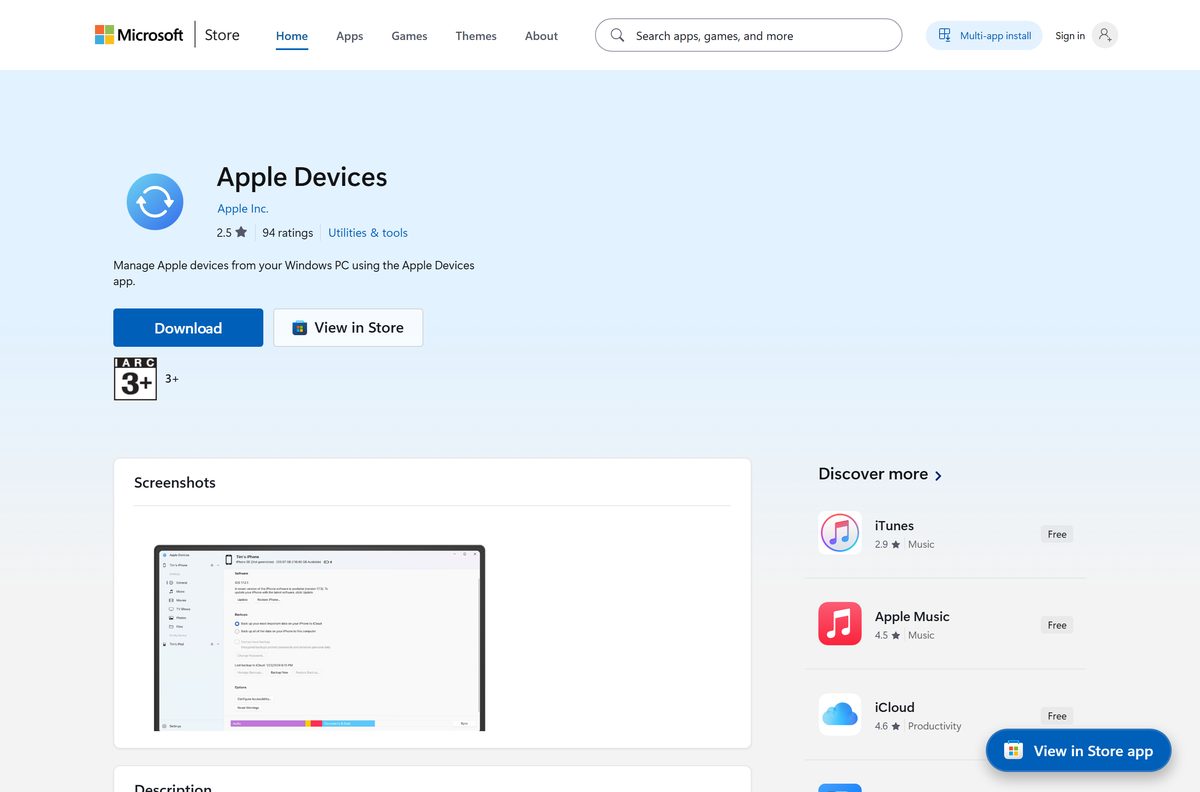
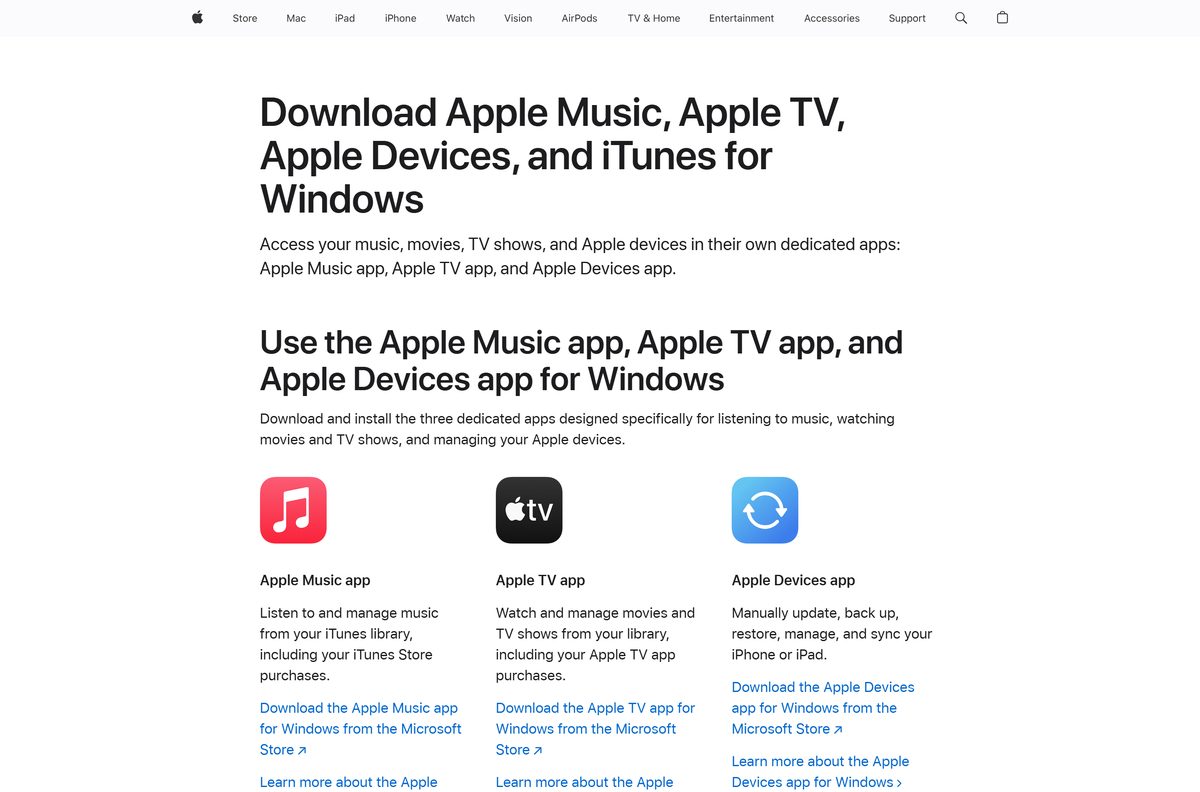
Apple ships the Windows app only through the Microsoft Store, and its own Windows apps page links straight to that listing.
- Apple Devices on the Microsoft Store, product 9NP83LWLPZ9K — 239.7 MB · publisher Apple Inc., updates through the Store
- Apple’s page for Apple Music, Apple TV, Apple Devices and iTunes on Windows — links each Apple app for Windows to its Store listing
- Apple Devices User Guide for Windows — Apple’s own help for syncing, backups and restores
A setup file offered on any other site is not from Apple. Check that the Store listing names Apple Inc. as publisher before you select Get.
Install Apple Devices from the Microsoft Store or with winget
Both routes install the same Apple package, and both keep it updated through the Store.
- Open Microsoft Store from the Start menu.
- Search for Apple Devices and select the result published by Apple Inc.
- Select Get. The Store downloads and installs the package for your processor.
- Select Open when the install finishes.
- To use the command line instead, open Terminal and run winget install 9NP83LWLPZ9K –source msstore .
- Type Y to accept the Store terms when winget asks.
Install Apple Music and Apple TV first if you plan to sync songs or films. Apple Devices syncs media from those apps only when they are already installed.
How to connect your iPhone and make your first backup on Windows
Use a USB or USB-C cable for the first connection. Wi-Fi syncing can be switched on afterwards.
- Connect your iPhone or iPad to the PC with a cable and check that it shows it is charging.
- Unlock the phone so the Home Screen is visible.
- Tap Trust on the phone when it asks, then enter your passcode.
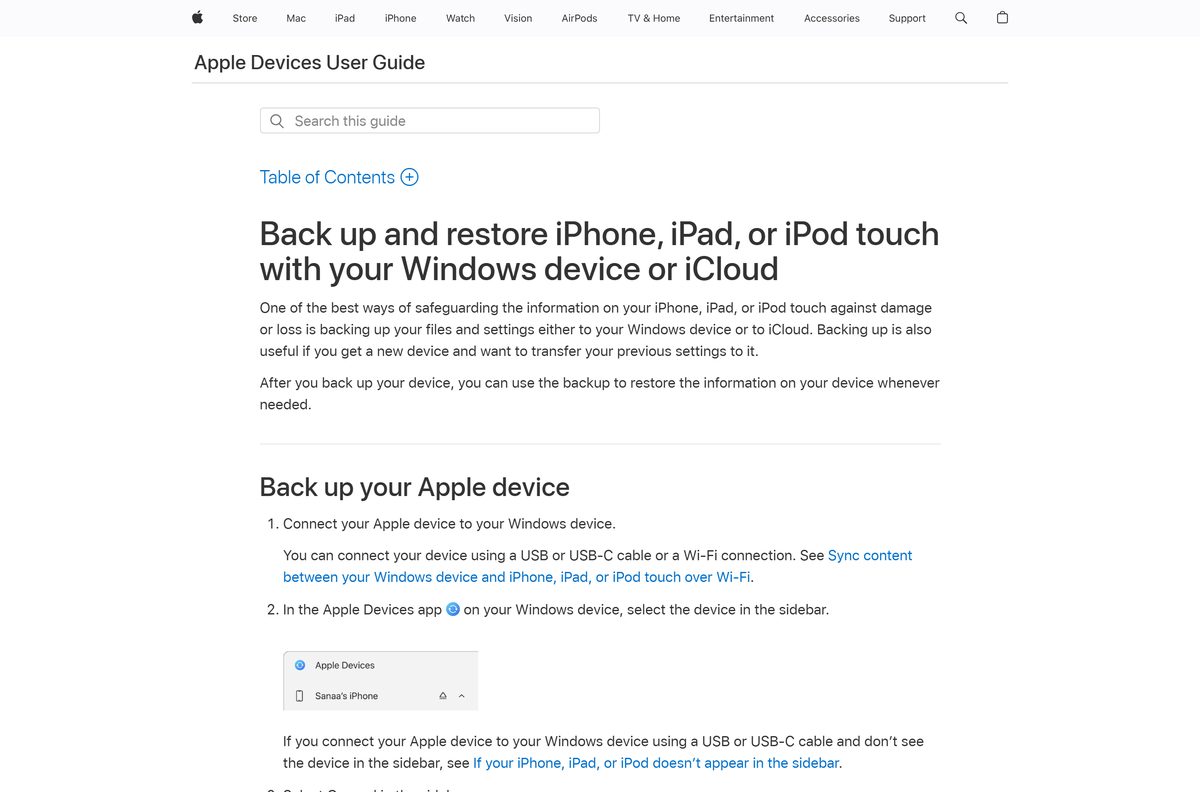
- Open Apple Devices and select the phone in the sidebar.
- Select General in the sidebar.
- Choose Back up all of the data on your iPhone to this computer.
- Select Encrypt local backup and set a password to protect the backup.
- Select Back Up Now and keep the cable connected until the backup finishes.
Store the encryption password somewhere safe. A restore from an encrypted backup asks for it.
Check the Apple Devices system requirements before you install
Any 64-bit PC on Windows 10 version 22H2 clears the floor. ARM64 laptops need Windows 11 version 24H2.
| Field | Value |
|---|---|
| Software | Apple Devices |
| Developer | Apple Inc. |
| Latest version | 1.1540.24088.0 (Windows 11 24H2 and later); 1.1540.24087.0 (Windows 10) |
| Store package updated | 9 September 2026 |
| License | Free |
| Supported OS | Windows 10 build 19045 or later, Windows 11 |
| Architecture | x64; ARM64 on Windows 11 build 26100 or later; no 32-bit package |
| Download size | 239.7 MB for the x64 package; 483.7 MB for the x64 and ARM64 bundle |
| Installed size | 508.1 MB (Windows 10 package), 531.3 MB (Windows 11 24H2 package) |
| Microsoft Store product | 9NP83LWLPZ9K, package AppleInc.AppleDevices |
| Offline installer | No |
| Last verified | 2026-09-24 |
Press Windows + R, type winver and select OK to read your Windows version and build.
What Apple Devices can back up, sync and restore
Every task starts the same way: select the phone in the sidebar, then pick a tab.
| Task | Where to find it | Note |
|---|---|---|
| Back up to the PC or iCloud | General > Back Up Now | Tick Encrypt local backup to protect it with a password |
| Restore a backup | General > Restore Backup | Pick the backup from the pop-up menu, then select Restore |
| Update iOS or iPadOS | General > Check for Update > Update | Works over the cable or Wi-Fi |
| Factory reset | General > Restore iPhone | Erases all information and settings on the phone |
| Sync music, movies and TV shows | The media tabs in the sidebar | Needs the Apple Music and Apple TV apps installed |
| Sync photos | The photos tab in the sidebar | Copies pictures from the PC to the phone |
| Transfer files | The files tab in the sidebar | Moves files between the PC and supported apps |
| Sync over Wi-Fi | General > Show this iPhone when on Wi-Fi > Apply | iOS 5 or later, same Wi-Fi network |
The full walkthrough for each tab is in the Apple Devices User Guide for Windows.
Should you back up your iPhone with Apple Devices or iTunes?
Use Apple Devices for backups, updates and syncing on Windows 10 22H2 or Windows 11. Keep iTunes only for audiobooks and podcasts, or on a PC that cannot run Store apps. Apple’s Windows backup instructions tell you to open the Apple Devices app, and to fall back to iTunes only if the PC does not have it. Apple describes iTunes as the remaining home for audiobooks and free podcasts once the newer apps are installed. Music and films move to Apple Music and Apple TV.
The iTunes download guide covers the offline installer and the 32-bit build for older PCs.
Which Apple Devices download do you need for your Mac?
None. Apple Devices is a Windows app. On a Mac, the Finder does the same backups, updates and syncing.
| Your Mac | What to use | Apple’s instructions |
|---|---|---|
| macOS Catalina 10.15 or later | Open Finder and select your iPhone or iPad in the sidebar | Back up your iPhone or iPad with your Mac |
| macOS Mojave 10.14 or earlier | Open iTunes, which still handles device backups on those versions | Back up your iPhone or iPad with your Mac |
In the Finder, click Trust on the Mac and on the phone, tick Encrypt local backup if you want Health and Activity data, then click Back Up Now.
Is Apple Devices free?
Yes. Apple Devices is free, with no paid tier, subscription or in-app purchase. The Microsoft Store lists the app at $0.00. Local backups to the PC cost nothing. Backing up to iCloud instead uses your iCloud storage, which Apple sells separately. Any site charging for an Apple Devices download or a registration key is not Apple.
How to check your Apple Devices version and update it
- Open Settings > Apps > Installed apps and find Apple Devices.
- Select the three-dot menu, then Advanced options. The version appears under Specifications.
- Open Microsoft Store and select Library in the left pane.
- Select Get updates. The Store installs any newer Apple Devices package.
- To update the iPhone itself, open Apple Devices, select the phone, then General > Check for Update > Update.
Fix Apple Devices not installing or not finding your iPhone
The Store says Apple Devices does not work on this device
Windows is older than Windows 10 build 19045, or the PC runs a 32-bit edition.
- Press Windows + R, type winver and select OK.
- If the build is lower than 19045, open Settings > Update & Security > Windows Update and install the offered updates.
- On an ARM64 PC, update to Windows 11 version 24H2 or later, then select Get again.
The Microsoft Store download stalls or fails
A stale Store cache or a pending restart.
- Restart the PC if Windows installed updates since the last reboot.
- Press Windows + R, type wsreset.exe and select OK. A blank window closes and the Store reopens.
- Select Get again on the Apple Devices listing.
The iPhone or iPad does not appear in the sidebar
A loose cable, a locked phone or an unanswered trust prompt.
- Reconnect the cable and check that the phone shows it is charging.
- Unlock the phone and leave the Home Screen visible.
- Tap Trust when the phone asks whether to trust this computer.
Music or movies are missing from the sync options
Apple Devices syncs media only from the Apple Music and Apple TV apps.
- Install Apple Music and Apple TV from the Microsoft Store.
- Open each app once and let it load your library.
- Reopen Apple Devices, select the phone and check the media tabs again.
Apple Devices installed but will not open
A damaged install, which Windows can repair.
- Open Settings > Apps > Installed apps, select the three-dot menu next to Apple Devices, then Advanced options.
- Select Repair and try the app again.
- If it still fails, select Reset and reconnect the phone.
How to uninstall Apple Devices from Windows
- Open Settings > Apps > Installed apps.
- Find Apple Devices and select the three-dot menu next to it.
- Select Uninstall, then Uninstall again to confirm.
- To reinstall later, open the Store listing and select Get.
Copy any local backups you want to keep to another drive before you clean up the PC.
Which Apple app to use for each job on your PC or Mac
| Job | Use this | Why |
|---|---|---|
| Play and buy music on a PC | Apple Music for Windows | Apple Devices has no player |
| Watch Apple TV+ and your films on a PC | Apple TV for Windows | Movies and TV shows live there |
| Audiobooks, podcasts, or a PC without the Store | iTunes for Windows | Still backs up and syncs devices |
| Back up and sync on a Mac | Finder on macOS Catalina or later | Built into macOS |
Frequently asked questions
Is the Apple Devices app free?
Yes. The Microsoft Store lists Apple Devices at $0.00, with no subscription or in-app purchase. Backups to the PC are free; backups to iCloud use your iCloud storage.
Where is the official Apple Devices download for PC?
The Microsoft Store listing for product 9NP83LWLPZ9K, published by Apple Inc. Apple’s own page for its Windows apps links to that listing.
Does Apple Devices work on Windows 11 and Windows 10?
Yes. The x64 package runs on Windows 10 build 19045 or later and on Windows 11. ARM64 PCs need Windows 11 version 24H2, build 26100, or later.
How big is the Apple Devices download?
The x64 Store package is a 239.7 MB download and takes 508.1 MB installed. The Windows 11 24H2 bundle with x64 and ARM64 builds is 483.7 MB in total.
Is there an Apple Devices offline installer?
No. Apple ships the app only through the Microsoft Store, so the PC needs an internet connection to install it. Backups and restores over a cable work offline afterwards.
Is there an Apple Devices app for Mac?
No. On macOS Catalina 10.15 or later, the Finder backs up, updates and syncs an iPhone or iPad. Macs on macOS Mojave or earlier use iTunes for the same jobs.
Does Apple Devices support ARM64 and 64-bit Windows?
Yes. Apple ships an x64 package and an ARM64 package for Windows 11 version 24H2 or later. There is no 32-bit package, so a 32-bit Windows edition needs iTunes.
Is Apple Devices safe to install?
Yes, when it comes from the Microsoft Store listing published by Apple Inc. Store apps are signed and update through the Store. Avoid setup files for it on any other site.
What is the latest version of Apple Devices?
Version 1.1540.24088.0 for Windows 11 version 24H2 and later, and 1.1540.24087.0 for Windows 10. The Store updates the app automatically.
Why won’t Apple Devices install on my PC?
Usually an old Windows build or a stuck Store cache. Update to Windows 10 build 19045 or later, run wsreset.exe from the Run box, restart and select Get again.
Do I still need iTunes if I install Apple Devices?
Only for audiobooks and podcasts, or on a PC that cannot run Store apps. Apple Devices handles backups, updates and syncing, while Apple Music and Apple TV handle playback.
Why doesn’t my iPhone show up in Apple Devices?
Check the cable, unlock the phone and tap Trust when it asks whether to trust the computer. The phone then appears in the app’s sidebar.