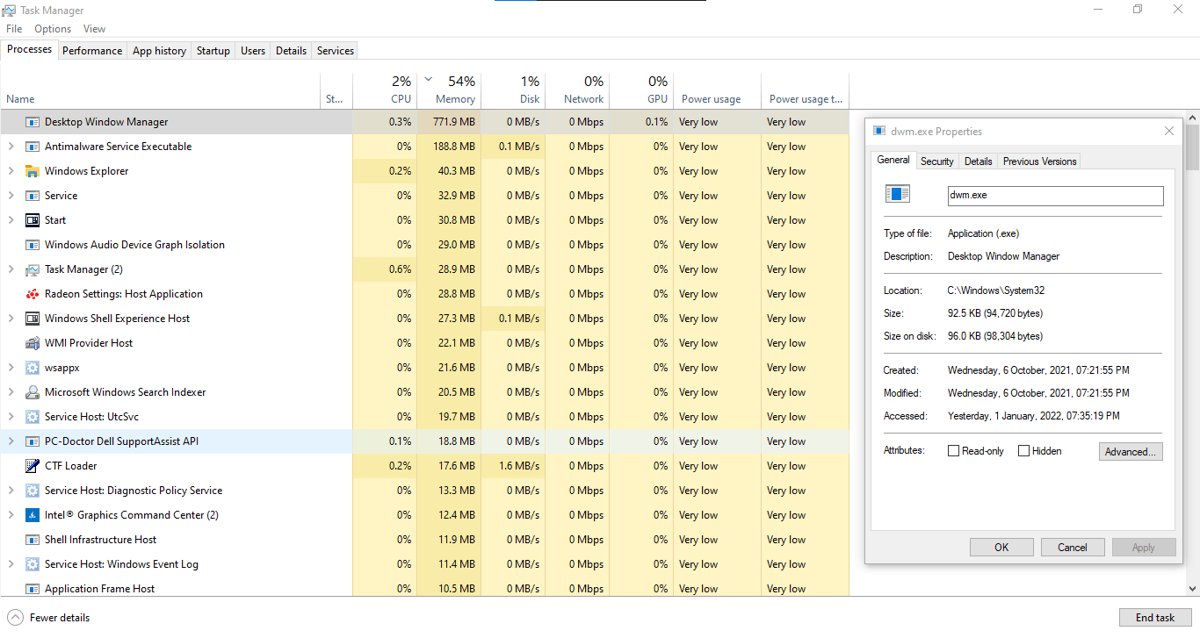
Desktop Window Manager (dwm.exe) is the built-in Windows process that composes every window, animation and transparency effect on your screen.
This page covers what it does, how to tell the genuine file from malware, why it uses CPU, GPU or memory, and how to bring that usage back down.
What Is Desktop Window Manager (dwm.exe)?
Applications on Windows do not draw straight to the display. Each window draws to an off-screen surface in video memory, and Desktop Window Manager assembles those surfaces into the desktop image that reaches your monitor.
That job is called desktop composition, and dwm.exe is the process that performs it.
Leave dwm.exe running. Desktop composition is performed by Desktop Window Manager, and Microsoft states that composition is always enabled as of Windows 8, so the desktop has no other route to the screen.
What Does Desktop Window Manager Do in Windows?
Composition changed how pixels reach the screen when it arrived in Windows Vista, and the same model still runs in Windows 11 and Windows 10.
| What it handles | What Desktop Window Manager does | What the desktop loses without it |
|---|---|---|
| Window composition | Redirects the drawing of each window to an off-screen surface in video memory, then renders those surfaces into one desktop image | Nothing reaches the display at all |
| Transparency and acrylic blur | Renders the blur behind window backgrounds and the non-client frame | Flat, fully opaque window backgrounds |
| Window animations | Draws window transition animations and the Flip task switcher | Windows snap between states with no motion |
| Taskbar thumbnails | Supplies the live thumbnail of a window from its stored surface | No preview when you hover a taskbar button |
| High-resolution screens | Provides high resolution support, so scaled text and icons stay sharp | Blurred or mis-scaled content on high-DPI displays |
| Hidden windows | A covered window stops receiving repaint messages because its content is already stored | Every window would redraw whenever another one moved |
Is dwm.exe Safe or a Virus?
dwm.exe ships with Windows and runs on every Windows 11 and Windows 10 PC, so seeing it in Task Manager is normal. Two checks settle whether the copy running on your PC is the genuine one.
- Open Task Manager and select the Details tab.
- Right-click dwm.exe and select Properties.
- Open the Digital Signatures tab and confirm the signer is Microsoft Windows.
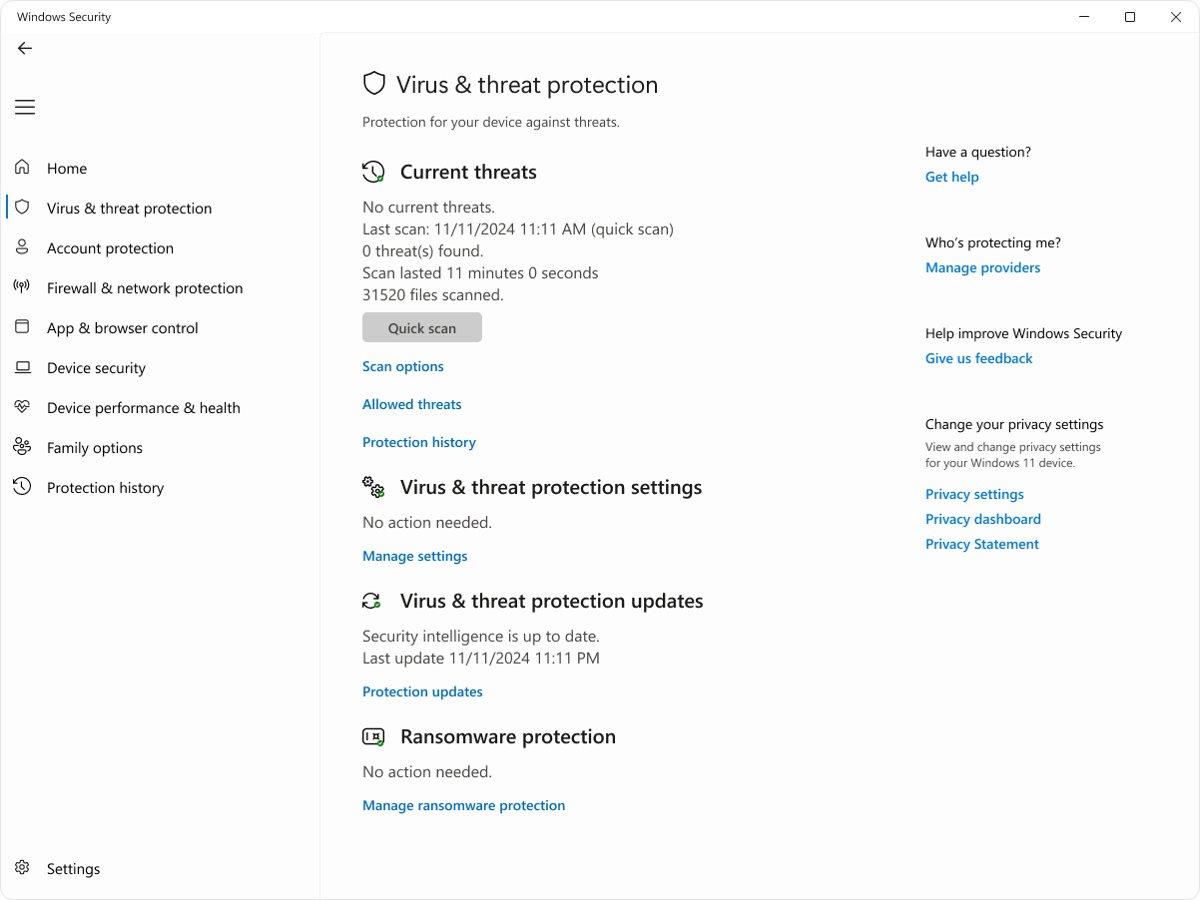
- Open the Windows Security app from the Start menu.
- Select Virus & threat protection, then Quick scan, and wait for the result.
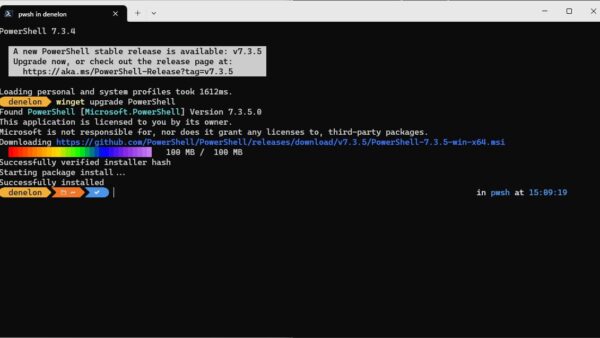
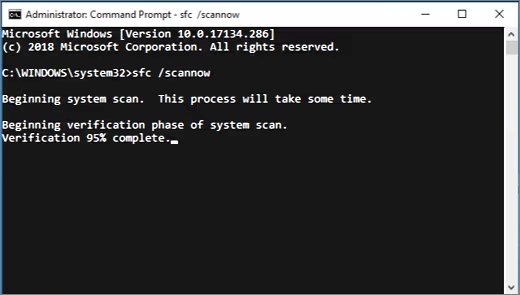
- Open Command Prompt as an administrator and run
sfc /scannowto have the file itself checked.
System File Checker scans all protected system files and replaces incorrect versions with correct Microsoft versions, so a system file that has been swapped out is repaired in place.
Task Manager raises the same question about other Windows processes, such as cftmon.exe.
Why Desktop Window Manager Uses CPU, GPU, or Memory
dwm.exe holds a surface in video memory for every window and redraws the desktop image as the screen updates. Anything that makes those surfaces larger, more numerous or more expensive to blend shows up as dwm.exe usage.
| Cause | Why it raises dwm.exe usage | What lowers it |
|---|---|---|
| Transparency and blur | Microsoft describes rendering blur behind a window as resource-intensive for both the CPU and the GPU, and the cost rises again whenever the blurred area updates | Turn off Transparency effects |
| A high refresh rate display | The refresh rate is the number of times per second the image refreshes, and every one of those images is composed | Pick a lower rate under Choose a refresh rate |
| Extra displays or a high resolution | Larger and additional screens mean more and bigger surfaces to hold in video memory and blend each frame | Disconnect a display you are not using |
| A faulty graphics driver | Composition runs on the GPU, so a display adapter driver fault is reported against dwm.exe rather than against the driver | Update or roll back the display adapter driver |
| An app drawing to the primary surface | An application that draws directly to the primary display surface forces Desktop Window Manager to stop composing until that surface is released | Close or update the app |
| Window animations | Transition animations are drawn by Desktop Window Manager, not by the app that owns the window | Turn off Animation effects |
Which fix to try first for high dwm.exe usage
| What you are seeing | Try this first | Why |
|---|---|---|
| Memory climbs over hours and drops after a restart | Sign out and sign back in | A fresh sign-in rebuilds the desktop session and the window surfaces held in it |
| GPU usage spikes only while one app is on screen | Close that app and watch Task Manager | The window being composed is the one generating the work |
| Usage jumped straight after a driver update | Roll back the display adapter driver | Composition runs on the GPU, so the new driver is the change to undo |
| Usage rose after adding a monitor or a faster panel | Lower the refresh rate or disconnect the extra display | Fewer and slower screen updates mean fewer composed frames |
| Usage is high with nothing open | Turn off Transparency effects and Animation effects | Blur and animation are the two effects Desktop Window Manager pays for continuously |
| Strange errors alongside the high usage | Run a Windows Security scan, then sfc /scannow | This separates malware and damaged system files from a genuine load problem |
How to Fix High Resource Usage by dwm.exe
Work through the group that matches the figure you see in Task Manager. Each group starts with the cheapest fix.
Desktop Window Manager is using high memory
Surfaces for many open and background windows build up across a long session.
- Select Start, then your account picture, then Sign out, and sign back in.
- Open Task Manager, select the Processes tab and sort by Memory to see which apps still hold windows open.
- Close the apps at the top of that list that you are not using.
- Select Start > Settings > Apps > Startup and set the toggle to Off for apps you do not need at sign-in.
- Restart the PC and check the figure again after ten minutes of normal use.
Desktop Window Manager is using high GPU, sometimes close to 100%
Composition runs on the graphics adapter, so a driver fault or a very high screen update rate lands on dwm.exe.
- Right-click Start and select Device Manager.
- Expand Display adapters, right-click your graphics card and select Update driver.
- Select Search automatically for updated driver software, then select Close when it finishes.
- If the usage started after a driver update, right-click the card instead and select Properties > Driver tab > Roll Back Driver, choose a reason and select Yes.
- Select Start > Settings > System > Display > Advanced display and pick a lower value next to Choose a refresh rate.
- Restart the PC so the driver change takes effect.
Desktop Window Manager is using high CPU
Blur and animation are composed continuously, and one badly behaved window keeps the whole desktop image updating.
- Select Start > Settings > Accessibility > Visual effects.
- Turn off the Transparency effects toggle to make window backgrounds opaque.
- Turn off the Animation effects toggle.
- Open Task Manager, select the Processes tab, and close open apps one at a time while watching the Desktop Window Manager row.
- Update or stop using the app whose window makes the figure jump.
dwm.exe usage stays high after every other fix
Damaged system files or a missing Windows update keep composition working harder than it should.
- Open the Windows Security app and select Virus & threat protection > Quick scan.
- Open Command Prompt as an administrator and run
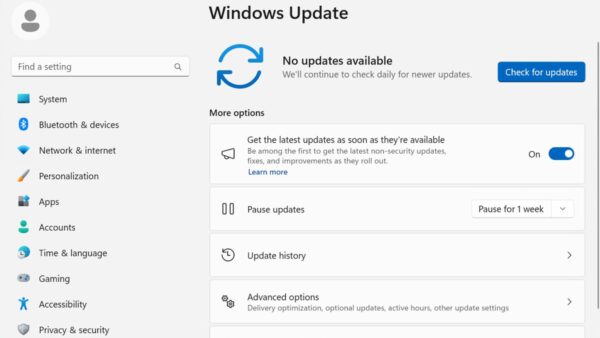
sfc /scannowto scan protected system files and replace incorrect versions. - Select Start > Settings > Windows Update, then Check for Windows updates.
- Select Download & install for anything offered, including driver updates.
- Restart the PC when prompted.
How to check dwm.exe usage is back to normal
- Close every app and leave the desktop idle for ten minutes.
- Press Ctrl + Shift + Esc to open Task Manager.
- Select the Processes tab and find Desktop Window Manager.
- Check that its CPU and GPU figures sit near the bottom of the list while nothing is on screen.
- Sort by Memory and confirm the figure settles rather than rising minute by minute.
- Open and close a few windows and confirm the figure comes back down afterwards.
A figure that stays flat at idle and rises only while windows move is normal behaviour for composition.
Can You Disable Desktop Window Manager?
No supported switch turns it off on Windows 11, Windows 10 or Windows 8.
Do not try to disable Desktop Window Manager or end its process; change the effects it renders instead. Microsoft documents that composition is always enabled as of Windows 8, and that the API call which used to switch it off still returns success but has no effect.
The Desktop Window Manager Session Manager service entry that Microsoft documented for enabling and disabling composition belongs to the Windows Vista and Windows 7 era.
Ending the process achieves nothing lasting either, because the desktop image has no other producer.
What you can disable instead
Composition stays on, but the expensive effects it renders are all optional.
- Select Start > Settings > Accessibility > Visual effects.
- Turn off Transparency effects so window backgrounds become more opaque.
- Turn off Animation effects so Windows stops drawing transitions.
- Select Start > Settings > System > Display > Advanced display and choose a lower value next to Choose a refresh rate if the panel runs well above 60 Hz.
- Leave the Dynamic refresh rate toggle on where the hardware supports it, so Windows drops the rate when smooth motion is not needed.
- Select Start > Settings > Apps > Startup and switch off background apps that keep windows open at sign-in.
Dynamic refresh rate needs a display that supports variable refresh rate and a refresh rate of at least 120 Hz.
What changed from older Windows versions
| Windows version | Can composition be turned off? | What you can still change |
|---|---|---|
| Windows Vista and Windows 7 | Yes. It ran as the Desktop Window Manager Session Manager service, listed under Services in the Administrative Tools Control Panel item | The service state, plus the theme |
| Windows 8 and Windows 8.1 | No. Composition is always enabled from this release onward | Transparency and animation settings only |
| Windows 10 | No | Transparency and animation toggles in Settings, plus the display refresh rate |
| Windows 11 | No | Settings > Accessibility > Visual effects, and the refresh rate under Advanced display |
Frequently Asked Questions
What does Desktop Window Manager do?
It performs desktop composition. Each window draws to an off-screen surface in video memory, and Desktop Window Manager blends those surfaces into the single image sent to your display, adding transparency, window animations, taskbar thumbnails and high-resolution support along the way.
Is Desktop Window Manager necessary?
Yes. Composition is always enabled from Windows 8 onward, and nothing else assembles the desktop image. Without dwm.exe there is no route from an application window to the screen, so Windows keeps the process running for the whole session.
Can I end the Desktop Window Manager task?
There is no reason to. Windows depends on the process for everything drawn on screen, and ending it is not a supported way to free memory. Sign out and back in instead, which rebuilds the desktop session cleanly.
How do I restart Desktop Window Manager?
Sign out of Windows and sign back in, or restart the PC. Both rebuild the desktop session and clear the window surfaces dwm.exe was holding, which is the usual reason people want to restart it in the first place.
Can I disable Desktop Window Manager?
No. Microsoft documents that composition is always enabled as of Windows 8, and the API that used to disable it now returns success without doing anything. Turn off transparency and animation effects instead.
How to enable Desktop Window Manager?
It is already enabled. Composition cannot be switched off on Windows 8 or later, so there is no toggle to turn back on. On Windows Vista and Windows 7 it appeared as the Desktop Window Manager Session Manager service.
Is Desktop Window Manager a virus?
The genuine dwm.exe is a Windows system file signed by Microsoft Windows. Check the signature on the Digital Signatures tab of its file properties, run a Quick scan in Windows Security, then run sfc /scannow to verify protected system files.
Why is Desktop Window Manager using so much memory?
It holds an off-screen surface for every window in video memory, so many open windows, extra monitors or a high resolution all raise the figure. It should stop climbing at idle; if it does not, sign out and back in.
Why is Desktop Window Manager using 100% GPU?
Composition runs on the graphics adapter, so a faulty display driver, a very high refresh rate, or an app that redraws constantly all appear as dwm.exe GPU usage. Update or roll back the display adapter driver first.
Why is Desktop Window Manager using CPU?
Blur behind a window is resource-intensive for the CPU as well as the GPU, and window transition animations are drawn by dwm.exe. Turning off Transparency effects and Animation effects removes both of those costs.
What is Windows Desktop Manager?
It is the same thing with the words in a different order. The Windows component is called Desktop Window Manager, its process is dwm.exe, and searches for Windows Desktop Manager return that same component.
Bottom Line
Leave Desktop Window Manager alone unless its CPU, GPU or memory figure stays high while the desktop is idle. It is a signed Windows system process that cannot be switched off from Windows 8 onward, and the usage people notice almost always traces back to a display driver, a refresh rate, an extra monitor, or the transparency and animation effects it renders.