DirectX 12 is already installed and running on every Windows 11 PC, so there is no switch to turn on. Microsoft ships DirectX 11.3 and 12 with Windows 11 and Windows 10, and updates arrive through Windows Update.
What you can actually change is the feature level your graphics driver reports, the renderer a game picks, and the Windows graphics settings around it. This page covers each of those, plus the checks that explain a “DirectX 12 is not supported” message.
Check whether DirectX 12 is already enabled
The DirectX Diagnostic Tool answers both halves of the question: the runtime Windows ships, and the feature levels your graphics card reports.
- Select Start, type
dxdiag, and press Enter. - Select dxdiag in the results to open the DirectX Diagnostic Tool.
- On the first tab, read DirectX Version in the System Information block.
- Select the Display tab and find the feature levels line for your graphics card.
- Confirm that 12_0, 12_1 or 12_2 appears in that list.
A feature level of 12_0 or higher means the hardware runs DirectX 12 titles. Nothing else has to be enabled in Windows.
What DirectX 12 means on Windows 11
DirectX 12 is a graphics API, not an app with an install button. Windows supplies the runtime; the graphics card and its driver supply the capability.
| Question | Answer |
|---|---|
| Do you install DirectX 12 on Windows 11? | No. DirectX 11.3 and 12 are included with Windows 11 and Windows 10, and updates come through Windows Update. |
| Is there a Windows setting that turns it on? | No. Windows publishes no DirectX toggle. The game chooses the API and the graphics card decides what it can run. |
| What does the DirectX Version line in dxdiag report? | The runtime version Windows ships, not the level of DirectX your graphics card supports. |
| What really decides DirectX 12 support? | The Direct3D feature level the graphics card and its driver report, from 11_0 up to 12_2. |
| Does Windows 11 itself require DirectX 12? | Yes. The system requirements call for graphics compatible with DirectX 12 or later and a WDDM 2.0 driver. |
| Is DirectX 12 different on Windows 10? | No. The same runtime ships with Windows 10, and the same feature-level check applies there. |
Already on an older release and looking for the update path? How to Update DirectX In Windows 10/11 covers that separately.
Check DirectX feature levels and what each one gives you
Feature levels use an underscore and are not the same thing as API versions. Every Direct3D 12 driver reports at least feature level 11_0.
| Feature level | What the hardware supports | What it requires |
|---|---|---|
| 12_2 | Direct3D 12.2 and shader model 6.5 — the set Microsoft brands DirectX 12 Ultimate | Windows 11, or Windows 10 version 2004 and later, on hardware that reports 12_2 |
| 12_1 | Everything in 12_0 plus conservative rasterization tier 1 and rasterizer ordered views | The Direct3D 11.3 or Direct3D 12 runtime |
| 12_0 | Resource binding tier 2, tiled resources tier 2 and shader model 6.0 | The Direct3D 11.3 or Direct3D 12 runtime |
| 11_1 | Direct3D 11.1 features, including logical blend operations | A display driver written to WDDM 1.2 or later |
| 11_0 | The floor for Direct3D 12 — every DirectX 12 driver reaches at least this | The Direct3D 11.0 runtime |
A feature level always includes everything below it, and it describes functionality rather than speed. Two cards at 12_1 can perform very differently.
Which DirectX 12 problem are you actually solving?
| What dxdiag or the game shows | Do this | Why |
|---|---|---|
| Feature levels include 12_0 or higher | Select DirectX 12 in the game's graphics settings | Windows is ready; only the game picks the renderer |
| Feature levels stop at 11_1 or lower | Update the display driver, then run dxdiag again | Feature levels are reported by the driver and the hardware |
| Device Manager shows Microsoft Basic Display Adapter | Install the display driver from the card maker | The generic adapter is a fallback driver, not your card's own |
| The game reports DirectX 12 is not supported | Confirm the game's own minimum requirements first | Some titles ask for 12_1 or 12_2, not just 12_0 |
| The game menu offers no DirectX 12 option | Look for a launch option or a launcher setting | Several games expose the renderer outside the in-game menu |
| You are in a Remote Desktop session or a virtual machine | Repeat the check while signed in at the physical PC | The adapter shown to a remote session need not be your graphics card |
Update Windows 11 before troubleshooting DirectX 12
DirectX updates ship through Windows Update, and so do most recommended graphics drivers. Clear both before changing anything else.
- Select Start, then select Settings > Windows Update.
- Select Check for updates and install everything offered.
- Select Advanced options, and make sure Receive updates for other Microsoft products is turned On.
- Under Additional options, select Optional updates.
- If driver updates are listed, select the graphics driver, then select Download and install.
- Restart the PC, even when no update asked for a restart.
- Run
dxdiagagain and re-read the feature levels.
Optional drivers are never installed automatically, so this page is the only place Windows offers them.
Update your graphics driver for DirectX 12 support
Feature levels come from the driver. A card capable of 12_1 reports less than that when it is running a generic or outdated driver.
- Select Start, type Device Manager, and open it.
- Expand Display adapters and note the exact name of your graphics card.
- If it reads Microsoft Basic Display Adapter, the manufacturer's driver is not installed.
- Right-click the adapter and select Update driver, then Search automatically for drivers.
- If Windows finds nothing newer, get the driver from the graphics card maker's own support site for your Windows version.
- Restart the PC after the driver installs.
- Run
dxdiagand confirm the feature levels now include 12_0 or higher.
Microsoft recommends replacing the Basic Display Adapter driver with the manufacturer's own. Avoid driver downloads from anywhere other than the manufacturer's site.
Choose DirectX 12 inside your game
This is the only real enable step in the whole topic. A game that supports both APIs renders in whichever one it is told to use.
- Open the game's Settings, then its Graphics, Video or Display page.
- Look for an entry named Graphics API, Renderer or DirectX version.
- Select the DirectX 12 option and apply the change.
- Restart the game so the new renderer is used from launch.
- For a Steam title with no in-game option, open your Library, right-click the game and select Properties.
- On the General tab, enter the switch the game's own documentation lists in Launch Options, separating multiple codes with a space.
- In the Battle.net, Epic Games or Xbox launcher, open the game's settings page and look for the same renderer or API option there.
Launch options are game-specific. Valve notes that switches such as -dxlevel apply only to GoldSrc and Source engine titles, so never copy one into an unrelated game.
Enable Windows 11 graphics features related to DirectX 12
None of these settings switch DirectX 12 on. They change how Windows presents and schedules the frames a DirectX game produces.
- Select Start, then choose Settings.
- Select System, then Display.
- Select Graphics, and under Default settings, turn on the switch by Optimizations for windowed games.
- Restart the game so it picks up the flip-model presentation path.
- If a Hardware-accelerated GPU scheduling switch is absent on this page, your display driver does not report the capability; update the driver and look again.
- Under Custom options for apps, select the game, then select Options.
- In Graphics preference, select High performance when the PC has more than one graphics processor, then select Save.
Optimizations for windowed games improves DirectX 10 and DirectX 11 titles in windowed and borderless windowed modes, and enables Auto HDR and variable refresh rate on supported displays. Hardware-accelerated GPU scheduling is a driver capability that first appears in WDDM 2.7, which is why older drivers hide the switch. Game Mode prioritises the running game and does not select a rendering API.
Install the DirectX End-User Runtime for older games
Older titles sometimes fail on a missing legacy component rather than on DirectX 12. The End-User Runtime package covers those components and leaves DirectX 12 untouched.
- Read the error text and note the exact file it names, such as a d3dx9 library.
- Confirm the name points at a legacy DirectX component rather than at DirectX 12 itself.
- Get the DirectX End-User Runtime from Microsoft's own Download Center page, never from a mirror — Download DirectX 12 for PC, Windows 11 and Windows 10 (Free) lists the official source.
- Run the package and let it add the legacy components.
- Start the game again and check whether the same file is still reported.
Microsoft is explicit that running this package makes no change to your version of DirectX. It does not upgrade, repair or re-enable DirectX 12.
Use System Information and Device Manager for deeper checks
These two tools confirm which adapter Windows is really using and which driver is behind it.
- Select Start, type System Information, and open it.
- Expand Components and select Display.
- Read the adapter name and driver version listed for your graphics card.
- Select Start, type Device Manager, and open it.
- Expand Display adapters and confirm your card is named there rather than the basic adapter.
- Open Task Manager and select the Performance tab to watch GPU usage while the game runs.
- Run
dxdiagone more time and confirm the feature levels include 12_0 or higher.
Windows 11 requires a WDDM 2.0 driver model or later, so a card driving a Windows 11 desktop is already past the DirectX 12 hardware bar when its real driver is installed.
Check whether your GPU supports DirectX 12 Ultimate
DirectX 12 Ultimate is Microsoft's name for Direct3D feature level 12_2. One line in dxdiag settles it: 12_2 present means yes, absent means no.
| Part of DirectX 12 Ultimate | What it adds |
|---|---|
| DirectX Raytracing (DXR) | Ray-traced lighting, shadows and reflections, in the 1.0 and 1.1 forms |
| Mesh shaders | A replacement geometry pipeline built on amplification and mesh shader stages |
| Variable rate shading | Shading work spent at different rates across different parts of the frame |
| Sampler feedback | Shaders record which parts of a texture were sampled, for streaming and shading reuse |
| Feature level 12_2 | The single dxdiag value that proves all four are available on your hardware |
There is no way to add 12_2 to a card that does not report it. Feature level 12_2 is a hardware and driver capability, not a Windows setting.
How to run a game on DirectX 11 instead of DirectX 12
Dropping back to DirectX 11 is a per-game change. Windows keeps the DirectX 12 runtime either way.
- Open the game's Graphics or Video settings page.
- Set the Graphics API or DirectX version entry back to the DirectX 11 option.
- Apply the change and restart the game.
- For a Steam title, open Properties > General and remove or replace the DirectX switch in Launch Options.
- If the game will not start at all, delete or rename its saved graphics configuration file so it rebuilds defaults on the next launch.
Nothing here disables DirectX 12 system-wide, and Windows offers no setting that does.
Fix “DirectX 12 is not supported” errors
The game says DirectX 12 is not supported
The reported feature level is below what the title asks for, usually because of the driver.
- Run
dxdiagand read the feature levels on the Display tab. - Compare that list against the game's published minimum requirements.
- Install the manufacturer's display driver if Device Manager still shows Microsoft Basic Display Adapter.
- Install any graphics driver waiting under Settings > Windows Update > Advanced options > Optional updates.
- Restart and run
dxdiagagain before launching the game.
DirectX 12 is shown as disabled or missing after an update
A partly installed or rolled-back display driver leaves the card on a generic driver.
- Open Device Manager and expand Display adapters.
- Right-click your card, select Properties, then the Driver tab.
- Select Roll Back Driver if the problem started right after a driver update.
- Otherwise select Update driver, then Search automatically for drivers.
- If neither works, remove the adapter's driver in Device Manager and reinstall the manufacturer's package from scratch.
- Restart the PC and re-check the feature levels.
The game crashes or renders wrongly on DirectX 12
Damaged game files, or a stored graphics configuration that no longer matches the hardware.
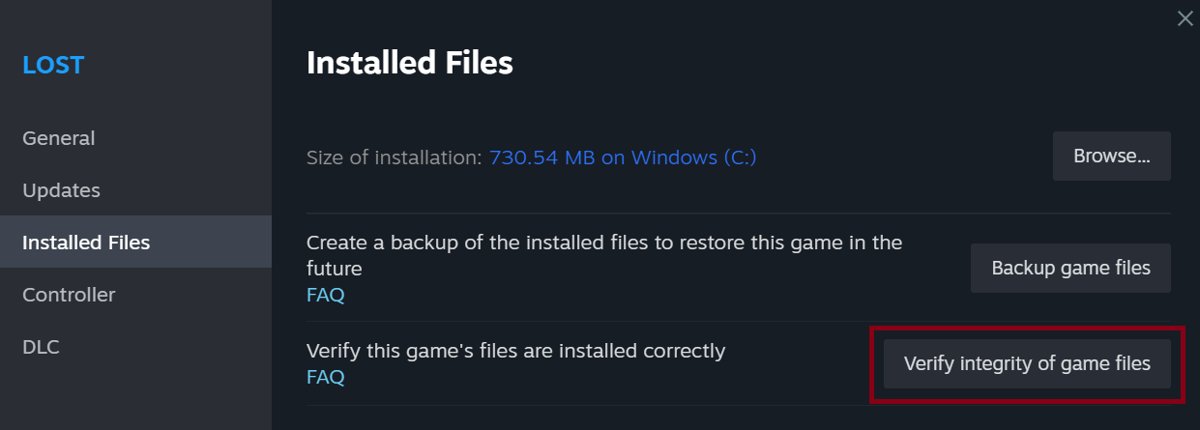
- In Steam, right-click the game in your Library and select Properties.
- Select the Installed Files tab and select Verify integrity of game files.
- Let the check finish; a small number of local configuration files failing to verify is normal.
- Reset the game's graphics settings to default from its own menu.
- Switch the renderer to DirectX 11, confirm the game is stable, then switch back.
DirectX 12 is not enabled on a PC with two graphics processors
The game is running on the integrated GPU, or the display cable is in the wrong port.
- On a desktop, check that the monitor cable is plugged into the graphics card, not the motherboard's video port.
- Open Settings > System > Display > Graphics.
- Under Custom options for apps, select the game and select Options.
- Set Graphics preference to High performance and select Save.
- Restart the game and confirm GPU usage on the Performance tab of Task Manager.
DirectX 12 is unavailable in a remote or virtual session
A remote desktop or virtual machine session presents its own display adapter to the game.
- Sign in at the physical PC rather than over Remote Desktop.
- Run
dxdiaglocally and compare the adapter name with the one seen remotely. - Check the virtualisation platform's own graphics acceleration documentation if the PC is a virtual machine.
- Test the game locally before drawing any conclusion about the hardware.
When you cannot enable DirectX 12
Some outcomes are hardware, and no amount of setting-hunting changes them.
If the feature levels still stop below 12_0 after a clean manufacturer driver install, treat it as a hardware limit and plan a graphics card or PC upgrade. Feature levels are reported by the GPU and its driver, not by Windows, and Windows 11 already assumes graphics compatible with DirectX 12 or later. A machine that reports less than that has either a driver that has not been installed properly or hardware older than the requirement, and no registry value, tool or download creates the missing capability.
Frequently asked questions
How do you enable DirectX 12 on Windows 11?
You do not. DirectX 12 ships with Windows 11 and runs by default. Open dxdiag to confirm the DirectX version and the feature levels your graphics card reports, then select DirectX 12 in the game that needs it.
How do you enable DirectX 12 on Windows 10?
The same way, because DirectX 11.3 and 12 are included with Windows 10 too. Install pending Windows updates, install the manufacturer's display driver, then check the feature levels in dxdiag and choose DirectX 12 inside the game.
How do you turn on DirectX 12 if there is no setting for it?
Windows offers no DirectX switch at all. The only place DirectX 12 is turned on or off is a game's own graphics settings, and sometimes a launch option in Steam or another launcher.
How do you disable DirectX 12 in Windows 11?
Set the game's renderer to DirectX 11 in its graphics settings, or remove the DirectX 12 launch option. The DirectX 12 runtime stays installed in Windows, since it is part of the operating system.
How do you enable DirectX 12 Ultimate on Windows 11?
There is nothing to enable. DirectX 12 Ultimate is Direct3D feature level 12_2, reported by the graphics card and its driver. If dxdiag lists 12_2, games can use it; if it does not, no setting adds it.
Should you enable DirectX 12 Ultimate?
The question does not apply, because 12_2 is a hardware capability rather than an option. Games that use raytracing, mesh shaders, variable rate shading or sampler feedback pick those features up automatically on hardware that reports 12_2.
How do you get DirectX 12 on Windows 10 or Windows 11?
Install the available Windows updates. Microsoft delivers DirectX with Windows and services it through Windows Update, so there is no separate DirectX 12 setup or installer to run.
Why does a game say DirectX 12 is not supported?
Usually because the feature level the driver reports is lower than the game requires. Install the manufacturer's display driver, check for optional driver updates in Windows Update, then compare the dxdiag feature levels against the game's minimum requirements.
How do you use DirectX 12 in a game that offers both APIs?
Open the game's graphics, video or display settings and set the graphics API or DirectX version entry to DirectX 12, then restart the game. Some titles only expose the choice through a launch option instead.
How do you support DirectX 12 on an older PC?
Install the newest display driver the card maker publishes for your Windows version and re-check the feature levels. If dxdiag still stops below 12_0, the graphics hardware itself predates DirectX 12 and has to be replaced.
Does the DirectX End-User Runtime add DirectX 12?
No. Microsoft states that running the package makes no change to your version of DirectX. It supplies legacy components that some older games ask for, such as the d3dx9 libraries.
Is DirectX 12 disabled on Windows 11 in a virtual machine?
Often it looks that way, because the session is given a virtual display adapter that reports lower feature levels. Run dxdiag while signed in at the physical PC to see what the real graphics card supports.
Quick checklist to enable DirectX 12 on Windows 11
| Check | Where to look | What proves it |
|---|---|---|
| DirectX runtime version | dxdiag, first tab | DirectX Version reads DirectX 12 |
| Hardware feature level | dxdiag, Display tab | The feature levels list includes 12_0 or higher |
| DirectX 12 Ultimate | dxdiag, Display tab | Feature level 12_2 is present |
| Display driver | Device Manager > Display adapters | Your card is named, not Microsoft Basic Display Adapter |
| Pending updates | Settings > Windows Update > Advanced options > Optional updates | No graphics driver is waiting to install |
| Game renderer | The game's graphics settings | DirectX 12 is selected and the game has been restarted |
| Multi-GPU laptops and desktops | Settings > System > Display > Graphics | The game is set to High performance |