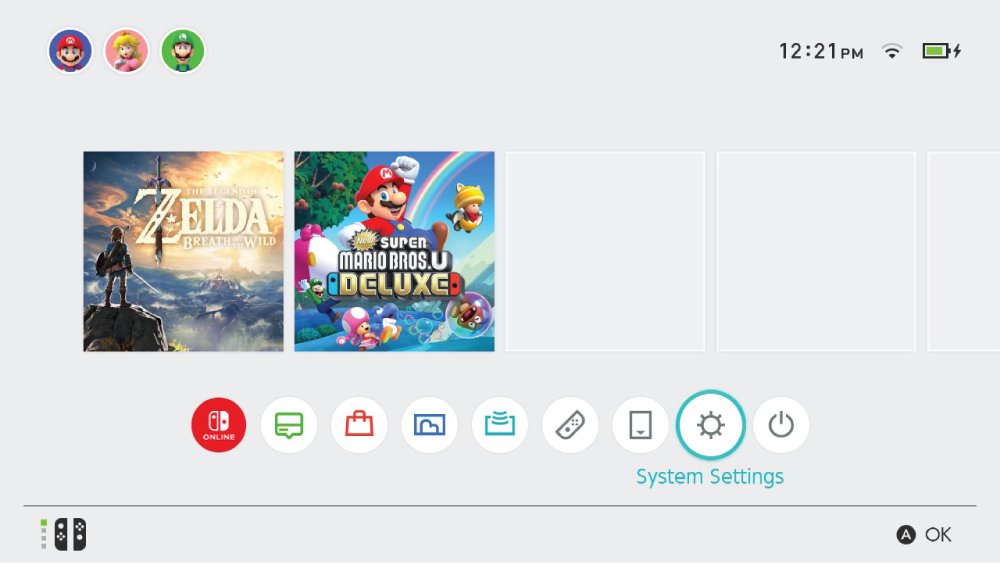
Select System Settings on the HOME Menu, scroll to Users, then choose Add User to make a new user account on Nintendo Switch.
The steps below cover Nintendo Switch and Nintendo Switch 2, linking a Nintendo Account to the new profile, the settings worth fixing straight after, and the errors that stop the process.
Step-by-Step Guide to Creating a New User Account
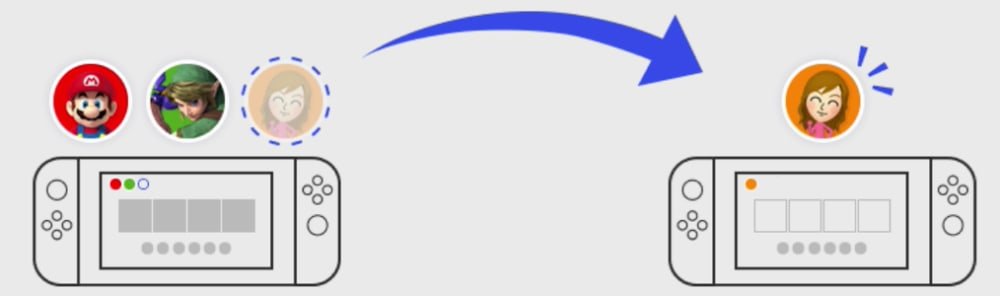
A console user account is local to the machine. It holds one person's save data, friend list and profile settings.
Up to 8 user accounts can be created on Nintendo Switch.
- Select System Settings on the HOME Menu.
- Scroll down the left column to Users, then select Add User.
- Select Create New User.
- Pick a user icon, or select Mii to use a Mii character instead.
- Enter a nickname and select OK. The nickname is visible to other players, so keep personal details out of it.
- Select OK again to confirm the new user.
- Select Link a Nintendo Account to sign in now, or skip it and play offline.
T
h
e
a
c
c
o
u
n
t
e
x
i
s
t
s
t
h
e
m
o
m
e
n
t
y
o
u
c
o
n
f
i
r
m
t
h
e
n
i
c
k
n
a
m
e
.
L
i
n
k
i
n
g
a
N
i
n
t
e
n
d
o
A
c
c
o
u
n
t
i
s
a
s
e
p
a
r
a
t
e
s
t
e
p
y
o
u
c
a
n
t
a
k
e
l
a
t
e
r
.
Which route should you use?
| Your situation | Use this | Why |
|---|---|---|
| Nintendo Switch, new player in the house | System Settings > Users > Add User > Create New User | Builds a fresh local profile with its own save data |
| Nintendo Switch 2, the person already has a Nintendo Account | Sign In to a Nintendo Account | Creates the user and links the account in one pass |
| Nintendo Switch 2, no Nintendo Account yet | Add Without Signing In | Gets the profile working offline; link an account later |
| The person owns the games on another Switch | User and save data transfer | Moves the profile, its save data and its eShop purchases instead of duplicating them |
| A child under 18 needs their own profile | Create the child's Nintendo Account inside a parent's account first | A child account only exists under a parent or guardian's Nintendo Account |
What you need before you start
| Requirement | Detail |
|---|---|
| Free user slots | Up to 8 user accounts per console on both Nintendo Switch and Nintendo Switch 2 |
| Nintendo Account | Optional for creating the user, required for Nintendo eShop and online play |
| Internet connection | Needed only to link or create a Nintendo Account, not to create the local user |
| Parental Control PIN | Needed if the console is protected and you later delete a user; the PIN is 4 to 8 digits |
| Age of the account holder | A child account covers users up to 17 years of age and must sit inside a parent or guardian's Nintendo Account |
Second method: add a new user account on Nintendo Switch 2
Nintendo Switch 2 splits the same job into two choices at the Add User screen.
- Select System Settings on the HOME Menu.
- Scroll down to Users, then select Add User.
- Select Sign In to a Nintendo Account if the person already has one, then sign in and select OK twice.
- Select Add Without Signing In instead to build the profile offline.
- Choose an icon, or create a custom one.
- Enter a nickname and select OK, then select OK again to confirm.
U
p
t
o
8
u
s
e
r
a
c
c
o
u
n
t
s
c
a
n
b
e
c
r
e
a
t
e
d
o
n
N
i
n
t
e
n
d
o
S
w
i
t
c
h
2
a
s
w
e
l
l
.
A
p
r
o
f
i
l
e
m
a
d
e
w
i
t
h
*
*
A
d
d
W
i
t
h
o
u
t
S
i
g
n
i
n
g
I
n
*
*
h
a
s
n
o
a
c
c
e
s
s
t
o
o
n
l
i
n
e
f
e
a
t
u
r
e
s
u
n
t
i
l
a
N
i
n
t
e
n
d
o
A
c
c
o
u
n
t
i
s
l
i
n
k
e
d
t
o
i
t
.
Third method: link a Nintendo Account to the new user account
Linking connects the local profile to Nintendo's online services. Online game modes, Nintendo eShop and friend codes all depend on it.
- Select System Settings on the HOME Menu.
- Scroll down to Users and select the user account you want to link.
- Select Link Nintendo Account, or Sign in to a Nintendo Account on Nintendo Switch 2.
- Sign in to the existing Nintendo Account using one of the offered sign-in methods.
- Check the account details, then select Link.
- Select OK on the confirmation message.
O
n
c
e
a
N
i
n
t
e
n
d
o
A
c
c
o
u
n
t
i
s
l
i
n
k
e
d
t
o
a
u
s
e
r
a
c
c
o
u
n
t
,
t
h
e
l
i
n
k
c
a
n
n
o
t
b
e
u
n
d
o
n
e
.
Fourth method: create the Nintendo Account first, then link it
A Nintendo Account is created on the web, not on the console. The console only signs in to it.
- Start at System Settings > Users and select the new user account.
- Select Link Nintendo Account, then select Create a new account.
- Scan the on-screen QR code with a smart device, or open
https://accounts.nintendo.com/on a PC or phone. - Complete the Nintendo Account sign-up on that page.
- Return to the console and sign in with the new account.
- Select OK on the confirmation message.
F
o
r
a
c
h
i
l
d
,
t
h
e
p
a
r
e
n
t
o
r
g
u
a
r
d
i
a
n
c
r
e
a
t
e
s
t
h
e
c
h
i
l
d
'
s
N
i
n
t
e
n
d
o
A
c
c
o
u
n
t
i
n
s
i
d
e
t
h
e
i
r
o
w
n
a
c
c
o
u
n
t
f
i
r
s
t
.
A
f
a
m
i
l
y
g
r
o
u
p
h
o
l
d
s
u
p
t
o
8
N
i
n
t
e
n
d
o
A
c
c
o
u
n
t
u
s
e
r
s
.
How to check the new user account worked
- Open System Settings > Users and confirm the new nickname is listed.
- Select the new user and check that Nintendo Account shows the linked account, if you linked one.
- Return to the HOME Menu and launch any game, then pick the new user when the console asks which user is playing.
- Open the Nintendo eShop as the new user. It opens only when a Nintendo Account is linked and the console is online.
Understanding User Accounts on Nintendo Switch
Two different accounts share the word "account" here, and mixing them up causes most of the confusion. The table separates them.
The same split exists on a PC, where a local profile and an online sign-in are also two things; see how to add a user account in Windows 11 for that version of the job.
| User account (console) | Nintendo Account (online) | |
|---|---|---|
| Where it lives | On the console itself | On Nintendo's servers, at accounts.nintendo.com |
| What it holds | Save data, profile icon, nickname, friend list, play activity | Purchases, Nintendo Switch Online membership, family group membership |
| Needed to play offline | Yes | No |
| Needed for eShop and online play | No | Yes |
| How many per console | Up to 8 user accounts | One Nintendo Account per user account |
| Can it be removed | Yes, by deleting the user | The link cannot be undone; deleting the user is the only route |
When to Create a New User Account
A second profile is worth the slot when save data, purchases or online identity need to stay apart.
| Situation | Create a new user? | Reason |
|---|---|---|
| Another person plays on the same console | Yes | Save data is stored per user, so shared play overwrites progress |
| You want a second save file in the same game | Yes | Most games keep one save per user account |
| A child needs age-appropriate limits | Yes | eShop restrictions can be set per user through the parent's Nintendo Account |
| You bought a second console | No, transfer instead | User and save data transfer moves the profile, its save data and its eShop purchases |
| You only want a different icon or nickname | No | Both are editable on the existing profile |
| A game stores one shared island or town for the console | No | Some titles, such as Animal Crossing: New Horizons, share save data across all users on the system |
Important Settings After Creating the New Account
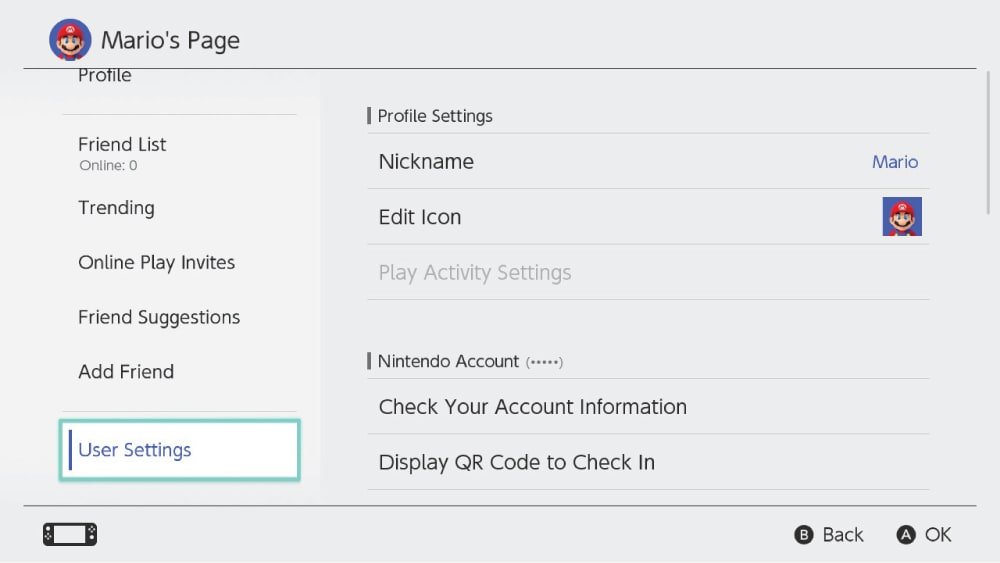
Open the user's page on the HOME Menu and select User Settings, or go to System Settings > Users and pick the profile.
- Select Nickname to change the name other players see.
- Select the icon to swap in a Mii, a character icon, or a custom icon if the user has a Nintendo Switch Online membership.
- Open Play Activity Settings and set visibility to all users, friends, best friends, or nobody.
- Open Friend Settings and set Display online status to for the groups you want.
- Turn off Allow Friend Requests if the profile belongs to a child.
- Select Reissue Friend Code to stop unwanted requests; this is allowed once every 30 days.
- Set up Parental Controls from System Settings if the console is shared with children.
M
o
s
t
p
a
r
e
n
t
a
l
c
o
n
t
r
o
l
o
p
t
i
o
n
s
a
r
e
s
e
t
s
y
s
t
e
m
w
i
d
e
,
n
o
t
p
e
r
u
s
e
r
.
A
d
d
i
t
i
o
n
a
l
c
o
n
t
r
o
l
s
,
s
u
c
h
a
s
N
i
n
t
e
n
d
o
e
S
h
o
p
r
e
s
t
r
i
c
t
i
o
n
s
,
a
r
e
s
e
t
p
e
r
u
s
e
r
t
h
r
o
u
g
h
t
h
e
p
a
r
e
n
t
'
s
N
i
n
t
e
n
d
o
A
c
c
o
u
n
t
.
What to know before you link a Nintendo Account
Link the Nintendo Account to the right user account the first time, and link a child's account only after creating it inside a parent's Nintendo Account. The link cannot be undone. Removing a Nintendo Account from a console means deleting the user account it sits on, and that deletes every save file attached to that user unless the saves were backed up with Save Data Cloud first.
How to delete a user account you no longer need
- Select System Settings on the HOME Menu.
- Scroll down to Users and select the user account to remove.
- Scroll to the bottom of the profile settings and select Delete User.
- Enter the Parental Control PIN if the console asks for it.
- Tick the box next to Delete, then select Next.
- Select Delete this User, then select OK.
D
e
l
e
t
i
n
g
a
u
s
e
r
d
e
l
e
t
e
s
a
l
l
s
a
v
e
d
a
t
a
a
s
s
o
c
i
a
t
e
d
w
i
t
h
t
h
a
t
a
c
c
o
u
n
t
,
a
n
d
d
e
l
e
t
e
d
s
a
v
e
d
a
t
a
c
a
n
n
o
t
b
e
r
e
s
t
o
r
e
d
.
T
h
e
l
i
n
k
e
d
N
i
n
t
e
n
d
o
A
c
c
o
u
n
t
i
t
s
e
l
f
s
u
r
v
i
v
e
s
a
n
d
c
a
n
b
e
r
e
–
l
i
n
k
e
d
t
o
a
n
o
t
h
e
r
u
s
e
r
a
c
c
o
u
n
t
l
a
t
e
r
.
Troubleshooting Common Issues
**Add User** is greyed out or missing
The console already holds the maximum of 8 user accounts.
- Open System Settings > Users and count the profiles listed.
- Delete a profile that is no longer used, following the deletion steps above.
- Back up any save data worth keeping with Save Data Cloud before deleting anything.
- Return to Users and select Add User again.
The new user cannot open Nintendo eShop or play online
No Nintendo Account is linked to that user account.
- Open System Settings > Users and select the new profile.
- Select Link Nintendo Account, or Sign in to a Nintendo Account on Nintendo Switch 2.
- Sign in, confirm the details and select Link.
- Reopen the Nintendo eShop as that user.
The new user cannot play a downloaded game the first user bought
Downloaded games and DLC stay tied to the Nintendo Account that bought them.
- Load the virtual game card on this console, which lets all users on that console play the title.
- Or keep the console connected to the internet and use the online licence setting of the buying account.
- Use a physical game card instead when no internet connection is available.
The wrong Nintendo Account was linked to the user
A Nintendo Account link is permanent for that user account.
- Back up the user's save data with Save Data Cloud first.
- Delete the user account from System Settings > Users.
- Create a new user account with the steps above.
- Link the correct Nintendo Account to the new profile.
The user and save data transfer to another Switch fails
One of the transfer requirements is not met.
- Update both consoles to system menu version 4.0.0 or higher.
- Connect both consoles to the internet and place them close together.
- Confirm the user being moved has a Nintendo Account linked.
- Free a slot so the target console holds no more than seven users.
- Check that the same Nintendo Account is not already on the target console.
The console asks for a Parental Control PIN you do not have
Parental Controls are active and block user deletion and some settings.
- Recover or reset the Parental Control PIN before retrying the change.
- Use the Nintendo Switch Parental Controls app on iOS 16.0 or newer, or Android 8.0 or newer.
- Sign in to the app with the Nintendo Account of someone aged 18 or over.
Frequently Asked Questions
How do you make a new user account on Nintendo Switch?
Select System Settings on the HOME Menu, scroll to Users, and select Add User, then Create New User. Pick an icon, type a nickname, and confirm with OK. Linking a Nintendo Account at the end is optional.
How many user accounts can you create on one console?
Up to 8 user accounts can be created on Nintendo Switch, and up to 8 on Nintendo Switch 2. Add User stops working once the eighth profile exists, so an unused profile has to be deleted first.
Can you create a new user account without a Nintendo Account?
Yes. A user account works offline on its own, with its own save data and profile settings. A Nintendo Account is only needed for Nintendo eShop, online play and friend features, and can be linked later.
How do you set up a new user account for a child?
Create the child's Nintendo Account inside a parent or guardian's Nintendo Account first, since a child account can only exist there. Then add a user account on the console and link the child's account to it.
Can you create another user account after the console is already set up?
Yes. System Settings, Users, Add User works at any time, not only during first-time setup. The new profile starts empty and does not affect the save data of profiles already on the console.
What happens to save data when you delete a user account?
Deleting a user account deletes all save data associated with that account, and that save data cannot be restored afterwards. Back it up with Save Data Cloud before deleting the profile if you want to keep it.
Can a Nintendo Account be linked to more than one console?
Yes. One Nintendo Account can be linked to user accounts on several consoles at the same time, with no need to unlink it from the first console before linking it elsewhere.
How do you unlink a Nintendo Account from a user account?
There is no unlink option. Once a Nintendo Account is linked to a user account, the link cannot be undone, so the only route is deleting that user account on the console.
Can you move a user account to another Nintendo Switch?
Yes. User and save data transfer moves the profile, its save data and its eShop purchases to another console, and removes them from the source console. Both systems need version 4.0.0 or higher and an internet connection.
Do parental controls apply to one user account only?
Most parental control options are set system wide, so the same restrictions apply to everyone using the console. Some controls, such as Nintendo eShop restrictions, are set per user through the parent's Nintendo Account.
Can you change the nickname after creating the user?
Yes. Open the user's page on the HOME Menu, select User Settings, then Nickname. The nickname is visible to other players, so leave real names and other personal details out of it.
Does deleting a user account delete the Nintendo Account too?
No. The Nintendo Account stays active and keeps its purchases. Software bought with that account cannot be played on the console until the Nintendo Account is re-linked to a new user account.
Bottom Line
Create the user account first from System Settings, Users, Add User, then link the Nintendo Account once you are sure it is the right one for that person. The profile takes under a minute and needs no internet connection, while the Nintendo Account link is permanent and can only be reversed by deleting the user and its save data.