Windows Security needs no activation: it is built into Windows 11 and Windows 10 and protects the device from the moment it starts up.
The real job is switching protection back on when something turned it off, and this guide covers real-time protection, the firewall, account and browser protection, verification and repair.
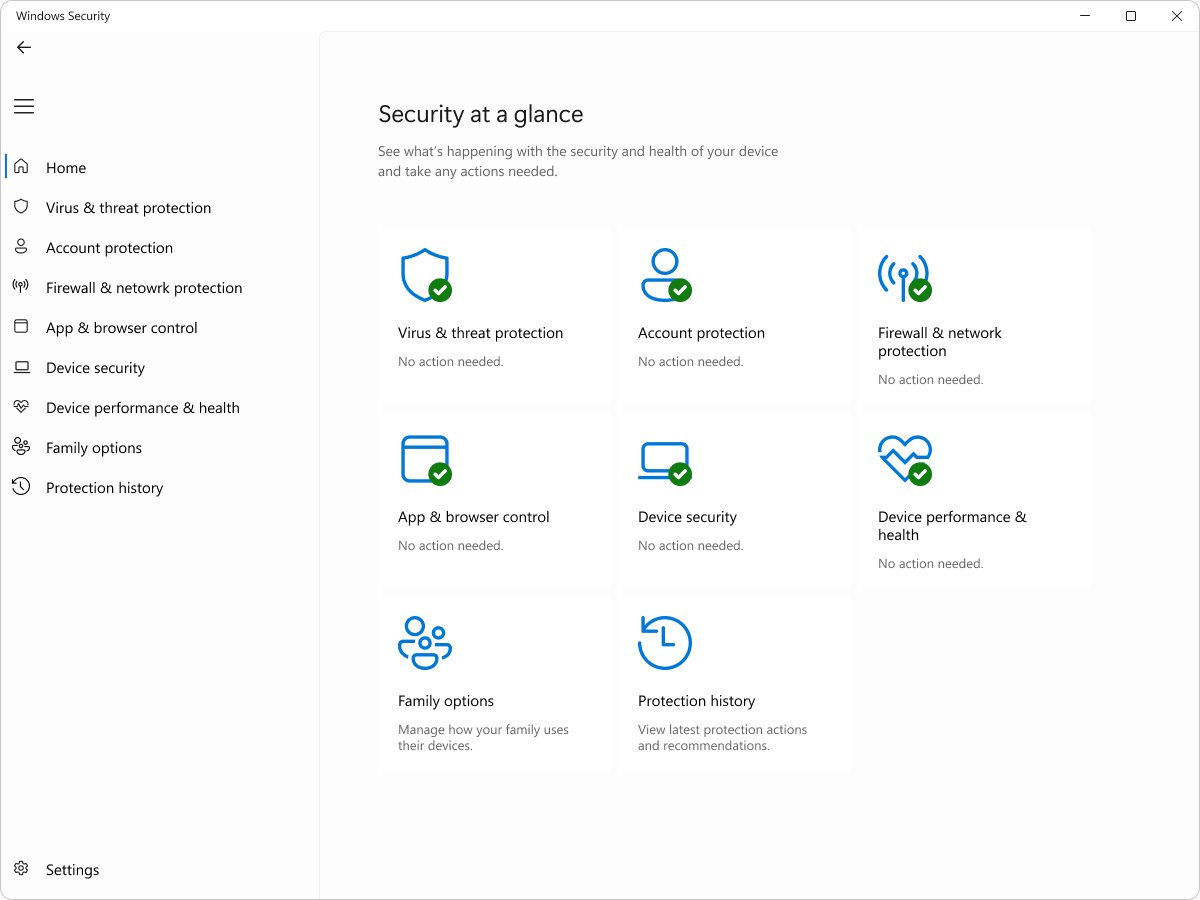
The fastest way to switch Windows Security protection back on
Nothing has to be bought, downloaded or licensed. The app ships with Windows and the toggles simply need to read On.
- Select Start, type
Windows Security, and open the Windows Security app. - Select Virus & threat protection.
- Under Virus & threat protection settings, select Manage settings.
- Switch Real-time protection to On.
- Return to the app home page and check that every area carries a green check mark.
A red cross means something needs immediate attention. A yellow exclamation mark is a recommendation, not a failure.
What Windows Security Includes on Windows 11 and Windows 10
The app is a dashboard over several separate protections. Each one has its own page and its own on switch.
| Area | What it covers | Where the switch lives |
|---|---|---|
| Virus & threat protection | Scanning and live blocking by Microsoft Defender Antivirus | Manage settings > Real-time protection |
| Firewall & network protection | Network traffic on the domain, private and public profiles | Pick a profile > Microsoft Defender Firewall |
| Account protection | Microsoft account sign-in status, Windows Hello and Dynamic lock | Links into the Settings app |
| App & browser control | SmartScreen reputation checks on apps, files and sites | Reputation-based protection settings |
| Device security | Hardware-backed protection reported by the device, such as device encryption | Device security page |
| Device performance & health | A health report for the device | Device performance & health page |
| Family options | Family safety settings for other accounts in the household | Family options page |
| Protection history | A record of recent detections and the action taken | Protection history page |
| Settings | Security providers, notifications and the app version | Settings > Manage providers |
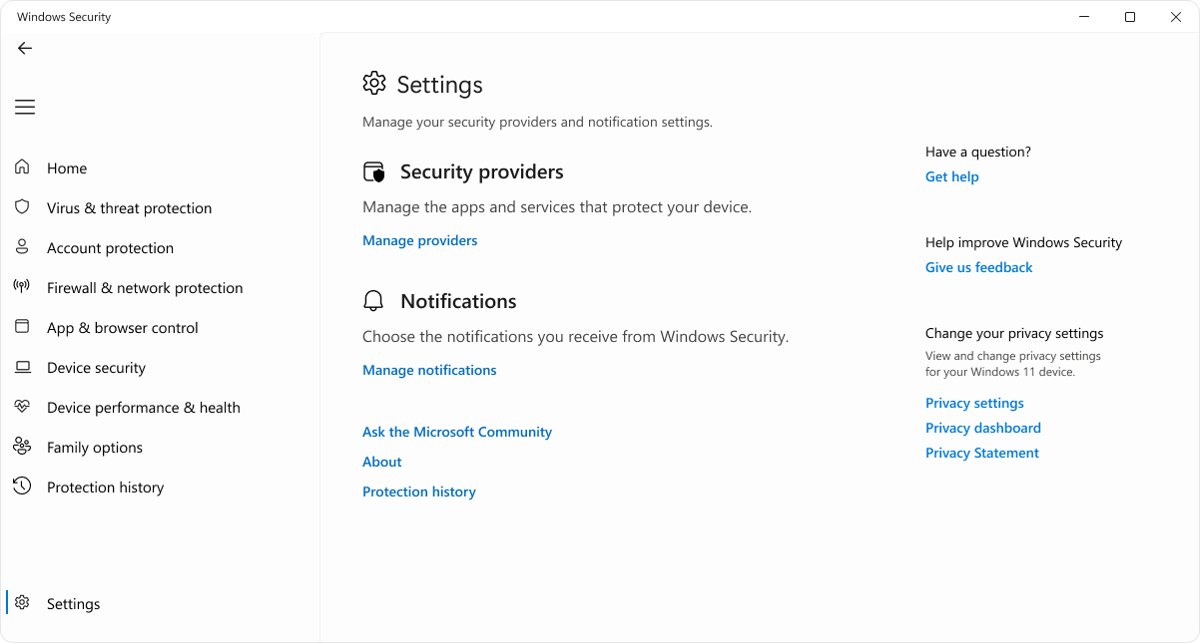
How to Open Windows Security
Two routes reach the app, and one of them lands on an inner page directly.
- Select Start, type
Windows Security, then open the Windows Security app. - Pick an area from the left pane, such as Virus & threat protection or Firewall & network protection.
- To land on a page directly, press Windows logo key + R to open the Run dialog box.
- Type
windowsdefender://threat/and press Enter to open Virus & threat protection. - Use
windowsdefender://threatsettings/for the protection toggles,windowsdefender://account/for account protection, orwindowsdefender://smartscreenpua/for reputation-based protection.
The same windowsdefender:// addresses are the links Microsoft's own support pages use, so they stay valid across Windows 11 and Windows 10 builds.
How to Turn On Virus & Threat Protection
Real-time protection is the setting that actually blocks malware as it arrives. The others below it widen what Defender can see.
- Open Windows Security and select Virus & threat protection.
- Under Virus & threat protection settings, select Manage settings.
- Switch Real-time protection to On.
- Switch Cloud-delivered protection to On.
- Switch Automatic sample submission to On.
- Switch Tamper protection to On so other apps cannot change these settings.
- Go back, select Protection updates, then Check for updates.
- Return to Virus & threat protection and run a Quick scan.
If real-time protection was switched off by hand, Windows turns it back on automatically after a short while.
Tamper protection has to be off before the real-time toggle can be turned off at all, which is why it is worth leaving on.
How to Enable Microsoft Defender Firewall
The firewall is set per network profile, so one profile can be off while the other two look fine.
- Open Windows Security and select Firewall & network protection.
- Select the profile you want to change: Domain network, Private network, or Public network.
- Under Microsoft Defender Firewall, switch the setting to On.
- Select the back arrow and repeat for the remaining profiles.
- Check the Firewall & network protection page and confirm no profile carries a red cross.
When an app needs to accept incoming connections, add an exception for that app rather than switching the firewall off.
How to Activate Account, App, and Browser Protection
Account protection is a set of links into Settings. App & browser control holds real toggles that ship on but are often switched off by an installer.
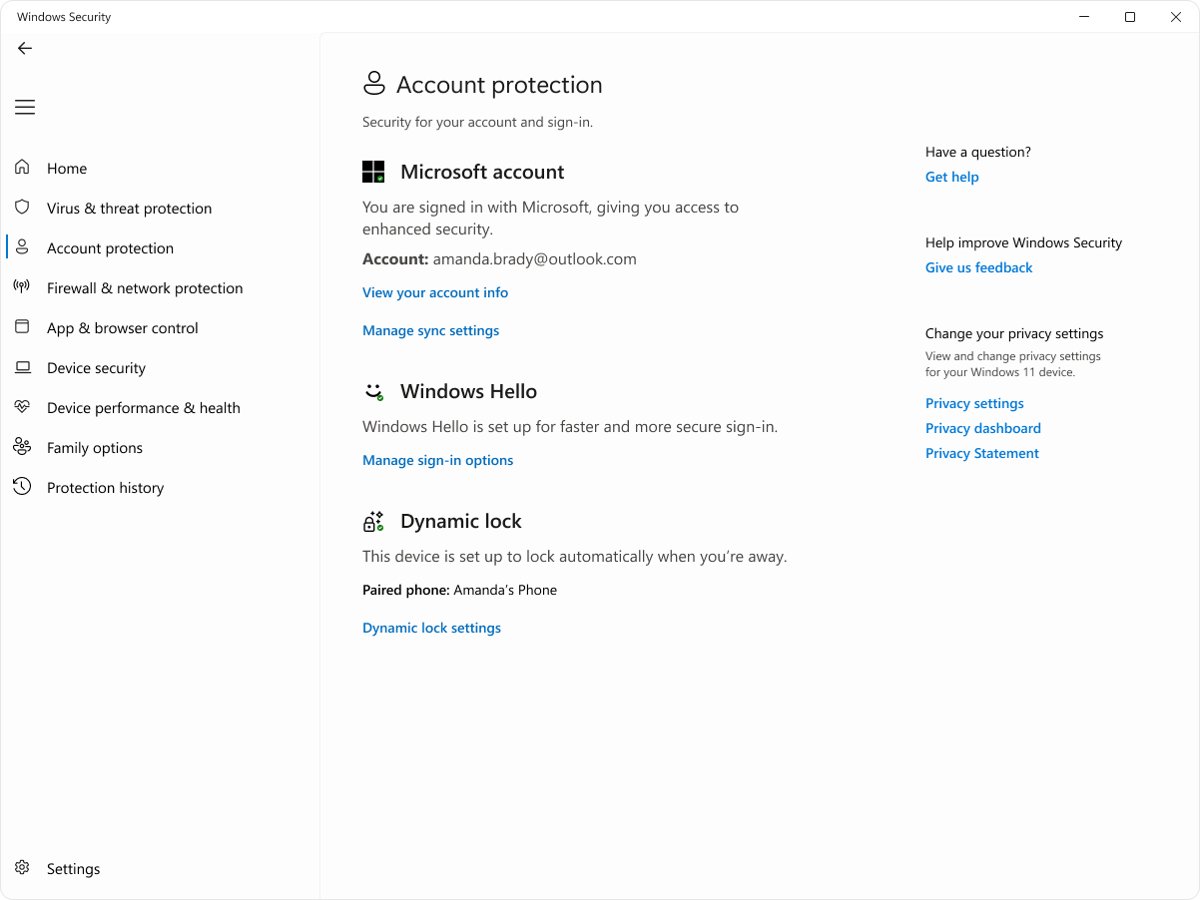
- Open Windows Security and select Account protection.
- Under Windows Hello, follow the link into Settings and finish setting up a PIN, face or fingerprint sign-in.
- Under Dynamic lock, follow the link into Settings and turn it on to lock the PC automatically when you step away.
- Select App & browser control, then Reputation-based protection settings.
- Switch Check apps and files to On so SmartScreen rates downloads before they run.
- Switch SmartScreen for Microsoft Edge to On.
- Switch Potentially unwanted app blocking to On.
- On Windows 11, switch Phishing protection on; this setting does not exist in Windows 10.
Exploit protection on the same page already runs with preset system settings, so most people never change it.
What happens when another antivirus takes over
Installing a working non-Microsoft antivirus turns Microsoft Defender Antivirus off on its own. That is designed behaviour, not a fault to repair.
| Situation | Microsoft Defender Antivirus state | What Windows Security shows |
|---|---|---|
| No other antivirus installed | Active mode | Microsoft Defender Antivirus is turned on under Manage providers |
| A working non-Microsoft antivirus, Smart App Control off | Disabled automatically | That product's status plus a link to its own settings |
| Windows 11 with Smart App Control on or in evaluation | Passive mode | The other product stays the primary antivirus |
| The other product expires, is removed, or stops giving real-time protection | Re-enabled automatically | Defender returns as the antivirus provider |
| You want occasional second-opinion scans as well | Stays non-primary | Select Microsoft Defender Antivirus options below the other product's name and turn on limited periodic scanning |
Limited periodic scanning uses only a small part of Defender and cannot detect most malware, so treat it as a spot check rather than cover.
Match the warning on your dashboard to the fix
| What you see | Do this | Why |
|---|---|---|
| Red cross on Virus & threat protection | Turn Real-time protection back on | Nothing is scanning files as they open |
| Yellow mark on Firewall & network protection | Turn the firewall on for the flagged profile | One of the three profiles is switched off |
| Another antivirus named as your provider | Leave it primary and turn on limited periodic scanning | Two active engines conflict and slow the device |
| Settings greyed out or marked as managed | Take the policy details to your administrator | A work or school policy owns the setting |
| The app will not open at all | Repair the app from Settings | The app registration or its system files are damaged |
| Protection switches itself off again | Run Microsoft Defender Antivirus (offline scan) | Some malware disables protection; an offline scan runs before Windows loads |
How to Confirm Your Device Is Protected
A green dashboard is the first signal, but the providers page is the one that names what is actually running.
- Open Windows Security and read the home page: green check marks mean no action is recommended.
- Select Virus & threat protection, then under Who's protecting me? select Manage providers.
- On the Security providers page, under Antivirus, confirm it reads Microsoft Defender Antivirus is turned on.
- Check that Firewall and Web protection on the same page each name a provider.
- Open Task Manager, select the Details tab and confirm
MsMpEng.exeis listed. - Go back to Virus & threat protection, run a Quick scan, and let it report no threats.
Check the protection state from PowerShell
One line reports the mode Microsoft Defender Antivirus is running in, which the dashboard does not spell out.
Get-MpComputerStatus | select AMRunningModeGet-MpComputerStatus returns the current Defender state, and AMRunningMode is the field that says whether antivirus protection is live.
You should see: Normal, Passive or EDR Block Mode. Any other value means antivirus protection is not running on the device.
How to Fix Windows Security If It Is Turned Off or Missing
Windows Security will not open or shows a blank screen
The app registration is damaged, or system files behind it are corrupt.
- On Windows 11, open Settings > Apps > Installed apps. On Windows 10, open Settings > Apps > Apps & features.
- Find Windows Security, open the More menu or select the app, then choose Advanced options.
- Select Repair and reopen the app.
- If it still fails, return to Advanced options and select Reset.
- Right-click Command Prompt in the Start menu results and select Run as administrator.
- Run
DISM.exe /Online /Cleanup-image /Restorehealth, then runsfc /scannowand leave the window open until it reaches 100%. - Restart the PC and open Windows Security again.
Virus & threat protection says it is managed by another antivirus
A non-Microsoft product registered itself as the antivirus provider, so Defender stepped aside.
- Select Virus & threat protection and read the product named on the page.
- Open that product from the link on the page and confirm its subscription is current and its real-time protection is on.
- If you want Defender back as the primary antivirus, remove the other product through Settings > Apps.
- Restart the PC; Defender re-enables itself once nothing else provides real-time protection.
- Check Manage providers again and confirm Microsoft Defender Antivirus is turned on.
Real-time protection keeps turning itself off
Either another security product owns protection, or something on the device is switching it off.
- Open Virus & threat protection > Manage providers and check whether another antivirus is listed.
- If none is listed, open Manage settings and switch Tamper protection to On.
- Switch Real-time protection back to On.
- Select Scan options, choose Microsoft Defender Antivirus (offline scan), and let the PC restart into the scan.
- After the restart, reopen Manage settings and confirm the toggle is still On.
The toggles are greyed out or say your organization manages them
A work or school policy, or an enrolled management profile, controls the setting.
- Open Windows Security > Settings > About and note the version and policy information shown there.
- Open Settings > Manage notifications and look for the notice saying an administrator set them.
- Send that policy information to whoever administers the device.
- On a personal PC, remove any work or school account connected to it, then restart and check the toggles again.
Microsoft Defender Antivirus does not start after another antivirus is removed
Defender was left in its disabled state and has not picked up the change.
- Restart the PC first, because the switch back to active mode happens at startup.
- Run
Get-MpComputerStatus | select AMRunningModein PowerShell and read the result. - Open Settings > Windows Update and install every pending update.
- Open Virus & threat protection > Protection updates > Check for updates.
- If the mode still is not Normal, run
DISM.exe /Online /Cleanup-image /Restorehealthandsfc /scannowfrom an elevated Command Prompt.
Leave the WinDefend, SecurityHealthService and wscsvc services alone while troubleshooting. Microsoft's guidance is that stopping or editing them causes instability and breaks how other antivirus products report their status.
Frequently Asked Questions
Do I need to install Windows Security, or is it already on Windows 11 and Windows 10?
It is already there. Windows Security is built into Windows 11 and Windows 10 and protects the device from the moment it starts up. There is no download, no product key and no subscription for it.
Why should I activate Windows Security?
There is nothing to activate. The question usually means protection got switched off, so the task is turning Real-time protection back on under Virus & threat protection > Manage settings and clearing any red or yellow mark on the dashboard.
How do I activate Windows antivirus?
Open Windows Security, select Virus & threat protection, select Manage settings, then switch Real-time protection to On. If another antivirus is installed and working, Microsoft Defender Antivirus stays off by design until that product is removed.
How do I activate Windows 10 security?
The steps match Windows 11. Open Windows Security from the Start menu, turn on Real-time protection, then turn on Microsoft Defender Firewall for the domain, private and public profiles. Windows 10 has no Phishing protection setting.
How do I know if Microsoft Defender Antivirus is actually running?
Open Virus & threat protection, select Manage providers under Who's protecting me?, and look for Microsoft Defender Antivirus is turned on under Antivirus. MsMpEng.exe on the Details tab of Task Manager confirms the same thing.
What should I do if Virus & threat protection says it is managed by another antivirus?
Nothing, if that product is working. Defender turns itself off automatically when a compatible non-Microsoft antivirus is installed, and turns back on automatically if that product expires, is removed, or stops giving real-time protection.
Should I turn on Microsoft Defender Firewall for private and public networks?
Yes, and for the domain profile too. The firewall is configured separately for each profile, so leaving one off makes the device more open to unauthorised access on that kind of network.
Why does Windows need to be activated, and what will activating Windows do?
Windows activation is a licensing check, separate from Windows Security. It confirms your copy is genuine and unlocks personalisation settings. See how to activate a Windows 10 product key for that process.
What can I do if Windows Security will not open or shows a blank screen?
Repair the app first: Settings > Apps > Installed apps > Windows Security > Advanced options > Repair. Use Reset if repair does nothing, then run DISM.exe /Online /Cleanup-image /Restorehealth and sfc /scannow from an elevated Command Prompt.
Can I run Microsoft Defender Antivirus alongside another antivirus?
Only as a limited second opinion. Select Microsoft Defender Antivirus options below the other product's name and turn on limited periodic scanning. It uses a small part of Defender, cannot detect most malware, and is not supported in business settings.
Bottom Line
Treat Windows Security as already active and spend the time on the dashboard instead: clear every red and yellow mark, then leave Tamper protection on. The protections ship enabled, so a warning on the home page means a setting was changed or another product took over, and the providers page names which one.


![[Solved]: How to fix IRQL NOT LESS OR EQUAL in Windows 10/11](https://techdows.com/wp-content/uploads/2026/09/Startup-Settings-screen-listing-options-4-and-5-for-Safe-Mode-520x338.jpg)