Select Start > Settings > Windows Update > Check for updates to update your graphics driver on Windows 11 and Windows 10, then install anything listed under Optional updates.
This guide covers the Windows Update route, Device Manager, direct downloads from NVIDIA, AMD and Intel, the vendor apps, and how to roll a display driver back when the screen breaks.
The fastest way to update your graphics driver
Windows Update carries display drivers for NVIDIA, AMD and Intel hardware, and Microsoft states the drivers it delivers are normally recent and up to date.
- Select Start, then Settings > Windows Update. On Windows 10 the path is Settings > Update & Security > Windows Update.
- Select Check for updates.
- Let every update that is offered download and install.
- Restart the computer from Start > Shutdown or sign out > Restart.
Optional driver updates never install on their own, so the optional list is the second place to look.
Which update route should you use?
| Your situation | Use this | Why |
|---|---|---|
| Browsing, office work, video playback | Windows Update | Delivers driver updates without a manual download and keeps them signed |
| A game you play just launched or just patched | The NVIDIA, AMD or Intel download page | Vendors publish new graphics releases before Windows Update offers them |
| Creative applications such as video and 3D tools | An NVIDIA Studio Driver | Studio Drivers are built for performance and reliability in creative applications |
| A laptop with Intel or hybrid graphics | The computer manufacturer's support site first | Intel points laptop owners to the manufacturer's customised driver package |
| Display adapters lists Microsoft Basic Display Adapter | A manufacturer driver from the vendor page | The generic driver gives basic graphics only, with no vendor features |
| The display broke immediately after an update | Roll Back Driver in Device Manager | Restores the previous version with no download and no installer |
What you need before you start
| Requirement | Why it matters |
|---|---|
| An administrator account | Device Manager changes and driver installers both need administrative rights |
| The brand and model of the graphics adapter | Vendor pages ask for product category, product series and the exact product |
| Your Windows version and edition | Download pages list a separate package per operating system |
| Open work saved and apps closed | The display can blank for several seconds while the driver is swapped |
| The computer manufacturer's support page bookmarked | Many notebooks run a customised graphics build rather than the reference one |
For brand-specific routes, see [How to Keep Your Dell Drivers Updated on Windows 11/10 [2026]](https://techdows.com/how-to-keep-your-dell-drivers-updated-on-windows-1110-2026.html) and How to Update Drivers on Acer Laptop (Step-By-Step Guide).
Why Updating Your Graphics Driver Matters
Windows falls back to the Microsoft basic display adapter when no manufacturer driver is installed. Microsoft lists what a manufacturer driver adds over that fallback.
| What a manufacturer driver adds | What changes on screen |
|---|---|
| Faster performance | Graphics work runs on the GPU instead of a generic path |
| Smoother video playback | Video decoding is handled by the display hardware |
| Higher screen resolutions | The panel's native resolution becomes selectable |
| Improved battery life | The GPU's own power management is used |
| Support for multiple monitors | Extra displays are detected and can be arranged |
| Additional graphical features and better stability | Vendor control panels and game features become available |
NVIDIA also splits its releases: Game Ready Drivers are tuned with developers and tested for the day a game launches, while Studio Drivers target creative applications.
How to Check Your Graphics Card and Current Driver Version
Write the version down before updating. It is the only way to prove afterwards that the new driver actually installed.
- Right-click Start and select Device Manager.
- Select the arrow next to Display adapters to expand it.
- Read the adapter name listed there, such as an NVIDIA, AMD or Intel model.
- Right-click that adapter and select Properties.
- Select the Driver tab and note the installed driver version and date.
Microsoft Basic Display Adapter in that list means no manufacturer driver is installed at all.
Confirm the details in the DirectX Diagnostic Tool
- Right-click Start and select Run.
- Type
dxdiag.exeand select OK. - Select the Display tab.
- Read the Name field in the Device section to confirm which adapter Windows is using.
- Select the System tab to read the DirectX version under System Information.
DirectX itself is updated separately from the display driver; see How to Update DirectX In Windows 10/11.
Update Graphics Drivers Through Windows Update
Recommended driver updates arrive with the normal update check. Optional ones sit in a separate list and are not installed automatically.
- On Windows 11, select Start > Settings > Windows Update > Advanced options.
- Turn on Receive updates for other Microsoft products.
- Under Additional options, select Optional updates.
- Select the graphics driver shown in the list, then select Download and install.
- On Windows 10, go to Settings > Update & Security > Windows Update > Advanced options and turn on Receive updates for other Microsoft products when you update Windows.
- Return to Windows Update, select Check for updates, then select View optional updates and install the driver listed there.
- Restart from Start > Shutdown or sign out > Restart, even if no restart was requested.
An empty optional list means Microsoft currently has nothing that applies to this hardware, not that the vendor has nothing newer.
Update Graphics Drivers Using Device Manager
Device Manager handles two different jobs: letting Windows search for a driver, and pointing Windows at a driver folder you already downloaded.
- Right-click Start and select Device Manager.
- Select the arrow next to Display adapters.
- Right-click your graphics adapter and select Update driver.
- Select Search automatically for updated driver software and let Windows install anything it finds.
- Select Browse my computer for drivers instead when a driver package is already downloaded and unpacked on the disk.
- Select Browse, point at the folder holding the extracted driver files, confirm the path and select Next.
- Select Close when the installation finishes.
Device Manager frequently reports that the best driver is already installed. That means Windows has nothing newer on file, not that NVIDIA, AMD or Intel has nothing newer.
Download and Install Drivers from NVIDIA, AMD, or Intel
Download only from the hardware maker's own site. Microsoft's guidance is to avoid downloading drivers from any website other than the manufacturer's official one.
- Identify the adapter brand in Device Manager under Display adapters.
- For NVIDIA, open the NVIDIA driver downloads page and set Product Category, Product Series, Product, Operating System, Language and Download Type.
- Choose the Game Ready Driver branch for gaming, or the Studio Driver branch for creative applications.
- For AMD, open AMD Drivers and Support and either select your Radeon product by hand or use the auto-detect download offered there.
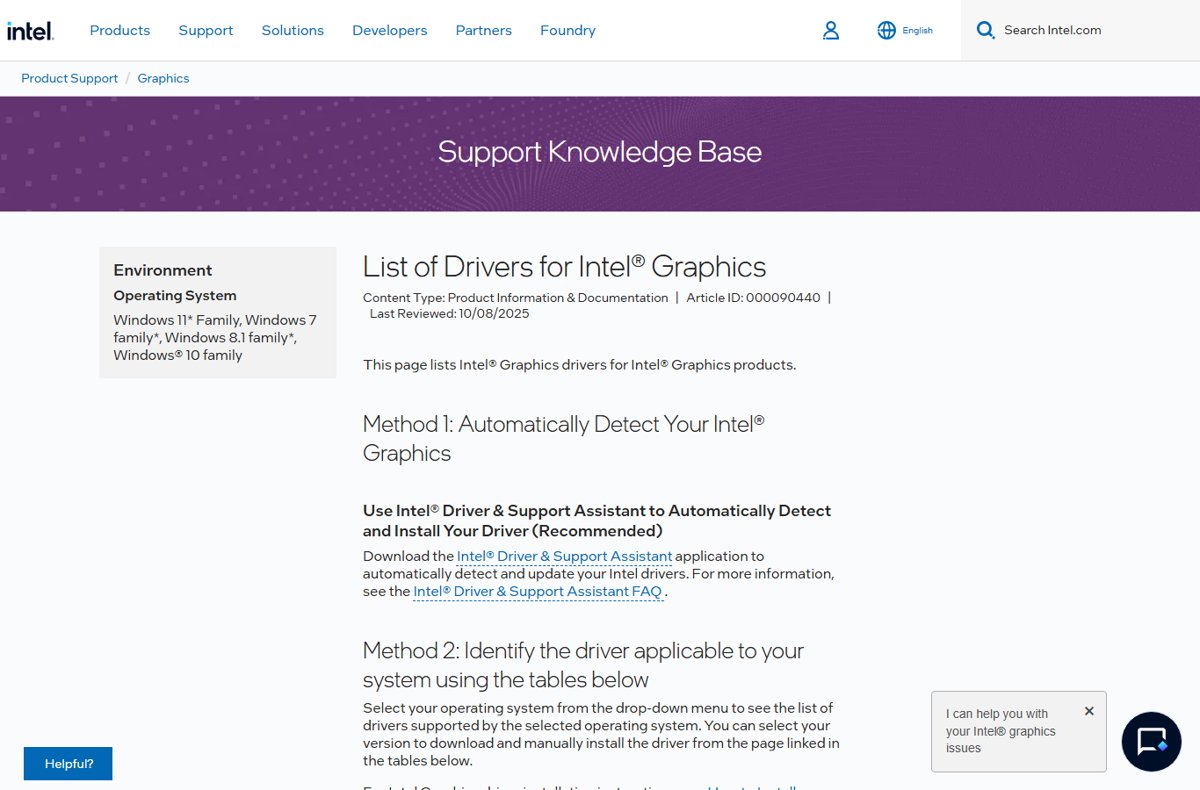
- For Intel, open the Intel graphics driver page and pick the package that matches your processor generation and Windows version.
- Run the downloaded installer, accept its prompts, and restart when it asks.
Intel's own page tells laptop owners to check the computer manufacturer first, because many notebooks ship a customised graphics driver instead of the reference package.
Use Manufacturer Apps to Keep GPU Drivers Updated
Each GPU vendor publishes its own desktop app that watches for new driver releases. Use those, not a general-purpose driver updater from a third party.
- For NVIDIA hardware, install the NVIDIA app, which manages Game Ready and Studio driver downloads in one place.
- For Radeon hardware, use AMD Software: Adrenalin Edition, AMD's own graphics application.
- For Intel graphics, install the Intel Driver & Support Assistant, which detects Intel products and lists the driver and software updates available for them.
- On a branded laptop, install the support assistant published by the computer manufacturer as well, since it carries the OEM graphics build.
- Restart the computer after any driver one of these apps installs.
A paid third-party driver updater is not required for any of this, and it cannot sign drivers that the vendor has not published.
How to check the update worked
- Right-click Start, select Device Manager and expand Display adapters.
- Right-click the adapter, select Properties and open the Driver tab.
- Confirm the driver version is higher than the one noted before the update.
- Confirm the adapter is listed under its own model name, not as Microsoft Basic Display Adapter.
- Run
dxdiag.exeand check the Name field on the Display tab shows that same adapter. - Reopen the game or application that prompted the update and confirm it now runs.
Troubleshoot Driver Update Problems or Roll Back a Driver
The screen goes black or blank after the driver update
The new driver did not bring the display back up correctly after installing.
- Press Windows + Ctrl + Shift + B to reset the graphics driver. A beep or a screen flicker means it worked.
- Press Windows + P, tap P again and press Enter to cycle through display modes such as PC screen only, Duplicate and Extend.
- If the screen stays blank, hold the power button for 10 seconds to force a shutdown, and repeat that 2-3 times until Windows enters Recovery Mode.
- Select Troubleshoot > Advanced Options > Startup Settings > Restart, then press F5 for Safe Mode with Networking.
- In Device Manager, expand Display adapters, right-click the GPU and select Roll back driver.
The screen flickers after updating the graphics driver
The installed display driver is unstable on this hardware combination.
- Press Ctrl + Alt + Delete and watch whether Task Manager flickers along with everything else.
- Open Device Manager from taskbar search and expand Display adapters.
- Right-click the adapter, select Properties, open the Driver tab and select Roll Back Driver, then Yes.
- Restart the device.
- If Roll Back Driver is unavailable, no previous version is stored; install the vendor's earlier release from its download page instead.
The driver installation failed or finished incomplete
Files from the previous installation are still registered against the adapter.
- Open Device Manager and expand Display adapters.
- Right-click the adapter, select Properties, open the Driver tab and select Uninstall Device.
- Select the checkbox that removes the driver software, then select OK. Starting in safe mode may be required before that checkbox appears.
- Restart the computer and let Windows reinstall a display driver on its own.
- If nothing is reinstalled, run Update driver in Device Manager or run the vendor installer again.
Display adapters shows Microsoft Basic Display Adapter
No manufacturer driver is installed, so Windows is using its built-in generic display driver.
- Confirm it with
dxdiag.exe: the Name field on the Display tab reads Microsoft Basic Display Adapter. - Check Optional updates in Windows Update for a display driver and install anything listed.
- If nothing is offered, download the driver for the adapter from NVIDIA, AMD or Intel.
- Run the installer and restart.
- Recheck Display adapters; the adapter's own model name should now be listed.
Windows says the best driver for your device is already installed
Windows has no newer driver on file, which says nothing about what the vendor has published.
- Note the installed version from the Driver tab in Device Manager.
- Open the NVIDIA, AMD or Intel download page for that exact adapter.
- Compare the latest published version with the installed one.
- Download the vendor package if it is newer, and run its installer.
- Restart and recheck the version on the Driver tab.
Optional updates is empty or View optional updates is missing
Microsoft has no optional update that applies to this computer at the moment.
- Confirm Receive updates for other Microsoft products is turned on in Advanced options.
- Select Check for updates again and wait for the scan to finish.
- Install any pending Windows update, restart, and check the optional list once more.
- Use Device Manager's Update driver as a second check.
- Fall back to the vendor download page if the list stays empty.
Bottom Line
Use Windows Update on an everyday computer, and the NVIDIA, AMD or Intel download page when a game or a creative application needs the newest release. Windows Update installs signed drivers that Microsoft describes as normally recent, with no download step and no installer; the vendor pages publish new builds first and keep the gaming and creative branches separate. Device Manager stays useful for rolling a bad driver back in minutes.
Frequently Asked Questions
How do you update a graphics driver on Windows 11?
Select Start > Settings > Windows Update > Check for updates, then open Advanced options and select Optional updates under Additional options. Pick the graphics driver listed there and select Download and install. Restart afterwards, even when Windows does not ask for one.
How do you update a graphics driver on Windows 10?
Go to Settings > Update & Security > Windows Update > Advanced options and turn on Receive updates for other Microsoft products when you update Windows. Return to Windows Update, select Check for updates, then select View optional updates and install the driver.
How do you update the graphics driver on an AMD system in Windows 11?
Windows Update and Device Manager both work on Radeon hardware. For the newest release, use the AMD Drivers and Support page to select your Radeon product or run AMD's auto-detect download, then run the installer and restart.
How do you update the graphics driver on an HP computer?
Check the HP support page for that exact model first, because many notebooks run a customised graphics build. If HP lists no newer driver, use Windows Update, then the NVIDIA, AMD or Intel page for the adapter inside the machine.
How do you know whether you have NVIDIA, AMD or Intel graphics?
Right-click Start, select Device Manager and expand Display adapters. The adapter name states the brand. The Name field on the Display tab of dxdiag.exe shows the same information if Device Manager is not available.
Is it important to update graphics drivers?
It matters most for games, creative applications and displays that are misbehaving. A manufacturer driver gives faster performance, smoother video playback, higher resolutions, better battery life and multi-monitor support compared with the generic driver Windows falls back to.
What does updating your graphics driver do?
It replaces the software that drives the GPU. A newer driver can add support for a just-released game, fix rendering faults and crashes, enable extra graphical features, and restore resolutions or refresh rates the previous version did not offer.
Is the process different on Windows 11 Pro or Windows 10 Pro?
No. The Pro editions use the same Windows Update pages and the same Device Manager steps. On a managed work computer, update policy may be controlled by an administrator, so optional driver updates can be hidden or blocked.
Is it safe to install a new graphics driver over the old one?
Yes. Vendor installers and Windows Update both replace the previous display driver in place. If the new one misbehaves, open Device Manager, select the adapter's Driver tab and use Roll Back Driver to return to the previous version.

![How to Chat in Microsoft Teams [Complete Guide]](https://techdows.com/wp-content/uploads/2026/09/Microsoft-Support-page-showing-steps-to-start-a-Teams-chat-600x338.jpg)